
Why Individuals Need Personal Process Management (Not Just To-Do Lists)
Most knowledge workers treat their day as a sequence of to-do items. They wake up, check email, respond to whatever feels urgent, and hope the important work fits into the gaps. This ad-hoc approach has a measurable cost. According to APQC research, the average knowledge worker spends roughly 8.2 hours per week searching for, recreating, or duplicating information that already exists. That is an entire workday lost to disorganization.
Enterprise organizations solved this problem decades ago with Business Process Management (BPM) — structured, repeatable workflows enforced by software. But if you are a freelancer, a student, or a solo operator, BPM suites feel like using a cargo ship to cross a pond. They are expensive, require team-wide adoption, and assume a level of organizational rigidity that individual work does not need.
The good news is that you do not need enterprise software to adopt the discipline of process management. The same principles — capture everything, route work through defined stages, automate repetitive handoffs — can be implemented with tools you probably already use: a task manager, a calendar, and a no-code automation platform. The result is a personal workflow system that eliminates the 8.2-hour weekly tax on your attention.
Cal Newport's research on time blocking reinforces the same point from a different angle. He estimates that a 40-hour time-blocked work week produces the same output as a 60-plus hour week pursued without structure. The difference is not working harder — it is working within a defined process that protects your focus. Personal process management is simply the discipline of designing those structures for yourself.
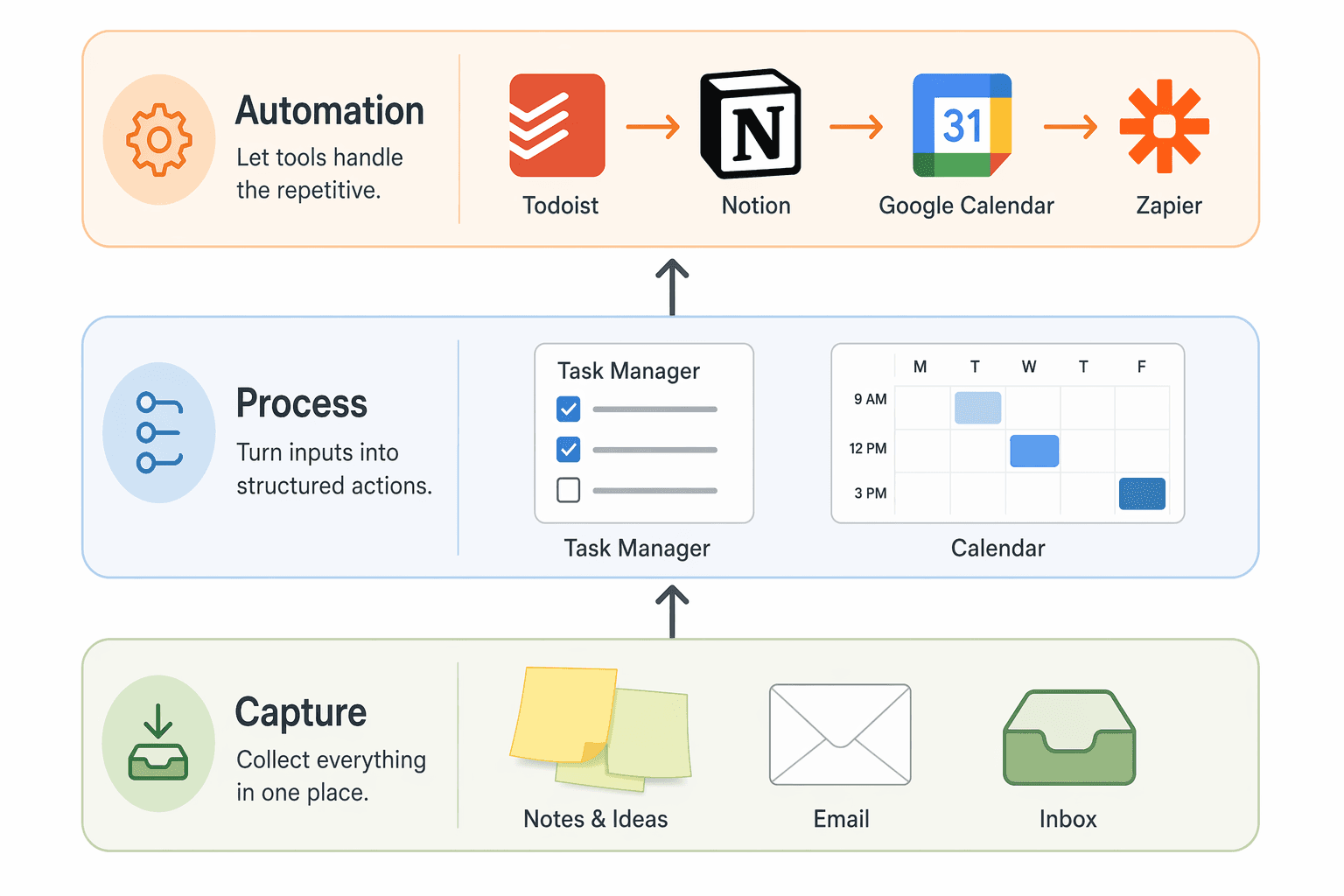
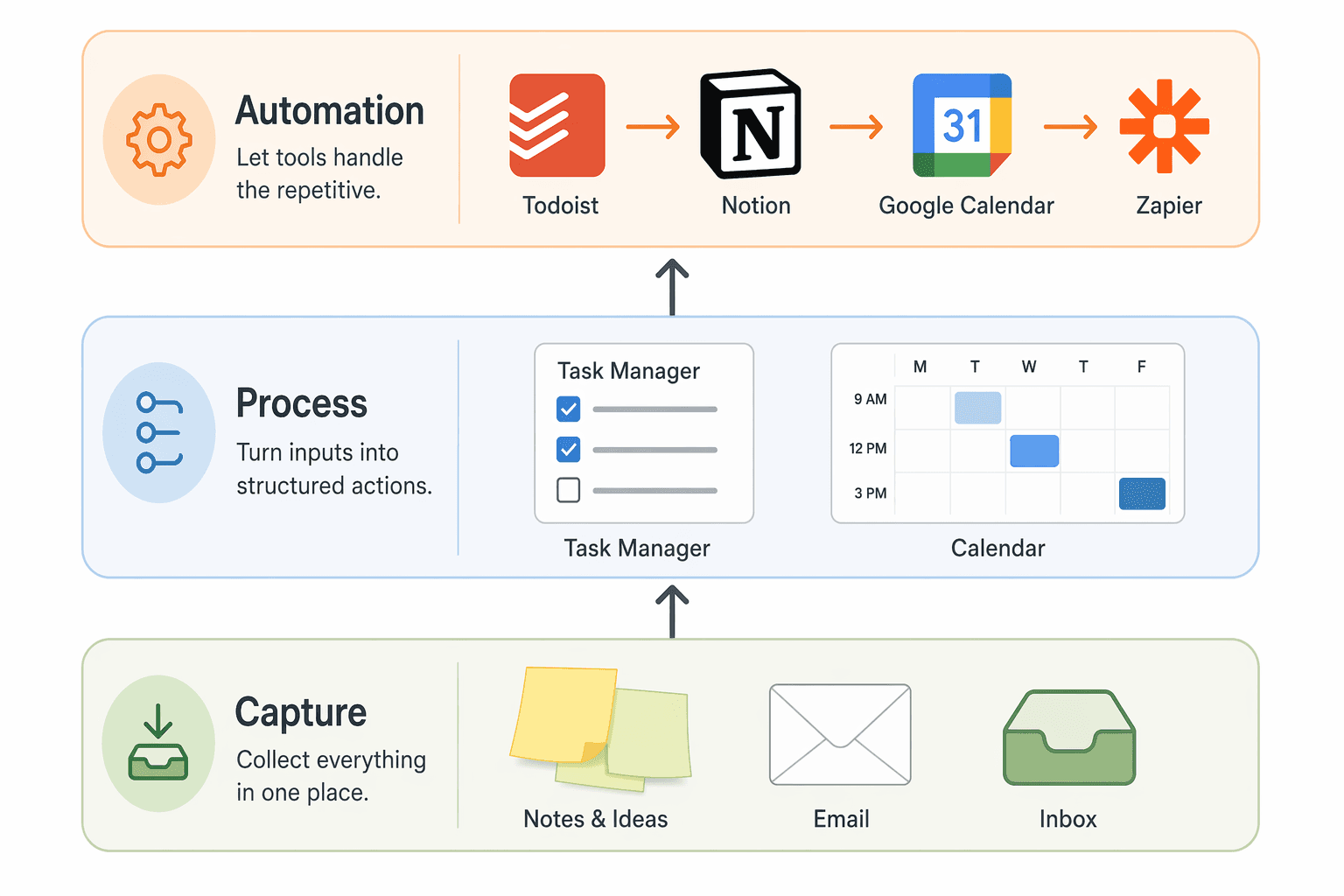
The Three-Layer Personal Workflow Framework: Capture, Process, Automate
Enterprise BPM typically involves complex diagrams with swimlanes, decision gates, and escalation paths. For individual use, you only need three layers. Each layer maps to a category of tool, and together they form a pipeline that turns raw inputs into completed work.
Layer 1: Capture (The Inbox)
Every process starts with an input. For individuals, inputs arrive through multiple channels: email, Slack messages, browser tabs, physical notes, voice memos, and random thoughts during a walk. The capture layer is a single, trusted inbox where everything lands before it is processed.
Maura Thomas, a productivity trainer, defines a personal workflow management system as "a collection of habits and behaviors for storing, organizing, prioritizing, managing, and executing all of your commitments, communication, and information." The capture layer is the first habit: every commitment, every piece of information, every task goes into one place before it touches your calendar or your attention.
Good capture tools include Todoist (quick-add from anywhere), Notion (database inbox views), or even a dedicated email folder. The tool matters less than the discipline: if it is not in the inbox, it does not exist yet.
Layer 2: Process (Task Manager + Calendar)
The process layer is where captured items get triaged, prioritized, and scheduled. This is the layer where most knowledge workers get stuck — they capture tasks but never assign them a time or a context, so they pile up in an ever-growing list.
An effective process layer combines two tools: a task manager for the backlog and a calendar for the execution. The task manager holds everything you could be doing. The calendar holds only what you have committed to doing at a specific time. This separation is critical. When you put a task on your calendar as a time block, you are making a promise to yourself about when it will happen. When it stays in the task manager, it is still in the queue.
Todoist's time-blocking guide outlines four methods for this layer: time blocking (assigning specific hours to specific tasks), task batching (grouping similar tasks into a single block), day theming (dedicating entire days to a type of work), and time boxing (setting fixed durations for tasks regardless of completion). Each method works for different personality types and work styles. The common thread is that the calendar becomes the execution engine, not just a meeting scheduler.
Layer 3: Automate (No-Code Connections)
The automation layer connects the capture and process layers so that repetitive handoffs happen without your involvement. This is where tools like Zapier and Make (formerly Integromat) come in. They watch for triggers in one app and perform actions in another.
For example, when you star an email in Gmail (trigger), Zapier can create a task in Todoist (action). When you complete a task in Todoist marked "Meeting Follow-Up" (trigger), Zapier can log the completion in a Notion database (action). These micro-automations eliminate the manual transfer of information between tools — which is exactly the kind of busywork that eats into the 8.2 hours of weekly waste.
Detailed Blueprints for Four Recurring Personal Processes
A framework is only useful if it translates into action. Below are four concrete process blueprints for recurring workflows that solo knowledge workers face regularly. Each blueprint includes the trigger that starts the process, the step-by-step sequence, the tools involved, and the estimated time commitment.
Process 1: Content Creation Cycle
Whether you write blog posts, record videos, or produce newsletters, the content creation cycle follows a predictable pattern: idea → research → draft → review → publish → promote. Without a process, ideas get lost, drafts pile up, and publishing becomes inconsistent.
| Step | Tool | Action | Time |
|---|---|---|---|
| Capture idea | Todoist / Notion inbox | Quick-add the topic with a one-line description | 1 min |
| Research | Notion database + browser | Collect 3-5 source links and key quotes in a research note | 15-20 min |
| Outline | Notion document | Write a heading-level outline with bullet points under each section | 10 min |
| Draft | Notion / Google Docs | Write the full draft following the outline | 45-90 min |
| Review & edit | Same document | Read aloud, trim fluff, check facts | 15-20 min |
| Publish | CMS / platform | Format, add images, schedule | 10 min |
| Promote | Buffer / social scheduler | Write 2-3 social posts linking to the piece | 5 min |
The automation opportunity here is significant. When you move a Notion database item from "Draft" to "Ready for Review," a Zapier automation can send you a notification or create a calendar event for the review block. When you mark an item as "Published," the same automation can add a row to a promotion tracker.
Process 2: Client Onboarding Pipeline
Freelancers and consultants often handle client onboarding ad-hoc — sending emails, creating documents, and chasing signatures as each new client arrives. A templated onboarding process reduces friction for the client and eliminates the mental overhead of remembering every step.
| Step | Tool | Action | Time |
|---|---|---|---|
| Inquiry received | Email → Todoist | Star the email; Zapier creates a task in the "Onboarding" project | Automated |
| Discovery call | Calendly + Google Calendar | Send booking link; call is automatically added to calendar | 5 min setup |
| Proposal sent | Notion template | Duplicate proposal template, customize, send as PDF | 15 min |
| Contract signed | HelloSign / DocuSign | Send from template; signed document auto-archives to Notion | 5 min setup |
| Welcome packet | Notion | Share a client portal page with project timeline, communication channels, and billing info | 10 min |
| First deliverable | Task manager | Create the first project task with deadline and checklist | 5 min |
The key insight from the solo founder system described by Sébastien Dubois is that periodic reviews — daily (5-10 minutes), weekly (15-60 minutes), and monthly — keep the pipeline from stalling. A weekly review of your onboarding queue ensures no client falls through the cracks between the signed contract and the first deliverable.
Process 3: Research Synthesis Workflow
Knowledge workers constantly consume information — articles, reports, podcasts, books — but most of that information is never synthesized into usable knowledge. The research synthesis workflow turns passive consumption into an active asset.
| Step | Tool | Action | Time |
|---|---|---|---|
| Collect source | Readwise / browser extension | Highlight key passages; they auto-sync to a Notion database | 1 min per source |
| Tag and categorize | Notion database | Add tags for topic, relevance, and actionability | 2 min per source |
| Extract insights | Notion document | Write a 3-5 sentence summary in your own words | 5 min per source |
| Connect to existing notes | Obsidian / Notion | Link the new note to related topics using backlinks or database relations | 2 min |
| Review weekly | Calendar block | Spend 30 minutes reviewing the week's collected insights; decide what to act on | 30 min weekly |
This process directly addresses the APQC finding about time wasted recreating information. When you synthesize as you go, you never have to re-read a source to remember what it said. The insight is already extracted, tagged, and linked to your existing knowledge base.
Process 4: Weekly Planning Ritual
The weekly planning ritual is the single highest-leverage process for individual knowledge workers. It is the moment when you step back from daily execution and decide what actually matters for the coming week.
| Step | Tool | Action | Time |
|---|---|---|---|
| Review last week | Task manager + calendar | Check what was completed, what carried over, and what was never started | 10 min |
| Empty inboxes | Todoist / email / Notion | Process all captured items: delete, delegate, defer, or do | 15 min |
| Set weekly priorities | Notion / paper | Choose 1-3 outcomes that must happen this week | 5 min |
| Time block the week | Google Calendar | Assign time blocks for each priority, plus buffer blocks for unexpected work | 15 min |
| Schedule reviews | Calendar | Block 10 minutes at end of each day for a quick daily review | 2 min |
| Review and adjust | Calendar | Mid-week check: are the time blocks holding? Adjust if needed | 5 min Wednesday |
Andrea Fryrear, co-founder of AgileSherpas, recommends a similar practice for knowledge workers: look at your backlog every Monday, pull items for the week, and each day pull cards into a "Today" column. This is the personal equivalent of a sprint planning ceremony — and it takes less than 30 minutes.
Tool Combination Comparison: Which Stack Fits Your Process?
The four processes above can be implemented with different tool combinations depending on your work style and technical comfort. Below is a comparison of four common stacks, each suited to a different primary use case.
| Tool Combination | Best For | Setup Time | Monthly Cost | Key Limitation |
|---|---|---|---|---|
| Todoist + Google Calendar | Task-blocking and daily execution | 30 minutes | $4 (Todoist Pro) | Limited project management features; no relational databases |
| Notion + Zapier | Content pipeline and knowledge management | 90 minutes | $10 (Notion Plus) + $20 (Zapier Starter) | Steeper learning curve; Notion can become slow with large databases |
| Trello | Visual Kanban for project tracking | 20 minutes | Free (10 boards) | No native time tracking; limited automation on free plan |
| Airtable | Relational tracking and data-heavy workflows | 60 minutes | $10 (Airtable Plus) | Overkill for simple task management; interface can feel spreadsheet-heavy |
The TaskRhino 2026 comparison of project management tools for individual users reinforces these choices. Their freelancer case studies show a web developer saving 5-plus hours per month using ClickUp for client management, and a content strategist replacing five separate tools with Notion in a single weekend (6 hours setup, 10-12 hours per month saved). The common thread is that the right tool combination eliminates the overhead of switching between disconnected apps.
ICAgile's hands-on review of six personal project management tools with Kanban views found Trello to be the winner for ease of use, praising its free plan (up to 10 collaborators and 10 boards), board templates, card templates, filters, and built-in automation options. Notion placed lower in their review due to the risk of accidentally deleting information — a valid concern for users who are not database-savvy.
Step-by-Step Setup Guide for Each Tool Combination
Each of the four tool combinations requires a different setup approach. Below are the critical configuration steps for each stack, with estimated setup times. For deeper dives into individual tools, follow the links to our detailed setup guides.
Todoist + Google Calendar (30 minutes)
- Create Todoist projects for each recurring area (e.g., Content, Clients, Admin, Personal).
- Set up the Todoist-Google Calendar integration (available in Todoist Pro) so tasks with due dates appear on your calendar.
- Create a "Time Blocking" label in Todoist and apply it to tasks you intend to schedule.
- Every Sunday evening, open your calendar and drag time-blocked tasks from Todoist into specific time slots.
- Add buffer blocks (30-60 minutes) between time blocks to handle overruns and unexpected requests.
Notion + Zapier Content Pipeline (90 minutes)
- Duplicate the Notion project management template from Zapier's template gallery — it includes databases for Projects, Tasks, Milestones, and Meetings.
- Customize the status options to match your content cycle: Idea → Researching → Drafting → Review → Published.
- Create a Zapier automation: when a task status changes to "Ready for Review," send a Slack message or create a calendar event.
- Create a second automation: when a task status changes to "Published," log the URL and publish date in a separate "Published Content" database.
- Test the pipeline with a sample piece of content before using it for real work.
Trello for Visual Kanban (20 minutes)
- Create a board for each major area (e.g., Client Projects, Content, Personal Goals).
- Set up standard lists: Backlog, This Week, Today, In Progress, Done.
- Use card templates for recurring task types (e.g., "New Blog Post" template with a checklist of steps).
- Enable Butler (Trello's built-in automation) to move cards automatically when checklist items are completed.
- Set a weekly reminder to review the Backlog and pull items into This Week.
Airtable for Relational Tracking (60 minutes)
- Create a base with linked tables: Clients, Projects, Tasks, and Invoices.
- Link the Projects table to Clients so each project automatically inherits client contact info and billing terms.
- Create a form view for quick task capture — this serves as your capture layer.
- Set up a Kanban view on the Tasks table for visual workflow management.
- Use Airtable Automations to send email notifications when a task status changes to "Needs Client Approval."
Common Pitfalls: Over-Automation, Tool Hopping, and Process Rigidity
Building a personal process management system is not a one-time project. It is an ongoing practice, and like any practice, it comes with common mistakes that can undermine the entire effort.
Over-Automation: Automating Before You Understand the Process
The most common mistake is building automations for a process you have not yet run manually. You cannot automate a workflow you do not understand. If you set up a 12-step Zapier automation for your content pipeline before you have published three pieces manually, you will spend more time debugging the automation than you save.
The rule of thumb is simple: run a process manually at least three times before automating any part of it. After the third repetition, you will know which steps are genuinely repetitive (good candidates for automation) and which steps require human judgment (keep them manual).
Tool Hopping: The $300 Setup Tax
As the TaskRhino guide notes, "If you bill $100/hour, spending 3 hours setting up the perfect system costs $300 in billable time." Tool hopping — switching from Todoist to Things to TickTick to ClickUp every few months — compounds this cost. Each switch requires learning a new interface, migrating data, and rebuilding automations.
The antidote is to choose a tool combination based on your actual process needs, not on feature lists. If you primarily need task blocking and calendar integration, Todoist + Google Calendar is sufficient. You do not need Airtable's relational database capabilities to manage a weekly to-do list. The guide to matching productivity systems to your work style can help you identify which approach fits your natural tendencies before you commit to a tool.
Process Rigidity: When the System Becomes the Enemy
The opposite of ad-hoc chaos is not rigid process — it is flexible, adaptive process. If your weekly planning ritual takes two hours and requires updating six databases before you can start working, you have over-engineered the system. The process should serve your work, not the other way around.
Andrea Fryrear's warning about Agile practices applies here: "You can incorporate these tools... but you're going to be doing Agile, not necessarily being Agile." The same is true for personal process management. You can use all the right tools and follow all the right steps, but if the system does not adapt to changing priorities, unexpected client requests, or your own energy levels, it will eventually collapse under its own weight.
Quick-Start Decision Matrix: Find Your First Process to Automate
If you are reading this and feeling overwhelmed by the number of options, start here. The decision matrix below helps you identify which of the four processes to tackle first, based on your current pain points and available time.
| If You Feel This Pain | Start With This Process | Recommended Tool Stack | Time to First Win |
|---|---|---|---|
| Ideas and drafts pile up; publishing is inconsistent | Content Creation Cycle | Notion + Zapier | 90 min setup, 4-5 hours saved per week |
| Each new client feels like starting from scratch | Client Onboarding Pipeline | Trello or Notion | 60 min setup, 2-3 hours saved per client |
| You read a lot but never apply what you learn | Research Synthesis Workflow | Notion + Readwise | 45 min setup, 30 min saved per week |
| Weeks blur together; you never feel in control | Weekly Planning Ritual | Todoist + Google Calendar | 30 min setup, 1-2 hours saved per week |
Pick the row that resonates most with your current frustration. Set up the recommended tool stack using the step-by-step guide above. Run the process manually for two weeks. After that, identify the single most repetitive step and automate it. Repeat this cycle — manual → identify friction → automate one step — and your personal process management system will grow organically, without the overhead of enterprise BPM.
For a broader framework on matching productivity systems to your work style before diving into tool selection, see Which Personal Productivity System Actually Works? A 2026 Guide to Matching Methods to Your Work Style.


Comments
Join the discussion with an anonymous comment.