
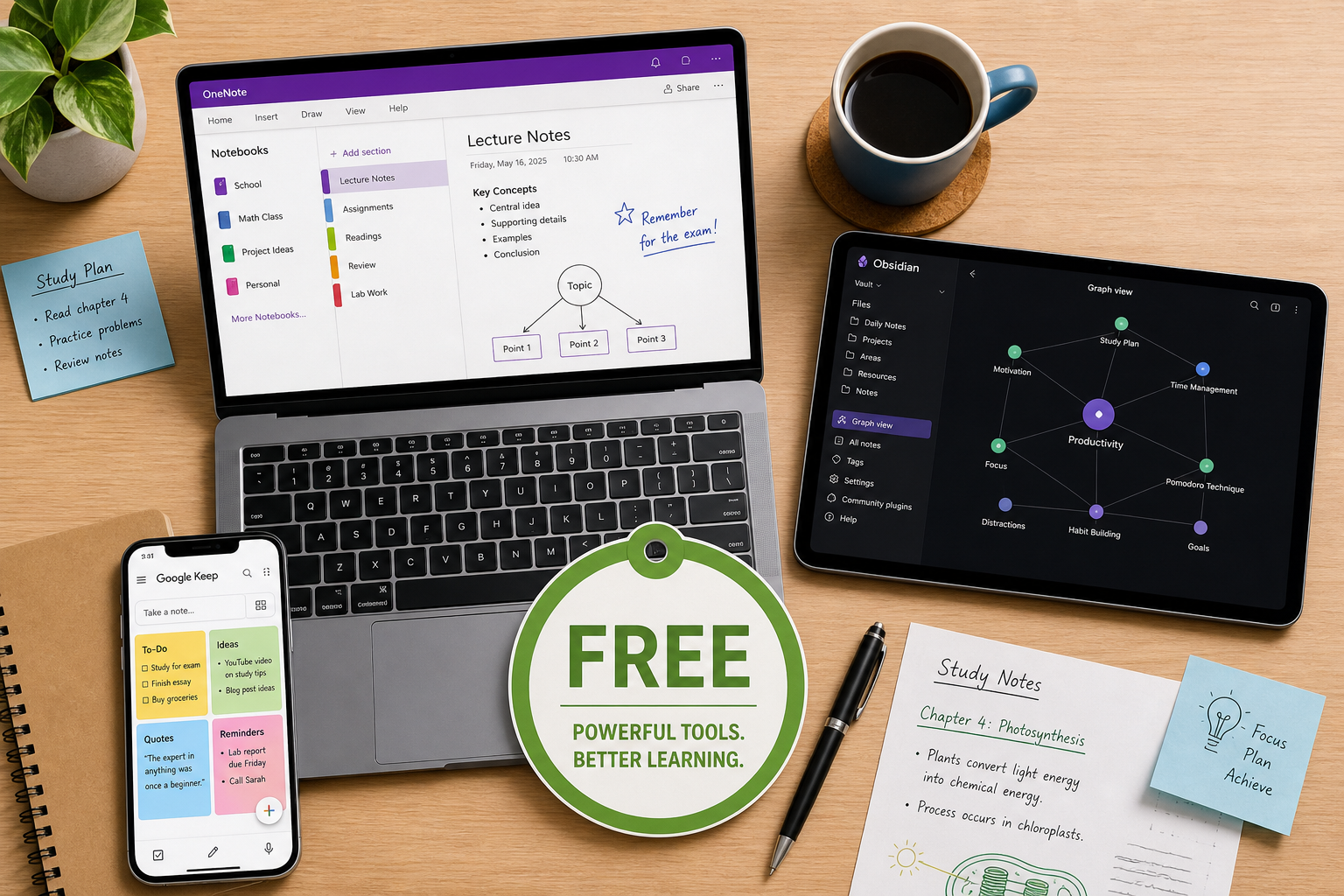
TL;DR: Free Plan Limits at a Glance
Before diving into the details, here is a side-by-side look at what each app’s free plan actually includes — and where the limits bite. This table focuses on the restrictions that matter most for daily student use: note caps, storage, sync, offline access, and upload size limits.
| App | Note / Block Limit | Storage | Sync | Offline Access | Upload Limit | Key Restriction |
|---|---|---|---|---|---|---|
| Microsoft OneNote | Unlimited notebooks | 5 GB OneDrive | Free cross-device | Yes (full) | Up to 2 GB per file | None for core features |
| Obsidian | Unlimited (local) | Your device storage | DIY (iCloud/Dropbox) or $4/mo Sync | Yes (full) | No limit (local files) | Sync requires setup or payment |
| Google Keep | Unlimited notes | 15 GB (shared with Google) | Free cross-device | Yes (mobile app) | No limit on text | No folders, no rich formatting |
| Apple Notes | Unlimited notes | 5 GB iCloud | Free on Apple devices | Yes (full) | No limit on text | Apple devices only |
| Notion | Unlimited pages & blocks | Unlimited (solo) | Free cross-device | No | 5 MB per file | No offline mode, small uploads |
| Simplenote | Unlimited notes | Unlimited | Free cross-device | Yes (full) | No limit on text | Text-only, no images or attachments |
| Joplin | Unlimited notes & notebooks | Your device storage | DIY (OneDrive/Dropbox/Nextcloud) | Yes (full) | No limit (local files) | Requires manual sync setup |
| Standard Notes | Unlimited notes | Unlimited | Free cross-device | Yes (full) | No limit on text | Text-only on free plan (no markdown, no attachments) |
| Evernote | 50 notes max | N/A (note-capped) | 1 device only | No | 250 MB/month upload | Severely restricted — essentially a trial |
For a more detailed look at how these apps compare in student-specific scenarios, check out our side-by-side breakdown of OneNote vs. Notion vs. Obsidian vs. more.
Detailed Free-Tier Reviews
Each review below focuses on what the free plan actually includes and excludes. We cover note limits, storage caps, sync restrictions, offline access, and any hidden paywalls that could trip you up mid-semester.
Microsoft OneNote — Best Overall Free Plan
OneNote offers the most feature-complete free plan of any note-taking app in 2026. You get unlimited notebooks, a freeform canvas for handwritten notes and diagrams, audio recording, a top-notch web clipper, and real-time collaboration — all at no cost. Your notes sync across iOS, Android, macOS, Windows, and the web via OneDrive, which includes 5 GB of free storage. Many universities also provide Microsoft 365 free to students, which bumps that storage to 1 TB.
- Note limit: None. You can create as many notebooks, sections, and pages as you need.
- Storage: 5 GB on OneDrive (free). Upgrade to Microsoft 365 Personal for $6.99/month or $69.99/year for 1 TB.
- Sync: Free and automatic across all platforms.
- Offline: Full offline access — notes sync when you reconnect.
- Hidden trap: None for core features. The 5 GB storage cap is the only limit, and it is generous for text-heavy notes.
Obsidian — Best for Power Users Who Want Total Control
Obsidian is 100% free for personal use with no functional limits. All features — bidirectional links, graph view, canvas, plugins, and themes — are included in the free version. Your notes are stored locally as plain Markdown files, so there is no note cap, no storage limit, and no upload size restriction. The catch is sync: Obsidian Sync costs $4/month (or $8/month for the commercial tier), but you can sync for free using iCloud, Dropbox, or a Git repository.
- Note limit: None. Unlimited local notes, notebooks, and tags.
- Storage: Your device storage only. No cloud storage included.
- Sync: Free via iCloud, Dropbox, or Git. Paid Sync starts at $4/month.
- Offline: Full offline access — notes are stored locally by default.
- Hidden trap: Sync requires manual setup or a paid subscription. If you are not comfortable configuring iCloud or Dropbox sync, you may lose notes between devices.
Google Keep — Best for Quick Capture and Reminders
Google Keep is fully free with unlimited notes, labels, color coding, reminders, voice notes, and basic collaboration. It integrates seamlessly with Google Workspace and offers 15 GB of shared storage across Google apps. However, Keep is not designed for long-form note-taking — it has no folders, no rich text formatting, no PDF annotation, and no notebooks. It is best used as a quick-capture companion rather than a primary note-taking system.
- Note limit: Unlimited.
- Storage: 15 GB shared across Google Drive, Gmail, and Google Photos.
- Sync: Free and automatic across all platforms.
- Offline: Yes, on the mobile app.
- Hidden trap: No folders, no rich formatting, no PDF annotation. Not suitable for structured lecture notes or research papers.
Apple Notes — Best for Apple-Only Users
Apple Notes is completely free on iPhone, iPad, and Mac. It offers unlimited notes, folders, tags, collaboration, handwriting support on iPad, audio transcription, and OCR for searching handwritten text. Your notes sync via iCloud, which includes 5 GB of free storage. The major limitation is platform lock-in: Apple Notes does not work on Windows, Android, or the web.
- Note limit: Unlimited.
- Storage: 5 GB iCloud (free). 50 GB for $0.99/month.
- Sync: Free on Apple devices only.
- Offline: Full offline access.
- Hidden trap: No Windows, Android, or web access. If you switch to a non-Apple device, your notes are not accessible.
Notion — Best for Structured Notes and Project Management
Notion’s free plan is generous for solo use: unlimited pages, blocks, and storage for text content. You can build databases, wikis, and project boards without spending a cent. The free plan also includes a 7-day page history. However, there are two significant limitations: file uploads are capped at 5 MB each, and there is no offline mode. For students who work with large PDFs, images, or audio files, the 5 MB upload limit can be a real bottleneck.
- Note limit: Unlimited pages and blocks.
- Storage: Unlimited for text. 5 MB per file upload.
- Sync: Free cross-device.
- Offline: No offline mode on the free plan.
- Hidden trap: No offline access and 5 MB upload limit. Not suitable for students who need to work without internet or upload large lecture slides.
Simplenote — Best for Pure Text Notes
Simplenote is 100% free with no limits. You get unlimited notes, tags, cross-platform sync, Markdown support, and version history — all at no cost. It is available on iOS, Android, Mac, Windows, Linux, and the web. The trade-off is that Simplenote is text-only: no images, no attachments, no audio, no handwriting. If you only need to capture and organize text, Simplenote is the most straightforward free option.
- Note limit: Unlimited.
- Storage: Unlimited for text.
- Sync: Free cross-device, instant sync.
- Offline: Full offline access.
- Hidden trap: Text-only. No images, attachments, or rich formatting.
Joplin — Best Open-Source Option
Joplin is a free, open-source note-taking app that stores your notes as Markdown files locally. It supports unlimited notes, notebooks, tags, and end-to-end encryption. You can sync your notes across devices using OneDrive, Dropbox, Nextcloud, or the paid Joplin Cloud (€29/year). The free plan is genuinely unlimited, but it requires some technical comfort to set up sync.
- Note limit: Unlimited notes, notebooks, and tags.
- Storage: Your device storage only.
- Sync: Free via OneDrive, Dropbox, or Nextcloud. Joplin Cloud from €29/year.
- Offline: Full offline access.
- Hidden trap: Sync requires manual setup. Not beginner-friendly.
Standard Notes — Best for Privacy-Focused Text Notes
Standard Notes offers unlimited notes with end-to-end encryption and cross-platform sync on its free plan. It is available on iOS, Android, Mac, Windows, Linux, and the web. The free plan is text-only — no Markdown, no attachments, no rich formatting. For those features, you need the Productivity plan at $59.99/year or the Professional plan at $90/year.
- Note limit: Unlimited.
- Storage: Unlimited for text.
- Sync: Free cross-device with end-to-end encryption.
- Offline: Full offline access.
- Hidden trap: Text-only on the free plan. No Markdown, no attachments, no rich formatting.
Evernote — The Most Restrictive Free Plan
Evernote’s free plan has become the most restrictive among major note-taking apps. As of 2026, the free tier limits you to 50 notes, one notebook, one device, and 250 MB of uploads per month. There is no offline access on the free plan. For any serious student use, Evernote’s free tier is essentially a trial — you will hit the note cap within weeks.
- Note limit: 50 notes max.
- Storage: 250 MB/month upload limit.
- Sync: 1 device only.
- Offline: No offline access on the free plan.
- Hidden trap: The 50-note cap makes this unusable for a single semester of lecture notes.
What 'Free' Really Means: The Hidden Traps
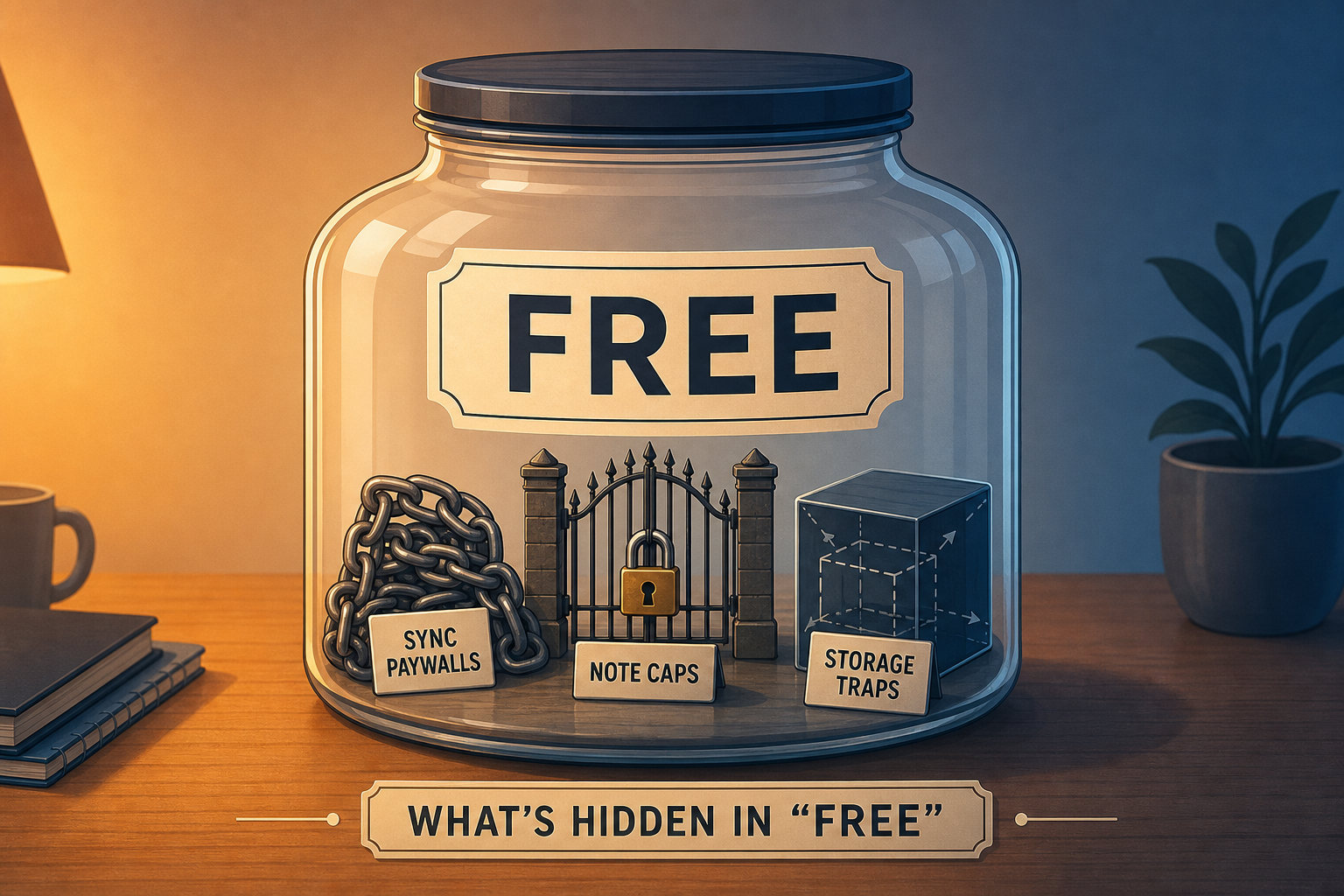
Many free plans look generous at first glance but hide restrictions that can derail your workflow mid-semester. Here are the most common traps and how they affect daily student use.
Note Caps (Evernote)
Evernote’s 50-note limit is the most aggressive cap in the market. A typical student taking notes in three lecture courses can hit that limit in two to three weeks. After that, you cannot create new notes unless you delete old ones or upgrade to a paid plan.
Device Limits (Evernote)
Evernote’s free plan restricts you to a single device. If you take notes on your laptop during class and want to review them on your phone later, you cannot — unless you upgrade.
Upload Size Limits (Notion)
Notion’s 5 MB per-file upload limit is fine for text notes but becomes a problem when you need to attach lecture slides, PDFs, or audio recordings. A single high-resolution PDF from a professor can easily exceed 5 MB.
Sync Paywalls (Obsidian)
Obsidian’s core app is free, but its official sync service costs $4/month. While you can sync for free using iCloud or Dropbox, that requires manual setup that not all students are comfortable with. If you do not set it up correctly, you risk losing notes between devices.
Storage Quotas (OneNote, Apple Notes)
OneNote and Apple Notes both offer 5 GB of free cloud storage. For text-heavy notes, that is plenty. But if you add images, audio recordings, or PDF attachments, you can fill that space quickly. Apple Notes offers 50 GB for $0.99/month, and OneNote users can upgrade to Microsoft 365 for 1 TB.
No Offline Mode (Notion)
Notion’s free plan has no offline mode. If you lose internet access during a lecture or study session, you cannot access or edit your notes. This is a dealbreaker for students who study in areas with unreliable connectivity.
Which Free App Fits Your Study Style?
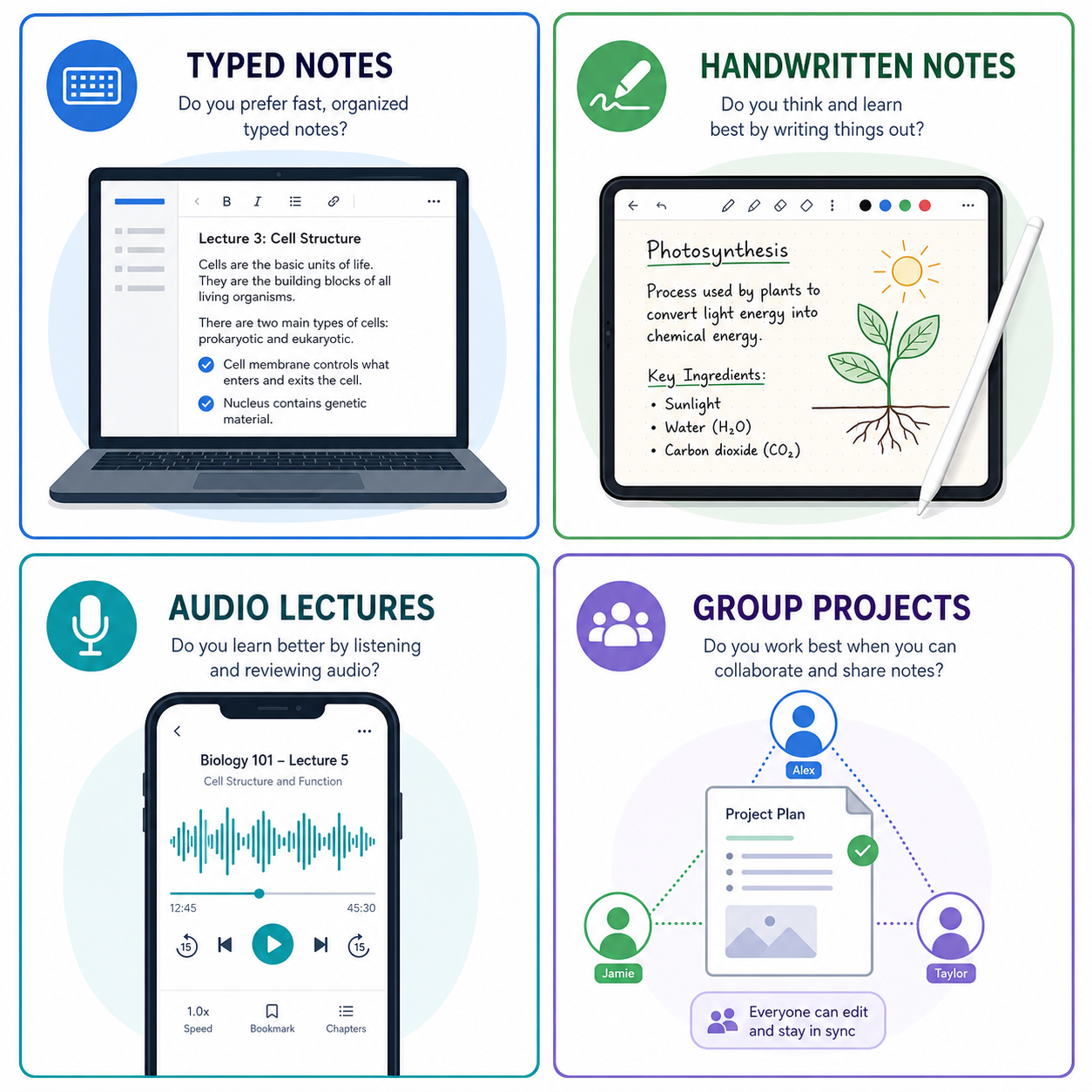
The best free app depends on how you take notes. Use the decision matrix below to match your study style with the right tool.
| Study Style | Best Free App | Why |
|---|---|---|
| Typed Notes (lectures, reading notes, outlines) | Microsoft OneNote or Notion | OneNote offers unlimited notebooks and cross-platform sync. Notion provides structured databases and wikis for organizing large amounts of text. |
| Handwritten Notes (math, diagrams, sketches) | Microsoft OneNote or Apple Notes | OneNote has a freeform canvas for handwriting and diagrams. Apple Notes offers handwriting search and OCR on iPad. |
| Audio Lectures (recording and transcribing lectures) | Microsoft OneNote or Apple Notes | OneNote includes built-in audio recording. Apple Notes offers audio transcription on iPhone and iPad. |
| Group Projects (shared notes, real-time collaboration) | Microsoft OneNote or Google Keep | OneNote supports real-time collaboration across platforms. Google Keep is great for quick shared lists and reminders. |
If you still need more options, here are additional note-taking sites that handle lectures, PDFs, and group work.
Frequently Asked Questions
What happens when I reach 50 notes in Evernote?
You cannot create new notes until you delete existing ones or upgrade to a paid plan. Evernote’s free plan is essentially a trial — do not rely on it for a full semester.
Can I use Notion offline?
No. Notion’s free plan requires an internet connection to access and edit your notes. If you need offline access, choose OneNote, Obsidian, or Apple Notes instead.
How do I sync Obsidian for free?
You can sync Obsidian for free by storing your vault in a folder synced with iCloud, Dropbox, or a Git repository. This requires some initial setup but works reliably once configured.
Is Google Keep good for long-form notes?
No. Google Keep is designed for quick capture — short notes, reminders, and lists. It lacks folders, rich formatting, and PDF annotation, making it unsuitable for structured lecture notes or research papers.
What is the best free app for handwritten notes on iPad?
Apple Notes is the best free option for handwritten notes on iPad. It supports handwriting search, OCR, and audio transcription. OneNote is also excellent with its freeform canvas and cross-platform sync.
Can I use OneNote on a Chromebook?
Yes. OneNote is available on the web and as an Android app, both of which work on Chromebooks. The free plan includes all core features.