

The Productivity Paradox: Why Most AI Tools Don't Move the Needle (Yet)
By 2026, the adoption numbers are staggering. Roughly 75% of knowledge workers now use AI at work, and 46% of them started within the last six months, according to Microsoft's 2025 Work Trend Index. Global spending on generative AI hit $644 billion in 2025, a 76.4% year-over-year jump. Yet here's the uncomfortable truth: a February 2026 study from the National Bureau of Economic Research, surveying 6,000 CEOs, found that 89% of firms report zero measurable productivity impact from AI. A PwC CEO survey from Davos 2026 put the number even higher — 56% of companies say they are "getting nothing out of AI."
How can three-quarters of people use AI and almost none of them see a real difference? The answer is not that the tools are bad. It's that most people start with the tool, not the problem. They sign up for ChatGPT, spend an afternoon generating poems about their cat, and then wonder why their calendar is still a disaster. The data backs this up: the Federal Reserve Bank of St. Louis found that the average AI user saves only about 2.2 hours per week — a 5.4% time reduction. That's real, but it's not transformative. Meanwhile, McKinsey's 2025 global survey of nearly 2,000 respondents found that only about 6% of organizations qualify as "AI high performers" — and those organizations were twice as likely to have redesigned their end-to-end workflows before selecting AI tools.
Pain Point 1: Meeting Overload — You Spend 5+ Hours a Week in Rooms You Didn't Need
Meetings are the single largest time sink for most knowledge workers. The pain isn't just the meeting itself — it's the preparation, the note-taking, the follow-up emails, and the action items that get lost. If you leave every meeting with a vague sense of what was decided and a sticky note you'll lose by lunch, this is your pain point.
Three tools address this in meaningfully different ways. The right one depends on whether you want a bot in the room, whether you work on Mac or cross-platform, and whether you need team-wide search or just personal notes.
| Tool | Best For | Pricing (as of mid-2026) | Key Differentiator |
|---|---|---|---|
| Granola | Mac users who want no-bot capture | Freemium | Runs locally on your Mac — no bot joins the meeting, no cloud recording. Captures your audio and pairs it with your own notes. |
| Otter.ai | Cross-platform individual note-takers | Freemium; Pro ~$8.33/month | Bot joins the meeting. Reliable transcription across Zoom, Google Meet, and Teams. Good for solo users who want searchable transcripts. |
| Fireflies.ai | Teams needing a searchable archive | Pro ~$10/seat/month | Bot joins and records. Best for teams that need to search across all meetings, assign action items, and integrate with CRM or project management tools. |
If you're a solo Mac user who hates the idea of a bot in your meetings, Granola is the cleanest option — it captures audio locally and lets you write notes alongside the recording. If you need cross-platform reliability and don't mind a bot, Otter is the most straightforward. For teams, Fireflies offers the most powerful search and integration layer. For a deeper dive into how these tools compare feature-by-feature, see our detailed comparison of bot-free vs. bot-based meeting note apps and our head-to-head of Otter.ai vs. Fireflies.ai vs. Notion AI.
Pain Point 2: Research Dead Ends — You Spend Hours Finding Information That Should Be Instant
If your work involves any kind of research — market analysis, academic writing, competitive intelligence, or even just writing a detailed email — you know the pattern: open 15 tabs, skim five articles, cross-reference three sources, realize one is outdated, start over. The friction isn't finding information; it's synthesizing it into something you can actually use.
Two tools stand out here, and they serve different research styles. Apollo Technical data shows that workers using AI for writing and summarization tasks are 40% faster with 18% higher quality — but the tool you choose determines whether you get those gains or just more noise.
| Tool | Best For | Pricing | Key Differentiator |
|---|---|---|---|
| Perplexity Pro | Deep research with cited, current sources | $20/month | Draws from an average of 42+ sources per deep research query. Every claim is cited and verifiable. Excellent for staying current. |
| NotebookLM | Document-grounded research from your own materials | Free | Answers are grounded only in the documents you upload — no hallucination from general training data. Ideal for synthesizing your own notes, PDFs, and research papers. |
Perplexity Pro is the better choice when you need to explore a topic you don't already have materials for — it pulls from the live web and cites everything. NotebookLM is the better choice when you already have the raw materials (PDFs, notes, transcripts) and need to extract insights without the AI making things up. Many researchers use both: Perplexity for discovery, NotebookLM for synthesis.
Pain Point 3: Writing Friction — Every Email, Doc, and Draft Takes Twice as Long as It Should
Writing friction is the blank-page problem, the edit-cycle problem, and the tone-inconsistency problem all rolled into one. If you spend more time rewriting an email than you did thinking about its content, this is your pain point.
The data here is unusually concrete. Grammarly reports that AI-assisted writers produce content 50% faster with 25% fewer editing cycles. Apollo Technical's data on 40% faster writing with 18% higher quality aligns closely. But the key distinction is between tools that help you draft and tools that help you polish.
| Tool | Best For | Pricing | Key Differentiator |
|---|---|---|---|
| Grammarly | Polishing, tone adjustment, and error correction across every app | Freemium; Premium ~$12/month | Works everywhere — email, docs, Slack, browser. Best for reducing editing cycles and maintaining consistent tone. |
| Claude | Long-form drafting and document-level reasoning | Freemium; Pro $20/month | Excellent at maintaining coherence across long documents. Better for drafting reports, proposals, and analysis from scratch. |
| ChatGPT | Quick drafts, brainstorming, and short-form content | Freemium; Plus $20/month | Fast and versatile. Best for getting unstuck on a first draft or generating options for a subject line or opening paragraph. |
The most effective approach is to use these tools in sequence: Claude or ChatGPT for the first draft, Grammarly for the polish. None of these tools replace your voice — they reduce the mechanical friction so your actual thinking has room to show up.
Pain Point 4: Scheduling Chaos — The Back-and-Forth That Eats Your Calendar
Scheduling pain is deceptive because each individual exchange takes only 30 seconds — but those 30 seconds add up across a week of "How about Tuesday?" "No, I have a conflict. Wednesday?" "Wednesday works. 2 PM?" "Make it 3?" The real cost isn't the time; it's the cognitive load of keeping the calendar in your head.
| Tool | Best For | Pricing | Key Differentiator |
|---|---|---|---|
| Reclaim AI | Auto-scheduling and buffer time for individuals | Free tier available; paid plans start at ~$8/month | Integrates with Google Calendar. Automatically schedules tasks, protects focus time, and reschedules when conflicts arise. Best for solo users. |
| Clockwise | Team calendar optimization | Free tier; paid plans start at ~$12/month | Optimizes the entire team's calendar — moves meetings into blocks, protects focus time, and finds the best time for group events. |
| Motion | Auto-scheduling with task prioritization | Individual $19/month (annual $34); Team $12/user/month (annual $20) | Combines calendar and task management. Auto-schedules tasks based on priority and deadlines, then adjusts when meetings change. |
Reclaim is the lightest lift for individuals who just want buffer time and automatic rescheduling. Clockwise is better for teams that need to coordinate across multiple calendars. Motion is the most aggressive — it treats your entire day as a dynamic system and will move tasks around to fit your priorities. If your calendar feels like a game of Tetris you're losing, Motion is worth the higher price.
Pain Point 5: Task Management Sprawl — Your To-Do List Has a To-Do List
Task management sprawl happens when your tasks live in three places: email, Slack DMs, a project board you haven't opened in two weeks, and a sticky note on your monitor. The problem isn't that you don't have a system — it's that you have too many systems, none of which talk to each other.
AI-powered task management tools differ from traditional to-do lists in one critical way: they don't just list your tasks — they prioritize, reschedule, and surface the most important work based on deadlines, dependencies, and your actual working patterns.
| Tool | Best For | Pricing | Key Differentiator |
|---|---|---|---|
| Notion AI | Centralized knowledge + task management | $8/member/month (AI add-on) | Combines notes, docs, wikis, and tasks in one place. AI helps surface relevant tasks and summarize project status. Best if you already use Notion for notes. |
| Motion | Dynamic prioritization and calendar integration | Individual $19/month (annual $34); Team $12/user/month (annual $20) | Auto-schedules tasks based on priority and deadlines. If a meeting gets added, Motion reschedules your tasks automatically. |
| ClickUp | Full project management with AI assistance | Freemium; paid plans start at ~$7/month | Comprehensive project management with AI features for task prioritization, status updates, and writing. Best for teams with complex workflows. |
If your primary pain is that tasks are scattered across too many places, Notion AI is the best consolidation play — it becomes your single source of truth for both information and action items. If your pain is that you have a clear list but never get to the right tasks, Motion's auto-scheduling is more effective. ClickUp is the right choice for teams that need a full project management suite with AI as a layer on top.
Pain Point 6: Manual Repetitive Tasks — The Busywork That Steals Your Deep Work Time
Manual repetitive tasks are the quiet productivity killers. They're not urgent enough to demand your attention, but they accumulate: renaming files, moving attachments from email to a folder, copying data from one spreadsheet to another, sending the same approval request three times. Each one takes two minutes. Twenty of them take forty minutes. Over a week, that's hours of deep work time lost to tasks that a machine could do in seconds.
Workflow automation tools are the solution, and they've become dramatically more accessible in 2026. You don't need to write code — you connect triggers to actions using visual builders.
- Zapier: The most beginner-friendly option. Connects 6,000+ apps. Free tier includes 100 tasks/month; paid plans start at ~$20/month. Best for individuals and small teams who want to set up automations in minutes without any technical knowledge.
- Make (formerly Integromat): More powerful and flexible than Zapier, with a visual scenario builder. Free tier available; paid plans start at ~$9/month. Better for users who need complex multi-step automations with conditional logic.
- n8n: Open-source and self-hostable. Free for self-hosted; paid cloud plans start at ~$20/month. Best for users who need full control over their data and want to build custom workflows without per-task pricing.
A simple example: if you use Otter.ai for meeting notes and Notion for project management, you can set up a Zapier automation that triggers every time a meeting transcript is ready — it creates a new Notion page with the transcript, tags it with the meeting date and project name, and sends you a Slack notification. That's a workflow that previously required manual copy-paste, now running in the background.
Pain Point 7: Information Scatter — Your Knowledge Lives in 12 Different Places
Information scatter is the meta-pain point — it makes every other pain point worse. When your notes are in one app, your documents in another, your bookmarks in a third, and your project files in a fourth, every task starts with a search. And not a good search — a "where did I put that?" search that takes five minutes and sometimes fails entirely.
| Tool | Best For | Pricing | Key Differentiator |
|---|---|---|---|
| Notion AI | Centralized knowledge base with AI search | $8/member/month (AI add-on) | If you move all your notes, docs, and project info into Notion, its AI search can surface relevant content across your entire workspace. Best for users willing to consolidate. |
| NotebookLM | Synthesizing information from scattered documents | Free | Upload PDFs, notes, transcripts, and web clippings. NotebookLM grounds its answers only in your materials. Best for research-heavy users who don't want to reorganize everything. |
| Mem | AI-powered unified search across apps | Freemium; paid plans start at ~$10/month | Designed to automatically organize and surface information from multiple sources. Best for users who want AI to do the organizing rather than doing it themselves. |
The honest answer to information scatter is that no tool can fix it without some effort on your part. Notion AI works best if you commit to moving your knowledge into Notion. NotebookLM works best if you're willing to upload your materials as you go. Mem tries to do the organizing for you, but it's still early. The goal isn't a perfect system — it's a single source of truth that you actually use.
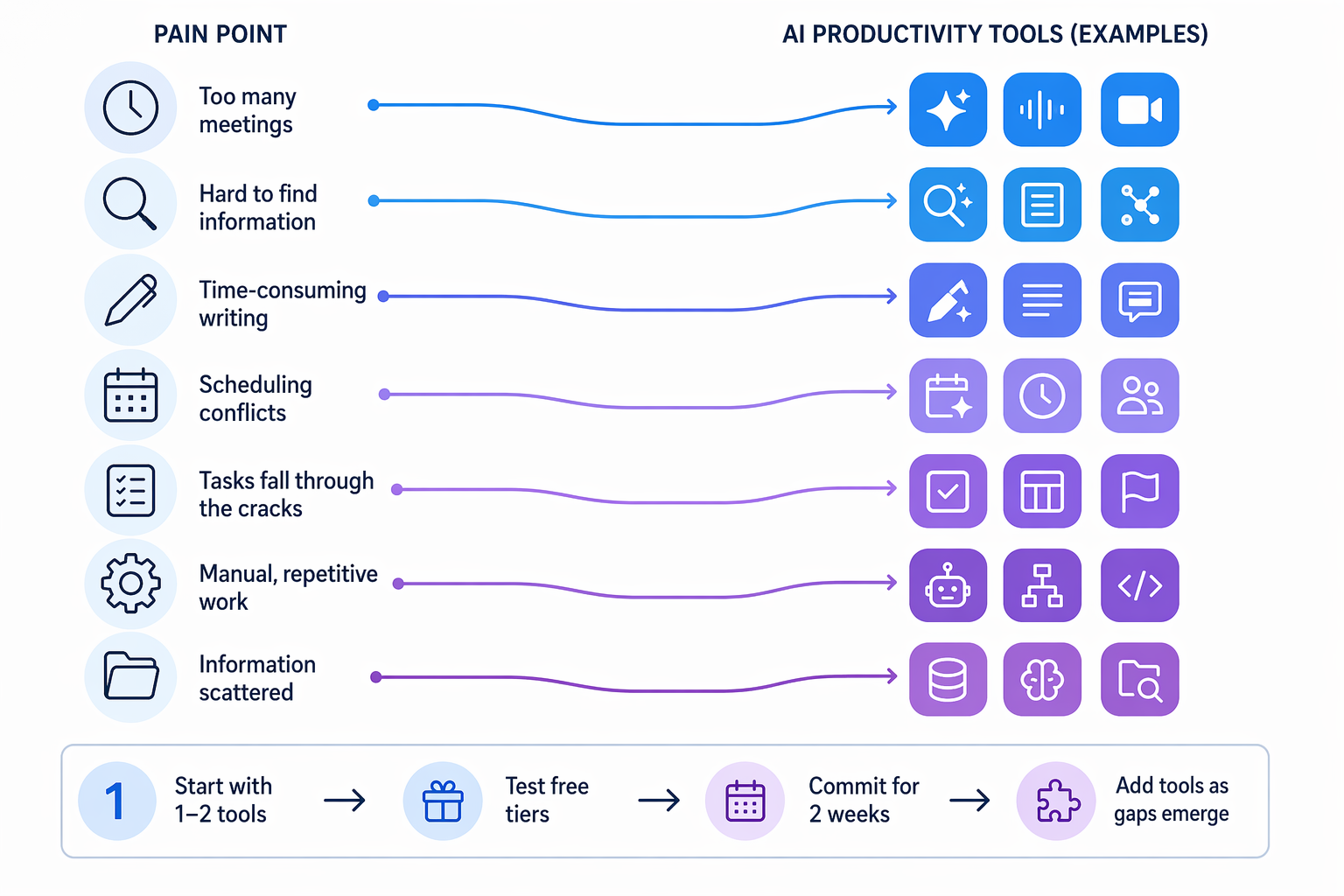
How to Build Your AI Stack: A 5-Step Roadmap
The most common mistake people make after reading a guide like this is trying to adopt three tools at once. That's how you end up with an "AI tools graveyard" — a folder of apps you signed up for, used once, and forgot about. The data from McKinsey is clear: the organizations that see real returns from AI are the ones that redesigned their workflows first and added tools second. The same principle applies at the individual level.
- Identify your single biggest weekly time sink. Look at the seven pain points above. Which one costs you the most time and frustration every week? That's your starting point — not the flashiest tool, not the one your colleague recommended, but the one that addresses the friction you feel most acutely.
- Pick 1-2 tools from that section. Don't try to cover all seven pain points at once. Pick the one or two tools that best address your primary pain point. If meeting overload is your biggest issue, pick one meeting tool — don't also sign up for a scheduling tool and a task manager in the same week.
- Test free tiers for two weeks — no longer, no shorter. Two weeks is long enough to get past the novelty phase and see if the tool actually changes your workflow. It's short enough that you won't forget why you started. Set a calendar reminder to evaluate at the two-week mark.
- Commit to the tool that actually changed your workflow. After two weeks, you'll know which tool made a real difference. Pay for it. Integrate it. Make it part of your daily routine. If none of the tools moved the needle, go back to step one and re-evaluate which pain point is actually your biggest.
- Only then add a second tool for your next biggest pain point. Once your first tool is integrated and you're seeing results, repeat the process for your second-biggest pain point. The compounding effect is real: Slack's Workforce Labs study found that workers who use AI daily are 64% more productive, enjoy 58% better focus, and report 81% higher job satisfaction. But those gains come from consistent, targeted use — not from a dashboard full of unused apps.
Comments
Join the discussion with an anonymous comment.