
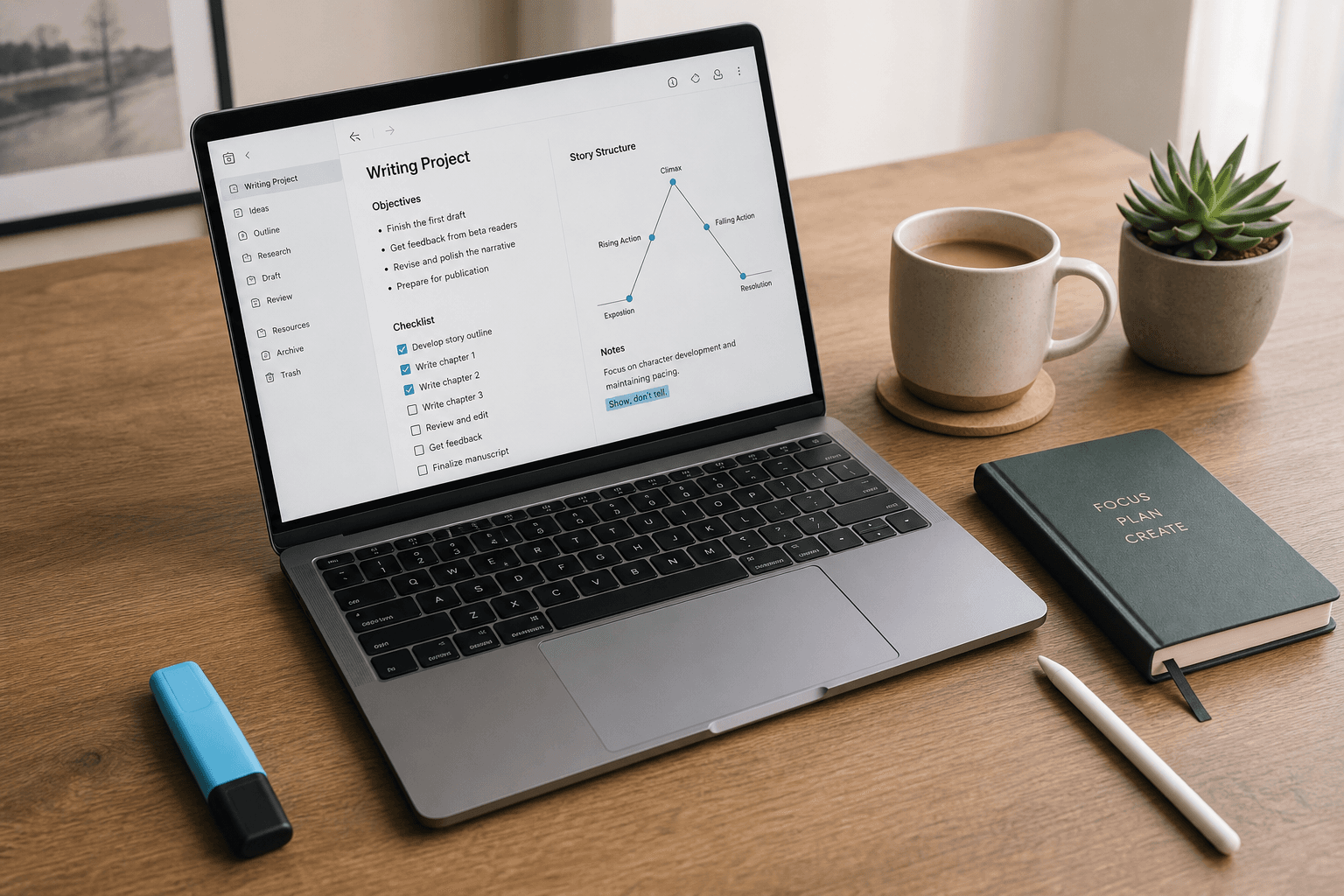
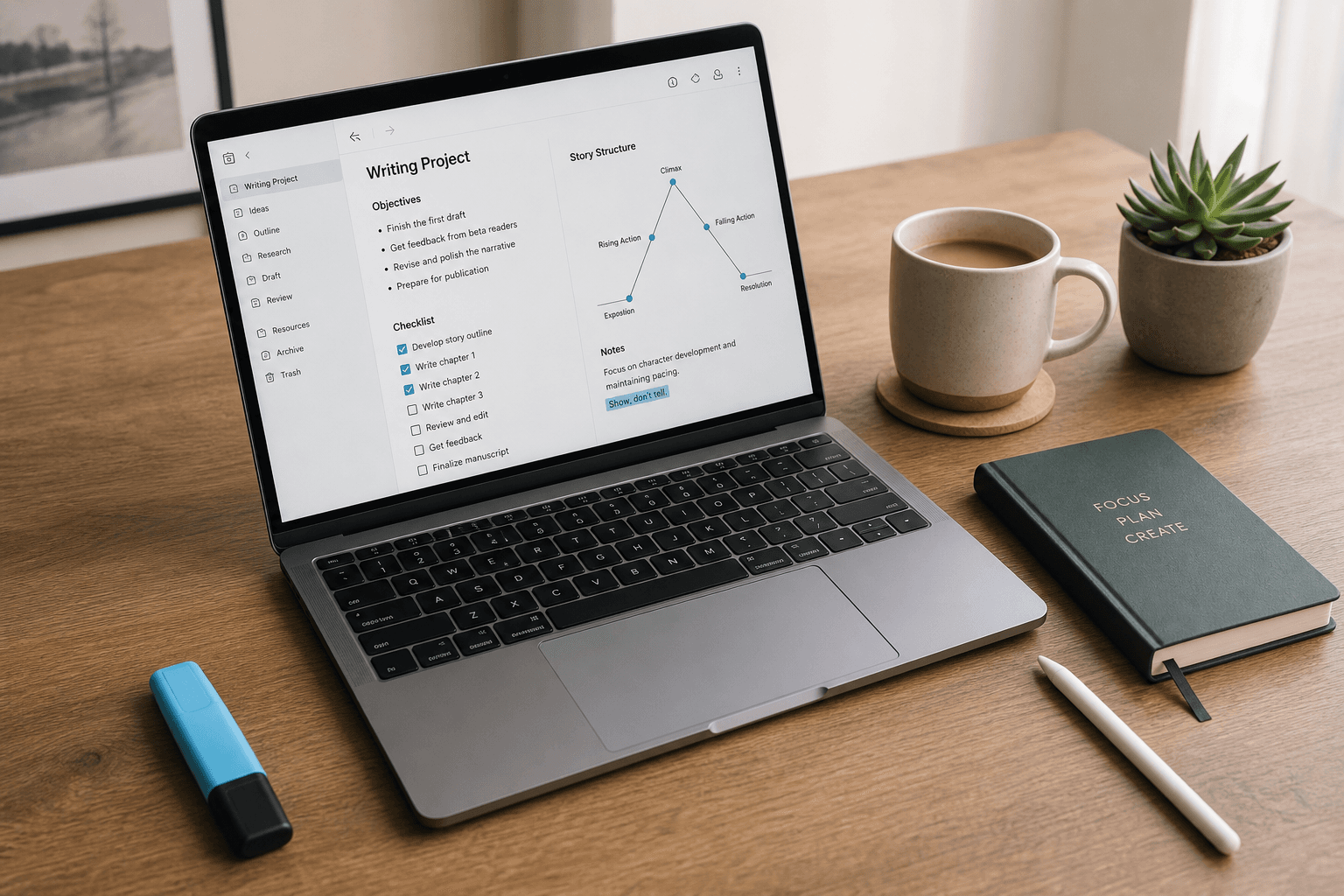
Introduction: The Laptop Note-Taking Trap (and How to Escape It)
You sit down in a lecture or meeting, open your laptop, and start typing. By the end, you have pages of text. A week later, you can barely recall what any of it means. This is the laptop note-taking trap — and it is not your fault.
The trap is verbatim transcription. When you type fast enough to capture every word a speaker says, your brain shifts into autopilot. You are processing sound, not meaning. The result is a transcript, not a set of notes — and transcripts are terrible for learning.
Here is the counterintuitive truth: taking notes on a laptop can be as effective as handwriting. The difference is not the tool — it is the method. When you combine a structured note-taking system (Cornell, Outline, Flow, or Charting) with an app designed to support that system, you stop transcribing and start thinking. This article shows you exactly how to do that.
What the Research Actually Found About Laptop vs. Handwriting
The most cited study in the laptop-versus-paper debate is Mueller and Oppenheimer (2014). It found that students who took notes on laptops performed worse on conceptual questions than those who wrote by hand. The reason was not the laptop itself — it was the tendency to type verbatim, which bypassed the cognitive processing that handwriting naturally forces.
But the full picture is more nuanced. A 2013 study by Bui found that students who took verbatim notes on a computer and were allowed to study them before a test actually outperformed concept-driven note-takers on factual recall. A 2019 survey from McGill University reported that 74% of students adjust their note-taking method based on the class or subject, and that 96% of students take notes in in-person classes versus only 49% in online courses. The University of North Carolina's Learning Center notes that digital notes are better for factual recall if reviewed within 24 hours, while handwritten notes are better for conceptual understanding.
What these studies collectively show is that the method matters more than the medium. Laptop note-takers who rephrase, synthesize, and structure their notes can match or exceed handwriting outcomes. The problem is not the keyboard — it is the absence of a deliberate system.
Four Note-Taking Methods Adapted for Your Laptop
The four methods below are not new — they have been taught in academic skills centers for decades. What is new is how well they translate to digital tools when you set them up intentionally. Each method forces you to engage with the material rather than transcribe it.
Outline Method
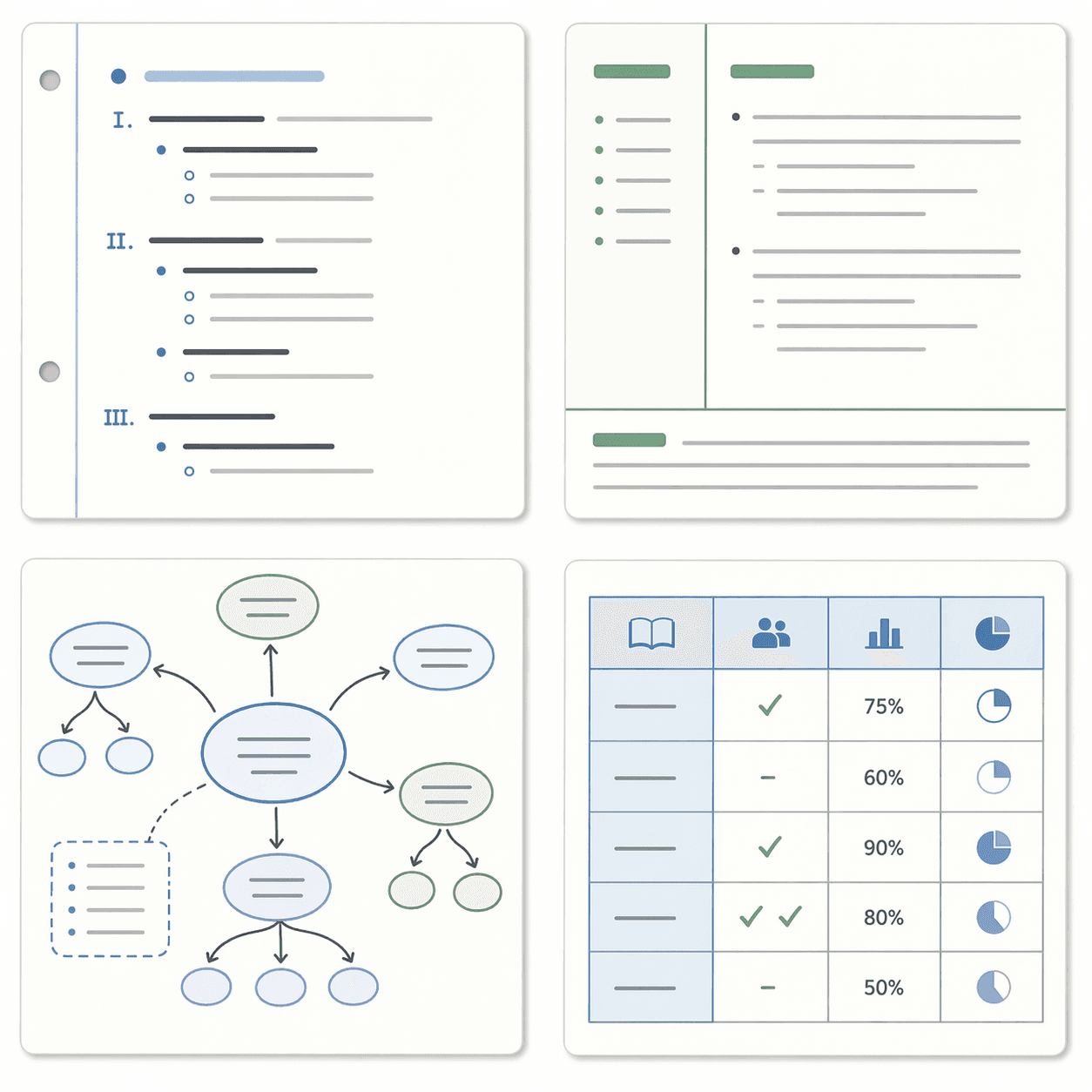
The Outline Method uses a hierarchical structure: main topics at the top level, subtopics indented below, and supporting details further indented. It is the most natural method for typing because most note-taking apps handle indentation and collapse/expand natively.
Why it works on a laptop: You can type quickly while maintaining structure. Apps like OneNote and Notion let you collapse sections, making it easy to review high-level topics without scrolling through details. The Sembly AI guide recommends outlines for structured lectures where the speaker follows a clear progression.
Digital implementation tips: Use keyboard shortcuts for indentation (Tab to indent, Shift+Tab to outdent). Create a template with pre-set heading levels so you do not have to think about formatting during a lecture. In Notion, use toggle lists to hide details until you need them.
Cornell Method
The Cornell Method divides a page into three sections: a narrow cue column on the left (for keywords and questions), a wider notes column on the right (for the main content), and a summary row at the bottom. This structure forces you to review and synthesize after the lecture.
Why it works on a laptop: You can create a Cornell template in OneNote or Notion using a table or columns. The cue column becomes a built-in review tool — cover the notes column and try to recall the content from the cues alone. UNC's Learning Center specifically recommends the Cornell Method for its structured review advantage.
Digital implementation tips: Create a reusable Cornell template with a two-column table (30% cue, 70% notes) and a text row below for the summary. After the lecture, fill in the cue column with questions that the notes column answers. The summary row is your one-paragraph takeaway.
Flow Method
The Flow Method (also called flow-based or concept mapping) uses arrows, diagrams, and connections to map relationships between ideas. It is less linear than the Outline Method and more visual. College Info Geek describes it as drawing arrows and diagrams to engage actively with the material.
Why it works on a laptop: Apps like Obsidian support bi-directional linking and graph views that replicate the connective thinking of flow-based notes. You can also use dedicated mind-mapping tools or even a drawing tablet with OneNote's freeform canvas. The Sembly AI guide notes that flow-based methods are ideal for creative subjects and complex systems.
Digital implementation tips: In Obsidian, use double brackets to create links between notes as you type — this builds a web of connections over time. For visual subjects, use OneNote's drawing tools or a mind-mapping app like Miro. The key is to capture relationships, not just facts.
Charting Method
The Charting Method organizes information into columns and rows, making it ideal for comparing and contrasting data. It works best when the lecture or meeting covers multiple categories or variables — for example, comparing different theories, historical periods, or product features.
Why it works on a laptop: Tables are trivial to create and edit in digital tools. Notion's database feature takes charting further by letting you sort, filter, and link rows across pages. The UNC Learning Center recommends the Charting Method for review sessions where you need to see side-by-side comparisons.
Digital implementation tips: Create a table with categories as column headers before the lecture starts. Fill in rows as the speaker covers each item. In Notion, you can turn a table into a database view and add properties like tags, dates, and links to related notes.
Which App Works Best for Each Method?
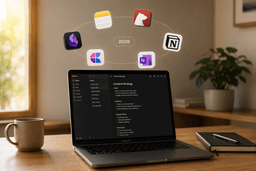
The best app for laptop note-taking depends on which method you choose. Below is a pairing guide based on how each app's core features align with each method's requirements. For a broader comparison of apps by retrieval style and data portability, see our full note-taking apps comparison.
| Method | Best App Pairing | Why It Fits | Free Plan Quality | Pricing (Verified Q2 2026) |
|---|---|---|---|---|
| Outline | OneNote or Notion | Native indentation, collapse/expand, and hierarchical structure | OneNote: free with 5GB storage; Notion: free for personal use | OneNote: free; Notion: Plus $10/month |
| Cornell | OneNote or Notion (with template) | Table-based layout supports cue/notes/summary sections | OneNote: free; Notion: free with template gallery | OneNote: free; Notion: Plus $10/month |
| Flow | Obsidian or Miro | Bi-directional linking, graph view, freeform canvas | Obsidian: free core; Miro: free with limited boards | Obsidian Sync: $5/month; Miro: from $8/month |
| Charting | Notion or Google Sheets | Database views, sorting, filtering, and cross-linking | Notion: free; Google Sheets: free with 15GB storage | Notion: Plus $10/month; Google Workspace: from $6/month |
If you are a student on a tight budget, OneNote and Obsidian offer genuinely usable free tiers. OneNote gives you 5GB of free storage with a freeform canvas that supports typing, drawing, and audio recording. Obsidian's core features — including bi-directional linking and the plugin ecosystem — are completely free for personal use. Notion's free plan is also generous for individual users, though it limits file uploads to 5MB per file.
The 80/20 Workflow: Capture, Organize, Review
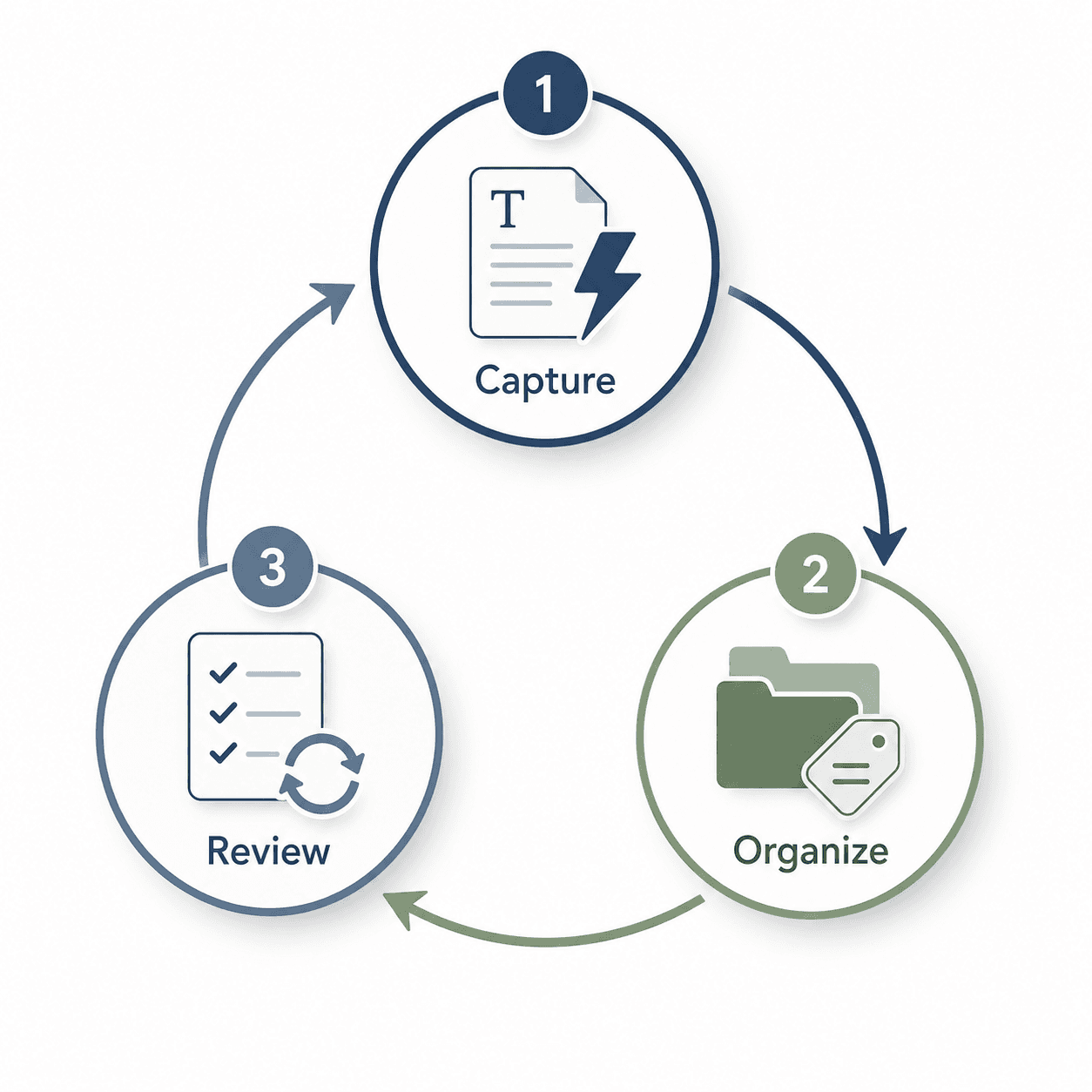
A note-taking method and an app are only as good as the workflow that connects them. The 80/20 workflow focuses on the three activities that deliver the most value for the least effort: capture, organize, and review.
Capture: Focus on Key Ideas, Not Verbatim Text
During a lecture or meeting, your job is not to transcribe — it is to identify the core concepts, questions, and connections. Use your chosen method (Outline, Cornell, Flow, or Charting) to structure your capture in real time. If you miss something, leave a blank and flag it with a question mark. The goal is to leave the session with a structured skeleton, not a wall of text.
For students looking to build a free toolchain for the capture stage, our student's guide to building a $0 note-taking stack covers which free apps work together best for capturing, organizing, and reviewing notes without spending a cent.
Organize: Connect Notes by Topic
After the session, spend five minutes tagging, linking, or filing your notes. In Notion, use database properties to tag notes by course, project, or topic. In Obsidian, use bi-directional links to connect related ideas. In OneNote, use tags and section groups. The goal is to make your notes findable later — not to create a perfect taxonomy.
Review: Schedule a Weekly Summary
The single most effective thing you can do for retention is to review your notes within 24 hours and again at the end of the week. During the weekly review, write a one-paragraph summary of each session's key takeaways. This forces you to synthesize — the same cognitive process that handwriting advocates praise, but now applied to digital notes.
Staying Focused: Distraction Management on a Laptop
A 2010 study cited by College Info Geek found that students on laptops are on-task only about 58% of the time. The laptop is a powerful note-taking tool, but it is also a portal to email, social media, and every other distraction the internet offers. Managing this tension is essential to making laptop note-taking work.
Here are practical strategies that do not require willpower alone:
- Use full-screen mode in your note-taking app. OneNote, Notion, and Obsidian all support full-screen or focus modes that hide the desktop and menu bars.
- Turn off notifications before the session. Use your operating system's Do Not Disturb or Focus mode to silence everything except critical alerts.
- Try a distraction-free writing app like iA Writer or FocusWriter for sessions where you need to capture ideas without any interface clutter.
- Use the Pomodoro Technique: 25 minutes of focused note-taking, 5 minutes of break. This creates a natural rhythm that reduces the urge to multitask.
For readers who want to align their note-taking system with their cognitive preferences, our article on how to choose the right PKM app by thinking style provides a decision framework that goes beyond feature lists and into how your brain processes information.
Quick Setup Checklist for Your Laptop Note-Taking System
Use this checklist to implement everything covered in this article. Each step takes less than 15 minutes, and the whole system can be set up in one afternoon.
- Choose your primary method. Pick one from Outline, Cornell, Flow, or Charting based on the type of content you most often capture. If you attend structured lectures, start with Outline. If you study for exams, start with Cornell.
- Pick a compatible app. Use the table above to match your method to an app. Download and install it if you have not already.
- Create a template. Build a reusable note template in your chosen app that matches your method. For Cornell, create a two-column table. For Outline, set up heading levels. For Flow, create a blank canvas with a link to your main index note.
- Set up a capture inbox. Create a dedicated notebook, folder, or database for raw captures. This is where new notes go before they are organized.
- Schedule a weekly review. Add a recurring 30-minute calendar event for your weekly summary and connection session.
- Test the system for one week. Use your chosen method and app for all your note-taking for seven days. At the end of the week, evaluate: Did the method help you engage with the material? Did the app support the method without friction? Adjust as needed.

Comments
Join the discussion with an anonymous comment.