
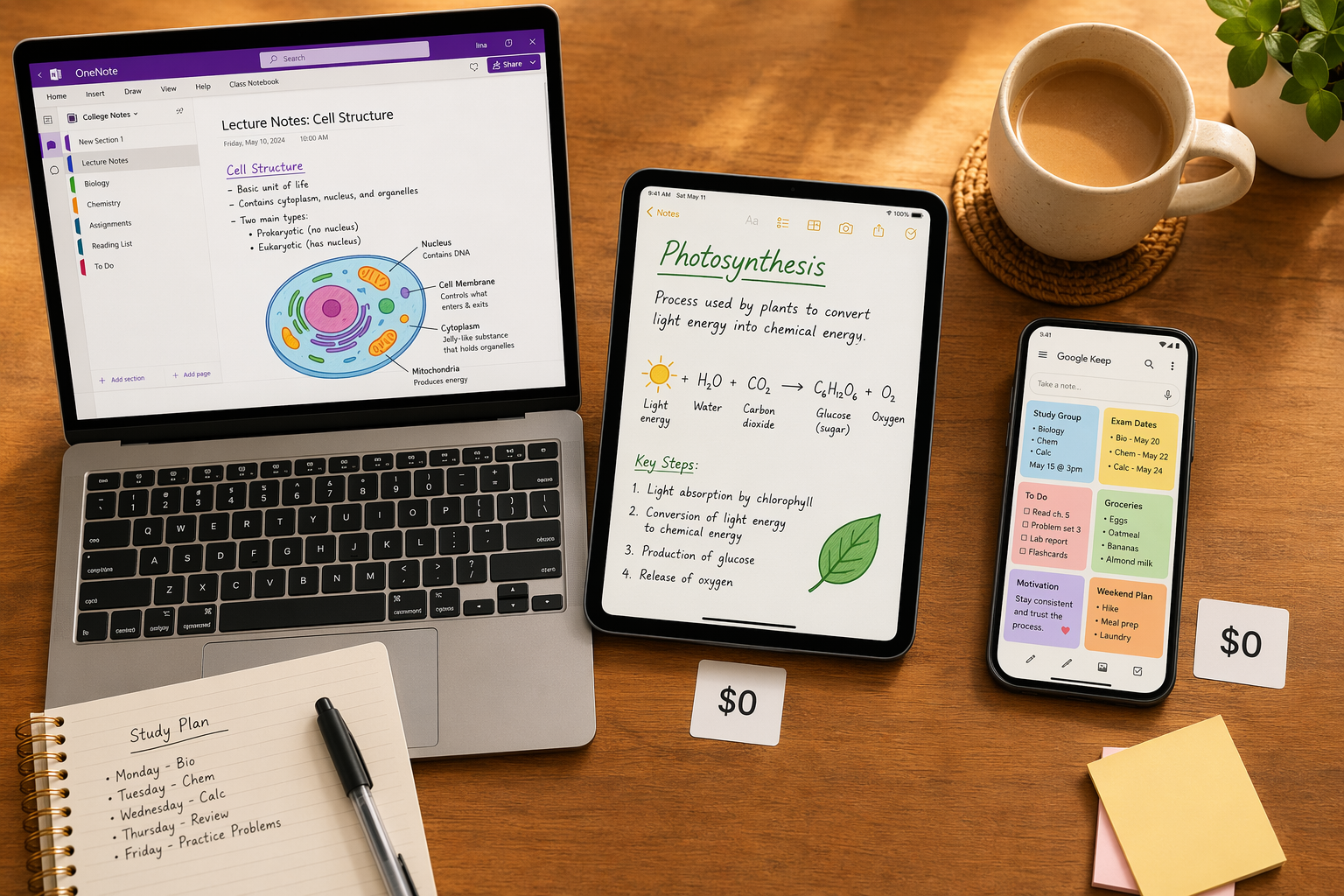
Why One Free App Isn't Enough for Students
Most guides to free note-taking apps treat the problem as a single-choice decision: pick the best free app and use it for everything. That approach works if you only take one type of note. But a student's week involves lecture slides, quick reminders, textbook annotations, group project brainstorming, and exam prep — tasks that pull in very different directions.
Every free plan has a critical weakness. Microsoft OneNote offers deep structure and handwriting support, but its free storage is capped at 5GB on OneDrive. Google Keep is instant for quick capture, but it lacks the organizational depth for lecture notes. Obsidian is a powerful long-term knowledge base, but it has no built-in sync and no handwriting support. Notion is free with a .edu email, but it's a workspace, not a quick-capture tool.
The solution is not to find a single app that does everything poorly. It is to build a small stack of two or three free tools that each excel at one job. A 2025 self-run test by Atlas Workspace with 4 college students over 14 days found that students using structured-template apps (OneNote, Notion) achieved 71% quiz recall compared to 58% for freeform apps (Apple Notes, GoodNotes). That gap suggests the tool matters — but so does having the right tool for each stage of the note-taking lifecycle.
If you are looking for a single-app winner, we have that too — see our head-to-head comparison of the best note-taking apps for students in 2026. But if you are willing to use two free apps together, you can build a system that covers quick capture, structured notes, long-term knowledge, and AI-powered study — all for exactly $0.
The Four Building Blocks of a Free Note-Taking Stack
Every student workflow needs four functional layers. No single free app covers all four well. The stacking strategy assigns one tool to each layer.
- Quick capture: A frictionless inbox for ideas, reminders, and links you need to save in under 10 seconds. Google Keep and Apple Notes are the best free options here. Both are instant-on, sync across devices, and require zero setup.
- Structured notes: The home for lecture notes, lab reports, and project plans. OneNote and Notion (free with .edu email) lead here. They offer templates, hierarchy, and searchable handwriting.
- Long-term knowledge: A personal knowledge base where notes accumulate and connect over semesters. Obsidian and Joplin are free, local-first, and built for linking ideas. Obsidian's core app is forever free for personal use — only its Sync and Publish services cost money.
- AI study tools: A free layer that turns your notes and PDFs into study questions, summaries, and quizzes. NotebookLM (Google's AI notebook) is free with a Google account and works directly with uploaded PDFs and lecture materials.
For a deeper look at how different tools match different cognitive needs, read our guide on how to choose the right PKM app by thinking style. The stacks below apply that logic to specific device ecosystems.
Stack 1: The Windows Student (OneNote + Google Keep + NotebookLM)
This stack is built for students who live on a Windows laptop and an Android phone. It pairs the best free structured note-taker with the best free quick-capture tool, plus a free AI layer for exam prep.
The workflow
- Google Keep handles everything that needs to be saved in under 10 seconds: a reading link from Chrome, a quick voice memo after class, a photo of a whiteboard. Keep is free with 15GB of storage shared across all Google services — more than enough for text-heavy notes.
- OneNote is the primary workspace for lecture notes, lab reports, and project outlines. Its notebook-section-page hierarchy mirrors a physical binder. OneNote is free with 5GB of OneDrive storage — the average student can manage a full semester within that limit unless they add large audio recordings or high-resolution images.
- NotebookLM sits on top of both. Export your lecture notes or textbook PDFs to NotebookLM, and it generates study questions, summaries, and key-term lists for free.
OneNote's template features are a strong reason to choose it for structured notes. If you want to explore how different retrieval styles and template ecosystems affect your study workflow, check out our guide on digital note-taking apps and retrieval styles.
Stack 2: The Apple Student (Apple Notes + Obsidian + NotebookLM)
This stack is for students using a Mac, iPhone, and iPad. It pairs Apple's native quick-capture tools with Obsidian's local-first knowledge base, plus the same free AI layer.
The workflow
- Apple Notes handles quick capture and handwritten notes. It is free with any Apple ID and includes 5GB of iCloud storage shared across all Apple services. Use it for to-do lists, quick sketches, and voice memos. The Quick Note gesture (swipe from bottom-right corner on iPad) makes capture nearly instant.
- Obsidian is your long-term knowledge base. It stores everything as local Markdown files — no vendor lock-in, no subscription required. The core app is free for personal use with no limits on the number of notes or vault size. Use it to build a connected web of course notes, research, and personal projects that grows across semesters.
- NotebookLM again provides the AI study layer. Export PDFs or paste key notes from Obsidian to generate study questions.
Obsidian's local-first approach means your data lives on your device, not in a cloud you pay for. For a deeper discussion of the tradeoffs between local-first and cloud-based personal knowledge management, see our article on local-first vs. cloud PKM and data ownership.
Stack 3: The Chromebook Student (Google Keep + Notion + NotebookLM)
Chromebook users live entirely in the browser, which makes Google's ecosystem the natural starting point. This stack adds Notion's structured workspace — free with a .edu email — to fill the gap that Google Keep leaves open.
The workflow
- Google Keep is the quick-capture layer. It is pre-installed on Chromebooks, syncs instantly with your Google account, and works offline. Use it for reminders, checklists, and voice notes.
- Notion is the structured workspace. Students and teachers at accredited higher education institutions can upgrade to the Plus plan for free with a .edu email. This normally costs $12/user/month. The Plus plan includes unlimited pages and blocks, unlimited file uploads, 30-day version history, and up to 100 guests in a single-member workspace. Use it for lecture notes, project management, and class wikis.
- NotebookLM provides the AI study layer, working directly with PDFs and Google Docs.
Notion is more of a workspace than a pure note-taker. If you are unsure whether it fits your needs, read our comparison of Notion vs. dedicated note-taking apps to understand the difference.
Stack 4: The iPad Handwriting Student (Apple Notes + GoodNotes)
If you take handwritten notes on an iPad, you need a tool that handles handwriting well. Apple Notes is free and capable, but its organization is flat. GoodNotes adds the structure that handwriting-heavy students need — and its free tier gives you three notebooks to start.
The workflow
- Apple Notes handles quick handwritten capture: a sketch of a diagram, a quick annotation on a screenshot, a to-do list during a meeting. It syncs instantly across all Apple devices for free.
- GoodNotes is the primary notebook for organized handwritten lecture notes. Its free tier includes 3 notebooks — enough for one semester's core courses if you rotate notebooks between terms. GoodNotes supports PDF annotation, searchable handwriting, and folder organization.
This stack does not include NotebookLM because GoodNotes does not export text as cleanly as OneNote or Notion. If you want an AI study layer, export your GoodNotes notebooks as PDFs and upload them to NotebookLM manually.
How Sync and Workflow Work Across Each Stack
The most common question about stacking free tools is: how do the apps talk to each other? The honest answer is that in a $0 stack, you are the sync layer. There is no automatic integration between Google Keep and OneNote, or between Apple Notes and Obsidian. But that is not a problem — the workflow is designed to minimize duplication.
| Stack | Capture Tool | Structured Notes / Knowledge Base | AI Study Layer | Sync Method |
|---|---|---|---|---|
| Windows (OneNote + Keep + NotebookLM) | Google Keep | OneNote | NotebookLM | Weekly review: move Keep notes into OneNote manually |
| Apple (Apple Notes + Obsidian + NotebookLM) | Apple Notes | Obsidian | NotebookLM | Link Apple Notes in Obsidian; sync Obsidian vault via iCloud Drive |
| Chromebook (Keep + Notion + NotebookLM) | Google Keep | Notion | NotebookLM | Weekly review: move Keep notes into Notion manually |
| iPad Handwriting (Apple Notes + GoodNotes) | Apple Notes | GoodNotes | Manual PDF export | Apple Notes syncs via iCloud; GoodNotes syncs via iCloud |
The key habit is a weekly review: once a week, open your quick-capture tool, process each note, and move it into your structured notes or knowledge base. This takes 10–15 minutes and prevents your capture tool from becoming a graveyard of forgotten ideas.
When the Free Stack Hits Its Limits
Free stacks are powerful, but they have real boundaries. Being honest about them upfront saves you from discovering a hard limit mid-semester.
| Tool | Free Limit | What Happens When You Hit It | Practical Workaround |
|---|---|---|---|
| OneNote | 5GB OneDrive storage | Cannot upload new files or images | Archive old notebooks to your local drive; avoid embedding large audio files |
| GoodNotes | 3 notebooks | Cannot create a 4th notebook | Export completed notebooks as PDFs, delete from app, reuse slots |
| Google Keep | 15GB shared across Google services | Cannot save new notes if storage is full | Monitor storage in Google Account settings; delete old notes or clear Gmail/Drive space |
| Obsidian | No built-in sync | Vault exists only on one device | Use iCloud Drive, Dropbox, or a USB drive to sync manually |
| Notion (.edu) | No storage limit on Plus plan | N/A — Plus plan is unlimited | N/A — but verify .edu eligibility each academic year |
| NotebookLM | Varies by Google account region | May not be available in all countries | Use a VPN or alternative AI tool (e.g., ChatGPT free tier) |
None of these limits are dealbreakers for a single semester. The average student can manage a full term with 5GB of OneDrive storage for OneNote, as long as they avoid embedding large audio files or high-resolution images in every note. The 3-notebook limit in GoodNotes is tight but workable if you rotate notebooks between semesters. And Obsidian's lack of built-in sync is a minor inconvenience, not a blocker — a free Dropbox account or iCloud Drive handles it.
Summary: Your $0 Note-Taking Stack at a Glance
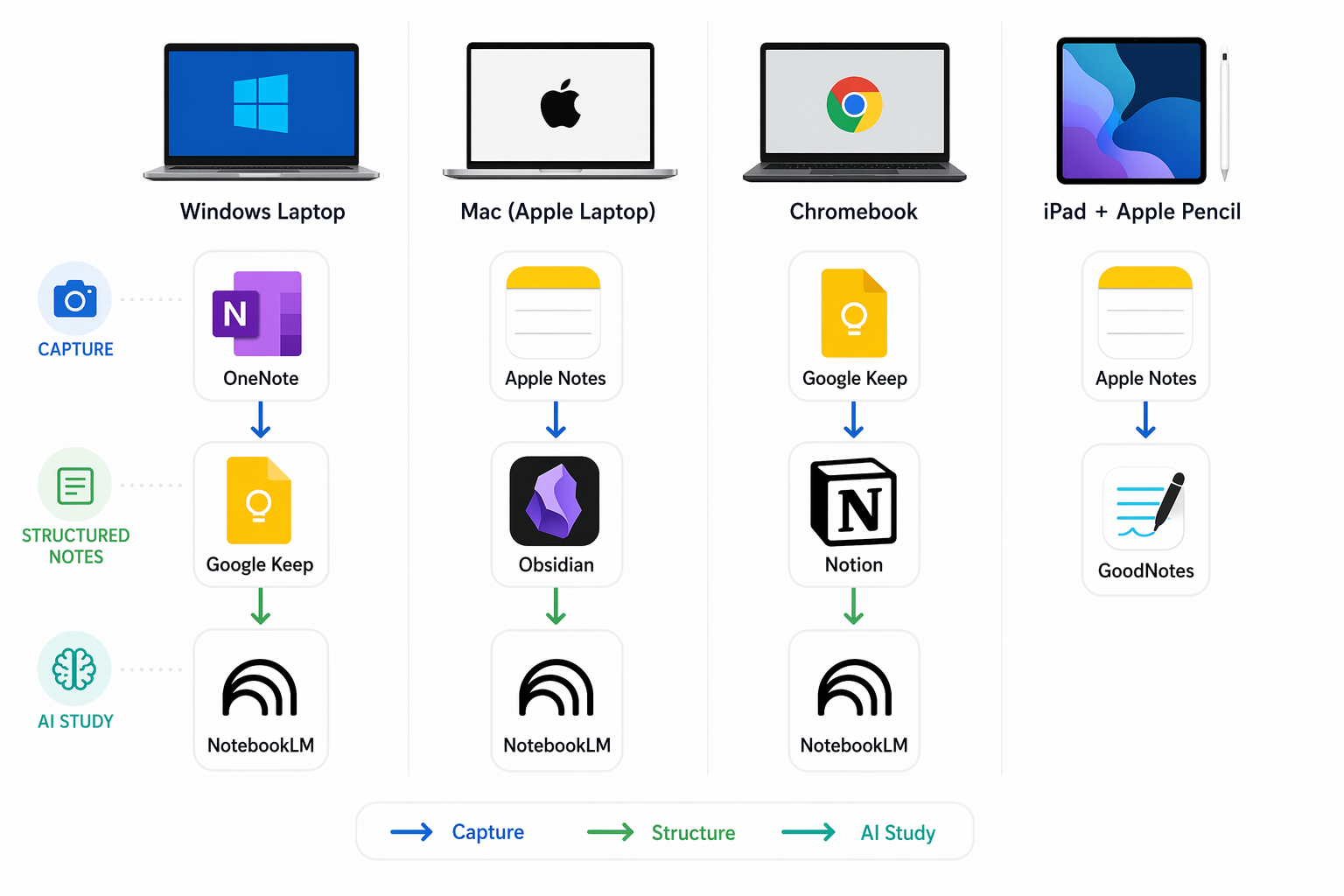
| Stack | Tools | Primary Use Case | Storage Limit | Annual Cost |
|---|---|---|---|---|
| Windows Student | OneNote + Google Keep + NotebookLM | Structured lecture notes + quick capture + AI study | 5GB (OneNote) + 15GB (Keep) | $0 |
| Apple Student | Apple Notes + Obsidian + NotebookLM | Quick capture + long-term knowledge base + AI study | 5GB iCloud + unlimited local storage | $0 |
| Chromebook Student | Google Keep + Notion (.edu) + NotebookLM | Quick capture + structured workspace + AI study | 15GB (Keep) + unlimited (Notion .edu) | $0 |
| iPad Handwriting Student | Apple Notes + GoodNotes (3 notebooks) | Quick handwritten capture + organized handwritten notes | 5GB iCloud + 3 notebooks | $0 |
The best free note-taking solution is not a single app. It is a deliberate combination of two or three free tools that each do one thing well. Pick the stack that matches your devices, set up the weekly review habit, and you will have a complete note-taking system that costs exactly nothing — and works better than any single free app on its own.