
Last verified: August 26, 2026.
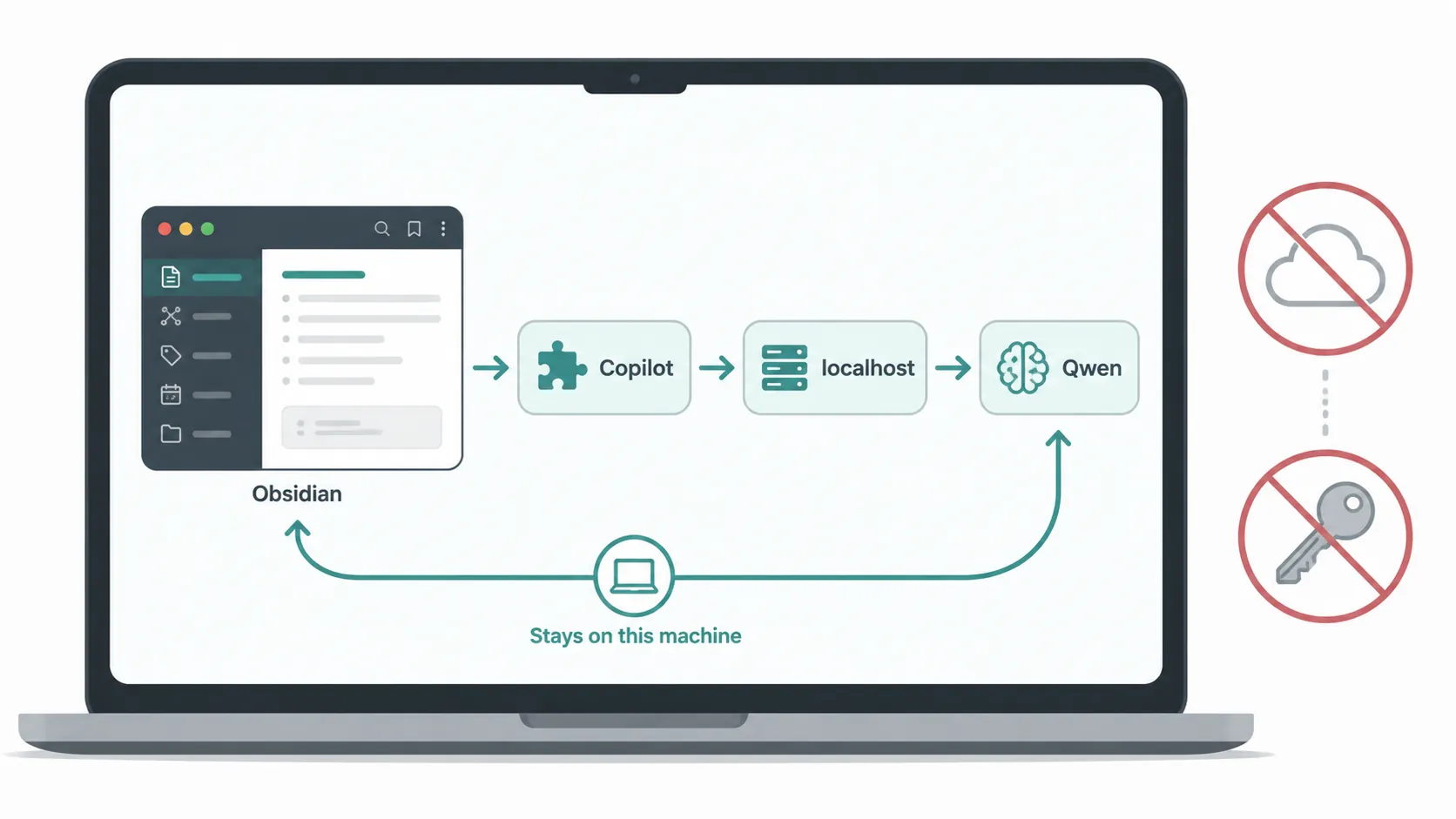
If you are trying to connect Qwen AI to a Mac for a note-taking workflow, decide the route before you install anything. “Qwen on Mac” can mean four very different things, and only one of them is the clean Obsidian setup most people are actually looking for: a Qwen model running locally on the Mac, served by Ollama or LM Studio, with Obsidian Copilot talking to it through localhost.
| Route people may mean | What it really is | Good fit | Wrong turn if... |
|---|---|---|---|
| Local Qwen into Obsidian | A downloaded Qwen model served on your Mac through Ollama or LM Studio; Obsidian Copilot connects to the local endpoint. Ollama lists Qwen3.5 model variants from 0.8B at about 1.0GB up to 122B at about 81GB, and Qwen’s own docs cover running Qwen locally with Ollama. [1][2] | Private Obsidian vaults, no API key, offline-capable note prompts, Apple Silicon Macs with enough RAM. | You choose a model larger than your Mac can realistically hold in memory. |
| DashScope cloud API | Alibaba Cloud’s hosted Qwen service, configured with cloud credentials and API/base URL details. Alibaba’s first-call guide uses Model Studio credentials and environment-variable setup. [3] | You need a larger Qwen than your Mac can run and accept cloud handling. | You want your vault prompts and retrieved note context to stay entirely on the machine. |
| Apple-native Qwen extension | A region-limited, moving Apple integration path rather than a reproducible en-US Apple Notes setup. | Not a practical route for most en-US readers right now. | You expect a stable Apple Notes instruction path on a US Mac. |
| Official Qwen Mac desktop app | A downloadable Qwen chat client for macOS, not a local model server and not an Obsidian or Apple Notes plugin. [4] | General Qwen chat outside the note app. | You expect it to wire Qwen into Obsidian locally. |
For Obsidian notes, the reliable path is the first one. Download a Qwen model that fits your Mac’s memory, run it with Ollama or LM Studio, then point Copilot at the local server. The rest of this guide stays on that path unless you hit the one disqualifier that matters: not enough RAM for the model you want.
Pick the Qwen model before you touch Copilot
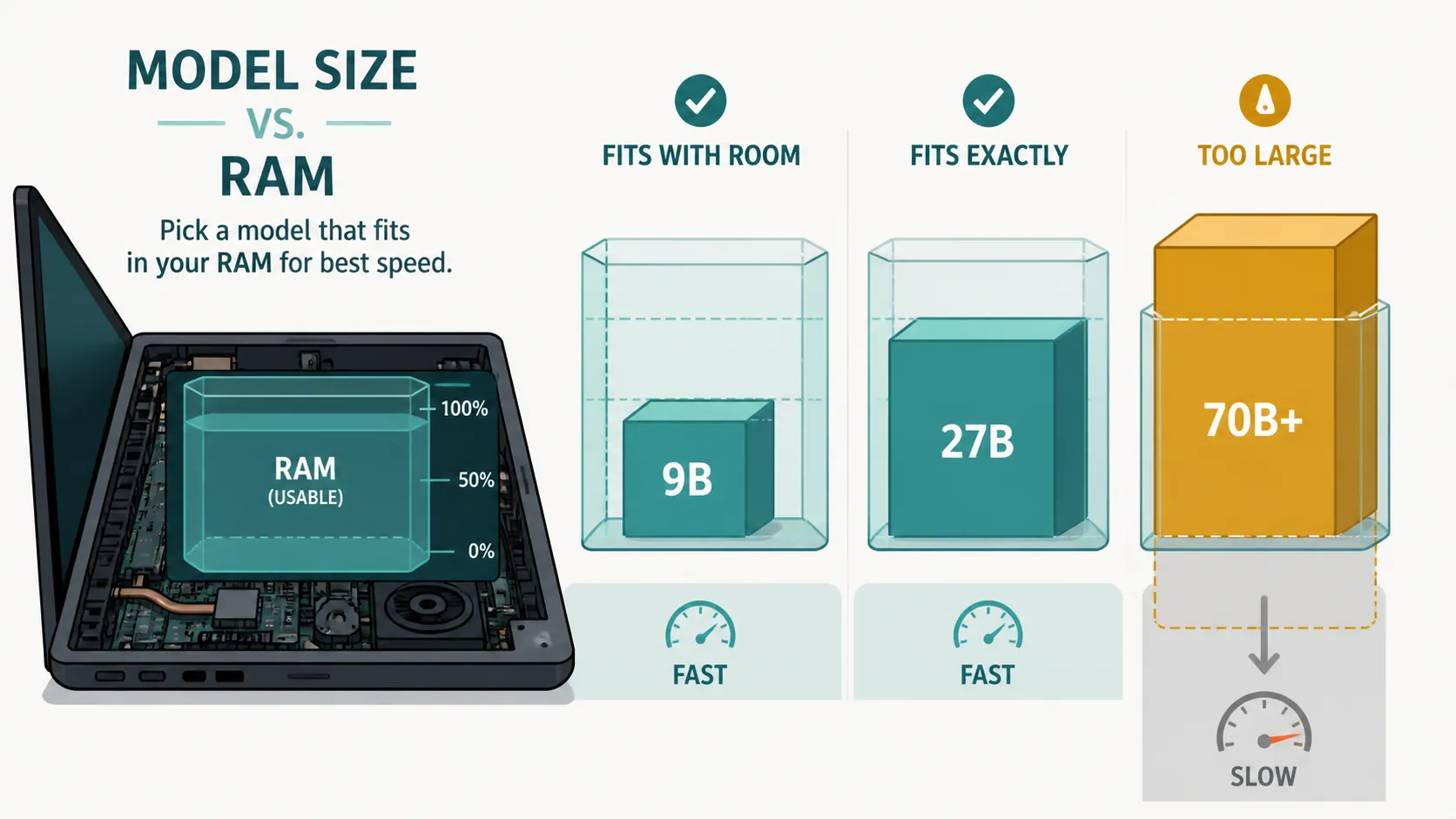
The model-size decision is not decoration. It decides whether your note workflow feels like a sidebar assistant or like waiting for a frozen export dialog. A third-party Mac testing guide reports that a 16GB Mac can run a Qwen3.5 9B Q4_K_M build at roughly 22–28 tokens per second, while models above about 14B on that class of machine can spill to CPU and fall below 5 tokens per second. Treat those as reported observations from specific machines, not universal benchmarks. [5]
| Your Mac | Start here | Why |
|---|---|---|
| 8GB Apple Silicon | Small Qwen3.5 variant, not a 9B-or-larger default | Ollama’s Qwen3.5 catalog starts at 0.8B, about 1.0GB, which is the realistic end of the catalog for a tight-memory machine. [1] |
| 16GB Apple Silicon | Qwen3.5 9B quantized build if available in your runner | The useful reported target is Qwen3.5 9B Q4_K_M at about 6.6GB and roughly 22–28 tokens/sec on tested 16GB Macs. [5] |
| 24–32GB Apple Silicon | Consider 27B or 35B only after testing a smaller model first | The Mac testing guide places 27B/35B class models in this memory range, but that still depends on quantization, context size, and what else is open. [5] |
| 36GB+ Apple Silicon | Larger local Qwen becomes plausible, but verify with your own vault prompts | A dated hands-on test ran the older Qwen2.5:32B on an M3 Pro MacBook Pro with 36GB memory, which is useful as a feasibility signal rather than a promise for every Qwen release. [6] |
| Any Mac where the model exceeds memory | Stop and choose smaller or use cloud | Once the model spills badly past memory, the note-taking flow is usually the part that breaks first: completions arrive too slowly to use while reading or writing. |
One more Mac-specific catch: LM Studio’s current local Qwen-on-Mac path is for Apple Silicon, not Intel Macs, according to the same Mac testing guide. If you are on an older Intel Mac, do not assume the LM Studio instructions below apply cleanly. [5]
This is also why the “largest model I can find” instinct is usually wrong for notes. Obsidian prompts tend to be repeated, interruptive, and context-heavy: summarize this section, rewrite this paragraph, find related notes, explain this clipped PDF passage. A smaller model that answers immediately can be more useful than a larger model that technically loads and then makes you wait through every thought.
Choose Ollama or LM Studio
Use Ollama if you are comfortable with Terminal and want the least fussy local server. Use LM Studio if you want a GUI where you can search, download, load, and serve the model without remembering commands. Both can work with Obsidian Copilot because Copilot only needs a reachable local endpoint.
| Runner | Best for | Local endpoint you will use later |
|---|---|---|
| Ollama | Terminal users; simple background local serving; quick model swaps. | http://localhost:11434 |
| LM Studio | GUI users; browsing model files visually; manually starting a local OpenAI-compatible server. | http://localhost:1234/v1 |
Ollama path
Install Ollama, then use the exact Qwen3.5 tag shown in the Ollama library for the size you chose. Qwen’s official local-running docs use Ollama as a supported local path, and the Ollama catalog is also where you should check the currently available Qwen3.5 tags rather than copying an old model name from a random setup post. [1][2]
ollama pull qwen3.5:<tag-shown-in-ollama-library>
ollama run qwen3.5:<tag-shown-in-ollama-library>
After the first run, leave Ollama available in the background. Copilot will not talk to the model file directly; it talks to Ollama’s local server at http://localhost:11434.
LM Studio path
In LM Studio, search for the Qwen model size you already picked, favor an Apple Silicon-friendly build where available, download it, load it, and start the local server. The server should expose an OpenAI-compatible local base URL at http://localhost:1234/v1. That /v1 suffix matters in Copilot.
Wire the local Qwen server into Obsidian Copilot
Install the Copilot plugin from Obsidian’s Community Plugins if it is not already in your vault. Copilot’s own V4 getting-started docs cover the plugin setup flow; the local-model-specific part is the model provider configuration. [7]
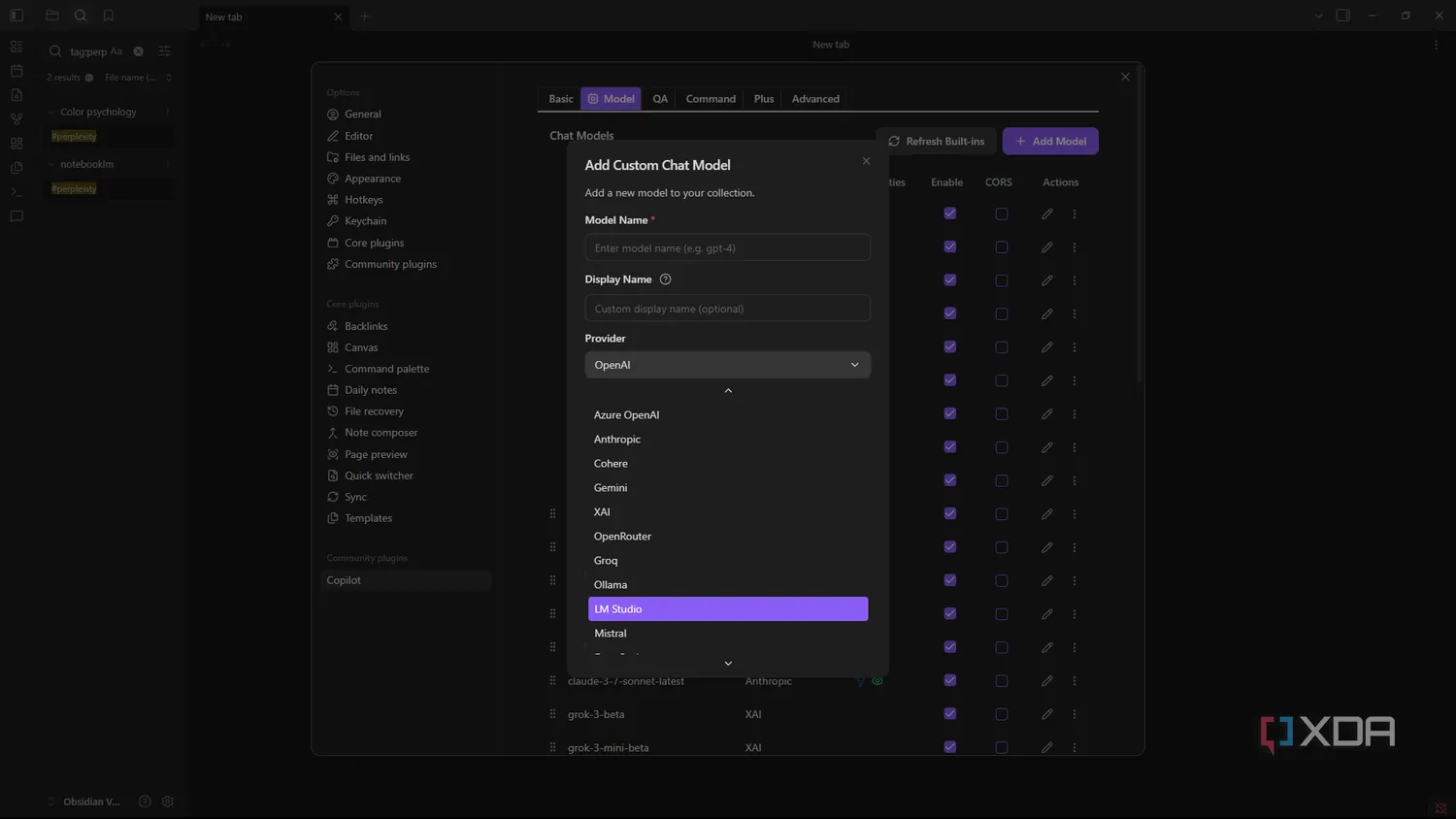
Open Copilot settings, add a model, and fill in the provider details based on the runner you chose. First-hand walkthroughs of local LLMs with Obsidian show the same practical pattern: local base URL, placeholder API key, and CORS enabled where the runner requires it. [8][9]
| Field in Copilot | For Ollama | For LM Studio |
|---|---|---|
| Provider | Ollama or local/OpenAI-compatible provider, depending on the Copilot version | OpenAI-compatible/local provider |
| Base URL | http://localhost:11434 | http://localhost:1234/v1 |
| Model name | The exact Qwen tag/model name Ollama shows locally | The exact loaded model name LM Studio exposes |
| API key | local | local |
| CORS | Enable if Copilot cannot reach the local server | Enable in LM Studio’s server settings if Copilot cannot reach it |
Do not leave the API key field blank just because there is no paid API key. Local OpenAI-compatible tools often expect something in that field, and local is the harmless placeholder used in local Obsidian walkthroughs. [8][9]
Also put your temperature and system-prompt choices in Copilot, not only in the runner. In the XDA walkthrough, Copilot overrides the runner-configured temperature and system prompt, so settings made in Ollama or LM Studio may not be the settings that shape the answer inside Obsidian. [8]
Test it inside a real note, not a blank chat
A blank “hello” prompt only proves that the socket opens. Test the setup with the thing you actually want from a note assistant.
- Open a note with enough content to matter: lecture notes, meeting notes, a research clipping, or a draft.
- Ask Copilot to summarize only the current note.
- Ask a follow-up that requires context from the same note, such as “list the open questions” or “turn this into action items.”
- Try one vault-aware or RAG-style question if you plan to use retrieval.
- Watch the delay before the first useful sentence. That is usually the best signal that you chose the wrong model size.
If the answer quality is acceptable but every prompt breaks your writing rhythm, step down a model size before you spend an evening tuning prompts. If the first token appears quickly but the answer is weak, then it is worth trying the next size up, provided Activity Monitor does not show the Mac thrashing memory.
What stays offline
Once the model is downloaded and the local server is running, the useful part of the Obsidian workflow can continue without a cloud API call. In the XDA first-hand setup, Copilot’s RAG behavior and right-click quick prompts worked with a local model, which is the difference between “AI in my notes” and “my notes are now another cloud input box.” [8]
That does not mean every Obsidian plugin, sync service, or attachment workflow is private by magic. It means this Qwen connection — Copilot to localhost to a local model — does not need to send the prompt and retrieved note context to DashScope or another hosted model provider. If you also use Obsidian Sync, third-party sync, OCR tools, or cloud PDF services, those are separate privacy surfaces.
For a broader outage-and-offline angle, the same local-first logic shows up in local note apps during ChatGPT outages. The important part here is narrower: Copilot can keep local note prompts useful when the model and retrieval path are on the Mac.
When DashScope is the honest answer
Use DashScope when the model you need is larger than the Mac you own. That is the clean reason to leave the local path. It is not a failure; it is just a different privacy and setup contract.
The tradeoff is that you are now configuring cloud access rather than a local endpoint. Alibaba Cloud’s first-call guide for Qwen involves Model Studio API credentials and shell environment setup, including the usual possibility that environment variables placed in ~/.zshrc are not loaded in the shell or app context you expected. [3]
For Obsidian vaults that contain client notes, research notes, medical notes, student records, unpublished writing, or anything you would not paste into a web chatbot, this is the point where the route changes. DashScope may be technically better for a larger Qwen model, but it is no longer the no-notes-leave-the-machine workflow.
If what you really want is a terminal agent that can perform batch operations over a vault, keep that separate from this Copilot setup. The Qwen 3.8-Max Terminal and plugin route is a different workflow from a local Qwen model answering inside the Copilot sidebar.
Two routes not to confuse with this setup
Apple Notes on a US Mac
Do not plan an en-US Apple Notes workflow around a native Qwen extension right now. The available path is dated, region-limited, and in flux, not a stable setup sequence worth padding into instructions. If Apple Notes is your main app, the more practical decision is whether to wait for Apple-native changes or move the notes that need local AI into a tool that can bring its own model connection.
For that decision, the relevant reading is not a Qwen install command; it is the set of Apple Notes gaps covered in macOS Golden Gate and Apple Notes power-user gaps.
The Qwen Mac desktop app
The official Qwen download page offers a macOS app, but that app is not the same thing as serving a local Qwen model into Obsidian. It is a cloud Qwen chat client, not a localhost model runner and not a Notes plugin. [4]
That distinction matters because installing a desktop app can feel like progress while leaving the actual note workflow untouched. If Copilot cannot see a local endpoint, Obsidian has nothing to connect to.
Known issues to check before blaming Copilot
| Symptom | Likely cause | What to check |
|---|---|---|
| Copilot cannot connect | Wrong base URL or server not running | Ollama should be reachable at http://localhost:11434; LM Studio should be serving at http://localhost:1234/v1. |
| Copilot connects but returns errors | API key field blank or provider mismatch | Use local as the placeholder API key and confirm the provider type matches the runner. |
| Browser-style access error or blocked request | CORS not enabled where required | Enable CORS in the local runner settings if Copilot cannot reach the server. |
| Answers are painfully slow | Model is too large for memory | Step down from 27B/35B to 9B on 16GB-class Macs; avoid models that spill heavily to CPU. |
| Prompt style ignores runner settings | Copilot is overriding model behavior | Set temperature and system prompt inside Copilot. |
| LM Studio instructions do not match your machine | Intel Mac or unsupported local path | The Mac testing guide flags LM Studio support for Apple Silicon rather than Intel. [5] |
If you are comparing this with other local-model note setups, the same memory-floor problem appears in guides such as running DeepSeek-style local note summarization and self-hosting GLM for private notes. The model name changes; the RAM constraint does not.
Where the decision lands
Use local Qwen for Obsidian when your Mac has enough RAM for the model you choose and you want private note prompts without subscriptions or API keys. Start smaller than your ego wants, wire Copilot to localhost, then test on an actual note before changing anything else.
Use DashScope only when you need a Qwen model your Mac cannot run at a usable pace and you accept cloud handling. Do not rely on Apple Notes as a stable en-US Qwen path right now. Do not mistake the Qwen Mac desktop app for a local Obsidian integration.
References
- qwen3.5 — Ollama
- Ollama — Qwen Documentation
- First API call to Qwen — Alibaba Cloud
- Qwen — Qwen.ai
- Qwen on Mac — rentamac.io
- Running Qwen (nearly as powerful as DeepSeek) on a MacBook Pro — DEV Community
- Getting Started — Obsidian Copilot Docs
- Using my local LLM with Obsidian — XDA Developers
- Maxinggg Obsidian with AI for free — Dev Genius


Comments
Join the discussion with an anonymous comment.