
Introduction: Why Your Laptop Note-Taking App Choice Matters More Than You Think
Most people pick a note-taking app the same way they pick a screensaver: they grab whatever is pre-installed, follow a friend's recommendation, or default to the one with the most features on paper. On a laptop, that approach costs you more than you realize. The app you choose determines how fast you can capture an idea during a meeting, whether your notes are accessible on a plane, and how easily you can find that one snippet from six months ago.
The core thesis of this comparison is simple: the best note-taking app for your laptop depends more on your retrieval style and ecosystem than on raw feature count. A feature-packed app that lives entirely in the cloud is useless when your Wi-Fi drops during a train commute. A privacy-focused local app is frustrating if you need to share meeting notes with a team that uses Google Workspace. The key differentiators are offline access quality, cross-device sync reliability, keyboard-driven speed, and data portability — not how many block types or templates an app offers.
This roundup covers eight apps across Windows, Mac, and Chromebook laptops: Microsoft OneNote, Notion, Obsidian, Apple Notes, Google Keep, Evernote, Joplin, and Bear. Each section focuses on laptop-specific usability — native app quality, keyboard shortcut depth, window management behavior, and resource usage — rather than repeating general PKM advice you can find elsewhere. If you want a deeper dive on the retrieval-style-first framing that underpins this article, see our guide to retrieval styles and template ecosystems.
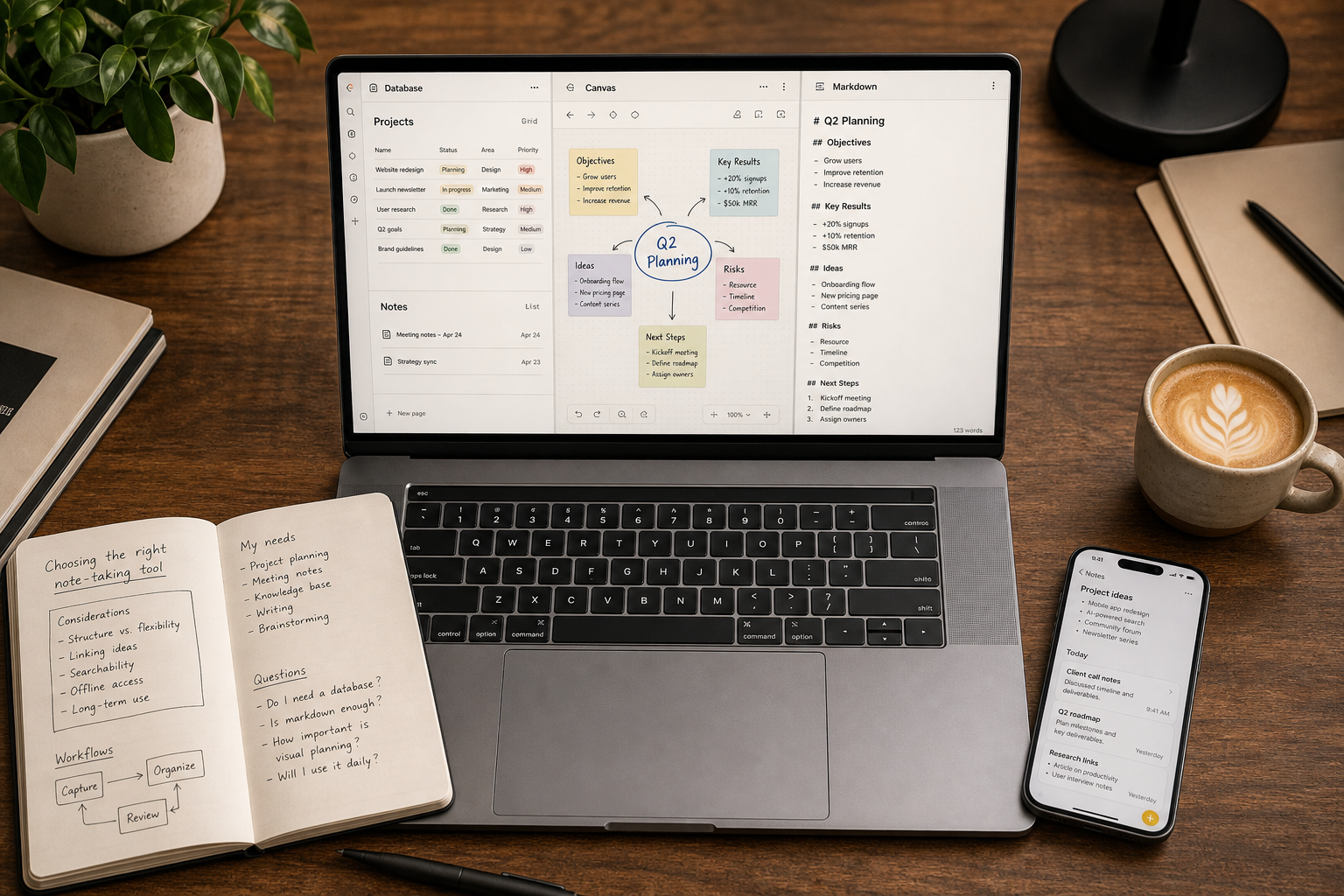
Quick-Reference Comparison Table: Pricing, Platforms, and Key Differentiators
The table below gives you a side-by-side view of all eight apps across the decision factors that matter most for laptop users. Use it to narrow your shortlist before reading the deep dives.
| App | Free Tier Limits | Paid Plan Starts At | Windows | Mac | Chromebook (Web) | Offline Access | Export Format | Best For |
|---|---|---|---|---|---|---|---|---|
| OneNote | 5 GB storage | $1.99/mo (100 GB) or M365 Personal $9.99/mo | Native | Native | Web | Full offline sync | PDF, .one, export to Word | Windows users in Microsoft ecosystem |
| Notion | Free personal plan | $10/user/mo (Plus) | Native (Electron) | Native (Electron) | Web | Limited (1/10 Atlas score) | Markdown, HTML, PDF | Structured workspace + databases |
| Obsidian | Free personal use | $4/mo (Sync) or $8/mo (Publish) | Native (Electron) | Native (Electron) | No official web app | Full local-first (10/10 Atlas score) | Markdown (plain text files) | Power users who value data ownership |
| Apple Notes | 5 GB iCloud storage | $0.99/mo (50 GB iCloud) | No | Native | No | Full offline (8/10 Atlas score) | PDF, rich text export limited | MacBook-only users |
| Google Keep | 15 GB Google storage | $1.99/mo (100 GB Google One) | Web | Web | Native Android app + Web | Limited (cache-based) | Google Docs export | Quick capture on Chromebook |
| Evernote | 50 notes, 1 device, 1 notebook | $14.99/mo (Personal) | Native | Native | Web | Full offline (paid plans) | ENEX, HTML, PDF | Web clipping & OCR search |
| Joplin | Fully free & open source | €2.99/mo (Joplin Cloud) | Native | Native | No | Full local-first | Markdown, JEX, raw files | Privacy-focused users |
| Bear | Free (basic features) | $2.99/mo or $29.99/yr (Pro) | No | Native | No | Full offline | Markdown, PDF, DOCX, HTML | Writers on Apple devices |
Deep Dive: The Contenders — Laptop-Specific Pros, Cons, and Usability Notes
Microsoft OneNote: The Free All-Rounder for Windows Laptops
PCMag rates OneNote 4.5 out of 5 and calls it "the first application most people should consider" for a note-taking app. That recommendation holds up especially well on Windows laptops, where OneNote benefits from deep Microsoft 365 integration, a native desktop client that feels like a first-class citizen, and a freeform canvas that lets you drop text, images, audio recordings, and drawings anywhere on the page.
Laptop-specific strengths:
- Keyboard shortcuts are extensive and customizable — you can navigate sections, create new pages, and format text without touching the mouse.
- Full offline sync means your notes are available even when you are on a plane or in a dead zone. Changes sync when you reconnect.
- The free plan includes 5 GB of OneDrive storage, expandable to 100 GB for $1.99/month or included in Microsoft 365 Personal at $9.99/month.
Weaknesses: The freeform canvas is powerful but can become visually chaotic if you do not impose your own structure. The Mac version, while functional, lacks some Windows-specific features like local notebook storage. On Chromebook, you are limited to the web app, which is less responsive.
Notion: The Structured Workspace — With an Offline Catch
Notion is the best app on this list if you need notes, tasks, databases, and project management in a single workspace. Its block-based editor and template ecosystem make it a favorite for teams and knowledge workers who want structured, interconnected content. The desktop app (Electron-based) offers a full-screen writing mode that "strips away sidebars and distractions", according to The Digital Project Manager.
Laptop-specific considerations:
- The Atlas 2026 evaluation framework scores Notion only 1 out of 10 on offline-first integrity — data lives on vendor servers, and the desktop app's offline cache is unreliable for anything beyond viewing recently opened pages.
- Keyboard shortcuts are solid but not as deep as Obsidian's. You can navigate with slash commands, but heavy keyboard-only use requires memorizing a long list.
- The Electron client is resource-hungry. On a laptop with 8 GB of RAM, you will notice lag when switching between Notion and other heavy apps.
Notion is a strong choice if you are always online and value structure over speed. For a deeper head-to-head with Obsidian and Logseq, see our dedicated comparison.
Obsidian: Data Sovereignty Champion for Power Users
Obsidian is the app for users who treat their notes as a long-term asset. It stores everything as plain Markdown files on your local drive — no vendor lock-in, no proprietary format, no cloud dependency. The Atlas 2026 evaluation framework gives Obsidian an 8.8 out of 10 weighted score, with perfect 10s for both Data Sovereignty and Offline-First Integrity.
Laptop-specific strengths:
- The native desktop app (Electron) is fast and responsive, even with vaults containing thousands of Markdown files.
- Keyboard shortcut customization is nearly unlimited — you can bind any command to any key combination, making it the most keyboard-driven option on this list.
- Full offline access is guaranteed because your notes are local files. Sync (via Obsidian Sync at $4/month or any third-party service like Dropbox) is optional.
Weaknesses: There is no official web app, so Chromebook users are out of luck unless they use a third-party Markdown editor. The learning curve is steeper than OneNote or Apple Notes — you need to understand the plugin ecosystem and folder structure to get the most out of it. PCMag rates it 4.0 out of 5, noting that its flexibility comes at the cost of simplicity.
Apple Notes: Lowest Friction for MacBook Users
If you use a MacBook and do not need to share notes with Windows or Android users, Apple Notes is the most frictionless option available. It is free, pre-installed, and supports handwriting with Apple Pencil on compatible devices. The Atlas 2026 framework gives it 8 out of 10 for offline-first integrity, and it offers 5 GB of free iCloud storage.
Laptop-specific strengths:
- Quick Capture via the menu bar icon or global keyboard shortcut is instant — no app launch delay.
- Audio recording and transcription are built in, making it a solid choice for lecture or meeting notes.
- iCloud sync is seamless across Mac, iPhone, and iPad, with no configuration needed.
Weaknesses: Apple Notes is unusable as a cross-platform solution — there is no Windows or Android app, and the web interface at iCloud.com is slow and limited. Data portability is poor; exporting notes in bulk is cumbersome, and the Atlas framework scores it only 3 out of 10 for data sovereignty.
Google Keep: Fastest Quick-Capture for Chromebooks
Google Keep is not a deep note-taking tool — it is a capture tool. Its card-style interface, color-coding, and location-based reminders make it ideal for jotting down ideas, shopping lists, and quick reminders. It is fully free with 15 GB of Google storage and has a Chrome extension that lets you save web clippings in one click.
Laptop-specific considerations:
- On Chromebook, Keep is the most natural option — it is a Google product on a Google OS, with a native Android app that works offline (cache-based).
- On Windows and Mac, you are limited to the web app, which lacks offline reliability.
- There is no native desktop app, no Markdown support, and no export format beyond Google Docs — making it unsuitable for long-form or structured note-taking.
Keep is best used as a complement to a deeper app, not as your primary note-taking system.
Evernote: Still Powerful, but the Free Plan Is Crippled
Evernote was the dominant note-taking app for over a decade, and its web clipping and OCR-based search remain best-in-class. PCMag still rates it 4.0 out of 5 (Excellent). But the landscape has shifted dramatically. The free plan is now limited to 50 notes, 1 notebook, and 1 device — essentially a trial, not a usable free tier. Paid plans start at $14.99/month for the Personal plan.
Laptop-specific considerations:
- The native desktop apps for Windows and Mac are mature and feature-rich, with excellent keyboard shortcut support.
- Offline access is available on paid plans, but the Atlas 2026 framework gives Evernote only 5.0 out of 10 overall, reflecting concerns about pricing, data portability, and vendor lock-in.
- The Atlas methodology (n=187 notes) favors local-first apps, so Evernote's cloud-dependent architecture naturally scores lower.
Joplin: The Open-Source Champion for Privacy-Conscious Users
Joplin is the best Evernote alternative for users who prioritize privacy and data ownership. It is fully open source, stores notes locally in Markdown, and offers AES-256 encryption for both local data and sync. PCMag rates it 4.5 out of 5 and calls it "as close to perfect as you can get" for an open-source note-taking app.
Laptop-specific strengths:
- Native desktop apps for Windows, Mac, and Linux are fast and lightweight — no Electron bloat.
- Full offline access is guaranteed since notes are stored locally by default.
- Sync is optional and can be configured via Nextcloud, Dropbox, OneDrive, or Joplin Cloud (€2.99/month).
Weaknesses: The interface is functional but not as polished as OneNote or Notion. There is no official web app, so Chromebook users cannot use it directly. The mobile apps are solid but lack the polish of Apple Notes or Google Keep.
Bear: A Minimalist Writing App for Apple Users
Bear is a focused, beautifully designed writing app for Mac, iPhone, and iPad. It uses a tag-based organization system instead of folders, supports Markdown with live preview, and offers a distraction-free writing environment. PCMag rates it 3.5 out of 5 (Good), noting that its simplicity is both a strength and a limitation.
Laptop-specific considerations:
- The Mac app is native (not Electron) and uses minimal system resources — ideal for older MacBooks.
- Keyboard shortcuts are well-designed for writers: you can navigate by tag, search instantly, and export in multiple formats (Markdown, PDF, DOCX, HTML).
- The free version is limited to basic features; Pro costs $2.99/month or $29.99/year and adds themes, export options, and iCloud sync.
Weaknesses: Bear is Apple-only — no Windows, Android, or Chromebook support. Its tag-based system is less flexible than folder-based or graph-based organization for complex knowledge management.
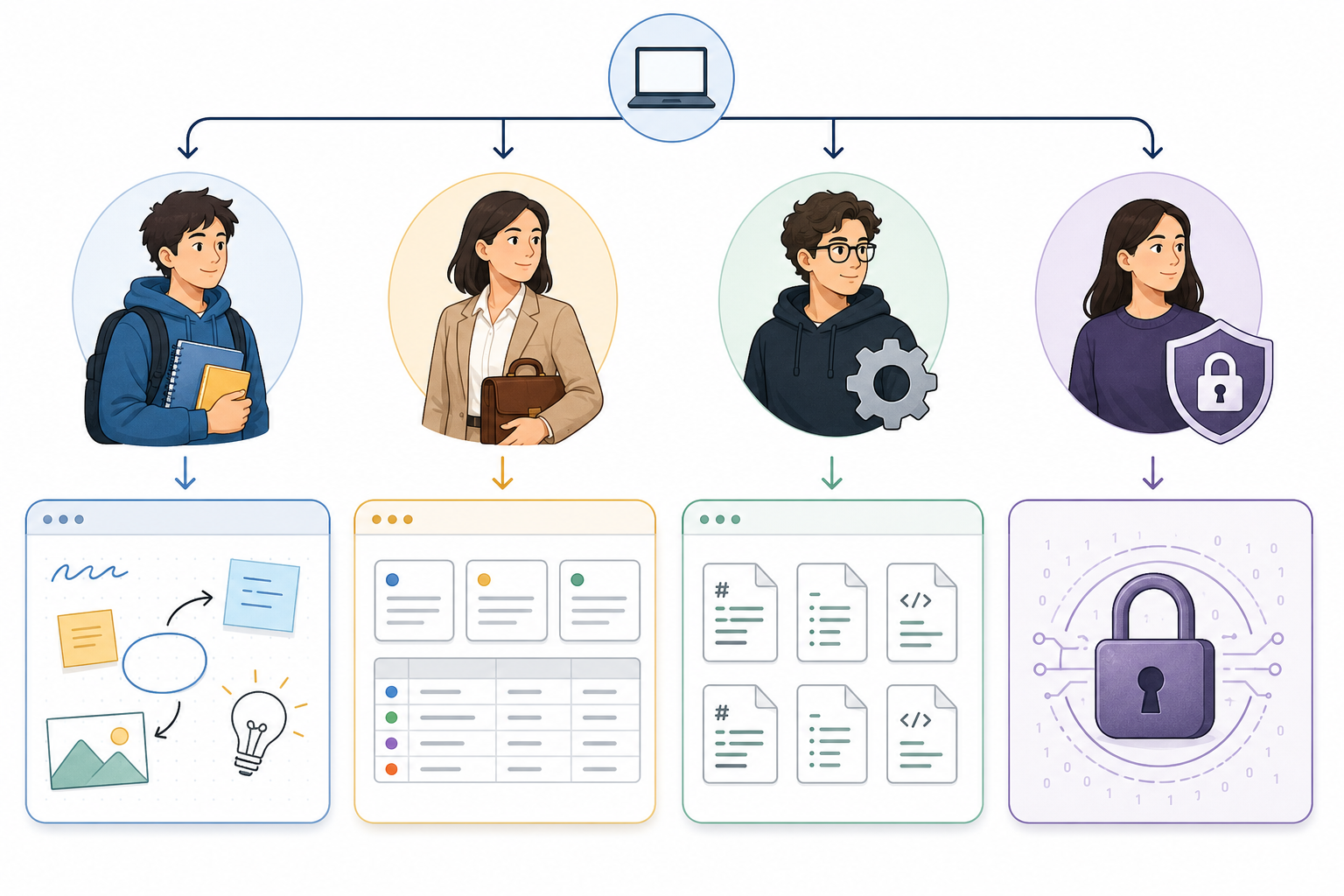
Decision Framework: Which App Fits Your Persona?
The table below maps each persona to the best app choices based on laptop-specific needs. If you identify with multiple personas, try the top two candidates for a week before committing.
| Persona | Primary Need | Top Pick | Runner-Up | Why This Works on a Laptop |
|---|---|---|---|---|
| Student on a Budget | Free, cross-platform, reliable offline | OneNote | Joplin | OneNote's free 5 GB and full offline sync work on any laptop. Joplin is free and open source if you prefer Markdown. |
| Professional in Microsoft Ecosystem | Deep Office integration, team collaboration | OneNote | Notion | OneNote integrates with Outlook, Teams, and SharePoint. Notion is better if you need databases and project tracking. |
| Professional in Google Ecosystem | Quick capture, Google Drive integration | Google Keep | Notion | Keep is instant for quick notes. Notion adds structure for longer documents and task management. |
| Power User Who Values Data Ownership | Local-first, plain text, no vendor lock-in | Obsidian | Joplin | Obsidian's Markdown vault is fully portable. Joplin offers similar ownership with a more traditional folder structure. |
| Privacy-Focused User | Encryption, open source, no cloud dependency | Joplin | Obsidian | Joplin is fully open source with AES-256 encryption. Obsidian is proprietary but local-first with optional end-to-end encrypted sync. |
| Quick-Capture Minimalist | Speed, simplicity, low friction | Google Keep | Apple Notes | Keep opens instantly on Chromebook. Apple Notes is the fastest option on MacBook with global shortcut capture. |
| MacBook-Only User | Seamless Apple ecosystem integration | Apple Notes | Bear | Apple Notes is pre-installed and syncs effortlessly. Bear offers better Markdown support and export options for writers. |
Frequently Asked Questions About Note-Taking on a Laptop
Can I use these apps offline on a laptop?
Yes, but the quality of offline access varies dramatically. Obsidian and Joplin are fully local-first — your notes are always available, no internet required. OneNote and Apple Notes sync a full offline copy to your local drive. Notion's offline cache is unreliable for anything beyond recently viewed pages (Atlas 2026 scores it 1/10 for offline-first integrity). Google Keep's offline support on Chromebook is cache-based and limited. Evernote offers full offline sync only on paid plans.
Which app has the best keyboard shortcuts?
Obsidian offers the deepest keyboard shortcut customization — you can bind any command to any key combination. OneNote has extensive built-in shortcuts for navigation and formatting. Notion relies heavily on slash commands, which are powerful but require memorization. Apple Notes and Google Keep have minimal shortcut support, reflecting their capture-first design philosophy.
How do I sync notes between my laptop and phone?
Each app handles sync differently. OneNote uses OneDrive, Apple Notes uses iCloud, Google Keep uses Google Drive, and Notion uses its own cloud servers. Obsidian offers Obsidian Sync ($4/month) or works with any third-party sync service (Dropbox, Syncthing). Joplin supports sync via Nextcloud, Dropbox, OneDrive, or Joplin Cloud (€2.99/month). Evernote syncs via its own cloud. Bear uses iCloud. The key question is whether your laptop and phone share the same ecosystem — if you use a Windows laptop and an iPhone, OneNote or Obsidian are safer bets than Apple Notes or Bear.
Which app is best for a Chromebook?
Google Keep is the most natural option for Chromebook users — it is a Google product on a Google OS, with a native Android app that works offline. OneNote and Notion are available via the web app, but their offline capabilities are limited. Obsidian and Joplin have no official Chromebook support. Evernote's web app works but requires a paid plan for offline access.
Is Evernote still worth it in 2026?
Evernote remains strong for two specific use cases: web clipping and OCR-based search. If you clip dozens of web pages per week and need to search across them by text content, Evernote's OCR is still best-in-class. However, its crippled free plan (50 notes, 1 device) and $14.99/month starting price make it hard to recommend for most users. Migration to alternatives like OneNote, Joplin, or Obsidian has accelerated significantly. If you are already paying for Evernote, evaluate whether you actually use its unique features — many users find that OneNote or Joplin covers 90% of their needs for free.
Final Verdict: The Best Note-Taking App for Your Laptop Depends on Your Workflow
There is no single "best" note-taking app for laptops — the right choice depends on your retrieval style, your ecosystem, and how much you value data ownership over convenience. Here are the top picks by use case:
- Best free all-rounder for Windows laptops: OneNote — PCMag rates it 4.5/5, it offers 5 GB free storage, full offline sync, and deep Microsoft 365 integration.
- Best for data sovereignty and power users: Obsidian — Atlas 2026 scores it 8.8/10 overall with perfect 10s for data sovereignty and offline-first integrity.
- Best for structured workspace and collaboration: Notion — ideal if you are always online and need notes + databases + tasks in one place.
- Best for MacBook-only users: Apple Notes — free, pre-installed, and the lowest-friction option for quick capture.
- Best for quick capture on Chromebook: Google Keep — fully free with 15 GB storage and instant capture via Chrome extension.
- Best for privacy-focused users: Joplin — PCMag rates it 4.5/5 and calls it "as close to perfect as you can get" for an open-source app.
The core takeaway remains: retrieval style and ecosystem fit matter more than feature count. An app with perfect offline access is useless if your team uses a different ecosystem. A feature-packed app is frustrating if you cannot find your notes when you need them. Identify your primary retrieval style — do you search, browse folders, or follow links? — and choose the app that matches that behavior.
For a deeper dive on the Atlas 2026 methodology scores used in this article, see our head-to-head on AI, data portability, and offline integrity. If you are a Windows laptop user, our Windows-exclusive roundup covers additional platform-specific considerations.