
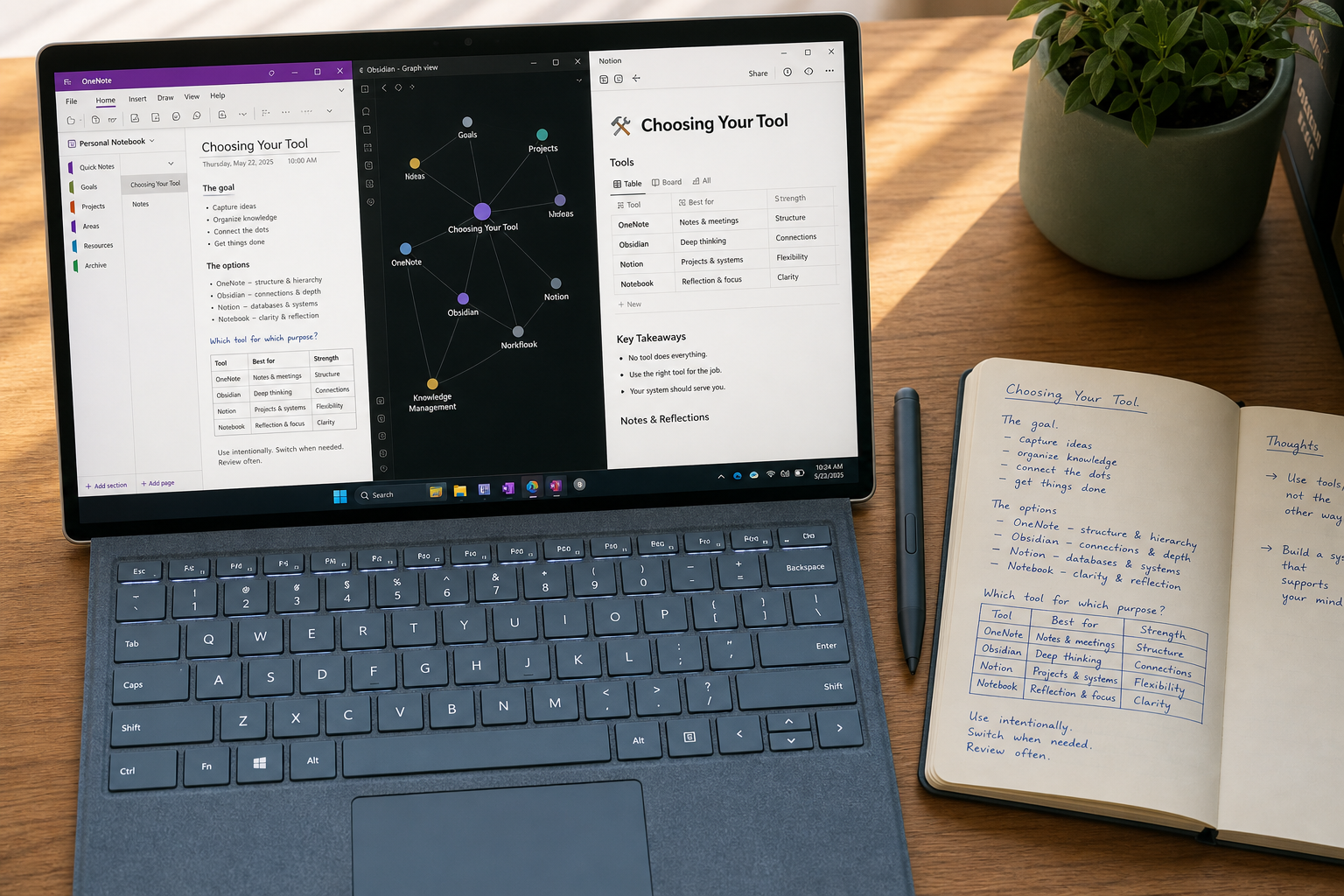
TL;DR: Top Picks at a Glance
If you only have a minute, here is the short version. Each app below is ranked for a specific use case. Pricing was last verified in June 2026.
| Best For | App | Starting Price (Free Tier) | One-Line Verdict |
|---|---|---|---|
| Best Overall (Most Windows Users) | Microsoft OneNote | Free (5GB storage) | Deep Windows integration, excellent stylus support, and a genuinely usable free tier make it the default choice for most. |
| Best for Structured Knowledge Management | Notion | Free (personal); $10/user/month (Plus) | Unmatched databases and templates, but limited offline mode and a steeper learning curve. |
| Best for Power Users & Local-First PKM | Obsidian | Free (core); Sync from $4–5/month | Local Markdown files, bidirectional linking, and full data sovereignty — ideal for those who want full control. |
| Best Free & Open-Source Alternative | Joplin | Free; Cloud sync from €2.99/month | End-to-end encryption, excellent import tools, and a strong community — the best Evernote replacement for the privacy-conscious. |
| Best Value Premium App | UpNote | $1.99/month or $39.99 lifetime | Polished interface and affordable pricing, but file uploads are capped at 20MB. |
| Best for Privacy & Longevity | Standard Notes | Free; Premium at $9/month | End-to-end encrypted, focused on plain text, and built for long-term note storage without vendor lock-in. |
| Best for AI-Powered Meeting Notes | Krisp | $8/month (annual); 7-day free trial | Transcribes meetings from Zoom, Teams, and Google Meet on Windows — a complementary tool, not a full note-taking replacement. |
How We Tested: 6 Windows-Specific Criteria
Most note-taking roundups treat Windows as an afterthought. They recycle the same cross-platform picks without accounting for the unique tradeoffs Windows users face. This roundup is different. Every app was evaluated against six criteria that matter specifically on a Windows machine.
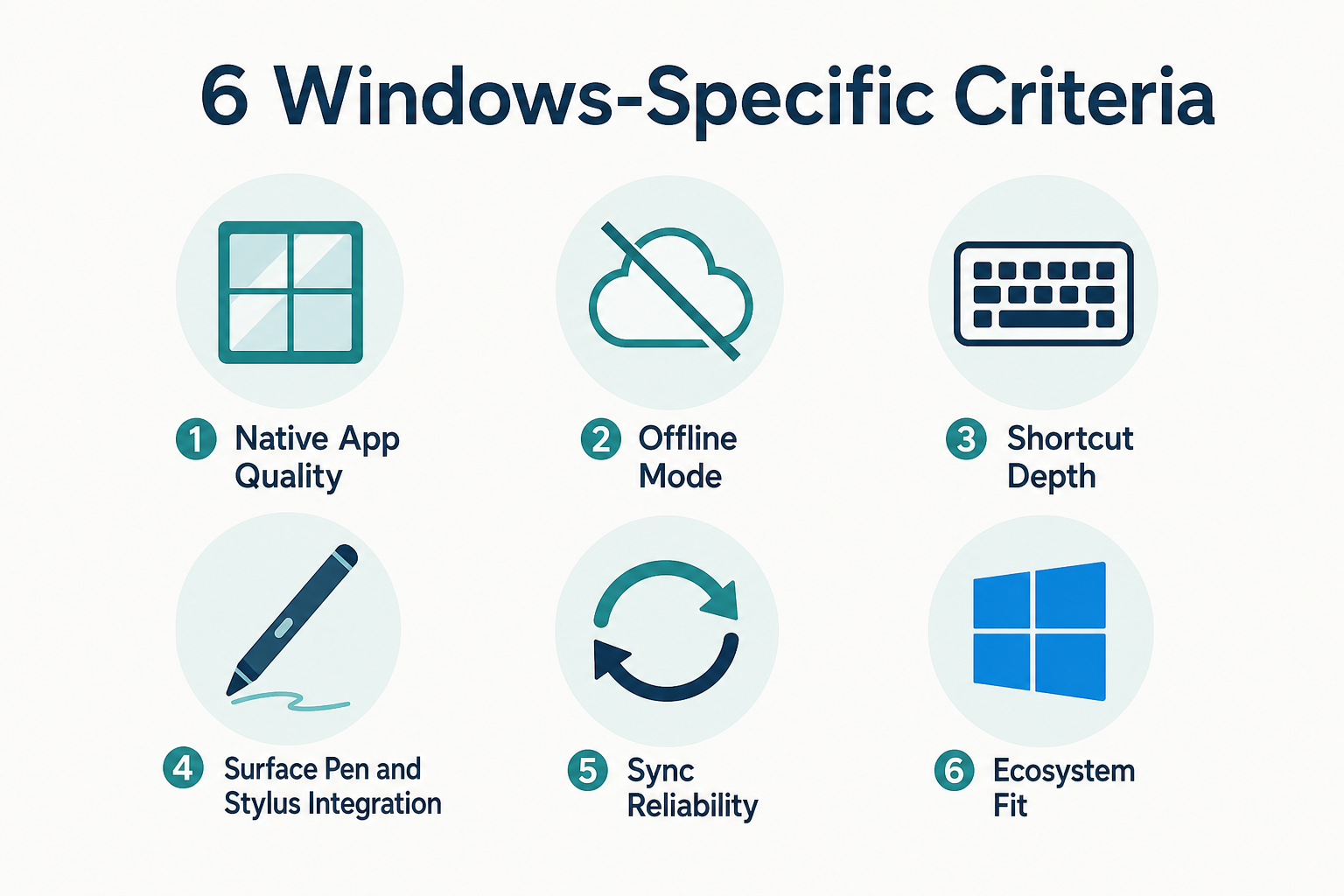
- Native App Quality: Does the app have a dedicated Windows client, or is it a web wrapper? A true native app feels faster, integrates better with the OS, and uses fewer system resources.
- Offline Mode: Can you create, edit, and search notes without an internet connection? For anyone who works on a train, plane, or in a spotty Wi-Fi zone, this is non-negotiable.
- Keyboard Shortcut Depth: How many actions can you perform without touching the mouse? Power users on Windows live by keyboard shortcuts, and the best apps offer deep, customizable shortcut sets.
- Stylus Integration: Does the app support Windows Ink and Surface Pen features like pressure sensitivity and palm rejection? For note-takers who prefer handwriting, this is a critical differentiator.
- Sync Reliability: How fast and reliable is syncing across devices? Does it use your existing cloud storage (OneDrive, Dropbox) or its own proprietary service?
- Microsoft Ecosystem Fit: Does the app integrate with Outlook, Teams, OneDrive, or Office? For users embedded in the Microsoft 365 ecosystem, tight integration can save hours each week.
We also cross-referenced our hands-on testing with expert reviews from PCMag, Zapier, and Krisp's guide, which tested apps on Windows 11 across 13 criteria. For a deeper head-to-head comparison of the four most popular apps, see our Windows Note-Taking App Showdown.
1. Microsoft OneNote – Best Overall for Most Windows Users
Microsoft OneNote remains the default choice for Windows note-taking, and for good reason. PCMag awarded it an Editors' Choice with a 4.5/5 rating, noting that the free version includes all core features, excellent organization tools, and a top-notch web clipper. It is completely free with a Microsoft account and comes with 5GB of free storage. If you need more space, you can add 100GB for $1.99/month.
OneNote excels in the Windows-specific criteria that matter most. Its native Windows app is polished and fast. Offline mode works seamlessly — you can create and edit notes without an internet connection, and they sync automatically when you reconnect. For Surface Pen users, OneNote offers the strongest stylus support of any app in this roundup, with deep Windows Ink integration, pressure sensitivity, and palm rejection. It also integrates deeply with the Microsoft 365 ecosystem, allowing you to link notes to Outlook tasks and embed Office documents directly into notebooks.
Pros & Cons
- Pros: Completely free with a generous 5GB storage limit; excellent stylus and Surface Pen support; deep integration with Microsoft 365 and Outlook; robust offline mode; powerful web clipper.
- Cons: Weak on bidirectional linking and Markdown workflows; the infinite canvas can feel overwhelming compared to page-based apps; sync speed can sometimes be unreliable.
2. Notion – Best for Structured Knowledge Management & Collaboration
Notion is the go-to app for users who think of note-taking as database management. Its block-based editor and powerful database views (table, board, calendar, gallery, list) let you build anything from a simple to-do list to a full project management system. Notion is free for personal use, and its Plus plan starts at $10/user/month (some sources cite $12/user/month). Students with a .edu email can get the Plus plan for free.
On Windows, Notion offers a dedicated desktop app, but it is essentially an Electron wrapper around the web app. This means it is functional but not as performant as a true native app. The biggest drawback for Windows users is Notion's limited offline mode. According to Atlas's 2026 scoring, Notion scored just 1.0/10 for Offline-First Integrity. You can view recently accessed pages offline, but you cannot create new notes or edit existing ones without a connection. This makes it a poor choice for anyone who frequently works without internet access.
Pros & Cons
- Pros: Unmatched database and template capabilities; excellent for team collaboration; generous free plan; powerful API and integrations.
- Cons: Limited offline mode (cannot create or edit without internet); steeper learning curve than OneNote or Apple Notes; Electron-based app is not as fast as native Windows apps.
3. Obsidian – Best for Power Users & Local-First PKM
Obsidian has become the standard-bearer for local-first, Markdown-based personal knowledge management (PKM). Its core app is free for personal use, and it stores all your notes as plain Markdown files on your local drive. This means you own your data completely — no vendor lock-in, no proprietary format. If you want syncing across devices, Obsidian Sync costs between $4 and $5 per month, depending on the source.
For Windows power users, Obsidian is a dream. It scores a perfect 10/10 for Offline-First Integrity and Data Sovereignty Quotient in Atlas's 2026 scoring. The app is highly customizable through community plugins and themes, and its graph view provides a visual map of how your notes connect. Keyboard shortcut support is deep and fully customizable. However, Obsidian has a steep learning curve. It is not a pick-up-and-go app — you will need to invest time in setting up your vault, choosing plugins, and learning its linking syntax.
Pros & Cons
- Pros: Free core app with local Markdown files; full data ownership and portability; bidirectional linking and graph view; highly customizable with plugins; excellent offline performance.
- Cons: Steep learning curve; requires time to set up and configure; no built-in real-time collaboration; the default experience is bare-bones without plugins.
4. Joplin – Best Free & Open-Source Evernote Alternative
Joplin is the best free and open-source note-taking app on Windows, and it earned an Editors' Choice from PCMag with a 4.5/5 rating. It is completely free to use, with an optional Joplin Cloud service starting at €2.99/month for syncing across devices. One of Joplin's standout features is end-to-end encryption, which means your notes are encrypted before they leave your device.
Joplin is particularly strong as an Evernote replacement. It has excellent import tools that can bring in your ENEX files (Evernote's export format) with most of your formatting and attachments intact. The Windows app is native and performs well offline. It supports Markdown editing, notebooks, tags, and a web clipper. However, Joplin's interface is functional rather than beautiful, and it does not offer real-time collaboration.
Pros & Cons
- Pros: Completely free and open-source; end-to-end encryption; excellent Evernote import tools; strong offline mode; cross-platform support.
- Cons: Interface is less polished than OneNote or Notion; no real-time collaboration; limited third-party integrations compared to proprietary apps.
5. UpNote – Best Value Premium App
UpNote is a relative newcomer that has quickly gained a following for its polished interface and aggressive pricing. At $1.99/month or a one-time $39.99 lifetime license, it offers the best value of any premium note-taking app on Windows. PCMag rates it 3.5/5, noting its clean design and solid feature set.
UpNote's Windows app is well-designed and responsive. It supports Markdown, notebooks, tags, and a web clipper. The app is fast and works offline. However, there is a significant limitation: file uploads are capped at 20MB per file. This makes UpNote a poor choice if you need to attach large PDFs, images, or audio files to your notes. It also only syncs across Windows, Mac, and iOS — there is no Android or Linux client.
Pros & Cons
- Pros: Very affordable ($1.99/month or $39.99 lifetime); polished and fast interface; supports Markdown; works offline.
- Cons: File uploads limited to 20MB; no Android or Linux client; smaller user community and fewer integrations than established apps.
6. Standard Notes – Best for Privacy & Longevity
Standard Notes is built around a single principle: your notes should be private and last forever. Every piece of data is end-to-end encrypted, meaning even the company cannot read your notes. The app is free to use, and the premium plan starts at $9/month, which unlocks features like Markdown editing, file attachments, and more powerful sync.
On Windows, Standard Notes offers a native desktop app that is fast and reliable offline. It is intentionally minimalist — the focus is on plain text and longevity, not rich media or complex formatting. This makes it an excellent choice for writers, journalists, and anyone who wants a secure, distraction-free writing environment. However, it is not suitable for users who need to embed images, record audio, or draw with a stylus.
Pros & Cons
- Pros: End-to-end encryption on all data; free tier available; native Windows app with strong offline support; focused on long-term data portability and plain text.
- Cons: No rich media support (images, audio, handwriting); no collaboration features; premium plan is relatively expensive at $9/month for what you get.
7. Krisp – Best for AI-Powered Meeting Notes
Krisp is not a traditional note-taking app. It is an AI-powered meeting assistant that runs as a dedicated Windows desktop app and works across Zoom, Microsoft Teams, and Google Meet. It transcribes meetings in real time, generates summaries, and captures action items. The Pro plan starts at around $8/month when billed annually, and there is a 7-day free trial.
For Windows users who attend frequent meetings, Krisp fills a gap that traditional note-taking apps cannot. Instead of manually typing notes during a call, you can let Krisp handle the transcription and focus on the conversation. It integrates with other tools like Notion and Slack, so you can automatically push meeting notes to your knowledge base. However, it is a complementary tool, not a replacement for a general-purpose note-taking app like OneNote or Obsidian.
Pros & Cons
- Pros: AI-powered transcription and summarization; works across major video conferencing platforms; dedicated Windows app; integrates with other productivity tools.
- Cons: Not a general-purpose note-taking app; requires a subscription ($8/month); limited to meeting-related workflows.
Quick Comparison Table
Use this table to compare all seven apps side by side across the key dimensions that matter on Windows.
| App | Price (Free Tier) | Paid Starting Price | Windows Native App | Offline Mode | Keyboard Shortcuts | Stylus Support | Best For |
|---|---|---|---|---|---|---|---|
| Microsoft OneNote | Free (5GB storage) | $1.99/month (100GB storage) | Yes | Full | Good | Excellent (Surface Pen) | Most Windows users |
| Notion | Free (personal) | $10/user/month (Plus) | Yes (Electron) | Limited (view only) | Good | None | Structured knowledge management |
| Obsidian | Free (core) | $4–5/month (Sync) | Yes (Electron) | Full | Excellent (customizable) | None | Power users & PKM |
| Joplin | Free | €2.99/month (Cloud) | Yes | Full | Good | None | Free & open-source |
| UpNote | N/A (paid only) | $1.99/month or $39.99 lifetime | Yes | Full | Good | None | Value premium |
| Standard Notes | Free | $9/month (Premium) | Yes | Full | Good | None | Privacy & longevity |
| Krisp | 7-day free trial | $8/month (annual) | Yes | No (cloud-based) | N/A | N/A | AI meeting notes |
Decision Guide: Which Note-Taking App Should You Choose?
Still unsure? Here is a quick decision guide based on your primary use case.
- You are a student: Choose OneNote (free, included with school M365 licensing, excellent for handwritten notes with a Surface Pen) or Notion (free Plus plan with .edu email, great for organizing course materials).
- You are a knowledge worker managing projects and databases: Choose Notion. Its database views and templates are unmatched for structured information management.
- You are a power user who wants full control over your data: Choose Obsidian. Local Markdown files, bidirectional linking, and a plugin ecosystem give you complete sovereignty over your notes.
- You are privacy-focused and want an open-source solution: Choose Joplin or Standard Notes. Joplin offers more features and better import tools; Standard Notes offers stronger encryption and a more minimalist experience.
- You use a Surface Pen and need the best handwriting experience: Choose OneNote. No other app comes close to its stylus integration on Windows.
- You attend frequent meetings and want AI-powered notes: Choose Krisp as a complementary tool alongside your main note-taking app.
Frequently Asked Questions
Which note-taking app is completely free on Windows?
Microsoft OneNote and Joplin are the two best completely free options. OneNote gives you 5GB of free storage and all core features. Joplin is free and open-source with no storage limits (though syncing across devices requires a paid cloud plan or your own setup). Standard Notes also has a free tier, but it is more limited.
Which app works best with a Surface Pen?
Microsoft OneNote is the clear winner for Surface Pen users. It offers the deepest Windows Ink integration, including pressure sensitivity, palm rejection, and a full set of drawing tools. For a dedicated comparison of handwriting apps, see our guide to the best notes app for Windows with a pen.
Can I use Obsidian and OneNote together?
Yes. Many users adopt a complementary workflow: OneNote for quick capture, handwritten notes, and meeting notes, and Obsidian for long-term knowledge management and linking. The two apps serve different purposes and can coexist without conflict.
Is Krisp a replacement for a note-taking app?
No. Krisp is a complementary tool designed specifically for AI-powered meeting transcription and summarization. It works best alongside a traditional note-taking app like OneNote or Notion, where you can store and organize the meeting notes it generates.
Which app has the best keyboard shortcuts on Windows?
Obsidian offers the deepest and most customizable keyboard shortcut support. You can remap almost any action. OneNote and Notion also have good shortcut sets, but they are not as flexible as Obsidian's.