
Quick Picks: Best Notion Second Brain Templates for GTD
PARA vs. GTD: What Makes a Second Brain Template Genuinely GTD-Ready
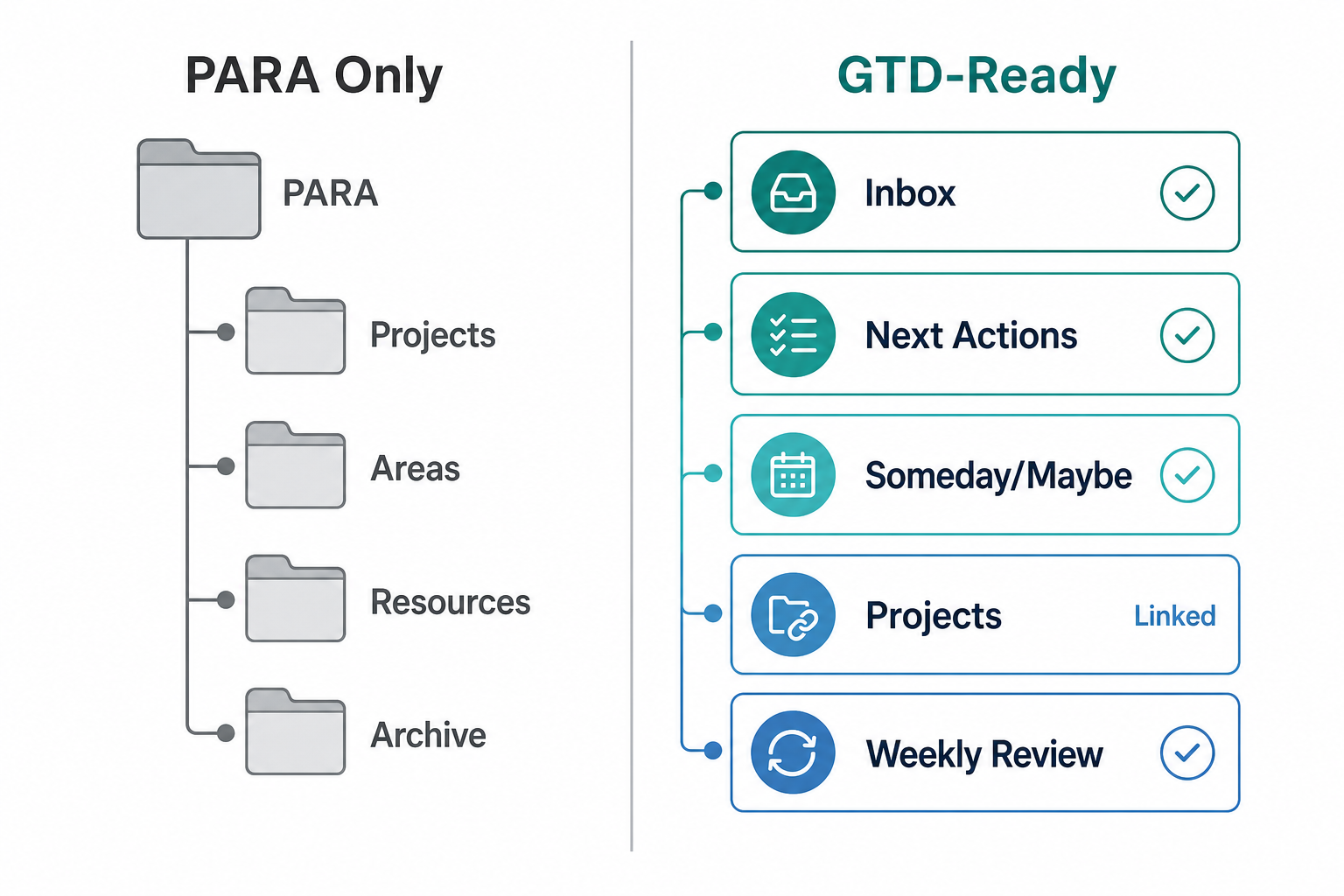
PARA (Projects, Areas, Resources, Archive) is an organizational structure — it tells you where to store information. GTD (Getting Things Done) is a processing workflow — it tells you what to do with every input that enters your system. A template can implement PARA perfectly and still leave you with no reliable way to process your inbox, identify your next actions, or run a weekly review.
Most Notion second brain templates use GTD language in their marketing while delivering a PARA filing system underneath. The distinction matters because GTD practitioners depend on specific workflow mechanics that PARA alone does not provide. If you need a full GTD methodology primer, see the Getting Things Done (GTD) Explained: The Complete Guide. For this article, what matters is whether a template includes these five GTD-readiness markers:
- Inbox database — a dedicated capture point for all unprocessed inputs, separate from your projects and tasks.
- Next Actions view — a filtered view of tasks tagged as the immediate next physical action, ideally filterable by context.
- Someday/Maybe list — a holding area for items you're not committed to yet but don't want to forget.
- Projects list linked to tasks — a Projects database with a relational connection to your task database, so every task belongs to a project.
- Weekly Review page — a structured template or checklist to guide the GTD weekly review process (clear inbox, review projects, update next actions).
Each template in this roundup is scored against all five markers. A template that meets all five is genuinely GTD-ready. A template that meets two or three is a PARA system with GTD-adjacent features — useful, but honest about what it is.
Comparison Table: Notion Second Brain Templates Scored on GTD Depth
| Template | Price | GTD Depth (out of 5) | PARA Included | Free Notion Plan | Best For | Not For You If |
|---|---|---|---|---|---|---|
| Ultimate Brain (Thomas Frank) | $79 one-time* | 5/5 | Yes | Yes | GTD purists, knowledge workers who want depth | You want a minimal, low-maintenance system |
| Easlo Second Brain | $39 one-time* | 2/5 | Yes | Yes | Minimalists, PARA-first users with light GTD needs | You need full five-step GTD processing |
| Second Brain System by Jellie (Marketplace) | Free | 3/5 | Yes | Yes | Budget-conscious users wanting inbox + reflection | You need deep GTD smart lists or automation |
| Headquarters by Productive Setups | Verify at product page | 3–4/5† | Yes | Yes | Power users combining GTD, time blocking, energy planning | You only need GTD basics without extra complexity |
| Free GTD Template by Rosidssoy (Marketplace) | Free | Unverified† | Unknown | Yes | Concept-testing before committing to a paid template | You need a proven, maintained daily-use system |
Ultimate Brain by Thomas Frank — Best Overall for GTD
Ultimate Brain is the most comprehensively GTD-integrated Notion template available. It meets all five GTD-readiness markers and goes further than most competing templates on each one.
The task manager includes GTD-style Smart Lists — dedicated filtered views for Do Next, Delegated, Snoozed, and Someday — which directly map to GTD's core processing outputs. Quick Capture lets you add items to your inbox without navigating away from your current page. A My Week page guides your weekly review. Recurring task automation works on Notion's free plan, which is unusual for this level of feature depth. The underlying architecture is a relational Notes-Projects-Tasks system organized using PARA.
- GTD Smart Lists: Do Next, Delegated, Snoozed, Someday — all five GTD-readiness markers met.
- Quick Capture for frictionless inbox addition.
- My Week page for structured weekly reviews.
- Recurring task automation on Notion's free plan.
- PARA organization with relational Notes-Projects-Tasks structure.
- Over 40,000 users; endorsed by Tiago Forte for PARA implementation.
Pricing is listed at $79 one-time (discounted from $129) at the time of research, though promotional pricing fluctuates. Verify the current price at thomasjfrank.com before purchasing — do not assume the promotional rate is permanent.
Easlo Second Brain — Best for Minimalists Who Want Light GTD on Top of PARA
Easlo's Second Brain is a PARA-first template that incorporates GTD elements for task management — it is not a standalone five-step GTD system. Easlo's own documentation describes it as a template that "builds upon the PARA method" and integrates "elements from the GTD workflow" for task management. That framing is accurate and should set your expectations before you buy.
What you get is a clean, well-organized system with Projects, Tasks, Notes, References, Areas, Goals, Key Results, Topics, and Highlights databases — all linked in a central dashboard. The design prioritizes simplicity and visual clarity over GTD workflow depth.
- Central dashboard with PARA structure (Projects, Areas, Resources, Archive).
- Tasks, Goals, and Key Results databases with relational links.
- Light GTD workflow integration for task management.
- Works on Notion's free plan.
- Last updated March 2025; priced at $39 (listed as discounted from $79) — verify current price at easlo.co.
What Easlo does not include: a dedicated Someday/Maybe list, GTD-style smart lists, or a structured weekly review page with GTD-specific prompts. If those are non-negotiable for your workflow, this is not the right pick.
Second Brain System (PKM + PARA + GTD) on Notion Marketplace — Best Mid-Tier Free Option
This free Notion Marketplace template by creator Jellie offers a solid middle ground for users who want GTD-adjacent structure without paying for a premium template. It meets three of the five GTD-readiness markers: a centralized inbox for capturing thoughts, ideas, web clips, meeting notes, and to-dos; linked notes-to-projects and tasks-to-goals relational structure; and a weekly or monthly reflection setup.
- Centralized inbox for capturing all input types.
- PARA organization (Projects, Areas, Resources, Archives).
- Linked notes-to-projects and tasks-to-goals relational databases.
- Dashboards for task, subtask, and milestone tracking.
- Weekly and monthly reflection setup.
- Rated 4.85 out of 5 from 13 community ratings — modest but positive validation.
The gaps are real: there is no dedicated Someday/Maybe list and no GTD-style smart lists for filtering by action type. The weekly reflection setup is present but less structured than Ultimate Brain's My Week page. For a free template, it covers the fundamentals well.
Headquarters by Productive Setups — Best for Power Users and Multi-Framework Systems
Headquarters is the most feature-dense template in this roundup. It combines PARA, GTD, time blocking, and energy planning into a single Notion workspace — along with time tracking and dynamic journaling. Multiple independent sources confirm this multi-framework positioning.
The trade-off is complexity. If you only need GTD basics — an inbox, next actions, and a weekly review — Headquarters will give you those plus a significant amount of additional structure you may never use. For users who actively practice multiple productivity frameworks and want them integrated, this is the most complete option available.
- Combines PARA, GTD, time blocking, and energy planning in one workspace.
- Includes time tracking and dynamic journaling components.
- Works on Notion's free plan.
Free GTD Template by Rosidssoy (Notion Marketplace) — Best for Testing the Concept
This free Notion Marketplace template is GTD-named and costs nothing to duplicate. That is its primary appeal. It had only two community ratings at the time of research, and its feature details were not readable during the review process — the template page rendered without accessible English content.
What can be said with confidence: it is free, it is GTD-branded, and it has minimal community validation. What cannot be confirmed: which specific GTD features it includes, how the inbox and next-actions views are structured, or whether it includes a Someday/Maybe list or weekly review page.
Free vs. Paid: Which Tier Is Right for You?
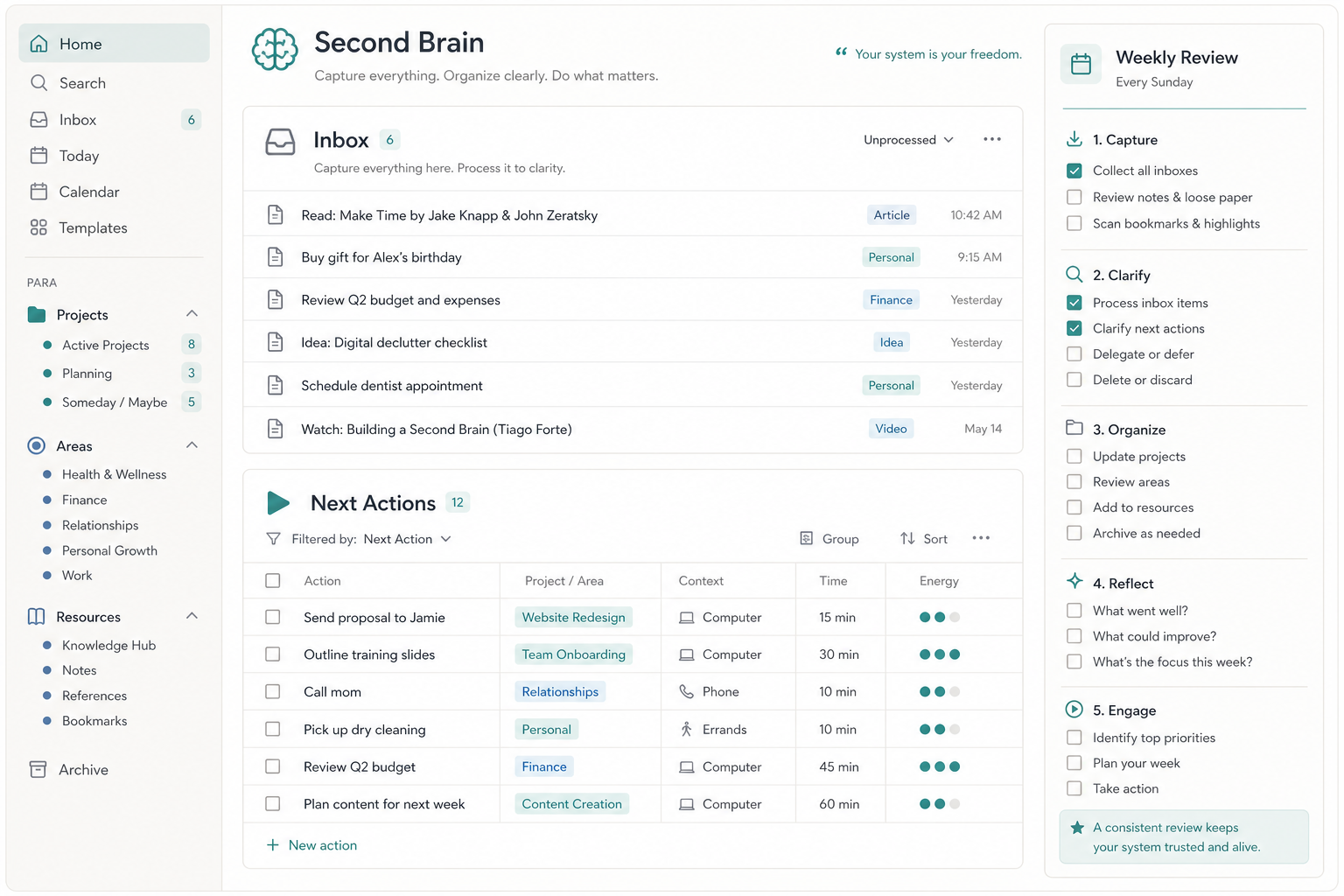
The first clarification worth making: all reviewed templates work on Notion's free plan. You do not need a paid Notion subscription to use any of them. The free vs. paid decision is about the template itself, not your Notion account tier.
Paid templates in this roundup are one-time purchases — no subscriptions. The range runs from $39 (Easlo) to $79 (Ultimate Brain at standard promotional pricing). Free options include the Jellie Marketplace template and the Rosidssoy GTD template.
| If you… | Choose this tier |
|---|---|
| Want to test GTD in Notion before spending anything | Free (Jellie or Rosidssoy Marketplace templates) |
| Need a clean PARA system with light GTD task management | Paid — Easlo Second Brain ($39) |
| Want the deepest GTD integration and don't mind a learning curve | Paid — Ultimate Brain ($79) |
| Actively use multiple frameworks and want them unified | Paid — Headquarters (verify current price) |
| Are a student on a tight budget who needs inbox + reflection | Free — Jellie Second Brain System |
Free Marketplace templates are adequate for concept-testing. Their limitations become apparent when you try to run a real weekly review: the prompts are either absent or generic, and there is no onboarding documentation to help you configure the system for your specific workflow. Paid templates justify their cost primarily through onboarding depth, maintained updates, and built-in workflow structure — not just feature count.
How to Clone and Configure Your Chosen Template for GTD (15 Minutes)
Once you have selected a template, getting it running for GTD use takes about 15 minutes. This section covers only the clone-and-configure steps. If you want to build a GTD system from scratch in Notion instead, see How to Build a GTD Productivity System in Notion for a complete walkthrough.
- Duplicate the template to your Notion workspace. Use the "Duplicate" button on the template page — this creates a private copy in your account.
- Rename your Inbox database to match how you think about capture. If the template labels it "Quick Capture" or "Tasks," rename it "Inbox" to reinforce the GTD mental model.
- Set up your first Weekly Review page if one is not pre-built. Create a new page inside your template, add a checklist with: clear inbox, review projects list, update next actions, check Someday/Maybe list.
- Add your first Next Actions filter. In your Tasks or Inbox database, create a filtered view that shows only items tagged "Next Action" or with a "Do Next" status. This is the view you will open daily.
- Add three real items to your Inbox right now. Processing those first three items — deciding if each is actionable, what the next action is, and where it belongs — will tell you more about the template's GTD depth than any review.
FAQ
- What is the difference between PARA and GTD? PARA is an organizational structure for where to store information; GTD is a processing workflow for how to decide what to do with every input. They are complementary but not interchangeable. For a full explanation, see the Getting Things Done (GTD) Explained: The Complete Guide.
- Do I need a paid Notion plan to use these templates? No. All five templates reviewed in this article work fully on Notion's free plan. No paid Notion subscription is required.
- Are these templates a one-time purchase or a subscription? One-time purchase only — no subscriptions. Paid templates range from $39 to $79 at standard pricing. Free Marketplace templates cost nothing.
- How do I add GTD views to a PARA-only template? You can add a filtered database view to any existing Tasks database and filter by a "Next Action" tag or status property. Adding a Someday/Maybe page and a Weekly Review checklist page are also straightforward manual additions. For a detailed walkthrough of configuring GTD views from scratch, see How to Build a GTD Productivity System in Notion.
Looking for other Notion template roundups? See Best Notion Meeting Notes Templates for 2026: Curated Picks by Use Case for curated picks across meeting note use cases.
Comments
Join the discussion with an anonymous comment.