
What GTD Is and Why the Architecture Matters
Getting Things Done — developed by David Allen and first published in his book of the same name — is a productivity methodology built on one core premise: your brain is for having ideas, not for holding them. When you offload every open loop, commitment, and intention into a trusted external system, your mind stops burning background energy trying to remember things and becomes free to focus on actual work.
The system runs on five sequential stages:
- Capture — collect every task, idea, and commitment into an inbox as it arises, without judgment.
- Clarify — process each inbox item: is it actionable? If yes and it takes under two minutes, do it now (the Two-Minute Rule). If it takes longer, define the next physical action and decide where it belongs.
- Organize — route each clarified item to its correct destination list.
- Reflect — review your lists regularly, with a full weekly review as the anchor habit.
- Engage — choose what to work on using context, available time, energy, and priority as your criteria.
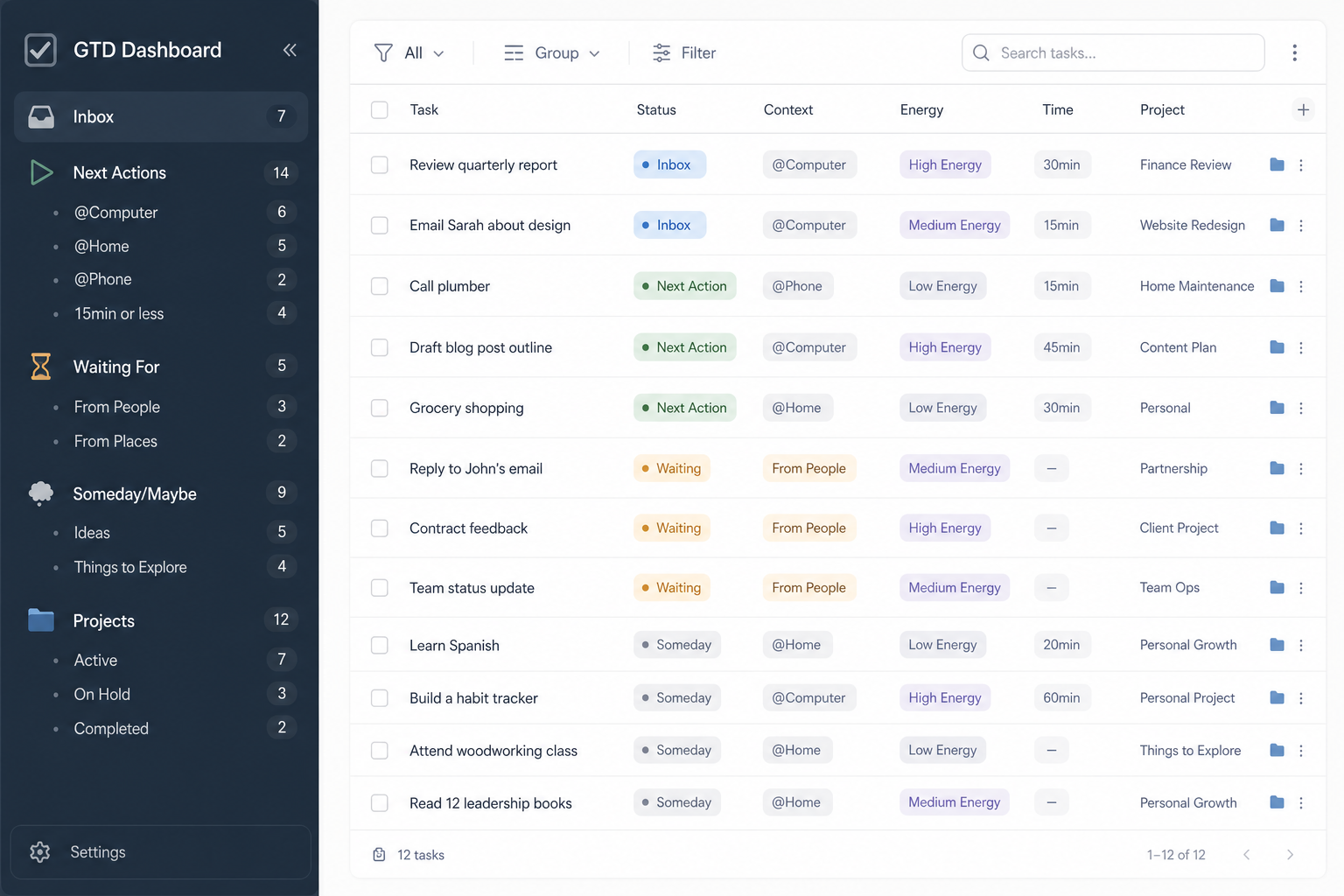
Each item you clarify lands in one of five destination lists: Inbox (unprocessed captures), Next Actions (the single next physical step on any active item), Waiting For (delegated items you're tracking), Someday/Maybe (items you're not ready to act on yet), and Reference (non-actionable material you may need later).
Here's the architectural challenge that most Notion GTD guides miss: if you create each of these five lists as a separate database or page, you end up with five disconnected silos. Moving a task from Inbox to Next Actions means copying or re-entering it. Searching across lists requires jumping between pages. Your system fragments the moment it gets busy.
Why Notion Works Well for GTD (and Where It Falls Short)
Notion has three properties that make it genuinely well-suited for GTD. First, every database entry is also a full-page note — so each task and each project can carry its own context, attachments, meeting notes, and reference material without leaving the system. Second, relational database properties let you formally connect tasks to projects, so you always know which project a next action belongs to. Third, linked views let you display the same database through multiple filtered lenses simultaneously, with no data duplication.
Those three capabilities map almost perfectly onto GTD's requirements. For a deeper look at Notion's feature set and pricing tiers, see the Notion tool profile.
That said, Notion is a platform for building a GTD system — it is not a purpose-built GTD app. The gaps are real and worth knowing before you start:
- No built-in review prompts. Notion will not remind you to do your weekly review. You have to build that habit externally and schedule it yourself.
- Recurring tasks require setup. Native recurring task support via Automations exists, but configuring it takes a few steps and requires a paid Notion plan to create or edit automations.
- Mobile quick capture is slower than dedicated apps. Notion mobile has improved significantly, but opening the app, navigating to the inbox view, and adding a task still takes more taps than a dedicated capture tool.
None of these are dealbreakers. They're manageable with the right workarounds, which are covered later in this guide. The key is going in with accurate expectations.
The Right Architecture: One Tasks Database, Not Five
The most common mistake in Notion GTD setups is creating a separate database or page for each GTD list. You end up with an Inbox database, a Next Actions database, a Waiting For database, and so on. This feels organized at first. It becomes a maintenance burden fast.
When a task moves from Inbox to Next Actions, you have to manually move or re-enter it. When you want to see all tasks related to a project, you have to query across multiple databases. When you rename a context tag, you have to update it in five places. The system fights you instead of supporting you.
Experienced GTD practitioners who have tried both approaches consistently arrive at the same conclusion. As one practitioner in the official GTD forums put it:
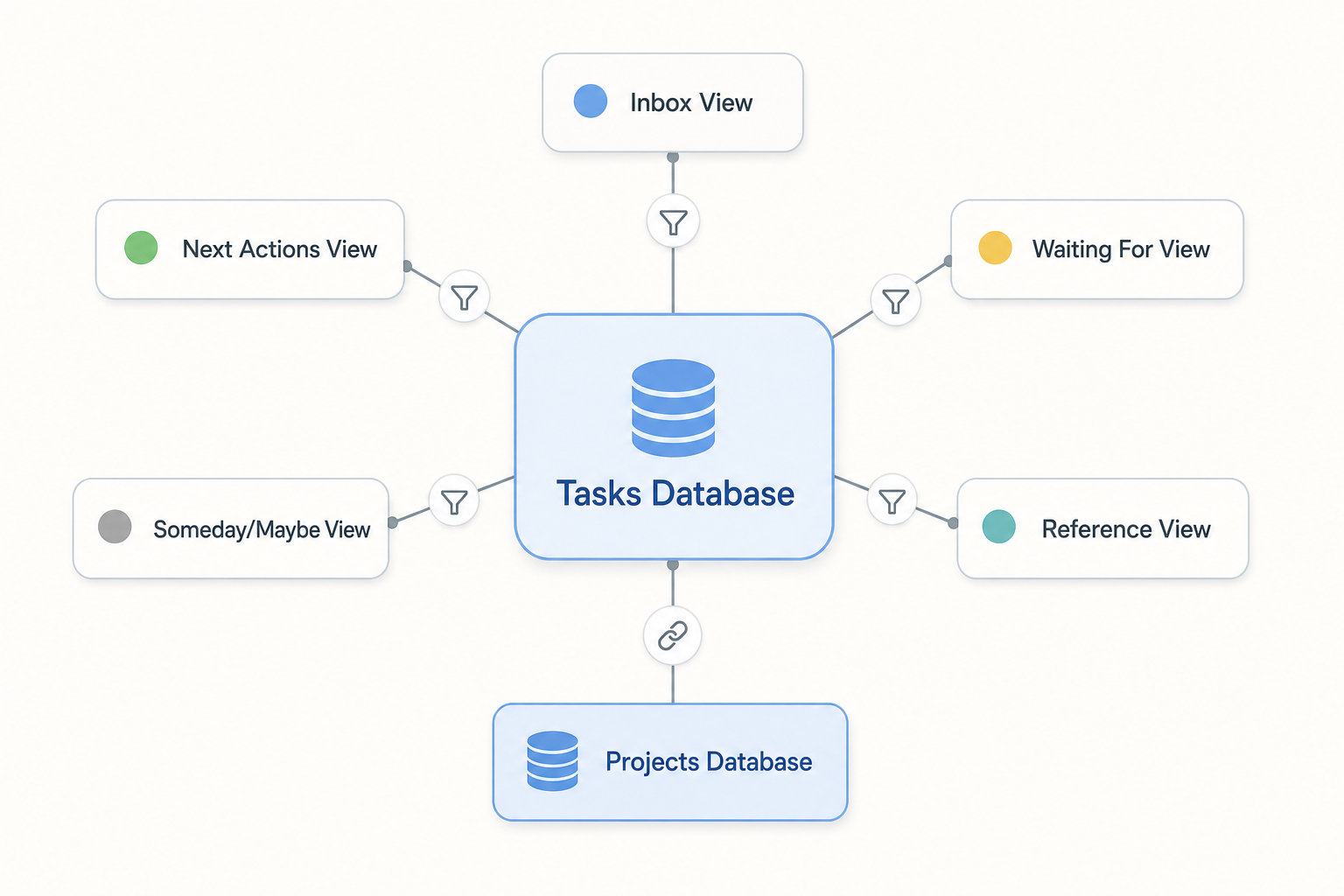
The recommended architecture is straightforward: one master Tasks database, one Projects database linked to it via a relation property, and each GTD list built as a saved filtered view on the Tasks database. Changing a task's status from Inbox to Next Action is a single property update — the task instantly appears in the correct view without any manual moving.
| Approach | How GTD lists work | Maintenance burden | Best for |
|---|---|---|---|
| Single Tasks database (recommended) | Filtered linked views on one database | Low — status change moves a task automatically | Most users building from scratch |
| Multi-database (one per list) | Separate databases for Inbox, Next Actions, etc. | High — tasks must be manually moved between databases | Advanced users with specific area-based separation needs |
Step 1: Create the Tasks Database
Create a new full-page database in Notion. Name it Tasks (or GTD Tasks if you prefer). This database is the core of your entire system — every task, next action, waiting item, and someday idea will live here as a row.
Add the following properties in order. The names, types, and option values below are exact recommendations — follow them closely so the filtered views built in Step 3 work correctly.
| Property name | Type | Options / Notes |
|---|---|---|
| Status | Select | Inbox, Next Action, Waiting For, Someday/Maybe, Done |
| Context | Multi-select | @Home, @Office, @Computer, @Phone, High Energy, Low Energy, 15min, 1hr+ |
| Priority | Select | High, Medium, Low |
| Do Date | Date | The date you intend to work on the task — not a hard deadline |
| Project | Relation | Relates to the Projects database (configured in Step 2) |
| Notes | Text | Optional — for inline context without opening the task page |
A note on Do Date vs. Due Date: GTD is strict about due dates. A task should only carry a hard due date if missing it has real consequences. For most tasks, what you actually need is a Do Date — the day you intend to work on it. Using Do Date instead of Due Date prevents the psychological pressure of treating every task as a deadline, which causes most GTD systems to collapse under anxiety.
The Context multi-select property deserves a moment of explanation. The four categories — location, energy, time, and phone — map directly onto GTD's four-criteria model for choosing what to work on next: context (where are you and what tools do you have?), time available (how long do you have?), energy available (how sharp are you?), and priority. When you tag tasks with multiple context values, you can filter your Next Actions list to exactly the tasks available to you right now.
Step 2: Create the Projects Database and Link It to Tasks
In GTD, a project is any desired outcome that requires more than one action step to complete. Projects are not tasks — they are goals. The distinction matters because each project deserves its own page-level space for research notes, reference material, meeting outputs, and status tracking. That's exactly what a separate Notion database gives you.
Create a new full-page database named Projects. Add the following properties:
- Status (Select): Active, On Hold, Completed, Someday/Maybe
- Area (Select): Work, Personal, Side Projects — or whatever life areas apply to you
- Due Date (Date): Only for projects with a real external deadline
- Tasks (Relation): Links to the Tasks database — configure this as a two-way relation
To create the relation, add a new property to the Projects database, choose the Relation type, and select your Tasks database. Enable the bidirectional option so the relation also appears on each Task row as the Project property you set up in Step 1.
Once the relation is live, add a Rollup property to the Projects database. Configure it to count the number of related Tasks where Status equals Next Action. This gives you a live count of remaining next actions per project — a quick signal of whether a project is stalled (zero next actions) or well-defined (one or two).
Step 3: Build Each GTD List as a Filtered Linked View
This is where the architecture pays off. Instead of creating new databases for each GTD list, you create linked views of your Tasks database — each with a saved filter that shows only the relevant tasks. When you change a task's Status property, it automatically appears in or disappears from the correct view.
To create a linked view: open any Notion page, type /linked view, select your Tasks database, and then configure the filter. Here are the exact filter configurations for each GTD list:
| GTD List | Filter logic | Sort order | Properties to show |
|---|---|---|---|
| Inbox | Status = Inbox | Created time ascending | Status, Project, Context |
| Next Actions | Status = Next Action | Do Date ascending, Priority descending | Status, Context, Priority, Do Date, Project |
| Waiting For | Status = Waiting For | Do Date ascending | Status, Context, Do Date, Project |
| Someday/Maybe | Status = Someday/Maybe | Created time ascending | Status, Context, Project |
| Done (archive) | Status = Done | Last edited descending | Status, Do Date, Project |
For the Inbox view, you can optionally add a second filter condition: OR Project is empty. This surfaces any task that was added without a status or project assignment — a useful safety net for tasks captured quickly on mobile.
Step 4: Assemble the GTD Dashboard Page
Create a new Notion page named GTD Dashboard. This is your command center — the page you open every morning and return to throughout the day. Its job is to put all five GTD lists in front of you without requiring any navigation.
Embed each of the five linked views you built in Step 3 on this page. Organize them in this order:
- Inbox — at the top, always visible. This is the first thing you process.
- Next Actions — your primary working list.
- Waiting For — review during weekly review and when following up.
- Someday/Maybe — collapse this into a toggle block by default; review weekly.
- Done — collapse this; it's an archive, not a working list.
Add two supplementary views below the list views: a Board view grouped by Status (gives you a Kanban-style overview of where everything stands) and a Calendar view by Do Date (shows what you've committed to each day). Both are linked views of the same Tasks database — no new databases.
Use callout blocks as section headers between views. They're visually distinct, scannable, and easy to update. Wrap the Someday/Maybe and Done views in toggle blocks so they stay collapsed unless you explicitly need them. The goal is a dashboard that shows you exactly what matters without visual noise.
Configuring Context Tags for Smarter Task Selection
The Context multi-select property is what transforms your Next Actions list from a flat to-do list into a decision-support tool. GTD's Engage stage asks you to choose what to work on using four criteria: context, time available, energy available, and priority. Your Context tags encode three of those four criteria directly on each task.
The four context categories to configure:
- Location: @Home, @Office, @Computer, @Phone — where you need to be or what tool you need to do this task.
- Energy: High Energy, Low Energy — whether the task requires sharp focus or can be done on autopilot.
- Time: 15min, 1hr+ — a rough time estimate that lets you match tasks to available windows.
- Person (optional): @[Name] — for tasks that require a specific person to be present or available, such as agenda items for a recurring meeting.
A single task can carry multiple context tags. For example, a task might be tagged @Computer + High Energy + 1hr+ — meaning you need to be at your computer, you need to be sharp, and you need a solid block of time. A task tagged @Phone + Low Energy + 15min can be knocked out between meetings.
Create a saved filter on your Next Actions view for each context you use frequently. For example: Next Actions filtered by Context contains @Computer. Add this as a named view called Next Actions — @Computer. When you sit down at your desk, open this view and work from it directly.
| Situation | Context filter to use |
|---|---|
| Sitting at desk with a full hour | @Computer + High Energy + 1hr+ |
| Between meetings, 15 minutes free | @Computer or @Phone + 15min |
| Working from home | @Home |
| Running errands | @Phone |
| Low energy afternoon | Low Energy |
The Weekly Review: Your GTD Maintenance Ritual in Notion
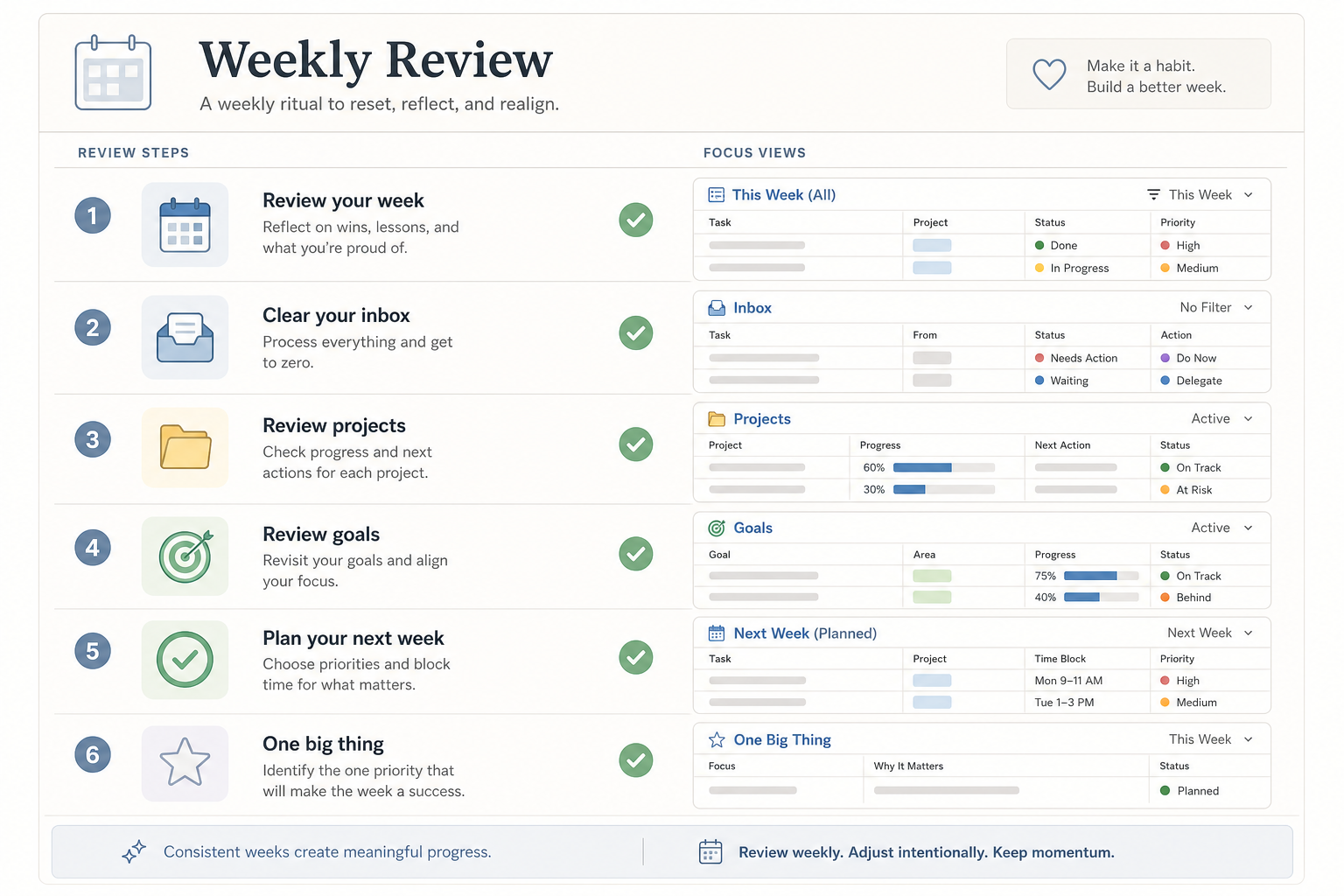
The weekly review is the practice that keeps a GTD system trustworthy. Without it, your lists drift out of date, your inbox fills up, and your system stops being a reliable external brain. With it, you spend most of the week simply executing — because you already know everything is current.
Create a dedicated page in Notion named Weekly Review. This page has two purposes: it hosts a repeating checklist template, and it embeds pre-linked filtered views of each GTD list so you can process them without navigating away. A well-structured session takes 30–60 minutes.
Structure the review in two phases:
- Reflection phase: Review any higher-horizon goals or a Year Manifesto if you maintain one. Assess the previous week — what went well, what didn't, what patterns emerged. Scan your calendar for the past week and the coming two weeks for commitments, deadlines, and opportunities.
- Planning phase: Process your Inbox to zero. Review every GTD list in order: Next Actions, Waiting For, Someday/Maybe. Update project statuses and ensure every active project has at least one next action. Assign Do Dates for the coming week's priorities. Time-block deep work sessions on your calendar.
For time-blocking your deep work sessions during the planning phase, a structured approach to scheduling makes a significant difference — see 10 time-blocking techniques that work in practice for concrete methods you can apply directly during this step.
Embed your linked views for Inbox, Next Actions, Waiting For, and Someday/Maybe directly on the Weekly Review page. During the review, you process each list in place — no tab-switching, no navigation. When you're done, every list is current and every project has a next action.
Schedule your weekly review as a recurring calendar event — same day, same time, every week. Notion will not remind you to do it. The calendar event is the prompt. Protect it the same way you would protect a client meeting.
Known Limitations and Practical Workarounds
Recurring Tasks
Notion now supports native recurring tasks via its Automations feature. The mechanism: create a database automation that triggers when the Status property is set to Done. The automation resets Status to the appropriate active state and advances the Do Date using a formula based on your configured recurrence interval.
To set this up, you'll need four properties on your Tasks database: Status, Do Date (already configured), a Recur Interval number property, and a Recur Unit select property with options like Day(s), Week(s), Month(s). The automation calculates the next Do Date by adding the interval to the current date.
One important limitation: Notion does not support RRULES, so recurring tasks don't populate multiple future calendar slots. Only the next due date appears on the calendar. Plan accordingly if you rely on your calendar view for scheduling.
Mobile Quick Capture
Notion's mobile app has improved substantially, but quick capture — adding a task in under three seconds — is still slower than dedicated apps. The most practical workaround is a two-step approach:
- Add a home-screen shortcut that opens directly to your Notion Inbox view. On iOS, use the Shortcuts app to create a widget that deep-links to the Inbox view URL. On Android, use the Notion widget.
- Use a lightweight parallel capture tool — Apple Reminders, Google Tasks, or Drafts — for anything that needs to be captured in under five seconds. During your daily or weekly processing session, move these items into your Notion Inbox and process them through the Clarify stage.
The parallel capture approach is not a compromise — it's a deliberate design choice. GTD does not require a single capture tool. It requires that everything ends up in your system and gets processed. A fast capture tool that feeds into Notion during processing works exactly as intended.
No Built-In Review Prompts or Coaching
Notion is a workspace, not a productivity coach. It will not remind you to process your inbox, prompt you to do your weekly review, or flag a project that has gone stale. All of that discipline has to come from you — supported by a scheduled calendar event for the weekly review and a daily habit of opening the dashboard.
Notion AI can be a useful supplement during the Clarify stage (asking it to help you define the next physical action on an ambiguous item) and during the weekly review reflection phase (using it as a writing prompt for a free-write on the past week). It is a useful assistant, not a replacement for the review discipline itself.
Free and Paid Templates to Accelerate Setup
If you'd rather start with a working system and customize it than build from scratch, several well-designed templates exist. The most comprehensive free option is Thomas Frank's Ultimate Brain template, which includes a full task and project database architecture with recurring task automations already configured. The Notion template marketplace also has GTD-specific options.
The architecture covered in this guide — one Tasks database, one Projects database, filtered linked views for each GTD list, context tags, and a structured weekly review — is the same architecture that good templates implement. Once you understand why each piece exists, you can evaluate any template critically, extend it confidently, and fix it when something breaks.
For readers considering whether Notion is the right long-term home for both their tasks and their notes, the Notion vs. Obsidian comparison covers how the two tools differ as knowledge bases — useful context if you're deciding whether to keep reference material in Notion alongside your GTD system or in a separate tool.
Comments
Join the discussion with an anonymous comment.