
Why Your Meeting Notes Template Choice Actually Matters
Most people grab the first Notion meeting template they find, use it for every meeting type, and wonder why their notes never drive follow-through. The problem is structural: a template designed for a weekly 1:1 with a direct report serves a fundamentally different documentation purpose than one built for a client discovery call or a cross-functional project review.
A 1:1 template needs space for personal context, running history, and relationship-level notes. A client call template needs formal decision logs, clear ownership, and output that can be shared externally. Using the wrong one means your notes capture the wrong things — and the right action items never get tracked.
This guide skips the generic ranked list format. Instead, it maps five curated Notion meeting notes templates to the specific use cases they were built for, with honest best-for and not-for verdicts, free and paid options, and practical setup notes so you can choose and implement the right one immediately.
What Every Good Notion Meeting Notes Template Must Include
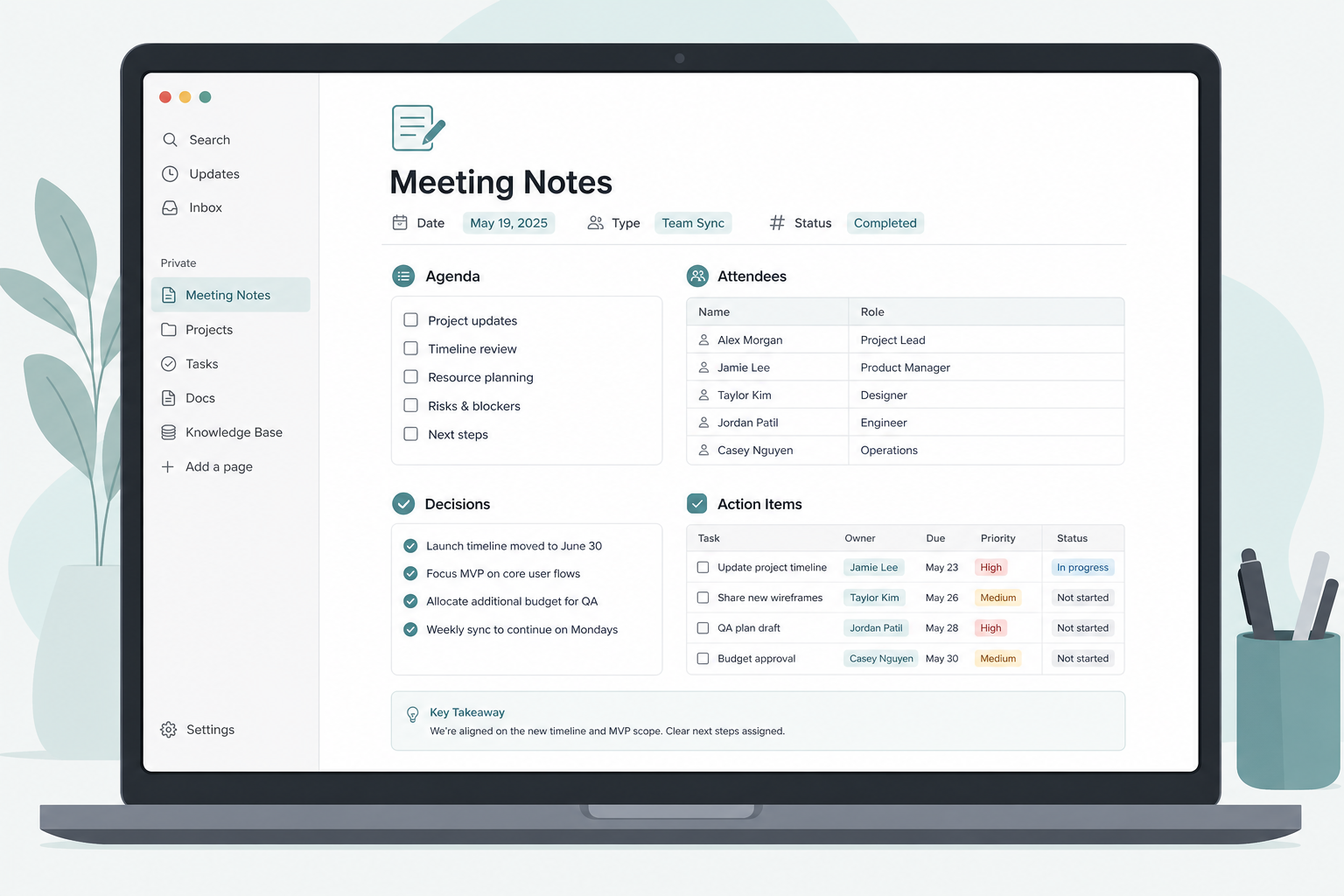
Before evaluating any specific template, it helps to know what the baseline looks like. A meeting notes template that actually drives follow-through needs five core components.
- Date and time — prominently displayed so the note is findable in a database view without opening it.
- Attendees and roles — not just names, but who was responsible for what in the meeting context.
- Agenda items — a pre-meeting structure that doubles as the note's navigation skeleton.
- Decisions made — a dedicated section, not buried in notes. Decisions are the most retrieved content after a meeting ends.
- Action items with owners and due dates — the single most important section for follow-through. Each item needs a person and a deadline, not just a task description.
If you use Notion's Business plan, you can add an AI meeting notes block to any template so Notion generates a structured summary automatically. This is optional but worth including in recurring meeting templates — more on that in the Notion AI section below.
Curated Picks by Use Case
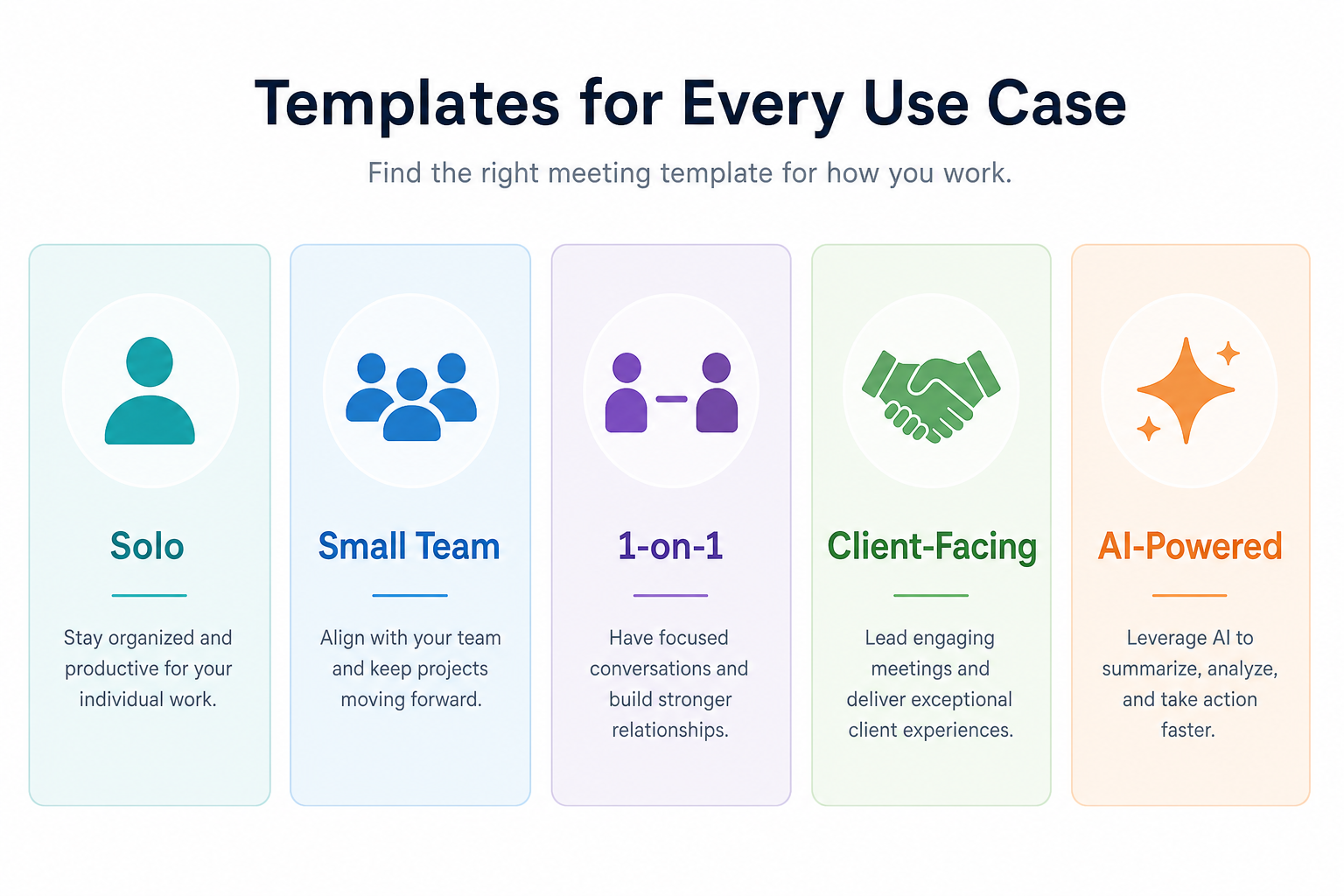
Notion's template marketplace lists over 1,250 meeting-related templates. The value here is not in the count — it is in knowing which five are worth your time and why. Each pick below is matched to a specific meeting context, with a clear verdict on who it serves and who should skip it.
Solo / Individual: Meeting Notes for Self by Jeff Su
| Detail | Info |
|---|---|
| Creator | Jeff Su |
| Cost | Free |
| Best for | Solo professionals, freelancers, and students who attend meetings but manage their own notes independently |
| Not for | Teams that need shared access, collaborative editing, or linked action item tracking across multiple people |
This template prioritizes flexibility over structure. It gives individual users a clean space for agenda, notes, and personal follow-ups without requiring a full database setup. The layout is intentionally minimal — useful for people who attend many different meeting types and need one template that adapts rather than one that enforces a fixed format.
- Key features: Flexible note-taking area, personal action item section, lightweight design that works without a linked database.
- Quick setup note: Duplicate it to your Notion workspace and add it as the default template in your personal meetings database. No relation properties required to get value from it immediately.
Small Team with Action Tracking: Meeting Notes & Action Steps Tracker by Long Nguyen
| Detail | Info |
|---|---|
| Creator | Long Nguyen |
| Cost | Free |
| Best for | Small teams (2–8 people) who need structured action item tracking and want to see what was decided and who owns what at a glance |
| Not for | Solo users who don't need action item assignment, or large teams where a full project management integration is more appropriate |
This template separates meeting notes from action items structurally — not just visually. Action items have their own section with assignee and due date fields, which makes post-meeting review faster and reduces the chance that a task gets buried in prose.
- Key features: Dedicated action steps section with owner and deadline fields, agenda-driven structure, clean separation between discussion notes and decisions.
- Quick setup note: Works well as a standalone template. For maximum value, add a relation property linking action items to your team's tasks database so items don't require manual re-entry after the meeting.
1:1 / Manager-Direct: One-on-One Meeting Notes by Bersam Karbasion
| Detail | Info |
|---|---|
| Creator | Bersam Karbasion |
| Cost | Free |
| Best for | Managers and team leads who run recurring 1:1s and want a running log of topics, feedback, and personal development notes over time |
| Not for | Project kickoff meetings, client calls, or any meeting where external sharing or formal decision documentation is required |
The structural difference between a 1:1 template and a general meeting template is continuity. A good 1:1 template is designed to be used repeatedly with the same person — it should accumulate context across sessions, not start fresh every time.
- Key features: Running agenda format, space for personal notes and development context, recurring meeting structure that builds history over time.
- Quick setup note: Create one page per direct report and use this template as the recurring format within it. Link the page to your team database so you can filter by person when preparing for the next session.
Client-Facing / Startup: Meeting OS by TheVellerPacked
| Detail | Info |
|---|---|
| Creator | @TheVellerPacked |
| Cost | Paid ($10) |
| Best for | Startup teams and client-facing professionals who run multiple meeting types (sales calls, project reviews, stand-ups) and want one system with consistent structure across all of them |
| Not for | Solo users or small teams who only run one type of meeting and don't need the overhead of a multi-format system |
Meeting OS is the most comprehensive paid option in this roundup. It includes nine distinct meeting format templates (stand-up, sales call, team meeting, client review, and others) with Calendly, Google Calendar, and Tactiq integration support. The paid price reflects the breadth of the system rather than any single template's complexity.
- Key features: Nine meeting format templates in one system, calendar integration support, client and task linking via relation properties, consistent structure across meeting types.
- Quick setup note: The initial setup takes longer than a single template — plan 30–60 minutes to configure the databases and connect your calendar. The payoff is a unified meeting system rather than a collection of disconnected pages.
AI-Powered: AI Meeting Notes by Thomas Cerulis
| Detail | Info |
|---|---|
| Creator | Thomas Cerulis |
| Cost | Free (template); Notion Business plan required for AI features — $15/user/month billed annually or $20/user/month billed monthly, verified March 2026 |
| Best for | Business plan users who want a pre-built template with an AI summary block already configured and a calendar view for browsing past meetings |
| Not for | Free or Plus plan users (AI Meeting Notes is not available on these plans), or teams needing speaker-identified transcripts |
This template includes a quick-capture button, a calendar view for meeting history, and a built-in AI summary block. It is the most ready-to-use option for Business plan users who want AI summaries without building the block configuration themselves.
- Key features: Pre-configured AI meeting notes block, quick-capture entry button, calendar view for meeting history browsing.
- Quick setup note: After duplicating the template, navigate to the AI block's Instructions field and set a custom summary structure for your most common meeting type (stand-up, 1:1, team meeting, or sales call). Most users skip this step — it is the single highest-leverage configuration in the entire template.
How Notion AI Meeting Notes Changes the Equation in 2026
Notion AI Meeting Notes is not a separate app or a bot that joins your calls. It is a block you add to any Notion page, triggered by typing /meet. Once started, it captures your system audio and microphone through the Notion desktop app and generates a live transcript and structured summary.
The feature has real capability — and real constraints. Understanding both before deciding whether it fits your workflow saves time and avoids misplaced expectations.
Requirements and Technical Constraints
- Plan requirement: Business or Enterprise plan only. Not available on Free or Plus plans. Business plan pricing as of March 2026: $15/user/month billed annually, $20/user/month billed monthly. Verify current pricing at notion.com/pricing before committing.
- Desktop app required: Notion desktop app v4.7.0 or later on macOS 13+ or latest Windows. The browser version captures microphone only — no system audio — which means virtual call audio from other participants is not captured in the browser.
- No auto-join: Notion does not join your call as a bot. You start the recording manually from your Notion page while the call is running.
- Speaker identification: Limited to 1:1 virtual desktop meetings where Notion captures both audio streams. In group meetings or in-person conversations, the transcript is one continuous block with no speaker labels.
- No video recording: Audio and transcript only. Screen content, slides, and visual context are not captured.
- Language support: 16 languages supported. Speaker labeling is currently English only.
- Daily usage limit: 10 hours per user per day.
The Instructions Field: The Most Overlooked Setting
By default, Notion AI structures your meeting summary automatically. Most users never change this. The Instructions field — accessible at the bottom of the meeting notes block — lets you define exactly how the summary should be structured for different meeting types.
You can set custom instructions for a stand-up (focus on blockers and completed items), a sales call (capture objections, next steps, and deal stage), a team meeting (decisions made, owners, and deadlines), or a 1:1 (personal context, feedback given, development notes). The instructions apply to new recordings and when transcription is resumed.
This single configuration step is the difference between a generic AI summary and one that matches how your team actually uses meeting notes.
Notion Calendar Integration
Connecting Notion AI Meeting Notes to Notion Calendar allows you to auto-create a meeting notes page for each calendar event. You can link meeting notes directly from the Documents and links section of a calendar invite, which means your note is ready before the meeting starts rather than created mid-call.
Honest Verdict on Notion AI Meeting Notes
| Use case | Verdict |
|---|---|
| Solo user, async workflow, Business plan | Strong fit — captures your own audio reliably, generates useful summaries, low friction |
| 1:1 meetings (virtual, desktop) | Good fit — speaker labeling works in this specific context |
| Small team meetings (3+ people) | Weak fit — no speaker ID means action item ownership in the summary is unreliable |
| Client calls requiring speaker tracking | Not recommended — manual consent friction plus no speaker ID creates reliability problems |
| In-person meetings with shared mic | Not recommended — audio capture degrades significantly in shared-microphone environments |
For a broader look at Notion's plan tiers, database capabilities, and where it fits relative to other note-taking platforms, the Notion platform review covers pricing, strengths, and vendor risk context in full.
How to Set Up and Customize Your Chosen Template
Duplicating a template into Notion takes thirty seconds. Getting it to actually work as part of your workflow takes four additional steps — and most people skip all of them.
- Set a default template in your meetings database. Open your meetings database, click the dropdown arrow next to New, and set your chosen template as the default. Every new meeting page will open with your structure already in place — no manual template selection required.
- Add a relation property linking meetings to your tasks or projects database. This is the step that transforms meeting notes from a documentation artifact into trackable work. Without it, action items from meetings live only on the meeting page. With it, they appear in your task view alongside everything else you need to do.
- Use @mentions in the Notes tab for action items. If you use Notion AI Meeting Notes, mentioning a team member's name with @ in the notes section helps the AI tag that person as the action item owner in the generated summary. This only works reliably in 1:1 desktop meetings — in group calls, verify ownership manually.
- Create template buttons for recurring meeting types. If you run stand-ups, 1:1s, and client calls each week, set up a separate template button for each type. This removes the decision of which template to use and ensures the right structure appears for the right meeting without extra steps.
Common Mistakes to Avoid
- Over-relying on AI summaries without reviewing them. Notion AI Meeting Notes produces useful summaries, but it can misattribute ownership or miss context that was obvious to participants. Treat AI summaries as a starting draft, not a final record.
- Inconsistent naming conventions. If some meeting pages are titled "Q2 Review" and others are titled "2026-06-06 Quarterly Review," your database filtering and search stop working reliably. Decide on a naming pattern (date + meeting type + participants is common) and enforce it through your default template.
- Failing to connect meeting notes to your project database. Action items that live only on a meeting page get lost. Without a relation property linking your meetings database to a tasks or projects database, every post-meeting follow-up requires manually re-entering the action item somewhere else.
- Neglecting consent protocols for recorded meetings. If you use Notion AI Meeting Notes for any call with external participants, you are responsible for informing everyone that the meeting is being recorded. Notion does not handle this automatically. Skipping this step creates legal and trust risk, especially for client-facing calls.
- Choosing the most complex template rather than the most appropriate one. A template with 12 sections and 6 linked databases is not inherently better than one with 4 sections. If your team skips filling in half the fields because the template feels like overhead, you would have been better served by a simpler structure.
Frequently Asked Questions
Are Notion meeting notes templates free?
Most are. The Notion template marketplace includes hundreds of free meeting notes templates, and all five use-case picks in this article include at least one free option. Paid templates (typically $5–$15) generally add value through pre-built linked databases, multi-format systems, or calendar integrations — not through features unavailable on free templates.
Can I use Notion AI Meeting Notes on the free plan?
No. Notion AI Meeting Notes requires a Business or Enterprise plan. As of March 2026, the Business plan costs $15/user/month billed annually or $20/user/month billed monthly. Notion offers a 30-day Business trial with a credit card. Confirm current pricing at notion.com/pricing — Notion's pricing has changed multiple times and will likely change again.
Does Notion AI Meeting Notes work for in-person meetings?
Technically yes, but with significant limitations. In-person meetings with multiple people sharing a room typically involve a single microphone or a laptop mic picking up ambient audio. Speaker identification does not work in this context — the transcript will be one continuous block. For in-person meetings, Notion AI is most useful as a live note-taking aid rather than a reliable transcription source.
How do I share meeting notes with people who don't use Notion?
You can share any Notion page as a public web link — no Notion account required to view it. Go to the page's Share settings and enable "Share to web." For more formal sharing, Notion supports PDF export. For recurring external sharing (client calls, board updates), consider duplicating the meeting notes to a dedicated shared workspace or exporting after each session rather than sharing your internal database directly.
What's the difference between a Notion meeting notes template and a meeting notes database?
A template is the page structure — the sections, fields, and layout that appear when you create a new meeting note. A database is the container that holds all your meeting pages and lets you filter, sort, and view them across time. Most serious Notion users set up a meetings database first, then assign a template as the default structure for new entries in that database. The templates in this article are designed to be used inside a database, not as standalone pages.
Is Notion good for client meeting notes, or should I use a dedicated tool?
Notion works well for client meeting notes when the priority is connected documentation — linking call notes to a project, client record, or task database. Where Notion falls short compared to dedicated tools (like Fathom, Fireflies, or tl;dv) is speaker-identified transcription for multi-person calls. If your client meetings involve multiple speakers and you need accurate, speaker-labeled transcripts for compliance or handoff purposes, a dedicated AI meeting tool will serve you better. If your priority is keeping meeting notes inside your existing Notion workspace and connected to your project context, Notion's templates and (for Business plan users) its AI block are a reasonable choice.
Comments
Join the discussion with an anonymous comment.