

Last checked September 1, 2026. This article verifies Microsoft’s documented diagnostic and recovery guidance for classic Outlook on Windows. It does not identify or confirm a latest September 2026 Outlook incident.
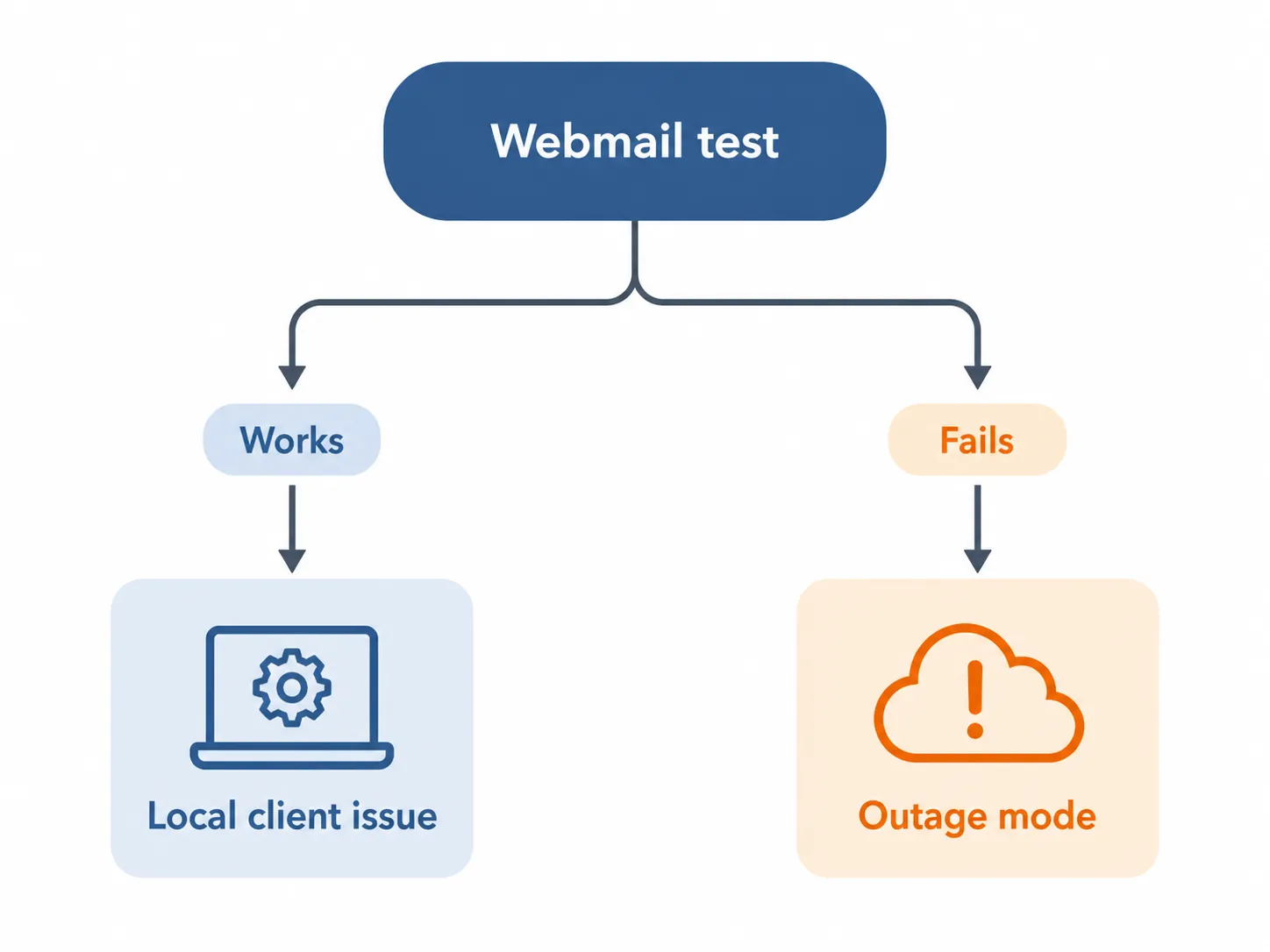
When Outlook stops sending and receiving, open Outlook on the web before changing profiles, reinstalling Office, or looking for another email provider. Send a test message from the same mailbox and confirm that the account can receive one. If webmail works while classic Outlook does not, Microsoft’s mail service is reachable and the problem is local to the desktop client. If webmail also fails, stop treating repeated Send/Receive clicks as troubleshooting and move into outage mode.[1]
| Decision point | What to do | What the result means |
|---|---|---|
| First check | Sign in to Outlook on the web and test both sending and receiving | This separates a desktop-client fault from a service or account problem |
| Webmail works | Keep using webmail while checking classic Outlook, updates, account settings, and the reconnect sequence | Do not wait for a Microsoft outage to fix a local client |
| Webmail also fails | Preserve access to synchronized work, record pending messages, and check official service status | Another desktop mail client will not restore an unavailable Microsoft transport |
| After recovery appears | Run a fresh send-and-receive test before clearing pending work | A status change alone does not prove that your mailbox path is working |
If webmail works, repair the desktop path
A successful web test changes the diagnosis. Your mailbox can reach Microsoft’s service, so outage reports should not send you into waiting mode. Continue essential email in the browser and work through classic Outlook locally.
Start with the connection state you can observe. In classic Outlook, inspect the status bar and the Send/Receive controls. If Work Offline is active, toggle it and allow Outlook to reconnect. If the state does not clear, reset it rather than repeatedly pressing Send/Receive without checking whether Outlook considers itself offline. Microsoft’s documented recovery guidance then moves through Office updates and, if the client still cannot connect, creation of a new Outlook profile before the failure is treated as server-side.[1]
- Confirm that Outlook is not intentionally set to Work Offline, then reset that state and test the connection.
- Check for Outlook or Microsoft 365 updates and restart the client if an update requires it.
- Review the affected account’s settings rather than modifying unrelated mailboxes.
- Create a new Outlook profile if the existing profile still cannot connect while webmail works.
- Repeat the web and desktop send-and-receive tests after each material change.
Control names and their placement can differ by Outlook build, and this sequence has not been independently timed. The useful boundary is the result: webmail working and the desktop client failing points toward the machine, profile, update state, or client configuration—not a general Microsoft transport outage.
If Outlook connects but local search remains incomplete or stale, that is a different diagnostic path. The Outlook search troubleshooting guide covers local indexing and synchronization settings without confusing them with a server failure.
If webmail fails too, work from what has already synchronized
Cached Exchange Mode gives classic Outlook a local working copy of previously synchronized mailbox data. That can preserve access to mail and folders already present on the computer when the server connection disappears. It does not create an alternate delivery route: new messages cannot be sent or received through a server that remains unavailable.[1][2]
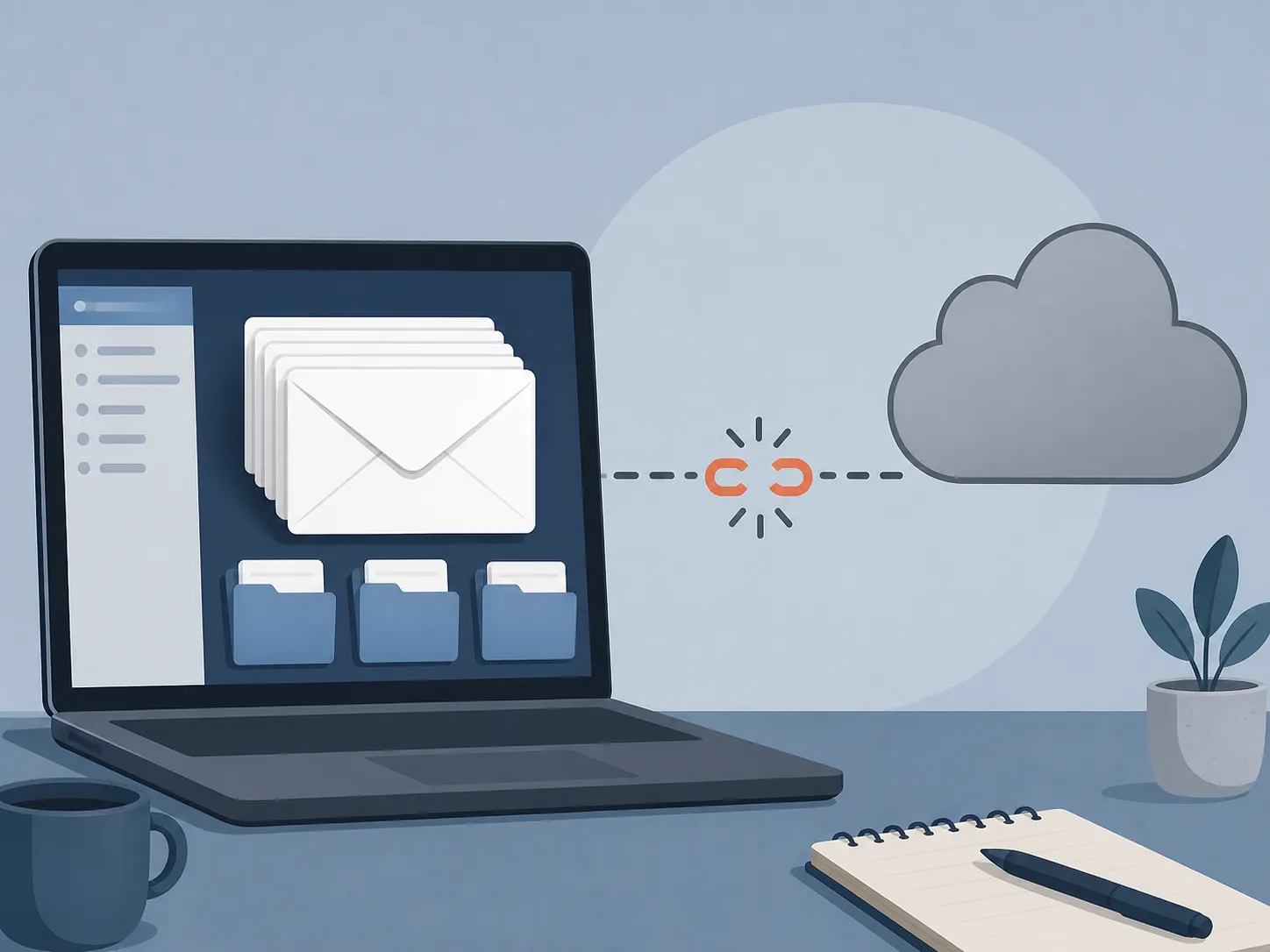
That distinction prevents a common operational mistake. A message visible in Outlook may be available because it was cached earlier; its presence does not prove the mailbox is currently connected. Likewise, a draft prepared during the interruption is useful work, but it should remain on a pending list until a later test confirms delivery.
Use the cached mailbox as a reference surface. Read the correspondence you already have, extract commitments and deadlines, prepare replies as drafts, and record decisions in a local or otherwise available workspace. If colleagues need an interruption notice, use an approved independent channel that is still operating, such as a phone call or another organization-managed service. Do not describe an unsent draft as communication completed.
- Review already synchronized conversations needed for current work.
- Write replies and attachments, but label them as pending rather than sent.
- Keep a short local log of decisions, owners, and messages that must leave after recovery.
- Avoid large-scale mailbox cleanup or folder reorganization while disconnected.
- Note the first failed test and the first later successful test so the interruption can be explained accurately.
The amount of history available offline depends on what had synchronized before the failure. If you need to adjust that local window for future interruptions, use the separate Cached Exchange Mode cache-slider guide. Changing the setting during an active server outage cannot download mail that the computer does not already have.
Be careful with offline moves
Reading cached mail and drafting responses are relatively contained activities. Moving many items between folders while disconnected creates a quieter risk. Microsoft documents that when an offline move conflicts with the server’s state, an item can be recreated in the destination on the server instead of being moved as expected after reconnection.[1]
The immediate screen may therefore look orderly while the post-reconnection mailbox does not. Defer nonessential filing, deletion, and bulk movement until the connection is stable. If an item must be moved, record what you changed and review both its original and destination folders after synchronization. Unexpected recreated items are not necessarily evidence that somebody resent the message.
Mail delivery can also have a messy recovery period after the service returns. The analysis of post-restoration delivery costs addresses delayed or duplicated mail and why pending messages should be reconciled rather than released blindly.
Use official status as a waiting signal, not as the only test
Microsoft’s service-health documentation uses five incident states: Investigating, Service degradation, Service interruption, Restoring service, and Extended recovery. Its Issue history can display the previous 7 or 30 days.[3] These labels help decide whether continued local repair is sensible, but they do not replace testing the affected mailbox.
| Official state | Practical response |
|---|---|
| Investigating | Preserve evidence and pending work; avoid speculative repairs if webmail also fails |
| Service degradation | Expect partial or inconsistent behavior and keep testing the specific send-and-receive path you need |
| Service interruption | Stay in outage mode and do not expect a different client to restore Microsoft’s unavailable transport |
| Restoring service | Test cautiously; restoration activity does not yet prove that your mailbox is fully usable |
| Extended recovery | Continue the controlled fallback and reconcile drafts, folders, and pending communications as access returns |
The defensible recovery criterion is a successful send-and-receive test in your own mailbox. When the status page improves, send a fresh, identifiable test message, verify receipt, and then release pending work in a controlled order. Check drafts, the Outbox, Sent Items, and any folders changed offline before assuming that every queued action completed.
Treat 2026 outage reports as context, not diagnosis
A CRN report described a 2026 disruption affecting Outlook, Defender, and Purview, citing 12,380 Downdetector reports and a Microsoft error reading “451 4.3.2 temporary server issue.” The source available here does not provide a month and day, so it cannot establish the latest dated Outlook outage.[4]
A separate Medium reconstruction discusses January 22–23, 2026, but explicitly says it is not a Microsoft root-cause analysis.[5] The two accounts cannot be combined into one confirmed incident record. Third-party report volume and technical reconstructions may provide context; neither tells you whether your present failure belongs to Microsoft, classic Outlook, or one computer.
For broader discussion of cloud-dependent notes and the reported January event, see the Outlook and Teams outage comparison. It provides outage context; it should not override the webmail test for the mailbox in front of you.
Keep non-email work available without pretending it restores email
A separate notes workspace can preserve meeting notes, decisions, and next actions, but only if it was prepared for offline use. Notion, for example, requires pages and relevant sub-pages to be marked for offline access before disconnection, and sharing or permission changes are unavailable while offline.[6] That makes it a possible workspace for prepared non-email material, not a substitute for Outlook transport.
The same boundary applies to any fallback. Verify that the needed material is actually local, record what must later be communicated, and keep unsent messages visibly pending. This article does not assume that Outlook mobile or a third-party IMAP client behaves like classic Outlook on Windows during a Microsoft 365 failure.
If Outlook on the web sends and receives, fix or bypass the desktop client. If webmail fails too, use synchronized data, limit risky offline changes, watch Microsoft’s status, and wait for your own successful transport test. Switching clients cannot move mail through an unavailable Microsoft service, and switching providers in the middle of the interruption only turns a diagnosed outage into an improvised migration.
References
- How to work offline in Outlook for Windows — Microsoft Support
- Turn on Cached Exchange Mode — Microsoft Support
- How to check Microsoft 365 service health — Microsoft Learn
- Microsoft Outage Hits Outlook, Defender, Purview Day After Teams Issues — CRN, 2026
- Microsoft 365 Outage 2026: Root Cause Forensic Analysis — Medium, 2026
- Working offline in Notion: Everything you need to know — Notion
Comments
Join the discussion with an anonymous comment.