
When classic Outlook search returns nothing, finds only recent messages, or locates a message by sender but not by words in its body, do not assume the mail has disappeared. First determine whether Outlook is searching an incomplete local copy. A damaged search catalog can omit content, while Cached Exchange Mode settings can leave older messages or message bodies outside that catalog in the first place.
Scope note — checked in Q3 2026: this guide covers classic Outlook for Windows in Outlook for Microsoft 365, Outlook 2024, and Outlook 2021, matching the scope of Microsoft’s catalog-rebuild article.[1] It does not apply to new Outlook for Windows. Menu wording can vary slightly by Office build and account configuration.
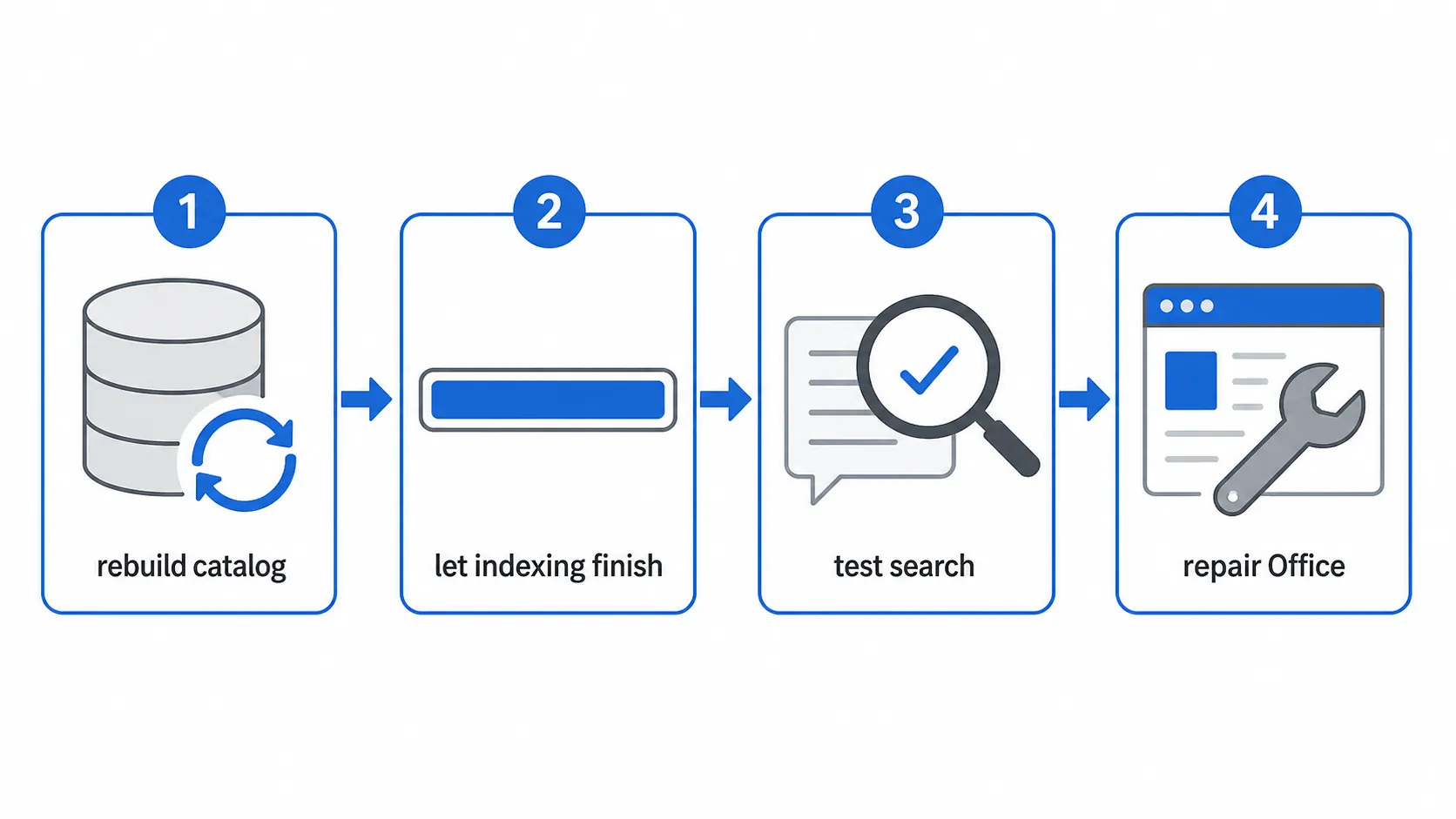
| Order | Action | What it establishes |
|---|---|---|
| 1 | Confirm what search is missing | Distinguishes a local search problem from a missing message, restrictive search scope, or broader service problem |
| 2 | Rebuild the Instant Search catalog | Recreates the local index Outlook uses to retrieve indexed content |
| 3 | Allow indexing to finish | Prevents an unfinished rebuild from being mistaken for a failed repair |
| 4 | Repeat a controlled search test | Shows whether old message bodies and other previously missing content are now retrievable |
| 5 | Repair Office if indexing still fails | Repairs the Office installation after the catalog-level fix has been exhausted |
| 6 | Review Cached Exchange Mode settings | Ensures the content you expect to search is actually stored locally |
Confirm the failure before rebuilding
Choose one message you know exists and use it as a control. An older message is especially useful if Outlook finds recent mail but not historical content. Open the message through its folder, note an unusual phrase from the body, and then search for that phrase. Also try the sender and a distinctive subject term.
- If the sender or subject works but a phrase from the body does not, the body may not have been indexed or may not be present in the local cache.
- If only recent messages appear, note roughly where results stop. That pattern will matter when you inspect the Cached Exchange Mode sync scope.
- If the message appears in Outlook on the web but not in classic Outlook, the evidence points toward the Windows client, its local data, or its index. This comparison is diagnostic rather than proof of one specific cause.
- If mail is unavailable across classic Outlook, the web, and other devices, check for a service or connectivity problem before altering the local index. The Outlook outage guide explains what cached mail may remain usable during an interruption.
Check the active search scope as well. A search limited to the current folder can look broken when the message is in another folder or mailbox. Conversely, an extremely broad search can produce so many matches that Outlook does not display all older items. Microsoft’s troubleshooting guidance recommends narrowing such searches with more specific criteria.[2]
Rebuild the Instant Search catalog
Microsoft’s documented catalog rebuild is the first repair to run when Outlook indexing is incomplete or unresponsive.[1] In classic Outlook, open File, choose Options, and open the Search settings. From there, open Indexing Options, then its advanced controls, and select the command to rebuild the index. Accept the warning that existing indexed results will be removed and recreated.
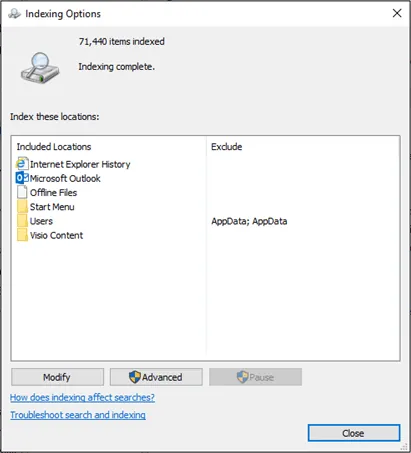
Before starting the rebuild, inspect the indexed locations. Outlook must be represented there. A Microsoft Q&A community answer describes a more detailed route through File > Options > Search > Indexing Options, using Modify to include the Outlook or OST location, followed by Advanced > Rebuild.[3] That navigation can help when Outlook is absent from the indexed locations, but it is community guidance rather than a Microsoft Support procedure. Do not add arbitrary data-file paths or change the registry merely because a forum post proposes it.
A rebuild discards the existing catalog and creates a new one. Search can therefore look worse immediately after you start it. Leave Windows running, avoid repeatedly restarting Outlook, and watch the indexing status rather than judging the repair from the first few searches. The useful checkpoint is that indexing reports completion instead of continuing to show pending work.
Test the result with the same message
Once indexing has finished, repeat the control searches you recorded earlier. Start with the unusual body phrase, then try the sender and subject. Use the same mailbox and search scope so the comparison is meaningful. A successful repair should restore the previously missing result; seeing unrelated recent mail is not enough.
If Outlook says indexing is complete but the old message still cannot be found by its body text, open that message and confirm that the full body is available locally. At this point, rebuilding again is unlikely to answer the more important question: did Outlook ever download the content you expect the index to contain?
Why a clean index can still return partial results
Cached Exchange Mode keeps a local copy of mailbox data and the Offline Address Book. Microsoft documents it as the default mode and allows the locally synchronized mail to be limited by date. On slow connections, Outlook can also be configured to download only headers.[4]
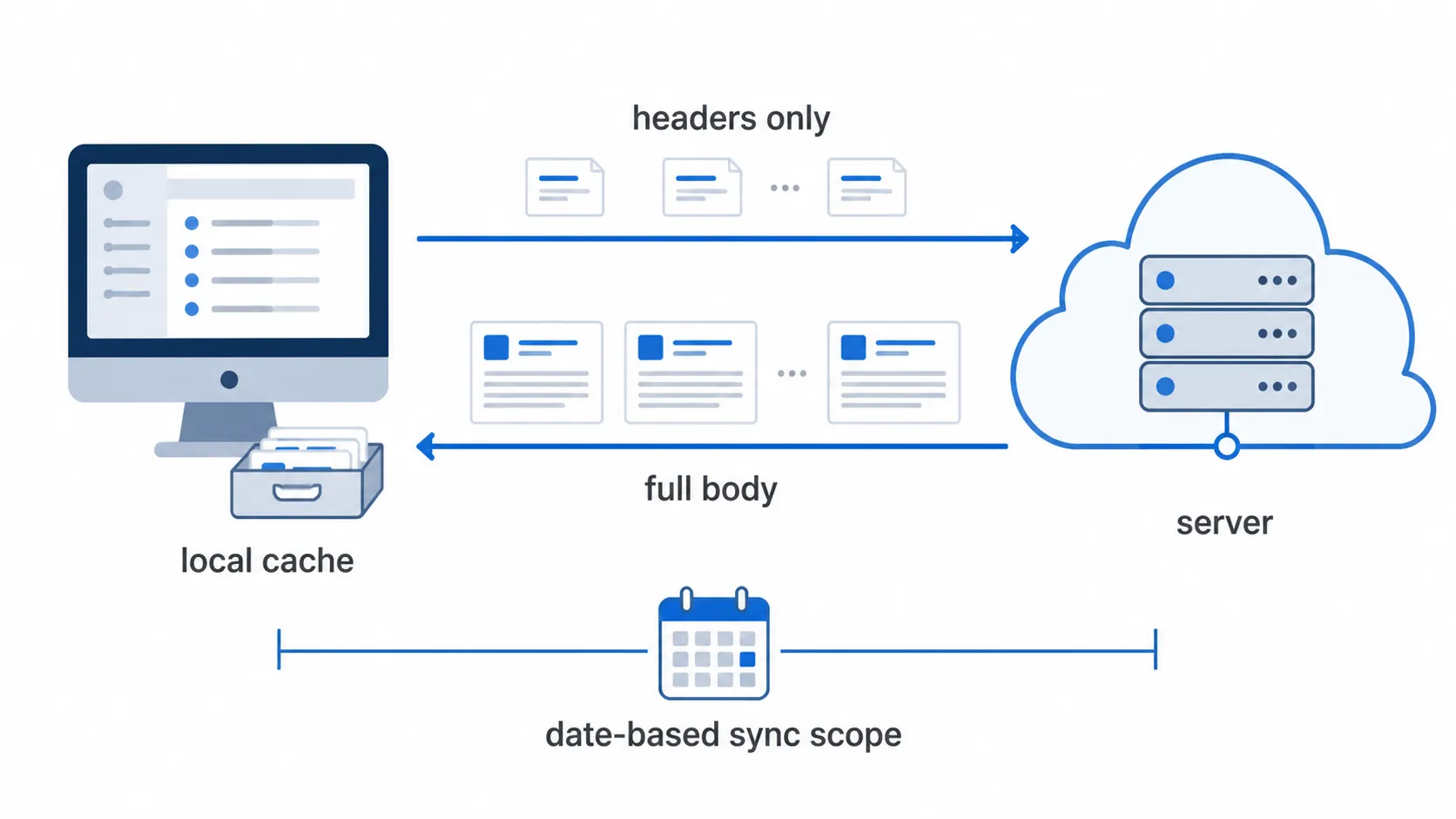
Those documented caching behaviors explain two common-looking search symptoms. If the date-based sync scope excludes older mail, the local store may not contain the older content you are trying to retrieve. If Outlook has downloaded headers without full message bodies, sender, recipient, date, and subject information may be present while words inside the body are absent.
That connection is a diagnosis based on what Outlook stores locally; it is not a quoted Microsoft claim that every missing body-text result has this cause. Attachments, account type, search scope, an unfinished index, client defects, and service interruptions can produce overlapping symptoms.
Inspect the cache rather than toggling modes blindly
Open the account settings for the affected Exchange or Microsoft 365 account and inspect the Cached Exchange Mode controls. Look for the setting that determines how much mail is kept offline. If the search failure begins at roughly the same age as that setting’s boundary, widen the local sync scope and allow Outlook to synchronize before testing again. Also disable header-only downloading when dependable body-text search is more important than minimizing data transfer.
Do not treat switching between Cached and Online mode as a universal search repair. Microsoft’s caching documentation establishes where mailbox material is stored and how synchronization can be limited, but the available first-party material does not fully define search-provider selection for every query across both modes.[4] A temporary mode change may alter the symptom without repairing the local catalog or correcting an undersized cache.
After widening the cache, wait for synchronization and indexing to catch up, then repeat the same old-message body search. The sequence matters: content must arrive locally before the local index can catalog it.
Repair Office only if indexing still fails
If Outlook remains stuck in an indexing state, Outlook is missing from indexed locations, or a completed rebuild does not restore search even though the full message is stored locally, move to the Office repair procedure documented for Windows 10 and Windows 11.[2]
Open Control Panel, go to Programs and Features, select the installed Microsoft 365 or Office product, and choose Change. Use the repair choice offered by the current installer and follow its prompts. Because available repair choices can differ by installation type, rely on the labels shown by your installation rather than instructions written for a different Office package. Restart if prompted, open Outlook, allow indexing to run, and repeat the controlled search.
At this stage, preserve the possibility of a service incident or an undocumented defect. The practical distinction is reach: a local search failure is confined to one Windows installation or one local profile, while a broader outage tends to affect access or search through other clients as well. A server-side interruption cannot be repaired by repeatedly rebuilding the same PC’s index.
Keep retrieval dependable after the repair
Reliable search does not require an elaborate filing system, but it should not be the only way to recover important mail. Use a few stable folders for work with lasting value, categories for messages that cut across projects, and rules for predictable incoming mail. Classic Outlook supports rules that move or otherwise process messages based on specified conditions.[5]
- Keep folder names based on durable work areas rather than temporary moods such as “deal with later.”
- Use categories when one message belongs to more than one useful context.
- Create rules for consistent senders or workflows, then check the destination folders periodically so automated filing does not become invisible filing.
- Retain searchable message bodies locally for the period you genuinely expect to search offline.
The dependable order is rebuild, wait, test, and repair Office only when the catalog still fails. Then inspect what Cached Exchange Mode is actually keeping. A newly rebuilt index can catalog local content cleanly, but it cannot reliably retrieve body text that Outlook never stored on the computer.
References
- Fix search issues by rebuilding your Instant Search catalog — Microsoft Support
- Troubleshooting Outlook search issues — Microsoft Support
- Search and Indexing not working in Outlook 365 - Microsoft Q&A — Microsoft Q&A
- Plan and configure Cached Exchange Mode in Outlook 2016 for Windows — Microsoft Learn
- Manage email messages by using rules in Outlook — Microsoft Support
Comments
Join the discussion with an anonymous comment.