
During an Outlook outage, the useful question is not whether work can continue as normal. It cannot if the work depends on Exchange sending or receiving messages. The immediate question is narrower: which existing messages can you still read, and where can you record decisions and next actions until delivery returns?
For classic Outlook for Windows, the strongest documented fallback is Cached Exchange Mode and its mail-retention slider. It makes previously synchronized mail available locally within the configured window; it does not repair a server-side transport failure. A separate local-first notes and task arrangement can preserve work context, but the available evidence for specific note apps is less authoritative than Microsoft’s documentation.
What is verified as of September 1, 2026
| Component or evidence | Confidence | What it supports | What it does not establish |
|---|---|---|---|
| Microsoft’s classic Outlook cache setting [1] | High — vendor documentation | A configurable local window of Exchange mail for offline reading | Recovery of server-side send/receive or behavior in new Outlook and other clients |
| CRN’s report of a 451 4.3.2 temporary server issue [2] | Medium — incident reporting | A concrete case in which an Outlook-related Microsoft service issue blocked sending and receiving | A Microsoft-confirmed post-incident cause, duration, or general rule for every outage |
| Obsidian and Logseq in a community local-first directory [3] | Low — community-sourced lead | Candidates worth testing for a local notes and task fallback | Vendor-guaranteed offline behavior, suitability for company data, or effectiveness in every configuration |
| Microsoft 365 service-health documentation [4] | High — vendor documentation | Where authorized users can inspect active issues and limited issue history | A permanent incident archive or proof of a specific cause |
| Microsoft 365 quarterly SLA figures [5] | High — vendor-published figures | Broad service-availability context | The dates, causes, or user impact of individual incidents |
Set the Outlook cache window before the outage
Microsoft documents cache-window choices of All, 12 months, 6 months, 3 months, or 1 month in classic Outlook for Windows. Outlook 2016 also has a documented 3-day option.[1] This is the setting that determines how much Exchange mail Outlook keeps locally, so it needs to be chosen and allowed to synchronize while the service is healthy.
| Cache choice | Practical preparation decision |
|---|---|
| All | Use when you need the broadest readable history and the device can accommodate it. |
| 12 or 6 months | A substantial working history without choosing the complete mailbox. |
| 3 or 1 month | A narrower fallback when recent correspondence is sufficient. |
| 3 days in Outlook 2016 | A very short working window; verify that it covers the messages needed for current projects. |
The right range is not automatically “All.” Choose the longest window that fits company policy, available device storage, and the actual history needed to reconstruct active work. A coordinator whose approvals regularly refer back several months has a different requirement from someone whose mailbox is only a notification channel.
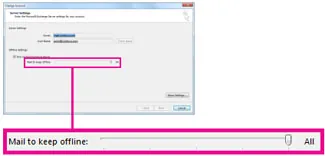
Changing the slider during an outage is too late if the required mail has not already reached the device. Likewise, a long configured window is only useful if synchronization completed. The preparation test is therefore about readable content, not merely whether a checkbox is selected.
Test what the device actually retained
While Outlook and Exchange are working, perform a controlled offline check on the device that will be used during an interruption:
- Open representative messages from active project folders, including messages near the oldest date you expect the selected window to cover.
- Temporarily disconnect the device and reopen those messages from Outlook.
- Check the folders and shared work contexts that matter in practice rather than testing only the Inbox.
- Record the tested cache range and any gaps so the fallback plan does not promise access that was never demonstrated.
Do not extend the result beyond what was tested. The cache-window documentation supports offline mail availability, but the available evidence does not establish every attachment, scheduling, delegated-mailbox, or approval scenario. Those behaviors may depend on what was already synchronized and how the organization’s workflow is implemented.
Recognize the boundary of a server-side failure
In one reported 2026 incident, CRN said users encountered a “451 4.3.2 temporary server issue” that blocked Outlook sending and receiving while Microsoft services were affected.[2] That report makes the boundary tangible: if the service handling transport is unavailable, a healthier laptop, a larger local cache, or another copy of Outlook cannot make the server accept and deliver mail.
This should not be inflated into a universal explanation for Outlook outages. The cited sources do not include a Microsoft post-incident review confirming the cause and duration. The report documents one failure mode, not a timeline or diagnosis for every interruption.
A cached mailbox therefore changes what can be read; it does not change whether Exchange can transport a new message. During a confirmed server-side outage, repeated send attempts and device switching should not be treated as repairs. Preserve the intended communication and its context so it can be reviewed when service returns.
Build a local capture-and-task path
Reading cached mail solves only half of the fallback problem. Someone still needs a dependable place to record what a message means, what was decided, and what must happen next. That place should be configured and tested before an outage, and it should remain usable without waiting for a cloud service.
A community-maintained local-first directory lists Obsidian and Logseq as local-first software.[3] That makes them reasonable candidates for evaluation, not vendor-verified guarantees for this workflow. Their behavior, storage location, security controls, plug-ins, synchronization choices, and company acceptability still need to be checked on the actual managed device.
The cited sources do not adequately verify offline behavior for Notion, Evernote, or Apple Notes, so no firm comparison is warranted here. A familiar app is not a fallback if it opens to an empty shell, requires an unavailable sign-in, or stores the only useful copy somewhere the device cannot reach.
Capture enough context for the person who resumes the work
The local record does not need to reproduce the mailbox. It needs to prevent decisions and obligations from becoming detached from their source. A simple reusable note can include:
- Source message: sender, subject, and the date visible in cached Outlook
- Request or issue: what the other person needs
- Decision: what was agreed or selected
- Next action: the next concrete piece of work
- Owner and dependency: who can proceed and what remains blocked
- Delivery required: whether an email or other server-dependent action must occur after recovery
The last field is important. It keeps “work completed locally” separate from “result delivered.” A draft decision, reviewed document, or completed analysis may represent real progress, but the recipient has not received it merely because the work exists on the laptop.
Tasks can be moved locally in the same way. Mark items as ready, blocked by mail delivery, awaiting information, or safe to complete offline. These are workflow choices rather than documented Outlook behaviors, so they should be adapted to the organization rather than presented as product features.
Work from cached context without pretending delivery still works
Once the outage boundary is clear, the remaining work can be triaged by dependency:
| Work item | During the outage |
|---|---|
| Reviewing prior correspondence | Proceed if the relevant messages are present and readable in the tested cache. |
| Preparing analysis, decisions, or response notes | Work locally and retain the source-message context. |
| Updating a local task list | Proceed, while identifying anything that still requires server-side communication. |
| Sending, receiving, or confirming delivery | Treat as blocked until the service handling transport is available. |
| Scheduling, approvals, and attachment-dependent actions | Verify individually; the available evidence does not support a blanket offline promise. |
When service returns, review the local delivery-required queue before sending anything. Circumstances may have changed during the interruption, duplicate requests may have arrived, and a decision prepared from older cached context may need a final check. Recovery is a reconciliation step, not merely a signal to release every pending communication.
Check service health, but keep its evidence in proportion
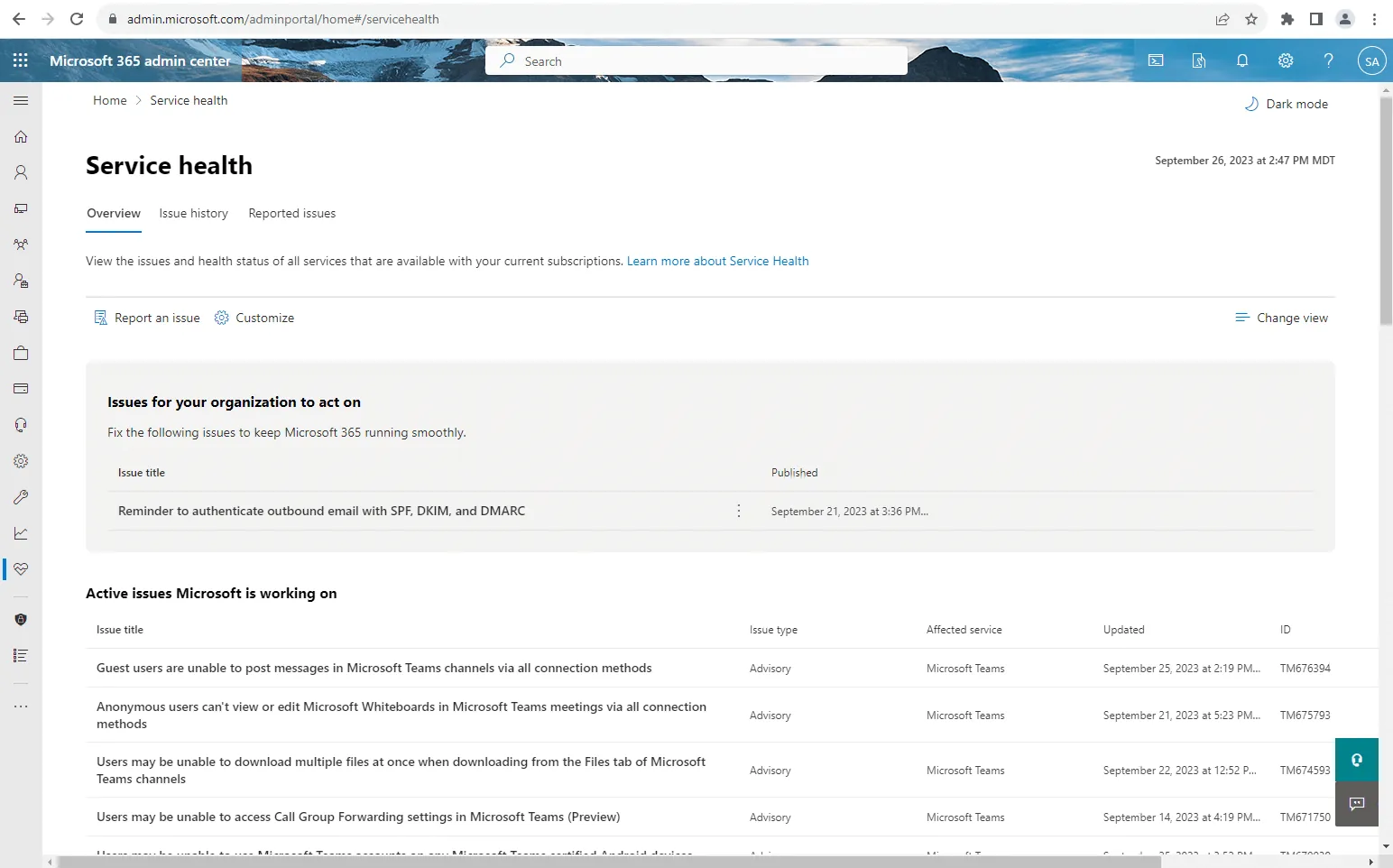
Microsoft’s service-health documentation explains how authorized users can inspect current issues. Its Issue history view exposes only the previous 7 or 30 days, and the documentation defines five incident-status categories.[4] It is useful for determining whether Microsoft is reporting an active problem; it is not a permanent archive from which to reconstruct every past Outlook interruption.
Quarterly SLA figures provide even broader context. Microsoft published availability of 99.927% for 2024 Q4 and 99.988% for 2025 Q1.[5] Those percentages show that measured downtime occurred, but they do not identify an Outlook incident’s date, cause, duration, or impact on a particular organization.
User-submitted outage reports can be useful as leads, especially when an official dashboard is quiet, but they should not be treated as verified incident statistics. The defensible preparation decision does not depend on reconstructing a disputed outage timeline: select and test a useful Outlook cache window, then maintain a local capture-and-task path that preserves work until delivery is possible again.
Related follow-ups
For service-level commitments and the business consequences of downtime, see the Exchange outage cost guide. For broader note-app selection with an emphasis on offline access, use the Chromebook note-taking apps guide.
References
- How to work offline in Outlook for Windows — Microsoft Support
- Microsoft Outage Hits Outlook, Defender, Purview Day After Teams Issues — CRN
- awesome-local-first — GitHub
- How to check Microsoft 365 service health — Microsoft Learn
- Service health and continuity — Microsoft Learn
Comments
Join the discussion with an anonymous comment.