
Access and pricing check: last checked Aug. 26, 2026. Before you install anything, confirm two things: that Grok Bot is actually included in your plan, and that your notes routine repeats often enough to make a $100–$300/month access gate rational. At launch on Aug. 11, 2026, xAI limited Grok Bot beta access to SuperGrok Heavy at $300/month, Cursor Ultra at $200/month, and Cursor Teams Premium at $120/seat/month; on Aug. 21, 2026, xAI expanded access to SuperGrok Plus at $100/month, Cursor Pro+, and all Cursor Teams tiers at $40–$120/seat/month.[1][2]
That price can make sense for recurring note operations: a meeting stand-in that joins every week, a nightly filing routine that clears your inbox, or a research-capture process that turns browser scraps into structured notes. It makes much less sense if what you want is an occasional “summarize this page” button. If you are still deciding whether the broader Grok subscription price fits your note stack, start with our Grok 4.6 price verdict for note apps; this guide is narrower. It is about Grok Bot as a scheduled notes coworker, not Grok as a general chat model.
| Plan / route | Grok Bot access status checked for this guide | Notes-workload judgment |
|---|---|---|
| SuperGrok Heavy | Included at the original Aug. 11 beta access level; $300/month reported by xAI launch material | Only easy to justify if the Bot replaces a high-volume recurring notes process, not casual cleanup |
| SuperGrok Plus | Added in the Aug. 21 access expansion; $100/month reported in the expansion coverage and pricing checks | The most plausible individual route for a serious notes user, assuming the schedule runs every week |
| Cursor Ultra | Included at launch; $200/month reported by xAI launch material | A fit only if you already live in Cursor and notes are part of a larger work system |
| Cursor Pro+ | Added in the Aug. 21 expansion | Worth checking if your employer already pays for Cursor access |
| Cursor Teams | Expanded to all Cursor Teams tiers at $40–$120/seat/month | Most interesting for teams that need repeatable meeting digests or shared research filing |
Do not read “Grok” and assume the same product. Grok Bot is separate from consumer Grok chat, separate from Grok Build, and separate from the Grok 4.6 API route for long-running agents. xAI presents Grok Bot as a named Bot running in its own persistent cloud computer with a browser, filesystem, terminal, connectors, and MCP support.[4] If what you want is an API agent architecture for notes rather than the Grok Bot product, the cleaner comparison is our Grok 4.6 long-running agents notes profile.
The setup only works if you give the Bot one boring job
The useful version of “AI coworker for notes” is not a free-floating assistant with opinions about your whole knowledge base. It is a named worker with a narrow recurring responsibility: open the right place, collect the right material, write or move the right note, and leave behind enough evidence that you can audit the result in the morning.
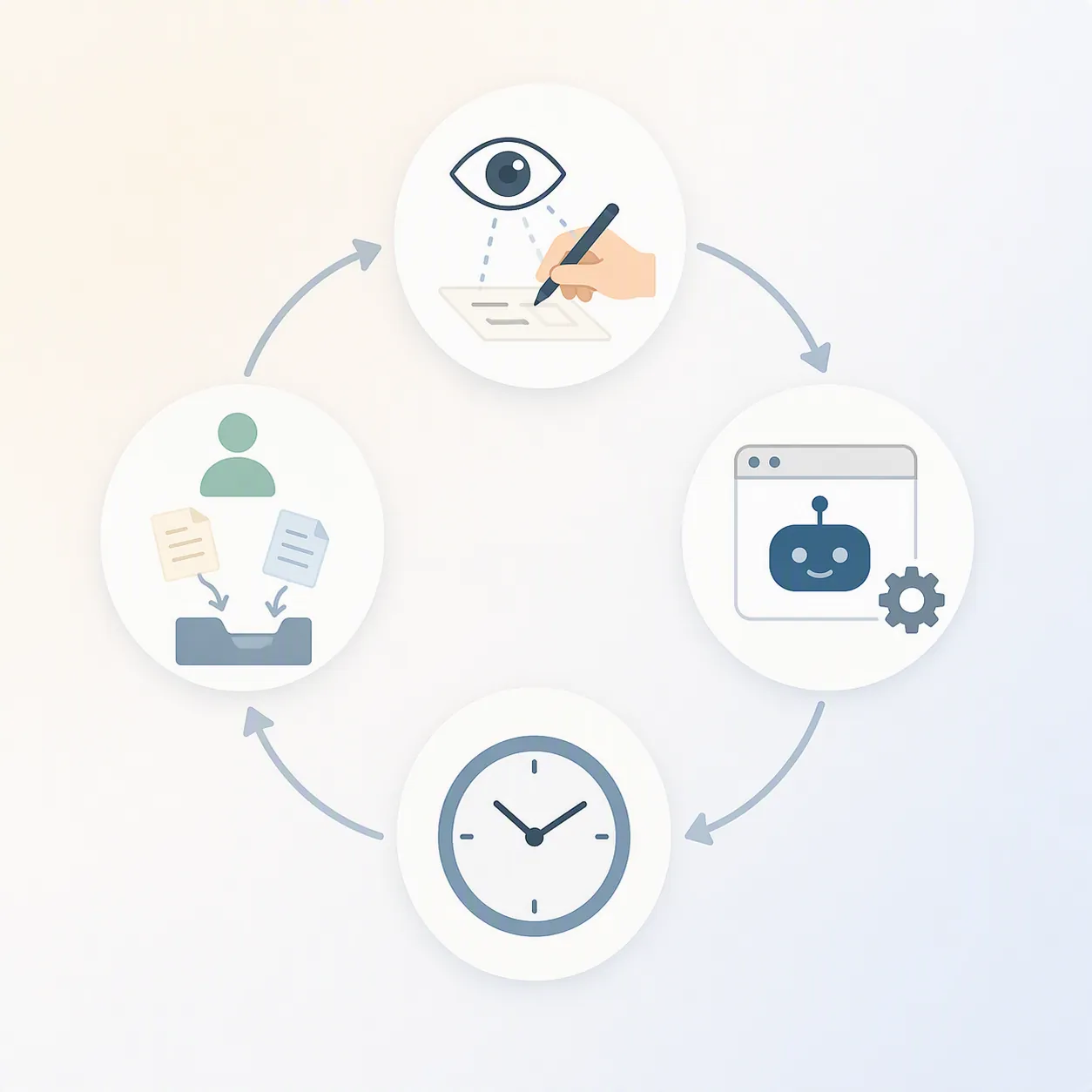
For notes, that usually means one of three routines: turn meetings into a digest, capture research into a database, or file loose notes into a stable folder structure. Grok Bot’s interesting claim is that you can perform that routine once while the Bot watches, save it as a routine, and then run it on a schedule.[4][5][6]
| Phase | What you do | Stop if… |
|---|---|---|
| 1. Confirm eligibility | Open your xAI or connected Cursor plan page and confirm Grok Bot access | You only need one-off summaries |
| 2. Install / open desktop access | Use the supported desktop route available to your account | Your main device is Android or iPad-only |
| 3. Create a named Bot | Give it one notes job, not a department-sized mission | You cannot describe the routine in one sentence |
| 4. Connect the notes home | Sign into Notion, Google Drive, OneDrive, or SharePoint as needed | You cannot isolate a safe workspace or folder |
| 5. Teach the routine | Perform the workflow once while the Bot watches | The routine depends on judgment you cannot encode or review |
| 6. Schedule and approve | Set the run time, permission behavior, and review rules | You need a hard spend cap or memory export |
Step 1: Confirm you can access Grok Bot, not just Grok
Start at the account level. A consumer Grok subscription or X-side Grok access should not be treated as proof that you have Grok Bot. The Bot product was launched separately, and the access list changed on Aug. 21 when xAI expanded the beta to more plans.[1][2]
- Open xAI’s Grok Bot page and confirm the product is available to your account.[4]
- Check xAI’s pricing page and your account billing page, not a screenshot from launch week.[3]
- If you are coming through Cursor, confirm the exact Cursor tier. Launch access and expanded access were different.[1][2]
- Do not rely on forum claims about trial length. The research around trial duration is inconsistent, and no settled trial length is safe to state as fact from the available materials.
The access gate is not just a budget line. It determines whether the product shape matches the work. A weekly meeting digest, daily research filing pass, or nightly inbox cleanup can amortize the cost because the Bot runs without needing a fresh prompt each time. A single backlog cleanup usually cannot.
Step 2: Pick a notes home the Bot can safely enter
Grok Bot needs somewhere to work. The official and third-party materials describe built-in connectors such as Gmail, Google Calendar, Google Drive, OneDrive, Outlook Mail and Calendar, Teams, SharePoint, and Salesforce; one observed plugin panel also showed Notion, Slack, Google Drive, AWS Agents/SageMaker, Browserbase, Composio, and Context7 as one-click connections.[5][7] For this notes setup, the practical targets are narrower: Notion, Google Drive, OneDrive, or SharePoint.
Obsidian users should be more cautious. The materials available for this guide do not establish a verified, official Obsidian connector. If your Obsidian vault syncs through a cloud folder, you may be able to route Grok Bot through the underlying file location, but treat that as a configuration to verify, not as a supported Obsidian integration. If you want a cleaner Obsidian-first route, compare this with our Claude AI Obsidian workflow.
Create a contained workspace before you connect anything. In Notion, that might be a “Grok Bot Test” page with a meeting-notes database and an inbox database. In Google Drive or OneDrive, use a dedicated folder such as “Bot Review” with subfolders for Inbox, Processed, and Needs Human Review. The exact names do not matter. The boundary does.
Step 3: Create a named Notes Bot
Give the Bot a job name you would not be embarrassed to see in an audit log: “Meeting Digest Bot,” “Research Filing Bot,” or “Nightly Notes Triage.” Avoid names like “Productivity Bot” or “Knowledge Assistant.” They are too broad, and broad Bots are harder to supervise.
A good starting instruction is short and boring:
You process only the notes inside the connected Notes Inbox. For each run, create or update records in the connected Meeting Digest database. Do not delete source notes. If a note is ambiguous, move it to Needs Human Review and explain why.That instruction does three useful things. It tells the Bot where it may work, tells it what output counts as success, and gives it a safe failure path. The failure path matters because a scheduled notes worker will eventually meet a half-written meeting note, a duplicate document, or a transcript with no title.
Step 4: Connect the Bot without handing it your whole note life
When you connect Notion, Google Drive, OneDrive, or SharePoint, use the narrowest account and workspace access that still lets the routine run. Grok Bot’s design includes a persistent cloud computer that can sign into tools, use a browser, maintain files, and keep context for later runs.[4][5] That persistence is what makes it coworker-shaped. It is also why the first connection should be a test workspace, not your entire archive.
- For Notion: start with one test page or database, then expand only after the scheduled run behaves.
- For Google Drive: use a dedicated folder and avoid granting access to broad personal folders unless the routine truly needs them.
- For OneDrive or SharePoint: create a reviewable team folder so coworkers can inspect outputs without entering the Bot’s broader environment.
- For calendar-based meeting notes: connect calendar access only if the Bot’s job depends on joining or identifying recurring meetings.
xAI’s own launch example for Grok Bot is a meeting stand-in that can attend a meeting, take detailed notes, and send a summary afterward.[1] That is the right kind of workload for this product because it has a repeating trigger, a recognizable source, and an output someone expects on schedule.
Step 5: Teach one routine by doing it once
This is the step that separates Grok Bot from a chat window. The Bot is meant to watch a workflow as you perform it, save the pattern, and repeat it later on a schedule.[4][6] For notes, do not teach your hardest workflow first. Teach the smallest routine that still removes a recurring mess.
A clean first routine is “nightly meeting-note filing.” Use two or three sample notes in a test inbox. The routine is simple enough to inspect, but real enough to show whether the Bot can handle note aftercare rather than just generate a pretty summary.
| During the watched run | What you deliberately show the Bot | Why it matters later |
|---|---|---|
| Open the Notes Inbox | Where unprocessed meeting notes arrive | Prevents the Bot from roaming through unrelated notes |
| Open the first note | How to read the title, date, attendees, decisions, and action items | Gives the Bot a stable extraction pattern |
| Create the digest record | Where the summary, decisions, and next actions belong | Defines the output destination |
| Move or tag the source note | How to mark a note as processed without deleting it | Keeps an audit trail |
| Handle a messy note | Move unclear material to Needs Human Review | Teaches the Bot what not to guess |
| Stop and save the routine | Name the routine after the job, not the tool | Makes scheduling and later review easier |
Use source-preserving moves. A Bot that deletes or overwrites source notes during its first week creates exactly the cleanup job it was supposed to remove. A safer pattern is: leave the original note in place, add a processed tag, and create a digest or filing record elsewhere. Once the routine has survived several scheduled runs, you can decide whether archiving should become part of the job.
For a research-capture routine, the watched run looks different. Show the Bot how to take a browser source or document, create a short source note, extract only the claims you want to keep, and file it under a project. Do not ask it to build your entire research taxonomy. Ask it to put today’s scraps in the right tray.
The instruction I would use for the first notes routine
Routine name: Nightly Meeting Digest Filing

Run scope:
- Open only the connected Notes Inbox and Meeting Digest database.
- Process notes created or modified since the last run.
- Do not delete source notes.

For each meeting note:
1. Identify meeting title, date, attendees if present, decisions, open questions, and action items.
2. Create one digest entry in the Meeting Digest database.
3. Link back to the source note when possible.
4. Tag the source note as Processed.
5. If the note lacks enough context, move or tag it as Needs Human Review and add a one-sentence reason.

Stop conditions:
- Ask before sending email or calendar messages.
- Ask before changing permissions.
- Ask before processing folders outside the Notes Inbox.
The important part is not the wording. It is the constraint. The Bot should know what a successful run produces, what it must not touch, and when it should stop instead of improvising.
Step 6: Schedule it only after one supervised replay
After the watched run, run the routine once manually before scheduling it. This is where you catch boring but expensive mistakes: the Bot files every note under the same project, misses action items because your template uses a different label, or tries to process old archive files because the inbox boundary was vague.
Then choose a schedule that matches the cost of being wrong. A nightly filing Bot can run after your workday because you will review the output the next morning. A meeting digest Bot should run close to the meeting because delayed notes lose value. A research-capture Bot may be better as a weekday end-of-day job, not an always-on collector.

| Routine | Reasonable first schedule | Morning review target |
|---|---|---|
| Nightly meeting-note filing | Once per weekday evening | Check whether source notes were preserved and digests landed in the right database |
| Weekly meeting stand-in digest | At the recurring meeting time, if account and calendar access support it | Check completeness before forwarding to others |
| Research inbox cleanup | Once per workday or a few times per week | Check whether sources were linked and ambiguous material was held for review |
Approval settings decide how unattended the Bot really is
The approval controls are not decoration. They are the difference between a scheduled coworker and a scheduled cleanup hazard. Available materials describe Allow once, Deny, Always allow, Auto Review rules, and secure handoff for logins, two-factor authentication, and CAPTCHA-style interruptions.[5][6]
| Control | Use it this way for notes | Do not use it for |
|---|---|---|
| Allow once | First successful write to a digest database or test folder | Permanent permission before you have reviewed outputs |
| Deny | Any attempt to delete source notes, change sharing, or enter unrelated folders | Routine actions you know are required, because that will make the Bot brittle |
| Always allow | Stable, low-risk actions such as creating records inside the approved notes database | Emailing summaries, changing permissions, deleting files, or broad folder traversal |
| Auto Review rules | Class-level rules such as “may create records in Meeting Digest” and “must ask before sending messages” | Replacing human review for ambiguous notes |
| Secure handoff | Logins, 2FA, CAPTCHA, or account screens where the Bot should pass control back | Anything that tempts you to store credentials loosely |
For the first week, keep the Bot on a review-heavy setup: Allow once for new action types, Always allow only for writes inside the approved test database or folder, and require approval before sending emails or changing permissions. If a notes coworker needs constant supervision forever, it has failed. But if it needs no supervision on day one, you probably gave it too much room.
What to check after the first scheduled run
Do not judge the first scheduled run by whether the prose sounds polished. Judge the mechanics. Did it open the right inbox? Did it skip old notes? Did it preserve source material? Did it put ambiguous notes somewhere you can find them? Did it leave behind enough trace that you can explain what happened?
- Check the source note count before and after the run.
- Open every digest entry created during the run.
- Search for duplicate records.
- Confirm that skipped or messy notes landed in Needs Human Review.
- Look for surprise side effects: emails sent, permissions changed, files moved outside the agreed folder.
- Review account usage and billing exposure if your plan shows token or overage information.
The strongest outside hands-on signal in the available material is Nate Herk’s Aug. 14, 2026 review: he reported building 12 working Bots in roughly 8 hours and emphasized that the shared computer is both the point of the product and the security boundary to understand.[8] That does not prove your notes setup will behave. It does support the narrower claim that Grok Bot can be shaped into repeatable workers quickly when the task boundaries are clear.
Known issues log, dated Aug. 26, 2026
These are the caveats that matter specifically for notes. They are not reasons to ignore Grok Bot; they are reasons to avoid putting it in charge of a note system you cannot audit or afford to repair.
- No memory inspection or export is established in the available materials. For note work, that means your durable record should live in Notion, Drive, OneDrive, SharePoint, or another notes home you control—not only inside the Bot’s memory.[5][6]
- No self-hosting is described. The product model is xAI’s cloud computer, not your own local agent environment.[5][6]
- No model picker is described; the materials point to xAI models rather than a selectable multi-model setup.[5][6]
- All Bots for one member sharing a single cloud computer is a boundary issue. A Bot name is not the same thing as a security boundary.[5][8]
- The weekly usage allowance is not clearly published in the materials available for this guide, and third-party pricing coverage reports no Grok Bot-specific spend cap. Overage exposure is especially relevant because eesel reports Grok 4.6 overage billing at $2 per million input tokens and $6 per million output tokens.[9]
- Browser CAPTCHA and login friction can interrupt scheduled runs, which is why secure handoff belongs in the setup plan rather than the troubleshooting appendix.[5][6]
- No live voice at launch is reported in the available breakdowns. If your notes workflow starts with dictation, compare that limit with our Grok voice dictation note-taking test.[5][6]
- No Android or iPad launch support is reported in the available materials. If your notes system is tablet-first, verify device support before paying.[5][6]
The memory and export caveat is the one I would not wave away. A note system has to be inspectable. If a Bot learns your cleanup habit but you cannot inspect or export what it remembers about that habit, the operational record needs to live somewhere else. For a broader comparison of where AI note outputs physically land, see our Grok vs. Copilot note-taking comparison.
When Grok Bot is the right notes coworker
Use Grok Bot for notes when the job is recurring, bounded, and annoying enough that scheduling matters: meeting digests, research capture, nightly note filing, or a weekly review packet. It is especially plausible when the Bot can work in a contained notes home, preserve source material, and leave ambiguous items for human review.
Skip it for one-off summaries, casual note cleanup, and any environment where auditability or hard cost ceilings matter more than unattended scheduling. If you already pay for a native notes assistant, such as Notion’s own AI features, compare that simpler route first; our Notion AI meeting-notes and custom agents profile is the more relevant alternative for a Notion-only workflow.
The good version of this setup is not magic. It is a named Bot, one safe notes home, one watched routine, one schedule, and conservative approvals until the run history proves it deserves more room.
References
- Introducing Grok Bot — xAI, Aug. 11, 2026.
- Grok Bot is now included with more plans — xAI, Aug. 21, 2026.
- Pricing — xAI.
- Grok Bot — xAI.
- Official Grok Bot Breakdown (2026) — Vellum.
- A Guide to Grok Bot — Composio.
- Grok Bot Explained — AY Automate.
- Grok Bot Review — nate herk, Aug. 14, 2026.
- Grok Bot pricing 2026 — eesel AI.
Comments
Join the discussion with an anonymous comment.