
Open a blank Notion page. The fastest usable answer to how to create a product roadmap in Notion is not to paste in a template gallery table; it is to create one full-page database with a few properties that will still make sense after the first planning meeting.
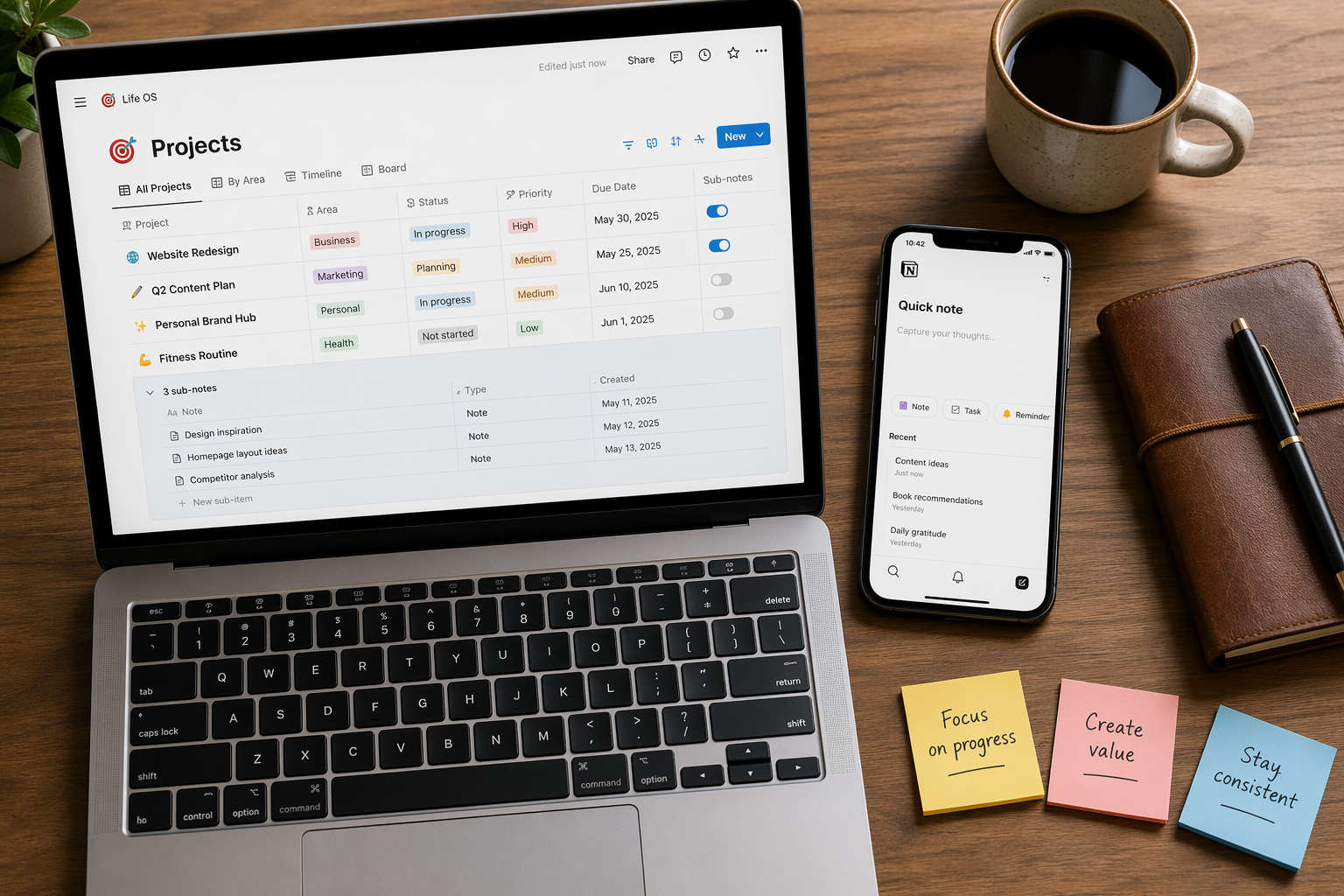
Notion’s own roadmap guidance treats the roadmap as a database with multiple views, including table, board, and timeline views, and each project can open into its own page for specs, notes, decisions, and context. That is the right starting assumption: the roadmap is the system of record, not a slide-shaped artifact living beside the work. [1]
Build the minimum viable roadmap database
Create a new page named Product Roadmap. Add a full-page database, choose a table view first, and keep the default title property as the project name. Then add four properties before you add any extra fields: Status, Owner, Target Date, and Theme.
| Property | Notion property type | Use it for | Why it exists |
|---|---|---|---|
| Project | Title | The roadmap item name | Every database item needs a clear project page. Keep names short enough to scan in Timeline view. |
| Status | Status | Current state of the work | Use simple states such as Not started, Planned, In progress, Blocked, and Shipped. |
| Owner | Person | The person accountable for keeping the item current | A roadmap without ownership becomes a decorative list. |
| Target Date | Date | The planned delivery date or date range | Timeline view needs a Date property to render roadmap items. |
| Theme | Select or Multi-select | The product area, company goal, or strategic bucket | This gives you a useful grouping field without turning the roadmap into a strategy essay. |
That four-property base is enough to make the first table honest. You can see what exists, who owns it, when it is expected, and why it belongs on the roadmap. It is also small enough that the person maintaining it will not spend the next six weeks feeding a property farm.
A vendor guide from Arcade describes a Notion roadmap MVP as something product teams can build in under ten minutes, but treat that as a vendor-reported walkthrough claim, not a benchmark for every workspace. The real test is not how fast the table appears. It is whether the fields are still understandable when priorities move. [2]
Add the first roadmap items
Add three to five real projects, not placeholder examples. For each one, set Status, assign an Owner, choose a Target Date, and select a Theme. Open one project as a page and add whatever context your team actually uses: brief, scope notes, launch checklist, decision log, research links, or meeting notes. This page-inside-database structure is one of the reasons Notion works well for lightweight product planning; the artifact and its supporting context can live in the same place. [1]
Do not add Priority, Effort, Confidence, Impact, Risk, Dependency, Launch Channel, Customer Segment, and Requested By just because they sound roadmap-adjacent. Add a property when someone will filter, group, sort, or review by it. Otherwise it is future cleanup.
Turn the table into a Timeline view
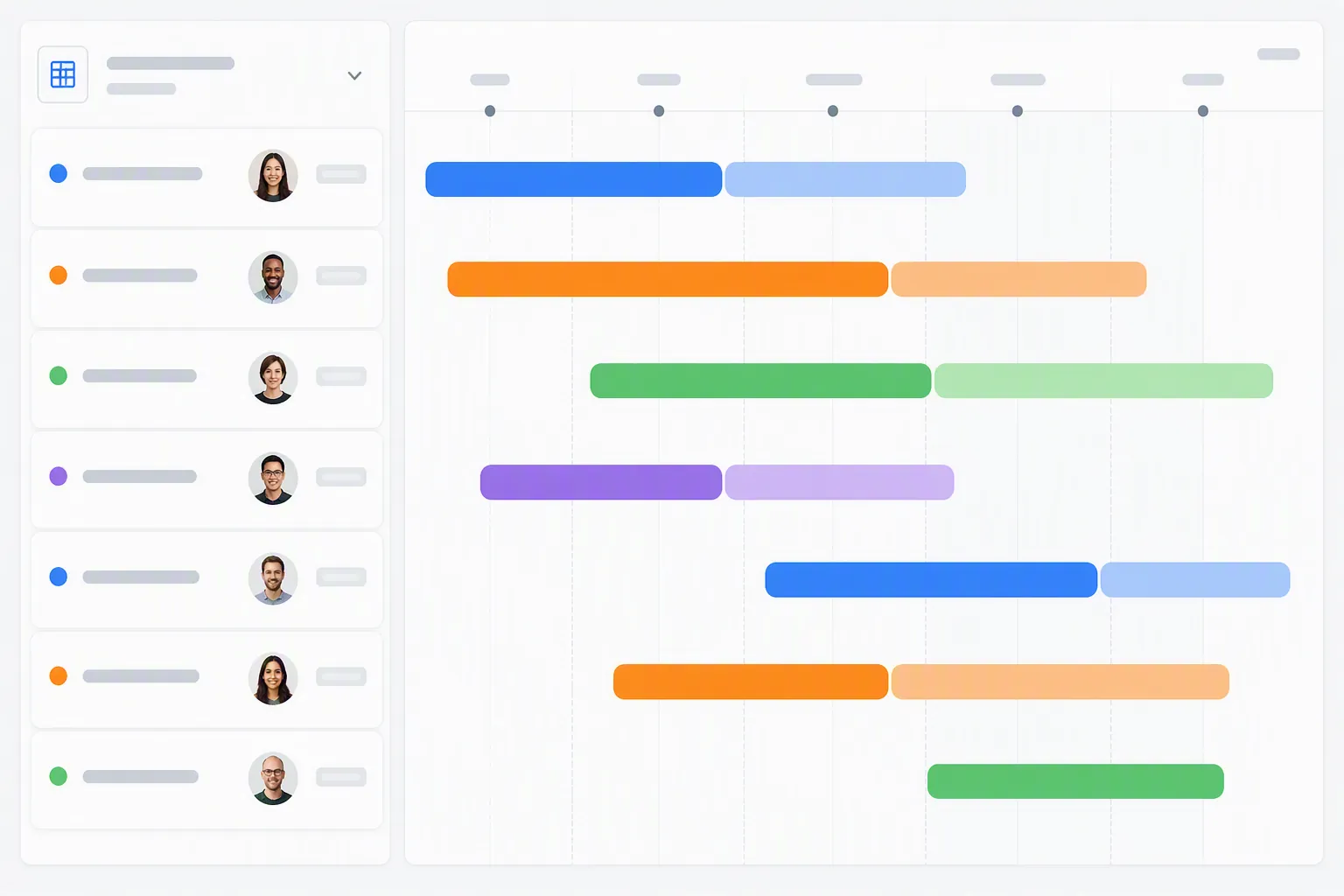
Now add a second database view and choose Timeline. Notion describes Timeline as a Gantt-style database view, and it requires a Date property; the Date property used for the timeline cannot be removed while the view depends on it. [3]
- Open the roadmap database.
- Add a new view.
- Choose Timeline.
- Set Target Date as the timeline date property.
- Show Status, Owner, and Theme on cards if your timeline is still readable.
- Group by Theme if you plan by product area, or group by Status if the roadmap is mainly used for execution review.
If a project does not appear on the timeline, check the boring thing first: Target Date is probably empty. If every project appears as a point instead of a bar, use date ranges for work that spans time. If the timeline looks correct but the table looks messy, that is fine; the table is the maintenance surface, and the timeline is the planning surface.
Timeline drag-and-drop is not just visual rearranging. Notion’s Timeline guide says dragging items adjusts dates and durations, and Arcade’s walkthrough also describes drag-and-drop timeline editing. That is useful in a planning session, but it also means an accidental move changes the roadmap data. [3][2]
A small rule that prevents timeline decay
After each planning review, update the database properties, not just the project page body. If the date changed, move Target Date. If ownership changed, update Owner. If a shipped item still says In progress, fix Status before anyone builds a filtered view around stale data.
Separate the backlog from the committed roadmap
The first serious upgrade is not a prettier view. It is a second database for backlog items. A roadmap item and a backlog item are different objects: one is work you are planning around; the other is an input, request, idea, bug theme, customer signal, or candidate feature that may or may not become planned work.
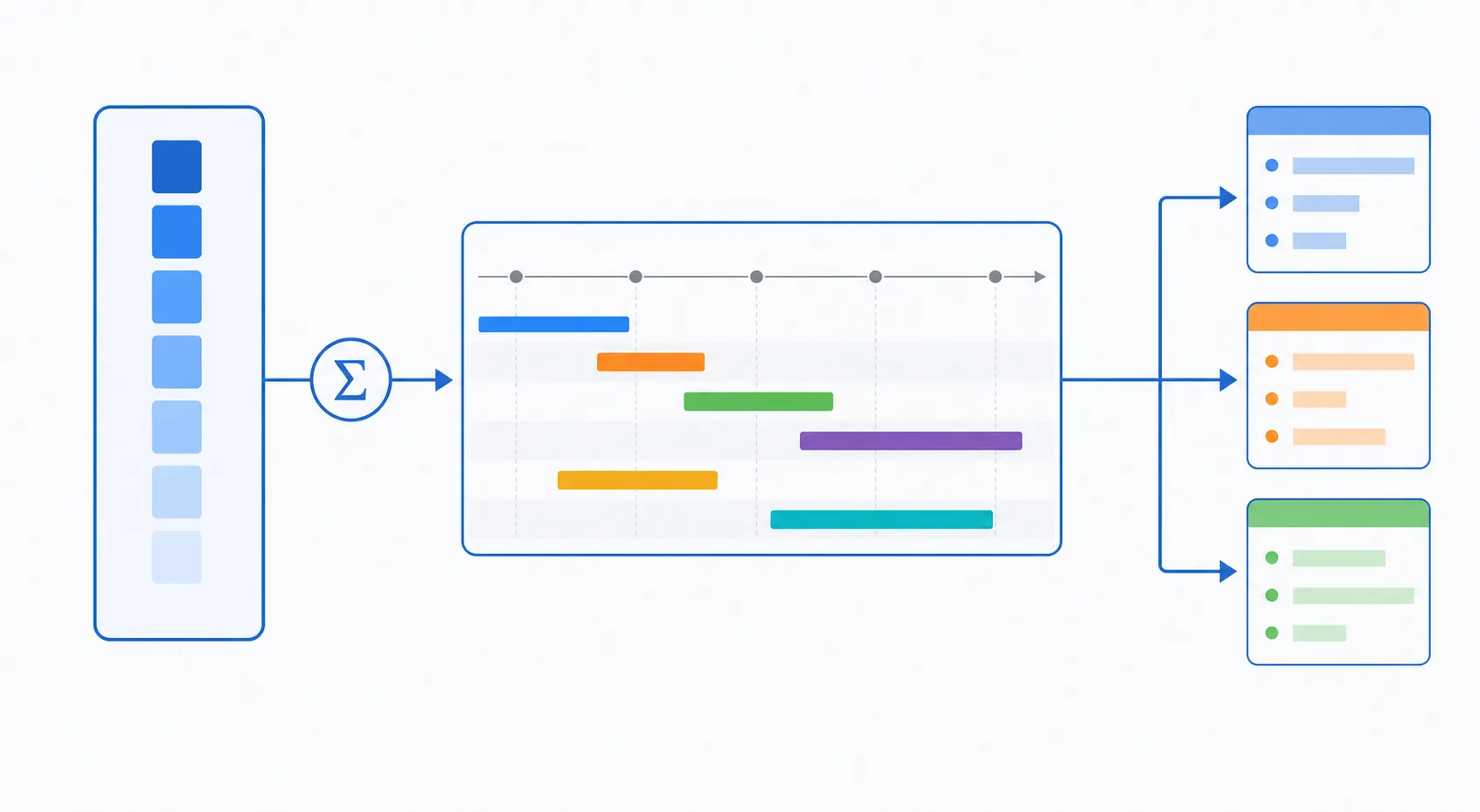
Create a new full-page or inline database named Product Backlog. Keep its title property as Backlog Item or Request. Add Status, Theme, Source, and a Relation property that points to the Product Roadmap database. Name the relation Roadmap Project.
| Backlog property | Type | Use it for |
|---|---|---|
| Backlog Item | Title | The request, idea, problem, or candidate feature |
| Status | Status | New, Reviewing, Accepted, Rejected, Parked, or similar |
| Theme | Select or Multi-select | The same theme language used in the roadmap, if possible |
| Source | Select or Text | Customer, Sales, Support, Research, Founder, Internal, or another broad origin |
| Roadmap Project | Relation | The roadmap item this backlog item supports, informs, or has been absorbed into |
This is where the system starts earning its keep. The backlog can be large, messy, and evaluative. The roadmap can stay smaller and more committed. When an idea becomes real work, link it to a roadmap project instead of copying it into another table and losing the trail.
For newly migrated Notion users, this is also where workspace organization starts to matter. If your notes, research, and product docs recently came over from another app, the mechanics in an Evernote-to-Notion migration can leave you with plenty of content but no planning surface. The roadmap/backlog split gives that content somewhere operational to attach.
Use rollups only after the relation is doing real work
A Rollup is not a magic summary field. It needs a Relation first. Notion VIP’s explanation of relations and rollups is useful here: a rollup pulls information through an existing relation, and calculation options include Sum, Average, Count, Earliest date, Latest date, and Percent checked. [4]
In practice, that means your Roadmap database can summarize related backlog items only after the Backlog database is connected to it.
| Roadmap rollup | Relation | Property to roll up | Calculation | What it tells you |
|---|---|---|---|---|
| Backlog Item Count | Backlog Items | Backlog Item | Count | How many backlog records are connected to this roadmap project |
| Earliest Request Date | Backlog Items | Requested Date | Earliest date | How long the oldest related signal has been waiting, if you track request dates |
| Latest Signal Date | Backlog Items | Signal Date | Latest date | Whether the project is still receiving recent input |
| Research Checklist Progress | Research Tasks | Done | Percent checked | Progress against a checklist, if the related database uses checkboxes consistently |
The count rollup is usually the safest first one. It does not pretend to score the roadmap for you; it simply shows whether a project is linked to one backlog item or many. Earliest and latest dates are also useful if your team reviews old requests or recent customer signals. More elaborate scoring systems can work, but they become fragile fast if the source fields are inconsistently maintained.
One third-party super.so rollup guide reports practical cautions around rollups referencing values only one level deep, a 25-reference cap, and wrong relation/function choices producing misleading results. Those details were not confirmed in the official Notion documentation used here, so treat them as items to verify in your own workspace before designing a heavy rollup architecture around them. [5]
Create linked views for people who should not edit the source table
Once the roadmap and backlog are linked, build views for actual audiences. Do not ask every stakeholder to open the master table and mentally filter around columns they do not need. Create a page for each audience and insert a linked view of the Product Roadmap database with deliberate filters and visible properties.
| Audience | Useful filter | Useful grouping or sort | Properties to show |
|---|---|---|---|
| Leadership | Status is Planned, In progress, Blocked, or Shipped | Group by Theme | Project, Status, Owner, Target Date, Theme |
| Engineering | Status is Planned, In progress, or Blocked | Sort by Target Date | Project, Status, Owner, Target Date, related specs or tasks |
| Go-to-market | Status is Planned, In progress, or Shipped | Group by Theme or launch window | Project, Status, Target Date, Owner, launch notes if you add them |
| Founder or solo operator | Status is not Shipped | Sort by Target Date | Project, Status, Theme, Backlog Item Count |
Arcade’s guide points to per-stakeholder filtered views as part of a Notion roadmap workflow. That is the right level of ambition: one source database, multiple surfaces. The danger is assuming the view itself solves alignment. A filtered view is only as reliable as the properties it filters on. [2]
For public or semi-public sharing, slow down. Arcade also describes Notion’s share-to-web behavior as broad enough to create all-or-nothing exposure concerns. If you need granular external access, do not publish the master roadmap casually; create a sanitized stakeholder page, show only the linked view that audience should see, and test access from a non-admin account. [2]
Add automation where it removes repeat cleanup
Automation should reduce chores, not hide judgment. A clean first automation is a shipped-date stamp. Add a Shipped Date property to the Product Roadmap database. Then create an automation that sets Shipped Date to today when Status changes to Shipped. Arcade describes this Status to Shipped sets Shipped Date equals today pattern in its 2026 roadmap guide. [2]
That automation helps because shipped dates are easy to forget and annoying to reconstruct later. It does not decide whether something should be marked Shipped. The owner still needs to make that call.
If your workspace already has a maintenance method, attach the roadmap review to it. A simple weekly review beats a complex automation stack. If you need a broader operating structure, a PARA setup after migration can give the roadmap a regular place in the workspace instead of letting it become one more abandoned dashboard.
Known issues to check before you rely on the roadmap
These are not edge cases for some distant enterprise workspace. They are the mechanics that decide whether this setup remains useful.
- Timeline depends on a Date property. If Target Date is empty, the project will not render usefully on the timeline. If the timeline uses that Date property, you cannot delete that property while the view depends on it. [3]
- Drag-and-drop changes real schedule data. Moving timeline bars is convenient during planning, but it is not a harmless visual adjustment. [3]
- Rollups need trustworthy relations. If backlog items are not linked to roadmap projects, the rollup summary is just empty confidence. [4]
- Published views can expose more than intended. Treat external sharing as a permissions design problem, not the last step of making the page pretty. [2]
- Large databases may slow down. Arcade reports performance dips around 5,000 or more database items; because that is vendor-reported guidance, use it as a caution threshold rather than a universal Notion limit. [2]
- Notion is not a dedicated roadmap platform. If your team needs native dependency handling, critical path planning, sophisticated release trains, granular external permissions, or heavy portfolio-scale reporting, a flexible workspace can become the wrong place to force the system.
The most common failure mode is not that the original setup was too simple. It is that the team keeps adding views, formulas, and rollups while the source data gets worse. If Status, Owner, Target Date, and Theme are maintained, the roadmap can survive a lot of iteration. If those four rot, no template will rescue it.
If you do not want to build from scratch
A template can still be a reasonable starting point if you inspect it like a system instead of accepting it like a finished roadmap. Before duplicating one, check the property types, the Timeline date field, the relation structure, the rollups, and the filtered views. If the template cannot explain how it is maintained, it is decoration with a database underneath.
If you would rather start from a prebuilt workspace, compare options in Notion template guides with the same questions: What is the source database? Which property drives the timeline? What must be updated every week? What breaks if the backlog grows?
The decision boundary
Use Notion for a product roadmap when you want a lightweight, adaptable planning database inside the workspace where product notes, specs, research, and meeting context already live. The base build is quick: one roadmap database, four core properties, and a Timeline view. The useful build is the next layer: a linked backlog, a few careful rollups, filtered stakeholder views, and limited automation.
Do not force Notion to behave like a specialized roadmap platform if the work now depends on dedicated product-planning mechanics, granular sharing, heavy dependency management, critical path planning, or very large database performance. That is the point where the maintenance cost stops being a setup problem and starts being a tool-fit problem.
References
- Using Notion for product roadmaps — Notion Help
- How to Make a Project Roadmap Plan in Notion: A 2026 Guide for Product Teams — Arcade
- Timeline view unlocks high-output planning for your team — Notion Help
- Notion Explained: Relations & Rollups — Notion VIP
- An Illustrative Guide to Using the Notion Rollup Property — super.so




Comments
Join the discussion with an anonymous comment.