
The Slack message that wastes the most time is rarely dramatic. It is the request that arrives with no owner, the standup answer buried under ten replies, the PTO question that needs one more approval, or the bug report that says “checkout is broken” and leaves an engineer to reconstruct the environment, severity, and reproduction steps.
Useful Slackbot automation tips for team productivity start there: not with a giant automation wish list, but with the repeated coordination work that already has a predictable shape. Slack’s Workflow Builder gives Business+ and Enterprise+ teams a no-code way to turn those repeated moments into forms, messages, approvals, channel posts, and app-connected workflows; Slack’s Help Center frames it as a tool for automating routine processes inside the workspace rather than as a replacement for judgment.[1]
A realistic target is a range, not a promise. Slack’s self-commissioned State of Work 2023 research with Qualtrics is the better-supported basis for the 3.6-hours-per-person-per-week productivity figure cited in this category; the higher 5.6-hour figure is commercially repeated from sqmagazine via thisandthat.chat, but its methodology is not verified in the supplied research. Treat 3.6 to 5.6 hours as an implementation hypothesis: reachable for teams with frequent coordination loops, unlikely for teams that create workflows nobody uses.
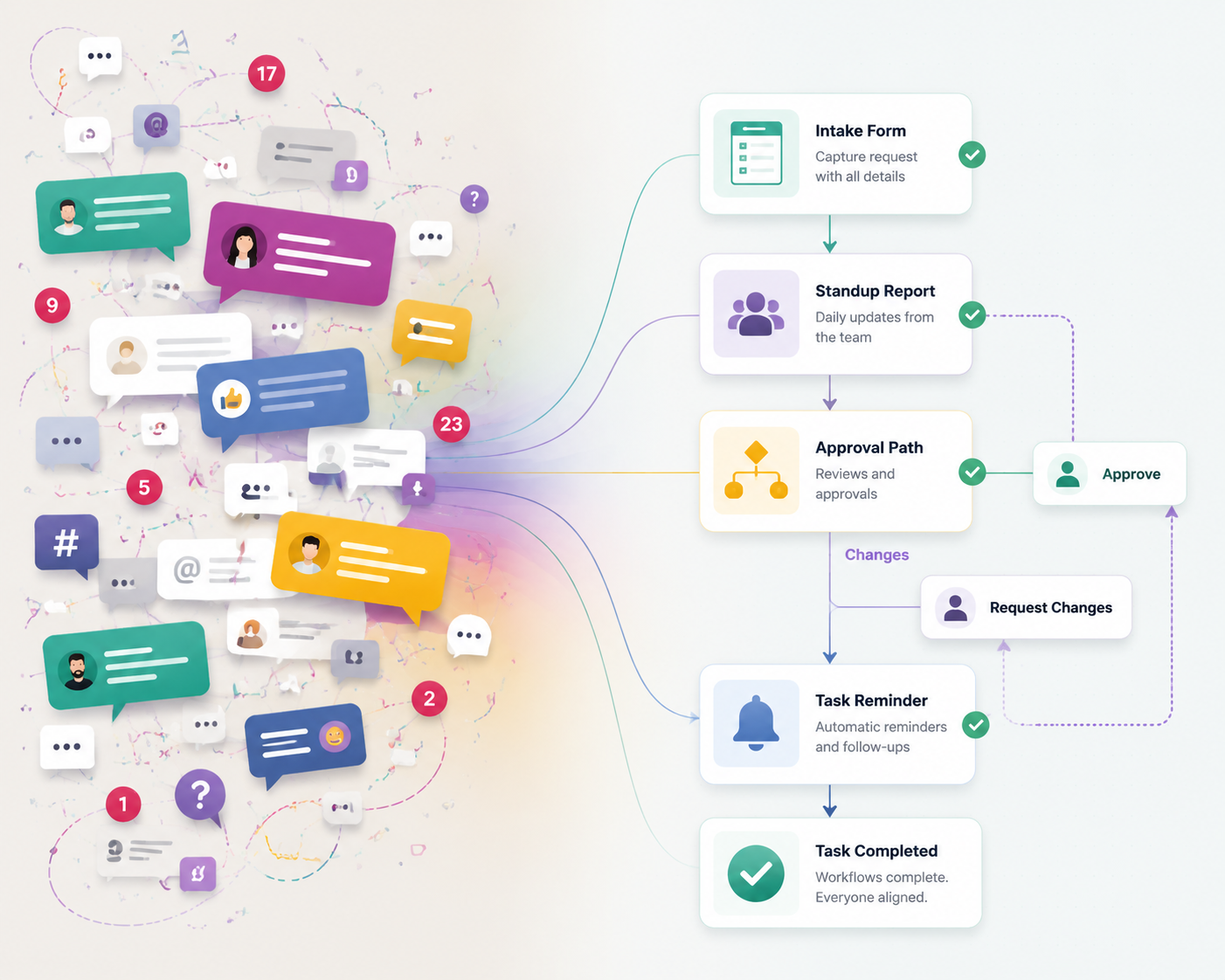
What You’ll Build
These seven workflows move from low-friction standardization to more connected automation. Slack’s own Workflow Builder examples and remote-team templates support this kind of approach: start with recurring team processes, make the intake explicit, and reduce the number of manual follow-ups required from the person downstream.[2][3]
| Automation | Trigger | Inputs | Destination | Owner |
|---|---|---|---|---|
| Structured request intake | Shortcut or channel form | Request type, priority, due date, context, files | Triage channel or tracker | Ops lead, admin, or queue owner |
| Async daily standup | Scheduled workflow | Yesterday, today, blockers | Team standup channel | Team lead or scrum master |
| New hire onboarding | New hire start date or manual trigger | Role, manager, start date, checklist links | Manager DM and onboarding channel | People ops or hiring manager |
| PTO approval with branching | PTO request form | Dates, coverage plan, manager | Manager DM, approval log, team calendar process | Manager or HR coordinator |
| Bug-report-to-Jira pipeline | Bug report form | Product area, severity, steps, expected result, actual result | Bug channel and Jira | Engineering lead or support triage owner |
| Weekly leadership digest | Scheduled prompt or collected workflow posts | Wins, risks, metrics, asks | Leadership channel or document | Department lead or chief of staff |
| Slackbot recurring tasks | Scheduled reminder or AI task workflow | Task, owner, deadline, channel | DM, channel, or task list | Workflow owner |

Before You Build: Pick the Queue, Not the Tool
The first decision is not which button to press in Workflow Builder. It is which queue currently depends on memory. If nobody owns the queue after the workflow posts, the automation has only made the mess look more official.
For each workflow, name four things before building: the trigger, the minimum required inputs, the destination, and the owner. Slack’s official guide walks admins through the mechanics of choosing a trigger, adding steps, publishing the workflow, and managing permissions; those mechanics are easier to get right once the operating model is already clear.[1]
- Use forms when free-text channel posts routinely arrive incomplete.
- Use scheduled messages when someone asks the same question on a predictable cadence.
- Use approvals when the next step depends on a specific person’s yes or no.
- Use app connectors when Slack is only the intake point and the real work belongs in Jira, a calendar, a CRM, or a document.
1. Structured Request Intake
This is the workflow most teams should build first. It replaces “Can someone help with this?” with a request that has type, priority, context, deadline, and owner. The person receiving the work no longer has to ask three follow-up questions before deciding whether it belongs in the queue.
Recipe
| Field | Setup |
|---|---|
| Trigger | Workflow shortcut in the request channel, or a link pinned in the channel canvas |
| Required inputs | Request type, business impact, due date, requester, supporting links or files |
| Optional inputs | Budget, customer name, affected team, approval needed |
| Destination | A triage channel such as #ops-requests, #it-help, #creative-intake, or #sales-support |
| Owner | One queue owner plus a named backup |
Build the form with fewer fields than you want and more fields than the queue owner currently gets. That usually means five to seven inputs. If every request type needs a different form, split the workflow later. At launch, the goal is to stop the worst ambiguity: missing deadlines, unclear priority, and no obvious next step.
The destination message should be formatted for triage, not for politeness. Put the request type and priority at the top, then the due date, requester, and context. If the queue owner works from a tracker, add a final step that creates or prompts creation of the corresponding task. ClearFeed’s workflow setup guide is useful inspiration for this kind of operational intake pattern, though it should be read as a vendor guide rather than independent evidence of effectiveness.[4]
The adoption problem is predictable: people will keep posting loose requests in the channel because it feels faster. Do not scold them individually for a week and then declare the workflow failed. Pin the workflow link, add a channel bookmark, configure the channel topic to say “Use the request workflow for new work,” and have the queue owner reply to loose requests with the same short line: “Please submit this through the request form so we have the deadline and context.”
After two weeks, review the last twenty requests. If the owner still asks the same follow-up question, add that field. If requesters abandon the form, remove or combine fields. Workflow Builder is no-code, but the workflow still needs maintenance.
2. Async Daily Standup
Async standups save time only when they replace a meeting or stop a manager from chasing updates. If they become one more channel ritual with no reader, they are just structured noise.
| Field | Setup |
|---|---|
| Trigger | Scheduled workflow every weekday morning |
| Inputs | Yesterday, today, blocker, confidence or risk |
| Destination | Team standup channel |
| Owner | Team lead, scrum master, or project lead |
| Review window | Same morning, before the lead’s planning block |
A useful standup workflow asks for enough structure to make blockers visible, but not so much that people start writing status essays. Three prompts are usually enough: what changed since the last update, what is next, and what is blocked. A fourth optional field can capture risk level if the team already uses that language.
Slack’s remote-team templates include recurring update and check-in patterns, which makes this a natural fit for Workflow Builder rather than a custom bot project.[3] The implementation detail that matters most is timing. If the workflow fires after people have already started deep work, answers slip. If it fires too early for a distributed team, half the channel appears late. Pick the time around the person who actually uses the answers.
Make Blockers Actionable
The blocker field should not be a diary entry. Add prompt text such as: “Name the decision, person, access, dependency, or review you are waiting on.” That wording turns “blocked on QA” into something a lead can route.
For small teams, a single channel post is enough. For larger teams, ask the workflow to post each response in a thread under the day’s standup message, or send blocker-only responses to a lead. The point is not to hide work; it is to keep ten routine updates from crowding out the two that need intervention.
Review cadence is where many async standups fail. Someone must scan the responses, react to acknowledge them, and pull blockers into the right conversation. Without that behavior, the team learns that the form is performative.
3. New Hire Onboarding
Onboarding automation is less about welcoming someone warmly and more about preventing the same four misses: the manager forgets the first-day channel intro, IT waits for a late access request, the buddy is not told what to do, and the new hire asks where the checklist lives.
| Field | Setup |
|---|---|
| Trigger | Manual workflow started by People Ops when a start date is confirmed |
| Inputs | New hire name, role, manager, buddy, start date, onboarding checklist link |
| Destinations | Manager DM, buddy DM, onboarding channel post |
| Owner | People Ops or hiring manager |
Use the workflow to send three different messages, not one large announcement. The manager gets a reminder with pre-start tasks. The buddy gets a short note with expectations. The onboarding channel gets the introduction and checklist link. Slack’s own automation examples emphasize using Workflow Builder for repeatable internal processes like collecting information and routing it to the right place.[2]
Keep HR-sensitive material out of broad channels. The public post should welcome the person and link to general onboarding resources. Access details, equipment issues, or personal information should go only to the people who need them.
4. PTO Approval With Branching
PTO workflows are a good fit when the current process is half Slack message, half spreadsheet, and half memory. The math is impossible because the process is impossible.
| Field | Setup |
|---|---|
| Trigger | PTO request form |
| Inputs | Dates, type of leave, manager, coverage plan, urgent handoffs |
| Branch | If manager approves, post or log next step; if denied, DM requester |
| Destination | Manager DM, HR log, team coverage channel if appropriate |
| Owner | Manager or HR coordinator |
The important field is the coverage plan. Dates tell the manager when someone is gone; coverage tells the team what might break. For teams with formal HR systems, Slack should not become the system of record. Use the workflow to collect and route the request, then send the requester to the approved HR or calendar process.
Branching is useful here because the next message depends on the approval decision. A simple approved path can notify the requester and remind them to update the team calendar. A denied or needs-changes path can DM the requester without turning a scheduling issue into channel theater.
5. Bug Report to Jira Pipeline
Bug reports are where Slack’s convenience starts to cost engineering time. Support sees the problem first, drops it in a channel, and an engineer has to ask for browser, account, severity, reproduction steps, expected result, actual result, and screenshots. The pipeline should make the first report closer to Jira-ready.
| Field | Setup |
|---|---|
| Trigger | Bug report workflow shortcut in #support, #bugs, or #product-feedback |
| Required inputs | Product area, customer impact, severity, reproduction steps, expected result, actual result |
| Attachments | Screenshot, screen recording, log link, support ticket link |
| Destination | Bug triage channel and Jira |
| Owner | Engineering triage lead or rotating bug captain |
Inside Slack, the workflow can collect the structured report and post it to a triage channel. If your workspace has the right app permissions and Jira integration, the next step can create the issue or hand it to the triage owner with all required fields visible. If Slack’s native steps do not cover the exact Jira action you need, cross-app automation tools become relevant. Zapier’s Slack automation guide is useful here because it focuses on moving information between Slack and other apps, including task and issue-management systems.[5]
Do not over-automate severity. A form can ask the reporter to select severity, but an engineering or support lead should still review it. Reporters know customer pain; triage owners know product risk, duplicate issues, and release context. The workflow’s job is to make that review faster, not to pretend classification is solved.
A Practical Bug Form
- Product area: dropdown, not free text.
- Customer impact: one sentence plus link to support ticket if available.
- Severity: reporter’s best estimate, reviewed by triage owner.
- Steps to reproduce: required long-answer field.
- Expected vs. actual result: separate fields so the engineer does not have to infer the intended behavior.
- Evidence: screenshot, recording, logs, or account link when appropriate.
The adoption caveat is sharper for bug workflows than for standups. If the form is too long, support will bypass it during incidents. If it is too short, engineering still does cleanup. Start with the fields engineering asks for most often, then revise after the first few triage cycles.
6. Weekly Leadership Digest
A weekly digest workflow is for the manager, department lead, or chief of staff who currently assembles updates from channel fragments on Friday afternoon. It should collect the pieces earlier, in a consistent shape.
| Field | Setup |
|---|---|
| Trigger | Scheduled weekly workflow |
| Inputs | Wins, risks, metrics, decisions needed, cross-functional asks |
| Destination | Leadership channel, update document, or private planning channel |
| Owner | Department lead, program manager, or chief of staff |
This workflow works best when each contributor owns a slice: sales pipeline risks, product launch blockers, support themes, hiring updates, or customer escalations. A single open-ended “What happened this week?” prompt produces the same cleanup work in a new place.
Social Intents’ large list of Slack automation ideas is useful as a brainstorming source for digest, notification, and reminder patterns, but it is still a commercial content source. Use it for prompts, not proof that every notification saves time.[6]
7. Slackbot Recurring Tasks
The smallest automations are often the ones that keep the larger ones alive. A recurring Slackbot task can remind the bug captain to review new submissions, ask the ops owner to clear stale requests, or prompt managers to approve pending PTO before the weekly planning meeting.
| Use case | Reminder |
|---|---|
| Request intake | Every weekday at 4 p.m., remind the queue owner to close or reassign open requests |
| Async standup | Every weekday after the standup window, remind the lead to review blockers |
| Onboarding | Three business days before start date, remind manager to confirm access and first-week plan |
| Bug triage | Every morning, remind bug captain to review new form submissions |
| Leadership digest | Every Thursday afternoon, remind contributors to submit updates before Friday review |
Recurring reminders should go to the person accountable for the queue, not to an entire channel by default. Channel reminders feel transparent at first and become wallpaper quickly. If the owner ignores the reminder, fix ownership before adding more reminders.
What Changes With Slackbot in 2026
As of Q3 2026, teams on Business+ and Enterprise+ should also account for Salesforce’s January 2026 announcement that Slackbot reached general availability with AI-powered task management, channel summarization, calendar orchestration, and related assistant capabilities.[7] That does not make the seven workflows obsolete. It changes what can sit on top of them.
AI summarization can help a manager catch up on a busy channel, but it cannot decide which fields a bug report must include. Calendar orchestration can reduce scheduling friction, but it will not define who approves PTO. Task management can make follow-through easier, but it still needs a clear owner and destination. The cleaner the workflow inputs, the more useful the AI layer becomes.
This is the line between basic automation and broader orchestration. If your team starts chaining approvals, external systems, AI summaries, and exception handling across departments, it may be time to compare simple workflow automation with orchestration using Workflow Orchestration vs Automation: The 4-Question Litmus Test. For teams planning around AI agents in 2026, The Two-Layer Automation Stack is the more relevant next step.
Rollout Rules That Decide Whether This Saves Time
A well-designed workflow can still fail for ordinary reasons. The workspace plan may not support the needed steps. The channel may have weak norms. The form may be longer than the task deserves. The owner may be too busy to review the queue. The team may already be tired of “one more process.”
- Launch one or two workflows first, usually request intake and async standup.
- Announce the workflow in the channel where the old behavior happens.
- Pin the workflow link and remove competing instructions.
- Give one person permission to edit fields after launch.
- Review usage after two weeks, then monthly until the workflow stabilizes.
For a small team, the savings may come from fewer interruptions and cleaner handoffs rather than a measurable weekly hour total. For a larger team with high-volume requests, recurring standups, support escalations, and management reporting, the 3.6 to 5.6 hour range becomes more plausible. The difference is not whether Slackbot is clever. It is whether the automation removes coordination work for someone who was actually doing that work every week.
References
- Guide to Workflow Builder — Slack Help Center
- Keep calm and automate — Slack
- 5 Workflow Builder templates for remote teams — Slack
- Slack Workflow to Automate Tasks: A Step-by-Step Guide — ClearFeed
- The best automations for Slack — Zapier
- 50+ Slack Automation Ideas — Social Intents
- Salesforce Announces Slackbot — Salesforce, January 13, 2026
Comments
Join the discussion with an anonymous comment.