
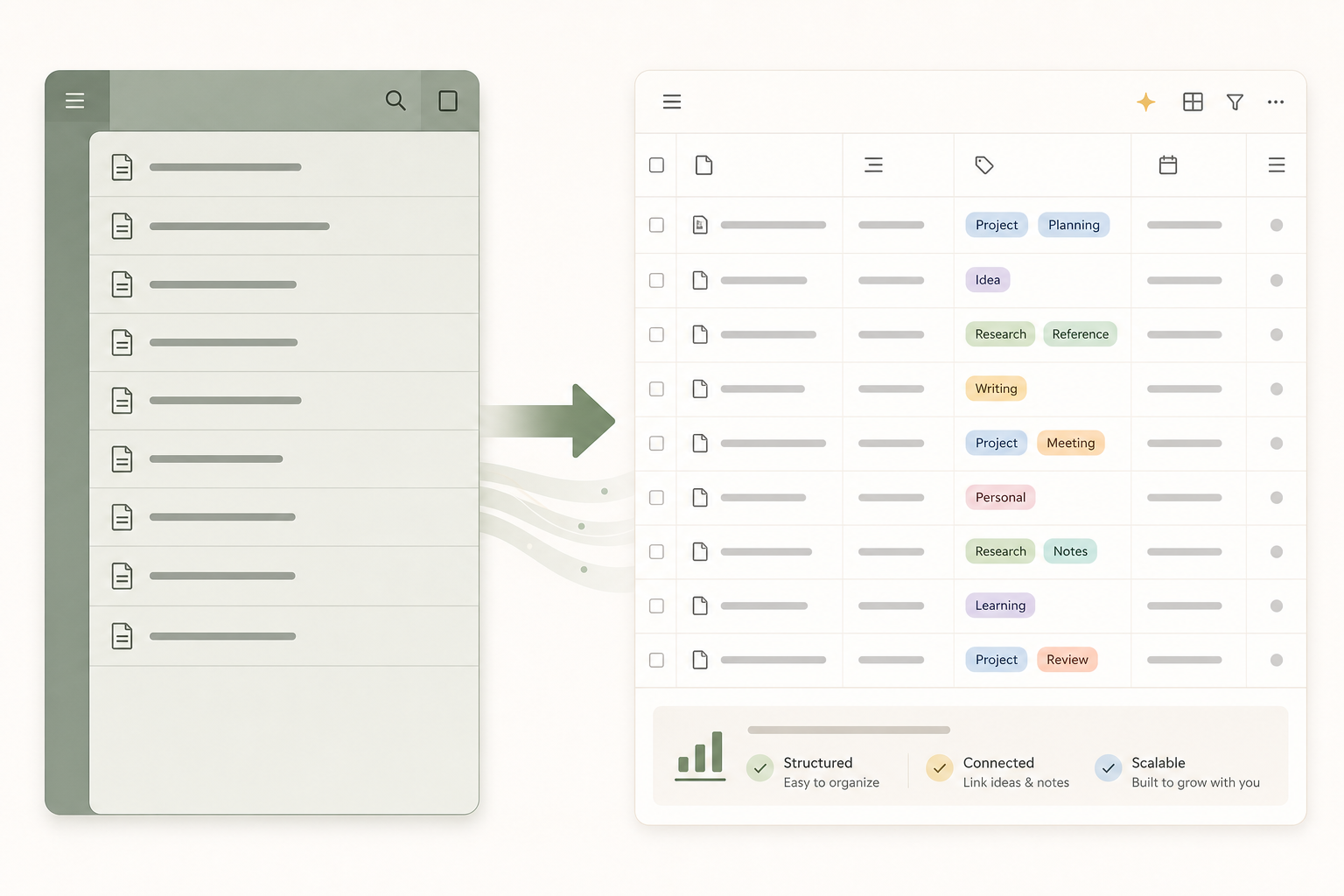
Why Evernote Users Are Leaving Now
Evernote's pricing has changed dramatically since Bending Spoons acquired the company. In roughly two years, the annual subscription climbed from $69 to $129 and then again to $249 — a nearly 300% increase confirmed by users in the Evernote community forum as of early 2026.
The price alone is enough to push many users out, but the plan restructuring compounds the problem. The new Starter tier caps accounts at 1,000 notes and 100 tags. Anyone who has used Evernote seriously for more than a year will likely exceed both limits — meaning they either pay $249 annually or lose access to a meaningful portion of their library.
- 2022: Evernote Personal plan ~$69/year
- 2024: Price raised to ~$129/year
- 2026: Price raised again to ~$249/year
- New Starter tier: 1,000-note cap and 100-tag cap
Before You Start: Pre-Migration Checklist
Rushing into the import step is the most common reason migrations fail or produce unusable results. Spending 30–60 minutes on preparation prevents hours of cleanup afterward.
The first thing to establish is your total note count and how it is distributed across notebooks. The native Notion importer is documented as reliable up to approximately 5,000 notes. If you are above that threshold, or close to it, plan to use the ENEX export route with enex2notion instead of — or alongside — the native importer.
| Preparation Task | Why It Matters |
|---|---|
| Count notes per notebook | Determines whether to use native importer or enex2notion; batch size planning |
| Delete or merge duplicate notes | Duplicates import as duplicates — cleanup is harder inside Notion than inside Evernote |
| Archive or delete unused notebooks | Reduces import volume and avoids cluttering the Notion workspace with dead content |
| Identify HTML-formatted legacy notes | Older notes with complex HTML formatting degrade significantly on import |
| Decrypt any encrypted note blocks | Encrypted blocks are skipped entirely by both import methods — decrypt before exporting |
| Note attachment-heavy notebooks | Large attachments slow the import and may fail silently; flag these for manual review |
| Verify you have the Evernote desktop app installed | Export (ENEX) and the native importer both require the desktop app — Evernote Web cannot export |
Also take a moment to review any notes that contain internal links — links from one Evernote note to another. These links will become dead after import regardless of which method you use. If you have a significant number of cross-linked notes, document the most important ones so you can recreate them in Notion manually.
Method 1: Using the Native Notion Importer
The native importer is the right starting point for most users with libraries under 5,000 notes. It requires no additional software and handles the connection between Evernote and Notion directly through OAuth.
Step-by-Step Walkthrough
- Open Notion in your browser or desktop app and navigate to Settings.
- Select Import from the left sidebar within Settings.
- Choose Evernote from the list of import sources.
- Click Connect and authorize Notion to access your Evernote account. You will be redirected to Evernote's authorization page.
- After authorization, your Evernote notebooks will appear. Select the notebook you want to import.
- Click Import. The notebook will begin processing in the background.
- Monitor progress under Settings → Import → the In Progress and Completed tabs.
When the import completes, each notebook appears as a page in your Notion sidebar. The notes inside become items in a Notion database displayed in list view by default. The database takes the name of the original Evernote notebook.
The 5,000-Note Ceiling
Notion's official help documentation states that the importer reliably handles up to approximately 5,000 notes. Above that threshold, imports may fail silently, stall indefinitely, or complete with missing notes. This is not a soft guideline — users with libraries of 14,000 or more notes have reported significant failures with the native importer.
Evernote API Rate Limits and Stuck Imports
The Evernote API enforces rate limits that can cause the import to pause for extended periods with no visible activity. This is normal behavior and does not necessarily mean the import has failed. If no new notes appear in the Notion database for up to three hours, wait before taking any action. If there is still no progress after three hours, Notion's documentation recommends escalating to Notion support rather than canceling and restarting, which can create duplicate data.
Method 2: ENEX Export and enex2notion for Large Libraries
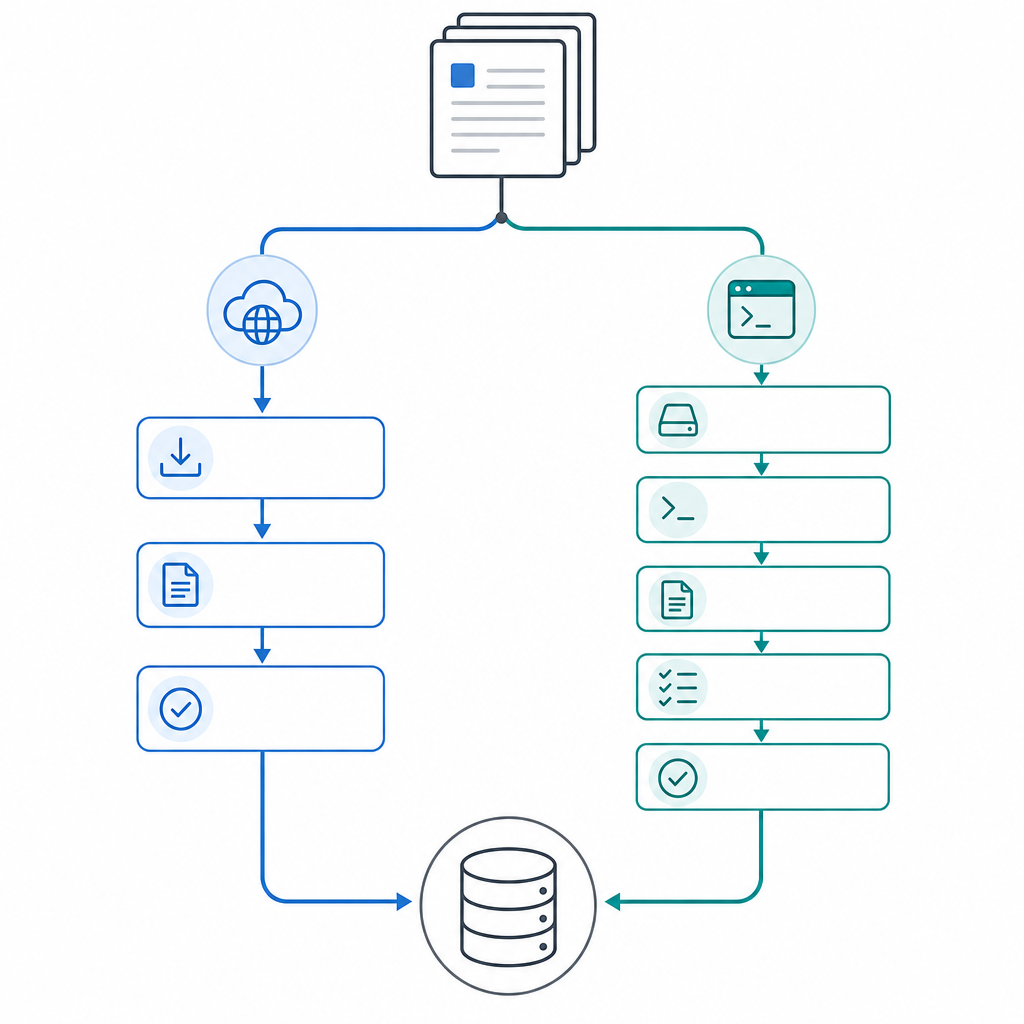
Use this method if your library exceeds approximately 5,000 notes, if the native importer has failed or stalled repeatedly, or if you need more control over what gets preserved during the transfer.
enex2notion is an open-source tool (MIT license) that reads Evernote's ENEX export format and uploads notes directly to Notion. It preserves more content than the native importer — including text formatting, tables, and embedded files — and supports resumable uploads via a progress-tracking flag.
Step 1: Export ENEX Files from Evernote
Open the Evernote desktop app (Mac or Windows — not Evernote Web). Right-click on a notebook in the sidebar, choose Export, and select ENEX format. You can export an entire notebook at once or select up to 100 notes at a time.
- Export each notebook as a separate ENEX file to keep the structure manageable.
- ENEX file size per export can be set between 300 MB and 2 GB in the export dialog.
- Free Evernote accounts can export without a paid subscription.
- Save the ENEX files to a folder you can easily reference from the command line.
Step 2: Install enex2notion
Choose the installation method that matches your operating system:
# macOS (Homebrew)
brew install enex2notion

# Linux or Windows (pipx)
pipx install enex2notion

# Alternatively, download the portable binary from the GitHub releases page
Step 3: Get Your Notion token_v2 Cookie
enex2notion authenticates with Notion using the token_v2 cookie from your browser session. To find it, open Notion in your browser, open the browser's developer tools (F12 or right-click → Inspect), navigate to the Application or Storage tab, find Cookies for notion.com, and copy the value of token_v2.
Step 4: Run the Upload
The basic command uploads a single ENEX file to the root of your Notion workspace:
enex2notion --token YOUR_TOKEN_V2 your-notebook.enexFor large libraries, add the --done-file flag to enable resumable uploads. If the process is interrupted, rerunning the same command will skip notes already uploaded:
enex2notion --token YOUR_TOKEN_V2 --done-file progress.txt your-notebook.enexDB Mode vs. PAGE Mode
| Mode | How Notes Are Organized | Best For |
|---|---|---|
| DB (default) | Notes import as database items inside a Notion database, matching the native importer's output structure | Users who want consistency with the native importer or plan to use Notion database features (filters, sorts, views) |
| PAGE | Notes import as individual Notion pages inside a parent page, preserving the Evernote notebook tree hierarchy | Users who prefer a traditional page/subpage structure rather than a database, or who have a deeply nested notebook hierarchy they want to preserve |
# Use PAGE mode to preserve notebook tree structure
enex2notion --token YOUR_TOKEN_V2 --mode PAGE --done-file progress.txt your-notebook.enexWhat Is Preserved and What Is Lost
Neither import method is lossless. The table below covers every major content type and what happens to it across both paths. Review this before starting — knowing what will not survive lets you take manual notes or screenshots of anything critical.
| Content Type | Native Importer | enex2notion | Notes |
|---|---|---|---|
| Notebook structure | ✓ Preserved (as Notion page) | ✓ Preserved (DB or PAGE mode) | |
| Note titles | ✓ Preserved | ✓ Preserved | |
| Plain body text | ✓ Preserved | ✓ Preserved | |
| Bold and italic formatting | Partial — may degrade | ✓ Better preservation | enex2notion handles these more reliably |
| Text colors | Partial | ✓ Preserved | |
| Tables | Partial — may flatten | ✓ Converted to Notion table format | Column spans (colspan) are not supported by Notion |
| Images | ✓ Transferred — may not display correctly | ✓ Uploaded to Notion — more reliable rendering | Post-import visual check required for both methods |
| File attachments | ✓ Transferred | ✓ Uploaded to Notion | Large attachments may slow or fail silently |
| Web clips | ✓ As text | ✓ As text (TXT mode) or PDF (PDF mode) | PDF mode requires wkhtmltopdf installed |
| Tags | ⚠ Imported as plain text property values | ⚠ Imported as plain text property values | NOT converted to Notion multi-select — requires post-import manual conversion |
| Internal note links | ✗ Become dead links | ✗ Become dead links | Must be manually recreated in Notion |
| Evernote Tasks | ✗ Lost | ✗ Lost | No equivalent import path exists |
| Encrypted blocks | ✗ Skipped entirely | ✗ Skipped entirely | Decrypt all encrypted blocks inside Evernote before exporting |
| Paragraph alignment | ✗ Lost | ✗ Lost | Notion does not support paragraph-level alignment |
| Custom fonts and font sizes | ✗ Lost | ✗ Lost | Notion uses a single body font; custom typography is not preserved |
| Subscript and superscript | ✗ Lost | ✗ Lost | Not supported by either method |
| Created and modified dates | ✓ Preserved as database properties | ✓ Preserved (with --add-meta flag in PAGE mode) |
Troubleshooting Common Import Problems
| Problem | Likely Cause | What to Do |
|---|---|---|
| Import appears stuck with no progress | Evernote API rate-limit backoff | Wait up to 3 hours before taking action. Do not cancel and restart — this can create duplicates. If no progress after 3 hours, contact Notion support. |
| Images not displaying in imported notes | Expected behavior — images transfer but rendering can fail | This requires post-import cleanup. Open affected notes and re-upload images manually, or accept that some legacy images may need to be re-added. |
| Note count in Notion is lower than in Evernote | Partial import — some notes failed silently | Cross-check note counts per notebook between Evernote and the imported Notion database. Spot-check individual notes, not just totals. |
| 'Import failed' error message | Batch too large or API timeout | Reduce batch size. Try importing one notebook at a time. For notebooks with hundreds of notes, split them into smaller groups in Evernote first. |
| Library over 14,000 notes — native importer unreliable | Native importer ceiling | Switch to enex2notion with the --done-file flag. The native importer is not suitable for libraries of this size. |
| enex2notion authentication fails | token_v2 cookie may have expired or changed | Re-copy the token_v2 value from your browser. Log out and back into Notion in your browser to refresh the session, then copy the new token value. |
Post-Migration: Rebuilding a Usable Workspace
When the import finishes, every note lands inside a flat Notion database displayed in list view. This is functional but hard to navigate at scale. The following steps convert the import dump into a working Notion workspace.
Immediate First Steps
- Switch from list view to table view. Open the imported database, click the view selector at the top left, and add a Table view. Table view exposes the note properties (including the imported tags) as columns, making the database immediately more scannable.
- Convert the tag property to multi-select. Find the Tags column in your table view. Click the column header, open the property settings, and change the property type from Text to Multi-select. Notion will attempt to parse the existing tag values. Review and clean up the resulting tags — some may have merged or split incorrectly.
- Run a visual check on image-heavy notes. Open 10–20 notes that you know contain images or attachments and confirm they are displaying correctly. Flag any that need manual repair.
Do You Need to Restructure Everything?
Not immediately. Notion's search is strong enough that you can leave all imported notes inside the flat import database and find what you need by searching. Users with thousands of imported notes have reported that Notion search is a viable substitute for a fully restructured hierarchy — at least in the short term.
Restructuring into Notion's page and subpage hierarchy is worth doing gradually, moving notes into organized pages as you actually use them rather than trying to reorganize everything before you start working in Notion.
Replacing Evernote's Capture and Reminder Features
- Web Clipper: Install the Notion Web Clipper browser extension (available for Chrome, Safari, and Firefox) to replace Evernote's web clipper. The Notion mobile app also has a built-in share extension for clipping from mobile browsers.
- Reminders: Evernote reminders do not transfer. In Notion, create a Date property on your imported database and use it to set due dates on notes that previously had reminders. You can also use Notion's built-in reminder notifications on date properties.
- Search as a replacement for Evernote keyword search: Notion's full-text search covers all page content. However, it does not search inside images, PDFs, or handwritten notes the way Evernote's OCR does. If your workflow depends on searching inside scanned documents or images, see the next section.
Who Should Wait Before Migrating
Notion is a capable replacement for most Evernote use cases — but not all of them. Before committing to the migration, check whether any of the following apply to your workflow.
- You depend on OCR search inside images, PDFs, or handwritten notes. Evernote indexes the text inside scanned documents, photos of whiteboards, and handwritten notes. Notion does not. If you regularly search for text that appears inside an image or PDF, Notion's search will not find it.
- You annotate PDFs frequently. Evernote supports PDF annotation directly inside notes. Notion displays PDFs as embedded previews but does not offer annotation tools. Heavy PDF annotators will need a separate app for annotation and use Notion only as a storage layer.
- You work offline regularly. Notion is primarily a web-dependent application. Offline access is limited and unreliable compared to Evernote's native desktop app. If you frequently work without an internet connection, this is a significant practical limitation.
- You have a large library of internally linked notes and rely on that link structure. Internal note links become dead links after import. If you have hundreds or thousands of cross-linked notes that form a connected knowledge network, you will lose that structure entirely. Recreating it manually in Notion is feasible for small networks but impractical at scale.
Comments
Join the discussion with an anonymous comment.