
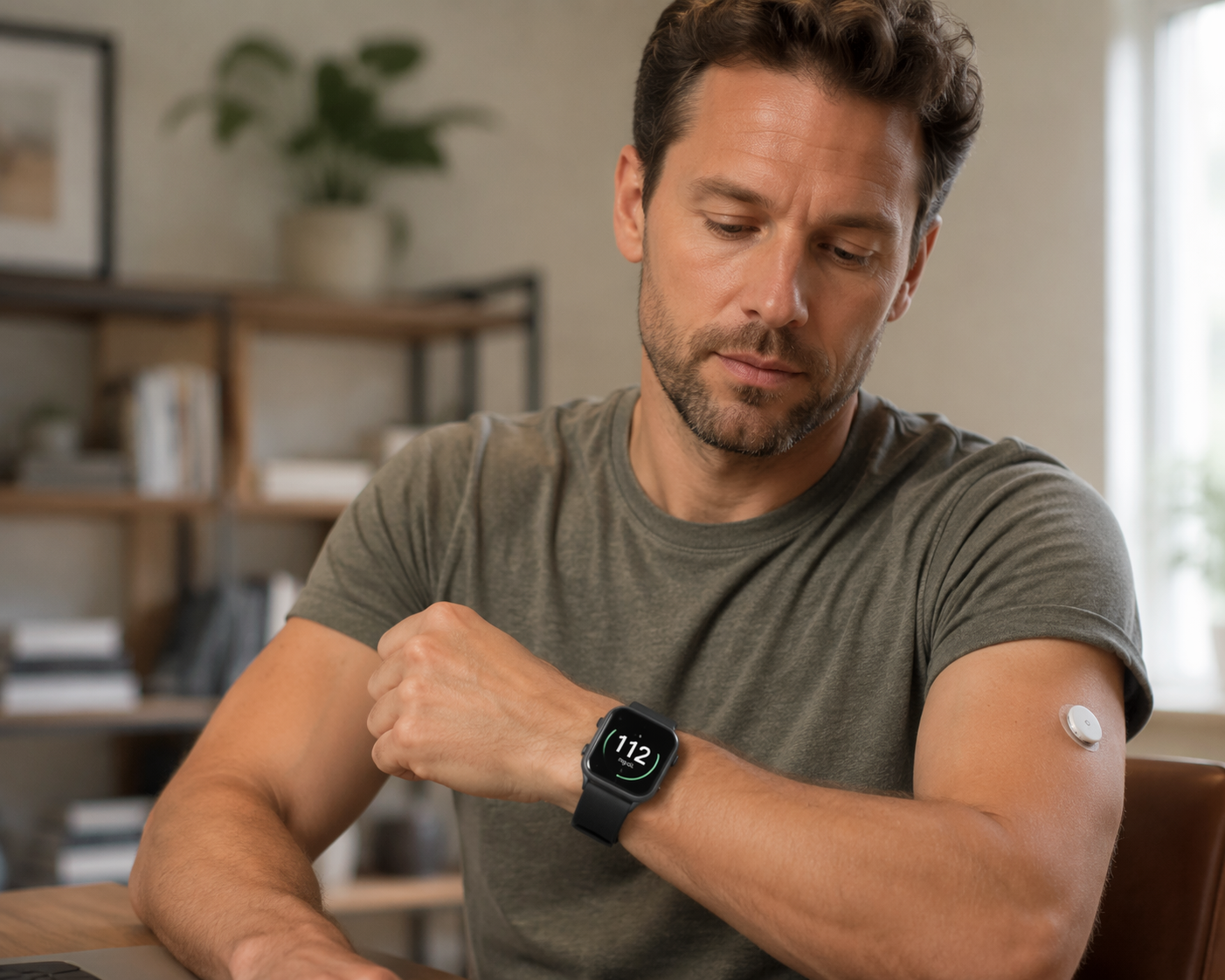
As of July 2026, a Samsung Galaxy Watch does not measure blood sugar by itself, and no smartwatch has FDA authorization to replace a continuous glucose monitor. The watch is a display. Your CGM sensor and phone app still do the actual glucose tracking, then the watch shows the number, trend, graph, or watch-face complication when the app chain is working. [1]
That still makes the Galaxy Watch useful. If you already have a compatible CGM, the right Android phone app, and a Galaxy Watch4 or newer running Wear OS, you can usually turn the watch into a glanceable CGM screen without buying another diabetes device. The setup choice depends less on the watch model and more on your sensor brand, your region, and whether your watch face still works after Wear OS 5. [2]
Step 1: Pick the Setup Path That Matches Your CGM
Do this part before installing random watch faces. A Dexcom G6 user, a Dexcom G7 user, and a Libre 3 caregiver are not solving the same problem, even if all three are staring at the same Samsung watch.
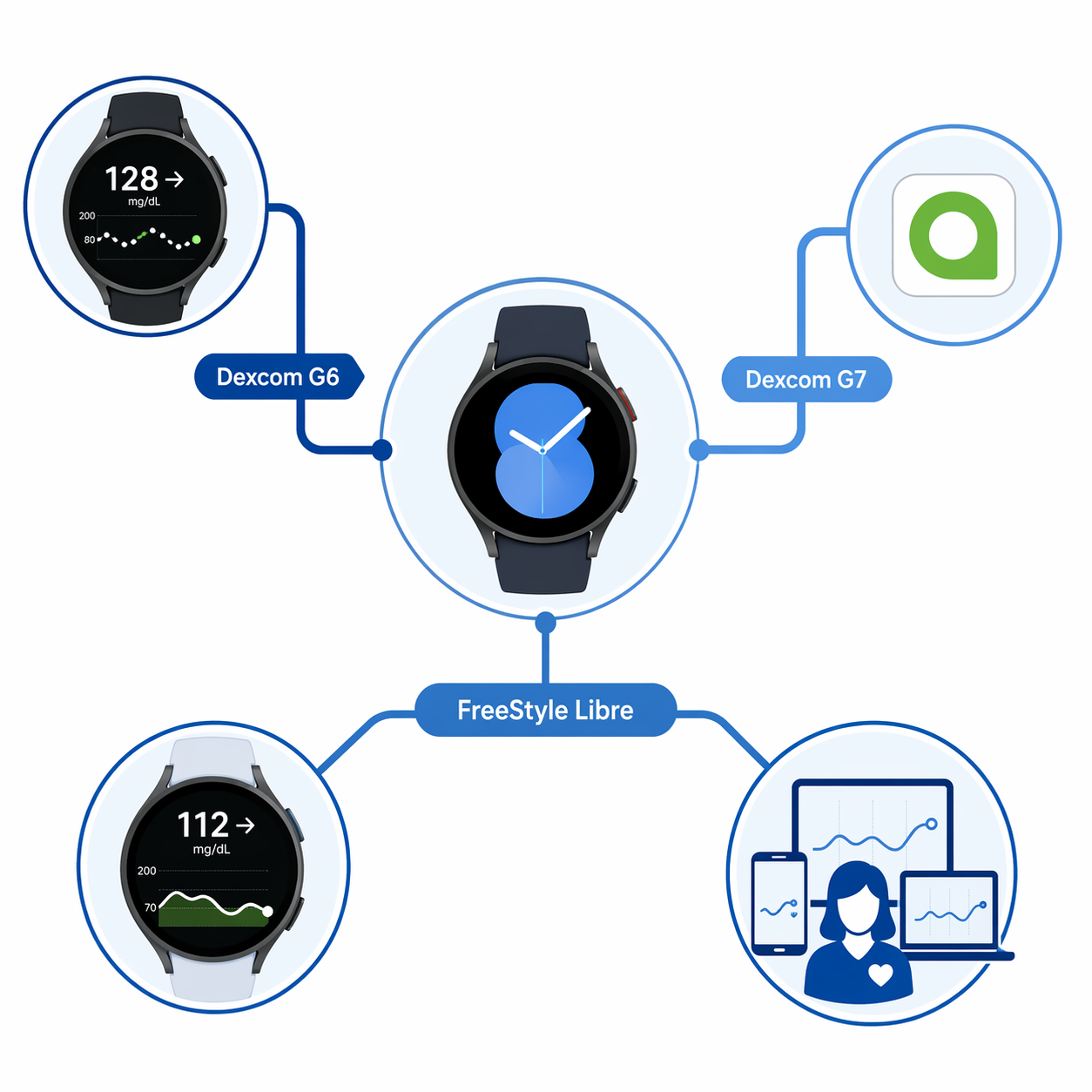
| If you use | Start with | Best fit | Stop condition |
|---|---|---|---|
| Dexcom G6 | Dexcom’s official Android watch app face | Lowest-friction official path when your phone app and Wear OS version qualify | The Dexcom watch face shows your glucose value and trend |
| Dexcom G7 | Blose, after checking current Play Store status | Users who want Dexcom Share data on the watch and accept a third-party setup | The watch app connects to Dexcom Share and refreshes a reading |
| FreeStyle Libre 2 or Libre 3 | WatchGlucose | Libre users who want a watch app plus a 12-hour history tile | The watch shows a reading and the history tile appears when swiping left |
| FreeStyle Libre, especially caregiver workflows | Gluroo | Families or caregivers who want glucose, carbs on board, and insulin on board in one watch-face workflow | The phone app, Wear OS app, and CGM Watchface all show connected data |
| Anything that fails after install | Compatibility and Wear OS 5 checks | Galaxy Watch7, Watch Ultra, Watch8, unsupported regions, or old watch faces | You identify whether the blocker is phone app, watch app, watch face, permissions, or regional availability |
One more warning before the app work: Galaxy Watch7, Galaxy Watch Ultra, and Galaxy Watch8 are affected by Wear OS 5 watch-face restrictions. Older legacy or catalog watch faces no longer work on those models; only newer Watch Face Format faces are supported. That matters most when a glucose setup depends on a custom watch face rather than a regular watch app or tile. [2]
Step 2: Check the Phone-to-Watch Chain Before You Install Anything
The watch cannot rescue a broken phone setup. Before touching the Galaxy Watch Play Store, confirm that the CGM phone app is receiving current glucose data, Bluetooth is working on the phone, the phone has internet access if your chosen app uses cloud sharing, and the watch is paired to the same phone through the Galaxy Wearable app.
- Use the CGM manufacturer’s phone app as your truth source when checking whether a number is current.
- Keep the phone nearby during setup; most watch paths depend on phone-to-watch communication or cloud account access.
- Open the Play Store on the watch itself when a guide says the app must be installed on the watch.
- Do not assume a watch face and a watch app are the same thing; some setups need both.
- If your watch recently updated, treat old watch-face instructions with suspicion until you confirm Wear OS 5 compatibility.
Step 3: Set Up Dexcom on the Galaxy Watch
Dexcom G6: Use the Official Dexcom Watch Face First
For Dexcom G6, the cleanest starting point is Dexcom’s own Android watch app face. Dexcom says the Android watch setup requires the Dexcom G6 Android app version 1.11.0 or later and a watch running Wear OS 2.0 or later. [3]
- On your Android phone, confirm the Dexcom G6 app is installed, signed in, and showing current CGM readings.
- On the Galaxy Watch, open the Play Store.
- Search for the Dexcom watch app or watch face from the watch Play Store.
- Install it on the watch, then return to your watch face picker.
- Select the Dexcom watch face and wait for the glucose value to populate.
The success condition is simple: you should see your Dexcom reading on the watch face, not just a blank face or a prompt to install something. If the phone app is current but the watch face stays empty, check that the watch is connected to the phone, then reopen the Play Store listing from the watch rather than only from the phone.
Dexcom G7: Consider Blose, but Verify It Before Depending on It
Dexcom G7 users may run into a different watch situation, which is why Blose comes up so often in setup threads. Blose is a third-party Wear OS app that fetches glucose data from Dexcom Share servers, and its Play Store description says encrypted credentials are stored only on the watch. [4]
- Confirm Dexcom Share is enabled and working from the Dexcom side before opening Blose.
- Install Blose from the Play Store on the Galaxy Watch.
- Follow the app’s sign-in or configuration flow for Dexcom Share.
- Wait for the watch to fetch a reading, then compare it with the Dexcom phone app.
This is the path where I would slow down, even if everything looks promising. Mid-2025 Play Store reviews reported a broken Blose configuration URL, so check the current listing, recent reviews, and the actual sign-in flow before treating it as your default display. A third-party watch app can be useful, but it is not the same kind of dependency as an official Dexcom watch face. [4]
Step 4: Set Up FreeStyle Libre on the Galaxy Watch
WatchGlucose: The Straight Libre Watch App Path
For FreeStyle Libre users, WatchGlucose is worth looking at first if your goal is a direct watch display with history. Its Play Store listing says it supports Libre 2 and Libre 3, and it is notable for a dedicated 12-hour glucose history tile that you can reach by swiping left from the watch face. [5]
- Make sure your Libre phone app is receiving sensor data before setting up the watch.
- Install WatchGlucose from the Play Store on the watch.
- Complete the app’s account or data-source setup on the phone and watch as prompted.
- Add the WatchGlucose tile on the watch if it does not appear automatically.
- Swipe left from the main watch face and confirm the 12-hour history tile appears.
Libre 3 is the better fit for near-real-time watch viewing. FreeStyle Libre 2 behavior varies by market, and the U.S. version does not upload continuously in the same way, so a Libre 2 user may see more limitations than a Libre 3 user even when the same watch app installs correctly.
Gluroo: Better When More Than One Person Needs the Number
Gluroo is the Libre path I would not dismiss just because it has more moving parts. Its Wear OS setup uses three pieces: the Gluroo phone app, a Wear OS watch app, and a separate CGM Watchface. Gluroo says the watch face can show glucose, carbs on board, and insulin on board together. [6]
That architecture makes more sense in a caregiver setup than in a one-person “just show me the number” setup. A parent, partner, or caregiver may care less about the shortest install path and more about whether the same data is visible across the phone and watch workflow. In that situation, extra setup is not automatically a drawback; it is the price of a more shared view.
- Install and configure the Gluroo phone app first.
- Install the Gluroo Wear OS app on the Galaxy Watch.
- Install or select the separate CGM Watchface if your watch model supports it.
- Confirm that glucose data appears in the phone app before judging the watch face.
- On Galaxy Watch7, Watch Ultra, or Watch8, verify that the current Gluroo watch-face option is compatible with Wear OS 5’s Watch Face Format requirement.
The last check matters because a setup can fail for a watch-face reason even when the CGM data source is fine. If Gluroo’s phone app shows data but the watch face does not, do not immediately delete your CGM connection. First check whether the watch app is installed, whether the selected face is supported on your model, and whether the watch has finished syncing faces from the phone. [2][6]
Step 5: Fix the Usual Reasons the Number Does Not Appear
When glucose does not show on the Galaxy Watch, resist the urge to change three things at once. Work down the chain in order: sensor, phone app, cloud or sharing account, watch app, watch face, then tile or complication.
| What you see | Most likely place to check | What to do next |
|---|---|---|
| No current reading in the phone CGM app | Sensor or phone app | Fix the CGM phone setup first; the watch cannot display data the phone does not have |
| Phone has data, watch app shows nothing | Phone-to-watch connection or app sign-in | Check Bluetooth, Wi-Fi or mobile data, watch pairing, and the app’s account setup |
| Watch app works, watch face is blank | Watch-face compatibility | Switch to a supported face or confirm Watch Face Format support on Wear OS 5 models |
| App cannot be found in Play Store | Region or device availability | Search from both the phone and watch Play Store, then check whether the app is available in your country |
| Blose configuration fails | Third-party app status | Check the current Play Store listing and recent user reports before spending more time on that path |
| Libre 2 updates feel delayed | Libre data behavior | Confirm whether your Libre 2 region/version uploads continuously; Libre 3 is generally the cleaner fit for watch viewing |
A good final verification is boring: the watch shows a glucose value, the trend or history display updates, and the phone CGM app shows a matching current reading. If the watch and phone disagree, use the CGM phone app and the device manufacturer’s instructions as the safer reference point.
The Galaxy Watch is strongest here as a glanceable companion display, not as a medical shortcut. The reliability comes from the whole chain: CGM brand support, regional app availability, the phone staying connected, and whether the watch face survives the current Wear OS rules. If you are still choosing hardware, compare model trade-offs in Galaxy Watch 9 vs Watch Ultra 2. If your watch is already on your wrist and you want to tune the rest of it after glucose setup, the Galaxy Watch 8 productivity setup guide is the better next stop.
References
- Samsung Galaxy Watch Blood Sugar Tracking, TechRepublic, May/June 2026
- Samsung Galaxy Watch Blood Sugar Tracking, eWeek, June 2026
- How do I set up the Android watch app face?, Dexcom
- Blose, Google Play
- WatchGlucose, Google Play
- WearOS Learn More, Gluroo
Comments
Join the discussion with an anonymous comment.