
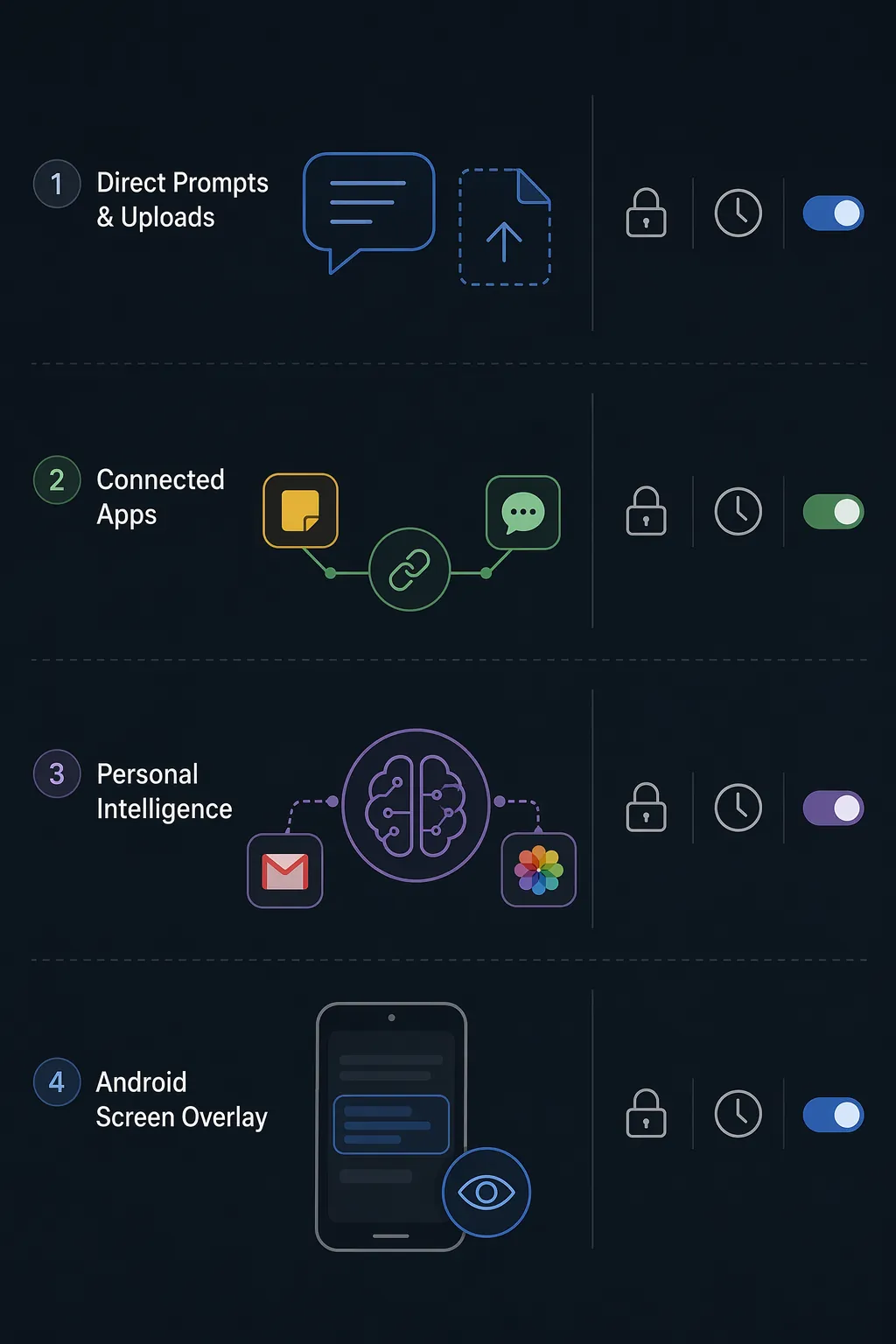
The useful way to check what Gemini knows about your note-taking privacy is not to ask whether Gemini “has access to your notes.” That question is too blunt. Gemini can encounter note content through four different routes, and each route has its own storage, training, and control points: direct prompts and uploads, Connected Apps, Personal Intelligence, and Android screen context.
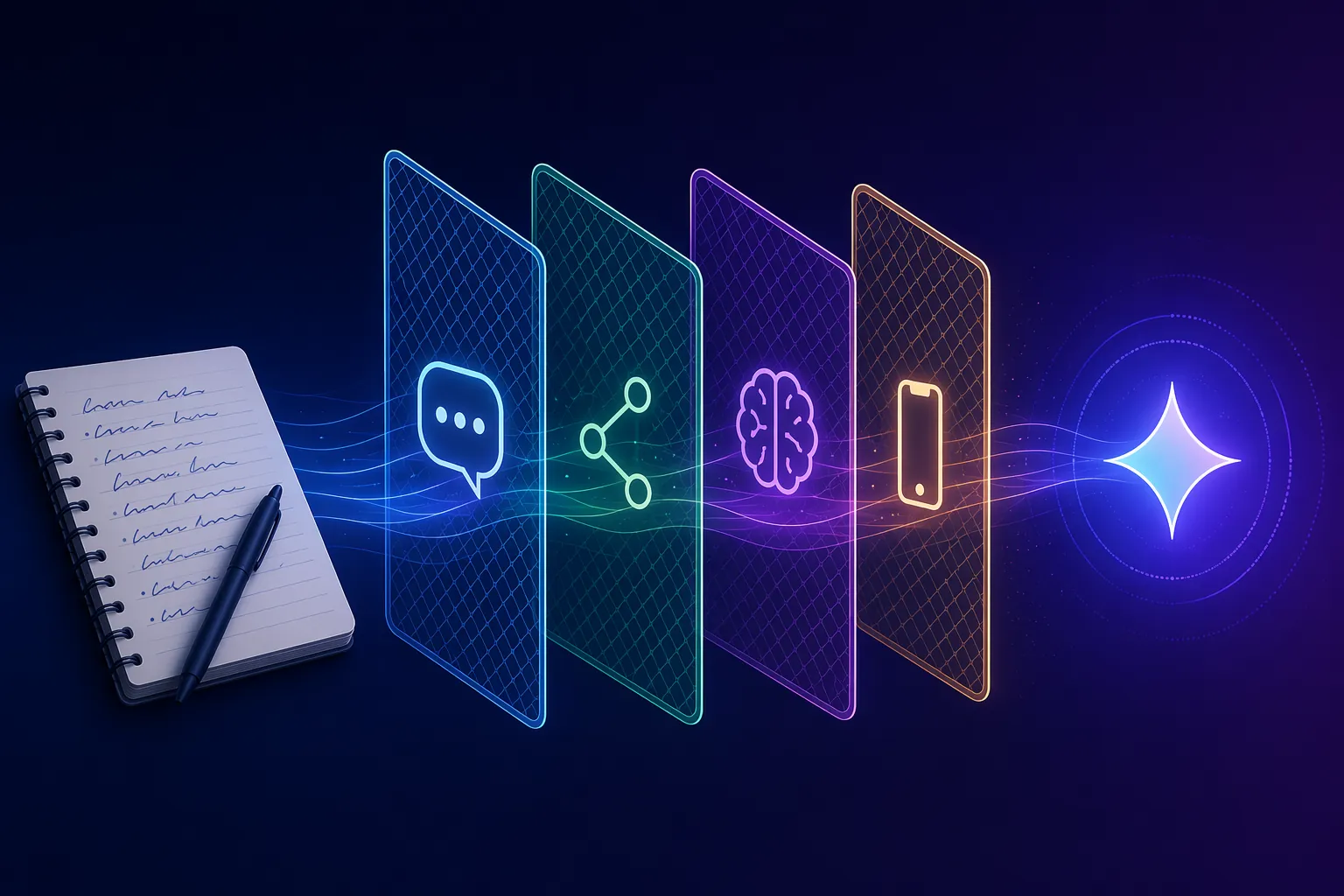
That distinction matters because a Notion page you never shared is in a different privacy state from a Keep note summarized through a connection, and both are different from an Obsidian file visible on your Android screen when you ask Gemini about it. Collapsing those into one idea of “Gemini access” is how people end up either needlessly scared or much too relaxed.
| Layer | What can become visible | Main control point | Why it is easy to misread |
|---|---|---|---|
| Direct prompts and uploads | Text you type, files you attach, screenshots, recordings, and other material you put into Gemini | Gemini Apps Activity, Temporary Chats, and audio/Live settings | People understand sharing, but often miss the retention and review rules |
| Connected Apps | Google Keep, Workspace apps, and explicitly connected third-party tools such as MCP integrations | Gemini Connected Apps settings | Turning off activity history is not the same as disabling app access |
| Personal Intelligence | Opt-in cross-app reasoning across supported Google surfaces such as Gmail, Photos, YouTube, and Search | Personal Intelligence opt-in and plan eligibility | It can reason over personal context without directly training on some source content |
| Android screen overlay | Whatever is visible on the phone screen when assistant screen features are used | Default assistant and “Ask about this screen” behavior | It can include third-party note apps even when no formal app connection exists |
Layer 1: Anything You Put Directly Into Gemini
The cleanest boundary is also the one people usually notice: if you paste meeting notes into Gemini, upload a PDF, attach an image of a notebook page, dictate a question, or ask Gemini Live to respond to something you say, that content has been shared with Gemini. Google’s Gemini Apps Privacy Hub says Gemini Apps can collect conversations, related product usage information, location information, and feedback, and it explains that settings such as Gemini Apps Activity affect how that data is saved and used.[1]
For note privacy, the part worth slowing down for is not the obvious fact that pasted text is visible. It is what happens after the paste. PCMag’s July 2026 privacy guide describes Temporary Chats as retained for about 72 hours, not used for training, but still potentially reviewed for safety or abuse purposes.[2] That makes Temporary Chats useful for reducing long-lived account history, but not a magic “no one can ever inspect this” mode.
The longer retention path is different. Google says conversations selected for human review are disconnected from the user’s account and can be retained for up to three years; Cape’s independent privacy-policy review also highlights Google’s stated retention claims.[1][3] If a note contains client names, unpublished research, health details, credentials, or anything you would not want excerpted into a review pipeline, the practical answer is simple: do not paste it into a normal Gemini chat and assume deleting the visible thread fully erases the downstream trace.
Audio deserves its own check because it is easy to confuse with text history. PCMag notes that audio and Gemini Live recordings have a separate setting from regular Gemini Apps Activity.[2] Someone can be careful with typed note excerpts and still leave a recording surface open if they use voice heavily.
How to audit this layer
- Open Gemini Apps Activity and check whether activity is on, off, or set to auto-delete.
- Use Temporary Chats for lower-retention prompts, while remembering the approximate 72-hour safety window.
- Check the separate audio and Gemini Live recording control if you use voice input.
- Treat pasted note excerpts, screenshots, and attachments as shared material, even if the source app itself is not connected.
Layer 2: Connected Apps Are Not Just Chat History
Connected Apps is where a lot of false confidence creeps in. Google Keep is a native Connected App for Gemini, and when it is connected, Gemini can work with Keep content such as finding, summarizing, or using notes in a response under Google’s stated Connected Apps behavior.[1] That is not the same thing as pasting a note into a chat, because the source note can be reached through the app connection itself.
Keep also has its own activity trail. PCMag reports that Google Keep Activity defaults to an 18-month auto-delete period, with configurable options including 3, 18, or 36 months, as well as manual deletion.[2] If you use Keep as a lightweight capture bin for addresses, errands, work fragments, and half-written private thoughts, this default is worth checking rather than vaguely remembering that you once turned off “Gemini activity” somewhere else.
Workspace connections sit nearby but should not be mentally merged with Keep. A Gemini connection to Gmail or Docs is a different exposure path from a Keep connection. A third-party note app is different again: Notion, Obsidian, Apple Notes, and GoodNotes are not automatically readable just because Gemini exists on the device. They become visible when you share their content directly, expose them through the screen layer, or explicitly connect them through an integration such as an MCP server.
That last sentence is the narrow but important correction. “Gemini can read every Obsidian vault by default” is not supported by the available materials. “Gemini has zero route to my Obsidian notes unless I paste them” is also too narrow if the notes can appear on-screen during Android assistant use, or if a third-party connector has been installed and authorized.
Android messaging access shows why the distinction between history and connection matters. Malwarebytes reported in July 2025 that, after Google’s update, disabling Gemini Apps Activity alone was not enough to prevent Gemini from reading Messages or WhatsApp content; users needed to disable the relevant Connected Apps access.[4] That finding is not about note apps directly, but it is a useful warning for note privacy: the activity switch is not the master privacy switch people often hope it is.
How to audit this layer
Open Gemini’s Connected Apps settings and look for Keep, Workspace services, messaging apps, and any third-party connectors you do not remember approving. If Keep is connected, treat Keep notes as available to Gemini through that connection. If Workspace is connected, audit it separately. If you experimented with MCP or a third-party AI bridge for Notion or Obsidian, do not rely on the note app’s name being absent from Google’s default list; check the connector or server you authorized.
For a comparison with another assistant’s note exposure model, the same audit habit applies in the ChatGPT note privacy guide: separate what you pasted, what you connected, and what the assistant can infer from the surrounding product.
Layer 3: Personal Intelligence Adds Reasoning Across Surfaces
Personal Intelligence is the 2026 layer that makes old privacy categories feel a little underbuilt. Google announced Personal Intelligence as an opt-in, off-by-default feature that can connect Gmail, Photos, YouTube, and Search “in one tap.” As of Q3 2026, it is a US beta for AI Pro and AI Ultra users, which makes it important but not universal.[5]
The training distinction is subtle. Google’s announcement says Gmail and Photos content is not directly used for training, while prompts and responses that reference that data may be used.[5] So the privacy question is not only “did Gemini train on my Gmail?” It is also “did I ask Gemini to reason about a personal data trail and then save a prompt-response pair that contains the relevant details?”
For note takers, Personal Intelligence matters even if it is not a direct Notion or Obsidian reader. Notes rarely live alone. A project note may correspond to Gmail threads, calendar-like plans in email, YouTube research, Search history, and photos of whiteboards. Cross-app reasoning can make Gemini more useful precisely because it can assemble context that the user did not manually paste into one prompt.
Concentric AI’s 2026 security-risk analysis flags the same direction from an enterprise angle: over-personalization is acknowledged as a risk, and the users most likely to have Personal Intelligence access may include executives or subscribers with broad Workspace visibility.[6] That is not proof that every consumer note is exposed through Personal Intelligence. It is a reminder that the valuable feature is the broad context, and broad context changes the consequences of an incautious prompt.
How to audit this layer
- Check whether Personal Intelligence is available on your account and whether you opted in.
- If enabled, review which Google surfaces are part of the experience rather than assuming it is only a Gemini chat feature.
- Avoid prompts that unnecessarily combine sensitive note content with Gmail, Photos, Search, or YouTube context.
- For work accounts, treat broad Workspace visibility as a governance issue, not just a personal preference.
This is also where the line between reading and acting starts to matter. A system that can summarize personal context is one category of risk; a system that can take actions across apps is another. If your concern is the autonomous-action side of Gemini-era tools, the separate Gemini Spark note-taking decision guide is the better place to track that boundary.
Layer 4: The Android Screen Is a Privacy Surface
The Android screen layer is the one I would not skip. It is also the easiest to miss because it does not look like a note-app integration. If Gemini is the default assistant and you use a feature such as “Ask about this screen,” the relevant content is whatever is visible at that moment. That can include Google Keep, but it can also include Notion, Obsidian, Apple Notes through a web view, GoodNotes content displayed on the phone, a screenshot gallery, or a browser tab with exported notes.
This does not mean Gemini is silently indexing every note app on your phone. The screen layer is situational. The note becomes exposed because it is on-screen when the assistant feature is invoked, not because Gemini has a standing database connection to the app. Still, from the note’s point of view, the result can look similar: a paragraph that had no formal Gemini integration can be sent into a Gemini interaction because it was visible at the wrong time.
That is why “I never connected Notion” is not a complete audit answer on Android. It may be true and still incomplete. The better question is whether you have ever asked Gemini about the current screen while sensitive notes, screenshots, PDFs, or exported markdown were visible.
How to audit this layer
- Check whether Gemini is your Android default assistant.
- Review whether you use “Ask about this screen” or similar screen-context features.
- Before invoking Gemini over a screen, notice whether a note, PDF, screenshot, or private chat is visible.
- For highly sensitive notes, close or switch away from the note app before using assistant screen features.
Android note takers choosing apps partly around assistant behavior may also want the broader Android AI note-taking app comparison, because the privacy profile of a note app now includes how it behaves when other AI layers sit on top of the phone.
Classify Each Note Surface
A useful audit ends with classification, not a mood. Take each place your notes live and put it into one of three states.
| State | What it means | Examples |
|---|---|---|
| Not accessible unless shared | Gemini has no ordinary route to the note unless you paste, upload, connect, or show it through the screen layer | A local Obsidian vault with no connector; an Apple Notes item never opened during screen-context use |
| Accessible because a feature is active | A connection, assistant role, or opt-in personalization layer gives Gemini a route to relevant content | Connected Google Keep; enabled Workspace connection; Android default assistant with screen-context use; opted-in Personal Intelligence |
| Previously shared and governed by retention rules | The note or excerpt already entered Gemini, so the question becomes activity, review, deletion, and retention | Pasted meeting notes; uploaded screenshots; Gemini Live discussion of private notes; Temporary Chat content inside the approximate 72-hour window |
For Google Keep users, this may mean checking both the Keep connection and the Keep Activity retention setting. If you use Keep as a household dashboard or capture surface, the old-phone smart display notes guide is a useful reminder that convenience setups often create more visible surfaces than people remember.
For Notion users, the most important separation is between native Gemini access and access created by sharing, screen context, or third-party automation. If you are also using Notion AI or external AI connectors, the problem expands beyond Gemini; the Notion AI prompt-injection security guide covers that adjacent risk more directly.
If your concern is no longer just visibility but what an AI tool might do after it sees something, the wider rogue AI risk in productivity tools discussion belongs after this audit, not before it. First establish which notes are reachable. Then decide how much agency you are comfortable giving the systems around them.
The broader productivity-stack concern is real, but it should not blur the audit. Gemini does not simply “know your notes.” It can know notes you directly share, notes exposed through active app connections, personal context made available through opt-in intelligence features, and note content visible through Android screen actions. Those are different privacy events with different controls. Treating them as one vague bucket makes it harder to find the setting that actually matters.
References
- Gemini Apps Privacy Hub — Google Help
- 7 Essential Google Gemini Privacy Settings You Should Change Right Now — PCMag, July 2026
- Google Gemini Privacy Policy: What You Need to Know — Cape
- How to stop Google Gemini from accessing WhatsApp and Messages — Malwarebytes, July 2025
- Introducing Personal Intelligence — Google Blog
- Google Gemini Security Risks — Concentric AI, 2026
