
The useful version of this setup is not a miniature command center. It is an old Android phone on a counter, desk, nightstand, or charging pad, showing one editable note and almost nothing else. You walk past it, tap the note, type the thing before it evaporates, and put the phone back down.
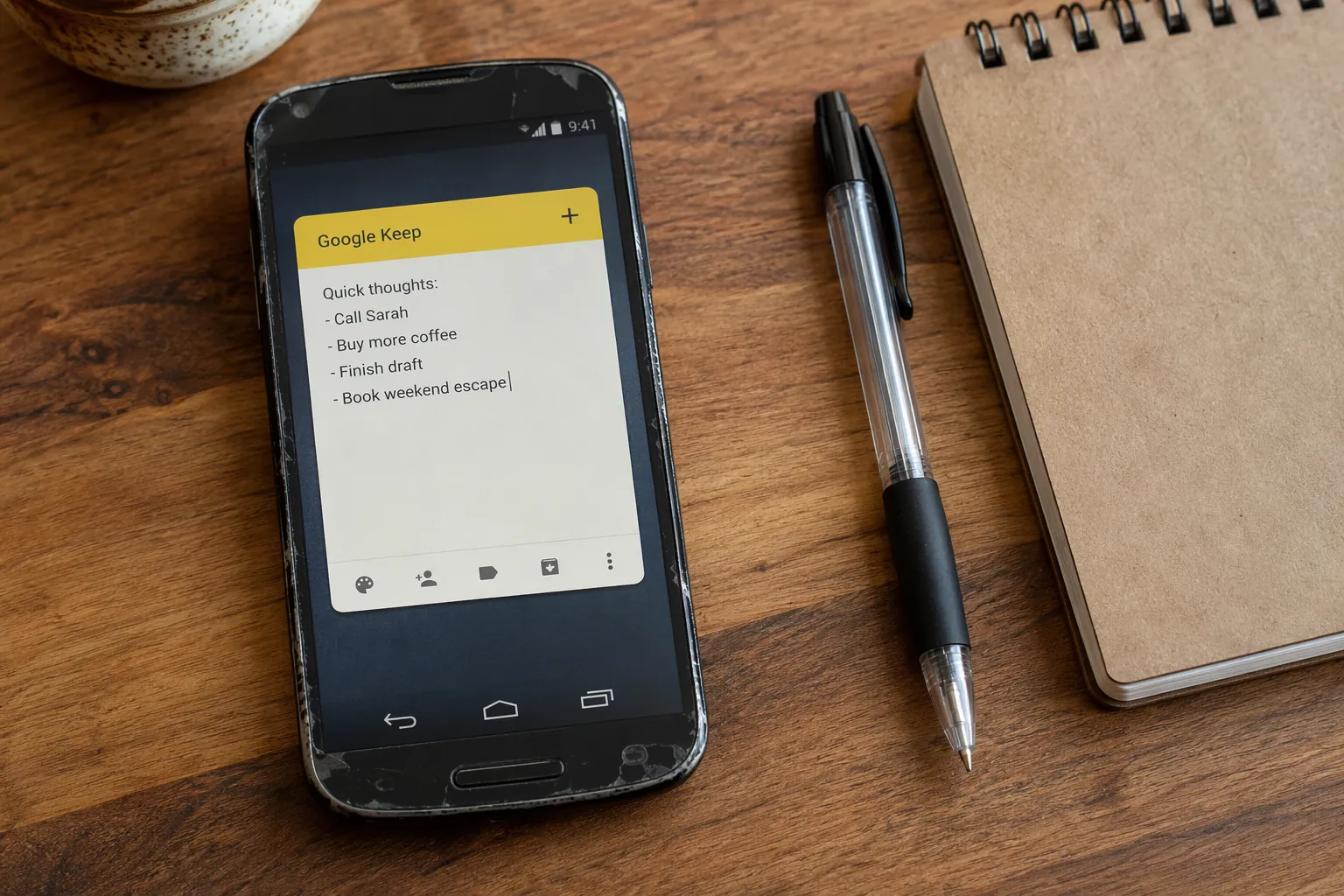
That distinction matters if you searched for how to repurpose old phone as a smart display for notes. A lot of old-phone projects drift toward weather panels, calendar widgets, smart-home controls, photo frames, and ambient dashboards. Those can be pleasant. They also turn the phone back into a screen you look at, manage, and fiddle with. For notes, the better job is narrower: make one trusted inbox physically available where thoughts usually happen.
The small trick that makes this work is Google Keep’s Single Note widget. Google’s Android home-screen widget documentation says Keep can place a specific note on the home screen so you can view and edit that note from the widget surface rather than first opening the app and choosing where to write.[1] That is the difference between “another phone with a notes app” and a capture appliance.
Everything else in the build exists to protect that one behavior: no app drawer wandering, no notifications, no “while I’m here” checks, no decision about which note gets the thought. One phone, one account, one widget, one inbox.
Why the Old Phone Beats Your Daily Phone
Your daily phone is a terrible capture device precisely because it is so capable. The moment you wake it, you are beside messages, feeds, timers, payment cards, camera roll, browser tabs, and whatever notification arrived most recently. Even if your note app is excellent, the device has too many exits.
A dedicated e-ink notebook can be lovely, and some people should absolutely buy one. But if the problem is “I keep failing to get scraps into my existing system,” the expensive hardware answer is often solving the wrong layer. The layer to fix first is the capture surface: how many taps, choices, unlocks, accounts, and temptations sit between the thought and the inbox.
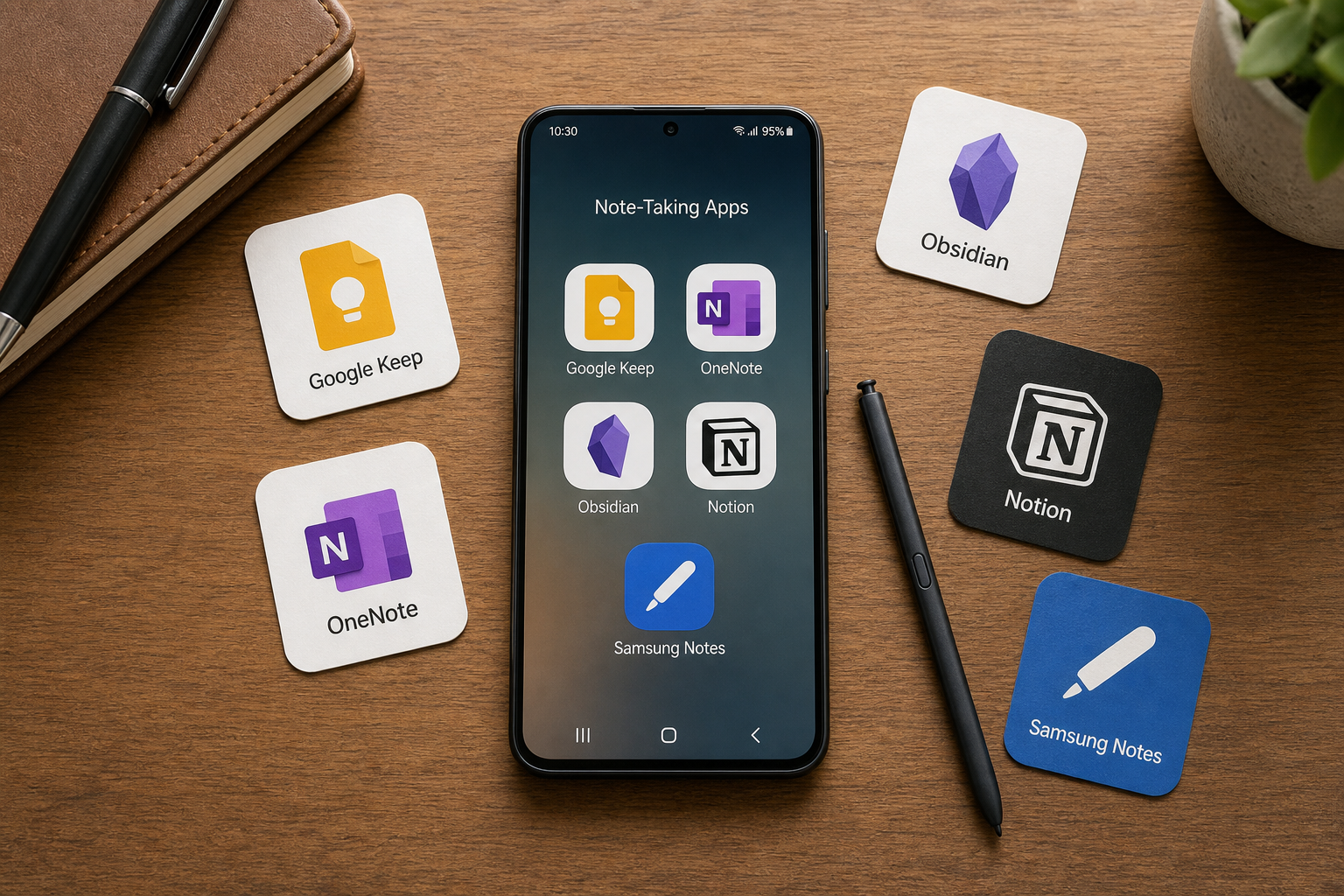
An old Android phone has three advantages here. It is already paid for, it can sit permanently where your daily phone does not, and Android allows a home-screen widget to become the main interface instead of merely a shortcut. That is also why Android is the practical platform for this particular build; if you are deciding whether an Android device is worth keeping around for notes more broadly, FlowDesk’s Android note-taking apps comparison is the more general app-level question. This guide is narrower than that: use the hardware as a standing capture slot.
The Build: One Home Screen, One Keep Inbox
Start with the phone, not the apps. Pick an old Android handset with a usable battery, working Wi-Fi, and a screen you do not mind leaving visible. It does not need a SIM card. It does not need a fast processor. It does need to wake reliably, connect to your home network, and run Google Keep.
Factory-reset it if you can. That is not a purity ritual; it removes the old phone’s previous life. The fewer inherited apps and accounts it has, the less likely it is to become a junk drawer with a widget on top.
- Factory-reset the Android phone and update only what is necessary for security and Google Play services.
- Sign in with the Google account you are willing to use as the capture bridge.
- Install Google Keep if it is not already present.
- Create one note called something plain, such as Inbox, Capture, or Notes to Process.
- Add the Google Keep Single Note widget to the home screen and point it at that one inbox note.
- Remove every other home-screen icon that is not required to keep the setup working.
The account choice is worth a minute of thought. Using your main Google account is simpler because Keep syncs immediately into the place you already check. A separate capture-only account can feel cleaner, especially if the phone will sit in a shared space, but it adds one more account to route later. For most people, simplicity wins unless privacy in the room is the bigger concern.
Once the Single Note widget is on the home screen, make it physically large. Give it the whole screen if your launcher allows it. The point is not to admire a tidy layout; the point is to make the editable note the only obvious place for your thumb to land.
Strip the Launcher Without Turning This Into a Launcher Hobby
A minimal launcher helps because the stock launcher usually keeps trying to be a phone. Niagara Launcher is often used for reducing an Android phone to essentials, and Android Police’s Light Phone-style setup uses that kind of launcher minimalism as the main move.[2] OLauncher is an even sparser option if you want text-first navigation and fewer visual hooks.
Do not overwork this part. The launcher has one job: leave the Keep inbox visible and make everything else slightly annoying to reach. If you spend an hour tuning icons, gestures, fonts, and hidden folders, the device is already pulling you away from the capture problem.
| Choice | Use it when | Avoid it when |
|---|---|---|
| Stock launcher | You can make the Keep widget fill the screen and remove distractions | The phone keeps surfacing app suggestions, news panels, or search bars |
| Niagara Launcher | You want a clean phone that still feels easy to operate | You will keep tweaking the app list instead of finishing the setup |
| OLauncher | You want the sparse, almost appliance-like version | You need family members or guests to understand the phone quickly |
Now put the phone where the lost notes actually happen. A kitchen counter catches meal ideas, grocery fragments, and “tell the contractor” thoughts. A desk catches work residue before it becomes a browser tab. A bedside table catches half-awake lines, although that location needs stricter notification discipline. If the phone lives in a drawer, it is not a capture station. It is just archived hardware.
Make the Capture Motion Boring
The daily motion should be almost disappointingly plain. Wake the phone. Tap inside the visible Keep note. Type the thought. Put the phone down. If voice input is reliable for you, use the keyboard microphone, but do not make voice the only path; a kitchen, shared office, or sleeping partner will eventually make that fail.
Keep the inbox note ugly. Short fragments are fine. Timestamps are optional. Tags can wait. If you ask the capture station to classify the thought, it stops being the capture station and becomes a small administrative job.
This is where the setup fits naturally inside a broader minimal productivity system. It is not the task manager, calendar, archive, writing app, or project database. It is the capture slot. FlowDesk’s digital minimalism productivity setup makes that separation explicit: tools work better when each one has a job small enough to remember under stress.
Route the Inbox Into Your Real Note System
A capture station earns its place only if the notes leave it. Otherwise, you have created one more inbox to feel guilty about. The routing choice depends on where your real notes live.
Obsidian: Keep as the Front Door, Markdown as the Exit
The cleanest argument for this Android setup is the Obsidian path: old phone to Google Keep, then Keep content converted into Markdown files inside your vault. The community tool keep-it-markdown is designed for that middle step, converting Google Keep notes into Markdown so Obsidian can read them as ordinary files. Treat it as useful infrastructure, not guaranteed infrastructure: before building your workflow around it, check that the project is still maintained, that recent issues are being answered, and that its authentication method still works with Google’s current requirements.
The practical version looks like this:
- Capture everything into the single Keep inbox note on the old phone.
- On your main computer, run or schedule the Keep-to-Markdown conversion into a holding folder in your Obsidian vault.
- Process that holding folder during your normal review instead of processing Keep on the phone.
- Clear or archive the Keep inbox only after the Markdown copy exists where you expect it.
Do not make the widget point at a dozen project notes. That sounds organized, but it reintroduces the decision you were trying to remove. One inbox note is less elegant and more durable. During review, you can split the fragments into literature notes, project files, daily notes, or whatever your vault actually uses.
For Logseq, the same principle can work if your graph already accepts Markdown files from a synced folder. Keep remains the capture surface; the conversion or copy step needs to land text where Logseq will index it. This is less polished than the Obsidian story because the research-supported bridge here is Keep-to-Markdown, not a dedicated Logseq capture pipeline. If your Logseq setup is file-based and you are comfortable supervising the import, it is plausible. If you want invisible, vendor-supported sync, it is not the best fit.
Notion: Use Notion’s Own Widget If Notion Is the Destination
If Notion is your main system, the Keep bridge is usually unnecessary. Notion’s mobile app offers quick-capture widgets that can be pinned to the Android home screen, which gives Notion users a cleaner route than writing in Keep and then moving the text later. In that version, the old phone is still valuable, but the widget changes: make the Notion capture widget the only obvious surface and send new items to the database or page you already review.
The tradeoff is that Notion capture tends to ask for more structure earlier. A database, template, or destination page is powerful when you are sitting down. It can be too much when you are standing with one wet hand and trying to remember the name of the book someone mentioned. If the Notion widget you choose demands choices before entry, simplify it until it behaves like an inbox.
Apple Notes: Possible, But Less Elegant
Apple Notes users can still reuse the Android phone, but this is where the setup stops feeling native. A Shortcut-based or web-based capture surface can forward text into Apple Notes, depending on how you already move text between platforms. That can be good enough for a desk station. It is not the same as the Keep Single Note widget, because the Android home screen is no longer editing the destination note directly.
If Apple Notes is non-negotiable and you want the same one-tap feel, an old iPhone or iPad may be the more honest appliance. The Android version is strongest when Keep, Markdown, Notion, or another Android-friendly capture path is allowed to be the front door.
Keep the Google Part Small
Google Keep can become part of a larger Google workflow, especially as Google continues tying notes, search, and assistant-like features closer together. If that is the decision you are actually making, FlowDesk’s Gemini and Google note-taking ecosystem guide is the better place to weigh the broader platform question.
For this build, Keep should stay boring. It is the capture buffer. The old phone should not become the place where you browse your whole Google life, triage email, or ask an assistant to summarize your day. The more jobs Keep inherits, the more the device starts behaving like a normal phone again.
Battery and Always-Available Placement
The phone has to be available, but it does not have to be abused. Many Android phones now include a charge-limiting feature that caps charging below a full battery; Samsung labels this kind of feature Battery Protection, while Pixel devices refer to Charging optimization. The exact menu name varies, so look for the mechanism rather than the label: limit sustained full charging when the device is parked most of the day.[3]
A wireless charging pad can make the habit easier. Drop the phone on the pad where it belongs, lift it only when you need to type, and let the location do some of the remembering. If you are leaving it docked for long stretches, a smart plug that turns the charger off for a regular daily window can reduce the time the battery spends sitting at full charge; old-phone bedside assistant setups often use this kind of power-management habit to keep an always-available device from becoming a battery problem.[3]
Also remove the obvious annoyances: turn off nonessential notifications, disable lock-screen previews if the phone is in a shared room, lower the brightness, and set the screen timeout long enough that the widget is visible during a real capture moment. Do not chase a permanently awake display unless you truly need it. A phone that wakes quickly is usually enough.
Where This Setup Fails
This is the wrong setup if you want a glanceable second brain. A five-inch screen is not a good place to browse a large vault, scan a project dashboard, compare notes, or maintain a calendar wall. It can show those things, technically. That does not mean it should.
It also fails if you cannot tolerate a one-way inbox. The whole design assumes that capture and processing are different actions. The phone collects. Your main system organizes. If you want to classify every note at the moment of entry, the old phone will start asking for the same mental energy as your primary app.
The Obsidian route has one more caveat: any community bridge is only as trustworthy as its current maintenance. Keep-to-Markdown conversion is what makes the claim credible for Obsidian, but it is not the same kind of guarantee as a first-party sync feature. Verify it before depending on it, and keep the Keep inbox visible until you know the export landed correctly.
The build is worth doing when the old Android phone becomes a one-note inbox appliance: factory-reset, visually quiet, physically placed, and routed into the system you already review. It is not worth doing if what you really want is a dashboard, a multi-note browsing surface, or an iPhone-native version of the same Google Keep widget behavior.
References
- Get notes on your Android home screen — Google Keep Help, Google Keep Help
- I turned my Android phone into a Light Phone, and you can too, Android Police
- I repurposed my old Android phone as an always-on bedside assistant, MakeUseOf



Comments
Join the discussion with an anonymous comment.