
You can use ChatGPT beside Apple Notes, Notion, or Obsidian for months before the awkward question lands: if you asked it to clean up meeting notes, rewrite private fragments, or connect scattered ideas, where would you actually check what ChatGPT knows about you — and what that means for note-taking privacy?
There is no single screen called “everything ChatGPT knows about my notes.” The information can sit in several places: your chat history, saved memory, training context, and, on macOS, app-level access through Work with Apps. Those are different surfaces with different controls. Deleting one does not necessarily inspect or remove the others.

| Privacy surface | What it may contain | Where to check |
|---|---|---|
| Conversation history | Chats where you pasted, uploaded, summarized, or discussed note content | ChatGPT sidebar and data export |
| Saved memory | Durable facts such as job, family details, location, preferences, and recurring working habits | Settings → Personalization → Manage Memory |
| Training setting | Whether future conversations may be used to improve models, depending on your setting and plan | Settings → Data Controls → Improve the model for everyone |
| Work with Apps on macOS | Content ChatGPT can read from supported active apps such as Apple Notes, Notion, and Quip when permissioned | Settings → Work with Apps → Manage Apps |
That table is the audit. The rest of the work is not philosophical; it is checking each surface, then being honest about what the controls can and cannot prove.
Start With Saved Memory, Because It Is the Easiest Layer to Forget
Saved memory is the layer most likely to feel personal rather than merely historical. OpenAI describes it as a way for ChatGPT to remember information across chats, including details and preferences that can help personalize future responses; the Memory FAQ also says saved memories are on by default and can include information such as your preferences, work, family, or other details you share over time.[1]
For note-takers, that matters because the boundary between “temporary working context” and “useful fact about me” is thin. A messy note might mention that you are preparing board materials, managing a parent’s care, changing jobs, moving cities, or tracking a health issue. You may have pasted the note for one rewrite. ChatGPT may later treat part of that context as a reusable preference or fact if memory is enabled.
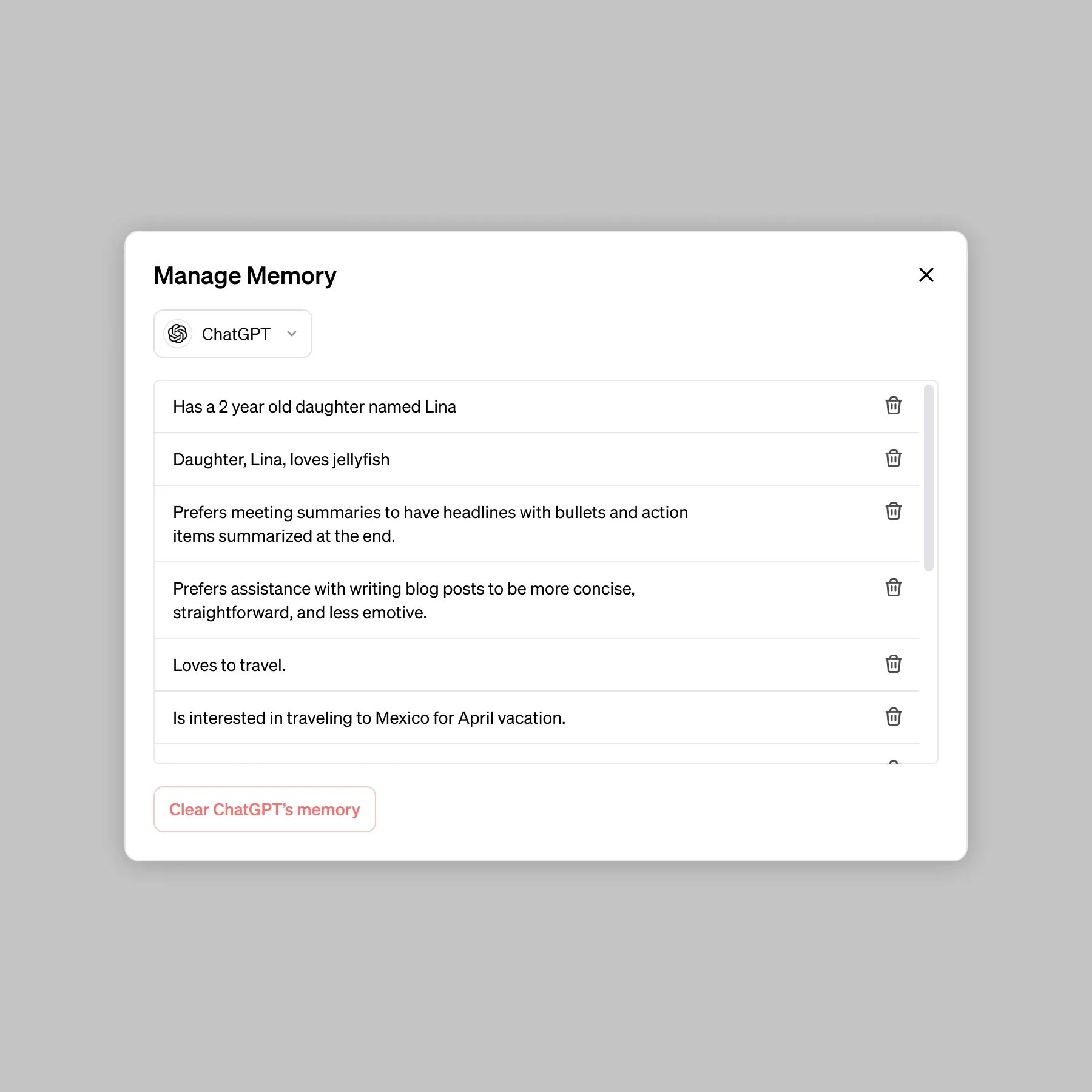
To inspect it, open ChatGPT and go to Settings → Personalization → Manage Memory. Read the entries as a profile, not as a feature demo. Look for facts that came from notes rather than from deliberate profile setup: client names, project roles, family details, writing preferences, health routines, locations, recurring tasks, or any shorthand that would be harmless in a private notebook but strange as a permanent assistant memory.
- Delete individual memories that should not persist across sessions.
- Turn memory off if you do not want ChatGPT building a durable profile from future note work.
- After deleting, start a new chat and ask a neutral question that would have relied on the deleted fact. Do not paste the fact again during the test.
- Repeat this audit after heavy periods of note use, such as a job search, medical planning, legal planning, or client project.
The verification step is imperfect, but it is still useful. If ChatGPT continues to behave as if it knows a deleted preference, the cause may be conversation context, another saved memory, or information you reintroduced in the current chat. That is exactly why saved memory should be checked separately instead of treated as the same thing as chat history.
Then Check Whether ChatGPT Can Read From Your Note App
Work with Apps changes the privacy question. Without it, the obvious exposure is what you paste, upload, or type into ChatGPT. With it, ChatGPT can work with supported apps on macOS after permission is granted, including Apple Notes, Notion, and Quip; OpenAI says the feature can include up to 200 lines of content per prompt from compatible apps and uses the macOS Accessibility API.[2]
This is useful if you want ChatGPT to help with the note you are actively editing. It is also the setting most likely to surprise someone who still thinks of ChatGPT as a blank box waiting for pasted text. The relevant audit is not “did I paste this note?” but “which apps have I allowed ChatGPT to observe while I work?”
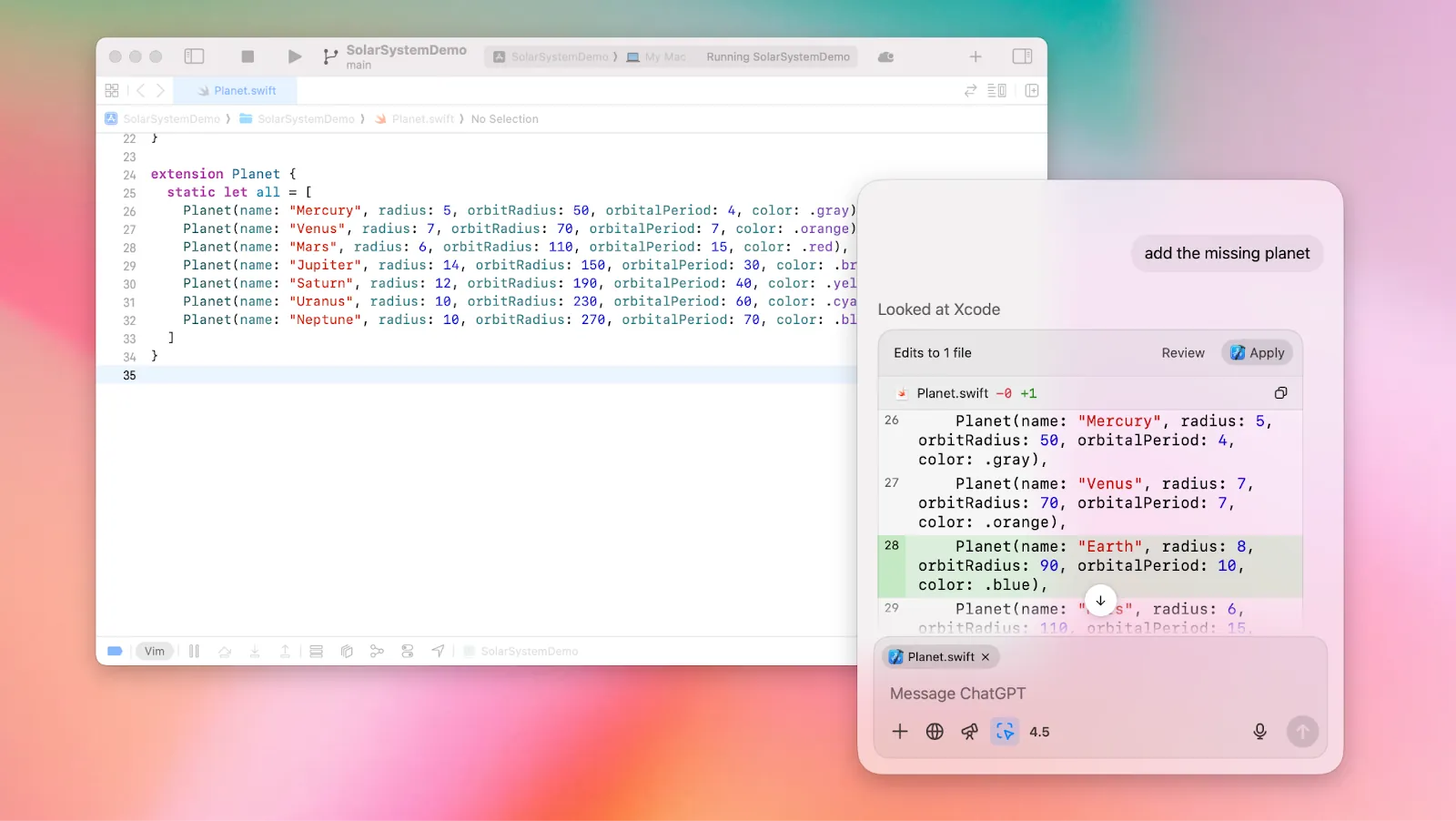
Open the ChatGPT macOS app, then go to Settings → Work with Apps → Manage Apps. Check each supported app listed there. If Apple Notes, Notion, Quip, or another note-adjacent app is enabled and you do not actively use ChatGPT with that app, revoke the permission. Then open macOS System Settings and review the Accessibility permissions for ChatGPT as well, because the feature depends on that operating-system-level access.[2]
- If you use ChatGPT Free, Work with Apps is not the accidental exposure to worry about: OpenAI lists it for paid plans such as Plus, Pro, Team, Enterprise, and Edu.[2]
- If you use a paid plan on macOS, treat every enabled note app as a live permission, not as a one-time import.
- If you only need help with one note, consider copying a redacted excerpt instead of granting app access.
- If your notes include client, employee, medical, legal, or family records, default to off unless you have a specific workflow and approval reason.
Free-tier users should not take too much comfort from that first bullet. Not having Work with Apps does not make pasted notes private. It only removes one app-access path. Chat history, saved memory, and training settings still need to be checked.
Use Data Export as Evidence, Not as a Friendly Dashboard
The formal way to request a copy of your ChatGPT data is Settings → Data Controls → Export Data. This is worth doing if you want to see stored account data and conversation records, especially before making deletion decisions.
Do not expect the export to feel like a clean privacy report. In a March 2026 hands-on review, Forbes described receiving a data export as a large, messy archive with a folder over 1GB, unstructured JSON, random image files, and an HTML chat dump the reviewer could not open usefully.[3] That does not make export useless. It means export is evidence you may have to search, not a normal-person control panel.
After downloading the archive, search for terms that would reveal note exposure: names of note folders, client names, project codenames, locations, family names, health terms, meeting titles, and snippets you remember pasting. If the archive is too large to inspect manually, use a local text search tool rather than uploading the export into another AI service. The point of this audit is not to create a second copy of the problem somewhere else.
Check the Training Setting Without Pretending It Rewinds History
Training controls are easy to overstate. The setting you want is Settings → Data Controls → Improve the model for everyone. Privacy walkthroughs from PCMag and Kaspersky both point users to data-control settings for limiting use of ChatGPT conversations to improve models.[4][5]
If the setting is on and your account type allows training use, turn it off before doing more note work. That helps future use. It should not be described as undoing already processed data. If you previously pasted a year of meeting notes, toggling the setting today is a forward-looking boundary, not a time machine.
This distinction matters because note-takers often use ChatGPT in bursts. A single week of cleanup after a conference, performance-review cycle, family emergency, or product launch can expose more than months of casual prompting. The training setting belongs near the beginning of your workflow, not after the sensitive work is finished.
Delete Chats, But Do Not Treat Deletion as a Perfect Eraser
Once you have checked memory, app permissions, export, and training status, deleting old chats can still reduce exposure in the product interface. Remove conversations that contain raw notes, transcripts, copied databases, private journals, client materials, or anything that would create a problem if someone else opened your account.
The limitation is retention. Kaspersky’s privacy guide notes that deleted chats and Temporary Chats may still be retained for up to 30 days for abuse monitoring, and it also discusses a June 2025 U.S. court order tied to New York Times litigation that required OpenAI to retain certain ChatGPT data indefinitely, later reportedly lifted for most users.[5] The practical lesson is not that deletion is pointless. It is that deletion guarantees can be conditional in ways the interface does not make emotionally obvious.
There is also a local-handling angle. The ChatGPT Mac app had a reported plain-text conversation storage issue that was patched in mid-2024, according to iDropNews.[6] That is not evidence that the current app is storing notes the same way. It is a reminder that privacy posture includes local app behavior, operating-system permissions, and vendor fixes, not just the cloud setting you last clicked.
A Realistic Note-Taking Privacy Audit
If you want a clean sequence, use this order. It reduces the chance that you delete visible chats while leaving the more surprising surfaces untouched.
- Open Settings → Personalization → Manage Memory. Delete note-derived facts that should not persist.
- Open Settings → Work with Apps → Manage Apps on macOS. Revoke note-app permissions you do not actively need.
- Check macOS Accessibility permissions for ChatGPT and remove access if Work with Apps is not part of your workflow.
- Open Settings → Data Controls → Export Data. Search the archive locally for sensitive note terms.
- Open Settings → Data Controls → Improve the model for everyone. Turn it off if you do not want eligible future chats used for model improvement.
- Delete old chats that contain raw notes, then adjust future workflows so fewer raw notes enter ChatGPT in the first place.
The strongest version of this audit is not panic-cleaning. It is separating note work into categories before the next upload or app connection: public drafts, low-risk working notes, sensitive personal notes, regulated or client material, and anything involving another person who did not choose the tool. Different categories deserve different defaults.
Enterprise telemetry gives some context for why this is not a niche concern, but it should be read carefully. Cyberhaven reported that 34.8% of data detected in ChatGPT inputs in Q4 2025 was sensitive, based on enterprise telemetry.[7] That is not a universal measurement of individual note-takers. It does show that, in monitored workplace environments, sensitive material was flowing into ChatGPT often enough to be measurable.
What to Change After the Audit
The safest future workflow is boring in the right way: redact before pasting, summarize locally before asking for help, avoid names when placeholders will do, keep Work with Apps off unless you need it for a specific session, and check memory after sensitive bursts of work. If ChatGPT helped you turn a rough note into an email, it did its job. It does not need to remember the person, diagnosis, salary, acquisition target, or private dispute that made the note urgent.
If you want safer day-to-day habits, FlowDesk’s guide to ChatGPT productivity tips that keep your data safe is the natural next step. If the audit made you question the broader vendor picture, read FlowDesk’s comparison of AI note-taking app security and its framework for securing a productivity stack from supply-chain cyberattacks.
Tool choice may also change after you see the surfaces clearly. A local-first setup raises different tradeoffs than a cloud workspace, which is why Obsidian vs Notion for AI notes is worth reading before rebuilding a notes system around AI. And if your main concern is meeting capture, a bot-free approach such as Granola AI Note Taker has a different privacy shape than inviting another visible participant into every call.
Checking ChatGPT’s memory, export, app permissions, and training setting will not produce a perfect “delete everything I ever exposed” button. It does give you a map. For note-taking privacy, that map is the difference between assuming the chat box is blank and knowing which doors you have actually left open.
References
- Memory FAQ, OpenAI Help Center
- Work with Apps on macOS, OpenAI Help Center
- Here’s The Mess You Receive If You Export Your ChatGPT Data, Forbes, March 3, 2026
- ChatGPT Remembers Everything: 8 Privacy Tricks I Use to Prevent It From Learning Too Much About Me, PCMag
- ChatGPT privacy and security: how to configure it safely, Kaspersky
- ChatGPT Mac App Was Storing Conversations in Plain Text, iDropNews
- Q4 2025 AI Adoption and Risk Report, Cyberhaven, Q4 2025
Comments
Join the discussion with an anonymous comment.