The most expensive AI output is often the one you already generated.
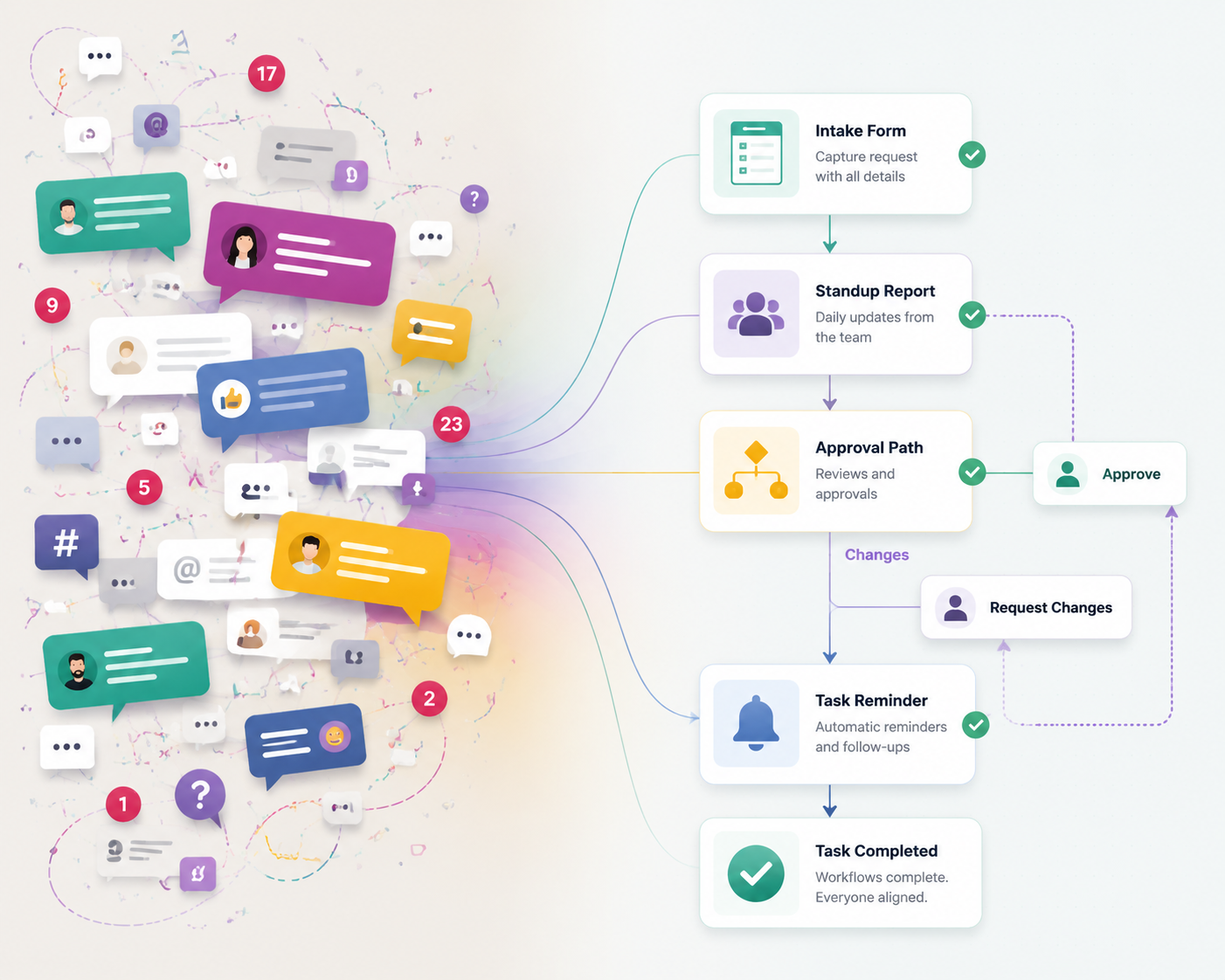
You asked ChatGPT to turn a messy client call into next steps. Claude gave you a clean explanation of a product decision. Perplexity found three sources you wanted to reuse. Otter.ai captured the meeting that made the whole thing make sense. Then a month later, the project comes back, your manager asks why you recommended one path over another, and the answer is technically somewhere: in a chat sidebar, an exported transcript, a browser tab, or a note you meant to clean up.
That is the actual problem Gen Z workers run into when using AI for career productivity. It is not whether AI can help. Gen Z knowledge workers are already using it. One 2024 Google-linked figure reported by Business Insider said 93% of knowledge workers aged 22 to 27 used two or more AI tools weekly, while Workday’s 2026 Human Connection Index says 81% of Gen Z use AI daily, compared with 55% of Gen X.[1][2] The harder question is whether the useful output becomes part of a durable work system, or whether it becomes another thing you have to remember exists.
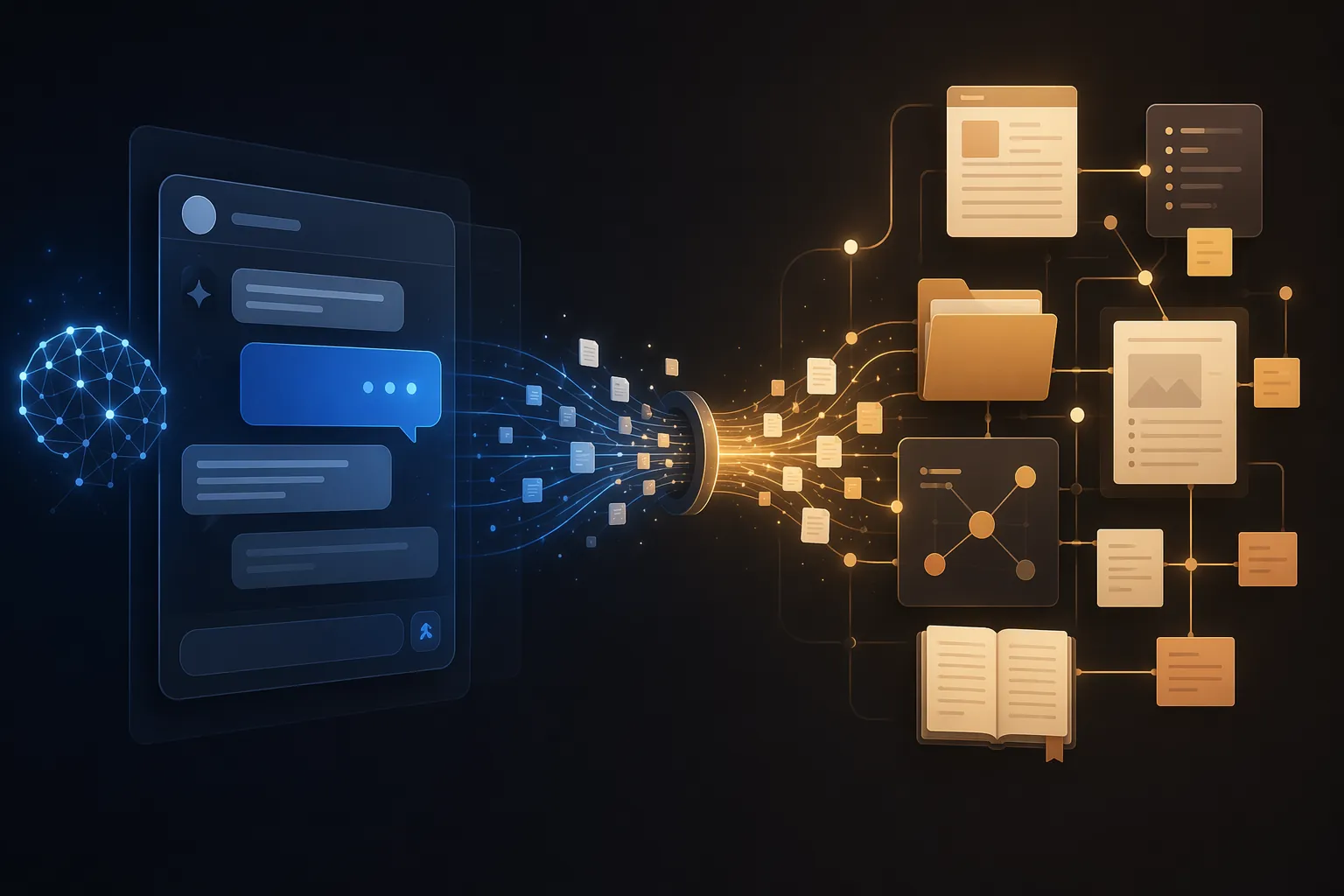
A good AI-notes workflow has a boring standard: if the answer cannot be found again, linked to the project it belongs to, and reused without re-prompting from scratch, it has not compounded. It may have saved a few minutes that day. It did not become career infrastructure.
The Workflow: Generate, Capture, Persist
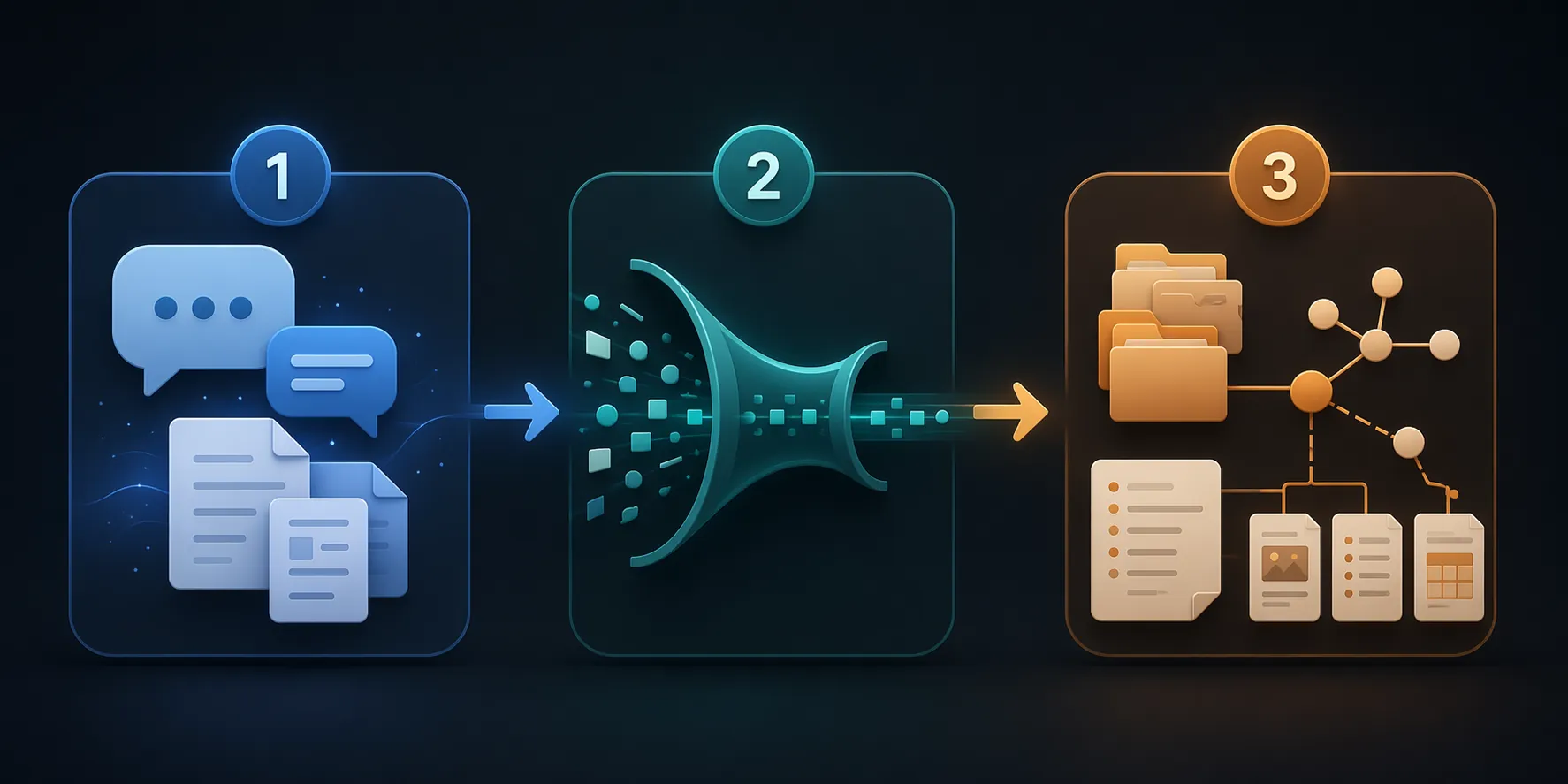
The clean version of the setup has three layers. They do not need to be fancy, and they definitely do not need to turn every prompt into a permanent artifact.
| Layer | What It Does | Common Tools | What Can Go Wrong |
|---|---|---|---|
| AI generation | Drafts, analyzes, compares options, explains unfamiliar material | ChatGPT, Claude, Perplexity | Useful answer stays trapped in chat history |
| AI capture | Turns meetings, calls, and rough inputs into structured text | Otter.ai, Grammarly, built-in transcript tools | Transcript loses speaker context or decision rationale |
| Note persistence | Stores the work where projects, decisions, sources, and next actions live | Notion, Obsidian, Logseq | Manual copying, broken plugins, weak retrieval structure |
This is where the productivity claims need a filter. Secondary summaries of McKinsey, LinkedIn, and Salesforce research report large gains for structured AI use, including claims that AI-proficient workers save 1.5 to 3.5 hours per workday, that 78% of hiring managers consider AI proficiency a core competency, and that AI-adept workers are 40% more likely to be promoted within 18 months.[3] Those figures are useful as directional signals, not as permission to count every chatbot exchange as career progress. The saved time only matters if the work product can be recovered when the next decision, review cycle, interview, or portfolio project needs it.
Decide What Is Worth Saving
The first failure point is over-saving. If every prompt becomes a note, the system turns into a landfill with better search. Before connecting tools, decide which AI outputs deserve persistence.
- Save outputs tied to a real project, decision, meeting, stakeholder request, research question, or recurring task.
- Save outputs that explain why one option was chosen over another, not just the polished final answer.
- Save reusable structures: interview prep, project briefs, launch checklists, analysis templates, client follow-up language, code review rubrics, and research summaries.
- Do not save disposable brainstorming unless it produced a decision, a draft you will edit, or a pattern you expect to reuse.
A simple test works: imagine your manager, mentor, or future self asks, “Why did we do it this way?” If the AI output helps answer that, capture it. If it only made you feel less stuck for ten minutes, let it disappear.
Capture Enough Context to Reuse the Output
Copying the final AI answer into a note app is better than losing it, but it is still thin. The reusable unit is not just the answer. It is the answer plus the surrounding context that makes it trustworthy later.
For any saved AI output, capture four pieces of metadata before the content:
- Project or area: the client, team, class, job search, portfolio, or internal initiative this belongs to.
- Original input: the prompt, meeting transcript, source list, ticket, or rough notes that shaped the output.
- Output status: raw AI draft, human-edited draft, reviewed decision, sent message, or archived reference.
- Next use: where this should resurface, such as a weekly review, project page, performance review, client meeting, or interview story bank.
That last field is the difference between storage and retrieval. A note that says “Claude answer about onboarding” is easy to ignore. A note attached to “Q3 onboarding revamp / decision log / manager review” has somewhere to go.
Route AI Outputs Into the Place Work Already Lives
The note app should not become a museum of clever prompts. It should be the place where AI output meets your actual work structure. That structure can be light, but it has to exist.
| Work Type | Where the AI Output Should Land | Why It Matters Later |
|---|---|---|
| Recurring meetings | Meeting note linked to a project page or team area | Action items and decisions stay attached to the work |
| Research tasks | Source note, research question, or synthesis page | You can audit where a claim came from |
| Job search or promotion prep | Story bank, skills evidence, interview prep, or accomplishment log | AI-assisted drafts become proof you can reuse |
| Client or stakeholder communication | Project page with sent message, rationale, and follow-up date | You can reconstruct the chain of decisions |
| Learning a new skill | Concept note plus manually written reflection | The explanation does not replace practice |
The learning row deserves extra caution. TalentLMS found that 66% of Gen Z respondents said AI positively affected their skills, while 40% said it hindered growth by doing tasks they could have learned from.[4] That is not an argument to avoid AI. It is an argument to label AI-assisted learning differently from work you can perform unaided.
A useful note system can make that distinction visible. A draft written with AI can be marked as AI-assisted. A concept explanation can sit next to your own attempt. A meeting summary can include what you actually heard, not only what the transcript tool inferred. That small friction protects you from confusing fluency with judgment.
Notion: The Stable Native Path, With Lock-In
Notion is the easiest path if your work already lives in databases, project pages, meeting notes, and task views. The advantage is not that Notion AI is magically smarter than every external chatbot. The advantage is proximity. Your notes, decisions, tasks, and summaries can sit in the same cloud workspace, so there is less manual shuttling between tools.
A LinkedIn analysis of Notion AI described it as a cognitive layer that can summarize meeting notes and extract action items without requiring a perfectly designed productivity system.[5] Treat that as a practical observation, not a universal guarantee. The path works best when Notion is already your operating system for projects.
A workable Notion setup
- Create one database for AI outputs, or add an “AI output” type to your existing notes database.
- Add properties for project, source tool, output status, original prompt or transcript link, review owner, and next use.
- For meetings, paste or import the transcript into the meeting page, then use AI to produce decisions, risks, action items, and open questions.
- Move only the durable pieces into the project page: the decision, the rationale, the assigned follow-ups, and any language that will be reused.
- Use filtered views for “needs human review,” “ready to reuse,” and “performance review evidence.”
The risk is that Notion makes capture feel so easy that review gets skipped. If an AI summary sits in the same workspace as your real project notes, people may treat it as settled. Add a review status before an AI-generated decision summary becomes part of the project record.
The other trade-off is lock-in. Notion’s cloud convenience is part of why this path is stable, but it also means your system depends on Notion’s account, permissions, AI features, export quality, and pricing. That may be fine for a personal career system. It matters more if your notes include company-sensitive material or if you expect to migrate later.
Obsidian: Powerful Local Notes, Fragile AI Connections
Obsidian is the better fit when you care about local files, markdown portability, backlinks, and owning the structure of your knowledge base. It is also where the AI workflow demands more maintenance. Most AI connections depend on plugins, API keys, custom prompts, community updates, or manual copy-paste. That flexibility is the point, and also the tax.
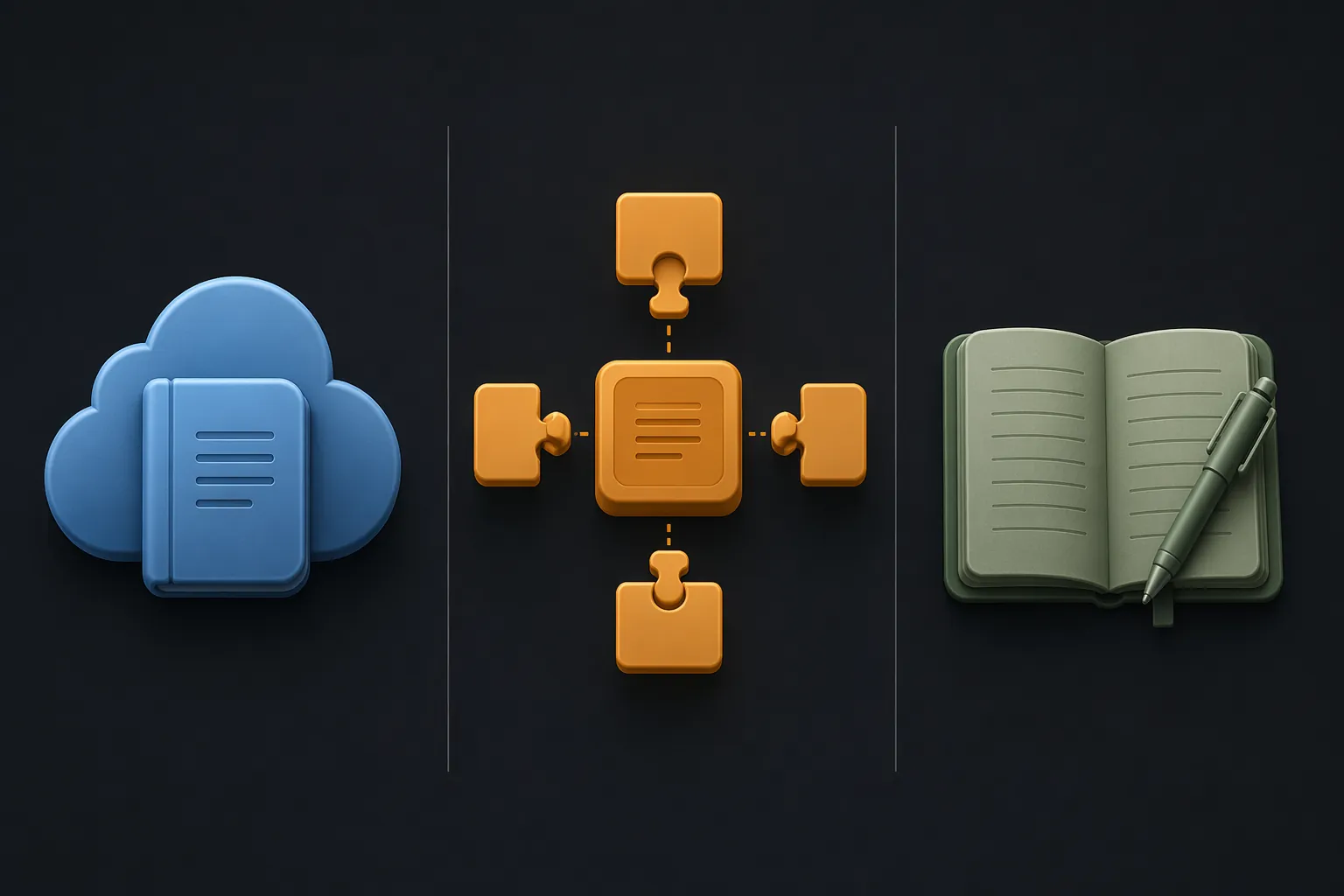
A workable Obsidian setup
- Create a folder such as “AI Inbox” for raw captures, and keep it separate from permanent notes.
- Use a note template with frontmatter for project, source tool, prompt, status, created date, review date, and linked notes.
- Paste the AI output below the metadata, then write a short human note above it explaining why it matters.
- Promote only reviewed outputs into project notes, evergreen notes, decision logs, or meeting notes.
- Keep a “plugin health” note that records which AI plugins, sync tools, and API settings your workflow depends on.
That plugin health note sounds excessive until the first break. Obsidian users often build excellent systems around community plugins, then discover that an app update, model API change, or abandoned plugin silently changes the workflow. The maintenance burden is not a reason to avoid Obsidian. It is a reason to avoid pretending the setup is free once it works once.
For Obsidian, the safest version is deliberately low automation. Let AI help generate or clean up the content, but keep the final routing human: which project does this belong to, which claim needs a source, which thought is yours, and which answer should stay in the inbox until reviewed. Local-first notes are strongest when the structure is legible without the plugin layer.
Logseq: Use Manual Capture Unless You Enjoy Maintenance
Logseq does not need to be forced into the same integration story. Its strength is outlining, daily notes, linked references, and fast capture. For many Gen Z knowledge workers, the best AI workflow in Logseq is not a complex plugin chain. It is a disciplined manual capture habit.
A workable Logseq setup
- Capture the AI output in the daily note under a clear marker such as “AI capture.”
- Add linked references for the project, person, meeting, source, or skill area.
- Write one parent bullet that states why the output is being saved.
- Move reviewed material into the project page or leave the daily-note capture linked if it is only supporting context.
The manual step is not a failure. It is the review gate. If the AI output is not worth the thirty seconds it takes to link it to the right page, it probably is not worth preserving.
The Friction Points to Check Before You Trust the System
A demo workflow usually shows the happy path: transcript in, summary out, task created, note linked. Real work fails in smaller ways.
- Context loss: the AI answer arrives without the prompt, transcript, source, or constraint that made it valid.
- Plugin breakage: an Obsidian or Logseq extension stops working after an update, API change, or maintainer pause.
- Export limits: the note app stores content in a way that is technically exportable but practically hard to reconstruct.
- Permission mismatch: a personal AI tool touches company material that should stay inside approved systems.
- False confidence: a clean summary makes an unresolved conversation look like an agreed decision.
Run a small audit before expanding the workflow. Pick five AI outputs from the past month that mattered. Can you find each one in under a minute? Can you tell which project it belongs to? Can you see the original prompt or meeting context? Can you tell whether a human reviewed it? Can you reuse it without asking the AI to recreate the whole thing? If the answer is no, fix the capture path before adding more tools.
Do Not Let AI Replace the People You Should Be Learning From
The social side of this workflow matters because Gen Z is not only using AI more. Some research suggests they are also feeling the interpersonal cost more sharply. TalentLMS reported that 39% of Gen Z interact less with colleagues because of AI and that 47% get better guidance from AI than from their manager.[4] Workday’s 2026 vendor research says Gen Z is eight times more likely than Gen X to feel lonely at work.[2] A GoTo and Workplace Intelligence pulse report, cited in secondary coverage, also reported that 50% of employees say they rely too much on AI and 30% feel they cannot function without it.[3]
Those numbers do not prove that AI causes loneliness or dependence by itself. They do make one thing practical: if your note system captures AI guidance but never captures human feedback, you are building a lopsided record of how you learned.
For mentorship-heavy roles, add a human-feedback field to the same notes where AI outputs live. If Claude drafts your client response, save your manager’s edits beside it. If ChatGPT explains a market concept, add what your teammate corrected. If Perplexity gives you source leads, mark which ones a senior person trusted and which ones they rejected. That turns the note into a learning record instead of a private shortcut.
A Last-Verified Log Belongs in the Workflow
Because this setup depends on changing products, add a small maintenance note. It does not need to be elaborate.
| Field | Example Entry |
|---|---|
| Last verified | 2026-07-25 |
| Note app path | Notion native AI, Obsidian plugin-based, or Logseq manual capture |
| AI tools used | ChatGPT, Claude, Perplexity, Otter.ai |
| Known issues | Plugin intermittently fails, transcript import loses speaker labels, export needs cleanup |
| Fallback | Manual copy into AI Inbox template |
The fallback is the important part. If the automation breaks during a busy week, you should still know how to preserve an important output. A system that only works when every integration behaves is not a system; it is a chain of dependencies.
Who Should Use This Now
This workflow is worth setting up if your work repeats. Recurring meetings, research briefs, stakeholder updates, client follow-ups, job search preparation, portfolio projects, and performance review evidence all benefit from AI output that can be searched, audited, and reused.
It is also a good fit if you already maintain Notion, Obsidian, or Logseq with some consistency. You do not need a perfect second brain. You do need a place where projects and decisions already live. AI should attach to that place, not create a second productivity universe beside it.
Keep it simpler if you are early in a role where repetition is the training. Draft manually first, then ask AI to critique. Summarize a meeting yourself, then compare it with the transcript summary. Write the analysis before asking for options. Save both versions if the contrast teaches you something. The goal is not to prove you can avoid work. It is to build judgment you can carry into the next project.
Connect AI to notes when the output will be reused, audited, or built on. If it was only a disposable assist, do not turn it into permanent knowledge.
References
- How Gen Z Is Using AI Like ChatGPT and Claude to Get Ahead at Work — Business Insider, 2025.
- Gen Z Isn't Broken—The AI Workplace Is — Workday, 2026.
- Best AI Tools for Work Productivity in 2026 — SuperCareer, 2026.
- Gen Z and AI: Research on Workplace Skills — TalentLMS, July 2024.
- How Notion AI Helps Build a Practical Productivity System — LinkedIn, December 2025.