
Google Keep is easy to like until the archive gets old enough to fight back. A few quick reminders become hundreds of cards. Labels start doing the work of folders. Color becomes a memory aid. A photo attached to one note explains the whole thing, but only if it survives the move. If you use Google Keep to take notes because it is fast, the export decision is less about finding a button and more about protecting the little cues that made the pile usable.
The plain answer: exporting Google Keep notes is possible, but the best method depends on what you care about most. If you need the most complete archive, start with Google Takeout. If you are moving notes between Google accounts and can tolerate a workaround, bulk sharing may help. If you only have a small set of important notes, or your next app cannot read Keep’s export cleanly, manual copy may be safer than a technically complete mess.
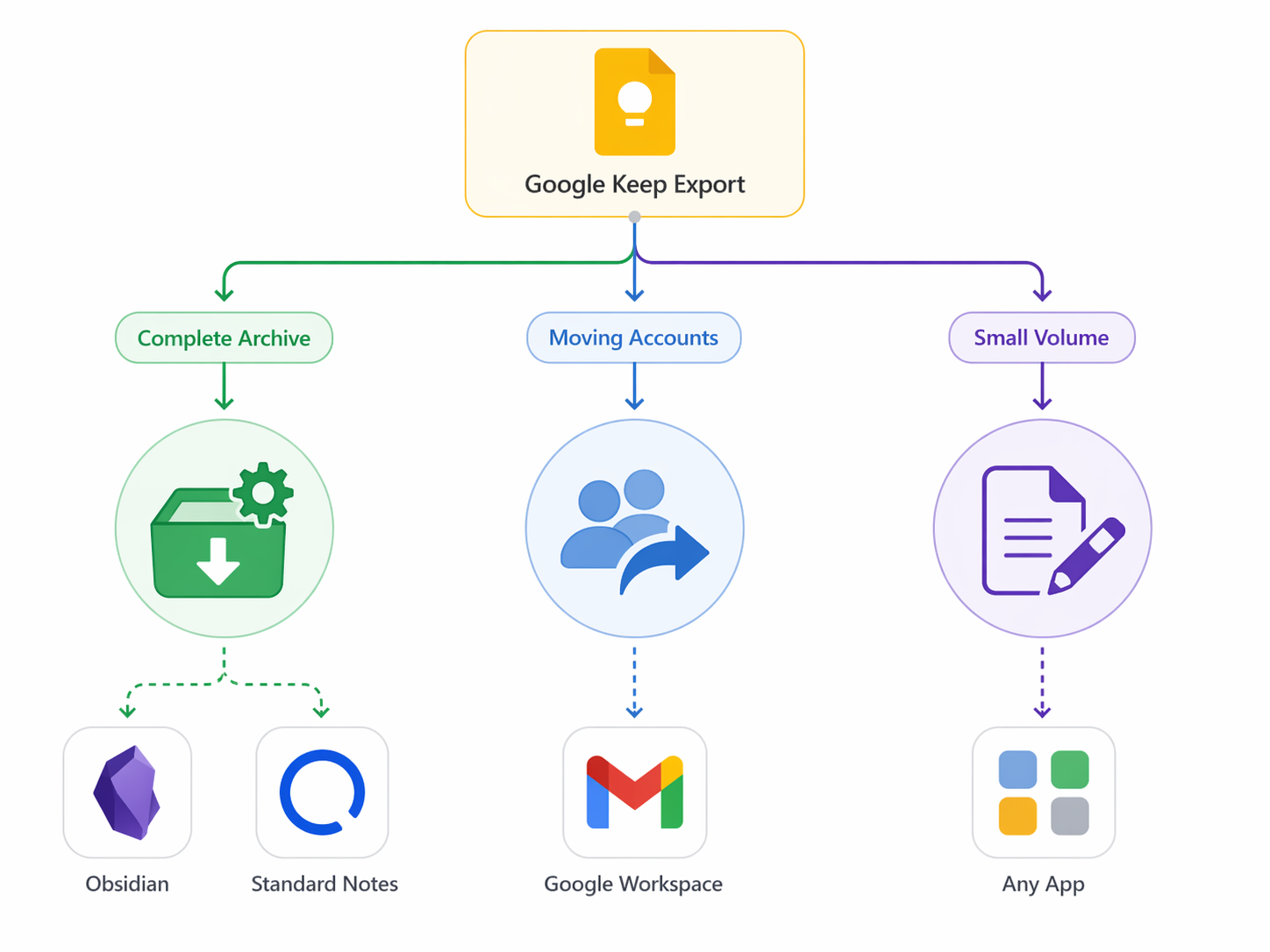
Choose the route before you touch the export
Keep’s limits are exactly what make migration awkward. Its lightweight structure is useful for capture, but users outgrow the flat label model when they want hierarchy, markdown, richer file support, or a durable knowledge base. Android Police has pointed to several of these frustrations, including Keep’s flat labels, lack of markdown, and limited support for files such as PDFs and videos.[1]
Before exporting, decide which loss would actually hurt. For some people, the note text is enough. For others, a red color means “urgent,” an old checklist state matters, or a timestamp tells them whether a meeting note belongs to one project phase or another. Those are different migrations.
| If your priority is… | Start with… | Why |
|---|---|---|
| Completeness and fallback safety | Google Takeout | It is Google’s official export path and produces a downloadable archive with note data and attachments. |
| Moving between Google accounts | Share-to-collaborator workaround | It can move notes inside Keep, but it is not a general export format and has a community-reported daily limit. |
| A small number of carefully selected notes | Manual copy | It lets you rebuild notes cleanly in the destination app instead of dragging conversion problems along. |
| Clean import into Standard Notes | Google Takeout | Standard Notes documents a direct import path from a Google Keep Takeout archive. |
| Migration into Notion, Bear, Simplenote, or another app without direct Keep import | Takeout plus conversion, or manual copy | The archive is useful, but the target app may not preserve Keep metadata without extra handling. |
If you are still deciding where to land, pause here rather than exporting three times. A comparison such as Note-Taking Apps in 2026 or Best Note-Taking Apps for Laptop is worth reading before you create a conversion problem. Keep is free and forgiving, but free capture tools can carry a hidden structural cost once the notes become work infrastructure; that trade-off is covered more directly in The Hidden Trade-Offs of Free Note-Taking Apps.
Before exporting: make the Keep archive less ambiguous
Do not reorganize your whole life inside Keep before leaving it. That usually creates more surface area for mistakes. Do the small things that make verification easier later:
- Remove obvious trash notes so they do not become import clutter.
- Make a rough count of notes, or at least count important labels.
- Identify notes with attachments, drawings, images, checklists, collaborators, or color meanings.
- Write down any label conventions you rely on, such as “blue = reference” or “Home label = active household tasks.”
- Pick a few representative notes to spot-check after import: one text note, one checklist, one image note, one labeled note, and one older note where timestamps matter.
This is not busywork. A migration can look successful by count and still fail in use because the notes you actually search for are the ones with the odd attachment, the half-finished checklist, or the old label combination.
Method 1: Export Google Keep with Google Takeout
Google Takeout is the safest default because it is the official way to export Keep data. Google’s Keep export help explains that users can export their Keep data through Takeout and that the export includes note content in HTML and JSON formats, along with metadata such as labels, colors, timestamps, collaborators, and attachments where applicable.[2]
The important part is that Takeout does not hand you a polished notebook ready for every app. It gives you a portable archive. That distinction matters. HTML is readable by a person in a browser. JSON is structured enough for importers and scripts. Together, they are powerful; neither one guarantees a clean Notion page, Bear note, Simplenote entry, or Obsidian vault without some interpretation.
How to request the Takeout archive
- Go to Google Takeout while signed in to the Google account that holds your Keep notes.
- Deselect everything if Takeout has selected multiple Google products.
- Select Google Keep.
- Continue through the export settings and request the archive.
- Download the archive when Google makes it available.
- Unzip it and inspect the Keep folder before importing anywhere.
That last step is where many bad migrations could have been caught. Open a few HTML files. Look at the JSON files if your destination app depends on structured import. Confirm that image attachments are present. If a note had labels or colors in Keep, check whether that information appears in the exported data before assuming your next app will use it.
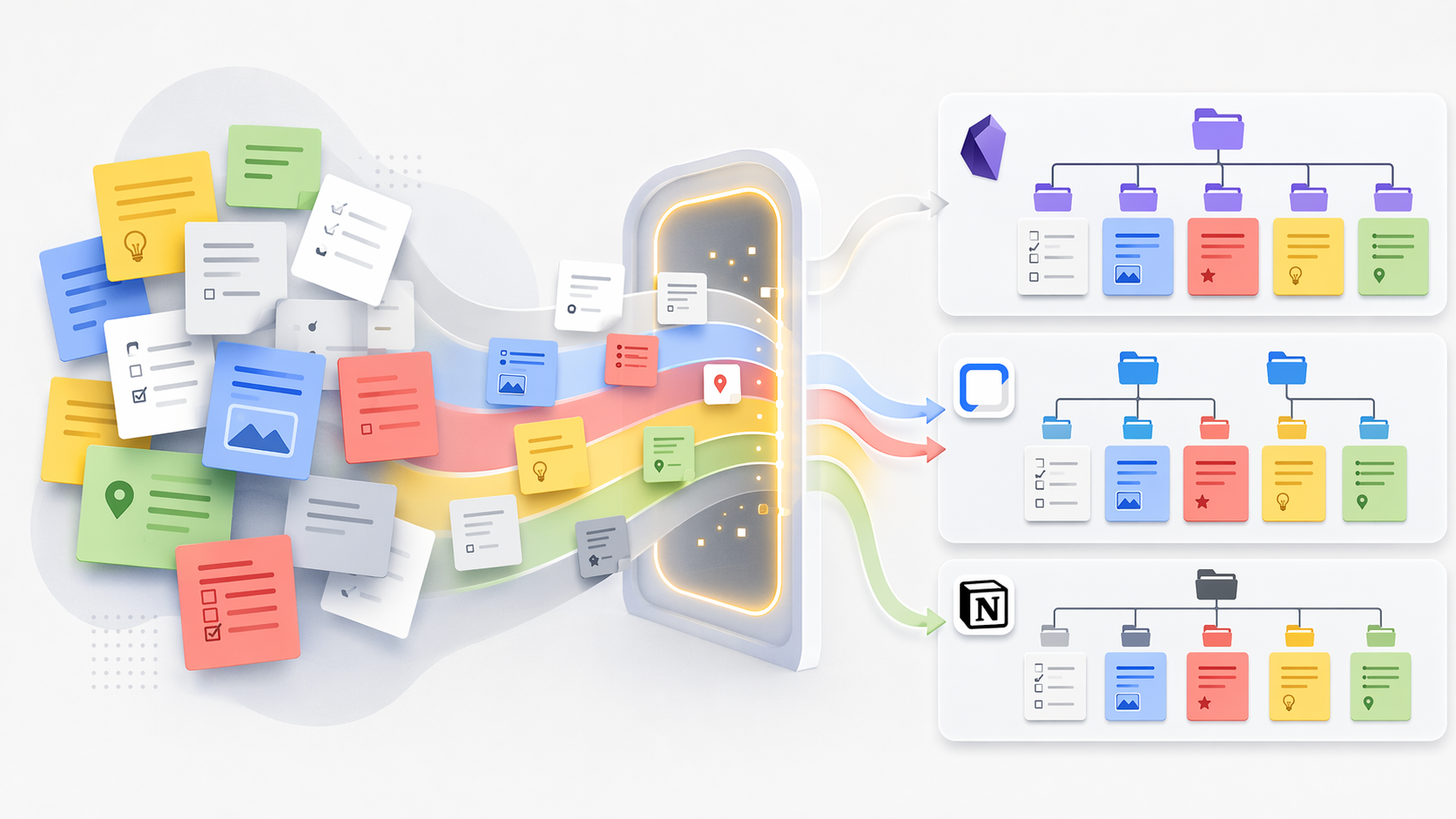
What the HTML and JSON files are good for
Think of the HTML files as your human-readable insurance copy. If every importer fails, you can still open the note content. This is useful when you need to rescue an old idea, confirm the wording of a saved address, or manually rebuild a high-value note.
The JSON files are for machines. They can carry structured fields that an importer may map into the next app: text, list items, labels, color, timestamps, and other metadata described in Google’s export documentation.[2] That does not mean every destination app will preserve every field. It only means the information has a chance to travel.
This is the central inconvenience of a good archive: Takeout preserves more than most one-click copy methods, but it leaves the final shape unresolved. A markdown app may want files. A database app may want rows and properties. A privacy-focused app may have its own importer. A minimalist app may ignore most metadata even if the archive contains it.
Match the Takeout archive to your destination app
The export method is only half the decision. The destination decides how much of the archive becomes usable organization and how much becomes cleanup.
Standard Notes
Standard Notes is one of the cleaner destinations for a Keep export because it documents a Google Keep import path based on the Takeout archive. Its help page instructs users to export Keep through Google Takeout and then import the resulting archive into Standard Notes.[3]
That does not remove the need to verify. Direct import support means the app expects the source format; it does not mean your personal label habits, colors, attachments, and checklist states will all feel identical afterward. Still, among the destinations in this guide, Standard Notes gives the most explicit documented bridge from Keep’s official export.
Standard Notes also positions itself as a Keep alternative for people who want markdown, end-to-end encryption, and more structured organization, but that is vendor positioning and should be treated differently from the import documentation.[4] The import doc tells you what path exists; the comparison page tells you why the vendor thinks you should use it.
Obsidian
Obsidian is attractive if your real goal is markdown files, local folders, and long-term control. A Takeout archive gives you the raw material, but the quality of the migration depends on the conversion path you use. At the time of checking, the known Obsidian Google Keep import URL returned a 404, so it is safer not to promise a current official one-click route.
For Obsidian, inspect the Takeout JSON and HTML first, then choose a converter or script that produces markdown files. A good conversion should answer boring but important questions: where labels go, whether colors become tags or frontmatter, how checklist items are represented, where attachments are stored, and whether created or modified dates are retained in frontmatter.
If you have migrated other archives into Obsidian before, the same caution applies here: import once into a test vault, not your real vault. Readers comparing migration patterns may also find the Evernote to Obsidian Migration Guide useful, even though Keep’s export format and Evernote’s export format are different problems.
Notion
Notion is flexible after the move, but Keep’s Takeout archive is not automatically a Notion workspace. If you want labels to become database tags, colors to become a select property, or timestamps to become date fields, plan for conversion or manual cleanup. A plain import that turns everything into pages may preserve text while flattening the cues that made Keep useful.
For a large archive, this is where a staging spreadsheet or script can be more honest than pretending the migration is done. For a smaller archive, manually rebuilding selected notes into a Notion database may take less time than cleaning up hundreds of poorly mapped pages.
Bear
Bear makes the most sense when you want a writing-centered, markdown-friendly home, especially on Apple devices. The catch is the same: a Google Takeout archive is not the same as a clean Bear import. You may need to convert notes into markdown or another format Bear accepts, then decide how Keep labels should become Bear tags.
Color is the part I would not trust to survive naturally. If Keep colors carried meaning, translate them deliberately before import, either into tags, headings, or a short status line at the top of the note. Otherwise, the notes may arrive with their words intact and their triage system gone.
Simplenote
Simplenote is best treated as a text-first destination. If the notes you care about are mostly plain text, it may be a pleasant landing place. If your Keep archive depends on images, colors, drawings, rich checklists, or attachment context, Simplenote is unlikely to be the place where the full archive feels preserved.
This is a case where manual selection can be the grown-up choice. Export everything with Takeout for safekeeping, then move only the notes that belong in a lightweight text system.
Other note-taking apps
Alternative-tool roundups can help you build a shortlist, but separate comparison claims from migration guarantees. Saner.AI’s 2026 alternatives article, for example, frames Google Keep alternatives around productivity and cites an IDC statistic that knowledge workers spend 26% of their time searching for information, but that does not tell you whether a given app will preserve your Keep labels or colors on import.[5]
If you are comparing the broader market, use current pricing and official import documentation before committing. The landscape changes faster than old migration posts. The broader Best Note-Taking Software in 2026 and Free Note-Taking Apps in 2026 pieces are better places to sort the tool choice before doing the export work.
Method 2: Move notes between Google accounts with collaborator sharing
The collaborator-sharing route is not a normal export. It is a Keep-to-Keep workaround. You share notes from one Google account to another, accept or access them in the destination account, and then make them part of that account’s working archive.
Chrome Unboxed documented this approach for moving Keep notes between Google accounts and reported a roughly 250-notes-per-24-hour limit based on community testing in 2020.[6] That number should be treated carefully: it is useful field experience, not official Google documentation.
Use this method only when the destination is another Google account and you want the notes to remain in Keep. It can be handy for account consolidation, school-to-personal moves, or workspace changes. It does not give you a durable external archive like Takeout, and it does not solve the structural reasons many people leave Keep in the first place.
When the sharing workaround makes sense
- You are staying inside Google Keep.
- You are moving from one Google account to another.
- You can tolerate batching and waiting if you hit a sharing limit.
- You do not need an external HTML or JSON archive for future conversion.
Even if you use sharing, I would still run a Takeout export first. A workaround that changes account ownership or collaboration state is easier to tolerate when you already have a fallback copy.
Method 3: Manual copy is slow, but sometimes cleaner
Manual copy sounds like defeat until you compare it with the cleanup after a bad import. If you have 30 notes that genuinely matter and 700 old scraps, rebuilding the 30 notes carefully may be the fastest path to a trustworthy system.
Manual migration works especially well when the destination app has no clean Keep importer, when you want to redesign the structure instead of copying the old one, or when a note’s meaning depends on visual context that no converter will understand. For example, if you used yellow for “waiting,” green for “ready,” and red for “blocked,” a manual move lets you turn those colors into explicit tags or statuses instead of hoping the destination app guesses correctly.
The mistake is doing manual copy without a full archive. Export with Takeout first, store the zip somewhere safe, and then manually rebuild the notes you actually want in the new app.
A practical migration workflow
For most people with a large Keep archive, the workflow should look like this:
- Clean only the obvious clutter in Keep.
- Export Keep through Google Takeout.
- Unzip and inspect the archive before importing.
- Choose the destination-specific route: direct import, conversion, sharing, or manual rebuild.
- Import into a test space first if the app allows it.
- Verify the result against your original Keep archive and the Takeout files.
- Keep the Takeout archive until you are certain the new system works in daily use.
A test import is not overcautious. It is how you find out whether the next app treats checklists as checklists, whether attachments land in the expected folder, and whether labels became useful tags or dead text.
What to verify after import
Do not verify only by asking, “Did the import finish?” That is the least interesting question. Verify by checking the things that would annoy you two weeks later.
- Note count: compare the rough number in the destination with Keep or the Takeout archive.
- Labels and tags: confirm that important Keep labels became something usable, not just buried text.
- Colors: if colors mattered, check whether they survived or need translation into tags, properties, or headings.
- Timestamps: compare created or modified dates for notes where chronology matters.
- Attachments: open images and other attached files from the new app, not just from the exported folder.
- Checklists: make sure checked and unchecked items still have the right state.
- Collaborative notes: confirm whether collaborator information mattered and whether it survived in any useful form.
- Search: search for a phrase you know exists in an old note and confirm the new app finds it.
If the destination fails one of these checks, do not rush to delete Keep. Decide whether to fix the conversion, manually rebuild the affected notes, or choose a destination that treats your archive with fewer compromises.
The defensible choice
For completeness, Google Takeout is the default starting point. It gives you the official archive, readable HTML, structured JSON, and the best chance of preserving labels, colors, timestamps, collaborators, and attachments.[2] For Standard Notes, that archive maps to a documented import path.[3] For Obsidian and other markdown-oriented workflows, it is valuable raw material, but you need a conversion plan. For Notion, Bear, Simplenote, and similar apps without a direct Keep Takeout importer, expect manual handling where metadata matters.
The collaborator-sharing method belongs in the narrower case of Google-account-to-Google-account moves, with the community-reported limit treated as a caution rather than a guarantee.[6] Manual copy belongs wherever a clean result matters more than bulk speed.
Keep the Takeout archive after the move. Open attachments. Spot-check labels, colors, timestamps, and checklists. The migration is not done when a progress bar says so; it is done when the notes you depend on still make sense in the new place.
References
- Google Keep is falling behind — Android Police
- Export your data — Google Keep Help
- How to import notes from Google Keep — Standard Notes Help
- What makes Standard Notes a great Google Keep alternative — Standard Notes
- Best Google Keep Alternatives 2026 — Saner.AI
- How to move Keep notes between Google Accounts in bulk — Chrome Unboxed
Comments
Join the discussion with an anonymous comment.