
Runbook last reviewed against current documentation: August 27, 2026.
Data-loss warning: Do not delete your Google account, empty Drive, or replace files before you have secured the account and opened a complete export away from Google. If the Takeout archive is stored in Drive, deleting the account also deletes that copy.
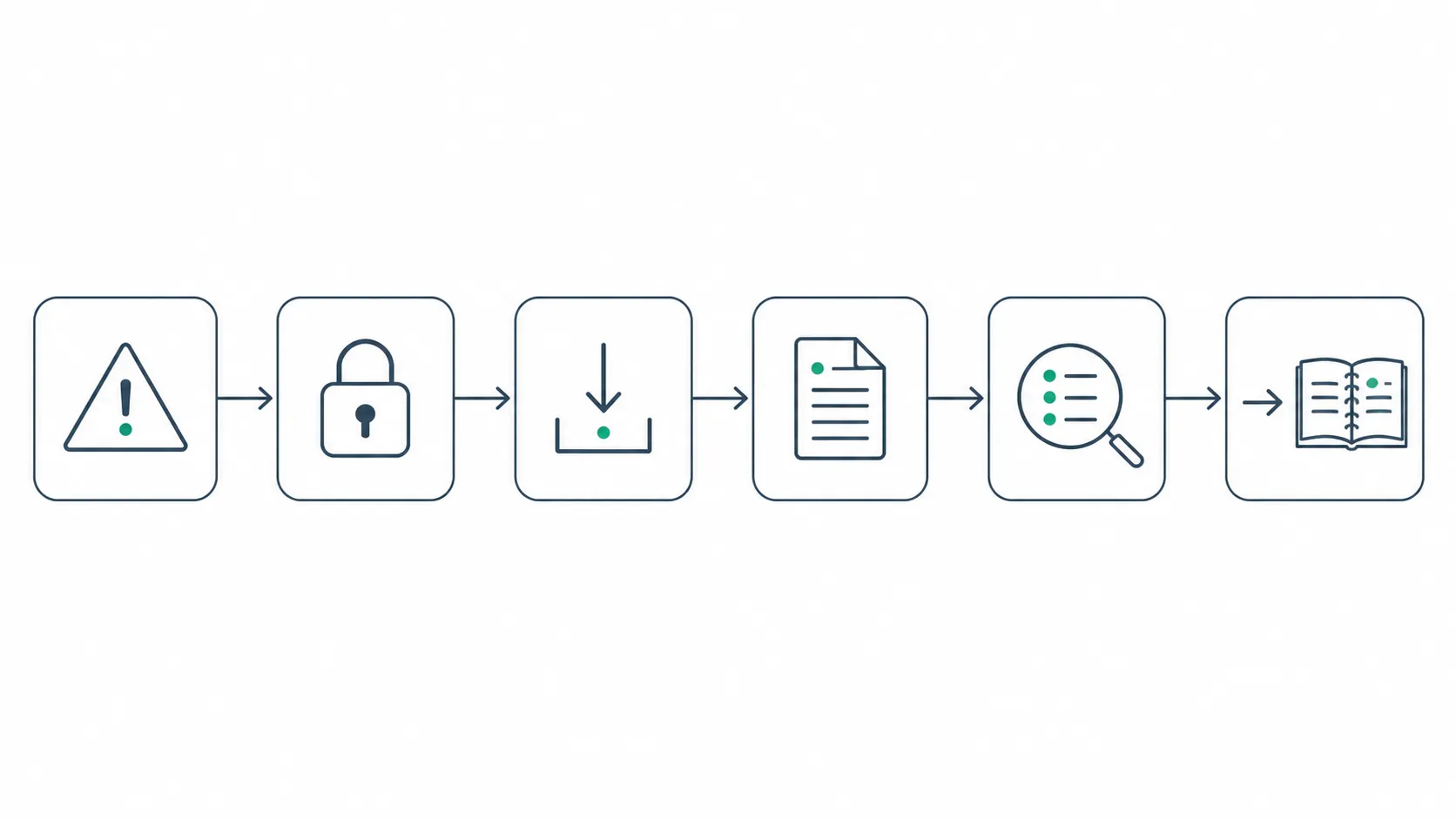
If you suspect Google Docs was hacked and want to export your notes before switching, use this order:
- Verify whether the warning reflects account access or a malicious shared document.
- Recover and secure the Google account.
- Request a complete Drive export through Google Takeout.
- While Takeout processes, export the documents you expect to reuse in a destination-appropriate format such as Markdown.
- Download, extract, and inspect the archive off Google’s servers.
- Import into the new app and verify the result before deleting anything.
First determine what “hacked” means here
A Google-branded Drive notification is not, by itself, evidence that somebody entered your account. Google documents a phishing pattern in which a scammer shares a Drive file containing harmful links. Because Google sends the sharing notification, the surrounding email can look legitimate even when the document’s contents are malicious.[1]
Do not use the notification’s buttons to investigate. Open a fresh browser tab and navigate directly to your Google Account and Drive. Then separate the evidence into two columns: what happened inside a shared file, and what happened inside your account.
| What you observed | What it establishes | Next move |
|---|---|---|
| An unfamiliar document was shared with you, possibly with a link in its title or contents | Consistent with Drive share-notification phishing; not proof of account takeover | Do not open embedded links. Report or remove the share, then complete the account checks below. |
| An unfamiliar sign-in, device, password change, recovery change, forwarding rule, filter, extension, or connected app | Evidence that account control or settings may have changed | Begin recovery and security review before exporting. |
| Unexpected edits, deletions, sharing changes, or versions in Drive | Evidence that Drive content may have been altered | Secure the account, preserve what remains, and inspect activity and version history. |
| Only a generic security warning, with no supporting account event yet | A reason to investigate, not a confirmed breach | Review the official security records before making irreversible changes. |
No specific 2026 Google Docs breach has been established. Treat “hacked” as a working suspicion until your account’s events, devices, settings, or Drive history support it. The distinction matters because panic over a malicious share should not cause the loss of an otherwise intact archive.
Secure the source account before asking it for an archive
If you cannot sign in, start with Google’s account-recovery process. If you can sign in, open the Google Account security area directly rather than following a link from an alert. Google’s compromised-account procedure calls for reviewing recent security events and signed-in devices, checking sensitive Gmail and Drive settings, changing the password, and enabling 2-Step Verification.[2]
Work through the following checks before starting Takeout. Record unfamiliar entries as you go so that removing access does not erase the only information you have about what changed.
- Recent security events: inspect sign-ins, security-setting changes, and other events you do not recognize.
- Your devices: review phones, computers, browsers, and sessions associated with the account. Sign out unfamiliar devices.
- Password and recovery access: replace a password that may be exposed with a unique one, and confirm that the recovery email address and phone number are yours.
- 2-Step Verification: turn it on and review the enrolled verification methods rather than assuming every existing method belongs to you.
- Third-party access: remove apps and services you do not recognize or no longer use.
- Gmail forwarding and filters: look for rules that silently forward, delete, archive, or redirect messages, including Takeout notices and security alerts.
- Gmail IMAP and POP settings: verify that remote mail access has not been enabled or redirected unexpectedly.
- Chrome extensions: remove unfamiliar extensions and review those with access to page contents or Google services.
- Drive activity and file versions: look for unexpected edits, deletions, uploads, sharing changes, or versions. Check affected documents individually when the activity log points to them.
Do not treat a successful password change as the entire checkpoint. A forwarding rule, connected app, existing verification method, or altered document can outlast the moment that first caused concern. The source is ready for export only when you can account for its active access paths and understand any suspicious Drive changes.
Google also warns that an action may be delayed or unavailable when it appears risky. If recovery or export controls are temporarily blocked, do not compensate by deleting files or repeatedly changing settings. Preserve access, follow the recovery prompts, and resume the migration after Google allows the action.[2]
Request the bulk export through Google Takeout
Once the account is under your control, use Google Takeout to preserve the broadest available copy of Drive. This is the recovery layer, not yet the clean import package for your next notes app.
- Go directly to Google Takeout while signed in to the secured account.
- Choose Deselect all, then select Drive. If your notes also live in another Google product, include that product deliberately rather than assuming Drive contains it.
- Open the Drive data options and leave all relevant folders and content selected for the preservation export.
- Choose a one-time export.
- Choose Send download link via email unless you have a specific reason to deliver the archive to another cloud service. Storing the only archive in Drive defeats the purpose of verifying it away from Google.
- Choose ZIP for the most broadly convenient extraction workflow. Choose TGZ only if you already have software and a process for opening it.
- Select the 50 GB maximum archive size if your computer and connection can handle files that large; this reduces the chance that the export will be divided into many parts. A smaller size is reasonable when storage or transfer stability matters more, but every resulting part must be downloaded.
- Create the export and record the request time. Avoid editing important notes during the processing window, or separately record every later change.
Google says archive creation can take from a few minutes to a few days, although most people receive the link the same day. Changes made after the request may not appear in the resulting archive. Large exports are divided when they exceed the chosen archive size.[3]
The download window is short. Takeout archives expire in about seven days, and each archive can be downloaded five times before you must request another one. Download promptly, keep every split part together, and do not spend the available attempts repeatedly opening the link from unreliable devices.[3]
A New School troubleshooting note also reports community-observed Takeout limits around two to three profiles per day and seven per week. That is useful advance warning for people moving several profiles, but it is not presented here as published Google policy.[4]
Do not assume what format Takeout chose for Google Docs
Google describes Takeout as using portable formats, but its documentation does not establish that every Google Doc in your archive will arrive as DOCX under every configuration. Before planning an import around a filename extension, inspect Takeout’s format controls, save a record of the selections, and verify the actual downloaded files.
That restraint matters because Google says a Docs export can contain document text, open and resolved comments and suggestions, named revisions, tasks, and images, with images potentially appearing at lower quality. It does not promise that every destination will display all of those elements with perfect fidelity. Downloading the data also does not delete the originals from Google.[5]
While Takeout runs, prepare the notes you will actually reuse
The bulk archive and the working migration copy have different jobs. Takeout aims to preserve breadth and recoverable context. A per-document export gives you more control over the notes that need to remain editable and readable in the destination.
For a Google Doc you intend to use in a Markdown-based app, open the document and choose File, Download, then Markdown. Google documents Markdown support in Docs, and its Workspace export-format table lists Markdown alongside DOCX, ODT, RTF, PDF, plain text, zipped HTML, and EPUB for documents.[6][7]
Use Markdown as a reusable reading and editing copy, not as the sole preservation copy. Markdown is well suited to headings, lists, links, and ordinary text, but it is not a substitute for checking comments, suggestions, revisions, tasks, complex layouts, or image handling in the Takeout archive. Give the exported file a stable name, place it in the intended destination folder, and inspect any accompanying media before moving on to the next document.
This per-document route is particularly relevant to Obsidian. The documented Obsidian Importer formats include Apple Notes, OneNote, Evernote, Notion, Google Keep, Roam, and Bear, but not Google Docs. Exporting selected Docs as Markdown therefore provides a practical path without pretending that a documented native Google Docs importer exists.[8]
Do not convert the entire Drive library by hand while the Takeout request is still unverified. Prioritize active project notes, reference documents you search often, and material whose formatting matters in daily use. The archive remains responsible for breadth; the manual pass is for usability.
Verify the archive away from Google
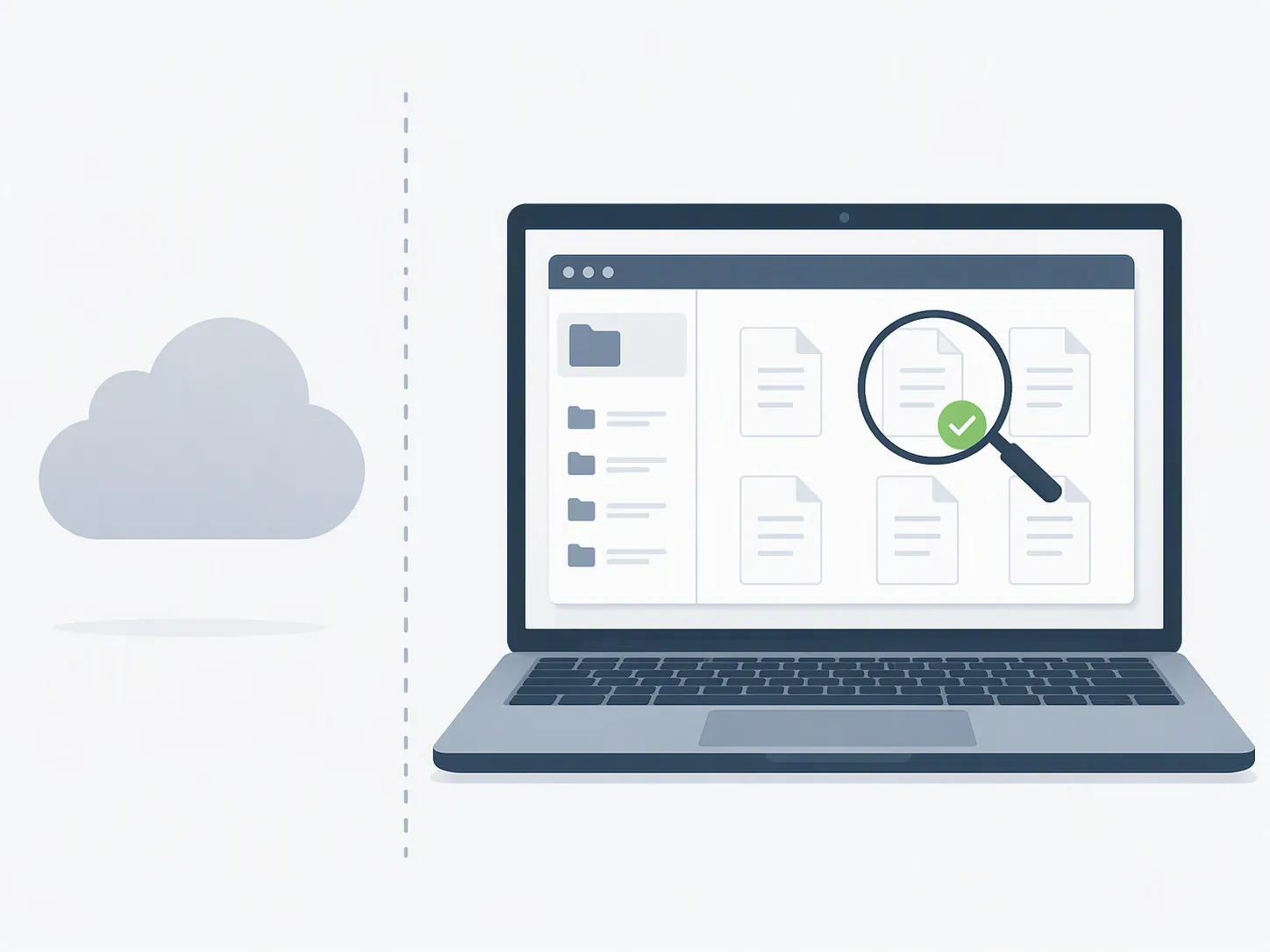
A Takeout confirmation email proves that Google created an export. It does not prove that you downloaded every part, that the files extract successfully, or that the material you care about survived in a usable form.
- Download every archive part to local storage before the link expires.
- Make a second copy on separate storage before you begin reorganizing or converting files.
- Extract the archive completely. An archive that merely appears in a Downloads folder has not been verified.
- Check the top-level folder structure and compare it with the major areas you expected from Drive.
- Identify the actual formats used for Google Docs instead of relying on a presumed DOCX mapping.
- Open representative documents from different folders, dates, sizes, and formatting styles.
- Inspect important documents for text, images, open and resolved comments, suggestions, named revisions, and tasks where those elements existed in the source.
- Check image legibility at normal viewing size, since Google warns that exported images may be lower quality.
- Confirm that your separately exported Markdown files open in a plain-text editor and that their links and media paths make sense outside Google.
- Record missing or degraded material before importing. Re-export critical documents individually while the secured Google account still exists.
Sampling should follow consequence, not convenience. Open the note containing a project decision, the document with a long comment thread, one image-heavy file, one document with suggestions, and one older item whose folder location matters. A dozen easy text notes can all succeed while the one document you needed for audit history fails.
Import only after preservation has succeeded
The destination import is another transformation, not confirmation that the source archive is complete. Keep the untouched Takeout download and the extracted verification copy separate from whatever you feed into Notion, Obsidian, or another app.
Notion’s Google Docs process handles one document at a time and applies file caps of 5 MB on the free plan and 50 MB on paid plans. Its documentation warns that suggestions, other users’ comments, horizontal rules, colors, and advanced layouts do not import, while checklists become bulleted lists. Notion recommends exporting through Takeout as DOCX and trying smaller batches when imports fail.[9]
That recommendation is useful, but inspect your own Takeout result before assuming DOCX is what Google delivered. If it is not, use the individually exported format that best preserves the document’s purpose, and keep the archival copy unchanged.
For destination-specific import paths, the Evernote migration decision tree covers practical routes into Notion, Obsidian, and OneNote. If the destination itself is still unsettled, compare its export behavior, offline integrity, and lock-in risks in the 2026 note-app portability comparison before converting the archive around one vendor’s importer.
After import, test the work you actually perform: locate a current project, follow internal links, open images, search for a distinctive phrase, edit a note, and confirm that the result syncs or remains available offline as expected. The post-switch routine verification guide addresses the failures that become visible only after a technically successful import.
Never delete first. Leave account deletion frozen until the archive has been opened away from Google, representative notes and their included material have been checked, reusable documents exist in destination-appropriate formats, and the imported copies have survived post-switch testing. The same restraint applies when exhaustion is driving the next click; the decision-freeze warning explains why irreversible cleanup should wait. Downloading does not remove the originals, and that overlap gives you time to compare, re-export, and correct failures. If the only archive still lives in Google Drive, deleting the Google account removes that copy with it.[3][5]
References
- Help prevent Drive spam and phishing — Google Workspace Admin Help
- Secure a hacked or compromised Google Account — Google Account Help
- How to download your Google data — Google Account Help
- Google Takeout Troubleshooting — New School IT
- Export your data from Google Docs, Sheets, Slides, Drawings, Sites, Drive, Forms, Vids, and Jamboard — Google Docs Editors Help
- Use Markdown in Google Docs, Slides, & Drawings — Google Docs Editors Help
- Export MIME types for Google Workspace documents — Google for Developers
- Importer — Obsidian
- Import data into Notion — Notion Help







Comments
Join the discussion with an anonymous comment.