
The first PDF is never the problem. You open it, underline a few lines, write in the margin, maybe add a sticky note. The problem arrives later, when someone asks for the marked-up file, or you need to find the one handwritten note you made beside page 87, or your supervisor wants the comments in a normal PDF rather than inside your study app.
That is the real split in pdf note taking: a dedicated PDF annotator keeps the PDF as the document of record, while a note-taking app imports the PDF into a larger notebook system. Both can feel excellent with a stylus. Both can highlight, handwrite, and organize. They simply make different promises about where your work will live after the reading session ends.
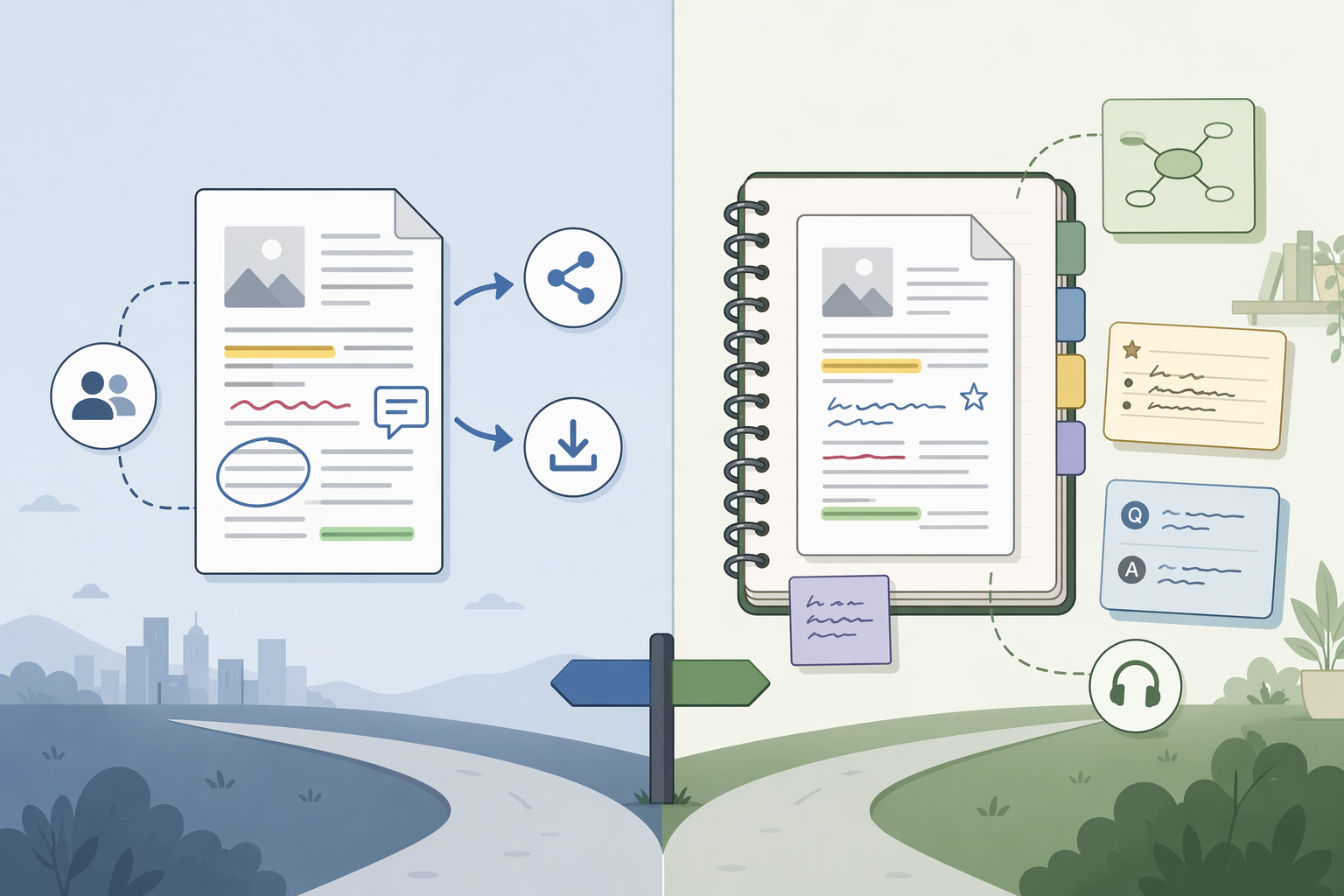
The practical split: keep the PDF, or turn it into a notebook
If the marked-up PDF needs to travel cleanly—to a client, a professor, a document management system, a redaction workflow, or another PDF editor—a dedicated PDF annotator is usually the safer starting point. Apps such as Drawboard PDF, PDF Expert, Adobe Acrobat, Xodo, and PDFelement are built around the file itself. The PDF remains the thing you are working on.
If the PDF is really study material—a chapter, article pack, lecture slide deck, case packet, or research source—you may care less about the PDF as a portable file and more about what the app lets you do around it. GoodNotes, Notability, Flexcil, LiquidText, and similar apps are stronger when the PDF becomes one object inside a note system: surrounded by handwritten pages, audio, summaries, flashcards, outlines, or extracted excerpts.
| Decision point | Dedicated PDF annotator | Note-taking app with PDF import |
|---|---|---|
| What is the document of record? | The PDF file | The app notebook or project |
| Best outcome | A shareable annotated PDF that opens sensibly elsewhere | A richer study or research workspace around the PDF |
| Strongest fit | Review, markup, routing, signatures, redaction, downstream editing | Handwriting-heavy study, lecture notes, research reading, exam prep |
| Retrieval style | Find within files, folders, cloud storage, or document systems | Search and browse within the app’s notebook structure |
| Collaboration fit | Better when collaborators expect standard PDF files | Better when collaborators use the same app or when collaboration is secondary |
| Main friction | Less of a complete study environment | Exporting back to a clean standalone PDF can require checking and cleanup |
This is why feature checklists can mislead. A beautiful pen tool matters during reading. A clean export matters three months later.
Choose a dedicated PDF annotator when the file has to survive the workflow
Dedicated PDF annotators are not just “apps with highlighters.” Their value is that the marked-up document remains a PDF. That sounds ordinary until the file has to move through someone else’s system.
A lawyer reviewing a contract, an analyst marking up a report, a project manager commenting on drawings, or a graduate assistant returning annotated readings may all need the same thing: a file that can be emailed, filed, searched, reopened, and reviewed without explaining the original app. In that environment, the annotation layer is not decoration. It is part of the document’s working life.
Drawboard’s 2026 roundup is useful here as a practical feature and pricing checkpoint, though its rankings should be read with the usual caution due to Drawboard’s position as a vendor. It places options across a wide price range, from free tools such as Microsoft Edge’s PDF reader, Apple Markup, and Xodo Web to paid products such as Foxit PDF Editor+ at $240 per year; many serious options sit around $7–$20 per month or roughly $80–$140 as a one-time purchase, last verified June 27, 2026.[1]
That spread is worth noticing. This is not a tiny preference between two interchangeable pens. Once a team is paying for PDF tooling, the better question is whether the app reduces rework after annotation: fewer export checks, fewer “can you resend that as a normal PDF?” messages, fewer duplicate copies with different comment layers.
Best for
- Professionals who send annotated PDFs to people outside their app ecosystem.
- Teams that file PDFs in shared drives, document management systems, or project folders.
- Workflows involving review cycles, redaction, signatures, page management, or downstream PDF editing.
- Readers who want the annotation to stay attached to the original PDF rather than live primarily inside a notebook database.
Not for you if
- Your main job is studying, not routing documents.
- You want handwritten notes, lecture audio, flashcards, and course folders in one place.
- You rarely need to send the annotated PDF to anyone else.
For a broader tool-by-tool scan across both categories, use our PDF note-taking apps roundup as the shopping list. The decision here is where the notes need to live.
Choose a note-taking app when the PDF is part of a learning system
Notebook-first apps earn their place when the PDF is not the finished artifact. A student reading a 200-page assigned text may need margin notes, handwritten summaries, lecture audio, search across notebooks, flashcards, and a course hierarchy. A researcher may want to keep article notes beside extracted ideas and related handwritten thinking. In those cases, treating the PDF as one page stack inside a study environment can be exactly right.
GoodNotes and Notability are the obvious examples for many iPad users because they are strong handwriting environments first. Their PDF handling matters, but it is part of a broader system: notebooks, folders, handwriting recognition, templates, recordings, and study workflows. If your actual work is “read, understand, remember, and connect,” that surrounding structure may be more valuable than pristine file portability.
The pen-first argument has some support, but it should not be stretched too far. Mueller and Oppenheimer’s 2014 study found that longhand note-takers performed better than laptop typists on conceptual questions in a controlled university lecture setting.[2] That supports the continuing appeal of handwriting for learning; it does not prove that a notebook app is better than a dedicated PDF annotator for every PDF workflow.
The more precise conclusion is this: if handwriting is part of how you process material, a notebook app may give that handwriting more places to go. It can become searchable study material, not just ink on a page. The tradeoff is that your future self may have to check how the app exports the marked-up PDF, whether handwritten layers remain readable, and whether the recipient sees what you intended.
Best for
- Students working through readings, slides, problem sets, and exam prep.
- Researchers who want source PDFs near handwritten notes, outlines, and extracted ideas.
- Users who search handwritten notes more often than they send annotated PDFs.
- People who want audio-linked notes, flashcards, spaced repetition, or a notebook hierarchy.
Not for you if
- The annotated PDF must be the final deliverable.
- You regularly send marked-up files to people who will open them in other PDF tools.
- Your organization cares about file routing, version control, or document retention more than study features.
If you already know you want the notebook route and are deciding between the two most common student choices, our GoodNotes vs. Notability comparison is the better next stop.
Where exported notes often go wrong
Export friction is easy to underestimate because it does not appear during the pleasant part of reading. It appears when a notebook app turns your careful markup into a flattened PDF, when a recipient cannot interact with comments, when page order or margins look different, or when your handwritten notes are no longer searchable outside the original app.
This does not make notebook apps bad. It means they should not be judged only by the moment of annotation. A student keeping everything in the same app may never care that the export is imperfect. A consultant returning annotated documents to clients will care immediately.
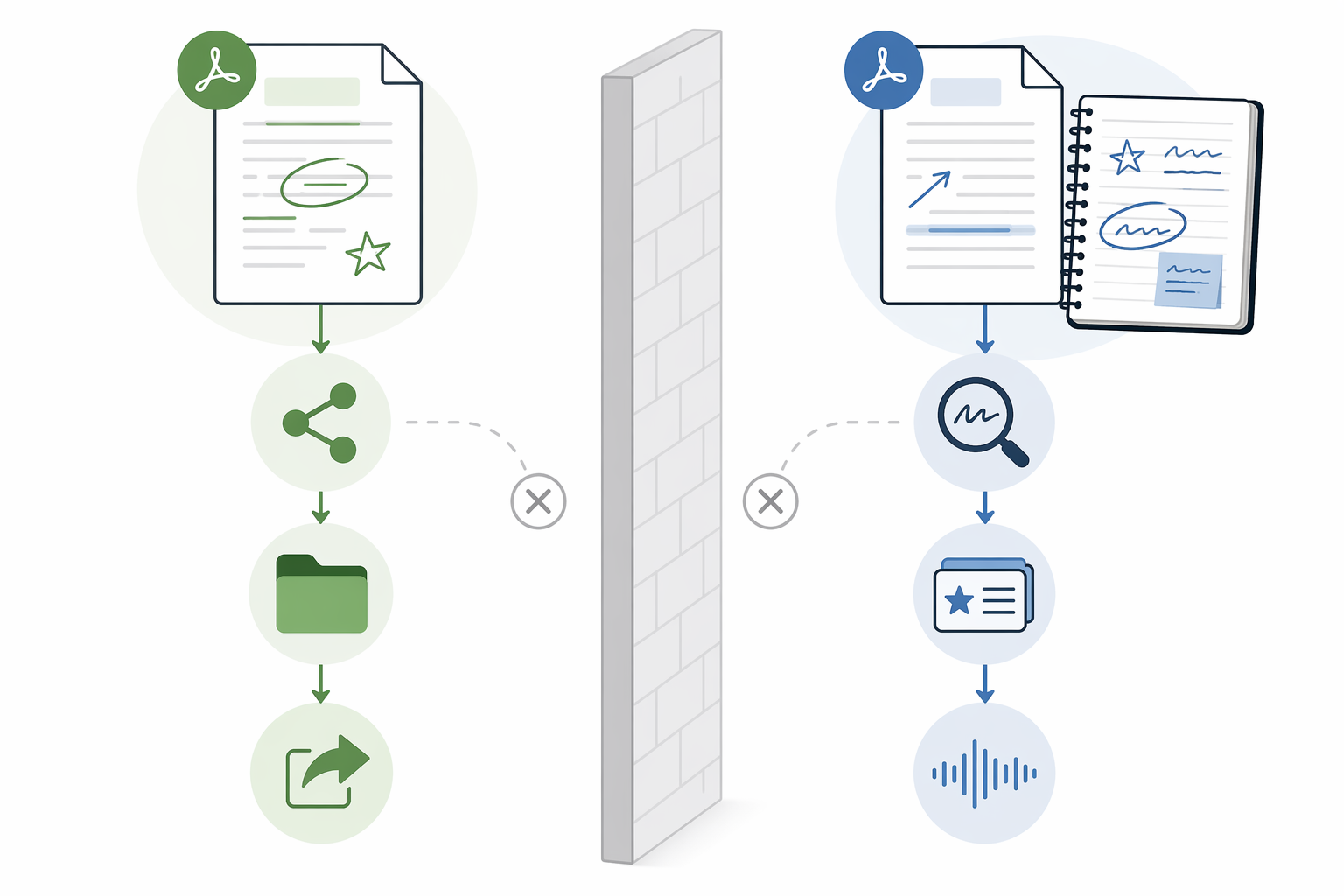
Before committing to a workflow, run one boring test: annotate a real PDF, export it, open it in a different PDF reader, send it to yourself on another device, and search for something you wrote by hand. That test reveals more than another hour of watching stylus demos.
The hybrids: LiquidText and Flexcil deserve separate treatment
Some tools resist the tidy two-column split. LiquidText is one of them. It is not merely a PDF annotator, and it is not a conventional notebook app either. Its strength is pulling excerpts out of source documents while preserving links back to the source pages through its Excerpts Overview. That is valuable for research reading, legal review, literature synthesis, and any workflow where the important unit is not just “page 12 has a highlight” but “this passage connects to that idea over there.”
The catch is collaboration. LiquidText’s richest behavior makes the most sense when the people involved are also using LiquidText. If the endpoint is a standard annotated PDF for broad circulation, test the export path before you build a project around it.
Flexcil is the other important edge case because it explicitly supports a PDF-plus-notebook style of work: the source PDF can sit on one side while a separate digital notebook sits beside it. That split-view model is unusually sensible for students and researchers who want to preserve the reading context while taking separate notes. Flexcil’s own positioning emphasizes this PDF-and-notebook arrangement, but pricing was not confirmed and should be manually checked before purchase.[3]
These hybrids are useful reminders that the question is not “which category is better?” It is “what has to remain usable outside the app?” If the answer is the PDF file itself, be cautious. If the answer is the thinking around the PDF, a hybrid may be exactly the right fit.
Platform and stylus comfort matter, but they come second
The iPad and Apple Pencil ecosystem dominates a lot of handwritten PDF annotation discussions for good reason: the hardware is mature, the pen experience is smooth, and many of the best-known notebook apps are strongest there. iMore’s iPad PDF apps guide treats Apple Pencil support, reading comfort, and iPad-specific interaction as central evaluation criteria, which is appropriate when the device is already decided.[4]
Still, platform comfort should not override document reality. A Windows-heavy team should be careful about building a workflow around an iPad-first notebook app unless export and sync are thoroughly tested. A student with an iPad, on the other hand, may reasonably prioritize handwriting feel and study organization because those are the daily constraints.
If handwriting quality is your deciding factor, use our stylus note-taking app comparison or the best note-taking app with stylus guide. If you are mixing Windows, iPadOS, macOS, Android, or web access, check the cross-platform handwritten notes guide before you commit.
Pricing is a workflow signal, not the verdict
Last verified June 27, 2026, the practical pricing landscape ranges from free built-in tools to annual subscriptions that cost as much as a serious productivity suite. Drawboard’s roundup lists free options including Microsoft Edge PDF reader, Apple Markup, and Xodo Web, while Foxit PDF Editor+ is listed at $240 per year; many serious paid options cluster around $7–$20 per month or $80–$140 as a one-time purchase.[1]
Because pricing changes frequently, treat those figures as dated checkpoints, not permanent promises. Check current pricing before purchasing, and pay attention to what the paid tier actually unlocks: OCR, handwriting recognition, cloud sync, advanced PDF editing, collaboration, export controls, or cross-device access may sit behind different plans.
The right free tool can be enough if you only need occasional highlights. Paying makes more sense when the app removes recurring friction: a student searching handwritten notes every week, a professional routing PDFs daily, or a team that needs predictable export behavior.
For a broader view of when paid tiers are worth it, see our free vs. paid note-taking apps guide.
A simple way to decide
Start with the afterlife of the document, not the prettiest toolbar.
- If the annotated PDF must be sent, archived, reopened in other PDF tools, reviewed by people outside your app, or routed through a document system, choose a dedicated PDF annotator first.
- If the PDF is mainly study material and the valuable work is handwriting, searching, organizing, listening back to audio, or building review material, choose a note-taking app with strong PDF import.
- If you need source excerpts, linked ideas, or PDF beside notebook notes, test LiquidText or Flexcil—but test export and collaboration before relying on them.
- If your devices are mixed, decide only after checking sync, export, and handwriting search on every platform you actually use.
For readers who need higher-level workflow sorting before picking a PDF tool, the workflow-based note-taking app guide can help. For iPad-first students who already want the notebook route, the best iPad note-taking apps comparison is more relevant than another generic PDF editor list. Windows users who discover that a favorite notebook app does not fit their platform should also check GoodNotes alternatives for Windows.
The useful question is not which app has the best pen. It is whether you need the marked-up PDF to remain a portable file, or whether you need the PDF to become part of a richer study notebook.
References
- Top PDF Annotation Apps, Drawboard, https://www.drawboard.com/blog/top-pdf-annotation-apps
- The Pen Is Mightier Than the Keyboard: Advantages of Longhand Over Laptop Note Taking, Psychological Science, 2014, https://journals.sagepub.com/doi/10.1177/0956797614524581
- Flexcil, Flexcil, https://www.flexcil.com
- Best PDF apps for iPad, iMore, https://www.imore.com/best-pdf-apps-ipad