
Introduction: Is Notion the Right Note-Taking App for You?
Notion has become a household name in the productivity space, but its identity as a note-taking app is surprisingly contested. Ask a power user and you will hear about relational databases, linked pages, and a unified workspace that replaces a dozen tools. Ask someone who tried it for lecture notes or daily journaling and you may hear about slow load times, a blank page that feels too open, and the frustration of building a system instead of taking notes.
Both perspectives are valid. Notion holds a 4.6/5 rating on G2 across nearly 12,000 reviews, with 79% of users giving it five stars, and it has been ranked the #1 Knowledge Base product on G2 for three consecutive years. Yet the same reviews consistently cite a steep learning curve, limited offline access, and unresolved automation gaps as dealbreakers. This article is designed to help you cut through the noise. We will examine Notion specifically through the lens of note-taking — not project management, not team wikis, not database building — and give you a clear framework for deciding whether it fits your personal workflow.
What Notion Does Well for Note-Taking
Relational Databases for Structured Knowledge
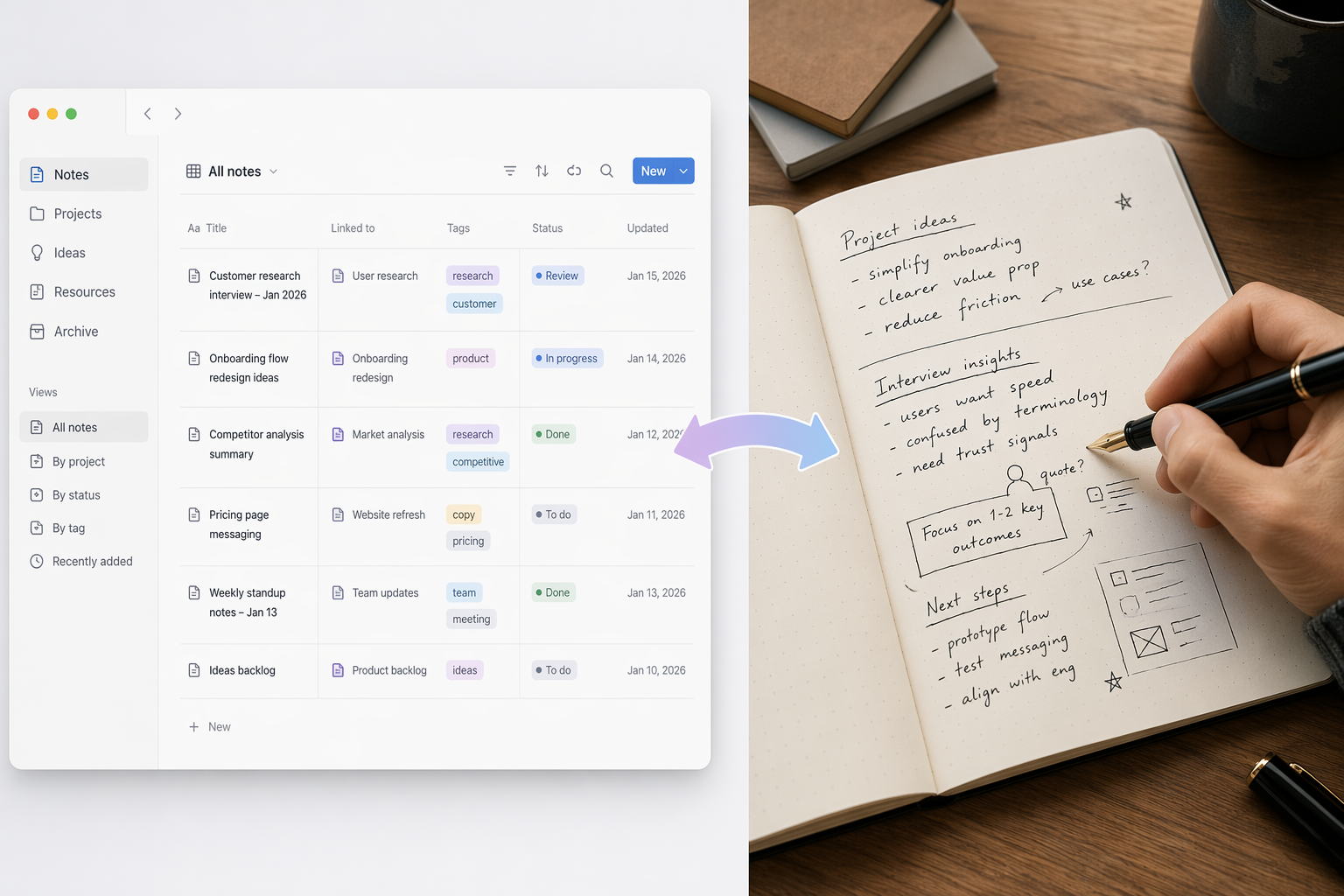
Notion's superpower is its database engine. Unlike traditional note-taking apps that treat every note as an isolated document, Notion lets you create databases where each row is a note and each column is a property — tags, dates, status, priority, or any custom field you define. These properties are not just labels; they are relational. You can link a note in your "Meeting Notes" database to a contact in your "People" database, and the connection updates automatically on both sides.
This relational architecture is what makes Notion exceptional for knowledge workers who need to connect ideas across projects, clients, or research topics. A single database can be viewed as a table, a board (kanban), a timeline (Gantt), a calendar, a list, or a gallery — each view filtering and sorting the same underlying data without duplication. For users building a personal knowledge base or a team wiki, this flexibility is unmatched by any dedicated note-taking app on the market.
Linked Pages and Backlinks
Notion supports bidirectional linking between pages, allowing you to create a web of interconnected notes. When you type @ followed by a page name, Notion creates a live link that updates if the target page is renamed. The backlinks panel at the bottom of each page shows every other page that references it, turning your workspace into a navigable graph of ideas. This is a core feature for anyone practicing Zettelkasten-style or PARA-method note-taking, though dedicated PKM tools like Obsidian offer a more mature graph-view experience.
The 20,000+ Template Ecosystem
Notion's template gallery hosts over 20,000 free templates, ranging from simple meeting note layouts to full-blown Second Brain systems. For note-taking specifically, you can find templates for Cornell notes, lecture outlines, book summaries, project journals, and daily logs. The template ecosystem lowers the barrier to entry significantly — instead of building a note-taking system from scratch, you can duplicate a pre-built setup and start writing within minutes. The key is choosing a template that matches your workflow rather than the one that looks most impressive.
Synced Blocks for Global Notes
Synced blocks allow the same content to appear in multiple pages and update everywhere at once. This is a subtle but powerful feature for note-taking. If you maintain a running list of action items from meetings, you can embed that synced block into each meeting note page. When you update the master list, every instance updates automatically. It eliminates the copy-paste friction that plagues cross-referenced notes in traditional apps.
AI Writing and Meeting Notes
Notion AI, included in the Business plan at $20/user/month (annual), adds writing assistance, summarization, translation, action-item extraction, and — in beta — AI Meeting Notes that auto-transcribe meetings without a bot joining the call. The AI operates per-page rather than across the entire workspace, which limits its ability to synthesize information from related databases. For users who need AI-powered note-taking, Notion's implementation is functional but not as deeply integrated as dedicated AI note-takers like Otter.ai or Fireflies.ai.
Where Notion Falls Short for Note-Taking
For every strength Notion brings to structured knowledge management, it makes a corresponding compromise on the quick-capture and freeform side of note-taking. Understanding these trade-offs is essential before you commit your workflow to the platform.
Limited Offline Access
Notion's offline mode has improved since its early days, but it remains limited compared to native offline-first apps like Obsidian, Apple Notes, or OneNote. You can view and edit recently accessed pages offline, but creating new pages, moving content, or accessing databases with complex relations often requires a connection. For users who take notes on planes, in areas with poor connectivity, or on commutes through tunnels, this is a genuine friction point.
No Handwriting or Drawing Input
Notion does not support handwriting, drawing, or OCR search for handwritten content. If you use an iPad with an Apple Pencil for sketchnotes, diagrams, or handwritten lecture notes, Notion is not the right tool. OneNote and Apple Notes handle this natively, with OneNote offering OCR search that can find text within handwritten notes and images. Notion's block-based editor is fundamentally text-first, and there is no indication that handwriting support is on the roadmap.
Slower Note-Taking Speed
Independent reviewers rate Notion's note-taking speed at 8/10 compared to OneNote's 9/10. The difference comes from Notion's block-based architecture. Every paragraph, heading, image, or embed is a separate block that must be created, moved, and formatted individually. In a fast-paced meeting or lecture, the overhead of managing blocks — splitting, merging, dragging — slows you down compared to the freeform canvas of OneNote or the instant capture of Apple Notes. Notion is designed for deliberate note organization, not rapid capture.
The Learning Curve and the Building Trap
Notion's flexibility is also its biggest barrier. New users often spend hours — or days — building the perfect note-taking system instead of actually taking notes. This phenomenon, often called the "building vs. using" trap, is a real risk for anyone who enjoys tinkering with tools. The platform's steep learning curve is one of the most commonly cited frustrations in user reviews, and it is not limited to beginners. Even experienced users report spending significant time maintaining and restructuring their databases rather than writing.
Unresolved Automation Gaps
Notion's automation capabilities have known limitations that have gone unaddressed since 2022. Buttons cannot trigger existing automations, automations cannot filter on relational properties, and select property colors cannot be changed in bulk. For users who rely on automation to streamline their note-taking workflows — such as auto-tagging meeting notes or moving completed tasks to an archive — these gaps create manual workarounds that defeat the purpose of automation. The Business plan includes more advanced automation options, but the core limitations remain.
Notion vs. Key Alternatives: A Quick Comparison
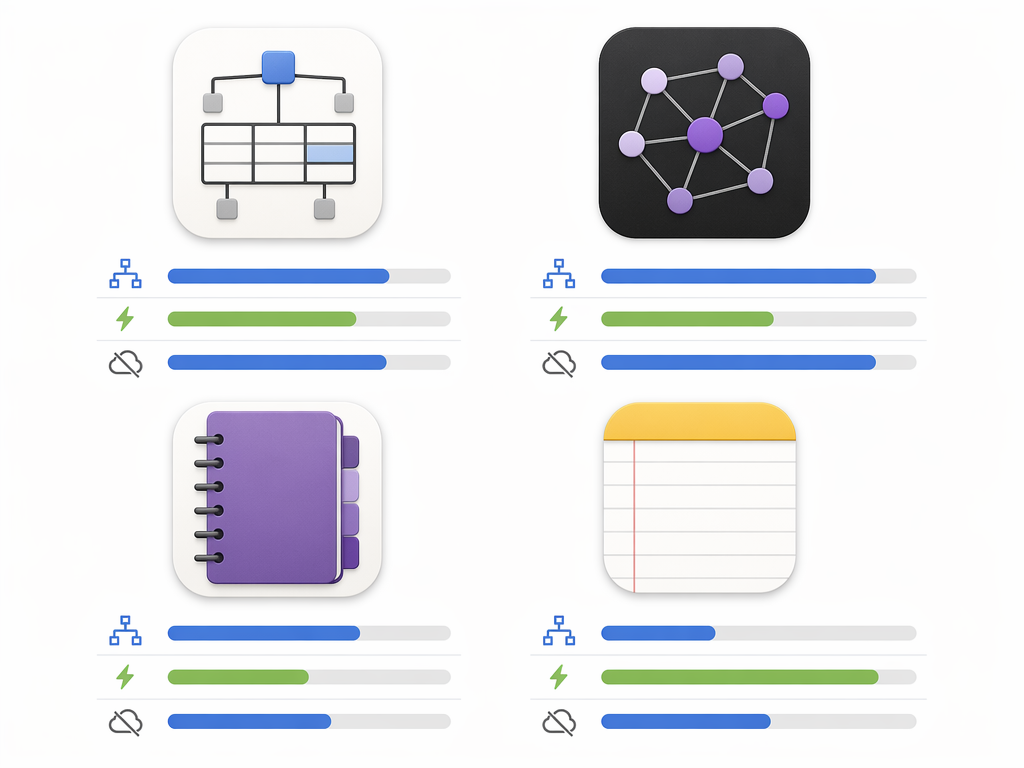
The table below summarizes how Notion compares to four major alternatives on the dimensions that matter most for note-taking. This is not a full head-to-head comparison — it is a quick-reference tool to help you assess where Notion fits in the landscape.
| Dimension | Notion | Obsidian | OneNote | Apple Notes | Evernote |
|---|---|---|---|---|---|
| Offline access | Limited | Full (local-first) | Full | Full | Full (paid) |
| Handwriting / drawing | No | No (plugin available) | Yes | Yes | No |
| OCR search | No | No (plugin available) | Yes | Yes (iOS 16+) | Yes (paid) |
| Note-taking speed | 8/10 | 7/10 | 9/10 | 9/10 | 8/10 |
| Database / relational power | 5/5 | 3/5 (plugin) | 4/5 | 2/5 | 3/5 |
| Free plan viability | Good for individuals | Fully free | Free with limits | Free with limits | Limited (60 MB/month) |
| Starting price (paid) | $10/user/month (Plus) | $25/user/month (Sync) | $12.50/user/month (M365) | Free with iCloud+ | $14.99/month (Personal) |
For a more detailed head-to-head comparison, see Notion vs. Dedicated Note-Taking Apps: Do You Need a Workspace or a Note-Taker?.
Who Should Use Notion for Note-Taking (And Who Shouldn't)
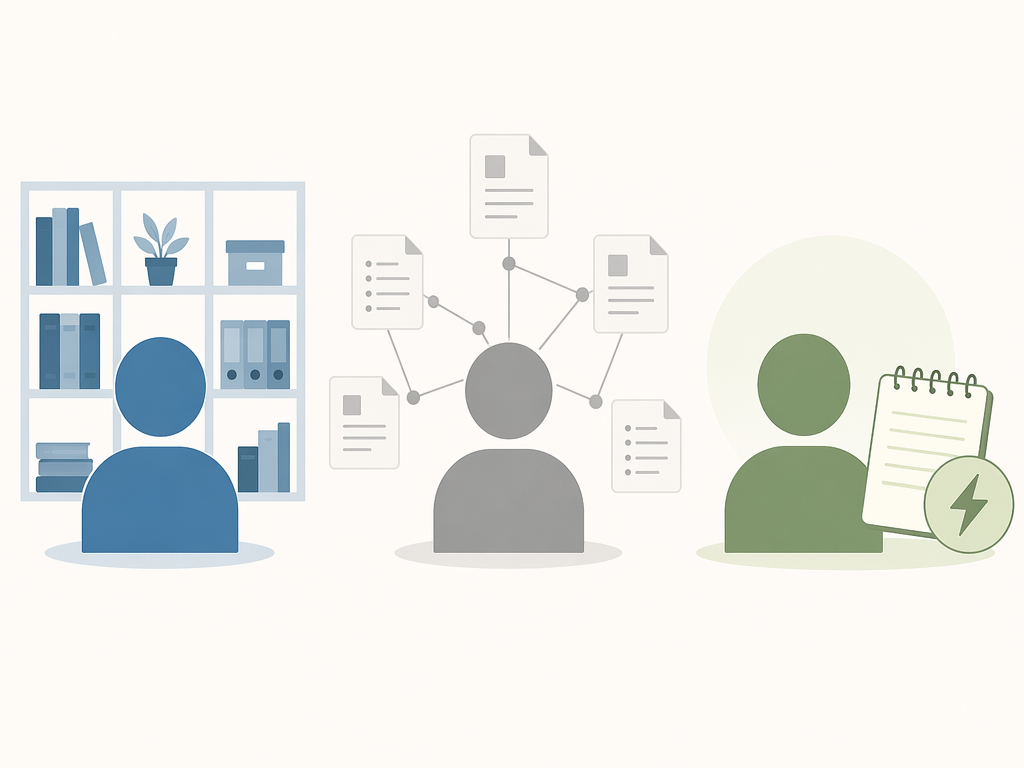
Notion is not a one-size-fits-all note-taking app. Its strengths align with specific user profiles, and its weaknesses make it a poor fit for others. Here is a breakdown of who will benefit most — and who should look elsewhere.
Best Fit: Knowledge Workers Building Structured Knowledge Bases
If your note-taking involves organizing information across multiple projects, clients, or research topics — and you need to connect, filter, and retrieve that information efficiently — Notion's database architecture is a genuine advantage. Consultants, researchers, product managers, and writers who maintain a personal knowledge base will find Notion's relational power worth the learning curve.
Best Fit: Teams Creating Internal Wikis
Notion's collaboration features — real-time editing, comments, page sharing, and permission controls — make it an excellent platform for team knowledge bases. The Business plan ($20/user/month annual) includes full Notion AI, verification badges for reviewed pages, and Enterprise Search that spans Notion, Slack, GitHub, Google Drive, Jira, and other tools. For teams that need a single source of truth for documentation, meeting notes, and project tracking, Notion is hard to beat.
Best Fit: Users Who Value Database-Backed Organization
If you are the type of person who categorizes, tags, and links everything — and you find satisfaction in a well-structured system — Notion will feel like home. The ability to create custom views, filter by properties, and roll up data from related databases gives you a level of control that no other note-taking app offers. This profile aligns closely with what some productivity frameworks call "The Connector" or "The Librarian" approach to note-taking, though those methods are covered in depth elsewhere.
Poor Fit: Quick-Capture Note-Takers
If your primary note-taking need is to capture ideas, meeting action items, or lecture points as fast as possible — and you rarely revisit or reorganize them — Notion will feel slow and heavy. The block-based editor, load times on mobile, and lack of a true quick-note shortcut make it a poor choice for rapid capture. Apple Notes, Google Keep, or even a plain text editor will serve you better.
Poor Fit: Handwriting and Drawing Users
As noted above, Notion has no handwriting or drawing support. If you use an iPad with an Apple Pencil, a reMarkable tablet, or any stylus-based workflow, Notion is not a viable primary note-taking app. OneNote and Apple Notes are the clear alternatives here.
Poor Fit: Users Needing Reliable Offline Access
If you frequently work in environments with unreliable internet — travel, field work, remote areas — Notion's limited offline mode will be a persistent frustration. Obsidian, which is local-first by design, or OneNote with its full offline sync are better choices for offline-heavy workflows.
Practical Tips for Using Notion as a Note-Taking App
If you decide that Notion fits your workflow, these practical tips will help you avoid common pitfalls and get the most out of the platform for note-taking.
- Start with a template, not a blank page. Browse the template gallery for a note-taking layout that matches your use case — meeting notes, lecture notes, or daily journal. Duplicate it and start writing immediately. Resist the urge to customize until you have used it for at least a week.
- Set up a quick capture database with a mobile widget. Create a simple database with a title field and a text property. Add it to your phone's home screen as a widget. This gives you a one-tap entry point for capturing ideas without opening the full app. Review and organize this inbox daily.
- Use the web clipper effectively. Notion's web clipper saves articles, pages, and screenshots directly into a database of your choice. Configure it to save to your quick capture inbox or a dedicated "Read Later" database with properties for source URL, tags, and status.
- Leverage database views for different contexts. Create a single notes database and use different views for different contexts: a table view for full metadata, a calendar view for time-stamped entries, a board view for status tracking, and a list view for quick scanning. Each view filters the same data without duplication.
- Avoid over-customization. Set a rule for yourself: if you spend more than 15 minutes tweaking a template or database structure, stop and take a note instead. The tool should serve your note-taking, not become a hobby in itself.
Verdict: Notion for Note-Taking in 2026
Notion is not the best note-taking app for everyone — and it does not need to be. Its strengths are concentrated in structured, database-backed knowledge management, where it outperforms every dedicated note-taking app on the market. Its weaknesses are equally concentrated in quick capture, handwriting, offline access, and freeform workflows, where it lags behind simpler, more focused tools.
The decision comes down to a single question: Do you need to organize and connect your notes, or do you need to capture them quickly and move on? If the answer is the former, Notion is worth the investment. If it is the latter, you will be happier with a tool that gets out of your way.
| Category | Score | Notes |
|---|---|---|
| Structured notes & knowledge bases | 9/10 | Unmatched relational power and view flexibility |
| Quick capture & speed | 6/10 | Block-based editor adds friction; no true quick-note shortcut |
| Collaboration & team wikis | 9/10 | Real-time editing, permissions, and Enterprise Search |
| Offline access | 5/10 | Improved but still limited; not reliable for offline-heavy workflows |
| Handwriting & drawing | 0/10 | Not supported; no roadmap indication |
| AI features | 7/10 | Useful but per-page scope limits cross-database synthesis |
| Learning curve | 4/10 | Steep; significant time investment required before fluency |
If you are still unsure, start with the free plan. It is sufficient for individual note-taking and gives you full access to Notion's core features. Use it for a month with a simple template. If you find yourself building more than writing, or if the offline limitations frustrate you, you will have your answer. If you find yourself connecting ideas across projects and wondering how you managed without relational databases, you will know you made the right choice.