
Introduction: Microsoft's Note-Taking Landscape in 2026

If you are a Microsoft 365 user trying to figure out which note-taking app to open on any given day, you are not alone. Microsoft now ships three distinct tools — OneNote, Loop, and Sticky Notes — plus Copilot AI features woven into all of them. Each one was built for a different kind of work, but Microsoft has not made it obvious which one you should reach for when.
This article is not a "which is best" shootout. The thesis is simpler and more practical: each tool has a specific job, and knowing which one to use for which task eliminates the confusion. OneNote is your personal digital notebook for long-term knowledge. Loop is a collaborative workspace for team projects. Sticky Notes is a quick-capture layer for fleeting thoughts. Together, they form a coherent note-taking ecosystem — but only if you understand the boundaries between them.
We will walk through each tool in detail, look at how Copilot AI changes the game, compare them side by side, and then give you a decision framework you can actually use. By the end, you should know exactly which app to open — and when.
OneNote: The Digital Notebook for Personal and Long-Term Notes
OneNote is Microsoft's oldest and most feature-rich note-taking app, and it remains the backbone of the ecosystem. Its structure — notebooks, sections, and pages — mirrors a physical ring binder, but the canvas on each page is freeform. You can click anywhere and start typing, drawing, or inserting media. There is no rigid grid or column layout.
The tool's strength is depth. OneNote supports full offline access on all platforms, which means you can work on a plane or in a basement without worrying about sync. It has robust handwriting support with optical character recognition (OCR) — you can search for text inside handwritten notes and even inside images. Per-section password protection lets you lock sensitive notebooks. Audio recording with voice transcription is built in, and you can embed YouTube videos directly into a page.
Pricing and the Windows 10 Transition
OneNote is free to use with a Microsoft account, which gives you 5 GB of OneDrive storage. If you need more, the standalone plan costs $1.99 per month for 100 GB. Microsoft 365 Personal runs $9.99 per month (or $99.99 per year) and includes 1 TB of OneDrive storage plus Copilot in OneNote. The Family plan is $12.99 per month (or $129.99 per year) for up to six people, with Copilot available for the subscription owner only.
OneNote's download numbers reflect its staying power. In Q4 2024 alone, it had 2.87 million downloads, and as of December 2025, it surpassed 500 million downloads on Google Play. It is available on Windows, macOS, iOS, iPadOS, Android, and the web.
When to Use OneNote
OneNote is your tool when you need a personal knowledge base that lasts. Use it for:
- Long-term reference notes — meeting archives, research projects, personal journals
- Handwritten notes with a stylus, especially if you need OCR search later
- Offline work where you cannot rely on an internet connection
- Notes that require multimedia — audio recordings, embedded videos, images
- Content you want to protect with per-section passwords
If you are looking for a dedicated guide on stylus support across platforms, see our best note-taking app with stylus comparison. For a step-by-step walkthrough of handwriting-to-text conversion, check our handwriting conversion guide.
Loop: The Collaborative Workspace for Team Projects
Microsoft Loop is a newer addition to the family, and it serves a fundamentally different purpose than OneNote. Where OneNote is a personal notebook, Loop is a collaborative workspace designed for teams to think, plan, and create together in real time.
The core innovation in Loop is the "live component." These are portable pieces of content — task lists, tables, paragraphs, or status trackers — that you can insert into Teams chats, Outlook emails, Word documents, or Excel spreadsheets. When someone updates a live component in one place, it syncs everywhere instantly. This eliminates the old workflow of copying and pasting status updates across different apps.
Loop is best suited for cross-functional team projects, brainstorming sessions, task tracking, and collaborative project documentation. It includes page templates and intelligent suggestions to speed up common workflows. Copilot in Loop can help co-create content, get new team members up to speed on a project, and keep everyone in sync.
When to Use Loop
Loop is your tool when the work is shared and real-time. Use it for:
- Team project planning where multiple people need to edit the same document simultaneously
- Brainstorming sessions where ideas need to be captured and organized live
- Task tracking that syncs across Teams, Outlook, and Office apps without manual updates
- Co-creating documents, proposals, or reports with colleagues in real time
- Onboarding new team members to an ongoing project with Copilot summaries
One important limitation: Loop does not offer the same offline capabilities as OneNote. It is designed for connected, synchronous collaboration. If you need to work without internet access, Loop is not the right choice.
Sticky Notes: The Quick-Capture Layer (Now OneNote-Powered)
Sticky Notes has been rebuilt from the ground up. It is no longer a standalone app with its own storage — it is now a OneNote-powered quick-capture layer that syncs across your devices via Microsoft 365. This is a significant change because it means every sticky note you create is automatically available inside OneNote on iOS and Android.
The app is designed for speed. You can launch a new note with the keyboard shortcut Win+Alt+S, type a quick thought, and move on. One of its most useful features is one-click screenshot capture from any app window, with automatic source attribution — so you know exactly which webpage or document a screenshot came from. Notes can be popped out into larger windows or docked side by side with other apps.
When to Use Sticky Notes
Sticky Notes is your tool when speed matters more than structure. Use it for:
- Capturing a phone number, address, or quick idea without opening a full notebook
- Taking a screenshot of a webpage or document with automatic source tracking
- Jotting down a reminder that you will process later in OneNote or Loop
- Quick reference notes you want visible on your desktop without switching apps
Copilot AI Across All Three Tools
Microsoft has integrated Copilot AI into all three note-taking tools, but the capabilities differ by app and subscription tier. Understanding what Copilot can do in each context helps you decide where to do your work.
Copilot in OneNote
Copilot in OneNote is the most mature of the three integrations. It can summarize long notes into bullet points, draft new content based on a prompt, rewrite existing text in a different tone, generate to-do lists from meeting notes, and convert handwritten text into typed text. These features are available to Microsoft 365 Personal and Family subscribers who have Copilot access, as well as Microsoft 365 Copilot Work users.
Copilot in Loop
Copilot in Loop focuses on collaborative scenarios. It can help co-create content during a brainstorming session, generate summaries to bring new team members up to speed, and suggest updates to keep everyone aligned. Because Loop components are live and sync across apps, Copilot's output in Loop can flow directly into Teams chats or Outlook emails without manual transfer.
Copilot in Sticky Notes
Sticky Notes does not have a deep Copilot integration of its own. However, because Sticky Notes is now powered by OneNote, any note you capture in Sticky Notes becomes available in OneNote — and therefore benefits from OneNote's Copilot features. A quick thought captured via Win+Alt+S can later be expanded, summarized, or rewritten using Copilot in OneNote.
For a broader look at how AI features are priced across the note-taking landscape — including which apps give AI away free and which charge a premium — see our AI in note-taking software analysis.
Side-by-Side Comparison: OneNote vs. Loop vs. Sticky Notes
The table below summarizes the key differences across the three tools. Use it as a quick reference when deciding which app to open.
| Dimension | OneNote | Loop | Sticky Notes |
|---|---|---|---|
| Primary use case | Personal knowledge base and long-term notes | Real-time team collaboration and project planning | Quick capture of fleeting thoughts and screenshots |
| Best for | Individuals, students, researchers | Teams, cross-functional projects, co-creation | Anyone needing fast capture on Windows |
| Platform support | Windows, macOS, iOS, iPadOS, Android, Web | Web, Teams, Outlook, Word, Excel (live components) | Windows (notes accessible on iOS/Android via OneNote) |
| Offline access | Full offline on all platforms | Not designed for offline use | Limited (depends on OneNote sync) |
| Handwriting / OCR | Full handwriting support with OCR search | Not supported | Not supported |
| Real-time collaboration | Basic multi-user editing | Core feature with live components and sync | Not supported |
| Pricing | Free (5 GB); $1.99/mo (100 GB); M365 Personal $9.99/mo | Included with Microsoft 365 | Free with Microsoft account |
| Copilot integration | Summarize, draft, rewrite, handwriting-to-text | Co-create, get up to speed, stay in sync | Indirect via OneNote sync |
| Data portability | Export to PDF, Word, and other formats | Export via Microsoft 365 tools | Notes accessible in OneNote for export |
For a broader pricing comparison across all major note-taking apps — including what you actually get for $0, $5, $10, and $20 per month — see our note-taking app pricing reality check.
Decision Framework: Which Tool Should You Use When?
The most common question we hear from Microsoft 365 users is: "Which one should I use?" The answer depends on three factors: who you are working with, whether you need offline access, and how permanent the note is.
Ask Yourself These Questions
- Are you working alone or with a team? If you are solo, OneNote or Sticky Notes. If you are collaborating in real time, Loop.
- Do you need offline access? If yes, OneNote is your only option. Loop requires a connection.
- Is this a fleeting thought or a long-term reference? Fleeting thoughts go into Sticky Notes. Long-term reference goes into OneNote.
- Do you need handwriting or OCR? OneNote is the only tool that supports digital ink and handwriting search.
- Does this note need to sync across Teams, Outlook, and Office? If yes, use Loop with live components. OneNote and Sticky Notes do not embed into other apps the same way.
Quick Decision Map
If your answer to the first question is "alone," your choice is between OneNote and Sticky Notes. Use Sticky Notes for anything you would write on a physical sticky note and throw away — phone numbers, quick reminders, URLs. Use OneNote for everything else: meeting notes, project research, personal journaling, handwritten sketches.
If your answer is "with a team," your choice is between Loop and OneNote. Use Loop when the team needs to edit together in real time, track tasks that sync across apps, or co-create a document. Use OneNote when the team needs a shared reference library — a place to store completed research, meeting minutes, or documentation that does not need live editing.
How the Three Tools Complement Each Other
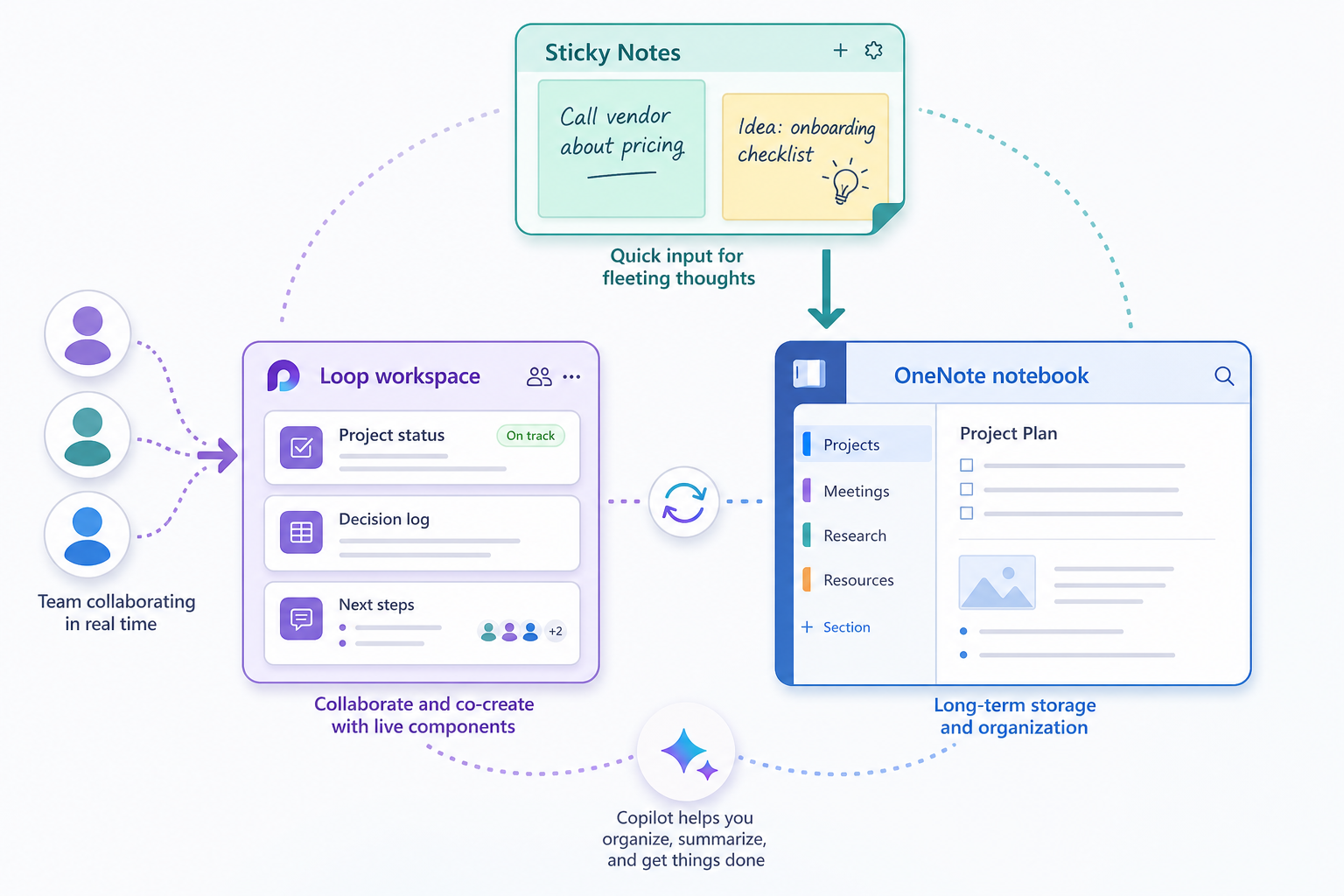
The three tools are not competitors within the Microsoft ecosystem — they are layers in a workflow. A knowledge worker might use all three in a single day without ever feeling like they are switching contexts.
Here is a realistic example. You are on a call with a client and they mention a competitor's feature you should investigate. You hit Win+Alt+S, type a quick note in Sticky Notes, and take a screenshot of the competitor's pricing page. The note and screenshot are now in OneNote, synced to your phone. Later that afternoon, you open OneNote on your iPad, expand the note into a full competitive analysis with handwritten annotations, and use Copilot to summarize the key takeaways. The next morning, you create a Loop workspace for your product team, insert a live task list with action items from the analysis, and share it in Teams. The task list updates in real time as team members check off items.
This workflow works because the tools are designed to feed into each other. Sticky Notes is the intake layer — fast, frictionless, and disposable. OneNote is the processing layer — structured, searchable, and permanent. Loop is the distribution layer — collaborative, live, and connected to the rest of Microsoft 365.
The key insight is that you do not have to choose one tool for everything. The ecosystem is strongest when you use each tool for what it does best and let the data flow between them.
Bottom-Line Recommendations
Microsoft's note-taking ecosystem in 2026 is more capable than ever, but it is also more confusing. The good news is that the confusion is unnecessary. Each tool has a clear job, and the boundaries between them are well-defined once you know what to look for.
- for personal knowledge management, long-term storage, handwritten notes, and any work that needs offline access. It is free, deep, and battle-tested.
- for team collaboration, real-time co-creation, and any project where live components that sync across Teams, Outlook, and Office will save your team time.
- for quick capture — fleeting thoughts, screenshots with source attribution, and anything you would write on a physical sticky note. It feeds directly into OneNote.
The best choice is not about which tool is "better." It is about which tool matches the task at hand. Start by identifying your primary use case — solo research, team project, or quick capture — and pick the tool that fits. You can always move content between them as your needs evolve.
If you are still unsure where to start, begin with OneNote. It is the most forgiving tool in the ecosystem — you can dump anything into it and organize it later. Once you have a feel for how you take notes, experiment with Sticky Notes for speed and Loop for collaboration. The ecosystem works best when you use all three.