
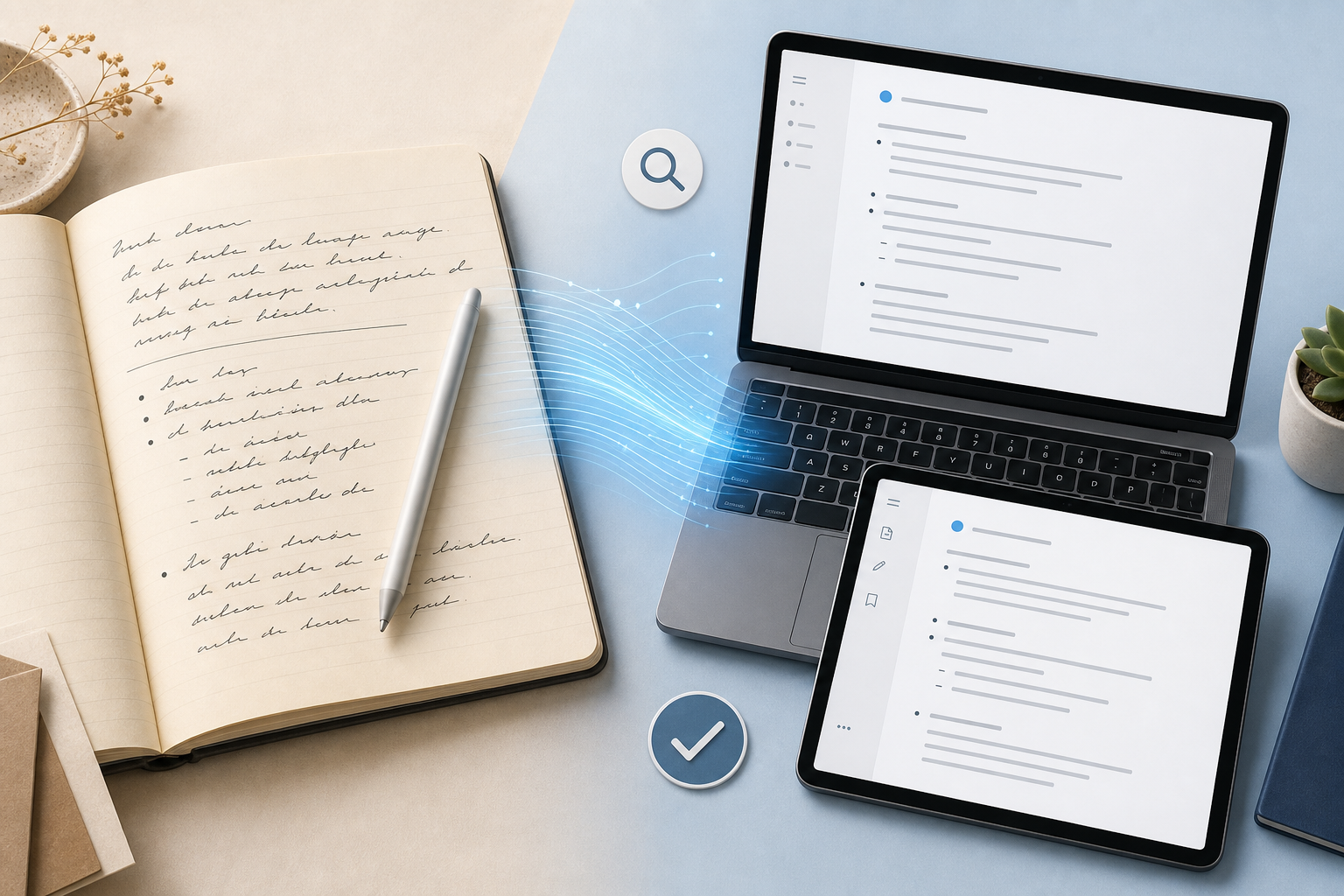
The hybrid note-taking workflow — part paper, part tablet, part phone snapshot — is no longer a niche practice. Knowledge workers, students, and researchers routinely capture ideas in a physical notebook, sketch diagrams on an iPad, and photograph whiteboards during meetings. The bottleneck is not capture; it is retrieval. A handwritten page is a closed container. Converting those notes to text makes them searchable, editable, portable, and linkable inside a personal knowledge management system.
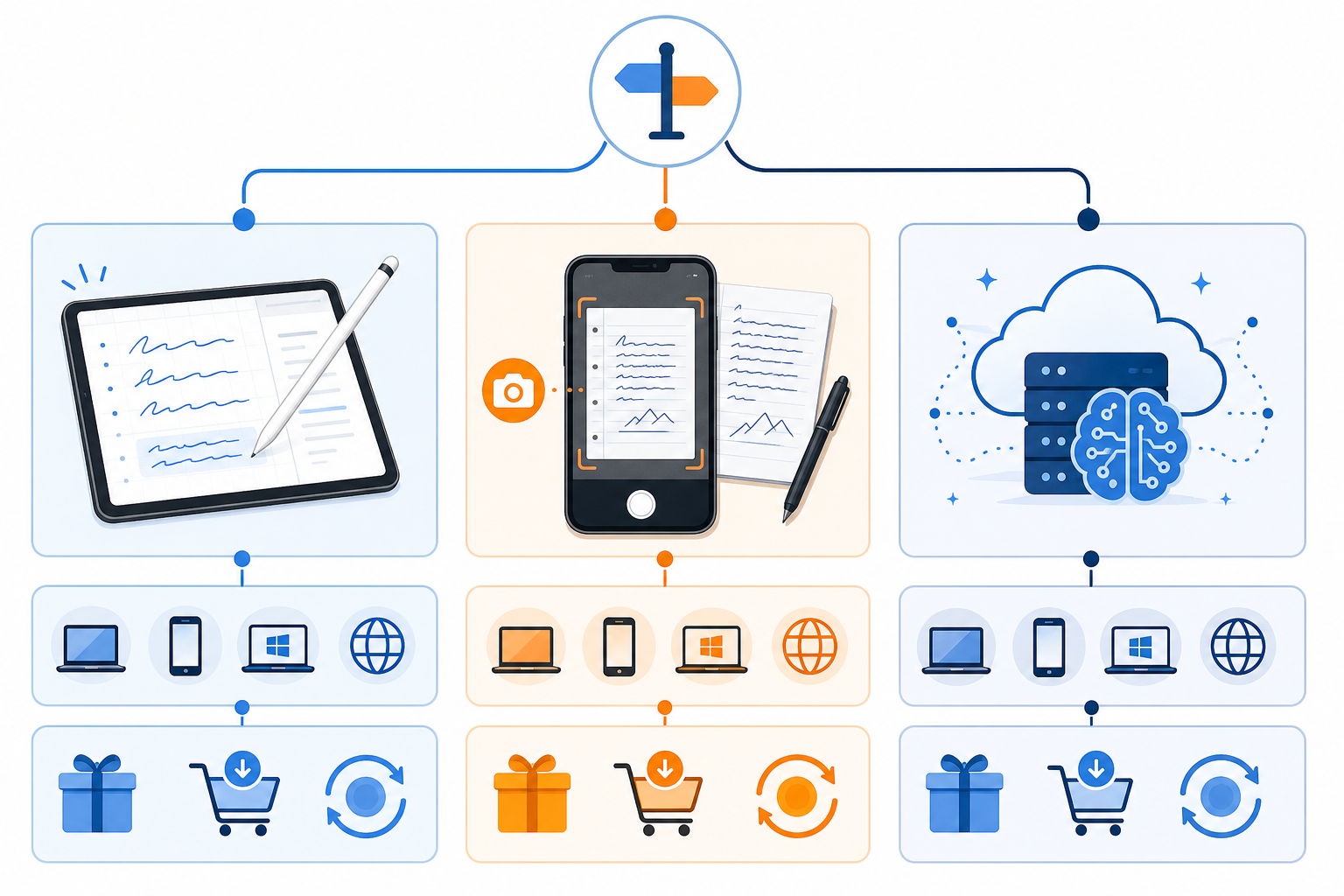
The handwriting-to-text landscape in 2026 has fractured into four distinct tiers, each serving a different need. Free built-in tools (Google Keep, Apple Scribble, Microsoft OneNote) handle occasional, clear handwriting at no cost. Dedicated apps (Nebo, GoodNotes 6, Pen to Print, Notability) offer polished experiences for active stylus users and batch digitization. Cloud APIs and frontier AI models (GPT-5 Vision, Azure Document Intelligence v4.0) push accuracy into the sub-2% character error rate range but carry per-page costs. Specialized archival tools (Transkribus, ABBYY FineReader) serve researchers dealing with historical scripts or extremely messy handwriting.
The core thesis of this guide is straightforward: the right tool depends on whether you need real-time stylus conversion, batch scan digitization, or maximum accuracy for messy handwriting. A student transcribing lecture notes on an iPad has a different set of constraints than a researcher digitizing a century-old field journal. Below, we break down every major option with concrete accuracy benchmarks, pricing, and platform support — so you can match the tool to your actual workflow.
Quick Comparison: Top Handwriting-to-Text Tools at a Glance
The table below summarizes every tool covered in this guide. Accuracy figures are drawn from the IAM Handwriting Database benchmarks (where available) and vendor-reported claims. Real-world results will vary with handwriting quality, image resolution, and document layout — see the detailed sections for caveats.
| Tool | Tier | Accuracy (Claimed / Benchmark) | Pricing (as of April 2026) | Platform | Best For |
|---|---|---|---|---|---|
| Google Keep | Free Built-in | 65–75% (handwriting) | Free | Web, Android, iOS | Quick one-off captures of neat print |
| Apple Scribble | Free Built-in | High for print, lower for cursive | Free (iPadOS) | iPad only | Real-time stylus conversion system-wide |
| Microsoft OneNote | Free Built-in | 70–80% (stylus input) | Free with M365 | Windows, Mac, iOS, Android, Web | Best free option for M365 stylus users |
| Nebo (MyScript) | Dedicated App | Industry-leading for stylus | One-time ~$10–$15 | iPad, Windows, Android | Real-time conversion with math & diagrams |
| GoodNotes 6 | Dedicated App | High with AI spellcheck | Subscription ~$9.99/yr | iPad, iPhone, Mac | Polished iPad note-taking + conversion |
| Pen to Print | Dedicated App | 98.2% claimed (cursive) | Credit-based (free trial) | iOS, Android, Web | Digitizing existing paper notes via photo |
| Notability | Dedicated App | Good with audio sync | Subscription ~$14.99/yr | iPad, iPhone, Mac | Lecture recording + note conversion |
| GPT-5 Vision | Cloud AI | ~1.22% CER (~95% word-level) | ~$8–15 per 1K pages | API | Maximum accuracy for messy handwriting |
| Azure Doc Intel v4.0 | Cloud AI | ~1.8% CER (~91% word-level) | Pay-per-page | API | Enterprise batch processing with bounding boxes |
| Google Cloud Vision | Cloud AI | ~63% (cursive) | Pay-per-page | API | Not recommended for handwriting |
| Transkribus | Specialized | 2.95% CER (IAM benchmark) | Credit-based (free demo) | Web, Windows, Mac, Linux | Historical scripts & custom model training |
| ABBYY FineReader PDF 16 | Specialized | ~92–95% (handwriting) | $199 one-time / ~$16/mo | Windows, Mac | Desktop batch OCR for mixed documents |
Tier 1: Free Built-in Tools (Google Keep, Apple Scribble, Microsoft OneNote)
If you already own a smartphone, tablet, or laptop, you likely have a handwriting-to-text tool installed. The three major platform vendors each offer a free option. They are adequate for occasional use with clear, printed handwriting but fall apart on cursive, messy scrawl, or low-resolution images.
Google Keep
Google Keep's image-to-text feature extracts text from photos of handwritten notes. In a real-world test, Keep transcribed a child's messy scrawl — "2 days ago I went on holiday and next to where we were staying there was some stray cats and I fed them everyday" — to "days ago I went on holiday and next to where we were staying there was some Stray Cats and I fed them every day." That is impressive for a free tool, but it missed the opening word and capitalized "Stray" incorrectly. Independent tests peg Keep's handwriting accuracy at 65–75%, usable only for clear, printed handwriting on clean backgrounds.
Apple Scribble
Apple Scribble is a system-level handwriting recognition engine built into iPadOS. It converts handwriting to text in real time across any text field — search bars, note-taking apps, messaging — without requiring a separate app. Accuracy is high for neat, printed handwriting but drops significantly on cursive or angled writing. Scribble is free, works offline, and supports multiple languages. Its main limitation is platform lock-in: it requires an iPad and an Apple Pencil or compatible stylus.
Microsoft OneNote (Ink to Text)
OneNote's Ink to Text feature converts handwritten ink strokes (drawn with a stylus or finger) into typed text. It is the best free option for users already in the Microsoft 365 ecosystem. Accuracy for direct stylus input is rated at 70–80% in independent tests, though quality varies with handwriting style and language. OneNote also supports OCR on inserted images of handwritten notes, but accuracy on photo-captured text is lower than stylus input. OneNote is free with a Microsoft account and available on Windows, Mac, iOS, Android, and the web.
Tier 2: Dedicated Apps (Nebo, GoodNotes 6, Pen to Print, Notability)
When free tools are not enough, dedicated handwriting apps offer higher accuracy, better formatting preservation, and workflow-specific features like math recognition, audio sync, and batch processing. These are the best choice for active stylus users and anyone who regularly digitizes paper notes via photo.
| Feature | Nebo (MyScript) | GoodNotes 6 | Pen to Print | Notability |
|---|---|---|---|---|
| Best For | Real-time stylus + math | Polished iPad note-taking | Digitizing paper notes | Lecture recording + notes |
| Accuracy (Claimed) | Industry-leading for stylus | High with AI spellcheck | 98.2% on cursive | Good with audio sync |
| Pricing | One-time ~$10–15 | Subscription ~$9.99/yr | Credit-based (free trial) | Subscription ~$14.99/yr |
| Platform | iPad, Windows, Android | iPad, iPhone, Mac | iOS, Android, Web | iPad, iPhone, Mac |
| Math Support | Yes (handwritten math → LaTeX) | No | No | No |
| Diagram Support | Yes (shapes, diagrams) | Limited | No | No |
| Offline Mode | Yes | Yes | No (cloud-based) | Yes |
Nebo (MyScript)
Nebo, developed by MyScript, is widely regarded as the industry leader for real-time stylus conversion. It converts handwriting to text as you write, supports handwritten math expressions that can be exported to LaTeX, and recognizes diagrams and shapes. It is a one-time purchase (approximately $10–15 depending on platform), which makes it the most cost-effective option for daily stylus users who do not want a subscription. Nebo is available on iPad, Windows, and Android. Its main limitation is that it works best with an active stylus — it is not designed for digitizing existing paper notes via photo.
GoodNotes 6
GoodNotes 6 is the most polished handwriting app on the iPad, with a subscription model ($9.99/year) that includes AI-powered spellcheck and handwriting recognition. It converts handwritten notes to typed text with high accuracy, especially when used with an Apple Pencil. GoodNotes also supports PDF annotation, document organization, and iCloud sync. It is the best choice for students and knowledge workers who want a complete note-taking ecosystem with conversion as a built-in feature. For a deeper look, see our full GoodNotes 6 review.
Pen to Print
Pen to Print is a dedicated app for digitizing existing paper notes via smartphone camera. It claims 98.2% word accuracy on cursive handwriting — the highest vendor-reported figure in this category. The app uses a credit-based pricing model: a free trial gives you a few pages, after which you purchase credits for additional conversions. It is available on iOS, Android, and web. Pen to Print is the strongest option for users who have stacks of paper notebooks they want to digitize, but the credit system can become expensive at high volumes.
Notability
Notability combines handwriting conversion with audio recording sync — a killer feature for students and professionals who record lectures or meetings. As you write, the app records audio and links each stroke to the moment it was written. Tapping on a word later plays back the audio from that exact point. Handwriting-to-text conversion is solid but not class-leading. Notability is subscription-based ($14.99/year) and available on iPad, iPhone, and Mac.
Tier 3: Cloud APIs & Frontier AI Models (GPT-5, Azure Doc Intelligence, Google Cloud Vision)
For maximum accuracy — especially on messy handwriting, cursive, or mixed-content documents — cloud-based AI models now outperform all consumer apps. These are API-first products, meaning you typically need some technical ability to integrate them, though several services offer no-code web interfaces. They are priced per page or per API call, making them cost-effective for batch processing but expensive for casual use.
| Model / Service | CER (IAM Benchmark) | Word-Level Accuracy | Pricing (per 1K pages) | Best For |
|---|---|---|---|---|
| GPT-5 Vision | ~1.22% | ~95% | ~$8–15 | Maximum accuracy, messy handwriting |
| Claude Opus 4.7 | ~1.31% | ~97% | ~$10–18 | High accuracy with strong language context |
| Gemini 3 | ~1.44% | ~97% | ~$6–12 | Cost-effective high accuracy |
| Azure Doc Intel v4.0 | ~1.8% | ~91% | ~$1.50–5 | Enterprise batch with bounding boxes |
| GPT-5-mini | ~1.52% | ~94% | ~$2–5 | Budget-friendly AI accuracy |
| Google Cloud Vision | N/A (no IAM score) | ~63% (cursive) | ~$1.50–3 | Not recommended for handwriting |
GPT-5 Vision
GPT-5 Vision currently holds the top position on the IAM Handwriting Database leaderboard with a character error rate of approximately 1.22% and word-level accuracy of roughly 95%. It is the best option for extremely messy handwriting, cursive, and mixed-format documents (text + diagrams + tables). The cost is approximately $8–15 per 1,000 pages, making it viable for batch processing but overkill for occasional use. Access is via OpenAI's API; there is no consumer-facing app.
Azure Document Intelligence v4.0
Azure Document Intelligence v4.0 achieves approximately 1.8% CER on the IAM benchmark, with word-level accuracy around 91%. It provides word and line-level bounding boxes, which makes it suitable for document layout analysis and structured data extraction. Azure's handwriting accuracy on neat printing is around 95%, but drops to approximately 45% on messy cursive narrative comments in real-world reviews. It is best suited for enterprise batch processing where layout preservation matters.
Google Cloud Vision
Google Cloud Vision's handwriting OCR accuracy is approximately 63% on cursive text, making it the weakest option among the major cloud providers for handwriting. It is optimized for printed text recognition and should not be the first choice for handwriting conversion. Its Document AI variant scores around 50% on handwritten comments in practitioner reviews. Use Google Cloud Vision only if you are already in the Google Cloud ecosystem and your handwriting is exceptionally neat.
Tier 4: Specialized & Archival Tools (Transkribus, ABBYY FineReader)
Researchers, archivists, and anyone dealing with historical documents, non-standard scripts, or extremely messy handwriting need tools that go beyond general-purpose OCR. Two options dominate this space.
Transkribus
Transkribus is a platform designed specifically for historical and complex handwriting. It achieves a 2.95% CER on the IAM benchmark and supports over 100 languages, including historical scripts like Kurrent and Fraktur. Its key differentiator is the ability to train custom AI models on your specific handwriting style — if you have a large corpus of a single author's notes, you can fine-tune a model to achieve much higher accuracy than generic OCR. Transkribus has processed over 200 million pages and offers 300+ public AI models. It uses a credit-based pricing model with a free demo. Export formats include TXT, DOCX, PDF, TEI-XML, and PAGE XML.
ABBYY FineReader PDF 16
ABBYY FineReader is a desktop OCR application that has been a standard in document processing for decades. Its handwriting accuracy is rated at approximately 92–95%, making it competitive with cloud AI services for neat to moderately messy handwriting. It is available as a one-time purchase ($199) or a subscription (~$16/month). FineReader excels at mixed documents — pages that combine printed text, handwriting, tables, and images — and preserves document layout faithfully. It is the best choice for professionals who need a reliable, offline-capable desktop tool for batch processing.
Decision Framework: Which Tool Should You Choose?
The right tool depends on three variables: your input type (stylus vs. scan vs. photo), your volume (occasional vs. daily vs. batch), and your budget (free, one-time, subscription, pay-per-page). The table below maps the most common scenarios to the best tool for each.
| Your Scenario | Input Type | Volume | Budget | Best Tool |
|---|---|---|---|---|
| I take handwritten notes on an iPad and want real-time conversion | Stylus | Daily | Free / One-time | Apple Scribble (free) or Nebo (one-time) |
| I have a stack of paper notebooks I want to digitize | Photo / Scan | Batch (50+ pages) | Pay-per-page | Pen to Print (credit-based) or Transkribus (custom model) |
| I need maximum accuracy for messy cursive notes | Photo / Scan | Any volume | Pay-per-page | GPT-5 Vision (API) or Azure Doc Intel (enterprise) |
| I am a student who records lectures and takes notes | Stylus + Audio | Daily | Subscription | Notability |
| I am already in the Microsoft 365 ecosystem | Stylus | Occasional to daily | Free | Microsoft OneNote (Ink to Text) |
| I need to digitize historical documents or non-standard scripts | Scan | Batch | Credit-based | Transkribus (trainable models) |
| I want a reliable offline desktop tool for mixed documents | Scan | Daily to batch | One-time | ABBYY FineReader PDF 16 |
| I just need to occasionally capture a whiteboard or sticky note | Photo | Occasional | Free | Google Keep |
Tips for Best Results: Scanning, Formatting, and Confidence Gating
Regardless of which tool you choose, these practices will improve conversion accuracy significantly.
- Scan at 300 DPI minimum. Low-resolution images are the single biggest cause of poor OCR results. High-resolution scans can improve accuracy by 20–30% over low-quality mobile photos, according to industry testing.
- Use lined paper or grid boxes. Grid-style character boxes produce significantly better results than blank lines. The visual guides help OCR models segment individual characters and words.
- Write in block letters for best results. Neat, printed handwriting consistently achieves 90–99%+ accuracy across all tools. Cursive drops to 60–80% for most consumer apps.
- Use confidence gates. Many tools return a confidence score for each recognized word. Set a threshold — auto-accept words above 90% confidence, flag lower scores for manual review. This catches errors without requiring you to proofread every word.
- Post-process with spellcheck. Even the best OCR models make context-dependent errors. Running the output through a standard spellchecker catches many of them automatically.
- Ensure even lighting. Shadows and glare across the page confuse OCR models. Use a flatbed scanner or a document-scanning app with automatic perspective correction and lighting adjustment.
Frequently Asked Questions
- Can I convert handwritten notes to text for free? Yes. Google Keep, Apple Scribble, and Microsoft OneNote all offer free handwriting-to-text conversion. Accuracy is limited to 65–80% for clear, printed handwriting. For cursive or messy notes, you will likely need a paid tool.
- What is the most accurate handwriting-to-text tool? Based on IAM Handwriting Database benchmarks (April 2026), GPT-5 Vision leads with approximately 1.22% character error rate and 95% word-level accuracy. For consumer apps, Pen to Print claims 98.2% accuracy on cursive, though this is vendor-reported.
- Does Apple Scribble work with any app? Scribble works system-wide on iPadOS — any text field that accepts keyboard input can accept Scribble handwriting input. It works in Notes, Safari, Messages, and third-party apps that use standard text fields.
- Can I digitize old paper notes? Yes. Pen to Print, Transkribus, and ABBYY FineReader are specifically designed for digitizing existing paper documents via photo or scan. For best results, scan at 300 DPI and use even lighting.
- How do I convert handwriting to text in Google Docs? Google Docs does not have built-in handwriting recognition. The workflow is: use Google Keep to capture and convert the handwriting, then copy the text into Google Docs. Alternatively, use a dedicated app like Nebo or GoodNotes and export the text.
- Which tool is best for iPad users? For real-time stylus conversion, Apple Scribble (free) or Nebo (one-time purchase) are the top choices. For a complete note-taking ecosystem with conversion, GoodNotes 6 (subscription) is the most polished option. See our best note-taking apps for iPad comparison for a broader view.
Comments
Join the discussion with an anonymous comment.