
If a suspicious “shared a document” notification is waiting in Gmail, do not use its Open button. Go directly to drive.google.com, select Shared with me, and inspect the item there. That separates the email—which may be impersonated—from the file and sharing information actually associated with your Google account.
Most Google Docs malware and phishing protection is automatic, but account consent is the important exception. A malicious app can send you through a genuine Google authorization screen and ask for access you never intended to grant. If you approve it, changing your password is not the first corrective action: you must revoke the app.
| Situation | First action | Then |
|---|---|---|
| Preventive setup | Audit connected apps at myaccount.google.com/permissions | Enable 2-Step Verification or passkeys and Enhanced Safe Browsing; review public link sharing |
| Unexpected share, nothing clicked | Inspect it through Drive > Shared with me | Remove the item and report the message or file |
| Link clicked, but no access granted | Close the page and inspect the share through Drive | Report it; review recent account activity if anything else looked abnormal |
| App access granted | Revoke the connected app first | Change the password, then check only the Gmail settings and activity the app could have affected |
What Google already checks—and what it cannot decide for you
Google scans Gmail and Drive content for phishing, malware, and other abuse, while files stored in Drive are encrypted in transit and at rest. Google’s documentation also describes warnings and restrictions that may appear when a suspicious file is opened or downloaded.[1] Safe Browsing supplies reputation-based protection against dangerous websites and downloads across Google products and supported browsers.[2]
These defaults make ordinary malicious-file delivery through Google services substantially harder. Google says its AI-powered defenses block more than 99.9% of spam, phishing, and malware, but that is Google’s own published claim rather than an independently audited effectiveness figure.[3]
Scanning does not answer a different question: whether you truly want a named app to read your contacts, manage email, or access files. An authorization request can be technically valid and still be malicious. The Google domain and familiar sign-in interface establish who operates the authorization system; they do not establish that the requesting app deserves the permissions shown.
The 2017 “Google Docs” worm showed the consent gap
In 2017, recipients received what looked like a Google Docs sharing invitation. The message presented an Open in Docs control, but its unusual addressing offered a clue: victims could be blind-copied while the visible To field contained a throwaway Mailinator address. The destination involved deceptive domains, and the requesting third-party app was itself named “Google Docs.”[4]
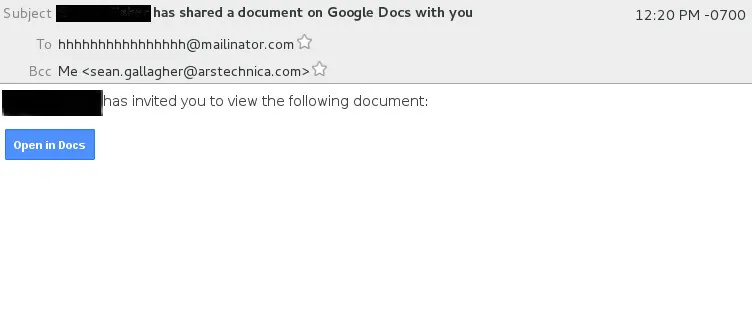
The attack then used Google’s real authorization flow to request extensive Gmail and contacts access. It could spread by sending more invitations to people in the victim’s address book. Ars Technica reported that Google disabled the offending accounts and removed the fake pages after the attack began spreading.[4] Uprite, attributing figures to CNN, reported that roughly one million accounts—less than 0.1% of Gmail users at the time—were affected before the attack was shut down in about an hour.[5] Those numbers are secondhand estimates, not a measure of how frequently this attack pattern succeeds today.
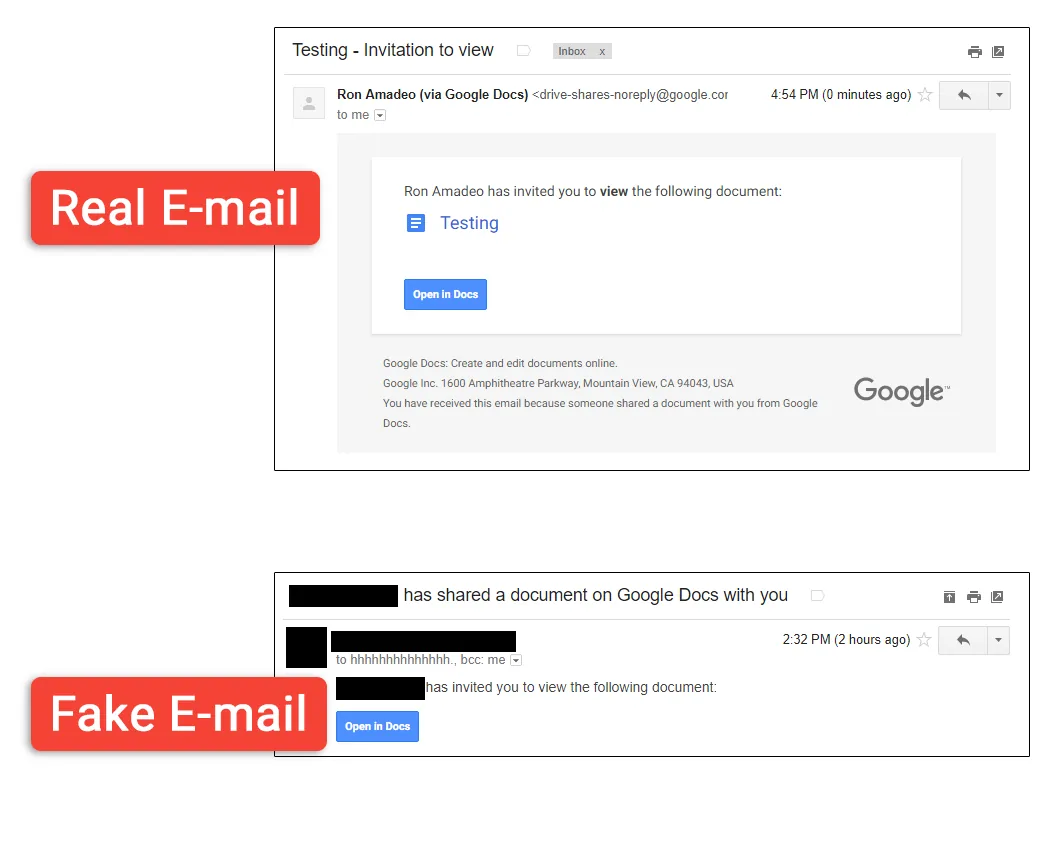
The worm worked because the victim did not need to type a Google password into a counterfeit page. The account could already be signed in, and Google could still ask the user to approve the app. Graham Cluley’s analysis noted that multifactor authentication would not stop such an authorization after the user voluntarily consented, and that resetting the password would not necessarily invalidate the app’s OAuth token.[6]
That is why the permissions audit carries more weight than another list of misspellings and suspicious sender clues. Those clues help you avoid a trap; revocation removes access after the trap has already worked.
Audit connected apps at the actual revocation point
On a personal Google account, open myaccount.google.com/permissions. You can also reach the page through Google Account > Security > Your connections to third-party apps and services. Google may adjust the labels, but the destination should list services connected to the signed-in account. Verify the profile picture or account address before reviewing anything if you use more than one Gmail account.
- Review every listed app and service. A familiar name is only a starting point; select the entry to see what connection exists.
- Inspect the access description. Pay particular attention to authority over Gmail, contacts, Drive files, account data, or actions performed on your behalf.
- Ask whether you deliberately connected the service and still use the feature that requires this access. Old integrations do not need to remain authorized merely because they were once legitimate.
- For anything unrecognized or no longer needed, choose the option to remove access or delete the connection, then confirm.
- Reload the permissions page and verify that the entry is gone. If several Google accounts were signed in when the incident happened, repeat the review in each plausible account.
Removing a legitimate connection can stop that service from working until you authorize it again, so inspect before revoking names you recognize. If you find an unexplained grant with broad Gmail or contacts access, remove it first and reconnect later only through the service’s known website. The 2017 response guidance identified this permissions page as the place to revoke the malicious authorization.[5][6]
Add protections according to the job each one does
Turn on 2-Step Verification or create a passkey
Open Google Account > Security > How you sign in to Google. Select 2-Step Verification and follow the prompts, or open Passkeys and security keys to create a passkey on a device you control. Google recommends 2-Step Verification as an additional barrier if a password is stolen, while passkeys use a device-based credential designed to resist phishing.[7]
This protects the sign-in boundary. It does not rescind an OAuth grant you already approved, so it belongs beside the permissions audit rather than in place of it.
Enable Enhanced Safe Browsing for the personal account
For a personal Gmail account, go to Google Account > Security > Enhanced Safe Browsing for your Account, select Manage Enhanced Safe Browsing, and turn it on. Google says this setting provides faster, proactive protection against dangerous websites, downloads, and extensions when you are signed in, using additional security-related information associated with your account.[8]
This is the personal-account control. It should not be confused with similarly named Gmail protections configured by Workspace administrators for eligible organizational editions.
If Chrome is your browser, also open Chrome > Settings > Privacy and security > Security and choose Enhanced protection. The browser setting can warn about risky sites and downloads before the interaction reaches Google Docs. It still cannot decide that a permission request from an apparently plausible app conflicts with your intentions.
Review documents exposed by link sharing
For sensitive documents you own, select the file in Drive, choose Share, and inspect General access. Change “Anyone with the link” to Restricted when public-link access is no longer necessary, then review the named people and groups above it.
Link exposure and OAuth consent are separate problems. Restricting a document limits who can reach that item; revoking an app removes its account-level connection. For a broader comparison of how sharing models affect note security, see Google Docs versus Notion safety.
Run the response drill in the right order
If you did not click or grant access
- Leave the email link alone and open Drive directly.
- Choose Shared with me and locate the item by its title, owner, and arrival time.
- Select it once rather than following links inside it. Use the information icon or View details to inspect the owner and sharing information; a thumbnail preview may provide enough context without interacting with the document.
- If it is unwanted, right-click the item and choose Remove. Where Drive offers a report or block option for the item or sender, use it.
- In Gmail, open the notification without selecting its document button, choose More, then Report phishing. Google documents Report phishing as the appropriate Gmail action for a deceptive message.[9]
Unexpected shared files can appear in Drive even when the recipient did not request them, which is why checking Shared with me is more useful than treating the email button as the source of truth. TechSoup’s response guidance similarly recommends navigating to Google Drive independently and removing an unexpected file rather than opening it from the notification.[10] Google also documents Drive reporting and blocking controls for spam or abusive sharing, although the exact option shown can vary with the item and account context.[11]
If you clicked but denied or never saw a permission request
Close the tab, report the notification, and inspect the item through Drive. If you entered a password on a page that was not a Google domain, this has become a credential-compromise incident rather than consent phishing; use the password-leak response runbook instead.
If you approved an app
- Revoke it first. Open myaccount.google.com/permissions, select the suspicious connection, remove its access, and verify that it disappears from the list.
- Change the Google Account password after revocation. Use Google Account > Security > Password, and do not reuse the replacement elsewhere.
- If the grant included Gmail access, open Gmail > Settings > See all settings > Forwarding and POP/IMAP. Remove forwarding destinations you did not create.
- Open Filters and Blocked Addresses and delete unexplained filters, especially any that forward, archive, delete, or mark security messages as read.
- Check Sent for messages you did not send. If the app had contacts or mail authority, warn affected recipients through a separate, trusted message rather than forwarding the original invitation.
Do not reverse the first two actions. A password change addresses stolen credentials, but the 2017 consent-phishing analyses warned that an authorized OAuth token could remain usable after that reset.[5][6] Revocation terminates the connection the user approved.
If the account no longer feels recoverable enough to keep, follow the compromised-account migration guide for export and exit decisions. Otherwise, once the unknown connection is gone, the password is replaced where relevant, and Gmail shows no unauthorized forwarding, filters, or sent messages, the account is back in a known state.
References
- Protect against phishing, malware, and other threats — Google Docs Editors Help, updated August 21, 2026.
- Google Safe Browsing — Google.
- How to defend against malware and phishing attacks — Google Workspace Blog.
- Google Docs phish worm grabs your Google app permissions, contacts — Ars Technica, 2017.
- 3coast Tracking Sophisticated Google Docs Phishing Attack — Uprite.
- Google Docs Worm Ransacks Gmail Users: What You Need to Know — Tripwire.
- Turn on 2-Step Verification — Google Account Help, updated August 21, 2026.
- Enhanced Safe Browsing for your account — Google Account Help, updated August 21, 2026.
- Avoid and report phishing emails — Gmail Help, updated August 21, 2026.
- Dealing with an Unexpected Shared Google Docs File — TechSoup.
- Help prevent Drive spam and phishing — Google Workspace.
Comments
Join the discussion with an anonymous comment.