
If you searched for “google docs password leak what to do to secure documents,” there are two different emergencies that sound almost the same.
First: your Google account password appeared in a breach warning, Password Checkup alert, Have I Been Pwned-style lookup, or credential-dump headline. In that case, you are securing the Google account first, then the Docs and Drive files that account can reach. That is what this guide is mainly for.
Second: you stored passwords inside a Google Doc, and that document may have been exposed. If that happened, you still need to rotate every password stored in that document. Locking down Google Docs stops further exposure; it does not magically make copied passwords safe again.
Work in this order: lock the account, remove the account-level backdoors, restrict exposed Drive links, then back up what matters. Skipping straight to “change password” leaves too many doors open.
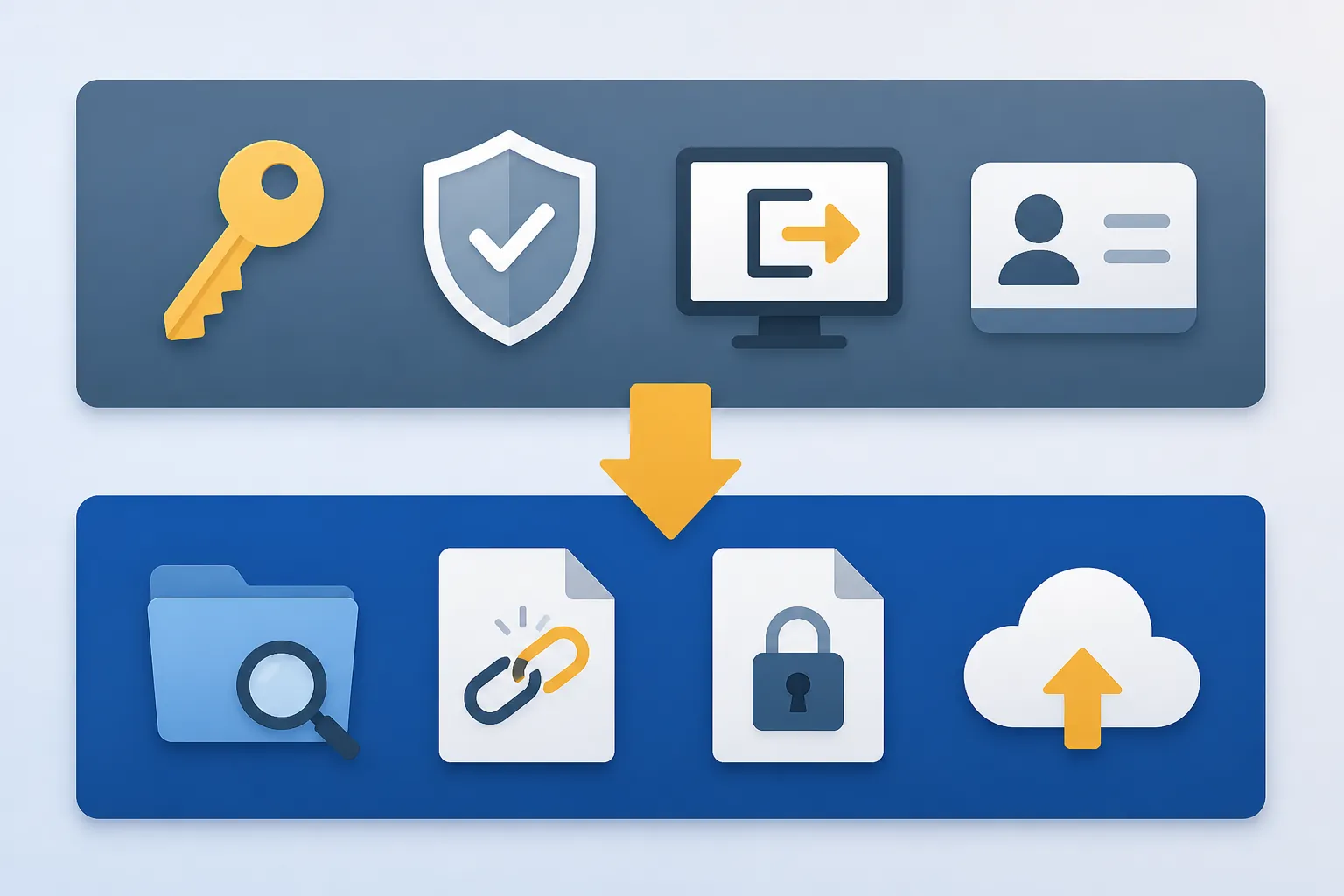
| Order | What to do | You are done with this part when |
|---|---|---|
| 1 | Change the Google password from a device you trust. | The old password no longer works and the new one is unique to Google. |
| 2 | Review signed-in devices, recovery methods, 2-Step Verification, and passkeys. | Unknown sessions and weak recovery paths are removed. |
| 3 | Check Gmail forwarding, filters, and delegated access. | No hidden mail route can copy account alerts or document notifications. |
| 4 | Remove suspicious third-party app access. | Old or unknown apps no longer have Google account permissions. |
| 5 | Audit Drive for “Anyone with the link” files. | Sensitive Docs, Sheets, Slides, PDFs, and folders are set to Restricted. |
| 6 | Re-share only with named people at the lowest useful permission. | Editors are editors only when they genuinely need edit rights. |
| 7 | Check Drive activity and Docs version history where exposure matters. | You know what Google can and cannot show you about changes. |
| 8 | Export a backup with Google Takeout or your normal backup system. | You have a verified copy outside the live account. |
Start by cutting off the leaked password
Change the Google account password first. Google’s own guidance is plain on this point: if a password is compromised, change it as soon as possible, and Google may also ask you to change a password if it appears unsafe even outside Password Checkup results.[1]
Use a password you have not used anywhere else. A leaked password is most dangerous when it is reusable: the attacker does not need to break Google if the same email-and-password pair opens the front door.
- Go to your Google Account security settings and change the password.
- Review devices signed in to the account and sign out anything you do not recognize.
- Turn on 2-Step Verification if it is not already on.
- Add a passkey where your devices support it.
- Check the recovery email and phone number. Remove anything old, shared, or unfamiliar.
Google’s hacked-account guidance says that with 2-Step Verification, “if your password is stolen, your account is still secure,” and its account-security page describes passkeys as phishing-resistant and unshareable.[2][3] Treat that as the foundation, not the finish line.
There is one recovery detail worth slowing down for. Google says it disables suspicious sign-in methods and gives the account owner 30 days from the warning to confirm the recovery method before deletion.[2] That is helpful only if the recovery options actually belong to you. An old phone number or a forgotten school email is not harmless during an account cleanup.
Sweep the backdoors a password reset does not close
A password reset blocks future sign-ins with the leaked password. It does not automatically undo every path that may already have been created inside the account.
GAT Labs, writing about compromised Google Workspace accounts, calls out the exact trap: a password reset alone does not revoke forwarding rules, filters, delegated access, authorized third-party apps, or Drive sharing changes.[4] That applies just as painfully to a personal Google account, except a free-account user usually has no admin console and no security team to clean it up for them.
Check Gmail forwarding and filters before you trust the inbox
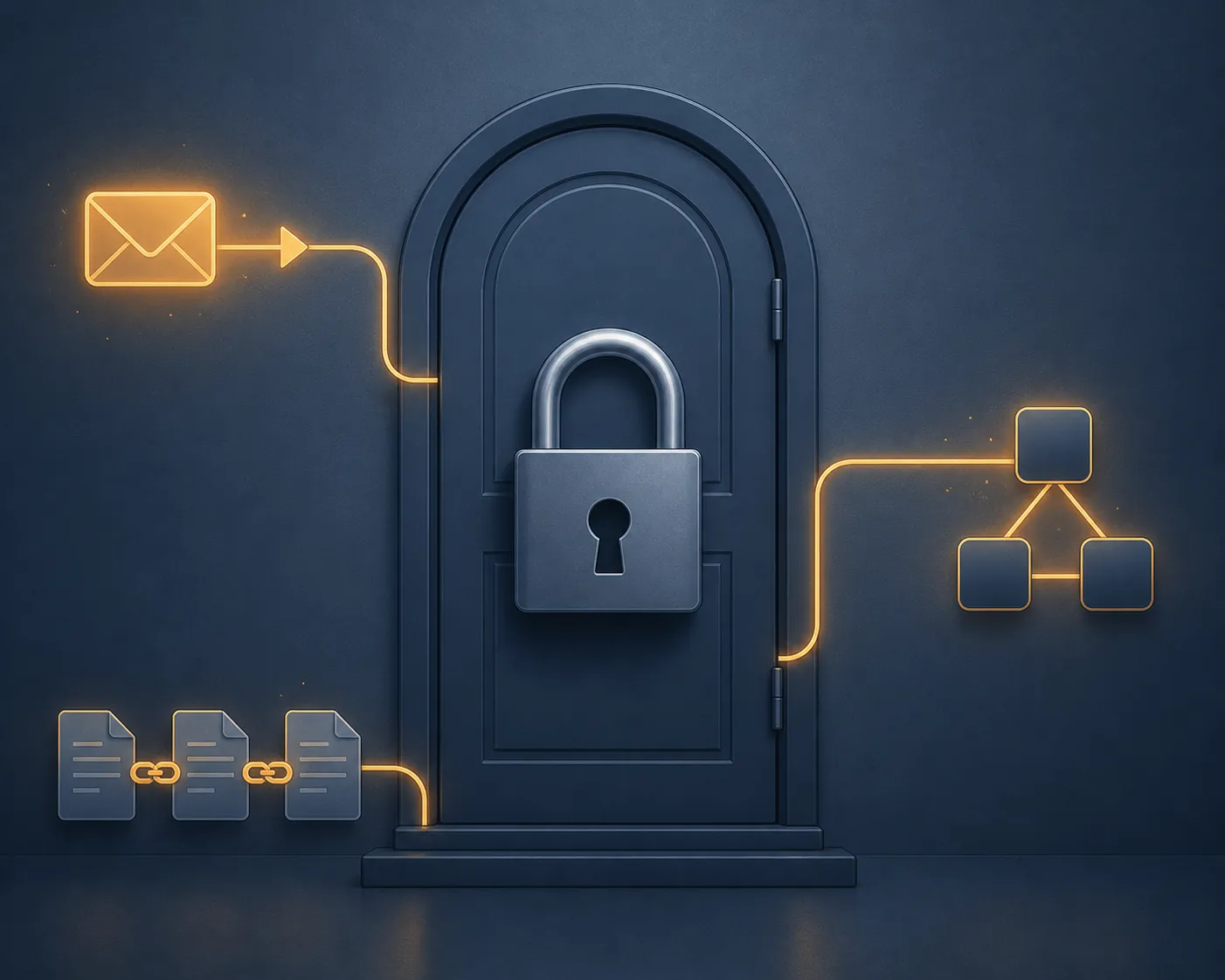
Gmail is part of the Docs problem because Google Drive shares, password-reset emails, comment notifications, and access requests all pass through the inbox. If a forwarding rule is quietly copying mail elsewhere, the attacker may still see account activity after the password reset.
- Open Gmail settings, then check Forwarding and POP/IMAP. Remove any forwarding address you do not recognize. If you do not use POP or IMAP, leave them off.
- Open Filters and Blocked Addresses. Delete filters that forward mail, mark mail as read, archive it, delete it, or target terms like Google Drive, Docs, password, invoice, bank, client, school, tax, or recovery.
- Check account delegation if it is available in your Gmail settings. Remove any account that should not be able to read, send, or manage mail for you.
The nasty version of this is not cinematic. It is a boring filter that archives “Google security alert” before you see it, or a forwarding address that receives every Drive-sharing email. Those are exactly the mechanisms that make a clean password change feel safer than it is.
Revoke third-party apps you would not approve today
Next, open your Google Account security settings and review third-party apps and services with account access. Remove anything unfamiliar, abandoned, or unnecessary: old PDF converters, mail merge tools, calendar utilities, AI writing extensions, browser add-ons, document automation tools, and one-time apps you used years ago.
Do not judge by brand recognition alone. Judge by whether the app still needs the permission it has. If an app can read Drive files and you no longer use it, revoke it. If an app belongs to a former employer, school project, client workflow, or long-dead side project, revoke it.
For a small team, write down which app access you removed before people start reconnecting tools. The goal is not to break the business for a week; it is to stop inherited access from surviving just because nobody remembers who installed it.
Now lock the documents, not just the login
Google Docs is not public by default. Google says Docs, Sheets, and Slides content is private unless you choose to share it, and that your content is not used for advertising.[5] That is good, but it does not rescue a document you already shared too broadly.
There is also an encryption boundary to understand. Google Docs encrypts content in transit and at rest, but free personal Google Docs is not end-to-end encrypted. Proton’s security review notes that Google’s client-side encryption is available only to eligible paid Workspace work or school accounts, not ordinary free personal accounts.[6] So the practical cleanup is about access control: who can reach the file, through which link, app, or account permission.
Find every sensitive file set to “Anyone with the link”
This is the part people skip because it is tedious. It is also the part that decides whether the thesis draft, family paperwork, client notes, invoices, or project plan is still exposed after the account password is fixed.
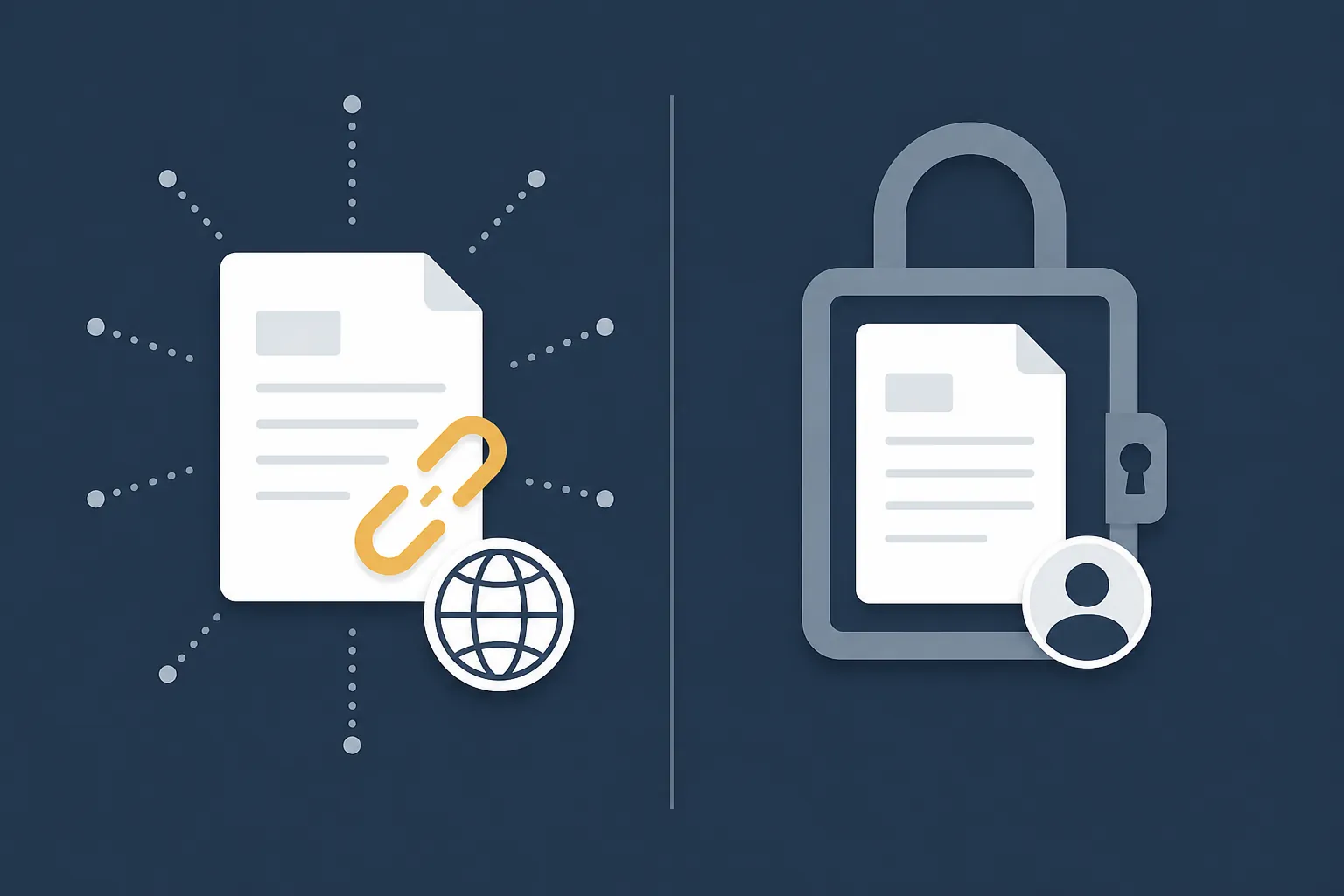
Stanford University IT warns that Google Drive files shared as “Anyone with the link” are accessible to anyone who has the URL, with no login required. Those links can be forwarded, posted, or indexed, and Stanford’s recommended fix is to audit Drive sharing and apply least privilege.[7]
- Open Google Drive and start with the files you would most regret exposing: legal documents, school work, research notes, financial records, HR files, client material, medical paperwork, identity documents, and shared folders.
- Use Drive search, search chips, file type filters, owner filters, and “Shared with” views to narrow the pile. Do not rely on memory; old shared files are the problem.
- Open the Share dialog for each important file or folder.
- If General access says “Anyone with the link,” change it to “Restricted” unless that file is deliberately public.
- Repeat this for folders. A folder-level sharing setting can expose many files at once.
Be especially careful with files that were shared for convenience: a résumé sent with an open link, a school submission folder, a household budget, a client intake form, a meeting-notes folder, or a “temporary” public link used during a deadline. Temporary sharing has a way of becoming permanent.
Re-share with named people, not a public convenience link
After you restrict a file, re-share it only with the people who still need it. Use named Google accounts where possible. Give Viewer, Commenter, or Editor access based on what they actually need to do next, not what was easiest when the file was created.
- Use Viewer for people who only need to read.
- Use Commenter for review without direct editing.
- Use Editor only for people who should be able to change the document.
- Remove former classmates, old contractors, former employees, personal accounts that no longer belong in a work file, and generic accounts nobody owns.
Small teams should slow down on ownership. If a founder, office manager, teacher, or project lead created most of the files from a personal account, the sharing audit is also an ownership audit. Do not leave critical business documents dependent on one person’s consumer Gmail account just because that was how the folder started.
Use Activity and version history with the right expectations
Drive activity and Docs version history are useful for damage assessment, but they are not a surveillance camera. Google Drive Help says the Activity panel can show actions such as edits, comments, renames, moves, uploads, and shares, but not simple views.[8]
That means you may be able to see that a file was edited or shared. You generally should not expect Drive activity to prove that nobody opened or read a link-shared document. If the file was set to “Anyone with the link,” reduce the exposure instead of trying to prove the negative.
- For important files, open the Activity panel in Drive and look for recent shares, moves, uploads, comments, and edits you do not recognize.
- In Docs, Sheets, or Slides, open version history and look for unfamiliar edits, deletions, or large pasted sections.
- If you find suspicious changes, make a copy of the current file, restore the clean version if you can identify it, and keep notes about what changed.
- If the file contains passwords, secrets, API keys, recovery codes, or private client data, rotate those secrets separately. Restricting the file is not enough.
Version history also has limits. Google says file versions are kept only as recent versions unless you choose to keep a version forever, and older versions may be permanently deleted after 30 days or when 100 newer versions exist.[8] If you need a clean copy for legal, academic, or client reasons, preserve it deliberately instead of assuming Drive history will still have it later.
About the “Gmail breach” headlines
As of August 25, 2026, the widely discussed 2025 credential story is best treated as credential-exposure context, not proof that Google Docs or Gmail servers were hacked.
Security.org’s July 8, 2026 update describes the October 2025 roughly 183 million-credential dataset as tied to infostealer logs and credential-stuffing lists, not a confirmed breach of Google’s infrastructure. It also reports that about 91% of those records had appeared in prior exposures, leaving about 16.4 million described as genuinely new.[9] Forbes’ October 28, 2025 coverage similarly framed the dataset as stolen credentials and reported Google’s public objection to calling it a “Gmail breach,” while noting Google’s recommendation to use 2-Step Verification, passkeys, and password resets.[10]
The distinction matters. If someone steals a key to your house, you still change the lock. But you do not diagnose it as the wall collapsing. For Google Docs, the useful conclusion is narrower and more practical: if a password that can open your Google account is circulating, secure the account and then remove every access path that password may have helped create.
There is a behavioral reason to do the work now rather than bookmarking it. Heimdal’s 2026 password-breach statistics page cites research in which 63% of notified participants said they would change a breached password, but only 27% actually did so within two weeks; it also reports that 74% of victims were unaware their credentials appeared in a breach.[11] The numbers are not the rescue plan. They are just a reminder that delay is common.
Back up the documents after you restrict access
Once the account and sharing cleanup are done, export a backup of the documents you cannot afford to lose. Google Takeout is the obvious starting point for a personal account, but do not treat it as instant or permanent.
Google says Takeout exports can take minutes to days, archives expire after about 7 days, each archive can be downloaded only 5 times, and an export may not include changes made between the request and archive creation, including recent sharing or permission changes and resolved comments.[12]
- Request an export for Drive after you have restricted sensitive sharing, not before.
- Download the archive promptly and store it somewhere you control.
- Open a sample of exported Docs, Sheets, Slides, PDFs, and folders to verify the backup is usable.
- If you also found suspicious Gmail filters or forwarding, consider exporting mail as part of your recordkeeping.
This is also the moment to decide whether certain material belongs in Google Docs at all. That is a separate storage decision, not something a password reset can answer. If the incident made you rethink cloud convenience, the next question is cost, lock-in, privacy expectations, and how much migration pain you are willing to accept; the site’s guide to the hidden costs of free note-taking apps is a better place for that broader decision than this emergency cleanup.
When you can stop
You can stop the immediate lockdown when the leaked password is no longer valid, 2-Step Verification or passkeys are in place, recovery methods are yours, unfamiliar sessions are gone, Gmail forwarding and filters have been checked, delegated access is clean, third-party app access has been trimmed, sensitive Drive files are no longer open to “Anyone with the link,” and important documents have a verified backup.
What remains is uncertainty about past views, especially for files that were previously link-shared. Google Drive activity can help with changes and shares, not silent reading. The response to that uncertainty is not another password reset. It is removing exposure, rotating any secrets that were inside exposed documents, and keeping future sharing narrow enough that you are not doing this again at 11 p.m.
References
- Change compromised passwords in your Google Account — Google Account Help.
- Secure a hacked or compromised Google Account — Google Account Help.
- Make your account more secure — Google Account Help.
- Google Workspace Account Compromised? Here's What Most Admins Miss During the Investigation — GAT Labs.
- Privacy and security for Google Docs, Sheets, Slides, and Vids — Google Docs Editors Help.
- Is Google Docs secure? 6 ways to improve it — Proton.
- Is Your Google Drive Sharing More Than You Realize? — Stanford University IT.
- Check activity & file versions — Google Drive Help.
- Google Gmail Data Breach — Security.org, July 8, 2026.
- Gmail Passwords Confirmed As Part Of 183 Million Account Data Breach — Forbes, October 28, 2025.
- Password breach statistics in 2026 — Heimdal.
- How to download your Google data — Google Account Help.
Comments
Join the discussion with an anonymous comment.