
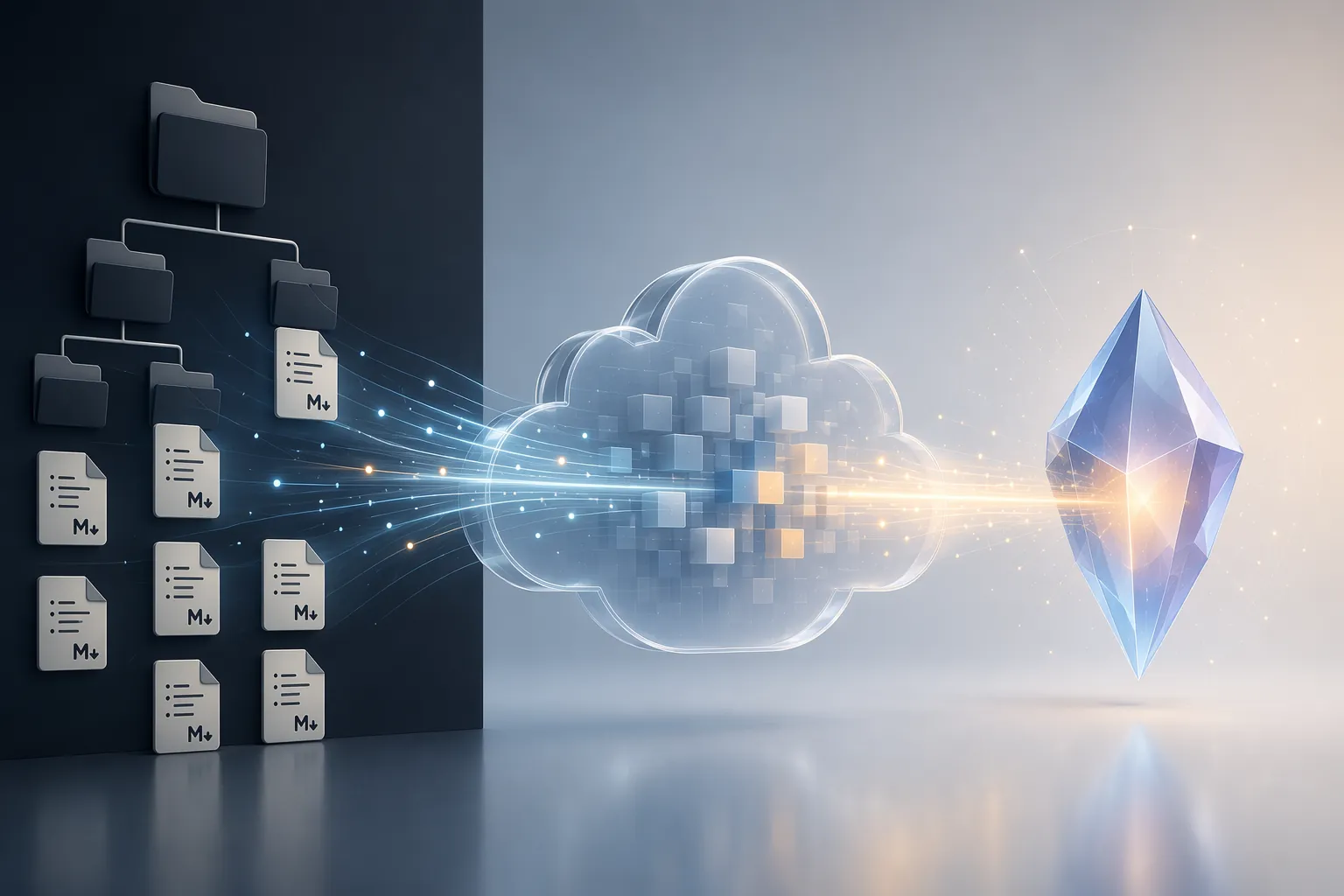
If your Obsidian vault is already organized, the practical way to create Gemini Gems for a note-taking workflow is not to rebuild the vault inside Gemini. It is to make the files Gemini can read boringly visible: Markdown notes in folders, synced to Google Drive, then attached to focused Gems as persistent knowledge.
That gives you the useful part of “AI for notes” without pretending your entire archive has become one omniscient assistant. XDA’s April 2026 walkthrough showed the important bridge: an Obsidian vault can be synced to Google Drive without plugins, while keeping its folder structure and plain-text Markdown files intact.[1] That matters more than it sounds. If the experiment disappoints you, the source material is still just files.
The constraint arrives immediately after the promise: Gemini Gems can reference up to 10 files from Drive or direct upload as persistent knowledge, according to Google’s Workspace announcement.[2] Gems also require paid Gemini access, such as Gemini Advanced or Gemini for Google Workspace; exact pricing can change, so treat the subscription requirement as the durable fact rather than a fixed dollar figure.[3]
So the job is not “connect Gemini to everything.” The job is to choose the few files that actually define a role, then write instructions that make the Gem use those files before it improvises.
The Working Model
The full setup has four moving parts. Only one of them is glamorous, and that is where most bad workflows over-focus. The durable part is the file path.
| Layer | What You Do | What Can Go Wrong |
|---|---|---|
| Obsidian vault | Keep notes as Markdown files in a clear folder structure | Messy source notes make the Gem reason from messy context |
| Google Drive | Sync the vault or selected folders so Gemini can access them | Recently saved notes may not appear instantly |
| Gem knowledge files | Attach up to 10 Drive files that define the Gem’s working context | A giant archive file can dilute the task instead of helping it |
| Gem instructions | Tell the Gem its role, task, context rules, and output format | A vague “be my second brain” request produces vague answers |
If you are still migrating from another app, finish that first. An Evernote to Obsidian migration guide is the better starting point than Gem design. If the vault exists but has no method, the Second Brain method or a broader PKM method guide will do more for you than any instruction.
Sync the Obsidian Files Gemini Should Be Allowed to Read
Obsidian’s advantage here is ordinary file storage. A vault is a folder. Inside it are more folders, Markdown files, attachments, and configuration files. When that folder is placed in Google Drive or synced into Drive, the basic vault structure remains understandable outside Obsidian.
The XDA setup is appealing because it does not require an Obsidian plugin layer to make Gemini useful. The author describes syncing the vault to Google Drive, then using Gemini against those Drive-accessible notes while preserving the original folder hierarchy and plain-text Markdown format.[1] That is the right kind of bridge: visible, reversible, and easy to inspect when something behaves strangely.
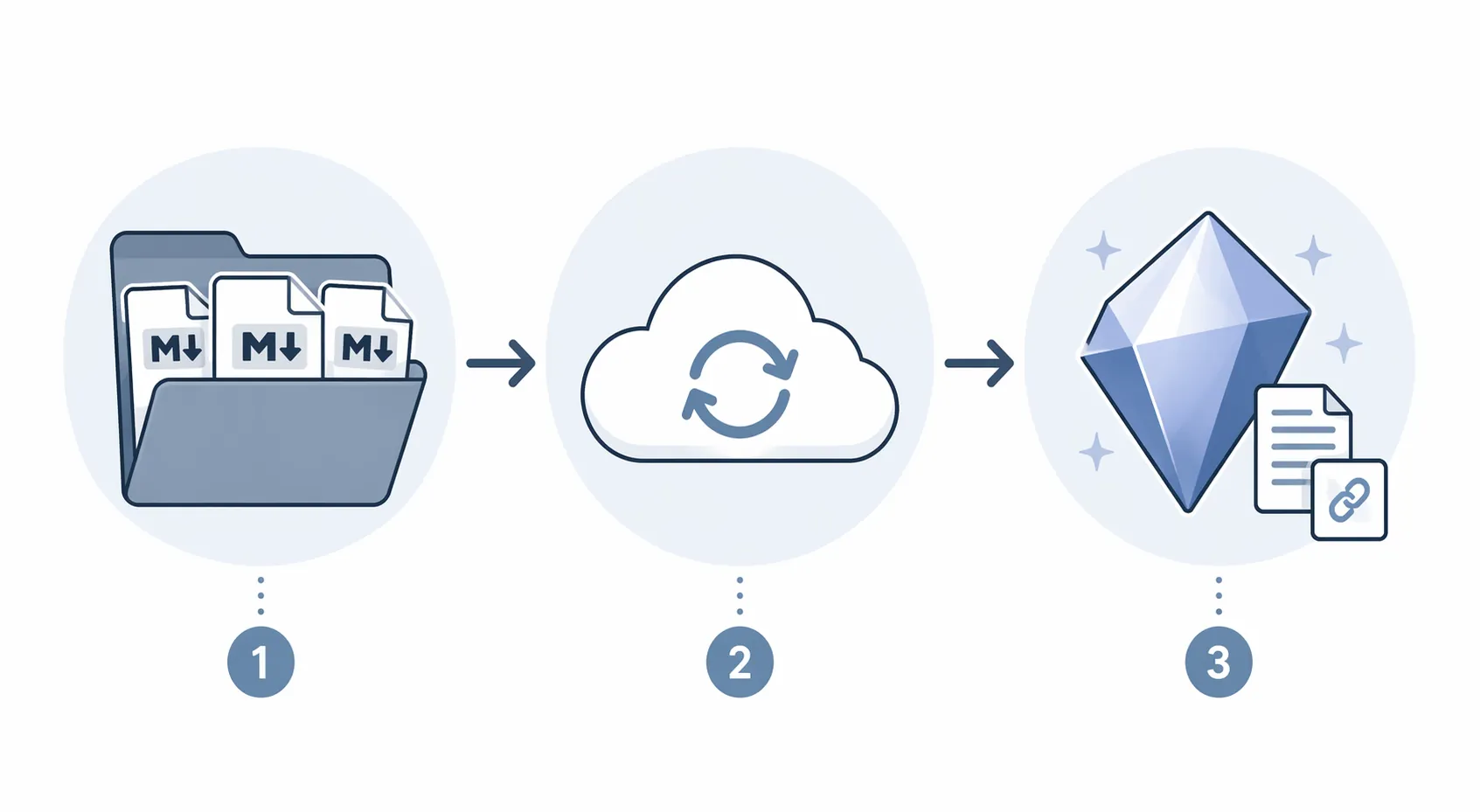
There are two reasonable ways to use Drive as the bridge:
- Sync the whole vault if your vault is already clean, you want Drive backup anyway, and you are comfortable having the full folder available in Google’s cloud.
- Sync a curated subfolder if you only want Gemini working with selected project notes, evergreen summaries, meeting notes, or writing research.
The second option is less dramatic and usually better. A Gem cannot persistently reference an unlimited number of files, so syncing the whole vault does not remove the need to curate. It only makes selection easier later.
A Practical Folder Pattern
Keep your normal Obsidian structure. Then add a small folder whose job is not to store everything, but to feed Gems.
Obsidian Vault/
  Projects/
  Areas/
  Resources/
  Archive/
  AI Context/
    writing-system.md
    current-projects.md
    editorial-principles.md
    recurring-meetings.md
    research-index.md
That “AI Context” folder is not magic. It is a set of deliberate source files. Each file should be legible if opened in a plain-text editor. Each should have a job. One might summarize active projects. Another might define writing preferences. Another might list current research questions with links back to deeper notes.
This keeps the vault local-first in spirit even when Drive is involved. You know which files are being exposed, you can remove them from a Gem, and you can delete the bridge without losing the underlying notes. If you chose Obsidian partly because you distrust sealed knowledge systems, that reversibility is not a side benefit. It is the point.
Choose Knowledge Files Before You Create the Gem
Because of the 10-file persistent knowledge limit, the best Gem files are not necessarily your longest notes.[2] They are the notes that reduce repeated explanation. The file should answer the context you are tired of pasting into chat.
Good candidates include:
- A project brief that explains goals, constraints, stakeholders, and current decisions.
- A writing style guide that captures voice, forbidden phrasing, formatting rules, and examples.
- A research index that summarizes source notes and points to where fuller material lives.
- A meeting memory file that records open loops, decisions, and unresolved questions.
- A personal operating manual for recurring tasks, preferences, and review routines.
Bad candidates are file dumps with no editorial structure. A 10-file limit makes laziness visible. If you attach ten huge catch-all notes, the Gem may still answer, but you have not given it judgment. You have given it a pile.
A useful rule: attach files that define how the Gem should think, not every file it might ever mention. When you need a one-off source, paste or upload it in the session. Persistent knowledge should carry durable context.
Create a Focused Gem, Not a Vault Oracle
Google’s own guidance for custom Gems recommends giving clear instructions about role, task, context, and format.[3] That framework is much more useful than asking for a general “Obsidian assistant.” A note-taking workflow contains different jobs. Reviewing a weekly log is not the same task as drafting an article from research notes. Cleaning meeting action items is not the same task as finding contradictions in a project plan.
The third-party “Files First” pattern from the Universal Second Brain article is worth borrowing as an instruction discipline, with one caveat: it is not an official Google rule or independently verified benchmark. Its useful idea is simple enough to test: tell the Gem to treat attached files as the primary source before relying on general knowledge.[4]
That instruction does not guarantee perfect retrieval. It does make the expected behavior explicit. When the Gem answers without using your files, you have a standard to push against: “Use the attached Drive files first; if they do not contain the answer, say so.”
Role-Specific Gems Are Easier to Debug
A March 2026 guide argues for compartmentalizing life into role-specific Gems, with examples such as a Sous-Chef, Copy Editor, and Life Admin Assistant, rather than relying on one catch-all instruction set.[5] That is not just a lifestyle preference. For notes, it makes failures easier to diagnose.
| Generic Gem | Focused Gem |
|---|---|
| “Help me with my Obsidian vault.” | “Act as my research synthesis assistant for current essays.” |
| Needs broad access and vague judgment | Needs a small set of research, style, and project files |
| Hard to know whether a bad answer came from missing context or unclear purpose | Easier to inspect the attached files and instructions |
| Tempts you to keep adding files | Forces you to decide what the role actually needs |
For an Obsidian workflow, three small Gems usually beat one grand one:
- Research Synthesizer: reads project briefs, research indexes, and source summaries; returns themes, gaps, and tensions.
- Weekly Review Assistant: reads current projects, meeting memory, and open-loop notes; returns decisions, waiting items, and next actions.
- Drafting Partner: reads style rules, outline notes, and project context; returns outlines, section drafts, or revision suggestions.
Those roles may share one or two files, but they should not share the same instruction block. A review assistant should be conservative and operational. A drafting partner can be exploratory. A research assistant should be comfortable saying, “Your notes do not support that claim yet.”
Write the Gem Instructions
The instruction box is where a Gem becomes part of a note-taking workflow instead of a renamed chat. A useful scaffold is the markup-style template shown in a 2025 Client Relationship Assistant example, which separates Role, Instructions, Data, Context, and Output Format.[6] Combined with Google’s role-task-context-format guidance, it gives you a structure that is readable enough to maintain later.[3]
Here is a reusable instruction draft for a Research Synthesizer Gem:
<Role>
You are my research synthesis assistant for my Obsidian vault.
</Role>

<Instructions>
Use the attached Google Drive files as your primary source of truth.
Before answering, identify which attached files are relevant to the request.
If the files do not contain enough evidence, say what is missing instead of filling the gap from general knowledge.
When synthesizing, separate confirmed notes, plausible connections, and open questions.
Do not invent citations, dates, quotes, or source details.
</Instructions>

<Data>
The attached files may include project briefs, research indexes, source summaries, and writing principles exported or synced from Obsidian as Markdown.
</Data>

<Context>
My Obsidian vault is the source archive. Your job is to help me interrogate selected working files, not to claim awareness of the entire vault.
</Context>

<Output Format>
Use concise headings.
When answering a research question, return:
1. Short answer
2. Supporting notes from attached files
3. Gaps or uncertainties
4. Suggested next note to create or update
</Output Format>
The “source archive” sentence is doing real work. It prevents the assistant from implying that it has read files you did not attach. The “gaps or uncertainties” line is equally important. A Gem that can admit the boundary of its attached files is more useful than one that confidently smooths over missing context.
A Weekly Review Version
A review Gem should not sound like a brainstormer. It should inspect, sort, and hand back a short list you can act on.
<Role>
You are my weekly review assistant for my Obsidian notes.
</Role>

<Instructions>
Use the attached Drive files first.
Look for open loops, waiting items, unresolved decisions, and stale projects.
Do not create new priorities unless the attached files support them.
If a task is ambiguous, mark it as "needs clarification" rather than rewriting it as a clean action.
</Instructions>

<Data>
Attached files may include current-projects.md, meeting-memory.md, waiting-for.md, and weekly-review.md.
</Data>

<Context>
I use Obsidian as the durable record. Your output should help me update the vault after review.
</Context>

<Output Format>
Return:
- Decisions made
- Open loops
- Waiting on someone else
- Suggested next edits to the vault
- Questions I need to answer before planning the week
Notice that this Gem is not asked to be creative. It is asked to preserve accountability. If a note says someone is waiting, the review Gem should not bury that under a motivational plan.
A Drafting Partner Version
A drafting Gem can take more initiative, but it still needs boundaries. It should know whether it is allowed to propose structure, rewrite prose, challenge claims, or only work from supplied notes.
<Role>
You are my drafting partner for essays and long-form notes.
</Role>

<Instructions>
Use the attached Drive files as the main context for topic, argument, and style.
When drafting, preserve the claims supported by the attached files.
Flag any claim that would require outside verification.
Offer structure and phrasing, but do not pretend unsupported ideas came from my notes.
</Instructions>

<Data>
Attached files may include editorial-principles.md, active-essay-brief.md, research-index.md, and source-summary.md.
</Data>

<Context>
I draft in Obsidian. Your job is to help turn selected notes into usable outlines, sections, and revision plans.
</Context>

<Output Format>
For outlines, return section headings with the note evidence each section uses.
For revisions, return issue, reason, suggested edit, and whether the issue is factual or stylistic.
This is where a Gem starts to feel persistent. Not because it remembers everything, but because you stop re-explaining your writing rules, active project, and source index every time you open a chat.
Attach the Drive Files and Test the Boundary
After writing the instructions, attach the relevant Google Drive files as the Gem’s knowledge. Stay inside the 10-file limit. If you need more than 10 files, make better context files rather than trying to smuggle an entire vault through the side door.
For example, do not attach 40 individual meeting notes. Maintain one rolling meeting-memory.md file that summarizes decisions, open loops, and links back to the dated notes in Obsidian. Do not attach every source note for a writing project. Maintain a research-index.md file that records the source, the useful claim, and the uncertainty. The Gem gets the map; Obsidian keeps the territory.
Then test with questions that reveal whether the Gem respects the boundary:
- “Which attached file are you using to answer this?”
- “What does my current-projects file say is blocked?”
- “Which claims in this outline are not supported by the attached files?”
- “What should I update in Obsidian after this review?”
Those questions are not just requests. They are acceptance tests. A Gem that cannot tell you which file it is relying on is still useful for brainstorming, but it is not yet a dependable note assistant.
Expect Sync Friction
The Drive bridge is simple, but it is not instant. When you save a Markdown file locally in Obsidian, it can take seconds to propagate to Google Drive. A Gem that reads the Drive version immediately after your edit may see stale text. This is a workflow friction point, not a philosophical flaw.
The habit is straightforward: after changing a knowledge file, wait for Drive sync before asking the Gem to use it. If an answer looks oddly outdated, check the Drive copy of the file before rewriting the request. The problem may be sync state, not reasoning.
There is also a scope issue. XDA’s article describes the end-to-end Obsidian-to-Drive-to-Gemini pipeline, but its comments on token-cap behavior for free users are observational rather than a published Google specification.[1] Since Gems require paid access anyway, the more relevant limit for this workflow is the official persistent knowledge file count and the practical quality of the files you attach.[2][3]
Maintain Small Files That Deserve to Be Read
The ongoing maintenance is not clever instruction writing. It is note hygiene. If a Gem depends on current-projects.md, that file has to stay current. If your drafting Gem depends on editorial-principles.md, prune old preferences when your standards change. If your research Gem depends on research-index.md, add the uncertainty while you still remember it.
This is also where Obsidian remains the center of the system. Gemini can synthesize, review, and draft from selected files, but Obsidian remains the place where the durable record is edited. After a useful Gem session, update the source Markdown file. Do not let the chat transcript become the only place where the decision exists.
If you are comparing this approach with a more cloud-native notes app, the tradeoff is worth making explicit. Obsidian plus Gemini Gems gives you plain files and a visible Drive bridge; it does not give you a seamless native AI layer. A tool comparison like Obsidian vs Notion for AI notes is the better place to weigh that larger decision. This setup assumes you already value local-first Markdown enough to tolerate a slightly less polished bridge.
A realistic Obsidian-and-Gemini system ends up modest and useful: a few persistent Gems, each tied to a curated set of Drive files, each instructed to use those files first, each limited enough that you can tell when it is wrong. That is enough to turn a static vault into material you can question, review, and draft from without surrendering the file structure that made the vault worth building.
References
- Connecting Obsidian to Gemini transformed my notes, XDA Developers, Apr 2026
- New features in Gemini: Gems with deeper knowledge and business context, Google Workspace Blog, Nov 2024
- Tips for creating custom Gems, Google Gemini Apps Help
- Stop Prompting, Start Architecting: How I Built a 'Universal' Second Brain in Gemini, AI.plainenglish.io, Jan 2026
- Stop Context Switching: How I Build Gemini Gems to Manage My Daily Life, Medium/@mingweishere, Mar 2026
- I Built My First Custom Gemini Gem in 10 Minutes, Medium/@ConnectAIbiz, Sep 2025




Comments
Join the discussion with an anonymous comment.