
If your note app went down tomorrow, could you recover everything you care about: the clipped receipts, PDFs, meeting notes, class material, project plans, internal links, tags, dates, and attachments? Not “is it synced.” Not “does the vendor say export is available.” Could you open the backup somewhere else and keep working?
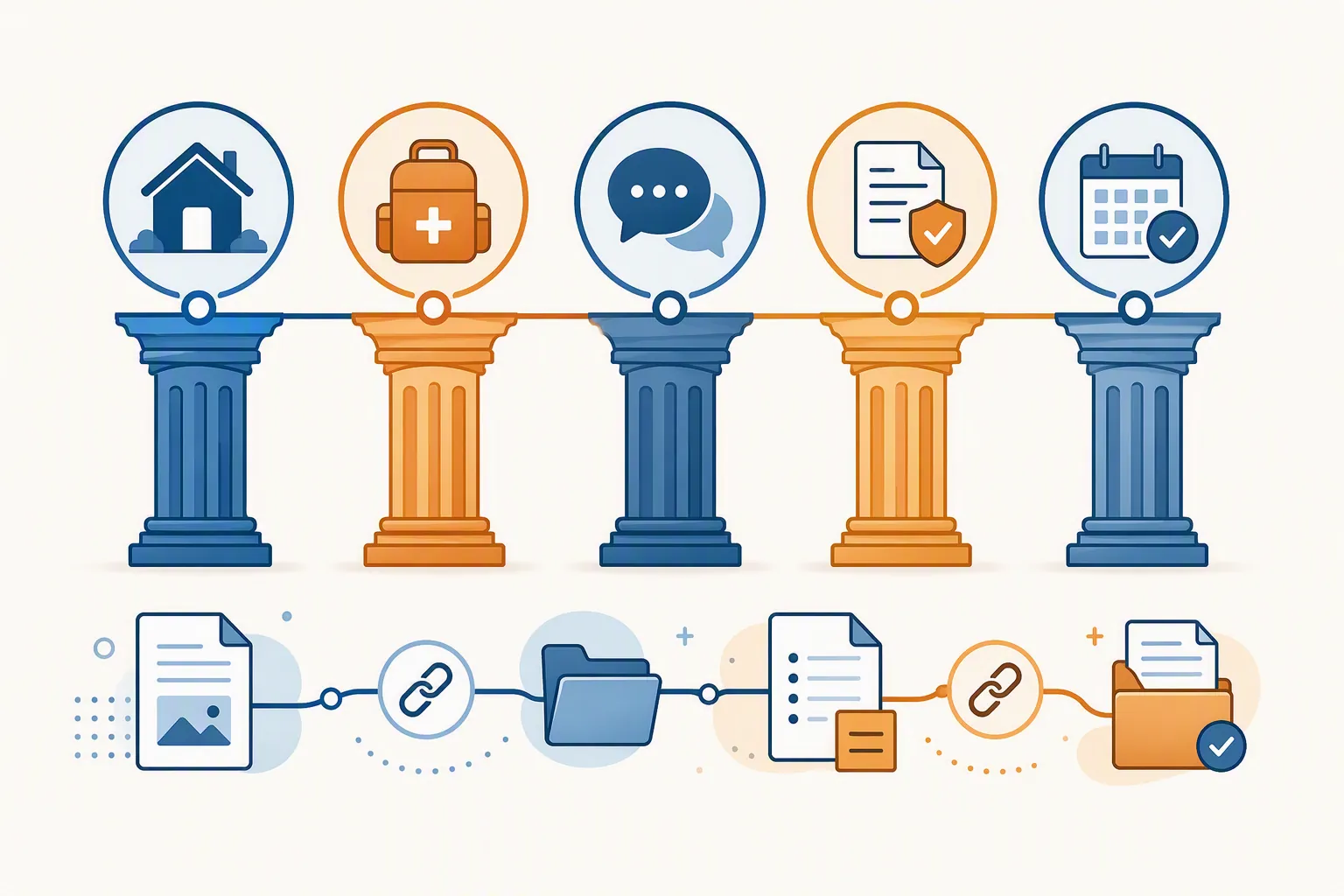
That is the useful version of a tornado safety plan for digital notes: take the same home-preparedness structure used for physical emergencies, then apply it to the digital place where years of personal knowledge now live. Tornado guidance commonly separates preparation into shelter readiness, emergency supplies, communication planning, document protection, and practice drills.[1][2] For notes, those become app/data ownership, export kits, redundant copies, offline protection for critical material, and restore drills.

The point is not to panic about every cloud app. Some cloud apps are excellent. The point is narrower and more practical: cloud sync is not a tested backup, and an export button is not proof of a recoverable archive. The only comforting backup is one you have restored, inspected, and can repeat.
Start With Shelter Readiness: Can You Get Your Notes Out?
In a house, shelter readiness means knowing where you go before the siren sounds. In a note system, it means knowing where your data lives and what shape it takes when the app is no longer available.
This is where app choice stops being a taste question. A polished editor, fast search, and beautiful sharing interface do not answer the shelter question. The shelter question is: if access is interrupted, what exact files do you have, and can another tool read them?
Evernote is the painful example because it has long offered exports, yet community reports show why “export available” can still fail as a safety plan. In a December 2025 Evernote forum thread, a user with roughly 60,000 notes described ENEX exports that lacked note IDs and notebook names, and said related portability problems had been reported for years without resolution. The same discussion described HTML exports with broken attachments and broken note links.[3] That is not the same as saying every Evernote export is unusable. It is saying that long-term, large-archive users cannot treat the existence of ENEX or HTML export as proof that their archive is faithful.
Notion has a different failure mode. Its strength is that it behaves like a shared online workspace; its risk is that the cloud account is the working copy. A 2025 account-loss case study describes how public-page enforcement and automated detection can remove access when an account is flagged, leaving no equivalent local working folder to fall back on.[4] That does not make Notion unusable. It means the shelter plan has to assume that account access itself is part of the risk.
Obsidian has an unusually clean answer to the shelter question because its vaults are folders of Markdown files. The working copy, backup format, and migration format can be the same plain files. That is an operational advantage, not a moral victory. Some teams need Notion’s collaboration model. Some people stay in Evernote because of clipping history, search, or inertia. The preparedness standard is not “use the app I like.” It is “know whether the app can produce a faithful, restorable copy before you need one.”
| App situation | Shelter question to answer before a crisis |
|---|---|
| Cloud workspace with no ordinary local working folder | Can you still access a recent usable copy if the account is locked, flagged, or unavailable? |
| Export exists but uses app-specific formats | Do attachments, internal links, notebooks, tags, and dates survive a restore? |
| Plain-file local vault | Are those files backed up outside the device and tested on another machine? |
| Rich-text app with weak bulk export | Which formatting, attachments, or metadata are you willing to lose, and which must be preserved another way? |
Build an Emergency Kit, Not a Single Precious Export
A home emergency kit does not contain one perfect object. It contains several boring, useful things that cover different failures. Your note emergency kit should work the same way.
- A native export from the app, because it is usually the richest format the vendor provides.
- A plain-text or Markdown archive where possible, because readable files age better than opaque databases.
- An HTML or PDF copy for notes that depend heavily on layout, web clips, or visual review.
- A metadata snapshot: notebook names, tag lists, creation dates if available, account email, app version, export date, and any known export limitations.
- A small “critical notes” folder containing the documents you would need first: IDs, insurance details, medical notes, financial references, active contracts, travel details, and current project handoff notes.
The plain-text copy matters because it gives you a lowest-common-denominator recovery path. Markdown will not preserve every visual detail from a complex workspace, and it may not capture every database relationship. But when you are trying to recover ten years of notes, readable text files with predictable attachment folders are a much better starting point than a single export file you have never opened.
For apps with weak or inconsistent exports, the emergency kit may need to be selective. A user leaving a large Evernote archive should not assume one ENEX file is enough if notebook placement, note links, and attachments matter. A Notion user may need both Markdown/CSV exports and separate PDFs for pages whose layout or database views carry meaning. The right answer is not always elegant. It is the answer that can be opened later.
Make a Communication Plan: Keep One Copy Outside the Failure
In home preparedness, the communication plan exists because the people and systems closest to the disaster may be unreachable. Notes have the same problem. If your only backup sits inside the same account, same laptop, same sync folder, or same vendor ecosystem, it may disappear at the same time as the original.
The familiar 3-2-1 backup rule is useful here: keep three copies of data, on two different media types, with one copy off-site or otherwise separate from the main environment.[5] For notes, that does not need to become a hobby. It can be as simple as the live app, a local export on your computer, and an encrypted copy in an independent cloud drive or external disk stored away from the device.
The independence is the part people skip. A synced folder is convenient, but sync faithfully distributes mistakes. If a corrupt note, accidental deletion, or bad overwrite syncs everywhere, the synced copy may not be a backup in the moment you need it.
The Standard Notes sync bug documented by ctrl.blog is the kind of incident that should make note keepers sober rather than theatrical. Between 2019 and 2021, a race condition could silently overwrite notes near the top of the note list. The lead developer confirmed a fix, but the important user-side lesson is that affected people might not notice immediately because the failure did not look like a dramatic crash.[6] Silent loss is exactly why a separate, dated copy matters.
Protect the Documents You Cannot Reconstruct
Most notes are recoverable in spirit even if the formatting is ugly. Some are not. A scanned lease, a medical instruction, a tax receipt, a client approval, a passport scan, a license key, a signed school form, or the one paragraph that explains how a family member’s care routine works should not depend on a note app export behaving nicely.
Make a separate protected set for these documents. Keep the originals in the note app if that is where you use them, but also store copies in an ordinary folder structure that does not require the note app to read. For the most important records, use formats that any computer can open: PDF, image files, plain text, or printed copies where that makes sense.
- Use clear folder names such as “Critical Documents,” “Medical,” “Home,” “Finance,” and “Travel.”
- Store attachments as files, not only as embedded objects inside notes.
- Keep an encrypted offline copy on a USB drive or external disk if the documents are sensitive.
- Print the few records someone might need during a power outage, account lockout, or hospital visit.
- Record where the protected copy lives so a trusted person is not guessing during an emergency.
This is also where the old Toy Story 2 deletion story remains useful, if only as a parable. A widely repeated historical account says a large portion of the film was accidentally deleted, backups failed, and a surviving copy existed on an employee’s home machine.[7] That story predates modern cloud habits and should not be treated as evidence about today’s note apps. Its useful lesson is simpler: a backup plan that has not been proven under recovery conditions may be a story people tell themselves until the restore fails.
The Drill Is the Plan
Preparedness guidance treats drills as more than ceremony. The reason is practical: people who rehearse move faster and make fewer decisions under pressure. Tornado-preparedness sources indicate that families that practice drills can reach shelter 3–4 times faster than those who do not.[2][8] For digital notes, speed is not the only benefit. The drill shows you what your backup actually contains while there is still time to fix it.
Run the drill before a migration, after major app changes, and on a calendar. Twice a year is frequent enough for most personal systems and easy to remember if you tie it to spring and fall preparedness checks. Do not wait for a price increase, account warning, sync bug, laptop failure, or acquisition announcement. Those are terrible moments to learn that your export folder is decorative.
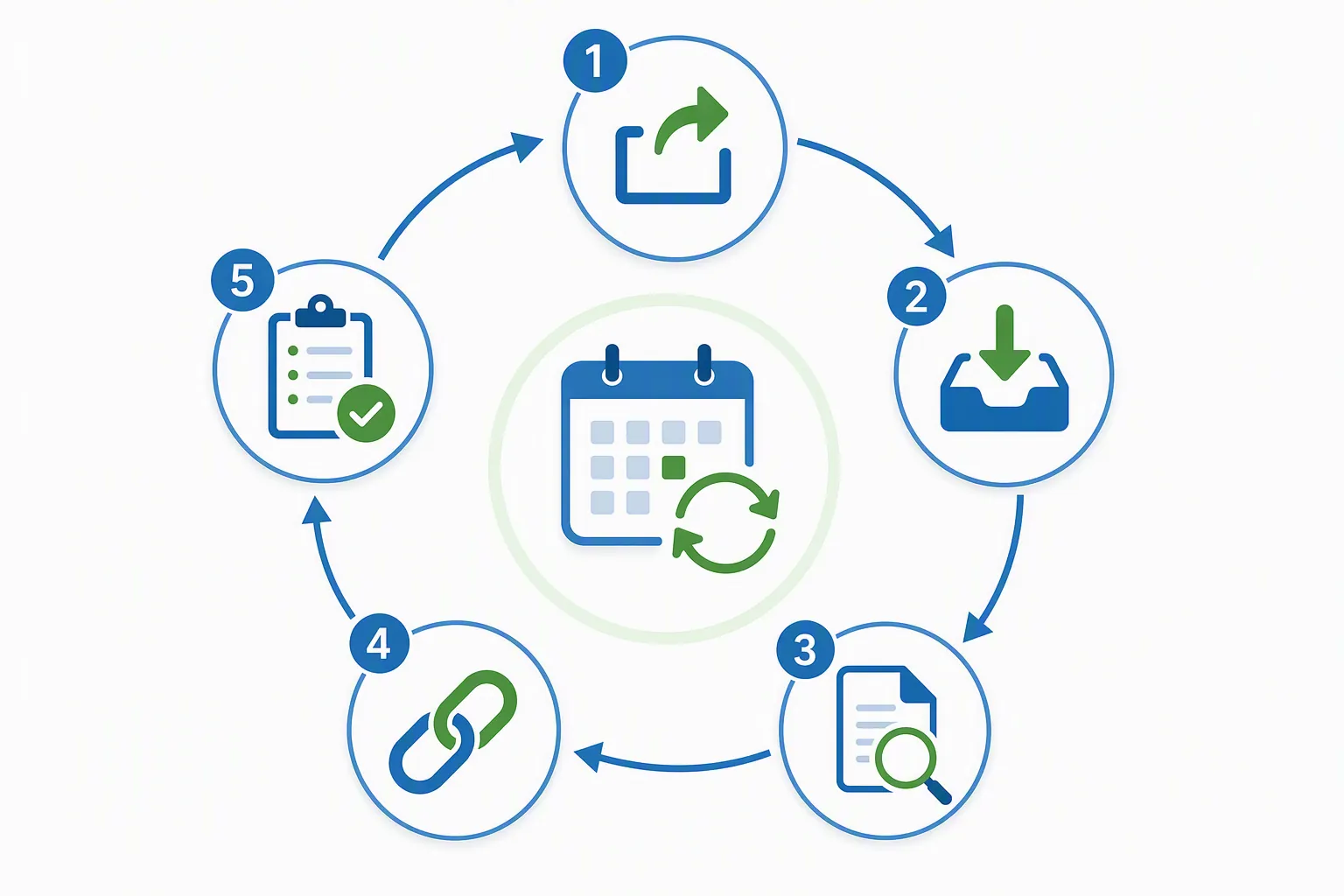
A restore drill for notes
- Export the full archive using the richest native format your app provides.
- Export a second format if available, such as Markdown, HTML, PDF, or CSV for databases.
- Restore or import the export into a separate test location, not back into your live workspace.
- Open a sample of old, new, large, attachment-heavy, web-clipped, linked, and tagged notes.
- Check whether attachments open from the restored copy, not from cached originals.
- Check internal links between notes and record whether they still point anywhere useful.
- Check metadata that matters to you: notebooks, folders, tags, creation dates, modified dates, authorship, database properties, or backlinks.
- Write down what failed, what was acceptable loss, and what requires a different export or migration path.
- Store the export, the metadata snapshot, and the drill notes together with the date.
Sampling is acceptable; pretending is not. If you have 40,000 notes, you do not need to inspect every note twice a year. You do need to inspect the categories most likely to fail: the oldest notes, the biggest notes, clipped web pages, PDFs, images, audio files, notes with many internal links, notes moved across notebooks over the years, and anything created by an importer or automation.
The drill should produce a small written result, not a feeling. A useful result looks like this: “July 2026 export opened in test vault. Text present. PDF attachments present in sampled notes. Internal links from imported Evernote notes broken. Tags preserved. Notebook names missing. Critical documents separately copied.” That is much better than “backup done,” because it tells you what kind of emergency you are actually prepared for.
Export Fidelity Is Where Most Plans Become Honest
A faithful export is not just a pile of note text. For a long-term archive, fidelity has layers. Text is the easiest layer to notice, so it gets too much credit. Attachments, links, notebooks, tags, dates, database fields, and embedded files are where the damage often hides.
| What to inspect | Failure to look for | Why it matters |
|---|---|---|
| Attachments | Files missing, renamed badly, stored in a path the restored note cannot find | Receipts, PDFs, images, and scans may be the actual record |
| Internal links | Links point to old app URLs, missing IDs, or dead note references | Research trails and project systems lose structure |
| Notebook or folder placement | Notes arrive flat or in the wrong container | Large archives become searchable but disorganized |
| Tags and properties | Labels disappear or database fields become plain text | Filtering and review workflows break |
| Dates | Creation or modification dates reset to export/import time | Chronology, audits, and memory cues become unreliable |
| Rich formatting | Tables, toggles, embeds, highlights, or web clips degrade | Some notes remain readable but lose meaning |
This is why vendor backup instructions are only a starting point. Evernote’s own backup guidance explains how to export notes, which is useful as far as it goes.[9] But the user still has to test whether the exported archive preserves the parts of their system that matter. A vendor can document the export path without guaranteeing that your particular decade of clips, attachments, note links, and notebook changes will restore cleanly into a future tool.
For Evernote users, the hard question is whether ENEX plus any available HTML export gives enough recoverability for the archive you actually have. If community-reported failures affect the exact features you depend on, “export more carefully” may not be enough. The plan may have to become a migration plan while the account is still accessible and the original notes can still be compared against the destination.[3]
For Notion users, the hard question is whether exports preserve the working meaning of a workspace. Markdown and CSV can carry a lot, but databases, relations, views, permissions, comments, and page layout may not survive as a usable working system. If a workspace is mostly collaborative project management, the recovery target may not be “perfect Notion outside Notion.” It may be “all critical content, files, and decisions remain readable while we rebuild.”
For Obsidian users, the hard question moves away from export and toward backup discipline. Plain Markdown files are a strong starting point, but a vault stored only on one laptop is still one spilled drink away from becoming a lesson. The advantage of plain files is that ordinary tools can protect them: Time Machine, rsync, Syncthing, cloud backup, external drives, or managed backup software. The plain-file model removes a lot of app-specific export risk; it does not remove the need for another copy.
A Working Note-Safety Calendar
A calendar turns this from anxiety into maintenance. The schedule can be simple because the work is specific.
| When | What to do |
|---|---|
| Before any migration | Export, restore into a test location, inspect attachments, links, metadata, and counts before deleting or downgrading the old account |
| Twice a year | Run a full export drill and update the dated backup set |
| After a major app update, plan change, or account warning | Run a targeted export test before assuming the old recovery path still works |
| After importing into a new app | Compare samples against the original while the original account is still available |
| When adding critical documents | Copy them outside the note app into the protected document folder |
The comparison before deletion is non-negotiable. If you are leaving an app, keep the old account available long enough to inspect the destination. Open awkward notes on purpose: the PDF-heavy note from years ago, the research note with twenty internal links, the web clip with images, the shared page, the old notebook you barely remember. Failed migrations often look fine if you only inspect recent clean notes.
A good drill also records acceptable loss. Maybe you do not care if web-clip styling changes. Maybe you do care if source URLs vanish. Maybe old modification dates are irrelevant, but creation dates matter. These decisions should be written before a crisis, because during a crisis almost every loss feels both urgent and confusing.
When the Drill Fails
A failed drill is useful. It means the failure happened while you still had choices.
If text exports cleanly but attachments fail, create a separate attachment archive and test whether file names and note references are understandable. If internal links break, decide whether the archive is still useful as a searchable record or whether a migration tool needs to rebuild links while both systems are live. If notebook names or tags disappear, take screenshots or export metadata lists before moving. If the export cannot preserve the structure that gives the archive meaning, stop treating the current app as a safe long-term container.
This is where preparedness may turn into migration. Not because every cloud note app is dangerous, and not because plain files solve every human workflow. Migration becomes reasonable when the app cannot produce a faithful recoverable archive for the way you use it. At that point, better intentions do not improve the backup. A different data shape might.
The standard is plain: if your notes cannot survive an export drill, you do not yet have a safety plan. If the app cannot produce a recoverable archive that preserves the parts of your system you rely on, the plan has to include migration, not just another reminder to back up someday.
References
- Tornado Preparedness Checklist for Homeowners — Survive-A-Storm
- Ready.gov Tornadoes — Ready.gov
- Evernote forced migration / data portability — Evernote Forum
- Notion + Data Loss / Privacy — hamy.xyz, November 2025
- 3-2-1 Backup Rule — Veeam
- Standard Notes sync bug — ctrl.blog
- 3 Data Loss Horror Stories — AppSolute
- NWS Tornado Safety — National Weather Service
- Evernote How to Back Up Your Notes — Evernote





Comments
Join the discussion with an anonymous comment.