
The urgent part of migrating notes out of OneNote for Windows 10 into alternative productivity setups is not whether Obsidian looks cleaner than OneNote. It is that OneNote for Windows 10 has stopped being a normal workspace. Microsoft says that after October 14, 2025, the Windows 10 OneNote app is view-only, with export available, and users are directed to move to the current OneNote on Windows app instead. [1]
That changes the job. You are no longer reorganizing notes at leisure; you are extracting years of material from a read-only client whose notebooks live in OneDrive, not as tidy local notebook files waiting in a folder. [2] The question is which route keeps the most of what you cannot recreate: clipped pages, ink, attachments, audio, page order, and the small scraps that only matter after they vanish.
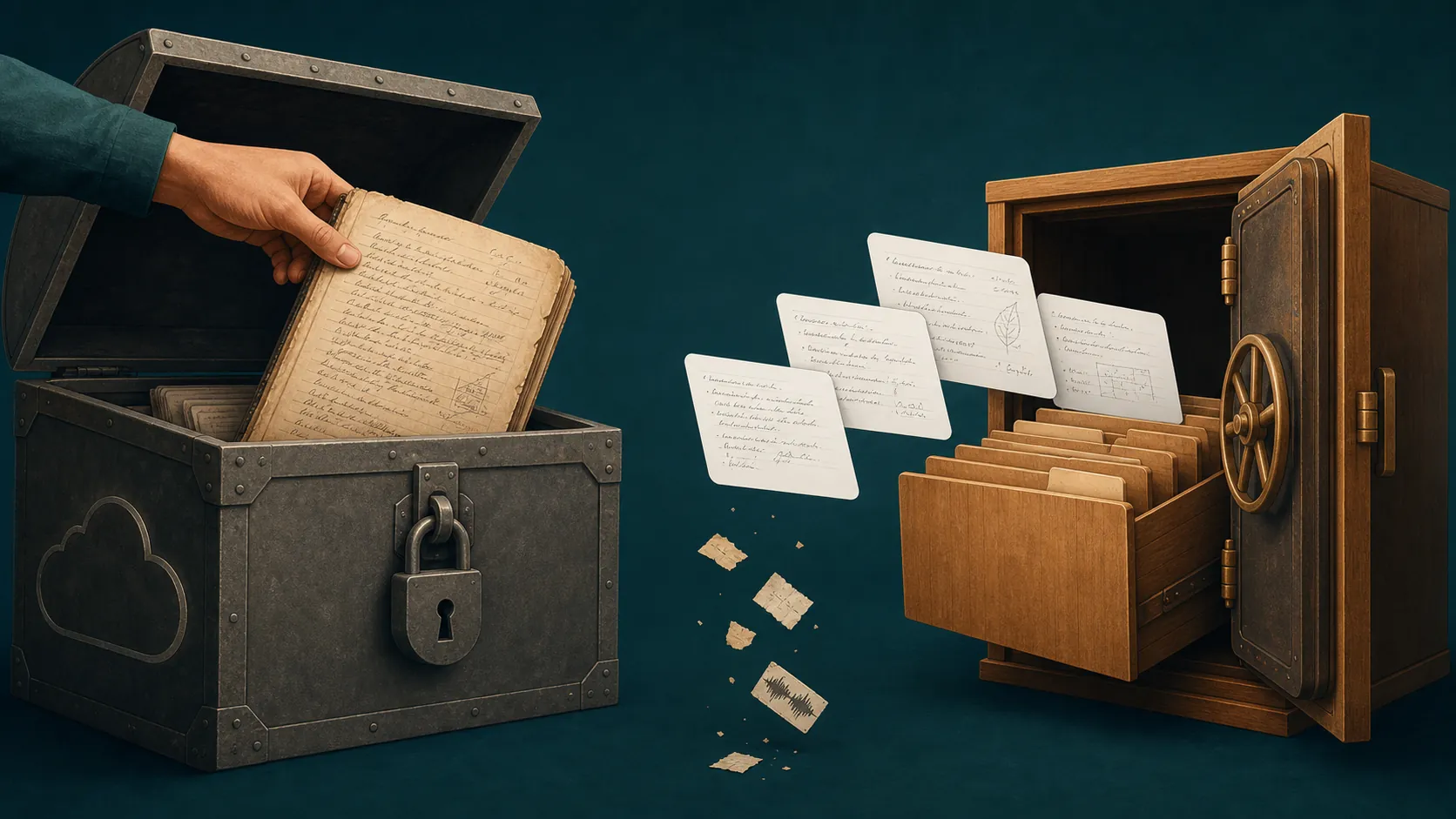
Start with the real fork: account type and library size
Before choosing Obsidian, Notion, or the newer OneNote desktop app, sort your situation into the two constraints that actually decide the migration path.
| Constraint | Why it matters | Safer direction |
|---|---|---|
| Personal Microsoft account | Microsoft’s browser export for OneNote notebooks is available only for notebooks stored on personal OneDrive accounts. | Export a ZIP as a backup first, then test Obsidian import or a Notion detour. |
| Work or school Microsoft account | The personal OneDrive web-export route does not apply. | Use the Obsidian Importer against the cloud notebook, or first stabilize the notebook inside the current OneNote on Windows app. |
| Small, mostly typed-text library | Fewer pages and fewer embedded files reduce the number of places conversion can fail. | Obsidian Importer is worth trying directly; Notion may be acceptable if you already want Notion. |
| Large library with hundreds or thousands of pages | Long imports are more exposed to service throttling, partial runs, and content-type surprises. | Treat the migration as a staged transfer with verification after each notebook. |
| Heavy ink, audio, tables, code, or attachments | These are the items most likely to degrade or disappear silently. | Prefer the path that preserves the specific object type you need, and inspect samples before deleting anything. |
If you only want to remain inside Microsoft, this is not the article that should do the persuading. The stay-put route is covered separately in the OneNote desktop or Loop migration guide. This guide is for the moment after you have decided that your notes need a third-party exit path, usually Obsidian first, with Notion only as a fallback bridge.
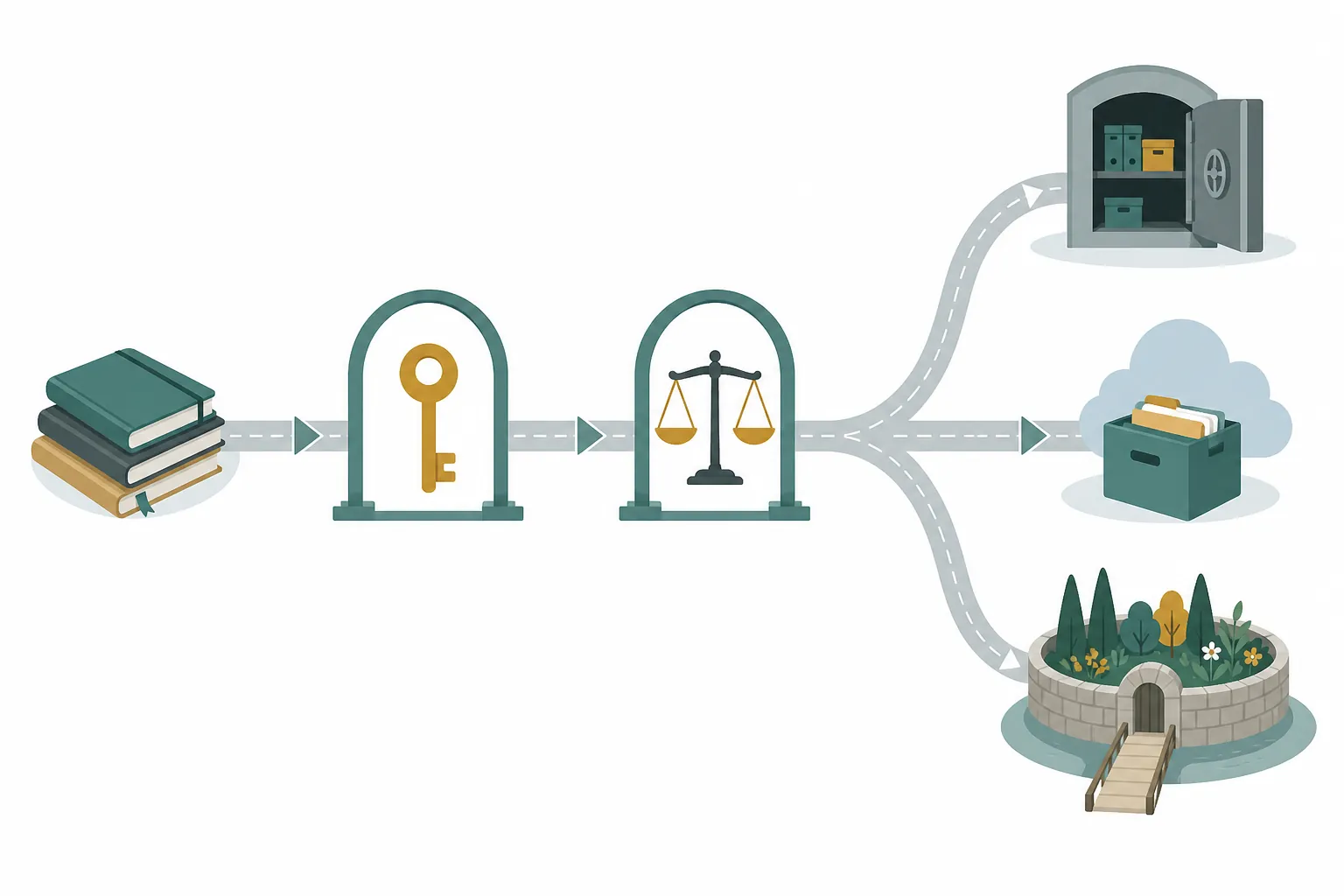
Pre-flight: prove OneDrive has the complete notebook
A read-only app can still show you cached content. That does not prove the same content exists safely in OneDrive, and OneDrive is what most migration routes will actually read. The first task is therefore dull and important: confirm that each notebook is fully synced before you point an importer at it or uninstall the old app.
Microsoft’s own migration guidance tells users to make sure notebooks are synced before uninstalling OneNote for Windows 10, and it points users with unsynced material toward recovery through the OneNote on Windows backup path under File > Options > Save & Backup. [3] Treat that as the minimum bar, not a reassuring footnote.
- Open every notebook in OneNote for Windows 10 and note the notebook names, section names, and any sections with sync warnings.
- Open the same notebooks in the current OneNote on Windows app or in the browser and check that recent pages, attachments, ink-heavy pages, and audio-heavy pages are visible there too.
- Do not use the clean appearance of the old app as proof. Pick pages that contain the hardest material: handwriting, pasted web clips, file printouts, recordings, tables inside lists, and code snippets.
- If a page appears only in the old client, stop. Recover or resync that page before continuing. Importers cannot rescue content they cannot read.
For personal OneDrive notebooks, also make a browser export before attempting any third-party import. Microsoft’s export tool is documented for personal OneDrive notebooks, and failed exports can produce a ZIP that contains only an errors.txt file instead of the notebook data you thought you downloaded. [4] Open the ZIP and check its contents. A file with the right name and the wrong payload is not a backup.
The Obsidian route: direct import first, then verify page by page
Obsidian is the cleanest destination when you want local Markdown files instead of another cloud notebook silo. The official Obsidian Importer is the relevant tool to test first; its public repository includes OneNote among the supported import sources. [5] The promise is attractive: connect to the source, import into a vault, and end up with notes you can inspect as files.
Do not confuse that promise with a lossless transfer. A 2026 first-hand migration account of roughly 1,500 OneNote pages reported that the Obsidian Importer paused mid-run after hitting OneNote API rate limiting. The same account found that ink drawings were preserved as SVG, while some tables inside bullet lists, code blocks, and blockquotes degraded. [6] That is useful evidence, but it is still one documented migration, not a guarantee about every notebook.
Set up the vault as a receiving area, not as your final archive
Create a new Obsidian vault just for the import. Do not mix the first run into your daily vault. A quarantine vault lets you delete a bad run, repeat a notebook, or compare converted pages against OneNote without contaminating your permanent note system.
- Install or update Obsidian.
- Enable the Obsidian Importer.
- Create a fresh vault named for the migration date.
- Import one notebook first, preferably one that contains a realistic mix of text, attachments, ink, and older clipped material.
- Inspect that notebook before starting the rest of the library.
The first notebook is not a sample for comfort. It is a controlled failure test. If your tables collapse, if images detach from their surrounding context, or if audio becomes unfindable, it is cheaper to learn that on one notebook than after a full-library run.
When the importer stalls, do not make the mess larger
The rate-limit problem is the main Obsidian failure mode to respect. In the documented 1,500-page migration, the importer did not simply glide through a large OneNote library; it paused when Microsoft’s API throttled the run. [6] If that happens, the wrong instinct is to keep launching overlapping retries until something appears to move.
- Record which notebook and section were active when the import stopped.
- Let the throttled run settle before restarting.
- Resume in smaller units if the tool allows it.
- Keep the original OneNote notebook untouched in OneDrive.
- After a retry, compare page counts and spot-check the boundary pages around the failure point.
A stalled import is not proof that the destination is bad. It is proof that the migration is no longer a one-click job. Once throttling appears, the run has to be treated as a batch transfer with a ledger: what started, what completed, what was retried, and what still needs inspection.

What to inspect in the Obsidian vault
Markdown conversion makes failures look deceptively tidy. A converted page may exist, have the right title, and still have lost the part that mattered. Check content types, not just note counts.
| OneNote material | What to check in Obsidian | What the evidence supports |
|---|---|---|
| Typed notes | Open several long pages and compare headings, lists, links, and paragraph breaks. | Generally the easiest material to preserve, but formatting still needs review. |
| Ink drawings | Look for image or SVG output near the original context. | One 2026 migration account reported ink preserved as SVG. |
| Tables inside bullet lists | Compare nested tables against the OneNote original. | The same account reported degradation in this area. |
| Code blocks | Check indentation, fencing, and line breaks. | The 2026 account reported code-block issues. |
| Blockquotes | Check whether quote styling survived or flattened into ordinary paragraphs. | Some blockquotes degraded in the documented migration. |
| Attachments | Confirm that files are present in the vault and that links open the expected file. | Do not infer success from the page title alone. |
| Audio | Confirm that playable media exists and is linked from the note. | Audio needs direct inspection; do not assume survival unless the imported file is present. |
For each notebook, choose several pages that are deliberately inconvenient: the old meeting page with an audio note, the lecture page with ink, the clipped article with a table, the project page with attached files, the page where you pasted code in a hurry. Those pages are the migration test. A page full of plain text proves very little.
Older first-hand OneNote-to-Obsidian migration accounts also point to manual cleanup after import rather than a perfect one-pass conversion. [9] That is not a reason to avoid Obsidian. It is a reason to reserve cleanup time before you depend on the vault.
The personal-account ZIP route is a backup, not a magic tunnel
If your notebooks are in a personal OneDrive account, Microsoft’s export page gives you a way to download notebook ZIPs. [4] That ZIP is worth having even if you plan to use the Obsidian Importer, because it gives you an independent artifact outside the read-only Windows 10 app.
But this path has two hard limits. First, it is not the work-or-school export path. Second, the downloaded file must be checked immediately. If the ZIP contains only errors.txt, you have a failure report, not your notebook. [4]
A sensible use of the ZIP is conservative: download one notebook, open the archive, confirm that it contains notebook data, store a copy somewhere safe, and only then proceed with conversion experiments. Do not build the rest of the migration on an unchecked export.
The Notion detour: useful only under narrow conditions
Notion can be a bridge when the source is a personal OneDrive notebook export, the library is modest, and the content is mostly text, images, and simple attachments. It is not an equal substitute for the Obsidian route if your OneNote archive contains material that only survives when represented precisely.
The first problem is size. Notion’s own import documentation states that free plans have a 5 MB file upload limit, ZIP imports can be up to 5 GB, and imports with more than 10,000 files may import only partially. [7] Those limits matter because OneNote notebooks often hide their size in exactly the places people forget to count: PDFs, image-heavy web clips, printouts, recordings, and old attachments.
The second problem is silent loss. In the same 2026 migration account that tested Obsidian, the Notion detour lost ink drawings and audio even when other material appeared to migrate. [6] That is a narrow claim from a first-hand test, not a universal law. It is still enough to disqualify Notion as the casual bridge for anyone whose notebooks depend on handwriting or recordings.
| Use Notion as a detour when... | Avoid the Notion detour when... |
|---|---|
| Your source notebook is exportable from a personal OneDrive account. | Your notebooks belong to a work or school account and cannot use the personal web-export path. |
| The archive is small enough to stay within Notion’s import and file limits. | The export approaches the ZIP cap or contains thousands of embedded files. |
| The notes are mostly typed text, images, and ordinary attachments. | Ink drawings, audio annotations, or file-heavy research pages are central to the archive. |
| You already want Notion as the destination or staging area. | You only chose Notion because it sounded easier than verifying an Obsidian import. |
If Notion is your intended destination rather than a temporary bridge, use a dedicated Notion migration workflow and verify its limits before starting. The general Notion procedure is covered in the Evernote-to-Notion migration guide, but OneNote brings different risks because of ink, audio, and the personal-account export condition.
The CLI fallback is for local notebooks, not OneDrive magic
Some migration guides mention command-line exporters. OneNote Md Exporter is a real open-source tool for exporting OneNote content to Markdown, but its own project positioning matters: it is aimed at local OneNote notebooks and the desktop OneNote environment, not at turning the Windows 10 UWP app into a local-file exporter. [8]
That makes it a fallback for a narrower situation: you have a notebook available locally through the desktop OneNote app, you are comfortable running a CLI tool, and you can inspect the Markdown output. It is not the first answer for a OneNote for Windows 10 user staring at OneDrive-backed notebooks inside a read-only app.
A brief word on staying with Microsoft
Moving from OneNote for Windows 10 to the current OneNote on Windows app is the lowest-friction path if your real goal is to keep using OneNote. It keeps you closer to Microsoft’s supported route and avoids turning every embedded object into a conversion test. For neutral background on the product itself, see the Microsoft OneNote profile.
That choice may be perfectly reasonable. It is just a different problem. This article is about getting out, and once you leave OneNote, the question becomes less about feature comparison and more about evidence: which converted files exist, which media opens, which pages still match the original, and which losses you are willing to accept.
If your migration is also driven by old hardware or the end of Windows 10 support, destination choice belongs in a separate comparison. Start with note apps for old PCs after Windows 10 end of life before committing the archive to a heavy cloud workspace.
Do not uninstall until the new archive has answered for itself
The safe order is simple, but it is not quick: sync first, back up where possible, import in controlled batches, inspect the converted material, and only then remove the old app. The uninstall step is not housekeeping. It is the point where you stop having an easy visual reference for what the notebooks used to contain.
- Every notebook opens in OneNote on Windows or the browser before migration.
- Personal-account notebooks have checked ZIP exports where available.
- The Obsidian vault contains the expected notebook and section structure.
- A sample of difficult pages has been compared against OneNote.
- Ink-heavy pages, audio pages, attachment-heavy pages, and table-heavy pages have been opened directly in the destination.
- Any stalled Obsidian imports have been logged and retried in smaller batches.
- Notion imports, if used, have been checked against file-size limits and inspected for missing ink or audio.
A large OneNote library with ink and audio should not be migrated by preference alone. Account type decides whether the web-export backup exists. Library size decides how patient you need to be with import throttling. Content type decides whether a detour through Notion is acceptable or reckless.
No path here is lossless. Obsidian is usually the better exit when you want local files and can tolerate verification work. Notion is a narrow bridge for smaller, simpler personal-account exports. Microsoft’s own desktop OneNote app is the holding pattern if conversion risk is higher than the need to leave. Choose the route by constraint, verify before trusting it, and keep the old notebook reachable until the new archive has proved that the material you care about actually made it across.
References
- What is happening to OneNote for Windows 10, Microsoft Support
- OneNote for Windows 10 - ANY way to store notebook files locally?, Microsoft Q&A
- Moving to OneNote on Windows, Microsoft Support
- Export OneNote notebooks, Microsoft Support
- obsidian-importer, GitHub
- OneNote to Notion 2026, Note Bridge
- Import data into Notion, Notion
- OneNote Md Exporter, GitHub
- Migrating to Obsidian from OneNote, Steve Streeting, July 30, 2023








Comments
Join the discussion with an anonymous comment.