
On October 20, 2025, AWS had the kind of outage that turns “synced everywhere” into a very small promise. The incident began at 3:11 AM ET in US-EAST-1, involved a DynamoDB DNS race condition, and stretched into a multi-phase recovery lasting more than 15 hours; EC2 launches were still failing more than 11 hours after DNS had been restored.[1][2] Notion and other AWS-dependent services were reported as affected, though Notion’s own incident post was not part of the reviewed materials, so that claim rests on third-party reporting rather than a first-party Notion write-up.[1][2]
If you came here to learn how to keep notes accessible during an AWS outage, the useful answer is not “pick better apps.” It is more boring and more protective: configure offline access on every device you actually use, export your notes into a format outside the app, keep a tiny local-first copy of the notes you cannot afford to lose, and learn which features will stop working even when the note itself opens.

| What to set up | What it protects against | What it does not solve |
|---|---|---|
| Offline access per app and per device | The note not opening when the cloud service is unreachable | Deleted, corrupted, or never-downloaded content |
| Manual exports in portable formats | Being locked inside one vendor’s sync system | Real-time recovery unless you export regularly |
| A small local-first fallback | The critical notes you need even if every cloud dependency is down | Full replacement of your main workspace |
| Failure-mode awareness | Bad assumptions about AI, embeds, uploads, sync, sharing, and mobile access | The outage itself |
First, make the right notes offline on every device
The phrase “offline mode” hides the part that matters: which notes, on which device, under which plan, after which action. A page that opens on your laptop may not be available on your phone. A notebook that is safe on desktop may show only snippets on mobile. A synced note may have a local copy, while a different account inside the same app may be fully local.
Start with the device you would actually reach for under pressure: the phone in a classroom, the tablet in a meeting, the laptop before a flight. Then configure the app there, not just on your main computer.
Notion: pin the exact pages you need, then verify them
Notion’s offline mode, introduced in August 2025, is not a whole-workspace local copy. It is opt-in per page and per device. Paid plans get automatic downloads for the top 20 favorited pages and 20 recent pages, while Free plan users get no automatic offline downloads. Databases are capped at 50 rows, subpages are not automatically downloaded, and mobile syncing is Wi-Fi-only rather than cellular.[3][4]
That makes the safe Notion setup very specific: open Notion on each device, choose the pages you would need during an outage, enable offline availability for those pages, then open each page while you still have a connection. Do not assume a parent page covers everything underneath it. If your meeting agenda links to a subpage called “client history,” open and mark that subpage too.
- For a project dashboard, make the dashboard available offline, then separately open the linked pages you expect to need.
- For a database, check whether the rows you need are inside the offline cap; do not treat a large database as safely cached.
- For mobile, test offline access after Wi-Fi sync has completed, because cellular sync behavior is limited.
- For Free plan workspaces, manually select what matters; there is no automatic offline safety net.
The easiest test is also the most honest one: turn on airplane mode, open the page from a cold start, and see whether the content you need is actually there. If the answer is “mostly,” treat that as “not ready.” For a broader look at where Notion works well and where it still asks users to trust the cloud, see our 2026 Notion assessment.
Evernote: desktop is safer than mobile by default
Evernote is easy to misunderstand because its desktop and mobile behavior diverge. On desktop, Evernote stores a full local database automatically, so users are insulated from an AWS outage without special preparation. On mobile, offline notebooks must be configured manually per notebook, and offline notebooks are a subscriber-only feature; without that setup, mobile may show only titles and snippets during an outage.[5]
If you use Evernote on a phone or tablet, decide which notebooks must work away from the network: class notes for the current semester, client notes for active accounts, travel documents, medical information, recipes, or reference material. Mark those notebooks for offline use on each mobile device. Then wait for the download to finish before counting on it.
The uncomfortable edge case is the Free plan mobile user who thinks “I have Evernote installed” means “my notes are on this phone.” For outage planning, those are different statements. The desktop database helps on a laptop; it does not make a mobile notebook available offline unless the mobile offline feature is present and configured. Readers deciding whether Evernote still fits their workflow can compare that tradeoff in our 2026 Evernote review.
Apple Notes: know whether the note is iCloud-synced or truly local
Apple Notes has two separate ideas that often get collapsed into one. With iCloud Notes sync turned on, notes can download local copies to each device through Settings → [name] → iCloud → Notes → Sync this iPhone. Separately, the “On My Mac” or “On My iPhone” account stores notes locally and independently of iCloud. This distinction is based on Apple support discussions and user reports rather than a crisp official Apple document in the reviewed materials, so it is worth testing on your own devices instead of relying on a label.[6]
For practical purposes, put your non-negotiable notes in a place you understand. If you want them synced across devices, make sure they are in iCloud Notes and already downloaded on each device. If you want a small set to have no iCloud dependency at all, keep copies in the local “On My” account on the device where you will need them.
The local account is not magic; it is local. A note saved only “On My iPhone” will not appear on your Mac through iCloud. That is acceptable for emergency material only if you choose the right device deliberately.
GoodNotes: open the notebook before you need it
GoodNotes’ cloud sync uses AWS infrastructure according to its Cloud FAQ, but notebooks that have already been opened on a device remain accessible locally without connectivity. During an outage, syncing new changes, accessing notebooks on another device, and restoring from cloud are the fragile parts.[7]
For handwritten notes, the preparation is simple and easy to skip: open the notebooks you would need during an exam, meeting, clinic, lesson, or trip on the exact iPad or device you will carry. Do not leave the notebook as a cloud thumbnail and assume it will download later. Later is exactly when the cloud may not be there.
Handwriting-heavy users comparing GoodNotes with nearby alternatives can go deeper in our GoodNotes vs Notability 2026 guide, but for outage prep the rule is narrower: opened locally beats promised by sync.
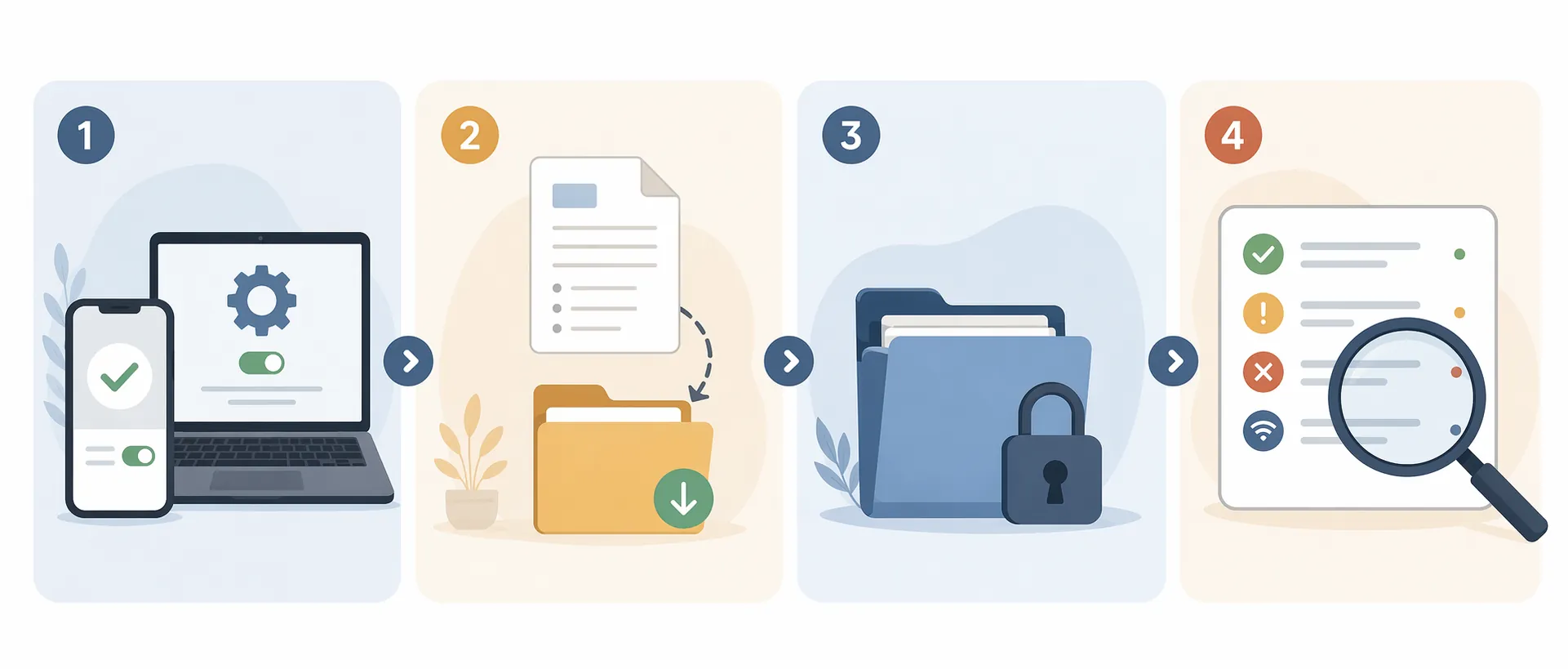
Exports are where offline access becomes data control
Offline mode helps you open something during an outage. An export helps you leave the app’s sync system entirely, at least for recovery and reference. Those are different kinds of safety. A cached page can disappear if the server state changes; an exported file sitting in a folder you control is dull in the best possible way.
Notion lets you export workspace content from Settings as HTML or Markdown, but large workspaces may fail or hang; the recommended workaround in the reviewed guidance is to export top-level pages one at a time. The export link also expires after 7 days, and there is no scheduled automated export built into Notion.[8]
For Notion, a realistic backup habit looks like this: once a month, export the workspace if it is small enough; if it is not, export the pages that would hurt most to lose. Download the archive immediately rather than leaving it in the export email. Store it somewhere independent of Notion: a local drive, an encrypted external drive, or another backup location you already trust.
| App | Useful export format | Main caveat |
|---|---|---|
| Notion | HTML or Markdown workspace/page export | Large workspaces may fail or hang; export links expire after 7 days; no scheduled automated export.[8] |
| Evernote | ENEX files | Manual notebook export; no built-in scheduled local export in the reviewed materials. |
| Apple Notes | Manual copies or third-party export tools | No strong native bulk export path in the reviewed materials. |
| GoodNotes | PDF notebook export | Good for readable handwritten archives, but still a manual habit. |
Evernote’s ENEX export is still the practical route for preserving notebook data outside Evernote. It is not glamorous, and it is not automatic. The important decision is cadence: active notebooks might deserve a monthly export; an archive you rarely touch may only need a quarterly or after-major-project export.
Apple Notes is the awkward one. If your notes are mostly casual text, manual copy-paste for the critical few may be enough. If Apple Notes is where you keep years of research, client material, or personal records, the weak bulk-export story should bother you. A third-party exporter may be reasonable, but test the output before you trust it.
GoodNotes exports cleanly for the use case many people care about most: readable notebooks. PDF is not the same as a fully editable GoodNotes archive, but during an outage or account problem, a PDF of your course notebook or travel packet is often the thing you actually need.
Across the reviewed materials for Notion, Evernote, Apple Notes, and GoodNotes, the common gap is scheduled automated local exports. The evidence here is not an exhaustive survey of every hidden feature or niche tool; it is the more practical finding that the normal documented paths are manual. If your backup depends on remembering, put the reminder somewhere you will see it.
Add a small local-first fallback, not a whole new life
A local-first fallback is not a declaration that cloud apps are bad. It is a place for the short list of notes that cannot be allowed to depend on AWS, iCloud, login servers, export links, or a sync queue.
Obsidian is a good fit for that role because it stores notes as plain-text Markdown files on local disk. Reading and editing those files has no runtime dependency on remote servers. Sync is optional, through Obsidian Sync or third-party methods, rather than required for the app to function locally.[9][10]
Keep this fallback boring. Create one folder or vault called something like “Critical Notes.” Put only the material you would be angry not to have: today’s agenda, passport and travel details, current medication notes, exam outlines, client emergency contacts, key procedures, or a one-page index pointing to exported files on disk.
If you want to explore that model more fully, our local-first note-taking comparison covers the broader category, and our Obsidian Review 2026 looks at the app in depth. For this article’s purpose, you do not need to migrate your second brain. You only need a local copy of the notes that would ruin your day if they failed to open.
Know what will still break
Preparedness does not mean every feature works. It means you know the difference between the note, the sync layer, and the cloud-only extras before the outage starts.
In Notion, offline mode is a synced mirror rather than a backup. If a page is deleted or corrupted on the server, the offline copy can follow. Text edits use CRDT-style merging, but database properties such as selects, dates, relations, and rollups do not merge the same way; one version can be silently overwritten, and Notion may create duplicate pages marked “Conflict.” During an outage, AI features, embeds, forms, buttons, file uploads, and sharing or permission changes should not be counted on.[3]
In Evernote, the question is usually device-specific. A desktop user with the local database is in a much better position than a mobile user who never configured offline notebooks. If the phone only has note titles and excerpts when the network is gone, the subscription feature you did not set up yesterday will not help you today.[5]
In Apple Notes, iCloud sync pauses when the service or network path is unavailable. Locally cached notes may remain readable, and local “On My” notes avoid iCloud entirely, but edits that belong in iCloud will not propagate until the connection and sync path return.[6]
In GoodNotes, already-opened local notebooks are the safe part. The unsafe parts are the ones that need the cloud: syncing new changes to another device, pulling down a notebook that was never opened locally, and restoring from GoodNotes Cloud while the underlying service path is unavailable.[7]
A practical standard for being ready
You are ready for the next outage when you can pass three plain tests.
- With airplane mode on, the notes you need open on the device you will actually have with you.
- A current export exists outside the app, in a format you can inspect without trusting the app’s servers.
- A small local-first folder contains the handful of notes you cannot afford to troubleshoot during an outage.
That is enough to change the failure mode. You may still lose sync, AI, embeds, uploads, sharing changes, or cross-device handoff for a while. But the agenda opens. The notebook opens. The travel document opens. You are no longer waiting for US-EAST-1 to be healthy before you can think.
References
- AWS services recover after daylong outage hits major sites — CNBC — October 20, 2025
- AWS Outage Analysis: October 20, 2025 — ThousandEyes
- Notion Offline Mode: How It Works, Limitations & Data Safety (2026) — Notion Backups
- Notion Offline Mode vs Obsidian: Expectations, Reality, and a New Local-First Alternative — Tokie
- Access notes offline — Evernote Help & Learning
- Apple Support discussions and user reports on iCloud Notes and local “On My” accounts — Apple Support Community
- Goodnotes Cloud FAQ — Goodnotes Support
- How to export notes from Notion and make an offline backup of your data — Kaspersky — 2026
- Obsidian Help — Obsidian Help Center
- The 6 Best Local-First Note-Taking Apps in 2026 — Flexnote






Comments
Join the discussion with an anonymous comment.