
Before a $1,999 iPhone Ultra turns into an iPhone Ultra note taking migration problem, do one dull thing: find out where every note actually lives. Do it before you activate the new phone, before the eSIM transfer starts, and definitely before the old iPhone is erased.
Last verified: July 30, 2026. This is a pre-launch migration playbook, not a hands-on Ultra test. Apple has not officially announced the iPhone Ultra, iOS 27 is still in beta, and no retail Ultra hardware has been used for a final restore test. The device details that matter here — reported $1,999 starting price, 7.8-inch 4:3 inner display, eSIM-only setup, side-button Touch ID, and foldable design — come from pre-launch reporting, not Apple’s product pages.[1][2]
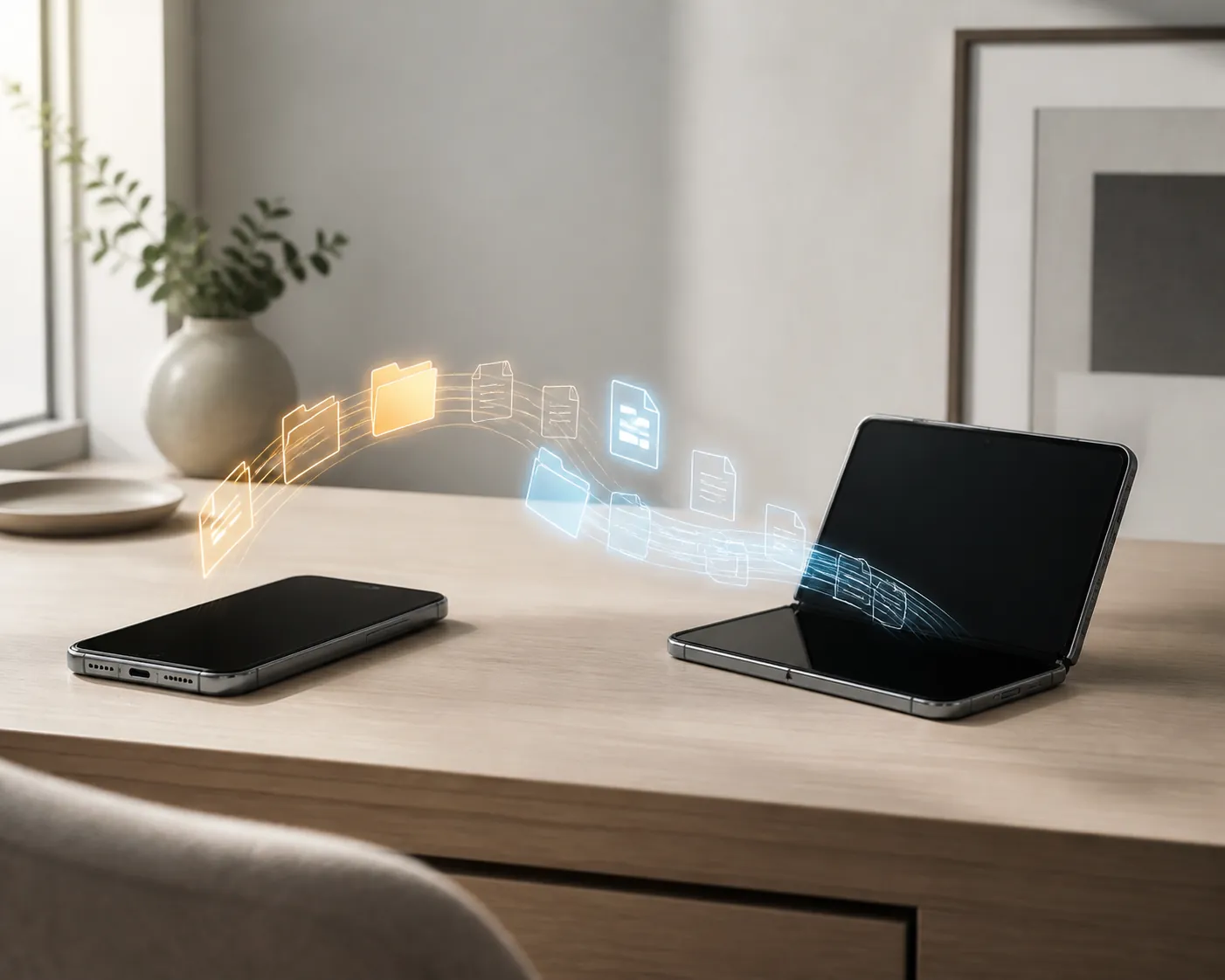
Start With a Notes Inventory, Not a Backup Button
Apple’s restore flow is useful, but it is not a map of your entire note life. It can restore an iCloud backup or move data during setup, and Apple’s own setup guidance includes the familiar path of backing up the old iPhone and restoring that backup to the new one.[3] That still leaves a basic question unanswered: were the notes you care about actually in the part of the phone that backup-and-restore covers cleanly?
Open Apple Notes on the old iPhone and look at the folders list. Do not search for one memorable note and assume the rest followed the same route. Check the account headings.
- iCloud: these notes are meant to sync through iCloud when Notes is enabled for the same Apple Account on both devices.
- On My iPhone: these are local notes stored on the old phone. Treat them as a separate migration job.
- Gmail, Outlook, Yahoo, or another mail account: these may sync through that account rather than through iCloud.
- Recently Deleted: inspect it before migration if you have been cleaning up folders during upgrade prep.
- Third-party apps: GoodNotes, Notability, Obsidian, Evernote, OneNote, Bear, Craft, and similar apps own their own storage and sync behavior.
Write down rough counts by bucket. You do not need a courtroom-grade audit, but you do need enough numbers to notice trouble later: 420 iCloud notes, 37 On My iPhone notes, 12 locked notes, 9 scanned-document notes, 4 PDF-heavy folders, three notebooks in GoodNotes. The exact categories will vary. The point is to make the invisible local storage visible while the old phone is still alive.
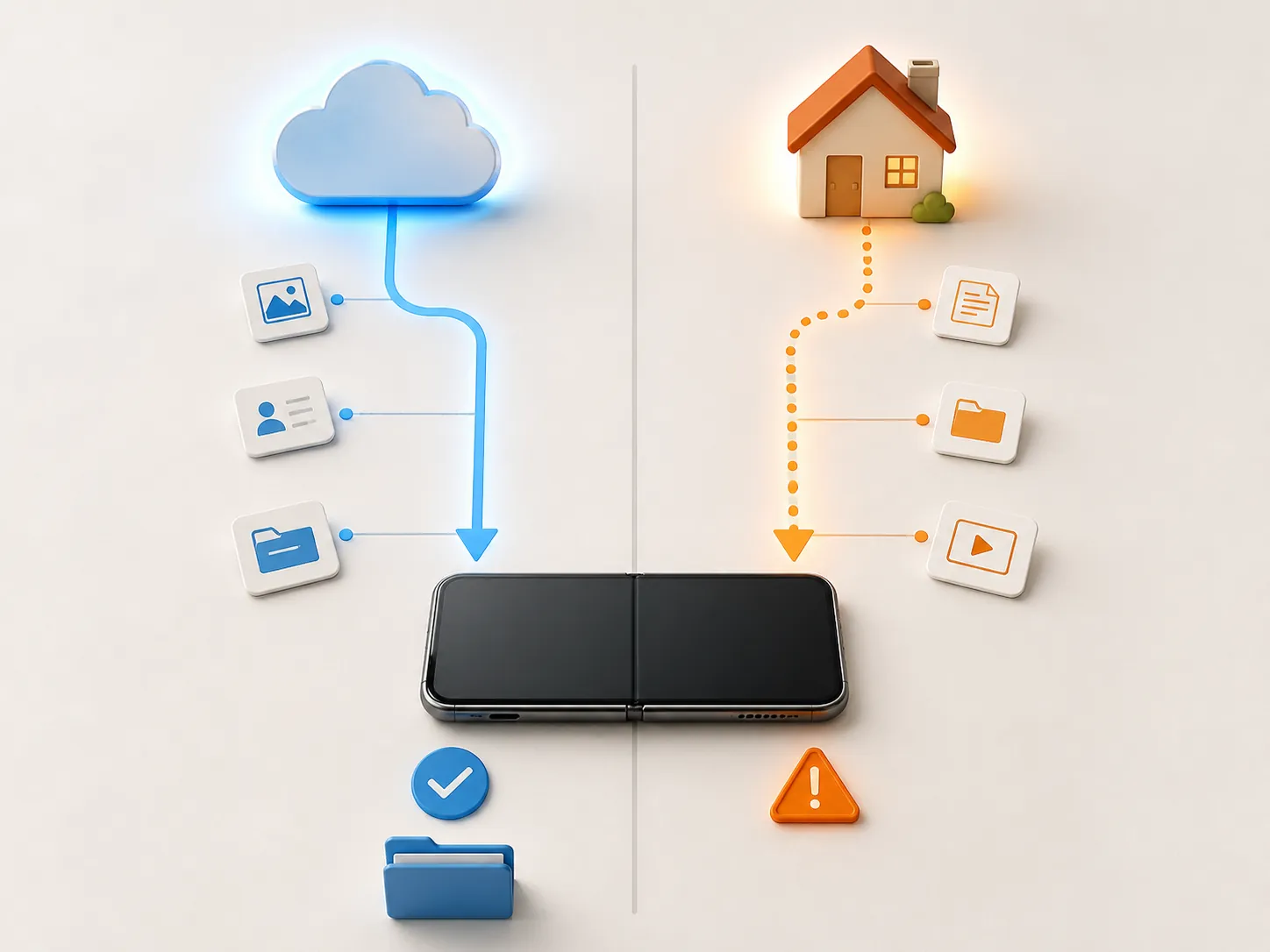
The Three Buckets That Decide the Migration
| Where the notes live | Best migration path | What to verify on the Ultra |
|---|---|---|
| iCloud Apple Notes | Enable iCloud Notes and restore or sync with the same Apple Account | Folder counts, locked notes, scans, PDFs, drawings, shared notes |
| On My iPhone Apple Notes | Move to iCloud before migration, or transfer manually with AirDrop/export | Every local folder, not just the notes visible in search |
| Third-party note apps | Use the app’s own sync, backup, export, or account restore system | Notebook counts, handwriting layers, attachments, offline files, foldable layout |
Apple’s iCloud Notes setup page is straightforward: turn on Notes in iCloud settings on each device signed into the same Apple Account, and notes stored in iCloud are kept up to date across those devices.[4] That sentence is doing more work than it appears to do. It says iCloud notes. It does not say every note that happens to be visible inside the Notes app.
That distinction matters more on an expensive foldable because the migration moment is likely to be compressed. You may be in a store. You may be moving an eSIM instead of swapping a physical SIM. You may be watching the new device complete setup while the old phone is already being prepared for trade-in. A local folder that fails to move is not dramatic on the setup screen. It simply is not there.
Happy Path: iCloud Notes and a Full Device Restore
If your Apple Notes archive is entirely in iCloud, the cleanest route is still Apple’s normal setup path: update the old iPhone, connect it to power and Wi-Fi, make a fresh backup, then restore or transfer during new-device setup using Apple’s migration tools.[3][5] After that, sign into the same Apple Account on the Ultra and confirm that Notes is enabled under iCloud.
The part worth slowing down for is the old phone. After the final backup, stop editing notes on it. If the new Ultra is restoring from a backup while the old iPhone is still being used for new notes, edits, scans, or locked-note changes, you have created a timing problem that the success screen will not explain. Put the old device in Airplane Mode or power it down after the backup if you are not using direct device-to-device transfer.
- On the old iPhone, go to Settings, tap your name, open iCloud, and confirm Notes is enabled.
- Open Notes and confirm the important folders are under iCloud, not On My iPhone.
- Make a fresh iCloud backup or prepare for Apple’s direct transfer during setup.
- After the final backup, stop creating or editing notes on the old iPhone.
- Set up the Ultra, sign into the same Apple Account, and wait for Notes to finish syncing before judging the result.
Do not verify too early. Apple Notes can show the folder structure before every attachment, scan, or drawing has finished arriving. Leave the Ultra on Wi-Fi and power, open the largest folders, and let the app prove that it has more than a list of titles.
The Local Notes Problem Apple’s Restore Language Makes Easy to Miss
The risky bucket is “On My iPhone.” These notes are inside Apple Notes, so they feel like Apple Notes. But they are local to the device unless you move them. iCloud Notes setup does not automatically turn those local folders into iCloud folders; it syncs the notes that are already in iCloud.[4]
Before migration, the least painful fix is usually to move local notes into iCloud while you still have the old phone in your hand. In Notes, open the folder list, enter the On My iPhone folder, select notes, and move them to an iCloud folder. For a small archive, you can do this note by note. For a messier archive, create matching iCloud folders first, then move each local folder deliberately.
Do not flatten everything into one “Migrated” folder just to make the move faster. Folder names are part of how people find old thinking. A receipt scan, a medical note, a draft resignation letter, and a half-built travel itinerary may all be “notes,” but they are not equally harmless if they disappear into the wrong pile.
If You Cannot or Will Not Move Local Notes to iCloud
Manual transfer is slower, but it is safer than pretending local notes are covered. AirDrop can move individual notes or selected content between nearby Apple devices, and third-party transfer tools are commonly presented as alternatives in migration guides; Wondershare’s iPhone-to-iPhone notes guide, for example, frames the problem around several methods including AirDrop and software-assisted transfer.[6] Treat those as tools, not guarantees. Your verification still has to happen in Notes on the Ultra.
- For a few local notes: AirDrop each note to the Ultra, then open and file it immediately.
- For foldered local notes: recreate the folder structure on the Ultra or in iCloud first, then move notes folder by folder.
- For notes with attachments: open the attachment after transfer, not just the note title.
- For sensitive notes: confirm they remain locked or re-lock them after transfer.
- For anything you export as a file: keep the export somewhere independent, such as a Mac folder or external drive, until the Ultra is fully verified.
If iOS 27 ships with the Apple Notes markdown export behavior currently being reported in beta coverage, it may become a useful escape hatch for plain-text-heavy notes or for people leaving Apple Notes later.[7] Do not treat markdown export as a full-fidelity backup for every note type. A note full of scans, drawings, tables, and PDFs is not the same migration problem as a note full of typed meeting bullets.
Locked Notes Need a Touch ID Check
Current reporting expects the iPhone Ultra to use a side-button Touch ID sensor rather than Face ID.[1][2] If your old iPhone unlocks protected notes with Face ID, do not assume the restored note has been meaningfully checked just because its title appears. Open a sample of locked notes on the Ultra and confirm that the new biometric path works.
Use three samples: one old locked note, one recently edited locked note, and one locked note with an attachment. If any of them asks for a password you no longer remember, solve that while the old iPhone is still available. A biometric unlock habit can hide an old password problem for years.
Rich Notes Deserve the Inner Display Test
The Ultra’s reported 7.8-inch 4:3 inner display is the reason this is not just another restore article.[1][2] Typed notes should be boring. The weirdness is more likely to show up in scanned documents, embedded PDFs, handwritten drawings, pasted screenshots, wide tables, and notes that were formatted around a tall slab-phone screen.
After restore, open the same attachment-heavy notes in three states if the final hardware supports them: outer display, inner display, and split-view or multitasking layout. iOS 27 beta reporting has pointed to foldState and app-resizability work, which helps explain why apps may adapt differently across folded and unfolded states.[8] That is a reason to test, not a reason to panic. Rendering behavior on actual Ultra hardware remains unverified until the device ships.
- Open one scanned document and zoom to the signature or smallest text.
- Open one PDF stored inside a note and check page order, thumbnails, and annotation visibility.
- Open one drawing or handwriting-heavy note and confirm strokes have not shifted visually.
- Open one note with a wide table or pasted screenshot on the inner display.
- Share or export one important note as a test, because a note that displays correctly can still fail at the next handoff.
Third-Party Note Apps Are Their Own Migration Projects
GoodNotes, Notability, OneNote, Evernote, Obsidian, Bear, Craft, and similar apps should not be treated as passengers inside Apple Notes. They may be included in an iPhone restore as apps and app data, or they may depend on their own account sync, iCloud Drive storage, local backup, subscription status, or manual export system. Check inside the app before the Ultra arrives.
For handwriting apps, the first verification pass is not “does the app open?” It is whether notebooks, handwriting layers, audio recordings, imported PDFs, stickers, templates, and offline files are actually present. If the app has a cloud sync status screen, look at it on the old phone before migration and again on the Ultra after sign-in.
- Open the app on the old iPhone and confirm which account is signed in.
- Find the app’s sync, backup, or export settings before the old phone is wiped.
- Export one important notebook or folder as a test if the app supports it.
- After setup, install or open the app on the Ultra and wait for its own sync to finish.
- Inspect a handwriting-heavy page, a PDF-heavy notebook, and an offline item on the inner display.
Foldable layout is the untested part. iOS 27’s reported app-resizability work suggests Apple is preparing software behavior for changing display states.[8] That does not tell us how every note app will handle pen toolbars, page thumbnails, two-page views, or old notebooks on the Ultra’s 4:3 canvas. Until retail testing exists, mark third-party rendering as “must verify,” not “solved by restore.”
A Practical Migration Runbook
| When | Action | Do not move on until |
|---|---|---|
| A week before buying | Inventory Apple Notes folders and third-party apps | You know what is iCloud, local, mail-account, and app-owned |
| A few days before setup | Move or export On My iPhone notes | Local folders have a destination outside the old phone |
| Setup day | Make the final backup, then stop editing on the old iPhone | The old phone is powered down or no longer being used for notes |
| After Ultra restore | Let iCloud and app sync finish on Wi-Fi and power | Folder counts and app libraries match your inventory |
| Before erase or trade-in | Open samples from every risky bucket | Locked notes, attachments, local transfers, and third-party notebooks are verified |
If something is missing, do not start by erasing and restoring again. First identify the bucket. Missing iCloud folder? Check iCloud Notes settings and web access. Missing On My iPhone folder? Go back to the old phone. Missing GoodNotes notebook? Check the GoodNotes account, sync status, and export options. Missing PDF inside an Apple Note? Leave the Ultra on power and Wi-Fi, then reopen the note after sync has had time to finish.
This is also the moment to decide whether your note app is still the right home. If the migration exposes export limits, subscription friction, or a notebook system that only works when nothing goes wrong, compare alternatives before rebuilding the same fragile setup. FlowDesk’s guide to free vs paid note-taking apps in 2026 and its piece on the hidden costs of free note-taking apps are more useful after you have seen where your current system bends.
Safe to Erase the Old iPhone Only After This
The old iPhone is safe to erase only after the Ultra has passed the boring checks: iCloud folder counts match, every former On My iPhone folder has been moved or exported, locked notes open with the new authentication path, scans and PDFs display correctly, and third-party notebooks have finished their own sync or restore.
If you are still deciding whether the Ultra is worth the migration risk, the related iPhone 17 Pro vs 18 Pro note-taking comparison is the cleaner place to think about staying with a Pro model. If the migration goes well and you want to build a larger workflow around Apple Notes afterward, start with the MacBook note-taking stack. FlowDesk will update this guide after the iPhone Ultra ships with first-hand restore, locked-note, attachment, and third-party app testing on retail hardware.
References
- iPhone Ultra is coming: Six new features in Apple’s top-tier model, 9to5Mac, July 24, 2026.
- iPhone Ultra folding design, display, specs, release, Macworld.
- Restore your iPhone, iPad, or iPod touch from a backup, Apple Support.
- Set up iCloud for Notes on all your devices, Apple Support.
- Use Quick Start to transfer data to a new iPhone or iPad, Apple Support.
- How to Transfer Notes from iPhone to iPhone, Wondershare.
- iOS 27 Apple Notes Features, Geeky Gadgets.
- iOS 27 Hints at Foldable iPhone With App Resizability Push, MacRumors, June 8, 2026.



Comments
Join the discussion with an anonymous comment.