
The short answer, before you touch your calendar data
If your Fantastical renewal is coming up, iOS 27 Calendar is finally worth testing as a replacement — with two large caveats. First, Fantastical is not suddenly a bad app. The individual plan is listed at $4.75 per month when paid annually or $6.99 month-to-month, with the family plan at $7.50 per month, so the irritation is mostly about carrying yet another subscription for a utility Apple already ships on every device you own [1]. That is a very different complaint from “Fantastical is useless,” and at least one real cancellation account makes the same point: the app can be genuinely good and still not feel worth renewing [2].
Second, as last verified on July 30, 2026, iOS 27 is still beta software. The public beta was released on July 13, with the final release expected September 14, and the Apple Intelligence-dependent behavior requires an iPhone 15 Pro or later [3]. If your iPhone misses that hardware cutoff, the comparison changes immediately: you may still get some ordinary Calendar improvements, but the natural-language workflow that makes this whole switch interesting is not the same.
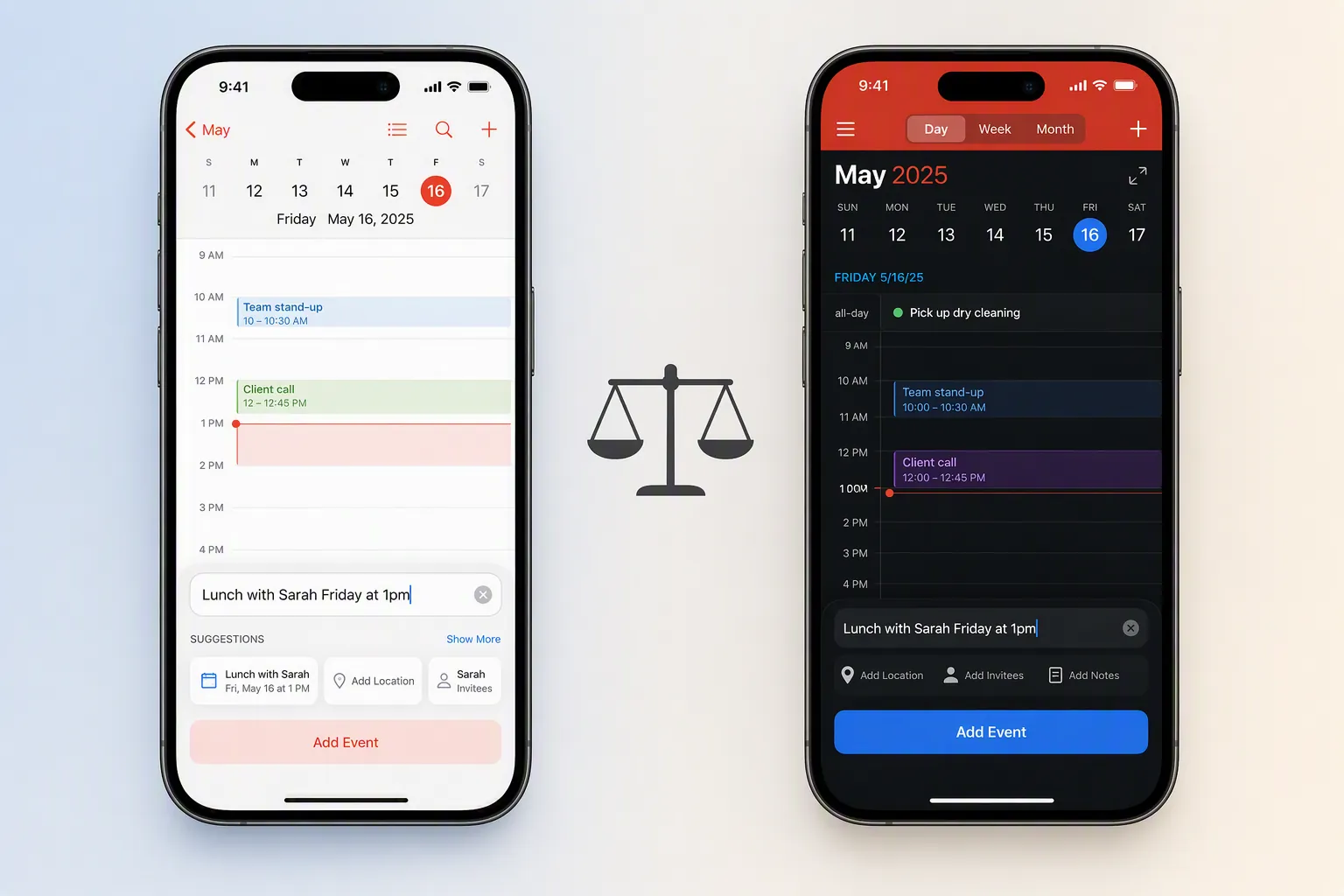
With that out of the way, the practical verdict is narrow but useful: iOS 27 Calendar can replace Fantastical for many subscribers whose main paid feature is fast natural-language event creation and who already live inside Apple Calendar, Reminders, Mail, Messages, and Siri. It is not a clean replacement if your week depends on Fantastical’s calendar sets, Mac menu-bar capture, faster one-shot parsing, custom event colors, one-tap meeting join behavior, or a sync setup you already trust.
| You can probably switch if… | You should be cautious if… |
|---|---|
| You mostly pay for natural-language event entry. | You use Fantastical calendar sets to change contexts quickly. |
| You have an iPhone 15 Pro or later and are comfortable with Apple Intelligence features. | Your main event-capture habit is Fantastical’s Mac menu-bar input. |
| You are already using Apple Reminders, Mail, Messages, and Siri heavily. | You rely on custom event colors, fast meeting joins, or known-good sync behavior. |
| You are willing to run iOS 27 as beta software or wait for the final release. | You want the migration to feel identical on iPhone, iPad, and Mac. |
What iOS 27 Calendar actually changes
The reason this comparison is different in 2026 is not the large widgets, the persistent month view, or the general polish pass. Those are welcome, but they do not usually decide whether someone keeps paying for Fantastical. The meaningful change for productivity workflows starts with natural-language input: Apple Calendar can now interpret plain-language event descriptions and offer date and time suggestions as tappable chips [4].
Apple also connects Calendar more tightly to the rest of its system. The iOS 27 changes described by MacRumors include Siri creating events across apps like Mail and Messages, Visual Intelligence adding events from photos or screenshots, larger widgets, and a persistent month view [4]. Those are useful if your calendar already begins in Apple’s world: a flight email in Mail, a school announcement in Messages, a screenshot of an appointment card, a reminder that should live beside timed obligations.
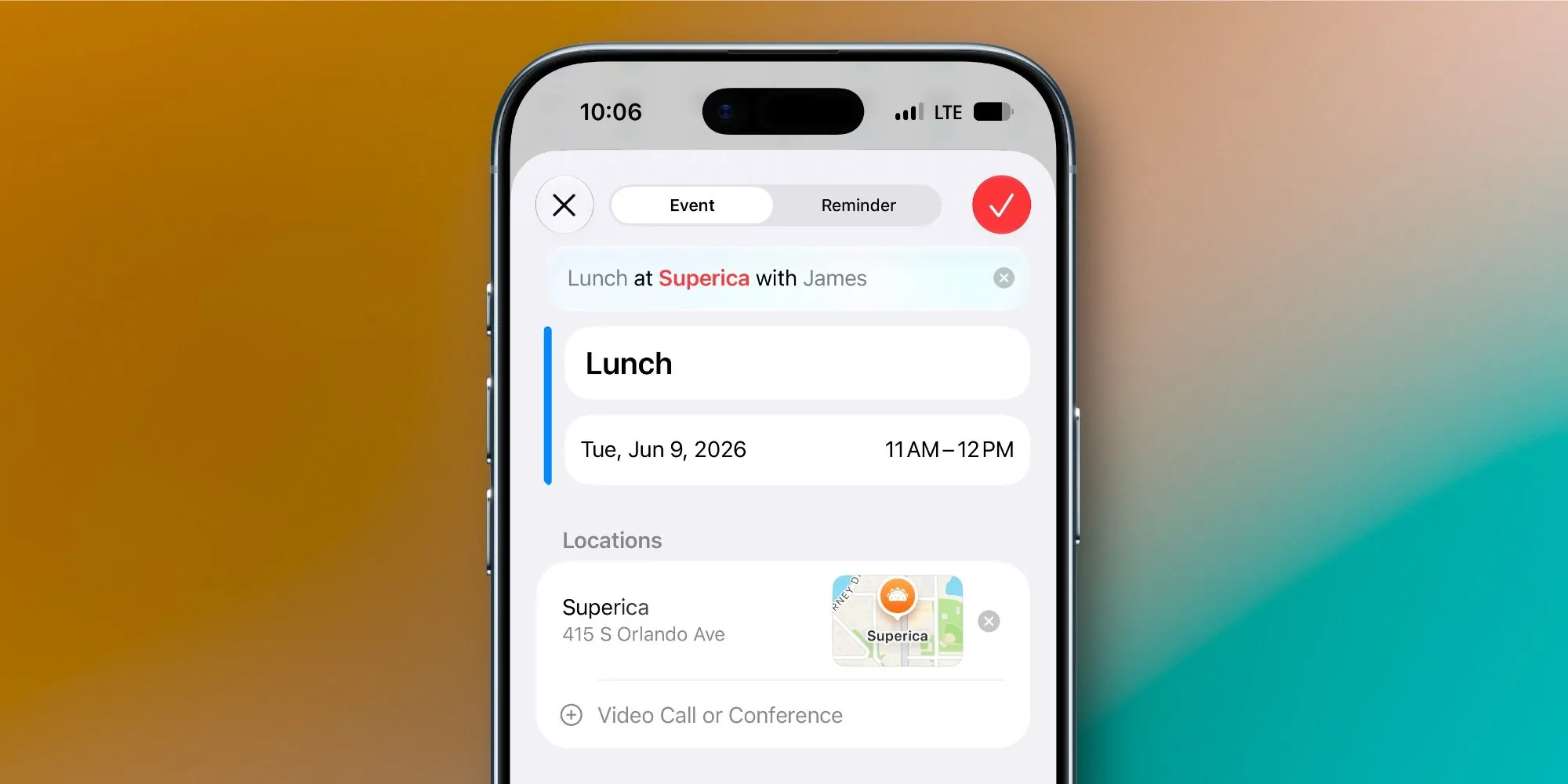
The 9to5Mac hands-on account is the more important source here because it describes the feel, not just the feature list. The new input is described as the Calendar feature the author had wanted for years, and that matters: the old Apple Calendar problem was not that it lacked decorative views; it was that entering a normal event felt slower than it should [5].
Natural-language entry: the gap is closed, not erased
Fantastical’s advantage has always been brutally practical: type something like a meeting, a date, and a time, then let the app turn it into a structured event with very little ceremony. Apple’s iOS 27 approach gets much closer, but the sources describe a suggestion model rather than a fully fluid one-shot parse. MacRumors describes the interface as offering date suggestions that the user taps to confirm, and 9to5Mac notes that the result is still not as fluid as Fantastical [4][5].
That distinction sounds small until you create events all day. If you add an appointment from a message thread, a dentist visit from a screenshot, and a project check-in from a loose thought while walking between rooms, one extra confirmation tap is probably fine. If your calendar is built from rapid-fire keyboard capture, the friction starts to show. Apple has solved the “why am I manually picking every field?” problem. It has not necessarily matched the fastest Fantastical muscle memory.
Apple does gain something Fantastical cannot copy in quite the same way: system placement. When Siri can pull an event from Mail or Messages, or Visual Intelligence can add something from an image, Calendar becomes less of a destination app and more of an endpoint for information already moving through your phone [4]. That is the argument for trying Apple’s stack first if your devices qualify. It is also why this is not just a feature-count fight.
The pre-iOS 27 pain was real — and not all of it was natural language
Older switch-back stories should be handled carefully because they predate iOS 27. They do not prove that Apple Calendar is still too slow at creating events after the new natural-language work. They do, however, document the exact kinds of workflow friction Apple had to overcome.
BirchTree’s account of trying Apple Calendar and returning to Fantastical called out sync lag, changes not appearing until force-closing, no menu-bar access, no calendar sets, and no one-tap meeting join [6]. Six Colors’ “there and back again” migration story also predates iOS 27 and is useful for the same reason: it shows that people do not abandon a native app only because one headline feature is missing [7]. They leave because the little capture and context-switching habits accumulate.
That is the part most “Apple killed Fantastical” takes skip. A new input field can make Apple Calendar viable without making it identical. For a subscriber trying to remove one charge from a credit card, the question is whether the remaining differences touch your actual week.
The tradeoffs that show up after the first clean week
Calendar sets are the biggest workflow loss
Fantastical calendar sets are not a cosmetic preference. They let you move between views such as work, family, shared calendars, and planning calendars without repeatedly checking and unchecking individual calendars. If you use those sets to keep your day readable, Apple Calendar asks you to rebuild that behavior manually.
On iPhone and iPad, the substitute is mostly manual toggling. On Mac, a Keyboard Maestro-style automation can approximate the act of switching visible calendars, but that is not the same as Fantastical’s native calendar sets. It also does not travel cleanly to iOS. If your calendar is only tolerable because a single command changes the entire visible context, do not treat this as a minor missing feature.
Mac menu-bar quick entry has no perfect Apple replacement
This is the habit that can ruin an otherwise sensible migration. Fantastical’s Mac menu-bar access means event capture is always a tiny gesture away. Apple Calendar can be opened quickly, and Spotlight or Shortcuts may cover some people’s launch habits, but that is not the same as a dedicated menu-bar capture surface. BirchTree’s dated switch-back account specifically named the lack of menu-bar access as one of the reasons Apple Calendar did not stick [6].
Itsycal can help on the Mac if what you miss is a lightweight menu-bar calendar. It is worth considering as a supplement, not as a full Fantastical clone. It does not give your iPhone or iPad a menu-bar equivalent, and it should not be counted as a fix for mobile quick entry.
Custom event colors and meeting joins are small until they are not
Custom event colors are easy to dismiss if you mostly scan by calendar. They become harder to lose if you use color as a planning layer inside the same calendar: deep work, travel, tentative holds, immovable appointments. Apple Calendar’s native structure may be enough, but this is one of those places where “I can live without it” should be tested against an actual week, not decided from a feature chart.
Meeting joins sit in the same category. A one-tap join button does not sound like a subscription-worthy feature until the call starts in ninety seconds and the link is buried in an event body. BirchTree’s pre-iOS 27 account specifically called out the lack of one-tap meeting join as part of the move back to Fantastical [6]. If you live in video meetings, recreate a normal meeting day in Apple Calendar before canceling anything.
Sync reliability deserves a boring test
Sync is where the price argument can become expensive in time. BirchTree’s report of changes not appearing until force-closing the app is dated, but it is still a useful warning about what to verify on your own devices [6]. Add an event on the Mac. Edit it on the iPhone. Move it from the iPad. Check whether alerts, shared calendars, and recurring events behave the way you expect. Do that while Fantastical is still installed and your renewal has not forced the decision.
If switching apps tends to break your routines more than you expect, it is worth treating this as a habit migration rather than a settings chore. FlowDesk’s guide to how habits form in the brain for app switchers is relevant here because the old menu-bar shortcut or Fantastical input reflex will fire before your more rational subscription plan does.
Run this switch test before exporting anything
Do not start with migration. Start with a normal workweek simulation, because the whole decision turns on whether Apple Calendar can absorb your existing capture habits.
- Confirm hardware eligibility. If you are not on an iPhone 15 Pro or later, do not assume the Apple Intelligence-dependent natural-language behavior is available to you [3].
- Decide whether you are testing the beta now or waiting for the final iOS 27 release. As of July 30, 2026, this is still pre-release software [3].
- Create the same kinds of events you normally create in Fantastical: appointments from text, work meetings, recurring obligations, reminders that need dates, and events copied from messages or screenshots.
- Pay attention to confirmation taps. Apple’s suggested date chips are useful, but they are not the same as Fantastical’s more fluid parsing model [4][5].
- Spend at least part of the test on the Mac. If you always create events from Fantastical’s menu bar, opening Apple Calendar as a full app may feel slower even if the iPhone experience feels modern.
- Check your context views. If calendar sets are how you separate work, personal, family, and planning layers, try living with manual calendar toggling before you export anything.
This is also the moment to check whether your iPhone is worth upgrading for Apple Intelligence at all. If that question is open, FlowDesk’s 2026 productivity iPhone comparison is the more relevant decision than a calendar export.
Migration: Fantastical to Apple Calendar without pretending nothing changes
Once Apple Calendar passes the switch test, keep the migration deliberately plain. The goal is not to rebuild Fantastical inside Apple Calendar. The goal is to move your events safely, verify the calendars you depend on, and make an explicit decision about every missing habit.
1. Export your calendars from Fantastical as .ics files
Export each calendar you need from Fantastical in .ics format. Treat the files as both migration material and a rollback checkpoint. If you have multiple calendars, keep the filenames boring and obvious: work, personal, family, school, planning. This is not the place for clever naming.
2. Import the .ics files into Apple Calendar
Open Apple Calendar and import the .ics files into the calendars where those events should live. If you are doing this on the Mac, keep Fantastical available until you have compared the imported result. The danger is not usually that every event disappears; it is that one recurring series, shared calendar, or old all-day event lands somewhere you did not expect.
3. Verify events, calendars, alerts, and recurrence
Do a visual pass calendar by calendar. Check near-term meetings, future appointments, recurring events, shared calendars, all-day events, and alerts. Then edit a test event on each device you actually use. If an event created on the Mac does not appear quickly on the iPhone, or an alert behaves differently than expected, solve that before canceling Fantastical.
4. Rebuild calendar-set behavior honestly
On iPhone and iPad, expect to toggle visible calendars manually. On Mac, you can experiment with automation tools such as Keyboard Maestro to switch sets of calendars more quickly, but label that for what it is: a workaround. It may reduce clicks on the Mac; it does not recreate Fantastical’s native calendar sets across the whole Apple-device workflow.
5. Add a Mac menu-bar supplement only if it solves your actual problem
If you miss a glanceable menu-bar calendar, try Itsycal on the Mac. If you miss Fantastical’s fast menu-bar event creation, be more skeptical. A small calendar in the menu bar is helpful, but it does not make Apple Calendar behave like Fantastical on iPhone or iPad, and it does not remove the extra cognitive step if your old habit was “type event, press return, done.”
6. Keep Fantastical through the verification window
Do not delete Fantastical the same day you import your calendars. Leave both apps visible long enough to catch sync issues, missing calendars, awkward meeting joins, and broken capture habits. The successful version of this migration is pleasantly boring: after several normal days, you notice you have stopped opening Fantastical.
The nice iOS 27 extras are not the subscription decision
Large widgets and a persistent month view make Apple Calendar feel more complete, and Visual Intelligence could be genuinely handy when an event exists as a flyer, screenshot, or photo rather than clean text [4]. Reminders integration also matters if your planning system already mixes dated tasks with scheduled events. For broader native-tool setup, FlowDesk’s guide to making your iPhone productive enough to avoid an upgrade pairs naturally with this kind of Apple-first workflow.
Still, those extras are supporting evidence. The renewal decision lives in the repetitive parts of your calendar life: how quickly you capture events, how easily you switch contexts, whether meetings are painless to join, and whether changes sync without babysitting.
So, should Fantastical subscribers switch?
Switch if your main reason for paying was natural-language entry, your devices meet the Apple Intelligence requirement, and you are comfortable letting Apple’s native apps handle more of the workflow. iOS 27 Calendar finally removes the most obvious reason Apple’s default app felt too slow for serious everyday use.
Stay with Fantastical if calendar sets, Mac menu-bar capture, faster parsing, custom colors, one-tap meeting join, or proven sync behavior are central to how you work. Those are not edge-case luxuries if they are the shortcuts that keep your week from turning into calendar housekeeping.
The sensible checkpoint is simple: confirm your iPhone qualifies, decide whether you can tolerate beta behavior or should wait for September, and list the Fantastical habits that need substitutes. If that list is short, iOS 27 Calendar is worth the migration test. If that list is your entire workday, the subscription may still be buying you less friction.
References
- Fantastical Pricing — Morgen
- Why I’m Not Renewing My Fantastical Subscription Even Though I Think It’s Great — Mac O’Clock
- iOS 27: New iPhone features, release date, beta, compatibility, Apple Intelligence, Siri — Macworld
- iOS 27 Calendar and Reminders — MacRumors
- iOS 27 gives Apple’s Calendar app the new feature I’ve wanted for years — 9to5Mac, July 27, 2026
- I tried to use Apple’s Calendar app but I ran back to Fantastical — BirchTree
- There and back again, foregoing Fantastical — Six Colors, January 2024
Comments
Join the discussion with an anonymous comment.