
The upgrade pitch usually lands at the worst possible moment: your iPhone hesitates, the Home Screen looks like a junk drawer, and you open it to check one thing only to lose ten minutes. That does not automatically mean you need a new phone. It may mean your current phone is still running as a stock device, taking every notification, every app badge, and every repeated task as equally important.
The best iPhone productivity tips to avoid upgrade pressure are not about turning your phone into a minimalist brick. They are about making the iPhone you already own behave differently at work, at home, in the morning, and when its battery is getting low. A brand-new iPhone is still just a stock phone until you configure it. A four-year-old iPhone with the right Focus Modes, Shortcuts, capture system, and storage hygiene can feel calmer and faster in the places that actually touch your day.
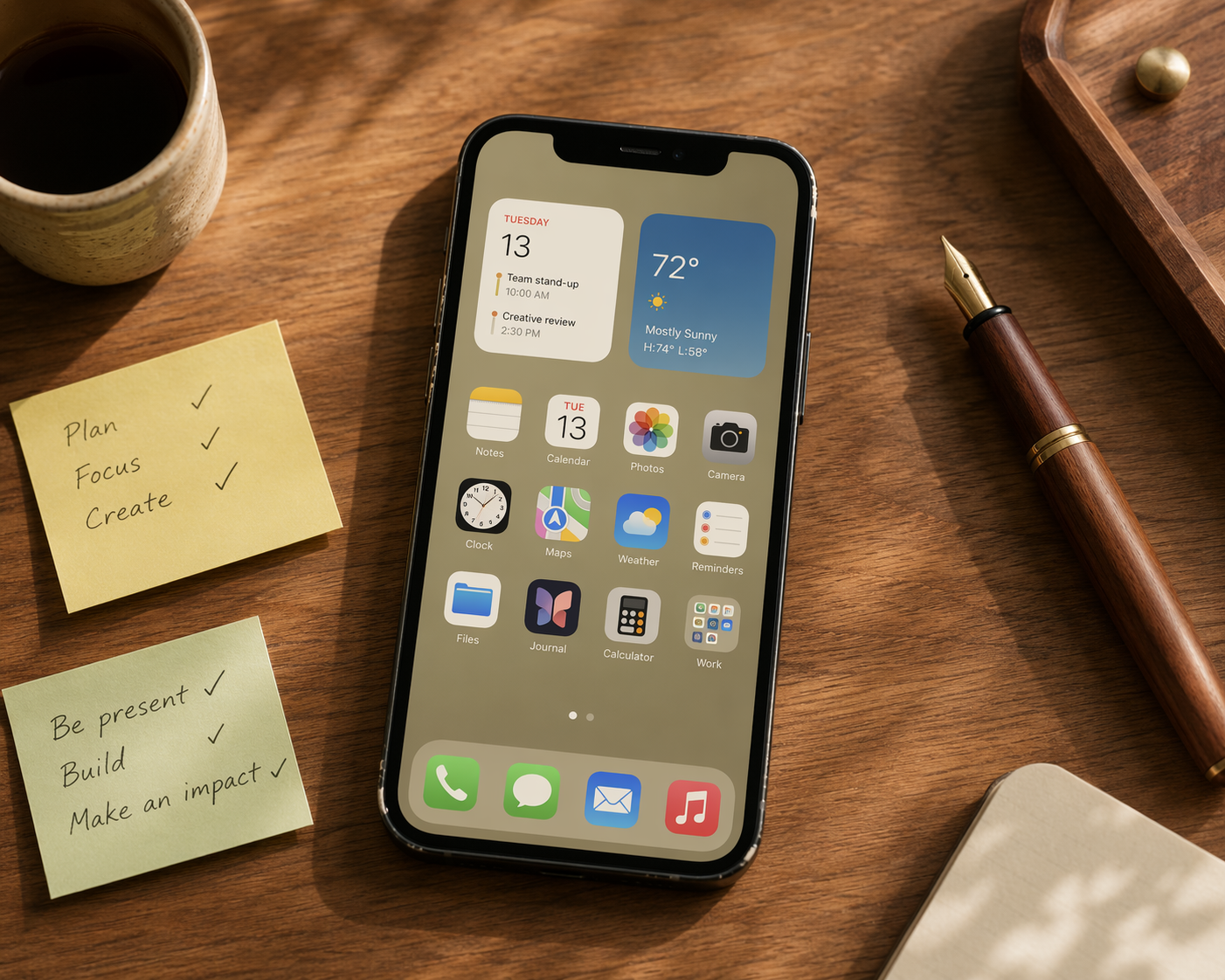
Start by diagnosing the drag
Before shopping, separate hardware frustration from workflow friction. A phone can feel old because the battery is tired, because storage is nearly full, because too many apps are refreshing in the background, or because the device interrupts you every 90 seconds. Only one of those problems is solved by buying a newer model.
The quick triage looks like this:
| What you notice | Likely cause | What to try before upgrading |
|---|---|---|
| You keep losing focus after unlocking | Notifications, badges, and Home Screen clutter | Build Focus Modes and app-specific Home Screens |
| You repeat the same taps every day | Manual routines that could be automated | Create Shortcuts for battery, morning, commute, or work triggers |
| You forget small tasks or scatter notes across apps | No capture-and-commit system | Use Notes for detail and Reminders for deadlines |
| The phone feels cramped or sluggish | Storage pressure or background activity | Offload unused apps and limit Background App Refresh |
| The phone dies early or stutters under normal use | Battery or storage may be the bottleneck | Check battery health and storage before blaming your workflow |
This is a 15–30 minute configuration pass, not a personality transplant. The point is to remove the avoidable friction first. If the phone still feels bad after that, you have better evidence for a repair or upgrade.
Make the phone change shape by context
Focus Modes are the foundation because they decide what the phone is allowed to become at a given time. Work, Personal, and Sleep modes can each filter notifications, show different Lock Screen and Home Screen layouts, and turn on automatically by time, location, or app use.[1]
That last part is the difference between useful configuration and productivity theater. A Work Focus that turns on when you arrive at campus or open your task manager is not just muting group chats. It changes the surface area of the phone: calendar widget up front, task list visible, social apps off the first screen, only the people and apps that can interrupt you.
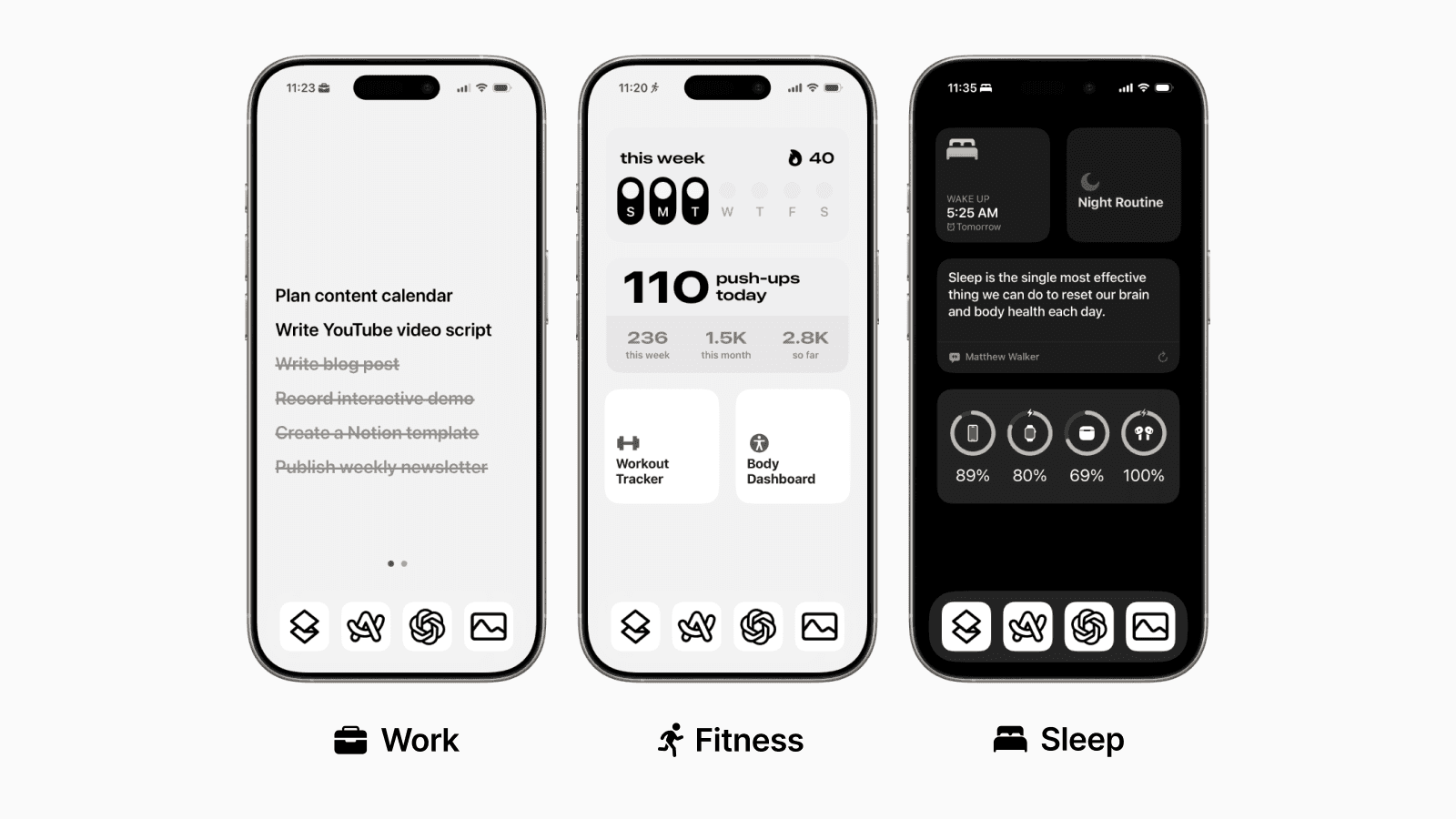
A practical setup does not need ten modes. Start with three:
- Work: allow calendar alerts, task apps, work contacts, and urgent family contacts; hide entertainment and shopping apps from the active Home Screen.
- Personal: allow messages, music, maps, photos, and social apps; remove work email and task widgets unless your job genuinely requires after-hours access.
- Sleep: allow alarms and emergency contacts; show the fewest possible controls, ideally without badges or feeds.
The uncomfortable work is deciding who gets through. Most people never make that decision, so the phone makes it badly on their behalf. A delivery app, a newsletter app, a bank alert, a group chat, and a manager all arrive with the same rectangle and the same vibration. Focus Modes let you stop treating interruption as an all-or-nothing setting.
For a knowledge worker, the useful test is simple: when Work Focus is on, can you unlock the phone without being invited into a different life? For a student, can you open the phone in class to scan a document or check a deadline without seeing every app that would rather you not study? If the answer is no, the phone is not underpowered. It is under-sorted.
Build Focus Modes around decisions, not vibes
A Focus Mode works when it answers a real decision: who can interrupt, which apps can interrupt, what screen should appear, and what should disappear. “Deep Work” is only useful if it blocks the apps that break deep work. “Personal” is only useful if it keeps work from leaking into dinner.
| Mode | Trigger | Allowed | Hidden or moved away |
|---|---|---|---|
| Work | Office location, school location, or weekday schedule | Calendar, Reminders, Notes, work chat, key contacts | Social feeds, shopping, games, streaming |
| Errands | Manual toggle or location-based trigger | Maps, Wallet, grocery list, family messages | Email, long-form reading, most feeds |
| Sleep | Night schedule | Alarm, emergency contacts, health or sleep tools | Nearly everything else |
Do not overbuild this. The phone should require less management after setup, not become a side project. If you find yourself maintaining a complex Focus taxonomy, delete half of it.
Let Shortcuts remove the repeated taps
Focus Modes reduce interruption. Shortcuts reduce repetition. The Shortcuts app can run multi-step workflows triggered by battery level, time of day, NFC tags, or app launches, replacing small manual sequences you repeat without thinking.[1]
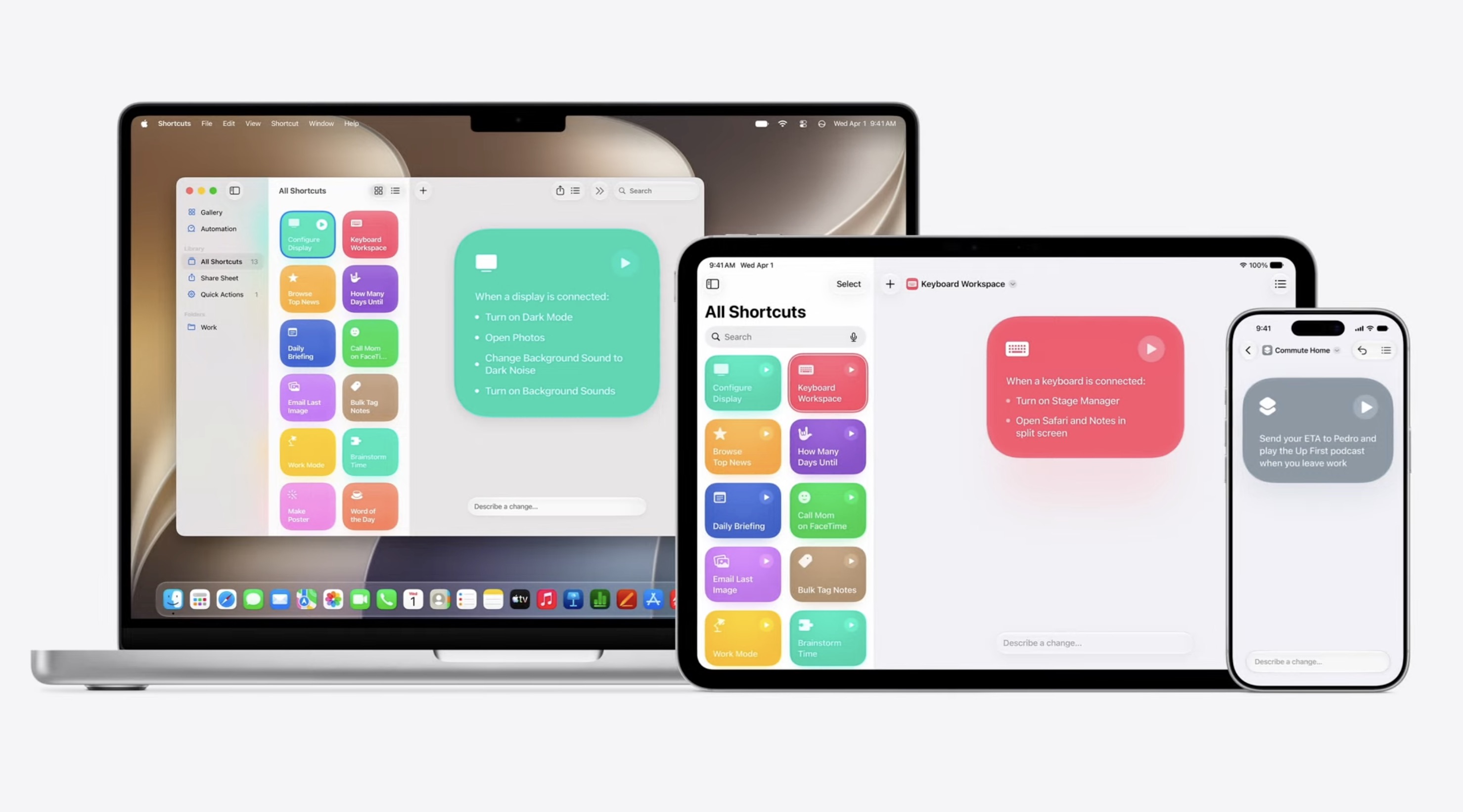
The easiest win is battery automation. Set an automation that turns on Low Power Mode when battery drops to 25%. That is not glamorous, but it removes the little negotiation you have with yourself every afternoon: should I turn it on now, wait until 20%, dim the screen, close apps, or pretend this will work out? The phone can make that boring decision.
The second useful automation is a morning briefing. A Shortcut can gather weather, calendar events, and reminders into one routine instead of making you open three apps before your brain has fully joined the day.[1] This is where a current iPhone can feel newer than a new one: the hardware is not faster at guessing what you need, but the configured device can put the next few answers in front of you.
Good Shortcuts are usually small. They do not need to run your life. They should remove a cluster of taps that annoys you several times a week.
- Battery: when battery hits 25%, turn on Low Power Mode.
- Morning: show weather, today’s calendar, and due reminders.
- Work start: turn on Work Focus, open your task list, and show your calendar.
- Commute or campus arrival: open Maps, transit, Wallet, or the note you always need in that place.
- App launch: when you open a distracting app during Work Focus, redirect yourself to Reminders or a reading list.
There is a limit. If a Shortcut needs constant debugging, permissions, and emotional commitment, it has become furniture you dust. Keep the automations you would miss if they disappeared. Delete the ones that only make you feel clever.
Example: the workday launch
A useful workday launch might look like this: at 8:30 a.m. on weekdays, the phone turns on Work Focus, opens your calendar, shows today’s reminders, and keeps personal apps off the active Home Screen. If you work from a consistent place, location can be the trigger instead of time. If your schedule changes, leave it manual and put the Focus toggle in Control Center.
This kind of automation is not trying to replace judgment. It is protecting the first minute after unlock, which is where many phone sessions go wrong. You came in for a meeting time; the phone should not make you walk past six open doors to get there.
Turn Notes and Reminders into a two-tier system
The iPhone already ships with a decent capture system. It just tends to get used in pieces: a grocery item in Reminders, meeting notes in Notes, a thought in Messages to yourself, a screenshot you swear you will revisit. The cleaner version is two-tiered: Notes holds reference and detail; Reminders holds commitments and dates.
Notes and Reminders can work together through shared tags, while Siri voice capture lets you add items without opening an app.[1] That matters because capture usually fails at the point of inconvenience. If you have to unlock, search, tap, choose a folder, and type a clean sentence, you will not capture the thing. You will trust your memory, which is just a slower way to create future resentment.
A simple pattern is enough:
- Use Notes for messy material: meeting notes, project context, class notes, pasted research, travel details, screenshots with explanations.
- Use Reminders for anything with a consequence: submit the form, email the professor, renew the pass, prepare the deck, call the clinic.
- Use matching tags only where they help retrieval: #project, #school, #admin, #home.
- Use Siri for quick capture when typing would make you postpone the task.
The point is not to build a second brain with a front porch, guest room, and tasteful lighting. It is to stop storing obligations in places that cannot remind you.
Remove the tiny frictions you have stopped noticing
Some iPhone productivity gains are too small to deserve a system and too useful to ignore. System-wide drag-and-drop, three-finger undo and redo, Live Text, and Back Tap are easy to miss because they do not announce themselves like new hardware features.[1]
Live Text is the one to use immediately if you still retype addresses, phone numbers, whiteboard notes, serial numbers, or text from screenshots. It can extract text from photos, screenshots, and the camera view, turning a camera roll full of “I’ll type this later” images into usable text.[1] That is not a lifestyle improvement. That is fewer chances to mistype a room number, invoice detail, or appointment address.
Back Tap is also worth assigning carefully. Put a real action there: open your capture note, start a timer, launch a Shortcut, or bring up a scanner. Do not waste it on something already one swipe away. Control Center deserves the same treatment. If you use Focus, Low Power Mode, screen recording, calculator, scanner, or notes often, put those controls where your thumb already goes.
These tweaks will not make an old phone benchmark like a new one. They make the phone ask less of you. That is the kind of speed people actually feel during a normal workday.
Clean up storage before blaming age
Storage hygiene is not the emotional center of this setup, but ignoring it can ruin everything else. Offload Unused Apps can free gigabytes while preserving documents and data, so the app can be restored later without starting from scratch.[2] That is exactly the kind of maintenance people postpone because it sounds tedious, then misread as proof the phone has become obsolete.
Background App Refresh also deserves a pass. It is identified as a major source of battery drain and background CPU load on older iPhones; disabling it for non-essential apps can improve responsiveness.[2] The important phrase is “non-essential.” Maps, messaging, calendar, and work tools may need background access. A shopping app you open twice a month probably does not.
Do this in order:
- Open iPhone Storage and sort by the largest apps.
- Offload apps you rarely use but may need later.
- Delete apps whose data you do not need.
- Review large message attachments, downloaded media, and duplicate photo clutter.
- Turn off Background App Refresh for apps that do not need to work when closed.
This is also where the anti-upgrade argument has to stay honest. If your battery health is below 80%, or the phone is sitting near 90% full, configuration alone may not rescue the experience. A battery replacement, storage cleanup, or eventual upgrade may be the rational move. The point is to stop upgrading before you know which problem you are solving.
Older does not automatically mean behind
There is some useful permission in the way people are already behaving. Reported 2026 upgrade-cycle data says 78% of iPhone users skip two or more generations before upgrading, and the average iPhone replacement age reached 3.7 years.[3] That does not prove your specific phone is fine. It does mean you are not strange for expecting several productive years from a recent iPhone.
Macworld’s 2026 downgrade experiment is a good sanity check, not a universal rule. One journalist switched to a four-year-old iPhone 13 Pro Max and described it as “still a modern and quite capable smartphone,” citing cameras good enough for social media, a smooth 120Hz display, and all-day battery for light use.[4] That account depends on battery health, storage use, and tolerance for slower app loading. Still, it matches what many iPhone 12, 13, and 14 owners already suspect: the hardware may not be the main source of irritation.
The useful standard is not whether a newer phone is technically better. It is. The useful standard is whether your current phone can reduce interruption, shorten repeated actions, preserve attention, and keep enough battery and storage headroom to get through your day.
A 30-minute configuration pass
If you want the shortest path, do not start by reorganizing every app. Start with the parts that change behavior.
| Time | Action | Result |
|---|---|---|
| 5 minutes | Check battery health and storage | You know whether hardware constraints are already obvious |
| 10 minutes | Create Work, Personal, and Sleep Focus Modes | The phone stops presenting every context at once |
| 5 minutes | Add one battery automation and one morning Shortcut | Repeated daily decisions move into the background |
| 5 minutes | Set Notes and Reminders roles | Ideas and obligations stop living in the same pile |
| 5 minutes | Offload unused apps and trim Background App Refresh | Storage and background activity stop adding avoidable drag |
If that sounds too plain, good. The most useful phone setup is usually boring from the outside. It does not need a new launcher philosophy or a paid stack of productivity apps. It needs fewer interruptions, fewer repeated taps, a reliable place to put things, and enough maintenance that the hardware is not fighting through clutter.
For an iPhone 12 or newer with acceptable battery health and manageable storage, try this pass before shopping. If the upgrade urge fades, it was probably not a craving for a new device. It was frustration with a capable phone that had been left to behave like a distraction machine instead of a configured assistant.
Comments
Join the discussion with an anonymous comment.