
If you follow multiple streamers, the problem is rarely just “taking notes.” It is seeing what is coming up, remembering what you actually watched, and keeping the stray useful bits — timestamps, recurring segments, sponsor codes, tournament context, funny moments, build ideas, book mentions — somewhere you can find again. That is the real test behind how to organize a live stream viewing schedule with notes: the app has to handle both appointment-keeping and memory-keeping without turning your hobby into unpaid operations work.
| Priority | Best fit | Why it fits | Main compromise |
|---|---|---|---|
| Calendar visualization | Notion | A database can become a calendar, viewing log, and notes archive at the same time. | You have to design the properties and views deliberately. |
| Local-first tracking with plugin depth | Obsidian | WatchLog already supports viewing-style workflows such as upcoming releases, progress notes, and per-episode notes. | It depends on community plugins and assumes you are comfortable in Obsidian. |
| Zero setup | Apple Notes or Evernote | Pinned notes, tags, templates, notebooks, and tables are enough for lightweight tracking. | No real schedule aggregation or calendar-first command center. |
| Journal-first logging | Logseq | Daily notes, blocks, and queries suit viewers who already track life through a journal. | It is a niche fit if you do not already like outliners. |
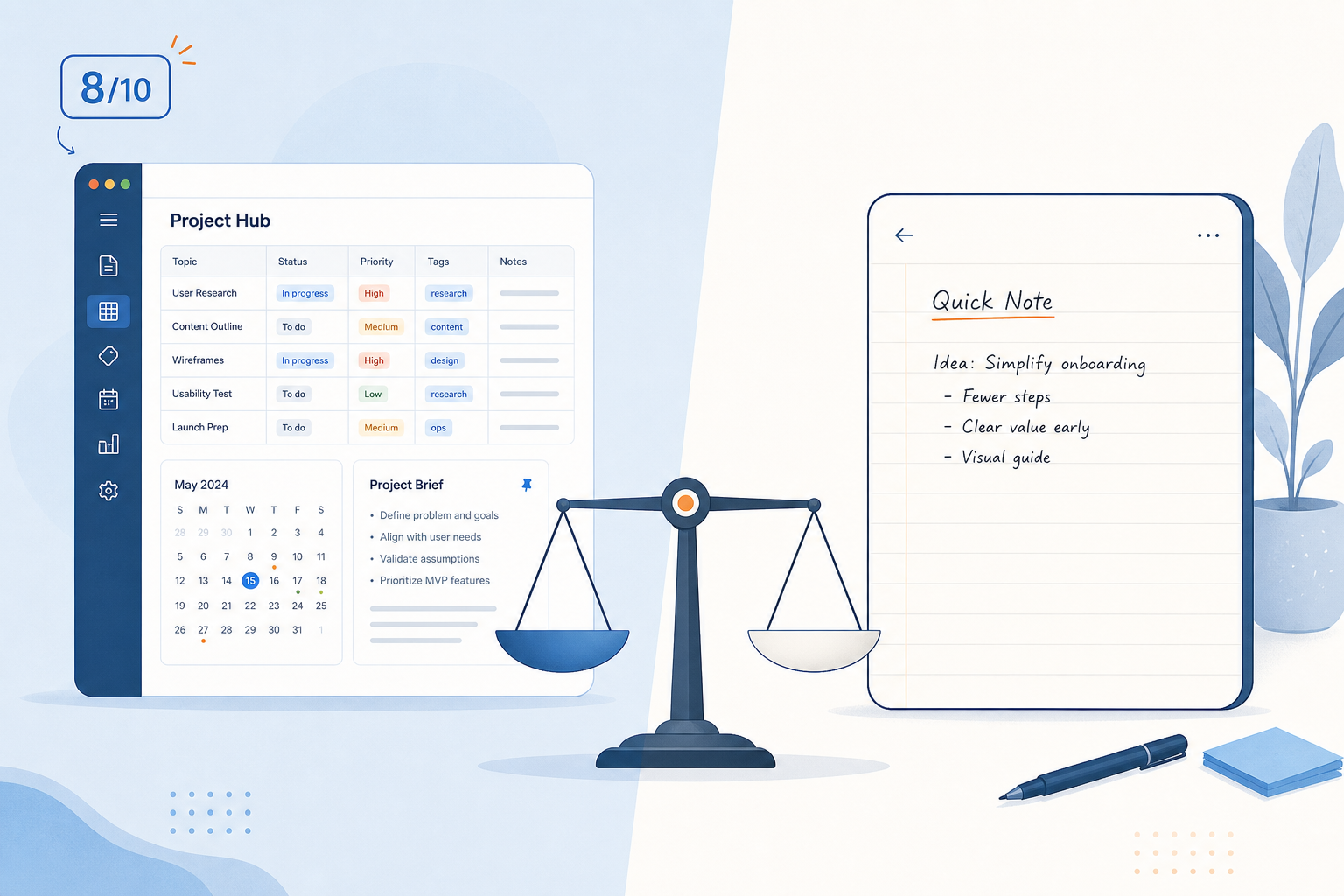
That verdict is deliberately priority-based. Notion is the cleanest answer when the schedule view matters most. Obsidian is the more interesting answer if you want local files and plugin-powered viewing records. Apple Notes and Evernote are the sensible answer when the best system is the one you will actually open during a stream. Logseq is worth considering only if daily journals and block references already feel natural.
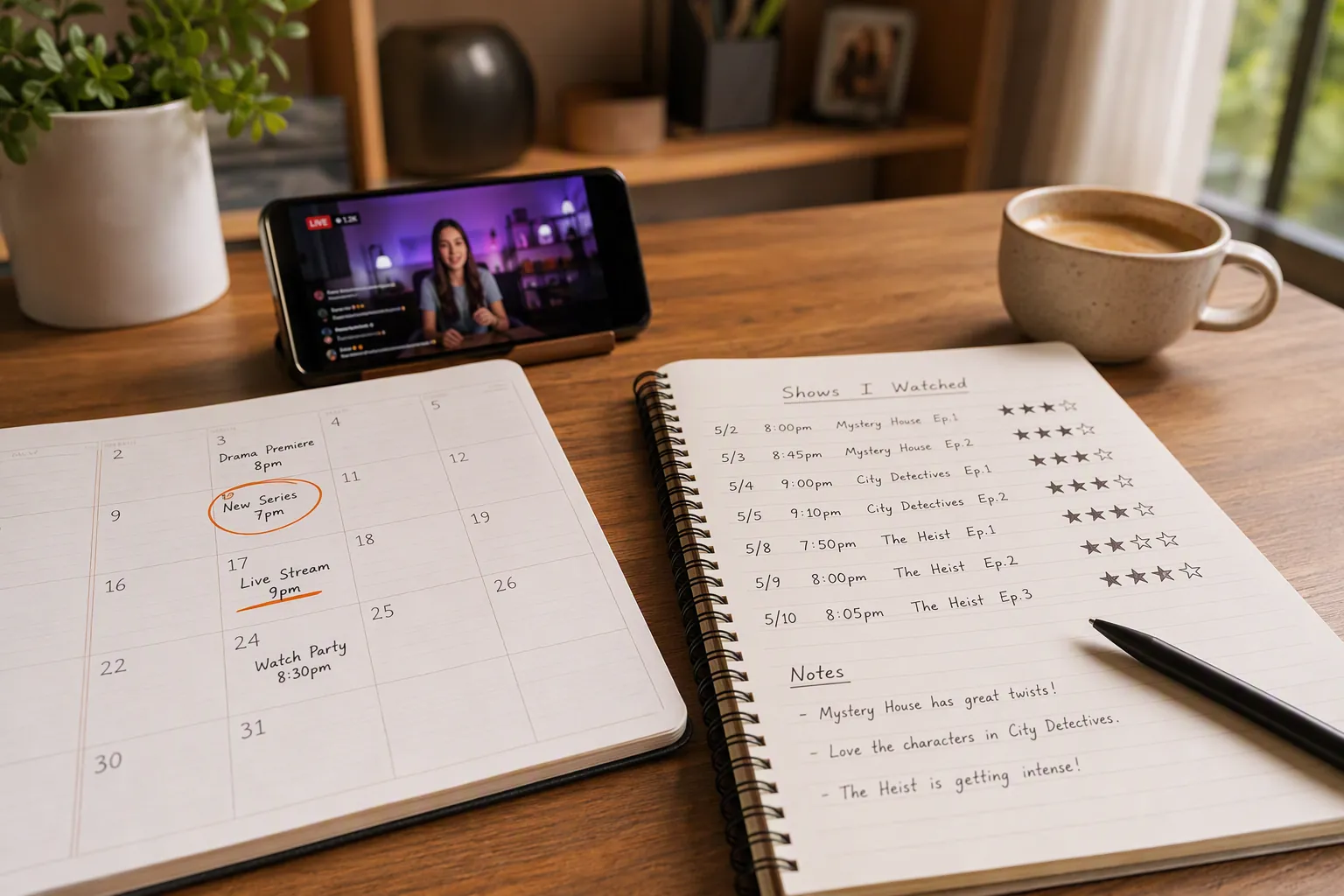
Notion wins when the calendar is the center
Notion’s advantage is not that it can store notes. Almost every app here can store notes. Its advantage is that one database can show the same stream record in multiple useful ways: a calendar for what is coming up, a table for what you watched, a gallery or board for streamer status, and a page for detailed notes.
A viewer-focused Notion setup can stay fairly plain. Each row is one scheduled stream or VOD session. The Date property places it on a calendar. A Select property names the streamer. A Multi-select property handles platform tags such as Twitch, YouTube, or Kick. Status can separate “planned,” “watched,” “skipped,” and “clip later.” The page body holds timestamps and observations. Notion’s own calendar database guidance supports this database-to-calendar model, while calendar customization guidance covers practical details such as changing the displayed properties and calendar layout behavior.[1][2]
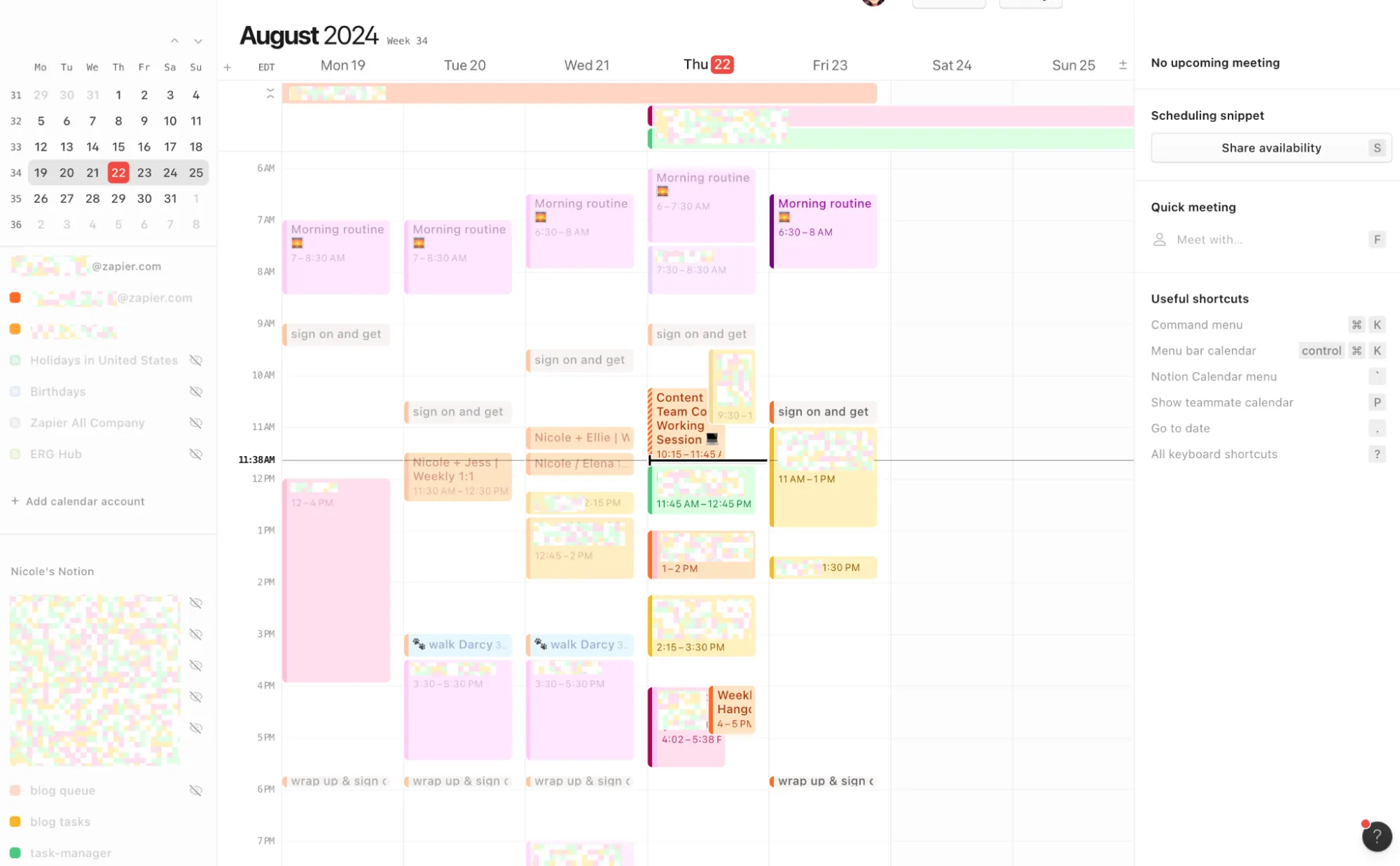
The useful trick is that the archive is not separate from the schedule. If a streamer announces a Friday stream, the row starts as a future appointment. After you watch it, the same row becomes the viewing record. Six weeks later, filtering that database by streamer can show the trail of sessions you watched, the ones you skipped, and the notes you cared enough to keep.
Existing Notion templates show why this works, but they need to be read carefully. Stream OS and Advanced Twitch Tracker are Notion Marketplace templates aimed at streamers managing their own broadcasts, not viewers following other people’s schedules.[3][4] Their value here is not that they are ready-made viewer dashboards. It is that they demonstrate transferable schema patterns: databases for planned streams, status fields, platform context, content categories, and historical records.
For a viewer, that means renaming and removing more than adding. “My broadcast topic” becomes “stream theme.” “Content pipeline” becomes “watch later.” “Stream performance” probably disappears unless you genuinely care about audience numbers. The best viewer version is smaller than the streamer version, because you are not running the channel.
A practical Notion database might use these properties:
- Date: scheduled start time or the time you watched the VOD.
- Streamer: a Select field so each creator stays consistent.
- Platform: Multi-select for Twitch, YouTube, Kick, Patreon, or another source.
- Status: planned, live, watched, skipped, clipped, or revisit.
- Topic: the game, event, tournament, guest, category, or recurring segment.
- Notes: either a short text property for quick memory or the full page body for timestamps.
That structure is enough to make a calendar view useful without becoming a full productivity cosplay. If you want a deeper distinction between Notion’s calendar-style database views and the separate Notion Calendar app, the comparison in Notion Calendar App vs. Database Calendar Templates is the more focused place to sort that out.
There is also an automation path, but it should not be oversold. Paru documents a way to get Twitch streamer schedule calendar links and discusses using that kind of calendar feed in automation flows such as Zapier.[5] That can help if a creator’s schedule is available in a structured way, but it does not magically solve every platform, every last-minute stream, or every creator who posts schedule changes in Discord, X, YouTube Community posts, or a pinned chat message.
Notion is the best pick when the thing you most often miss is the appointment. It gives you the clearest “what is coming up?” surface, and it lets that surface age into a history instead of becoming disposable calendar clutter. The cost is setup judgment: if you add too many properties, it becomes a dashboard you maintain instead of a place you check.
Obsidian wins when the viewing log matters as much as the note
Obsidian would be a weaker recommendation if the argument were only “make Markdown notes for each stream.” That works, but it does not answer the schedule half of the problem very well by itself. What changes the comparison is WatchLog, an Obsidian community plugin that already thinks in the language of watching.
The WatchLog plugin page describes episode-level tracking, upcoming release scheduling with countdowns, inline progress notes widgets, and per-episode note-file generation. The same listing shows an MIT license, roughly one thousand-plus downloads, and a recent update around July 2026.[6] For live-stream viewers, those features map unusually well to the real behavior: something is coming up, you watch some or all of it, you make notes while progressing through it, and you may want a separate note file for the session.
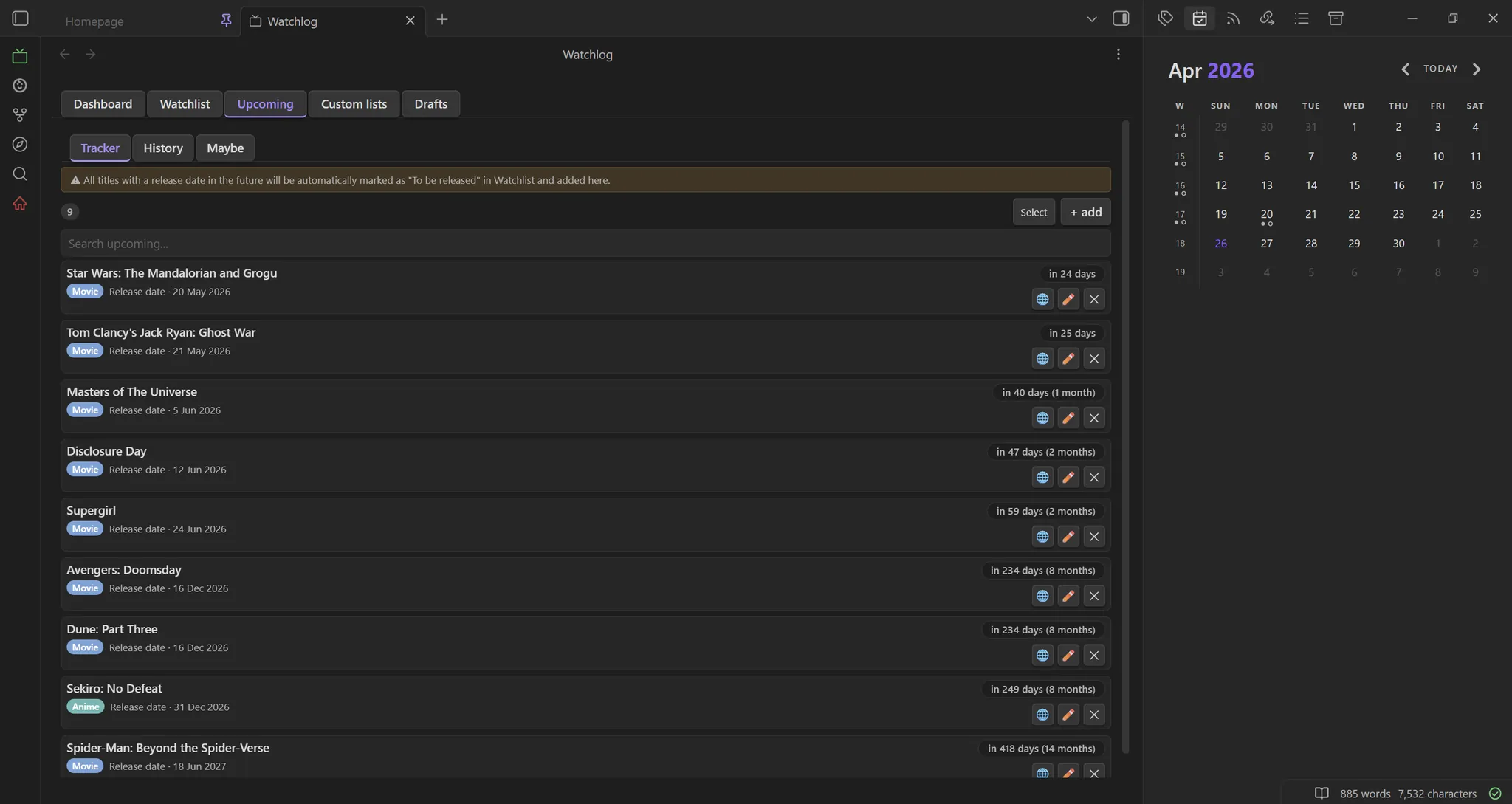
This is the most viewer-shaped option in the comparison. Notion can be molded into a live-stream tracker; WatchLog already resembles one. A recurring streamer can be treated like an ongoing series. A special event can become an entry with its own note. A VOD can be logged after the fact without pretending it was a calendar appointment you attended live.
Obsidian also has the local-first advantage. Your notes are Markdown files in a vault, which matters if you care about long-term ownership, offline access, or not having your watch history primarily live inside a cloud workspace. For some viewers, that is overkill. For others, especially anyone who has already lost years of platform watch history to bad search, deleted VODs, or account migrations, it is the point.
The plugin ecosystem can extend the setup further. The Who Is Streaming community plugin is listed for VOD discovery, which makes it relevant as a companion rather than a full replacement for WatchLog.[7] Dataview can be used for per-streamer watch-time or history queries, though that moves the setup into a more technical Obsidian pattern.
The risk is just as real. WatchLog and Who Is Streaming are community plugins, not official Obsidian features. A community plugin can be abandoned, broken by an app update, or changed in a way that disrupts your workflow. The current WatchLog listing looks active as of the research window, but “active now” is not the same as a long-term guarantee.[6]
That makes Obsidian the best fit for a specific viewer: someone who already likes local files, can tolerate community-plugin risk, and wants more than a calendar. If you want inline progress notes, generated per-stream files, countdown-style upcoming views, and the option to query your archive later, Obsidian is hard to dismiss. If you just want to know who is live tonight, it asks too much.
For a broader look at whether Obsidian’s 2026 ecosystem fits your habits outside this one use case, see the Obsidian Review 2026.
Apple Notes and Evernote are the honest low-friction choices
There is a version of this problem where the correct answer is not a command center. It is one pinned note called “Streams,” opened every evening, with today’s links and a few rough timestamps underneath. That setup will not impress anyone in a template gallery. It may still beat a beautiful database you stop updating after three days.
Apple Notes works best for viewers already inside the Apple ecosystem who want almost no setup. Pin one note for the current week. Use tags for streamers or statuses. Create smart folders if you want a lightweight way to pull tagged notes together. Keep one note per major event if a single rolling note gets too long. The tradeoff is obvious: Apple Notes is not going to become a proper multi-streamer schedule grid.
Evernote fits a similar low-friction role with a more notebook-oriented feel. A viewer can use a notebook stack for platforms or streamer groups, templates for repeat stream notes, and tables for simple logs: date, streamer, topic, watched live or VOD, timestamp, follow-up. It is tidier than a pile of loose notes, but it still does not solve automatic schedule aggregation or calendar-first planning.
These two apps are not unserious choices. They are just not pretending to do both halves equally. They are good when the notes matter more than the schedule, when your stream list is small, or when the habit fails the moment an app asks you to define a Select property.
Logseq is for people who already live in the journal
Logseq should not be inflated into a mainstream winner for this job. Its fit is narrower and clearer: if you already use daily journals, nested blocks, page references, and queries, stream tracking can sit naturally inside that existing rhythm.
A Logseq user might add a few blocks under today’s journal entry: streamer, platform, planned start, whether they watched live or later, and timestamped notes as child blocks. Page references can connect recurring creators or games. Queries can later pull together all blocks tagged with a streamer or viewing status.
That is pleasant if your brain already likes outlines. It is awkward if you came here wanting a clean calendar. Logseq is best treated as a journal-native logging system, not as the obvious answer for someone starting from a fragmented streaming schedule.
The decision by actual viewing habit
The cleanest way to choose is to name the failure mode you are trying to fix. Missing live streams, losing notes, and avoiding setup are different problems. They overlap, but they do not point to the same app.
- Choose Notion if the schedule view is the center. It is strongest when you want a calendar that also becomes an archive.
- Choose Obsidian if local ownership and plugin-powered watch tracking matter most. WatchLog makes it the most feature-complete viewer-side option, with the usual community-plugin caveat.
- Choose Apple Notes if you want the fastest possible start and already use Apple devices. A pinned weekly note is sometimes enough.
- Choose Evernote if you prefer notebooks, reusable note templates, and simple table-based logs without building a database calendar.
- Choose Logseq if streams belong inside your daily journal and you already like blocks, backlinks, and queries.
For most viewers deciding between the two serious command-center options, the split is simple. Notion starts from the calendar and turns watched streams into records. Obsidian starts from local notes and, through WatchLog, adds viewing-specific tracking. One is better at seeing the week. The other is better at preserving the trail.
If neither of those sounds like something you want to maintain, do not punish yourself with a system you admire but avoid. Put tonight’s streams in Apple Notes or Evernote, write the timestamps you care about, and let the lightweight version be enough until it genuinely breaks.
References
- Calendars, Notion
- Notion Calendar Guide, Notion Everything
- Stream OS, Notion Marketplace
- Advanced Twitch Tracker, Notion Marketplace
- Twitch streamer schedule calendar link, Paru.app
- WatchLog, Obsidian Community Plugins
- Who Is Streaming, Obsidian Community Plugins





Comments
Join the discussion with an anonymous comment.