
Most lists of note-taking apps for Chromebook answer the wrong question. They tell you which apps are powerful in general, then leave you to discover whether the Android version behaves like a stretched phone app, whether the web app is still useful in a lecture hall with weak Wi-Fi, or whether your stylus strokes arrive half a beat after your hand moves. Start with the Chromebook fit.
| App | Delivery method on Chromebook | Offline access depth | Stylus / handwriting fit | Google Drive and storage fit | ChromeOS app quality | Organization depth | Best-fit workflow |
|---|---|---|---|---|---|---|---|
| OneNote | PWA / web app, with browser-first use on ChromeOS | Strong for a free app when prepared ahead of time; better than most web-first tools for students who need notebooks available during class | Usable for handwriting, though not the lowest-latency choice for pen-first Chromebook users | Does not feel as native to Google Drive as Google tools, but avoids the cramped Android-phone-app problem | Good Chromebook fit because the PWA works like a real laptop workspace rather than a phone window | Notebook > section > page structure is familiar and deep enough for courses, projects, and clipped material | Free structured notebooks, class notes, web clipping, and mixed typed/handwritten work |
| Squid | Android app built with Chromebook pen use in mind | Strong; free tier supports offline handwriting | Excellent. Chrome Unboxed highlights Squid’s low-latency vector ink, native trackpad scrolling, and keyboard shortcuts on Chromebook [1] | Local/app-based note storage first; PDF workflows are practical, but not as Google Drive-native as Cursive | One of the rare Android note apps that feels deliberately suited to Chromebook input instead of merely tolerated | Moderate. Good notebooks and pages, less suited to large research systems | Handwritten lecture notes, math, diagrams, PDF markup, and stylus-first study |
| Google Keep | Web app / Android app, tightly tied to a Google account | Good for quick capture, weaker for a large long-term archive | Basic drawing and handwritten capture, but not a serious pen notebook | Very convenient inside Google’s ecosystem, with the important caveat that Google account storage is shared across services | Fast, familiar, and low-friction; the problem is not opening Keep, it is living with hundreds of notes later | Shallow. Labels and search are fine for reminders and scraps, not for semester-long or research-heavy organization | Quick capture, reminders, shopping lists, small snippets, and temporary notes |
| Notion | Best in the browser; Android app exists but behaves like mobile Notion on Chromebook | Limited. Recently cached pages can help, but Notion is not the app to trust for deep offline Chromebook work | Weak for handwriting; this is a typed/database workspace | Uploads and embeds work, but it does not naturally behave like a Google Drive note layer | Powerful in Chrome; compromised in Android mode because the mobile-style interface loses the spaciousness Chromebook users expect | Very deep: databases, relations, templates, dashboards, and AI-assisted workflows | Database-heavy planning, collaborative wikis, content systems, and users already committed to Notion |
| UpNote | Android app plus web/desktop ecosystem, with a Chromebook-friendly lightweight feel | Strong. Better suited than most polished note apps for offline structured writing on a Chromebook | Limited. Choose it for typed notes, not stylus notebooks | Not Google Drive-native, but simple enough that storage expectations are easy to understand | Good value if you want a clean note app that does not ask ChromeOS to become macOS | Strong for notebooks, tags, internal links, attachments, and long-form research notes | Affordable offline structured notes, reading notes, project notes, and personal knowledge organization |
| Obsidian | Android app for convenience; Linux container for the fuller desktop-style experience | Excellent if your vault is local and synced deliberately | Poor for handwriting; this is a Markdown and linking tool | Can coexist with Drive-like sync habits, but the user has to understand files, folders, and vault location | Powerful but uneven. Android is simpler; Linux gives more capability but adds setup and maintenance | Very deep for Markdown, backlinks, local files, graph thinking, and plugins | Power users, Markdown writers, local-first note systems, and people willing to manage setup |
| Simplenote | Web app / Android app, plain-text-first | Good for plain text; weak for attachments, PDFs, handwriting, or rich notebooks | Not a handwriting app | Lightweight enough not to create storage drama, but not a Google Drive annotation tool | Clean and fast, with little Chromebook friction because it avoids heavy features | Shallow to moderate. Tags and search, not a full research database | Plain text notes, fast sync, distraction-free writing, and users interested in AI-tool querying with manual setup |
| Cursive | Google handwriting app; free and pre-installed on select Chromebooks | Good for handwritten notes on supported devices | Good baseline. Google says Cursive supports handwritten notes, handwriting-to-text, and PDF annotation on Chromebook [2] | The cleanest fit for Chromebook users who want notes to live naturally with Google’s assumptions | Very strong zero-setup fit when it is available on the device | Basic. Better for notebooks and pages than complex research organization | Free stylus notes, quick PDF markup, classroom handwriting, and users who want no setup |
Two cautions sit underneath the whole table. First, Chromebook hardware is not one thing: some models have no touchscreen, some support USI pens, and some do not. Google’s own stylus guidance depends on compatible Chromebook hardware, so a beautiful handwriting app cannot rescue a machine that was never built for pen input [3]. Second, “available on Chromebook” is a low bar. A web app, an Android app, a PWA, and a Linux app can all technically run on ChromeOS while giving you very different daily lives.
Fast verdicts before the details
- Pick OneNote if you want free structured notebooks, web clipping, and a browser-first workspace that still feels usable on a laptop.
- Pick Squid if the pen feel matters more than templates, backlinks, or database views.
- Pick Cursive if your Chromebook already has it and you want the simplest free handwriting option.
- Pick UpNote if you want affordable, organized, offline typed notes without building a whole PKM system.
- Pick Notion if your real system depends on databases and shared workspaces, and you accept that the browser is the better Chromebook route.
- Pick Obsidian if local Markdown files and plugins matter enough that you are willing to handle Android limitations or Linux-container setup.
- Pick Simplenote if plain text, speed, and AI-tool querying are more useful to you than attachments or handwriting.
- Use Google Keep for capture, not as the main archive for a demanding course load or research workflow.
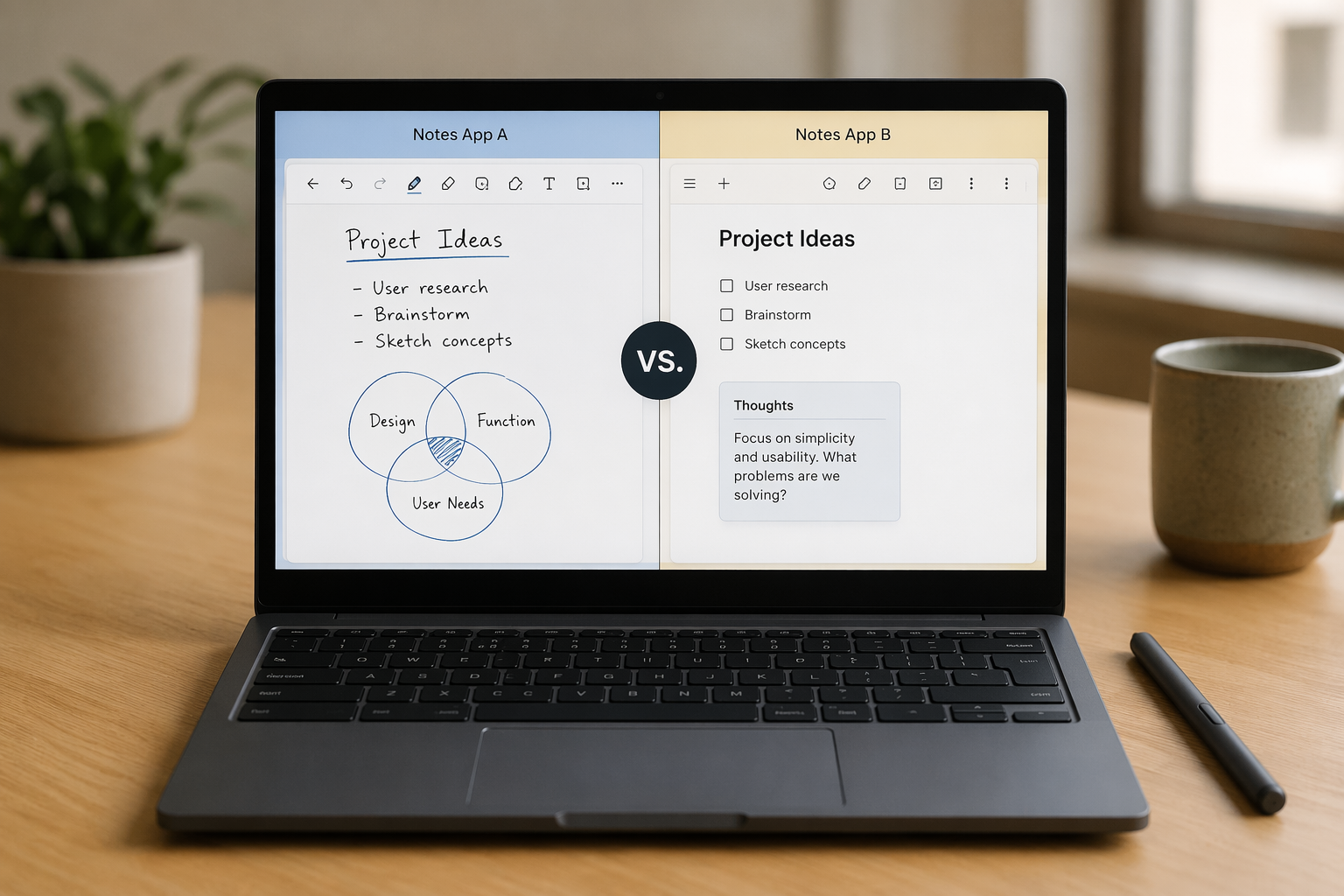
Why delivery method changes the recommendation
On Windows or macOS, “Does it have a desktop app?” usually answers a lot. On Chromebook, it does not. ChromeOS gives you several doors into the same product: a browser tab, a PWA, an Android app, sometimes a Linux app, and occasionally a Google-built app that feels stitched into the machine. The difference shows up when you rotate the screen, lose Wi-Fi, plug in a classroom projector, or try to drag a PDF from Files into the note you are writing.
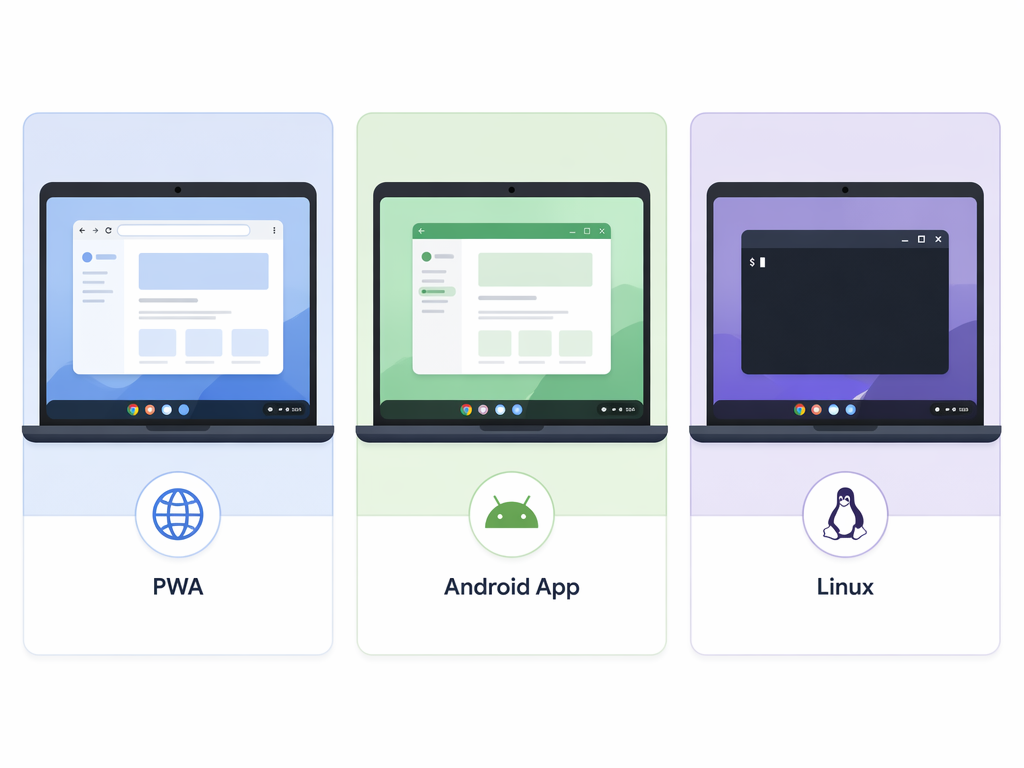
A good PWA can be the most Chromebook-native choice even if it is not the fanciest app in a broader roundup. OneNote is the clearest example here. Its attraction is not novelty; it is the boring, useful combination of notebooks, sections, pages, web access, clipping, and a layout that still behaves like a laptop workspace. For a student moving between a school-managed Chromebook and another browser, that matters more than another clever sidebar.
Android apps are more uneven. Squid is the good version of this story: its Chromebook pen support is a reason to choose it, not a footnote. Chrome Unboxed specifically calls out Squid’s vector ink, low-latency feel, trackpad scrolling, and keyboard shortcuts as part of why it works well for pen-based Chromebook notes [1]. That is different from an Android app that opens in a laptop window but still assumes thumbs, portrait orientation, and phone-sized decisions.
Notion is the cautionary version. Notion in Chrome can be excellent if you rely on databases, project dashboards, or collaborative workspaces. The Android app, though, is not full desktop Notion in a Chromebook costume; it behaves like mobile Notion. That distinction is easy to miss in general note-taking comparisons, where “has Android app” sounds like a checkmark instead of a compromise. If you choose Notion on Chromebook, plan around the browser experience.
Linux support is another place where the label can mislead. Obsidian can become a serious Chromebook power tool through the Linux container, especially for users who want plugins and local Markdown control. But Linux support is not the same as “easy for everyone.” It adds a layer: installation, file location, backups, sync decisions, and occasional troubleshooting. If you are choosing Obsidian for a Chromebook because you want that control, it is worth reading a fuller Obsidian review before assuming the Android app and the Linux setup are interchangeable.
Handwriting-first users should choose differently from typed-note users
A Chromebook with a good stylus can be a wonderful classroom machine. A Chromebook without one is just a laptop with a touchscreen-shaped promise it cannot keep. Before comparing handwriting apps, check the hardware: touchscreen support, USI compatibility, palm rejection behavior, and processor strength all affect the result. Google’s stylus documentation is hardware-dependent, which is the polite official way of saying that the app is only half the handwriting experience [3].
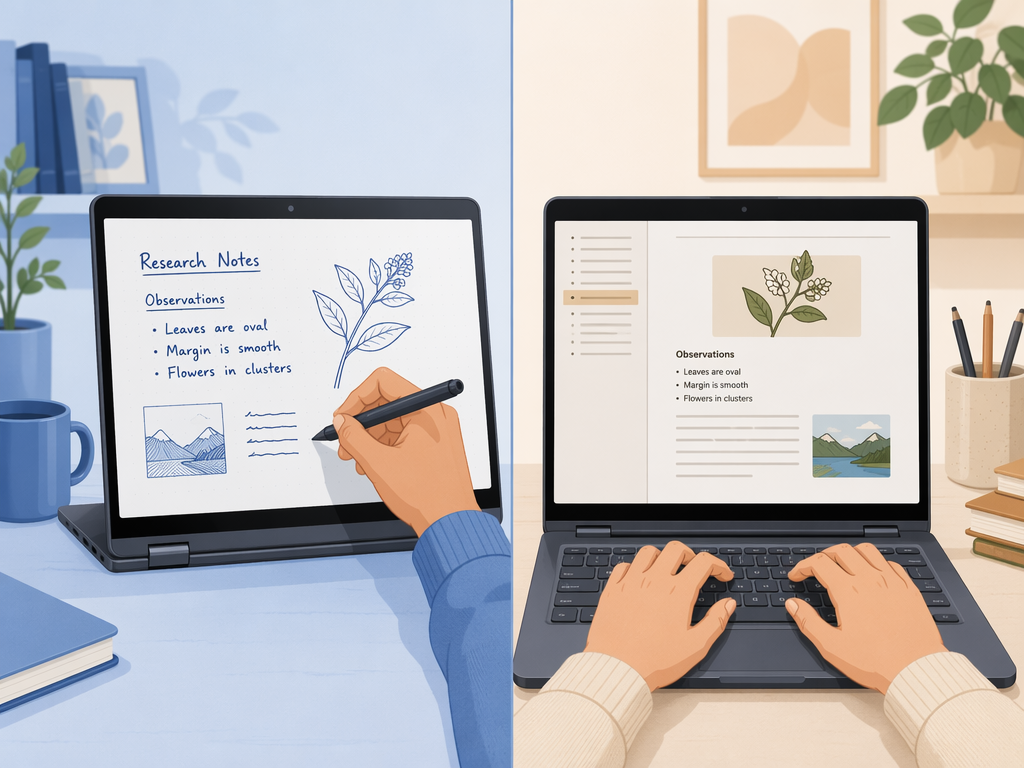
For handwriting, the shortlist is much smaller than the app-store shelf suggests. Squid is the stronger pick when pen feel is the priority. It is the app to try first if you are writing equations, sketching diagrams, marking up readings, or taking notes in a class where typed outlines would slow you down. The free tier covers the essential handwriting experience; PDF annotation requires a paid upgrade [1].
Cursive deserves more attention than it usually gets because it solves the part students and teachers often feel first: setup. Google describes Cursive as a free Chromebook app, pre-installed on select Chromebooks, with handwriting-to-text and PDF annotation support [2]. That does not make it the deepest note system here. It makes it the baseline. If a student can open the lid, tap the pen, write, and find the work later without creating a new account, that is not a small advantage.
OneNote sits between handwriting and typed organization. It is not as pen-first as Squid, and it is not as frictionless as Cursive on supported devices. Its strength is mixed work: typed lecture outlines, pasted diagrams, clipped web pages, and occasional ink on the same class notebook. That makes it a better default for someone who wants one school notebook system rather than a dedicated digital legal pad.
Typed-note users have a different problem. They are usually deciding how much structure they can maintain without turning note-taking into a second job. UpNote is the practical middle option: more organized than Simplenote, lighter than Notion, and less setup-heavy than Obsidian. Zapier’s broader note-taking roundup places apps like Notion, Obsidian, OneNote, and others in a feature-comparison context, but Chromebook users should put offline behavior and app delivery ahead of sheer feature count [4].
Notion belongs in this comparison, but not as the default recommendation for every Chromebook owner. Its databases, templates, and AI-assisted workflows can be valuable, especially for people already running their projects there. The catch is simple: on Chromebook, Notion is best treated as a browser-based system. If you need Notion specifically for AI-assisted notes, database autofill, or team workflows, this separate look at Notion AI for note-taking is more useful than pretending the Android app gives you the whole desktop experience.
The apps that look simple are not all simple in the same way
Google Keep is the easiest app to underestimate and the easiest to overuse. It is excellent when the note is temporary: a reminder before class, a link from a teacher, a checklist, a voice memo, a parking-lot idea. The trouble starts when Keep becomes the place where everything goes. Labels are not the same as notebooks, and fast capture does not automatically become retrieval six months later.
That matters more on Chromebook because Google’s ecosystem feels so close at hand. Keep is right there, Drive is right there, Docs is right there, and the habit forms before the archive has a shape. For light use, that is fine. For a teacher saving lesson fragments or a student managing several courses, Keep should be treated as an inbox, not the library.
Simplenote is simple in a cleaner, stricter way. It is for plain text, fast search, and sync without a lot of design decisions. The 2026 MCP-server angle is interesting for users who want AI tools to query notes, but it is not a native browser feature that magically appears for every Chromebook owner. If you like manual setup and your notes are mostly text, Simplenote has a place. If you need PDFs, images, handwriting, and course binders, it will feel thin quickly.
Obsidian is almost the opposite kind of simple: plain Markdown files underneath, enormous flexibility above. The Android app can handle basic vault work, but the fuller plugin-centered experience on Chromebook points toward Linux. That is a good trade for some users, especially writers, researchers, and PKM people who care about local files. It is a poor trade for someone who just wants lecture notes to sync without thinking. If you are comparing note systems at that level, the broader PKM app decision guide is the better next stop.
If you use more than one device
Chromebooks rarely live alone. A student may have an Android phone. A teacher may have a district Chromebook and a personal iPad. A knowledge worker may use ChromeOS during travel and Windows at a desk. That can change the answer. OneNote gets stronger if you move across school and personal machines. Notion gets stronger if your team already lives in it. Obsidian gets stronger if you understand where your vault lives and how it syncs. Cursive gets weaker if you need the same handwriting system everywhere.
If the Chromebook is only one part of your setup, compare device combinations instead of judging the Chromebook in isolation. This cross-platform note-taking app guide covers that decision more directly. If you are still unsure whether you are a handwriting, quick-capture, research-note, or PKM person, start with the broader guide to choosing a note-taking app by workflow before locking yourself into a Chromebook-specific tool.
The practical pick
For most Chromebook owners, the first split is not free versus paid. It is pen-first versus typed-first.
- If you bought the Chromebook for stylus notes, try Cursive first if it is already installed, then Squid if you want better pen feel and stronger handwritten notebooks.
- If you want free structured school notes, start with OneNote.
- If you want offline typed research notes without a fussy setup, choose UpNote.
- If your work depends on databases, use Notion in the browser and accept the offline and Android-app limits.
- If you want local Markdown, backlinks, and plugins, choose Obsidian only if you are comfortable managing the Chromebook-specific setup.
- If you want plain text and AI-tool querying enough to do manual setup, Simplenote is worth considering.
- If you just need to catch scraps quickly, use Keep, but do not make it carry an entire academic or research archive.
The best Chromebook note app is the one whose ChromeOS version matches the way you actually capture notes. A long feature list matters less when the app fails at the moment your hand touches the screen, the Wi-Fi drops, or the Android window reminds you it was never really designed for the laptop in front of you.
References
- The best pen-based apps for your Chromebook, Chrome Unboxed
- Use Cursive on your Chromebook, Chromebook Help
- Use a stylus with your Chromebook, Chromebook Help
- The best note-taking apps, Zapier