
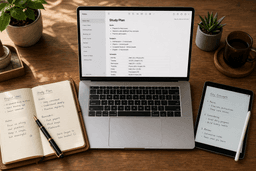
Notes for Laptop: The Ultimate Guide to Apps, Methods, and Science-Backed Workflows in 2026
This guide helps college students and knowledge workers build an effective laptop note-taking system by combining the right app, an active method, and a disciplined review routine. It covers the research on typing vs. handwriting, the best apps for 2026, proven methods adapted for digital use, and a hybrid approach that blends typing with handwritten elements for better retention.
Category: Note-Taking App
Pricing model: Freemium
Free plan: Yes
Best for: Students, Knowledge Workers
Pricing last verified: 2026-06-17
- note-taking
- students
- PKM
- free-plan
- cross-platform
Introduction: Why Laptop Note-Taking Is Polarizing
Walk into any college lecture hall or co-working space in 2026 and you'll see the same split: half the room is typing furiously on laptops, the other half is scribbling in notebooks. The laptop camp values speed and searchability. The handwriting camp swears by retention and focus. Both sides have evidence on their side, which is precisely why the debate refuses to die.
The truth is more nuanced than any single study suggests. Laptop note-taking can be highly effective — but only when you sidestep two well-documented traps: verbatim transcription and digital distraction. Typing at roughly 40 words per minute (versus about 13 words per minute for handwriting) makes it dangerously easy to become a human transcription machine, capturing words without processing their meaning. Meanwhile, a laptop with an internet connection is a distraction machine: one study found students were off-task about 42% of the time during lectures, checking social media, shopping, or doing other coursework.
This guide doesn't take a side in the laptop-versus-paper war. Instead, it builds a practical system that works on a laptop — one that combines the right app, an active note-taking method, and a disciplined review routine. For many learners, the best answer is a hybrid approach that uses the laptop's speed for capture and handwritten elements for deeper processing. The goal is not to type faster or write prettier. It's to leave every lecture, meeting, or reading session with notes you actually understand and can use later.
The Research: Laptop vs. Paper vs. Tablet Note-Taking
Before choosing a tool or method, it's worth understanding what the science actually says about how different note-taking modalities affect learning. The data paints a more complex picture than any single headline suggests.
The Landmark Mueller & Oppenheimer Study (2014)
The most cited study in this space remains Mueller & Oppenheimer's 2014 experiment, which found that students who took handwritten notes scored 34% higher on conceptual questions than those who typed. Importantly, both groups performed equally well on factual recall questions. The difference was in understanding — not memory. The researchers attributed this to the fact that laptop users tend to transcribe lectures verbatim (14.6% of their notes were verbatim compared to 8.8% for handwriting), which bypasses the cognitive processing that leads to deeper learning.
The Distraction Problem
Beyond the verbatim transcription issue, laptops introduce a second problem: distraction. A 2010 study cited by College Info Geek found that students with laptops were only on task about 58% of class time. A more recent 2021 study using tracking software found the average student was distracted for roughly half their lecture by social media, assignments, shopping, and other off-task internet activities. Even more telling: while 70% of students agree laptops are important to academic success, half reported being distracted by other students' laptop use.
What the Numbers Say About Current Habits
The gap between tool preference and actual behavior is striking. Here's a snapshot of the current landscape based on aggregated research:
| Statistic | Finding | Source Context |
|---|---|---|
| Digital tool usage | 68% of college students use digital tools for note-taking | Worldmetrics.org (2026), aggregated from multiple surveys |
| Handwriting preference | 52% of students prefer handwriting despite digital adoption | Worldmetrics.org (2026) |
| Copy-paste behavior | 73% of digital note-takers use copy-paste, correlating with 19% lower conceptual understanding | Worldmetrics.org (2026) |
| Hybrid retention boost | Hybrid note-takers show 36% better retention than either method alone | Worldmetrics.org (2026) |
| 24-hour review impact | Students who revise within 24 hours retain 82% vs. 51% | Worldmetrics.org (2026) |
| Laptop ownership | 96.3% of students reported owning a laptop (Winter 2025) | Research.com citing student survey data |
| In-class laptop use | Nearly 70% of students use laptops regularly during class | Research.com citing LearnTech Insights (2025) |
| Typed vs. handwritten content | Typed notes contain 23% more factual details but 16% fewer conceptual connections | Worldmetrics.org (2026) |
Tablet Note-Taking: A Middle Ground
Tablets occupy an interesting middle position. A 2015 study from the University of Kentucky College of Pharmacy noted that tablet users are much less likely to access distractions like email, Facebook, or YouTube during class compared to laptop users. Tablets combine the cognitive benefits of handwriting with the organizational advantages of digital storage. The trade-off is cost (a tablet with stylus is an additional expense) and the learning curve of writing on glass, which many users find less natural than pen on paper.
The balanced takeaway: each modality has strengths depending on your goal. If you need to capture a high volume of factual information quickly and plan to review it soon after, typing is efficient. If you're trying to understand complex conceptual material, handwriting forces deeper processing. The best system, as we'll explore in Section 4, often combines both.
Best Note-Taking Apps for Laptops in 2026
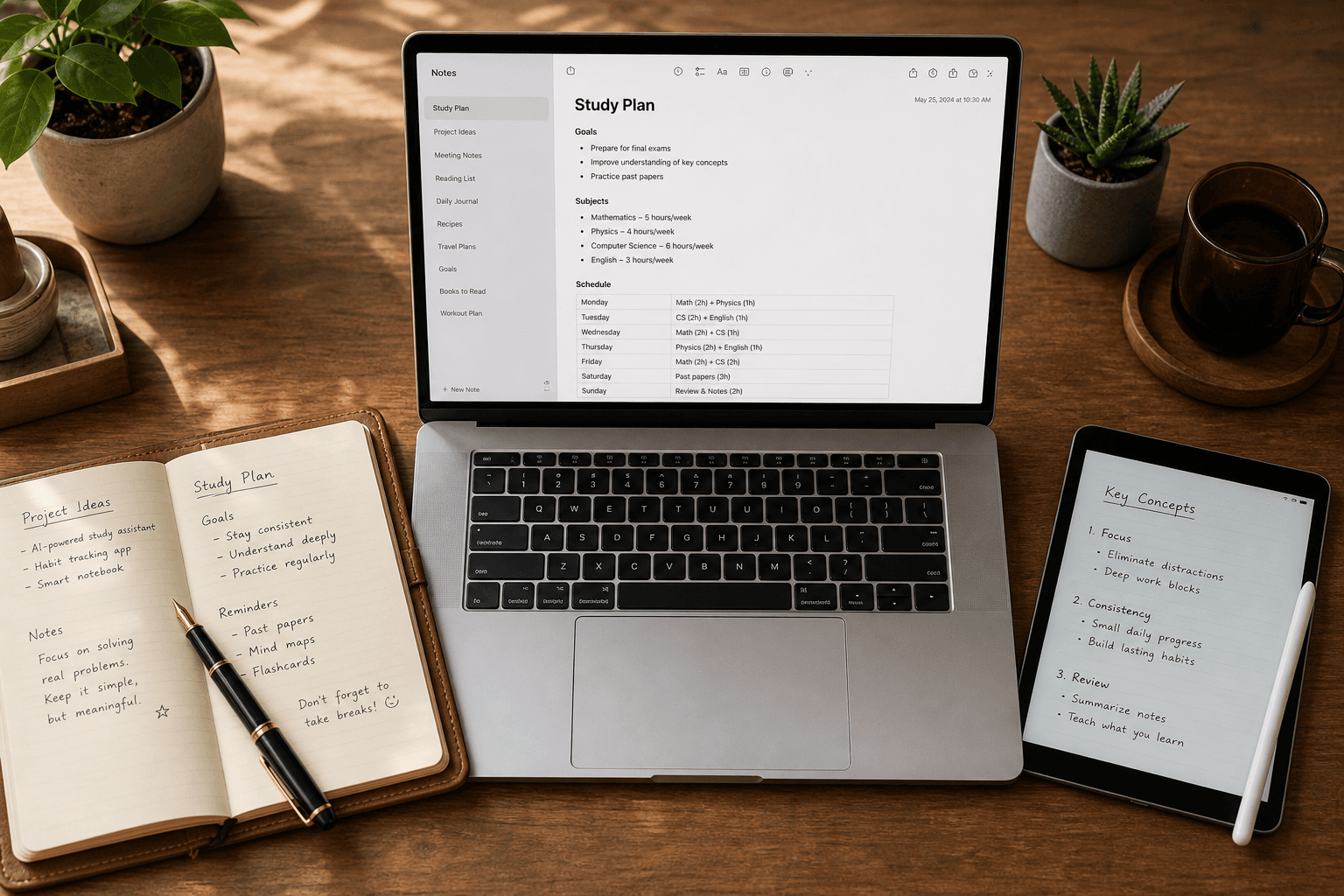
The app you choose sets the foundation for your entire note-taking system. The right choice depends on your platform, budget, and workflow style. Here are the top contenders for laptop users in 2026, organized by use case.
| App | Best For | Pricing (as of June 2026) | Key Strength |
|---|---|---|---|
| Microsoft OneNote | Students and cross-platform users | Free (5GB storage); $1.99/month for 100GB | Freeform canvas, free tier, works on Windows, Mac, iOS, Android, Web |
| Obsidian | Power users and PKM enthusiasts | Free for personal use | Local-first Markdown, bi-directional linking, extensive plugin ecosystem |
| Notion | Collaboration and project-based notes | Free for personal use; Plus from $12/user/month | Databases, templates, team workspaces, AI features |
| Apple Notes | Mac and iOS users | Free (5GB iCloud storage) | Deep OS integration, live audio transcripts, tags, Apple Intelligence |
| Google Keep | Quick capture and Google ecosystem users | Free (15GB storage) | Gmail/Calendar integration, auto-transcribed audio notes |
| Joplin | Open-source and privacy-focused users | Free | End-to-end encryption, Evernote import, Markdown support |
| Evernote | Existing users needing AI features | Free (50 notes, 1 device); Starter from $15/month | AI paraphrasing, summarization, translation |
For a deeper comparison of each app's features, pricing, and platform support, see our full Best Note-Taking Apps for Laptop (2026): 9 Apps Compared article.
Quick Recommendations by Use Case
- You're a student on a budget: OneNote is the top choice for 35% of students and offers a generous free tier with cross-platform support.
- You want to build a personal knowledge management system: Obsidian is free for personal use, stores notes locally as Markdown files, and supports bi-directional linking and graph views.
- You collaborate with a team or manage projects: Notion holds 42% of the professional market share and excels at combining notes with databases and task management.
- You're all-in on Apple: Apple Notes is free, deeply integrated, and now supports live audio transcripts and Markdown.
- You need quick capture and reminders: Google Keep is free, syncs across devices, and integrates with Gmail and Google Calendar.
- You want a broader comparison organized by use case: check out Best Note-Taking Software in 2026: A Use-Case-First Comparison.
Note-Taking Methods That Work on Laptops
An app is only as good as the method you use inside it. The most common mistake laptop note-takers make is treating the app as a passive recording device — typing everything the speaker says without filtering, organizing, or rephrasing. Active note-taking, which involves paraphrasing, summarizing, and connecting ideas, activates the hippocampus, a brain region critical for memory formation. Passive transcription, by contrast, primarily engages the prefrontal cortex with minimal memory benefit.
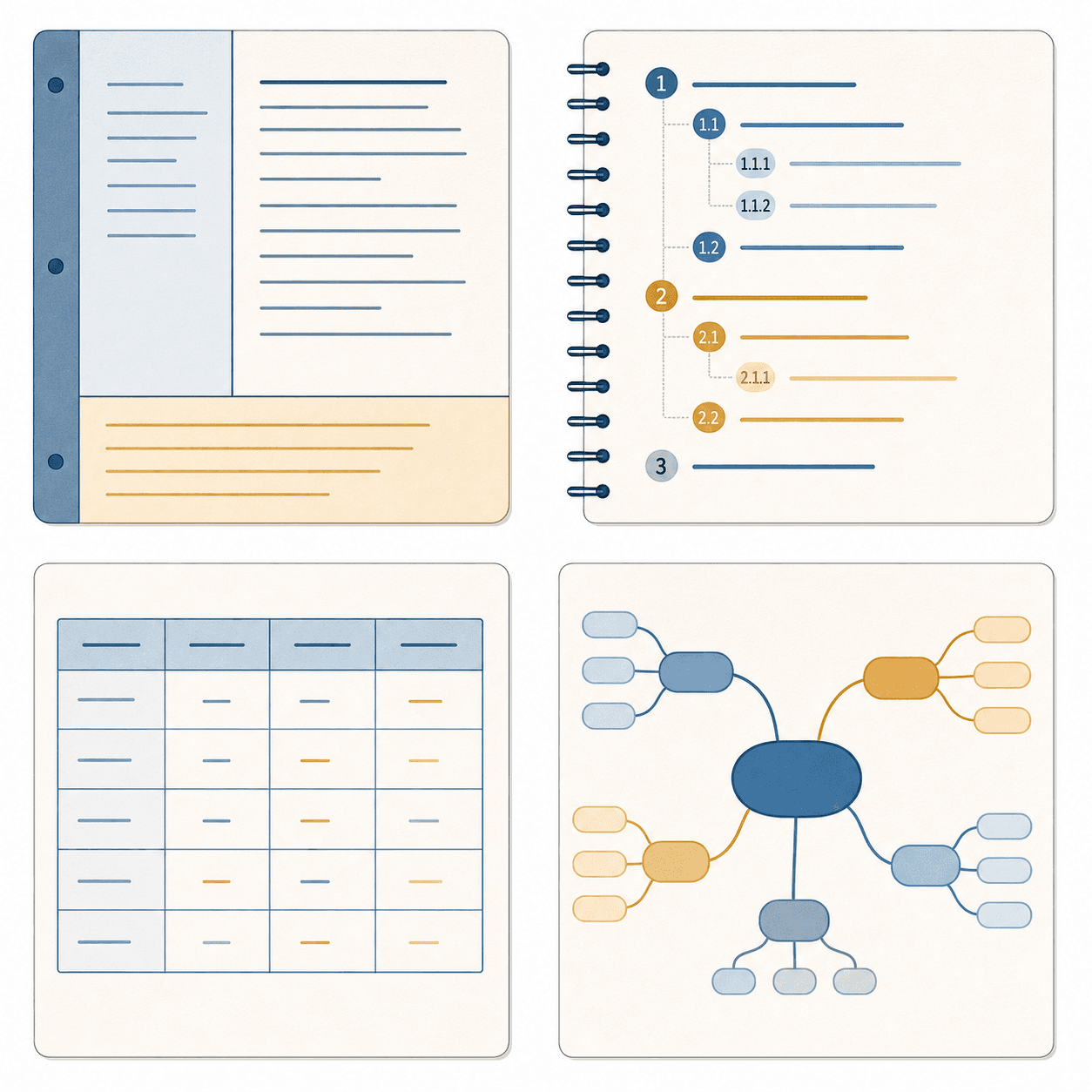
Here are four methods adapted for digital note-taking on a laptop, with guidance on which apps support them best.
1. The Cornell Method (Digital Adaptation)
The Cornell Method divides each page into three sections: a narrow cue column on the left, a larger notes column on the right, and a summary section at the bottom. In a digital environment, you can replicate this structure using a table or a two-column layout in OneNote, Notion, or Obsidian.
- During the lecture: Take notes in the right column using short phrases, abbreviations, and bullet points. Avoid full sentences.
- After the lecture: Fill in the left cue column with keywords, questions, or prompts that relate to the notes on the right.
- Within 24 hours: Write a brief summary at the bottom in your own words. This step alone can boost retention from 51% to 82%.
Best for: Lecture-heavy courses where you need to review and self-test later. Works well in OneNote (using a table) or Notion (using a two-column layout).
2. The Outline Method
The Outline Method is the most natural for typing. It uses a hierarchical structure of main topics, subtopics, and supporting details, typically indented with bullet points or numbered lists. This method works well because it mirrors how most laptop note-taking apps handle text.
- Start with the main topic as a heading.
- Indent subtopics beneath it.
- Use bullet points for supporting details, examples, and definitions.
- Avoid going more than three levels deep — if you need more detail, create a new main topic.
Best for: Structured lectures, reading notes, and meeting minutes. Works in any app, but Obsidian and Notion excel here with their Markdown-based outlining and collapse/expand features.
3. The Charting Method
The Charting Method organizes information into rows and columns, making it ideal for comparing multiple items across the same dimensions. It's particularly useful for subjects that involve classification, comparison, or chronology.
In a laptop app, create a table with categories as column headers and specific items as rows. During the lecture, fill in cells with key facts. After class, review the table for patterns and gaps.
Best for: Science courses with classification systems, history timelines, or comparing theories. OneNote and Notion both support robust table creation.
4. Mind Mapping (Digital)
Mind mapping is a visual method that places a central concept in the middle of the page and branches out to related ideas. While traditionally done on paper, several laptop apps now support digital mind mapping. Obsidian's Canvas feature and Notion's embedded drawing tools allow you to create concept maps directly within your notes.
Best for: Brainstorming, understanding complex relationships, and visual learners. Less suitable for fast-paced lectures where typing speed matters.
For downloadable templates and step-by-step instructions for each method, visit our 5 Proven Note-Taking Methods for Laptop Users (With Free Templates) page.
The Hybrid Approach: Combining Typing with Handwriting
If the research shows one clear signal, it's this: the best note-taking system may not be purely digital or purely analog. A growing body of evidence suggests that hybrid note-takers — those who combine handwritten and digital methods — show 36% better retention than those who use either method alone. Students who use both handwritten and digital notes also report 28% better overall understanding.
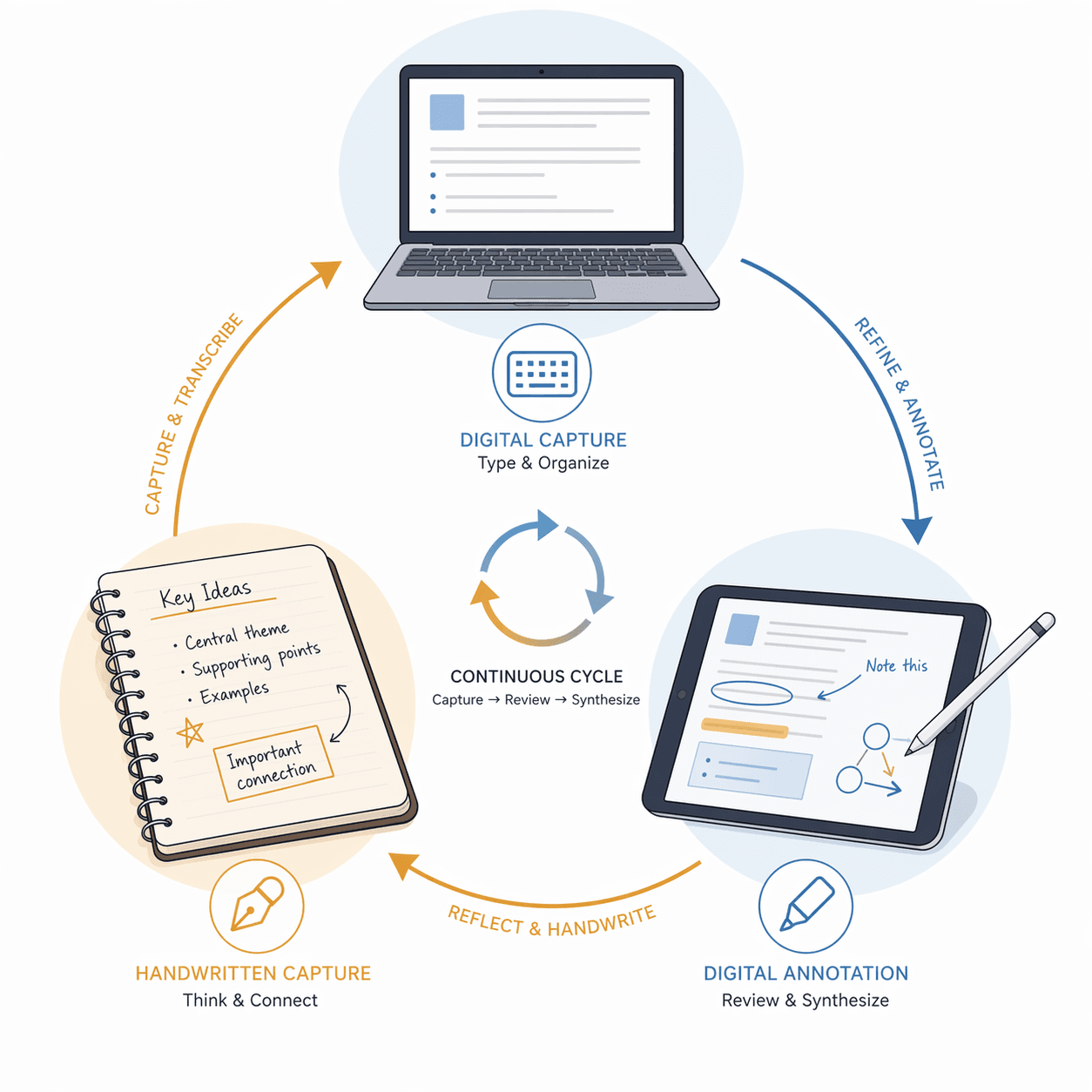
The logic is straightforward: typing gives you speed and searchability during the initial capture phase. Handwriting forces you to process, summarize, and connect ideas during the review and synthesis phase. Together, they cover each other's weaknesses.
Three Practical Hybrid Setups
- Laptop + iPad with GoodNotes: Type notes during lectures using OneNote or Notion on your laptop. After class, transfer key concepts to an iPad using GoodNotes or Notability, adding handwritten diagrams, concept maps, and margin annotations. The iPad's handwriting recognition makes these notes searchable.
- Laptop + Rocketbook: Take handwritten notes in a Rocketbook notebook during class. After scanning with the Rocketbook app, your handwritten notes are automatically uploaded to Google Drive, OneNote, or Notion as searchable PDFs. This gives you the cognitive benefits of handwriting with the organizational benefits of digital storage.
- Laptop + Paper Notebook: The lowest-cost hybrid. Type structured notes during the lecture for speed. After class, handwrite a one-page summary or concept map in a notebook. Photograph the page and attach it to your digital notes. This adds only a few minutes per lecture but significantly improves conceptual understanding.
Practical Tips for Better Laptop Note-Taking
Beyond choosing the right app and method, small behavioral changes can dramatically improve the quality of your notes. These tips are drawn from academic support resources and verified research on learning and memory.
- Review within 24 hours. Students who revise notes within a day retain 82% of information compared to 51% for those who don't. Schedule a 10-minute review session after each lecture.
- Use abbreviations and symbols. Develop a personal shorthand system (e.g., "w/" for "with," "→" for "leads to," "ex:" for "example"). This forces you to process information rather than transcribe it.
- Disable notifications during class. Put your laptop in Do Not Disturb mode. A 2021 study found students were distracted for about half their lecture time by off-task internet activities. Remove the temptation entirely.
- Turn action items into tasks. When a lecture or meeting generates a to-do, immediately format it as a task in your note-taking app (checkboxes in OneNote, tasks in Notion, or a separate task manager). This prevents action items from getting lost in your notes.
- Use tags and folders for organization. Create a consistent tagging system (e.g., #lecture, #reading, #meeting, #idea) and folder structure (by course, project, or quarter). This makes retrieval much faster when exam season or project deadlines arrive.
- Record lectures for backup. If your app supports it (Apple Notes and Notion both offer audio recording), record the lecture while you type. This gives you a safety net for missed points without the pressure to capture everything verbatim.
- Focus on active, not passive, note-taking. Active note-taking (paraphrasing, summarizing, asking questions) activates the hippocampus and improves long-term memory. Passive transcription primarily engages the prefrontal cortex with minimal retention benefit. If you find yourself typing the speaker's exact words, stop and rephrase.
Conclusion: Build Your System
The research is clear: laptop note-taking is not inherently inferior to handwriting. It's inferior when done passively. The difference between effective and ineffective laptop notes comes down to three things: the app you choose, the method you use, and the discipline you bring to review.
Here's a simple decision framework to build your system:
- If you prioritize speed and searchability: Use a laptop with the Outline Method in OneNote or Obsidian. Focus on paraphrasing rather than transcribing. Review within 24 hours.
- If you prioritize conceptual understanding: Add handwritten elements to your workflow. Use a tablet, Rocketbook, or even a paper notebook for post-lecture summaries and concept maps. The 36% retention boost from hybrid note-taking is worth the extra effort.
- If you collaborate with others: Use Notion for its sharing, database, and template features. Combine with a personal quick-capture tool like Google Keep for fleeting thoughts.
- If you're a student on a budget: Start with OneNote (free, cross-platform) and the Cornell Method. Add a paper notebook for handwritten summaries. Upgrade only when the habit is solid.
The best note-taking system is not the one with the most features, the prettiest interface, or the most research citations. It's the one you actually use and review consistently. Start with one app, one method, and the 24-hour review rule. Refine from there.
For deeper dives into specific apps, methods, and templates, explore our Best Note-Taking Apps for Laptop (2026) comparison, our free templates for note-taking methods, and our use-case-first software comparison.
Comments
Join the discussion with an anonymous comment.