
Why Methods Matter More Than Tools for Laptop Note-Taking
When you open a blank page in OneNote, Notion, or Google Docs, the temptation is to start typing everything the lecturer or meeting speaker says. The result is often a wall of undifferentiated text — hard to review, harder to recall. The problem isn't the app you chose; it's the absence of a deliberate structure.
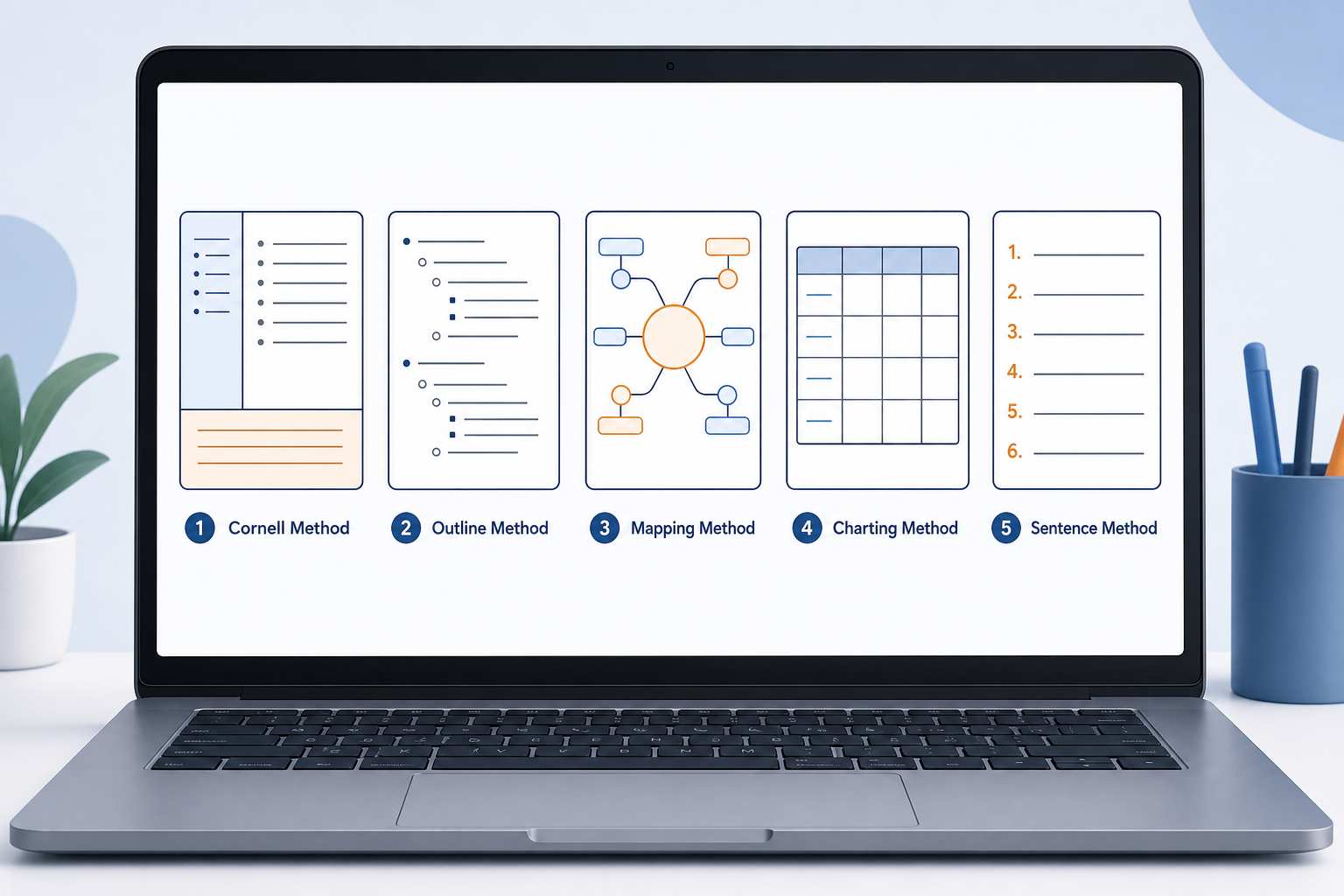
A note-taking method is a repeatable framework that dictates how you capture, organize, and review information. Research on the Cornell Method, developed at Cornell University in the 1950s by Professor Walter Pauk, suggests that its active-recall structure — separating cues, notes, and a summary — leads to better comprehension than unstructured transcription. The same principle applies to the other four classic methods covered here.
Each method below includes a description of its structure, the scenarios where it performs best, and links to free templates you can download and start using today in OneNote, Notion, or Google Docs.
The Cornell Method: Active Recall in Three Sections
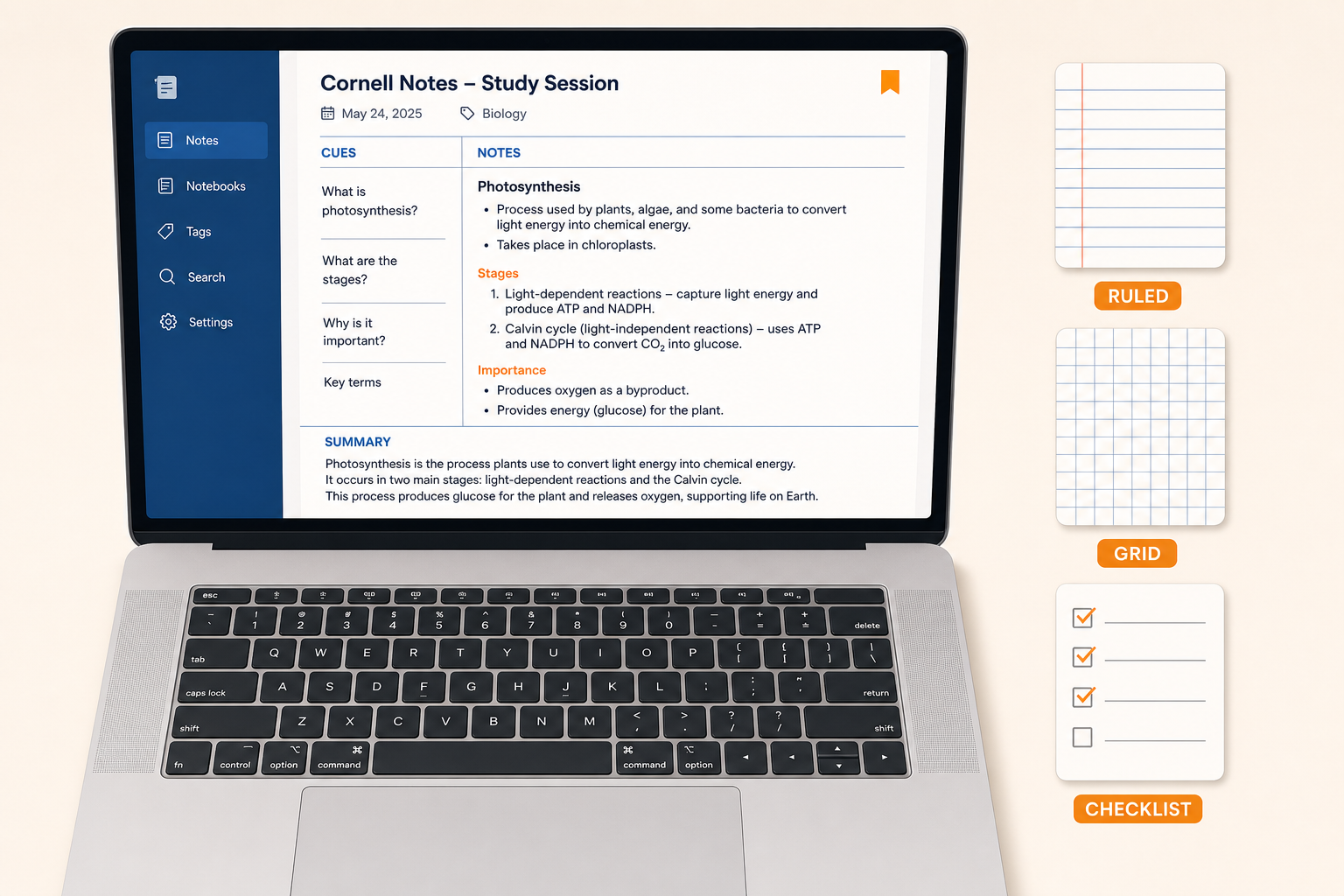
The Cornell Method divides a page into three distinct zones: a narrow left-hand column for cues or questions, a wider right-hand column for your main notes, and a bottom section for a summary written after the lecture or meeting ends. This layout forces you to engage with the material twice — once during capture and again during review, when you write the summary and test yourself using the cue column.
Developed by Walter Pauk at Cornell University in the 1950s, the method is one of the most researched note-taking frameworks available. The Goodnotes Blog notes that it "typically results in better overall comprehension through active summarizing, intentional note-taking, and revision-ready notes." For laptop users, the key is finding a template that replicates the three-section layout digitally.
Free Cornell Templates for OneNote, Notion, and Google Docs
- OneNote: A Cornell notes template is available through onenotegem.com, and Zapier's 2025 roundup of note-taking apps confirms OneNote's strong template support. OneNote's free tier includes 5 GB of storage, and it has a 4.5/5 rating on G2.
- Notion: The Notion Marketplace hosts several Cornell-style templates. For a deeper dive into Notion-specific note-taking setups, see our complete guide to Notion note-taking methods and templates.
- Google Docs: Adobe Acrobat offers a free downloadable Cornell template optimized for laptop use. Saving it as a PDF preserves the three-section layout.
- xTiles: For a fully customizable digital alternative, xTiles provides a Cornell Notes Template that automates the page setup into cues, notes, and summary sections, with support for multimedia and nested pages.
The Outline Method: Hierarchical Notes for Structured Lectures and Meetings
The Outline Method uses indented bullet points and headings to create a clear hierarchy of information. The main topic sits at the top level, subtopics are indented beneath it, and supporting details are indented further. This structure mirrors the way most textbooks and slide decks are organized, making it a natural fit for lectures that follow a linear progression.
On a laptop, the Outline Method is the easiest to implement because every major note-taking app supports bullet points, indentation, and heading styles natively. You do not need a special template — just start typing with a heading, press Enter, and indent as the speaker moves from a main point to a sub-point.
That said, a simple template can help you stay consistent. Adobe Acrobat's guide to note-taking methods includes an outline-style template you can download and use in Google Docs or OneNote. Alternatively, create your own by setting up a page with a top-level heading, a second-level heading for each major section, and bullet points for details.
The Mapping Method: Visual Connections for Complex Topics
The Mapping Method — often called mind mapping — starts with a central concept in the middle of the page and branches outward with related ideas, subtopics, and connections. It is ideal for visual learners and for subjects where relationships between concepts matter more than chronological order.
On a laptop, you can create a mind map using drawing tools in OneNote, embedding a diagram from a dedicated tool like Miro or FigJam into Notion, or using a table-based layout where each column represents a branch. The xTiles platform, for example, supports block-based canvases that let you arrange notes, tables, and diagrams freely on an endless canvas — a natural environment for the Mapping Method.
A free template for this method is less about a pre-built file and more about a setup guide: create a new page, place your central topic in a large heading at the center, and use bullet points or blocks radiating outward. For a structured starting point, Adobe Acrobat's Mapping template provides a printable layout that you can adapt digitally by inserting it as an image background in OneNote or Notion.
The Charting Method: Organizing Comparisons and Data
The Charting Method organizes information into rows and columns, making it easy to compare multiple items across the same set of criteria. It is the go-to method for pros and cons lists, feature comparisons, historical timelines, and any scenario where you need to see data side by side.
On a laptop, this method is straightforward: insert a table in OneNote, Notion, or Google Docs, label the columns with your comparison criteria, and fill in the rows as the information comes in. Notion's database tables are particularly powerful here because you can sort, filter, and add new properties without breaking the layout.
For a ready-to-use template, Adobe Acrobat offers a Charting template that you can download and import into Google Docs or OneNote. Alternatively, create a simple table in Notion with columns for "Topic," "Criteria 1," "Criteria 2," and "Notes."
| Method | Best Use Case | Key Strength | Template Available In |
|---|---|---|---|
| Cornell | Lectures, exam prep | Active recall via cues and summary | OneNote, Notion, Google Docs, xTiles |
| Outline | Structured lectures, meetings | Clear hierarchy, easy to scan | All apps (native support) |
| Mapping | Brainstorming, complex topics | Visual relationships between ideas | OneNote, Notion (via embed), xTiles |
| Charting | Comparisons, data-heavy topics | Side-by-side analysis | OneNote, Notion, Google Docs |
| Sentence | Fast-paced lectures, interviews | Captures everything, minimal formatting | All apps (numbered list template) |
The Sentence Method: Fast-Paced Capture Without Losing Context
The Sentence Method is the simplest of the five: you write every new thought as a separate numbered sentence, capturing information as fast as it comes. There is no indentation, no columns, and no branching — just a sequential list of facts, ideas, and observations.
This method shines in fast-paced environments where the speaker moves quickly and you cannot afford to pause and decide where a piece of information belongs. It is also useful for interviews, Q&A sessions, and brainstorming where the goal is to capture everything first and organize later.
Because the Sentence Method requires no special layout, any note-taking app works. However, a simple numbered-list template can help you stay consistent. Adobe Acrobat's Sentence Method template provides a clean numbered format you can use in Google Docs or OneNote. In Notion, you can create a quick template with a numbered list block and a "Key Takeaways" section at the bottom for post-session review.
Quick-Reference Summary Table
The table below summarizes all five methods at a glance. Use it to decide which method fits your next lecture, meeting, or study session.
| Method | Best For | Key Strength | Template Available In |
|---|---|---|---|
| Cornell | Lectures, exam prep | Active recall via cues and summary | OneNote, Notion, Google Docs, xTiles |
| Outline | Structured lectures, meetings | Clear hierarchy, easy to scan | All apps (native support) |
| Mapping | Brainstorming, complex topics | Visual relationships between ideas | OneNote, Notion (via embed), xTiles |
| Charting | Comparisons, data-heavy topics | Side-by-side analysis | OneNote, Notion, Google Docs |
| Sentence | Fast-paced lectures, interviews | Captures everything, minimal formatting | All apps (numbered list template) |
Frequently Asked Questions
Can I use the Cornell Method in Google Docs?
Yes. Adobe Acrobat provides a free Cornell template that you can download and open in Google Docs. The three-section layout (cues, notes, summary) is preserved as a table, which you can resize to fit your screen. Alternatively, create your own by inserting a 2×1 table, making the left column narrow for cues, and adding a separate section at the bottom for the summary.
Do I need a special app for mind maps on a laptop?
Not necessarily. OneNote includes drawing tools that let you sketch mind maps directly. Notion supports embedded diagrams from tools like Miro, FigJam, or Whimsical. For a dedicated digital canvas, xTiles offers block-based layouts that work well for mapping without requiring a separate app.
How do I review digital notes effectively?
Each method has a built-in review mechanism. For Cornell, cover the notes column and test yourself using the cues. For Outline, scan the headings to reconstruct the hierarchy. For Mapping, trace the branches to see how concepts connect. For Charting, compare rows to identify patterns. For Sentence, rewrite the numbered list into a summary or outline. The key is to schedule a short review session within 24 hours of capture — research on the Cornell Method suggests this dramatically improves retention.
I'm new to Notion. Where should I start?
If you are setting up Notion for the first time, our 30-minute beginner's guide to Notion note-taking walks through account creation, page structure, and template installation. Once you have the basics, you can install any of the Cornell, Outline, Charting, or Sentence templates from the Notion Marketplace.
Can I switch between methods during a single lecture?
Yes. Many experienced note-takers use a hybrid approach — starting with the Sentence Method to capture fast-paced introductions, then switching to Outline or Charting when the speaker moves into structured comparisons. The important thing is to have a template or page setup ready so you are not reformatting mid-session. Most apps let you create a master template with sections for each method, or you can keep a separate page for each method and switch tabs as needed.
Comments
Join the discussion with an anonymous comment.