
The Confusion Around Google's Note-Taking Tools
If you're a Google ecosystem user, you've likely stared at your screen wondering which tool to open. Should you grab a quick note in Keep? Start drafting in Docs? Or upload your research into NotebookLM? The confusion is understandable — Google has built multiple tools that all handle "notes" in some form, but each one serves a fundamentally different purpose.
The core problem isn't that Google has too many note-taking apps. It's that most people treat them as interchangeable, reaching for whichever one is closest at hand and then getting frustrated when it doesn't do what they need. Keep is brilliant for jotting down a grocery list or a sudden idea, but it collapses under the weight of a research project. NotebookLM can synthesize a 40-page PDF into bullet points in seconds, but it's overkill for a reminder to pick up milk.
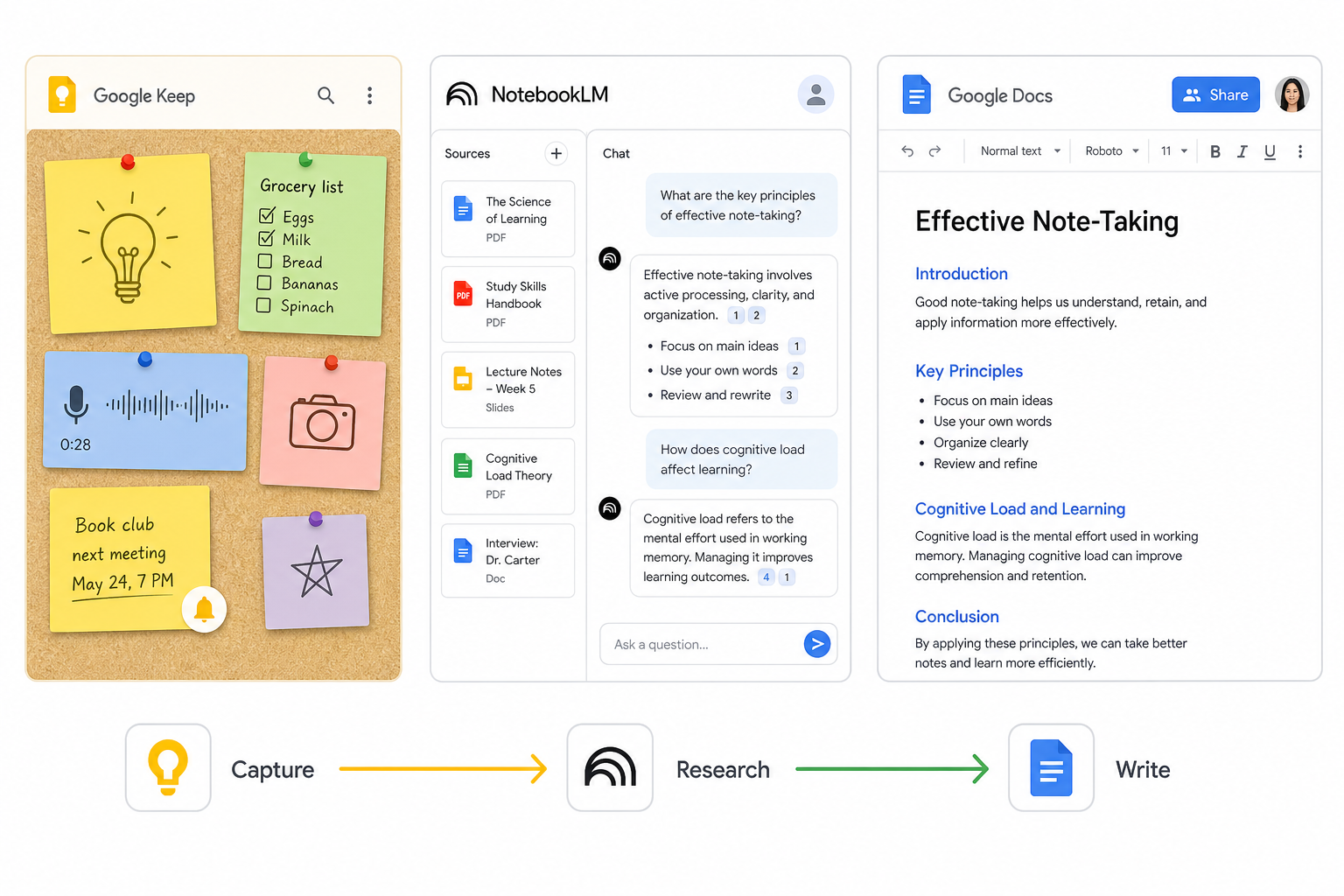
Here's the thesis of this comparison: Google Keep and NotebookLM are not competitors. They are complementary tools designed for different stages of a complete note-taking workflow. Keep is your capture inbox — the fastest way to get something out of your head and into a digital form. NotebookLM is your research workshop — the place where you upload, analyze, and synthesize information into something useful. Most Google users need both, and knowing when to use each is the real productivity unlock.
This article will walk through what each tool does best, where each falls short, and — most importantly — how to build a workflow that uses both for what they were designed to do.
Google Keep: The Digital Sticky Note for Lightning-Fast Capture
Google Keep launched in March 2013 as a simple, fast note-taking app. More than a decade later, its core identity hasn't changed: Keep is optimized for speed of capture. It's the tool you reach for when you need to record something in two seconds or less, not the tool you use to build a knowledge base.
What Keep Does Best
- Speed and accessibility: Keep's home screen widget on Android lets you create a note in a single tap. On iOS, the widget works similarly. This frictionless entry point is why Keep works best in terms of speed and accessibility compared to more deliberate tools like NotebookLM, according to an Android Police comparison.
- Voice notes with real-time transcription: Record a voice memo and Keep transcribes your spoken words into text in real time. The transcribed text is fully searchable, making voice capture one of Keep's most underrated features.
- OCR from images: Snap a photo of a whiteboard, a printed document, or a handwritten note, and Keep extracts the text. That text becomes searchable, so you can find that whiteboard photo months later by searching for a key term.
- Deep Google integration: Keep appears as a sidebar in Gmail, Google Docs, and Google Drive. You can drag a note directly into a Doc, or click "Copy to Google Docs" to convert a note into a new document. Set a reminder, and it appears in Google Calendar. This tight integration is why Zapier named Keep the best note app for Google power users.
- Free with 15GB of storage: Keep is completely free. The 15GB storage limit is shared across all Google services (Gmail, Drive, Photos), but for text-based notes, you'll likely never hit it.
Where Keep Falls Short
- No formatting: You cannot bold, italicize, or create headings within a Keep note. It's plain text with checkboxes and basic lists. For anything beyond quick jots, this becomes a real limitation.
- No desktop apps: Keep is available as a web app, Android app, and iOS app. There are no native desktop applications for Windows or macOS. Google ended support for the Keep Chrome app in February 2021, though the web app works in any browser.
- Weak organization at scale: Tags and colors are the only organizational tools. As Android Police noted, after you've accumulated hundreds of notes, that system buckles. There's no folder hierarchy, no nested tags, and no database-like views.
- 19,999 character limit: Each note has a hard cap of roughly 19,999 characters. That's fine for most quick notes, but it means Keep cannot serve as a long-form writing tool.
- Web clipper limitations: Keep's web clipper only saves URLs, not full page content. If you want to save an article for later reading, Keep is not the right tool.
- Location-based reminders discontinued: Google removed location-based reminders in late 2025. If you relied on Keep to remind you to pick up groceries when you arrived at the store, that feature is no longer available.
NotebookLM: The AI Research Assistant for Deep Work
NotebookLM is Google's AI-powered research assistant, and it solves a fundamentally different problem than Keep. Where Keep is about capturing information quickly, NotebookLM is about understanding information deeply. As XDA Developers put it, Keep is a "container" while NotebookLM is a "lens" that helps you see patterns and contradictions in your sources.
NotebookLM's core innovation is that it grounds its AI responses in your uploaded sources. Unlike a general chatbot like Gemini or ChatGPT, NotebookLM will not invent facts or pull information from outside the documents you provide. This makes it a purpose-built AI productivity tool that outperforms general chatbots for research tasks.
What NotebookLM Does Best
- Source-grounded analysis: Upload PDFs, Google Docs, web pages, YouTube videos, or audio files. NotebookLM analyzes them and answers questions with citations back to the original source. As Android Police found, you can upload a dense 40-page paper and get bullet points with citations in under a minute.
- Audio Overviews: NotebookLM can generate a conversational podcast-style audio summary of your sources. Two AI hosts discuss the material, highlight key points, and draw connections. This is one of the most popular features for students and researchers who want to absorb information while commuting.
- Studio tools: The Studio Panel offers Tier 1 tools (Reports, Slide Decks, Infographics, Mind Maps) and Tier 2 tools (Data Tables, Video Overviews, Quiz, Flash Cards, Audio Overviews). These outputs transform raw research into polished, shareable formats.
- Deep Research: The Web + Deep Research feature synthesizes sources from across the web into a full research report. This is distinct from the standard chat-based research and is designed for comprehensive literature reviews.
- 1M-token context window: NotebookLM can process massive amounts of text in a single session. The 1M-token context window on the Pro plan means you can upload entire books or extensive research collections and ask questions across all of them.
Where NotebookLM Falls Short
- Source caps per notebook: The free tier allows 50 sources per notebook. As Atlas Workspace notes, this becomes a constraint for literature reviews with 100+ papers. Paid tiers increase this to 100 (Plus), 300 (Pro), and up to 600 (Ultra).
- Isolated notebooks: Notebooks cannot share context. Knowledge does not flow between projects. If you have a notebook on "Machine Learning" and another on "Python Programming," you cannot ask a question that draws from both. This is a significant limitation for interdisciplinary research.
- No public API: There is no public API for NotebookLM. You cannot automate uploads, integrate with other tools, or build custom workflows on top of it.
- No collaboration: Beyond sharing a notebook as a view-only link, there is no real-time collaboration. Multiple users cannot work in the same notebook simultaneously.
- Limited source types: NotebookLM does not support spreadsheets, CSVs, databases, emails, code repositories, EPUBs, or images with handwritten text. If your research lives in these formats, you'll need to convert it first.
- No academic citation formatting: NotebookLM does not generate formatted citations in APA, MLA, Chicago, or IEEE styles. For academic users, this means you'll still need to manually format your references.
Google Keep vs. NotebookLM: Head-to-Head Comparison
The table below lays out the key differences across the dimensions that matter most when choosing a note-taking tool. Use it as a quick reference to understand which tool fits which task.
| Dimension | Google Keep | NotebookLM |
|---|---|---|
| Primary use case | Quick capture, reminders, lists | Deep research, analysis, synthesis |
| Capture speed | ~2 seconds (widget, voice, photo) | Requires intention (upload sources first) |
| AI capabilities | Basic: 'Help me create a list' (Gemini) | Advanced: source-grounded Q&A, summaries, Audio Overviews, Studio tools |
| Organization | Tags and colors only; no hierarchy | Isolated notebooks; no cross-notebook connections |
| Platform support | Web, Android, iOS (no desktop apps) | Web only |
| Offline access | Yes (mobile apps) | No (web only) |
| Collaboration | Real-time sharing and editing | View-only sharing; no real-time collaboration |
| Storage | 15GB shared across Google services | Depends on Google AI plan (200 GB to 30 TB) |
| Pricing | Free | Free tier available; paid plans from $7.99/month |
| Best for | Students, professionals, anyone who needs fast capture | Researchers, analysts, students doing deep work |
When to Use Each Tool — and the Ideal Keep-to-NotebookLM Workflow
The real power of Google's note-taking ecosystem isn't in choosing one tool over the other — it's in using both together in a deliberate workflow. Think of Keep as your inbox and NotebookLM as your workshop. Information flows from capture to analysis, not the other way around.
When to Reach for Google Keep
- A sudden idea strikes and you need to capture it before it disappears
- You're in a meeting and want to record a voice memo that will be transcribed automatically
- You snap a photo of a whiteboard or a printed document and need the text to be searchable
- You need a grocery list, to-do list, or packing list that syncs across devices
- You want to set a time-based reminder that appears in Google Calendar
- You're in Gmail or Docs and need to jot something down without switching apps
When to Reach for NotebookLM
- You have a stack of PDFs, articles, and notes that you need to synthesize into a coherent understanding
- You're writing a research paper and need to extract key points from multiple sources with citations
- You want to generate a study guide, briefing document, or slide deck from your research materials
- You need to ask specific questions about a set of documents and get answers grounded in those sources
- You want to create an Audio Overview to review material during your commute
The Ideal Workflow: Capture in Keep, Analyze in NotebookLM
The most effective workflow, as described by XDA Developers and Android Police, is straightforward: dump everything into Keep first, then periodically export the notes that matter into NotebookLM when you're ready to do something with them.
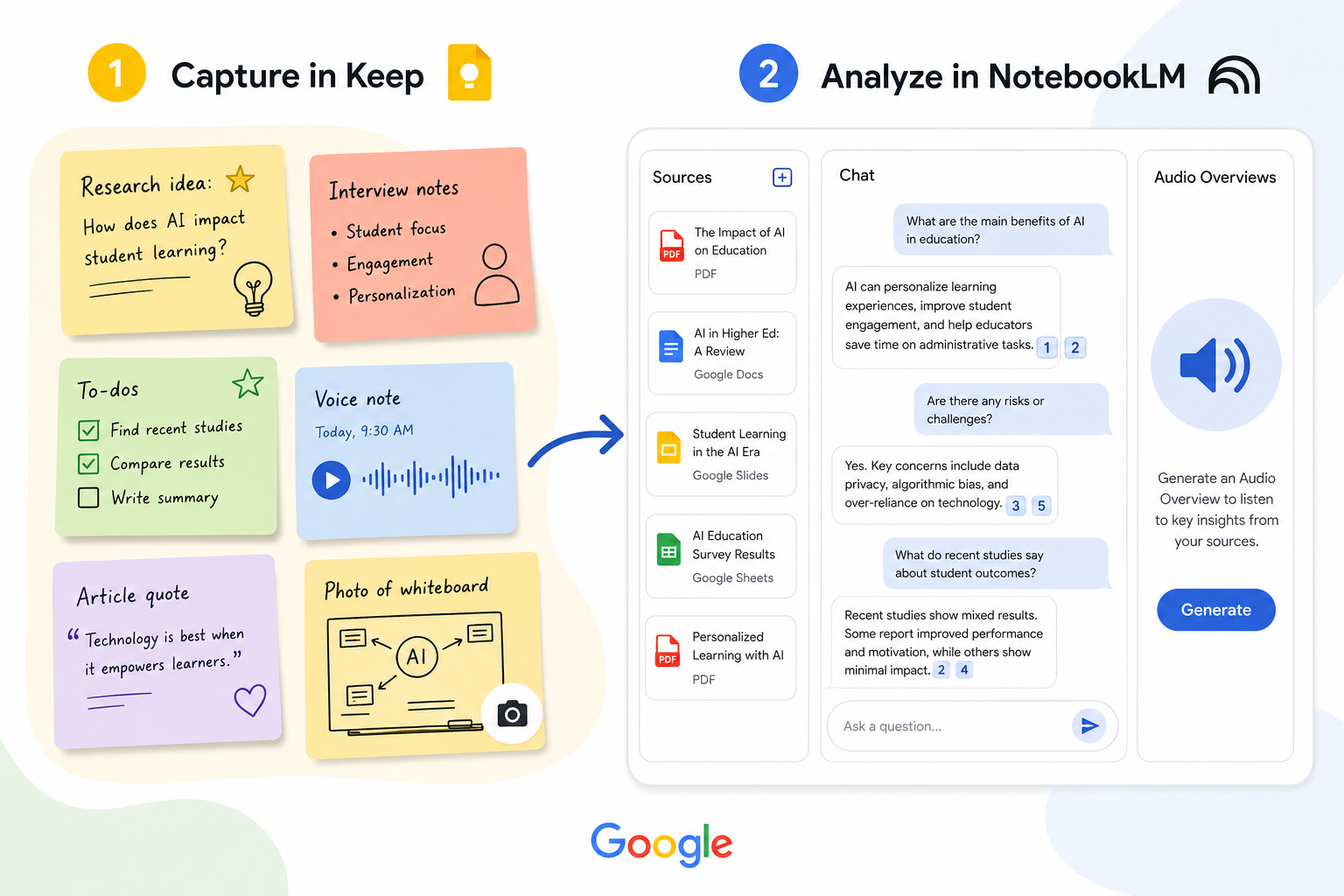
Here's how this works in practice:
- Capture everything in Keep. Ideas, voice memos, photos of whiteboards, meeting notes, web clippings (even if it's just a URL), grocery lists — all of it goes into Keep. Don't worry about organization at this stage. The goal is to get information out of your head and into a searchable system with zero friction.
- Review and triage periodically. Set aside 15 minutes at the end of each day or week to review your Keep notes. Most notes are ephemeral — grocery lists, reminders, random thoughts. Delete or check them off. But identify the notes that have lasting value: research ideas, meeting insights, project notes.
- Export meaningful notes to NotebookLM. For notes that need deeper analysis, use Keep's "Copy to Google Docs" feature to convert them into a Doc, then upload that Doc to NotebookLM. Alternatively, if the note is short, you can paste it directly into a new notebook source.
- Analyze and synthesize in NotebookLM. Once your sources are in NotebookLM, use the chat panel to ask questions, generate summaries, create study guides, or produce Audio Overviews. The Studio tools can turn your research into reports, slide decks, or mind maps.
- Export the final output. When you're done, export your NotebookLM output as a Google Doc, PDF, or Markdown file. That final document can live in Google Drive, be shared with collaborators, or be archived for future reference.
Pricing: What Google Keep and NotebookLM Actually Cost
Both tools offer generous free tiers, but the pricing structures are quite different. Keep is entirely free with a shared storage pool, while NotebookLM's advanced features require a Google AI subscription.
Google Keep Pricing
Google Keep is completely free. The only cost is the 15GB of storage it shares with Gmail, Google Drive, and Google Photos. For text-based notes, this is more than enough for most users. If you run out of storage, you can upgrade to Google One for 100GB ($1.99/month) or 200GB ($2.99/month), but Keep itself has no paid tier.
NotebookLM Pricing (via Google AI Plans)
NotebookLM's capabilities scale with your Google AI subscription. The pricing below was last verified in June 2026 and is based on plans announced at Google I/O 2026.
| Plan | Price | Notebooks | Sources per Notebook | Daily Chats | Audio Overviews/Day | Deep Research |
|---|---|---|---|---|---|---|
| Standard (Free) | $0 | 100 | 50 | 50 | 3 | 10/month |
| Plus | $7.99/month | 200 | 100 | 200 | 6 | Not specified |
| Pro | $19.99/month | 500 | 300 | 500 | 20 | 20/day |
| Ultra 20TB | $99.99/month | Not specified | 500 | 2,500 | 100 | 75/day |
| Ultra 30TB | $200/month | Not specified | 600 | 5,000 | 200 | 200/day |
A notable option for students is the Google AI Pro plan at $9.99/month with a valid .edu email address — half the standard Pro price. This includes the 1M-token context window and 20 Deep Research sessions per day.
Verdict: Use Both — Here's How
After comparing Google Keep and NotebookLM across every relevant dimension, the verdict is clear: you should use both. They are not competing products. They are two stages of a single, powerful workflow.
Keep is your capture layer. It's fast, frictionless, and deeply integrated into the Google ecosystem you already use. Use it for the thousands of small notes, reminders, and ideas that cross your mind every day. Don't worry about organizing them perfectly — just get them out of your head.
NotebookLM is your analysis layer. It's where you take the notes that matter and turn them into understanding. Upload your research, ask questions, generate summaries, and create polished outputs. Use it when you need to go deep, not when you need to go fast.
The workflow is simple: capture in Keep, analyze in NotebookLM, publish from Docs. Most of your notes will live and die in Keep — that's fine. But the ones that matter will find their way into NotebookLM, where they'll be transformed into something more useful than a collection of sticky notes.