
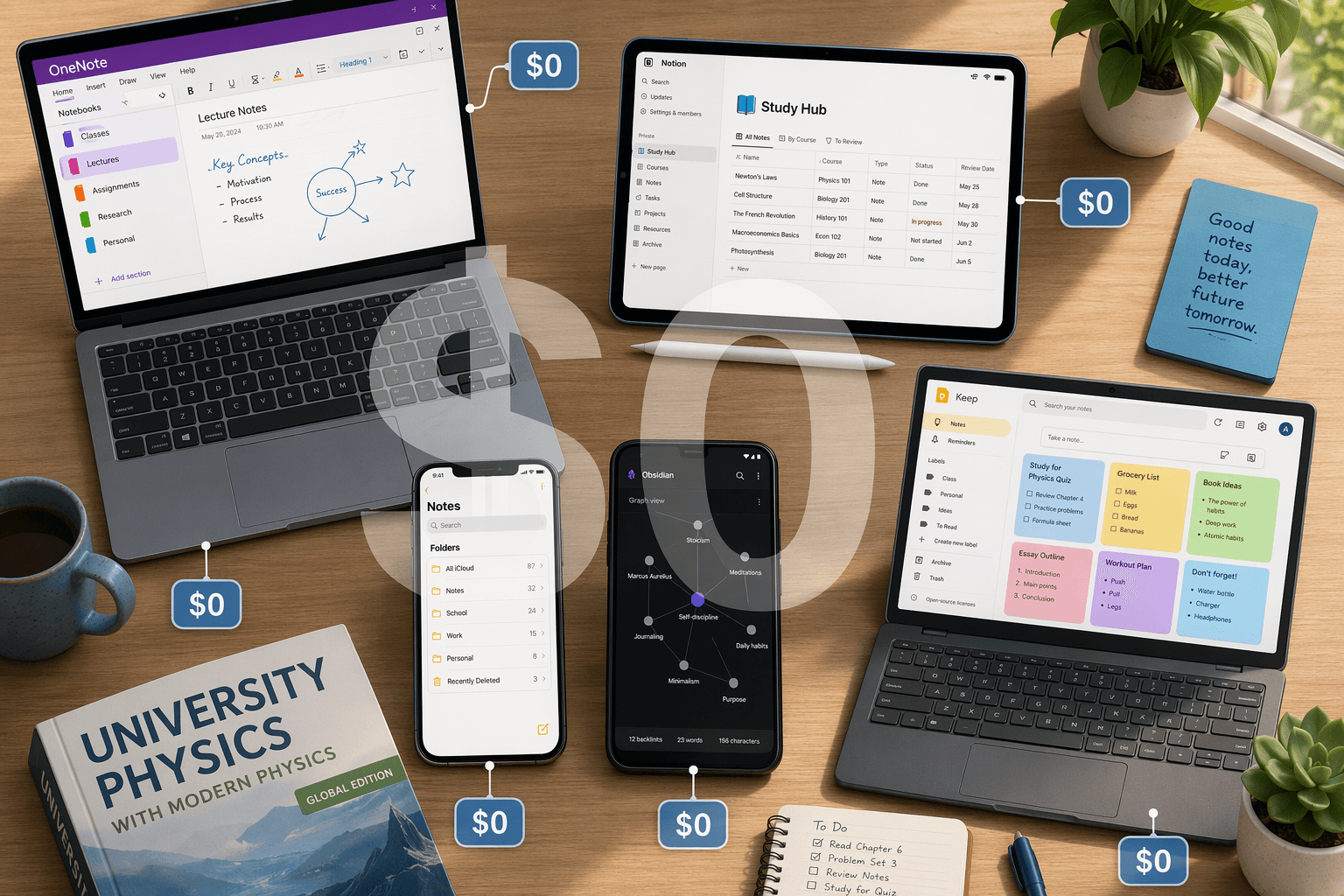
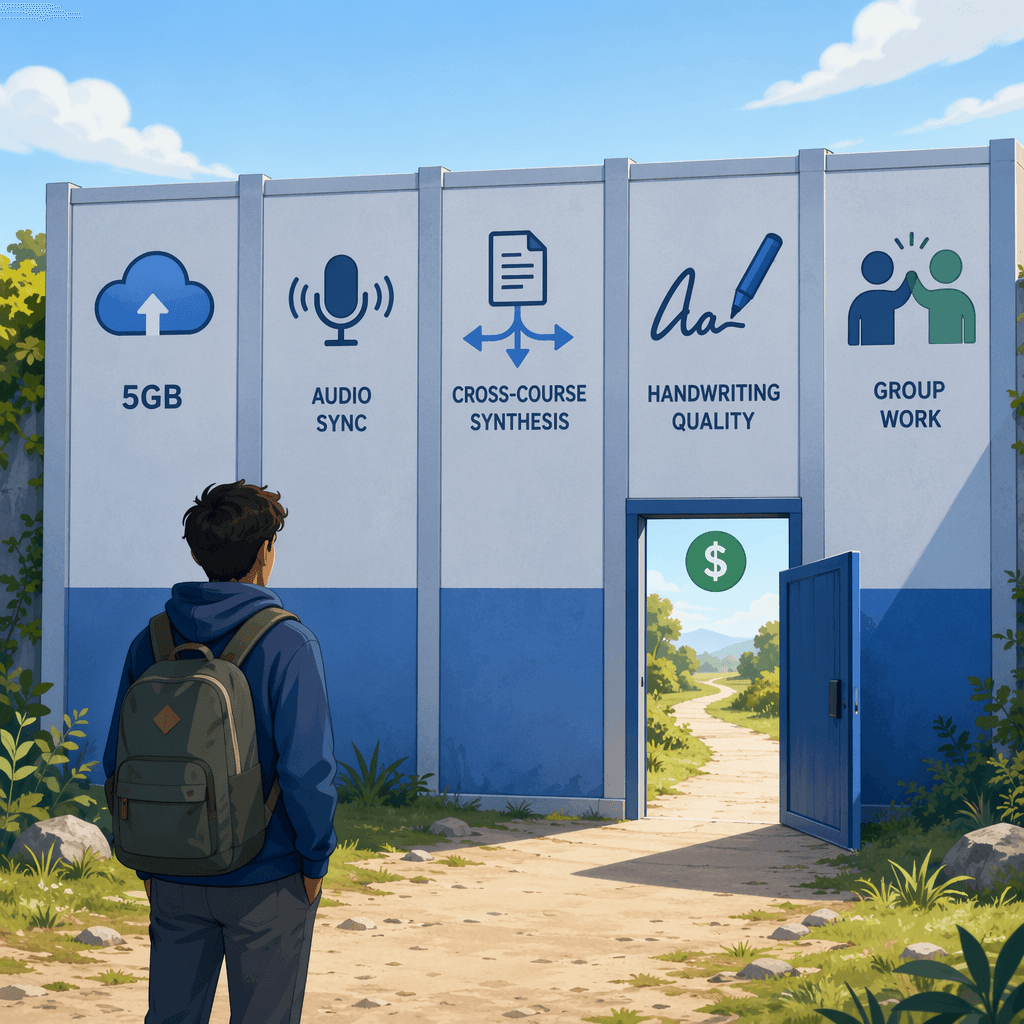
If you are a student who has been told that free note-taking apps are all you need, the advice is mostly correct — for a while. The problem is that no single free plan scales across all four years of a degree. You will hit specific, predictable walls: a storage cap on OneNote, the absence of audio-synced lecture playback, the inability to connect ideas across five courses, or handwriting tools that feel like a toy on an iPad you bought for serious work.
This guide is not a general free-versus-paid debate. That angle is already covered in our broader comparison for a general audience. Here, we map each wall to the exact semester you will hit it, the cost to break through, and whether the upgrade is actually worth it for a student budget.
The Free Stack That Works for Year One
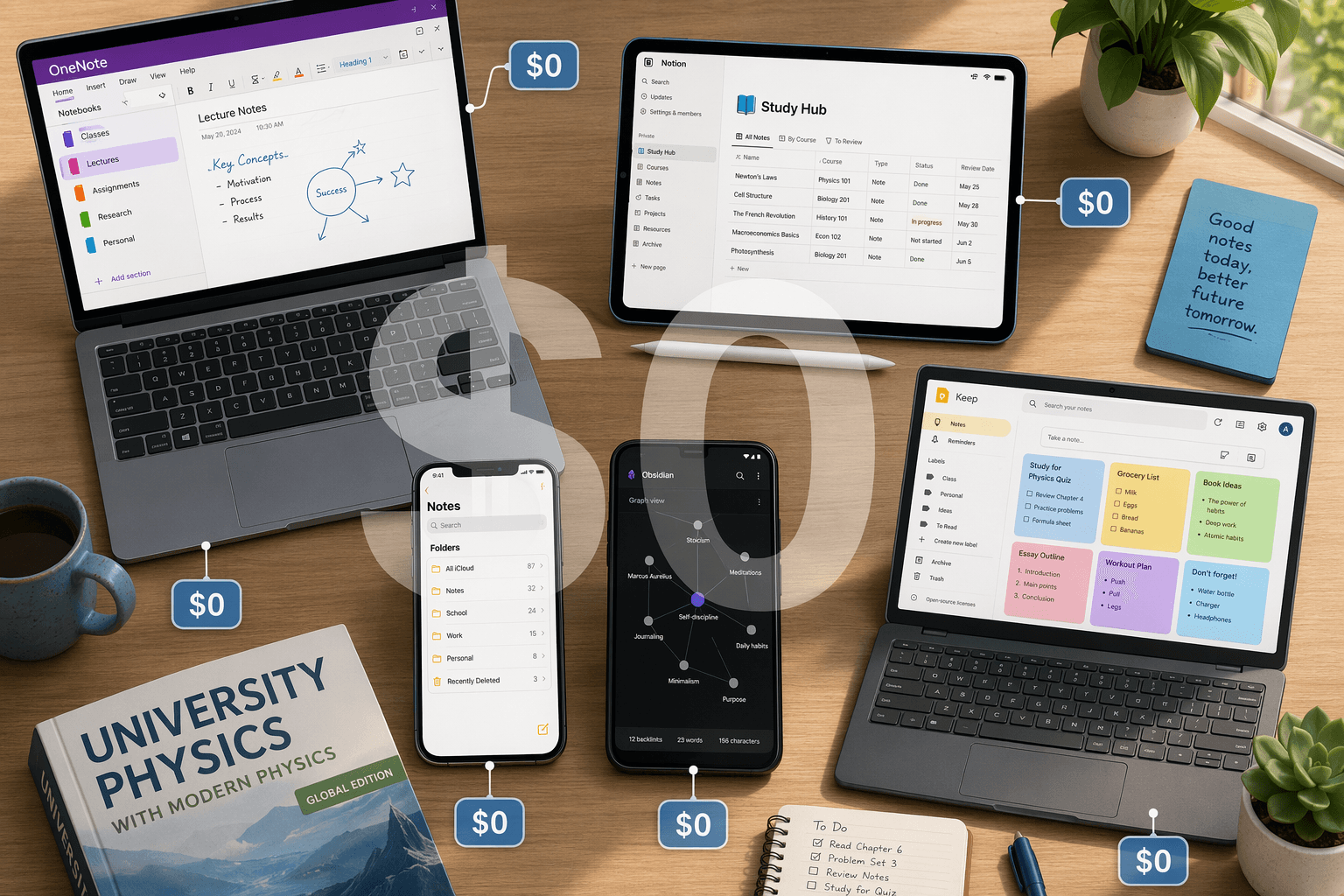
You do not need to spend a cent in your first year. The combination of Microsoft OneNote for structured class notes and Google Keep (or Apple Notes, if you are on an iPhone) for quick capture covers roughly 90% of first-year workflows. OneNote is genuinely free with no note caps — its only limit is 5GB of OneDrive storage, which is unlikely to be an issue when you are mostly typing text and inserting a few slides. Google Keep gives you 15GB of free storage across all Google services, and Apple Notes offers 5GB of free iCloud storage. Both are excellent for saving a quick thought, a photo of a whiteboard, or a voice memo.
If you are already curious about how these free plans compare in detail, our free note-taking apps comparison breaks down the limits of each one. For now, the key point is that you can start with a $0 setup and not feel constrained.
- OneNote (free): Unlimited notebooks and pages. 5GB free storage via OneDrive. Best for typing, inserting PDFs, and organizing by course.
- Google Keep (free): 15GB free storage. Best for quick voice memos, checklists, and photo capture. Syncs instantly to your phone and laptop.
- Apple Notes (free): 5GB free iCloud storage. Best for iPhone and Mac users who want a seamless quick-capture experience with basic audio transcription.
- Obsidian (free): 100% free for personal use. Optional add-on for sync ($5/month). Best for students who want to start building a knowledge base from day one, but it has a learning curve.
Threshold #1: Storage — When OneNote's 5GB Free Limit Bites
OneNote's free plan is remarkably generous — it offers unlimited notebooks and pages, which is rare in the note-taking world. But the catch is that your content is stored on OneDrive, and the free tier caps at 5GB of total storage. This limit is shared across all your OneDrive usage, not just OneNote. If you also use OneDrive to back up photos, store assignment files, or sync your phone's camera roll, you will hit the wall faster than you expect.
For most students, this becomes a real problem around semester 3. By then, you are likely embedding multiple PDFs per course — lecture slides, assigned readings, lab manuals — and each PDF can be 5–20 MB. A single course with 30 PDFs can consume 300–600 MB. Multiply that by five courses, and you are looking at 1.5–3 GB per semester. By the middle of your second year, the 5GB limit starts to feel tight.
| Option | Cost | What You Get | Best For |
|---|---|---|---|
| Microsoft 365 (OneNote upgrade) | $69.99/year | 1TB OneDrive storage, full Office apps | Students who want to stay in OneNote and need the extra space |
| Obsidian (local storage) | $0 | Unlimited local storage, full feature set | Students willing to manage files locally and learn a new tool |
| OneDrive standalone (100GB) | $1.99/month ($23.88/year) | 100GB OneDrive storage only | Students who just need a little more space without switching apps |
The simplest fix is to upgrade to Microsoft 365 at $69.99 per year, which gives you 1TB of OneDrive storage and the full Office suite. That is roughly $5.83 per month — less than a streaming subscription. The alternative is to switch to Obsidian, which stores all notes locally on your device and is completely free for personal use. Obsidian has a steeper learning curve, but you will never hit a storage limit because you control the files.
Threshold #2: Audio-Synced Lectures — The Notability Wall
If you have ever tried to review a lecture recording by scrubbing through a one-hour audio file to find the exact moment the professor explained a key concept, you know how painful it is. Audio-synced note-taking solves this: you tap a word in your notes, and the app jumps to the exact point in the recording where that word was spoken.
Only one free app does this well: Apple Notes offers free audio transcription on iPhone and Mac, but it is basic — it transcribes your voice memo to text, but it does not offer the tap-to-hear playback that makes lecture review efficient. OneNote has a basic audio recording feature, but it does not sync the recording to your typed notes.
The app that solves this is Notability, which costs $14.99 per year for its Standard plan. Notability records audio while you type or write, and it links each stroke to the audio timeline. When you review your notes later, tapping any word plays the audio from that exact moment. This is not a luxury feature — for students in lecture-heavy courses (biology, history, law, psychology), it can cut review time by more than half.
| App | Audio Feature | Cost | Tap-to-Hear Playback |
|---|---|---|---|
| Apple Notes | Free audio transcription | $0 | No |
| OneNote | Basic audio recording | $0 | No |
| Notability | Full audio sync | $14.99/year | Yes |
| GoodNotes | No audio recording | $11.99/year | No |
Vendor data cited by Ask Maeve suggests that students using audio-synced notes report a 34% better understanding of complex lecture topics. While this figure comes from internal vendor data rather than independent research, the directional claim aligns with the experience of many students who have made the switch.
Threshold #3: Cross-Course Synthesis — When You Need a Second Brain
Around semester 4 or 5, something shifts. You are no longer taking five unrelated introductory courses. You are in a major, and the material starts to connect. A concept from your sophomore psychology course reappears in your senior neuroscience seminar. A research method from statistics is suddenly relevant to your thesis. If you are using a flat organizational tool like OneNote or Apple Notes, you have no way to link these ideas together.
This is the threshold where you need a tool that supports bidirectional linking and cross-course synthesis. The good news is that two of the best tools for this are free for students.
Notion offers its Plus plan (normally $12/month) for free to any student with a .edu email address. This gives you unlimited pages, databases, and the ability to create a linked knowledge base across all your courses. You can build a dashboard that shows your notes from every class, tag them by concept, and link related ideas together. Our complete guide to Notion's free plan explains exactly what you get and how to set it up.
Obsidian is also completely free for personal use and is arguably more powerful for cross-course synthesis because it is built around bidirectional linking from the ground up. Every note can link to any other note, and the graph view shows you connections you might not have noticed. The trade-off is that Obsidian has a steeper learning curve and requires you to manage your own files.
| Tool | Cost for Students | Key Feature for Synthesis | Learning Curve |
|---|---|---|---|
| Notion (.edu plan) | $0 | Databases, linked pages, dashboards | Medium |
| Obsidian | $0 | Bidirectional links, graph view, local files | Medium-High |
| Atlas | $20/month | AI-powered synthesis across readings | Low |
Atlas ($20/month) is mentioned here only for a specific niche: research-heavy majors (pre-med, graduate-level humanities, law) that require synthesizing dozens of readings per week. Atlas uses AI to connect concepts across your notes automatically. For the typical undergraduate, Notion or Obsidian at $0 is the better choice.
Threshold #4: Handwriting Quality — The iPad Upgrade Decision
If you own an iPad and an Apple Pencil, you have probably tried taking handwritten notes in Apple Notes. It works, but it feels limited. The handwriting tools are basic: you get a few pen styles, no palm rejection customization, no ability to search your handwriting, and no way to organize handwritten notes into folders that make sense for a full course load.
This is the first paid upgrade that most students actually need — not for extra features, but for handwriting quality. Two apps dominate this space: GoodNotes at $11.99 per year and Notability at $14.99 per year. Both offer palm rejection, handwriting search, PDF annotation, and folder organization that Apple Notes simply does not match.
| Feature | Apple Notes | GoodNotes ($11.99/yr) | Notability ($14.99/yr) |
|---|---|---|---|
| Handwriting search | No | Yes | Yes |
| PDF annotation | Basic | Advanced | Advanced |
| Palm rejection | Basic | Customizable | Customizable |
| Audio sync | No | No | Yes |
| Cross-platform | Apple only | iPad, iPhone, Mac (Android/Windows rolling out) | iPad, iPhone, Mac |
The choice between GoodNotes and Notability comes down to whether you need audio sync. If you do, Notability is the only option. If you do not, GoodNotes offers a slightly cleaner handwriting experience and a lower price. Both are annual subscriptions that cost less than a single textbook.
Threshold #5: Collaboration — Group Projects at $0
This threshold is a non-threshold. Real-time co-editing for group projects is already covered by free tools. OneNote allows multiple users to edit the same notebook simultaneously, with changes syncing in real time. Notion (free .edu plan) also supports real-time collaboration with comments and page sharing. Neither requires a paid upgrade.
If your group project involves shared documents, spreadsheets, or presentations, Google Workspace (Docs, Sheets, Slides) is free and handles collaboration better than any note-taking app. The key insight is that you do not need to pay for collaboration — the free tools already do this well.
Cost-Benefit Table: What Each Paid Tier Actually Unlocks
The table below shows each app's free plan limits, the specific paid tier that solves the threshold, the exact annual cost, and what the student actually gains. We have included Evernote as a 'not recommended' example of a free plan that is too restrictive to be useful.
| App | Free Plan Limit | Paid Tier That Solves the Threshold | Annual Cost | What You Actually Gain |
|---|---|---|---|---|
| OneNote | 5GB OneDrive storage | Microsoft 365 | $69.99/yr | 1TB storage, full Office suite |
| Notability | Basic note-taking, no audio sync | Standard plan | $14.99/yr | Audio-synced lecture playback, handwriting search |
| GoodNotes | 3 notebooks (limited) | Essentials plan | $11.99/yr | Unlimited notebooks, handwriting search, PDF annotation |
| Notion | Personal plan (1,000 block limit per page) | Plus plan (.edu) | $0 (with .edu email) | Unlimited pages, databases, collaboration |
| Obsidian | 100% free | N/A (core is free) | $0 | Full feature set, local storage, bidirectional links |
| Evernote | 50 notes, 1 notebook, 1 device | Starter plan | $180/yr ($15/mo) | 1,000 notes, multiple devices (still limited) |
For a broader view of how these apps compare across all use cases — not just the threshold points — see our full decision-first comparison of note-taking apps.
The One Subscription Worth It for Most Students (and the Three That Aren't)
If you are a typical student — you take notes in lectures, you review them before exams, you do some group projects, and you are not writing a thesis yet — the single most valuable paid upgrade is Notability ($14.99/year) or GoodNotes ($11.99/year), depending on whether you need audio sync. This is the upgrade that changes how you interact with your notes on a daily basis. Everything else — storage upgrades, cross-course synthesis tools, AI features — can wait until you hit the specific wall.
The three subscriptions that are not worth it for most students:
- Notion AI ($10/month add-on): Useful for summarizing readings, but most students do not need AI to take notes. Only consider this if you are in a research-heavy major and synthesizing 50+ pages of reading per week.
- Atlas ($20/month): Designed for AI-powered cross-course synthesis. The price is high for a student budget, and the free alternatives (Notion .edu, Obsidian) handle most synthesis needs without AI.
- Evernote Personal ($15/month): Even the paid tier is restrictive compared to free alternatives. There is no scenario where Evernote is the best choice for a student in 2026.
The 'small stack' principle, echoed by Atlas and AIStudyMaster, is the most important takeaway: standardize on two tools and use them relentlessly across all four years. A student who uses OneNote (or Notability) for lectures and Obsidian (or Notion) for cross-course synthesis will have a more coherent note-taking system than a student who subscribes to four apps and uses each one inconsistently.
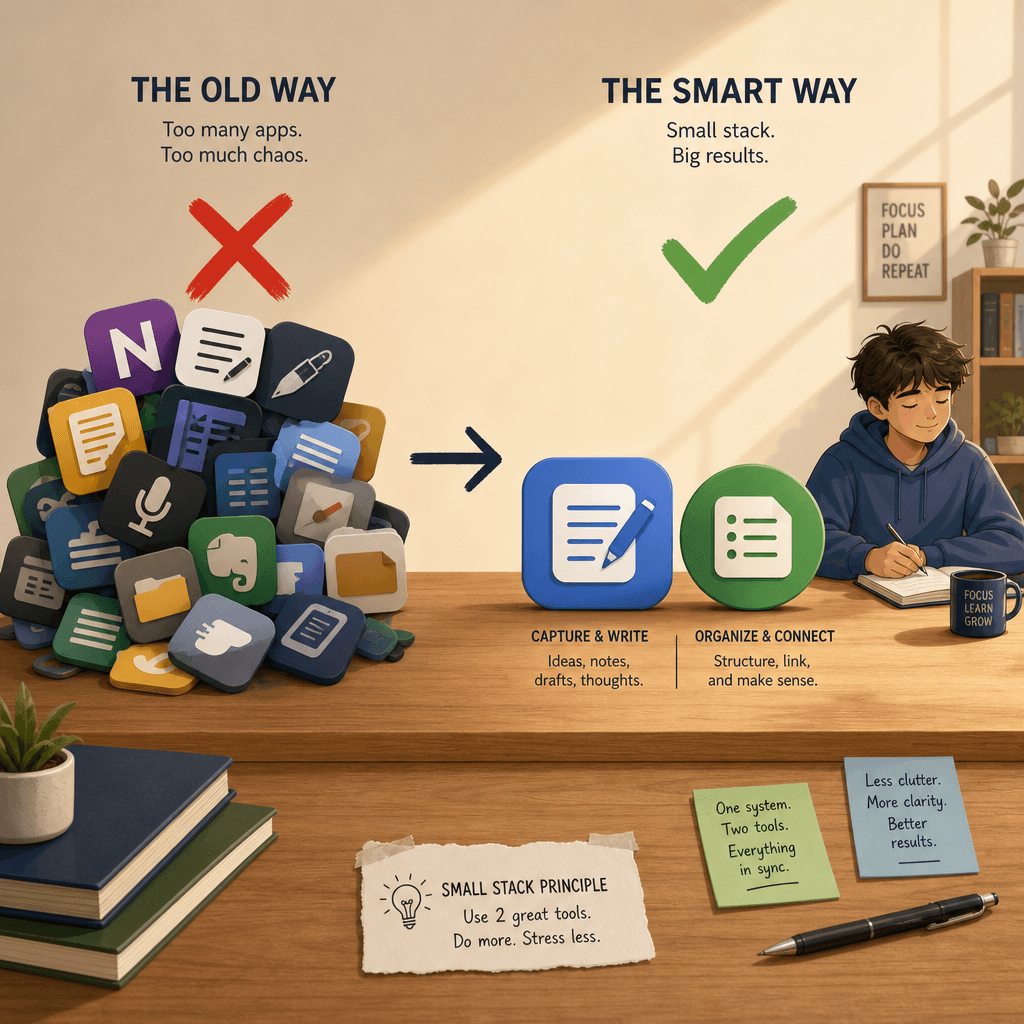
The decision to pay for a note-taking app should be triggered by a specific workflow wall, not by marketing. When you hit that wall — storage, audio sync, cross-course synthesis, or handwriting quality — you will know exactly which upgrade to make and how much it costs. Until then, the free stack works.


Comments
Join the discussion with an anonymous comment.