
When right-clicking a folder, file, or empty desktop space in Windows 10 freezes for a second—or several—the first suspect should not be the whole registry, the whole Explorer profile, or Windows being “old.” The usual culprit is narrower: one third-party shell extension that Explorer loads while building the context menu. The reliable Windows 10 context menu slow fix is to isolate that handler, disable only that handler, and leave the rest of the machine alone.
That matters most on the machines that do real file work. A notes folder in OneDrive, a Google Drive project tree, Dropbox shortcuts, PDF tools, archive tools, Git overlays, antivirus commands, and image utilities can all ask for a line in the same menu. If you keep a heavy local vault after a move like migrating from OneNote to Obsidian, or you back up an Obsidian vault through local storage and sync tools as in our UGREEN NAS vault backup test, this is exactly the kind of setup where right-click handlers pile up.
The fix below uses ShellExView because it is targeted and reversible. NirSoft describes ShellExView as a shell-extension manager for Windows; its disable action sets a “blocked” flag for the selected extension rather than modifying the extension DLL itself.[1] That is a much better starting point than copying registry deletions from a forum reply and hoping the export file you made is the right one.
Two quick checks before the full bisection
If the right-click menu is merely slow, skip to ShellExView. If Explorer is crashing, check Event Viewer first. Winhelponline shows a case where the Windows Application log, Event ID 1000, named a Foxit PDF shell-extension DLL as the faulting module; when the crash log hands you the DLL, you may not need to bisect at all.[2]
Also check whether Google Drive is installed. How-To Geek found Google Drive’s GDContextMenu Class was the confirmed cause on its test PC, and Winhelponline documents related Drive context-menu handler GUIDs: the legacy {BB02B294-8425-42E5-983F-41A1FA970CD6} and the newer DriveFS ContextMenu Handler {EE15C2BD-CECB-49F8-A113-CA1BFC528F5B}.[2][3] That does not make Google Drive guilty on every PC. It does make it a sensible early lead if Drive is part of your file workflow.
Find the slow handler with ShellExView
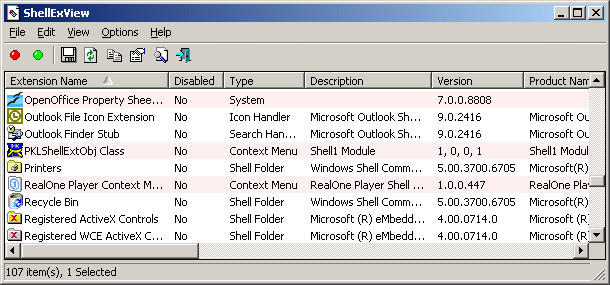
The fastest method is not to disable entries one by one from the top. Disable half, test, then keep narrowing the bad half. On a typical cluttered Windows install, that turns an afternoon of guessing into a manageable diagnostic session.
- Download ShellExView from NirSoft and run it as administrator.[1]
- In ShellExView, use Options > Hide All Microsoft Extensions so the list focuses on third-party extensions.[1]
- Sort or scan for entries where the Type is Context Menu. Those are the entries that matter most for a slow right-click menu.
- Select about half of the visible third-party context-menu handlers, right-click the selection, and choose Disable Selected Items.
- Restart Windows Explorer from Task Manager: press Ctrl+Shift+Esc, find Windows Explorer, select it, and click Restart.
- Test the same right-click location again: the same folder, the same file type, or the same empty desktop area.
- If the menu is fast, the culprit is in the disabled half. If it is still slow, re-enable that half and disable the other half.
- Repeat the split-test until one handler remains.
How-To Geek, Winhelponline, and Make Tech Easier all describe this ShellExView-style disable-and-test procedure for slow context menus; the exact value is in the repetition. Change one group, restart Explorer, test the same place, then narrow.[2][3][4]
Use Task Manager for the Explorer restart. How-To Geek notes that ShellExView’s own Explorer restart option caused a reload loop on its test PC, so restarting Windows Explorer through Task Manager is the less clever and more dependable move.[3]
Do not test a different menu each time. A handler can be file-type-specific. If right-clicking a PDF is slow, keep testing the same PDF. If the desktop background is slow, keep testing the desktop. If a synced project folder is slow, keep testing that folder. The goal is not to prove Windows is faster everywhere; it is to catch the extension that makes this menu hesitate.
What to do when the guilty entry is found
Once one handler is clearly responsible, leave only that handler disabled. Re-enable the innocent entries you disabled during testing. Then decide whether you want to update the parent application, uninstall it, or simply live without its right-click command.
For Google Drive specifically, How-To Geek points out a useful workaround: with the Drive context-menu handler disabled, you can still use Shift+right-click when you actually need the Google Drive commands.[3] That is a fair trade on a machine where file work happens all day and Drive commands are needed only occasionally.
Other names you may see in reports—NVIDIA, Tortoise tools, WinRAR, Acrobat, Norton, Bitdefender, 7-Zip, and similar utilities—should be treated as leads, not a blacklist. If one of them is installed, it belongs in the test set. It does not deserve a guilty verdict until your own disable-and-restart test says so.
If ShellExView does not find it, use Autoruns as the adjacent diagnostic
If disabling third-party context-menu handlers in ShellExView changes nothing, do not start deleting random registry branches. Microsoft’s own community guidance points to Sysinternals Autoruns: run Autoruns, open the Explorer tab, and uncheck ContextMenuHandlers entries one by one while testing.[5] Autoruns is broader than ShellExView, so it is better as the next diagnostic route, not as the first place to start flipping switches.
The same discipline applies: change a small set, restart Explorer, test the same right-click target, and undo innocent changes. Autoruns is powerful enough to make a mess if used like a broom.
Fallback causes when the menu itself is not the problem
A minority of slow right-click cases are not caused by a third-party context-menu handler. The useful fallback path is still specific. Look for a mechanism that explains the delay you see, then test that one mechanism.
Send To can stall while Windows looks for drives
If the delay appears when hovering over or opening Send To, Windows may be enumerating drives and network locations that no longer answer. Winhelponline describes two registry values for this exact area: DelaySendToMenuBuild, a DWORD set to 1 to defer building the Send To menu until hover, and NoDrivesInSendToMenu, which removes drive-letter enumeration from that menu. The source tested the drive-enumeration delay with two dead mapped network drives.[6]
| Symptom | Likely mechanism | Targeted check |
|---|---|---|
| Right-click opens, but Send To is slow or hangs | Windows is building Send To entries and checking drives | Check for dead mapped drives; consider DelaySendToMenuBuild or NoDrivesInSendToMenu |
| File Explorer pauses when network locations are involved | Unreachable network mappings time out | Disconnect stale mapped drives you no longer use |
| Only the desktop New submenu is slow | Known Windows 10 v1809+ Store-app association issue in documented cases | Check whether a Store app such as Kodi is involved |
| Menus feel a little sluggish but do not freeze | Animation or menu-display delay | Tune visual effects or MenuShowDelay after real hangs are fixed |
This is one of the few registry areas where a tweak can be sensible, because the tweak matches the symptom. It is not a general right-click cure. It is for Send To delays and drive enumeration.
The desktop New submenu has its own Windows 10 case
If the main context menu appears normally but hovering over New on the desktop takes several seconds, treat that as a separate bug path. Winhelponline documents Windows 10 v1809 and later cases where the desktop New submenu took 5–10 seconds to open when the Kodi Store app was installed.[7] A Microsoft TechCommunity thread dated July 3, 2026 describes the same New-option slowness as a single-user corroborating report, not broad proof of frequency.[8]
That distinction matters. If every right-click is slow, chase shell extensions first. If only New is slow, especially on the desktop, look at the documented Store-app association path before disabling unrelated PDF, sync, or archive handlers.
Animation and MenuShowDelay are polish, not the main repair
Windows menu animation can make a repaired menu feel less sharp than it is. Make Tech Easier includes disabling “Fade or slide menus into view” among its slow-context-menu remedies.[4] That setting is worth changing if the menu opens but feels syrupy. It will not fix Explorer waiting on a bad DLL.
The MenuShowDelay value at HKEY_CURRENT_USER\Control Panel\Desktop is another late-stage adjustment. MakeUseOf describes the default as 400 ms, with a 0–4000 range, and says the author used 50 ms in a Windows 11 context.[9] Because that source is Windows 11-focused, treat this carefully on Windows 10: the registry path is long-standing, but this is perceived-delay tuning, not a measured fix for a freezing Windows 10 context menu.
The clean stopping point
Stop when the evidence is good enough. If ShellExView bisection identifies one handler, leave only that handler disabled or update/uninstall the parent app. If ShellExView finds nothing, use Autoruns’ Explorer tab as the adjacent Microsoft-supported diagnostic route. If the symptom points to Send To, dead network drives, the desktop New submenu, animation, or MenuShowDelay, handle that one path directly.
What you should not need is a ritual: no registry-key bonfire, no driver purge because someone else’s NVIDIA handler once misbehaved, no reinstall because a cloud sync client wanted one more right-click command. A slow context menu is annoying precisely because it is small and constant. The fix should be small and testable too.
References
- ShellExView — Shell Extension Manager For Windows — NirSoft
- [Fix] Slow Right Click and Crashes Caused by Shell Extensions — Winhelponline
- How to Fix a Slow Context Menu in Windows 10's File Explorer — How-To Geek
- How to Fix Slow Right-click Context Menu in Windows — Make Tech Easier
- Context Menu is slow and irritating. — Microsoft Q&A
- Hidden Registry Settings for "Send To" Menu in Windows — Winhelponline
- Desktop "New" Context Menu Slow in Windows 10 — Winhelponline
- The New option in the Windows 10 desktop context menu is slow to respond — Microsoft Community Hub, July 3, 2026
- Windows 11 menus felt sluggish until I tweaked this one registry — MakeUseOf
Comments
Join the discussion with an anonymous comment.