
Last verified: June 2026. The annoying part of choosing note taking apps for Chromebook is not finding apps with nice screenshots. It is finding the free ones that still work after Wi-Fi drops, after a school account blocks an install, or after the app decides that syncing, offline access, or enough notes is now a paid feature.
The short answer: Microsoft OneNote is the best free note-taking app for most Chromebook users. Google Keep is the fastest zero-setup option. Joplin is the best free choice if you care most about offline-first storage, privacy, and avoiding arbitrary note limits. Notion, Evernote, Squid, Google Cursive, and Fireflies can all be useful in the right situation, but each has a catch that matters more on a Chromebook than it might on a Mac or Windows laptop.
The Chromebook test: what the free tier actually gives you
For Chromebook users, “free” has to mean more than “you can open a blank page.” The useful test is harsher: can you keep writing offline, sync later, use a stylus if your Chromebook supports one, and avoid a limit so small that the app becomes a demo?
| App | Free offline access on Chromebook | Storage or note limits | Stylus / handwriting usefulness | Sync model | Free-tier catch |
|---|---|---|---|---|---|
| Microsoft OneNote | Yes, via PWA offline access | 5GB OneDrive storage | Strong: stylus support, drawing, typed notes, mixed pages | Microsoft account with OneDrive sync | Best overall free balance; storage is the main ceiling [1] |
| Google Keep | Usable offline through Chromebook/Google app workflows, with sync when reconnected | Uses 15GB Google storage shared across Drive, Gmail, and Photos | Basic drawing notes; no handwriting search | Google account sync | Fast and pre-installed, but no folders or rich formatting [2][3] |
| Joplin | Yes. Offline-first by design | No arbitrary note limit in the app | Not a handwriting-first Chromebook app | Manual sync setup through services such as Dropbox or OneDrive | Powerful and private, but setup and Android-app fit are less friendly [1] |
| Notion | Limited; offline access depends on recently visited pages and browser/app behavior | Unlimited pages for individuals | Weak for stylus-first notes | Notion cloud workspace | Generous as a knowledge base, unreliable as an offline Chromebook notebook [2][1] |
| Evernote | Not worth relying on in the free plan | 50 notes, 1 notebook, 1 device | Capable app, but the free plan is too restricted | Evernote cloud sync | Effectively a trial for regular Chromebook use [1] |
| Squid | Good for handwritten notes in the Android app | Core handwritten notes free | Excellent for pen notes with vector ink and templates | Cloud backup requires Pro | PDF import and cloud backup are paid features at $1/month or $10/year [4] |
| Google Cursive | Yes, as a Chromebook handwriting PWA | No paid tier noted | Good for Chromebook-exclusive handwritten notes | Google/Chromebook workflow | Handwriting-only; no typed notes, folders, or export [5] |
| Fireflies | Not a main offline notes app | Unlimited transcription with 800 minutes of storage | Not a handwriting app | Cloud meeting transcription | Useful for meetings, but storage fills quickly and it is not a notes home [2] |
That table is doing most of the work because the bad free tiers fail quickly. If an app cannot be trusted offline, punishes you after a few dozen notes, or hides the Chromebook feature you actually need behind a paywall, it should not sit at the center of your school or work system.
Use OneNote if you want one free app for real notes
OneNote is the safest default recommendation because it covers the most normal Chromebook note-taking situations without making the free user feel like an afterthought. You get 5GB of OneDrive storage, offline access through the PWA, real-time collaboration, voice transcription, and stylus support in the free plan [1].
That combination matters. A student can type lecture notes, paste screenshots, mark up a page with a stylus, share a notebook section for a group project, and keep working when the connection is spotty. A casual user can keep recipes, trip notes, class handouts, or work checklists in one place without learning a database system first.
The 5GB limit is real, but it is at least a storage ceiling rather than a silly “you may only make 50 notes” ceiling. Text-heavy notebooks take a long time to reach it. Heavy audio, image, PDF, and attachment use will get there faster, which is when paying for more cloud storage may start to make sense.
OneNote also fits the way many Chromebook users actually work: browser first, app second, and often across borrowed or managed devices. The PWA route is important because a school Chromebook may not behave like a personal Android tablet. If you need a free app to carry typed class notes, work notes, project research, and occasional pen input, start here.
Use Google Keep when speed matters more than structure
Google Keep wins a different race. It is pre-installed on Chromebooks, syncs in real time, and uses the 15GB of Google storage shared with Drive, Gmail, and Photos [2][3]. There is no setup ceremony. Open it, write the thing down, close the lid.
That makes Keep excellent for reminders, quick class questions, grocery lists, copied links, locker-combination-style scraps, and the kind of note you would otherwise leave in a browser tab until it disappears. It is also the easiest recommendation for someone who does not want another account, another sync service, or another app layout to learn.
The limits are not subtle. Keep does not give you folders, serious rich formatting, or handwriting search [2]. Labels help, colors help, pinned notes help, but they do not turn Keep into a semester-long notebook system. If your notes grow into multi-week projects, Keep starts to feel like a wall of sticky notes on a windy day.
That is not failure. It is the point. Keep is best when the note is small, urgent, and likely to be used soon. It is not the place to build a full research notebook.
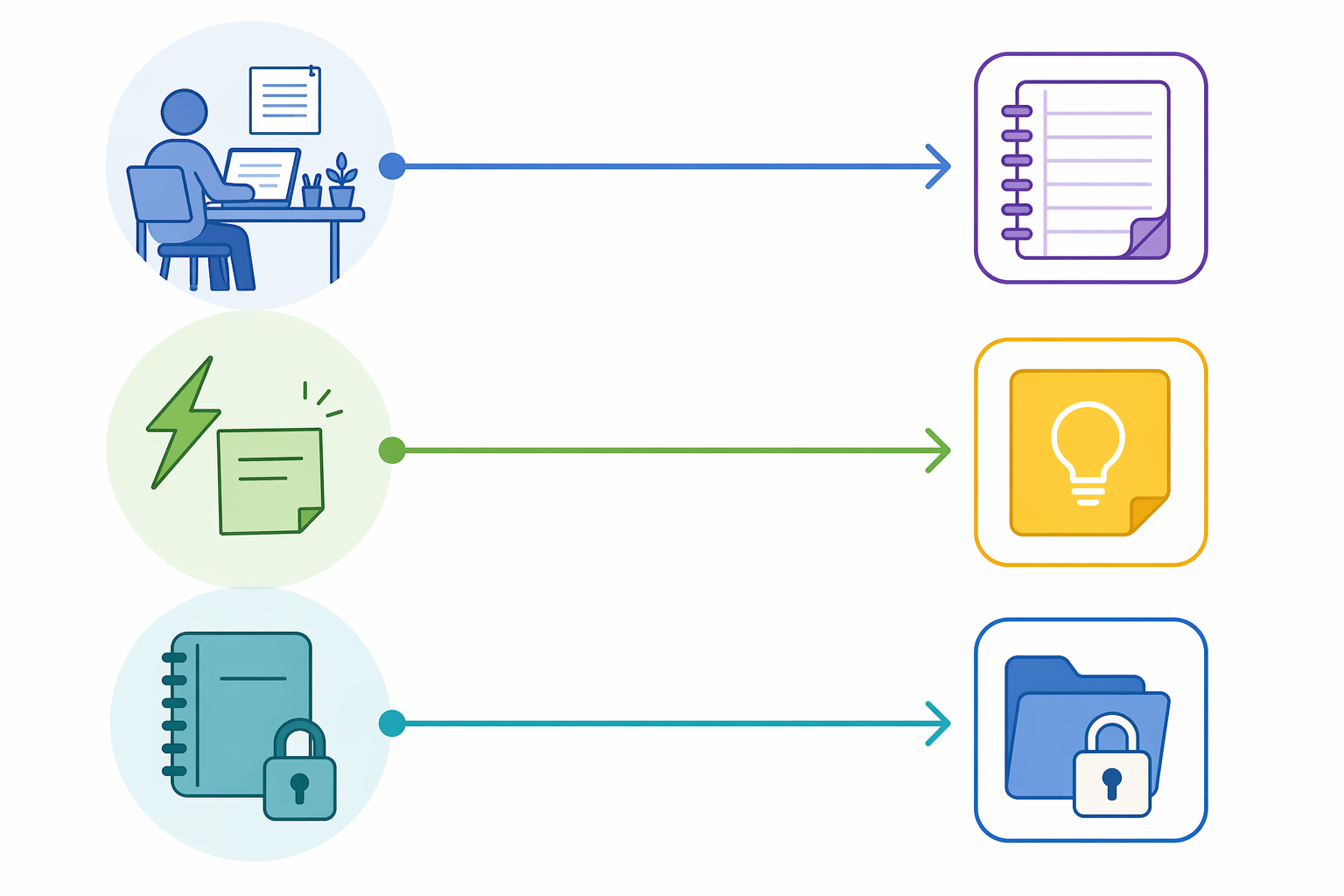
Use Joplin if you want offline-first notes and can tolerate setup
Joplin deserves respect because it does not play the usual free-tier game. It is fully free and open source, supports end-to-end encryption, and is offline-first [1]. There is no arbitrary note cap waiting for you three weeks into the semester.
The trade-off is effort. Joplin requires sync setup through a service such as Dropbox or OneDrive, and the Android app is not ideally optimized for Chromebook screens [1]. For a user who wants to install an app and never think about sync settings, that matters.
Still, Joplin is the right pick for the person who values ownership more than polish: offline notebooks first, cloud sync second, encryption available, no vendor deciding that your fifty-first note belongs behind a paywall. It is especially appealing for private journals, long-running research notes, and users who already understand where their files are syncing.
Notion is generous, but offline access is the Chromebook problem
Notion is easy to like on paper. Its free plan allows unlimited pages for individuals, and it can be excellent as a personal knowledge base, project wiki, or student dashboard [2]. If you live online and mostly need structured pages, databases, and links between ideas, Notion can feel far more capable than a plain notebook.
But this article is centered on Chromebook reliability, and Notion’s offline access is the weak spot. Offline access is limited to recently visited pages, with behavior tied to browser-version use; the Android app may differ and should be checked before depending on it [2][1]. That is not the same as opening your Chromebook on a bus, in a basement classroom, or during a Wi-Fi outage and trusting that the page you need will be there.
There is also a collaboration catch: Notion’s free plan includes a 1,000-block cap when a workspace has two or more owners [2]. That may not matter for a solo user, but it does matter for students trying to turn Notion into a shared class or club workspace.
If Notion is already your system and you understand the offline limitation, keep using it. If you are choosing a dependable free Chromebook note-taking app from scratch, OneNote and Joplin are safer offline choices. For a deeper look at where Notion works and where it gets clumsy, see Notion as a Note-Taking App in 2026.
Evernote’s free plan is too cramped to recommend
Evernote used to be the name people reached for automatically. In 2026, the free plan is hard to defend for Chromebook users: 50 notes, 1 notebook, and 1 device [1]. That is not a working notebook system for a semester, a job search, or even a moderately organized household.
The 1-device limit is especially awkward on Chromebooks because many users also take notes on a phone. A free note app that cannot comfortably move between your Chromebook and phone is asking you to build a system around inconvenience. Treat Evernote Free as a trial, not as a daily driver.
For handwriting, Cursive and Squid are useful but narrow
If you bought a Chromebook with a stylus, you are allowed to expect more than a cute demo app. Handwriting is where the recommendation splits from general note-taking: OneNote is still the best all-around free app because it mixes typing, drawing, organization, and sync, but handwriting-only users may prefer something lighter.
Google Cursive is the cleanest built-for-Chromebook handwriting option. It is a Chromebook-exclusive PWA for handwritten notes, and Google’s support documentation covers using it for handwritten notes on ChromeOS [5]. The limitation is that it is not a typed-notes app and lacks folders and export. That keeps it from being the main recommendation for people who need both class notes and long-term organization.
Squid is more impressive for pen feel. Its free tier includes core handwritten notes with vector ink and templates, and Chrome Unboxed has highlighted it among pen-based Chromebook note-taking apps [4]. The catch is exactly the kind of catch that matters in school: PDF import and cloud backup require Squid Pro, priced at $1/month or $10/year [4].
That does not make Squid bad. It makes Squid conditional. If your main use is handwriting on blank or templated pages, the free tier can be genuinely pleasant. If your real workflow is marking up teacher PDFs, lecture slides, worksheets, or readings, the free tier stops right where many students need it to continue.
Fireflies is a meeting tool, not your notebook
Fireflies belongs in a side pocket, not at the center of this list. Its free plan includes unlimited transcription with 800 minutes of storage, which can be useful if your notes mostly come from meetings, interviews, or online classes [2].
The problem is that transcription storage is not the same thing as a durable note-taking home. Once the storage limit starts to matter, you still need somewhere to keep cleaned-up notes, decisions, tasks, and study material. Pair it with OneNote, Keep, or Joplin if meetings are your main input source.
Pick by workflow, not by app reputation
| If your Chromebook notes are mostly… | Start with | Why |
|---|---|---|
| Typed class notes, work notes, mixed media, and occasional stylus use | OneNote | It has the best free balance of offline access, storage, collaboration, transcription, and pen support. |
| Fast reminders, lists, links, and lightweight capture | Google Keep | It is already on the Chromebook, syncs with Google, and gets out of the way. |
| Private notebooks, offline-first writing, and no arbitrary note limits | Joplin | It is free, open source, offline-first, and supports encryption, if you accept setup work. |
| Handwritten notes on a stylus Chromebook | OneNote first; Cursive or Squid if handwriting is the whole job | Cursive is Chromebook-native for handwriting; Squid feels strong for pen notes but charges for PDF import and backup. |
| Meeting transcripts | Fireflies as a companion | The free transcription tier is useful, but it should feed a real notes app. |
| A personal wiki or knowledge base that is usually online | Notion, cautiously | The free plan is generous, but offline Chromebook reliability is the dealbreaker for this specific comparison. |
There are users who will outgrow every free plan here. If you are storing years of PDFs, audio recordings, scans, and shared notebooks, the question may stop being “which free app?” and become “which paid limit hurts least?” That is a different buying decision; the trade-offs are covered in The 2026 Note-Taking App Pricing Shock and the broader Best Note-Taking Apps for Chromebook by Use Case.
For a free Chromebook setup today, the practical move is simple: start with OneNote unless speed matters more than structure. Use Google Keep for quick capture. Choose Joplin if offline-first storage and ownership matter more than convenience. Skip Evernote’s free plan for regular use. Do not rely on Notion Free if offline Chromebook access is non-negotiable.
References
- The 7 best note taking apps in 2026 — Zapier, December 2025
- Best Note-Taking Apps for Chromebook by Use Case [2026] — Fireflies.ai, June 2026
- Use your Chromebook offline — Google Support
- The best pen-based note-taking apps for your Chromebook — Chrome Unboxed
- Take handwritten notes with Cursive — Google Support