

When ChatGPT is unavailable, the part of note-taking that may need to wait is the generated layer: a meeting summary, polished cleanup, inferred tasks, or a formatted record. The part that can continue is more basic and more durable—writing an outline, adding tags, grouping related notes, linking ideas, and retrieving the material you already have.
That distinction matters if your notes are currently an untidy pile. You do not need to switch apps because one AI service has failed. If you suspect a wider problem, use the verify-first outage procedure before changing your workflow. Then keep organizing in the note app you already understand.
| Can continue without AI | May need to wait for AI |
|---|---|
| Outlining raw material | Generating a meeting summary |
| Adding tags or moving notes into folders | Inferring tasks or deadlines |
| Creating links between related notes | Renaming and cleaning up a large note collection automatically |
| Searching and retrieving notes | Turning a transcript into a polished project record |
Start with an outline before you choose a tool
An outline is the software-independent layer of this fallback. It gives raw notes a hierarchy that remains readable whether they stay on paper, in Apple Notes, in Notion, or in Obsidian. The basic operation is simple: put the subject at the top, then separate the material into headings such as context, decisions, open questions, and next actions.
For a lecture, that might mean a main topic followed by concepts, examples, and questions to review. For a meeting, it might mean the agenda, discussion points, decisions, unresolved items, and assigned work. The outline does not decide what the meeting meant or generate missing tasks. It gives you visible places to put those things when you identify them yourself.
The outline method is commonly treated as a note-taking format with guidance on when it is useful, which makes it a practical AI-free fallback rather than merely a handwriting preference.[1] Research-oriented note-taking guidance also treats methods and templates as foundational parts of the workflow, separate from any particular automation layer.[2]
Use the smallest hierarchy that helps you find something later. If every line becomes a heading, the outline is only another form of clutter. If there is no hierarchy at all, you are still depending on a future cleanup pass.
Apple Notes: tags and Smart Folders provide a native retrieval loop
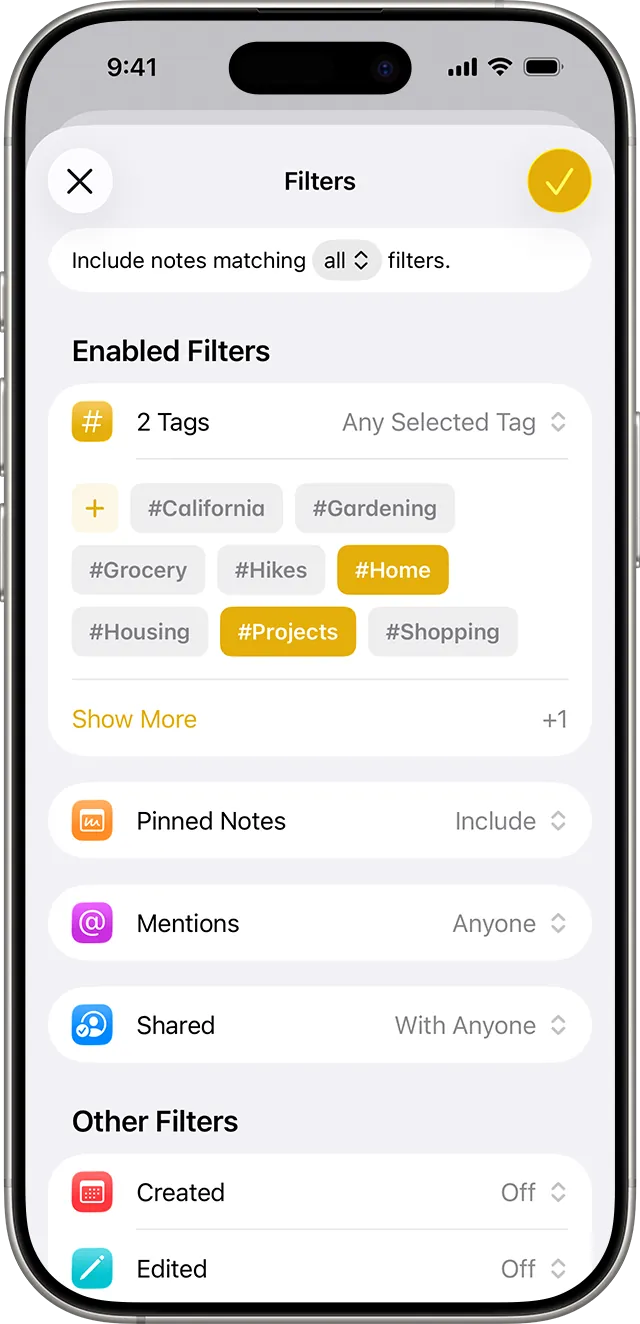
Apple Notes has the clearest documented zero-AI workflow in this set. On an iPhone or iPad running iOS 15 or later, you can add tags to notes, browse notes by tag, and use Smart Folders to collect notes that match selected tags.[3]
Add tags where the meaning is still obvious
Open a note and add a short tag that describes how you will retrieve it. Tags such as #project-alpha, #reading, or #follow-up are more useful than a vague label such as #important. The point is not to predict every future use. It is to give the note one or two handles you will recognize when you need it.
After adding a tag, go to the Folders list and open the Tags browser. Selecting a tag shows the notes carrying it. This is the useful test: you can make a classification, inspect the result, and correct the classification without waiting for a generated explanation.
Turn repeated retrieval into a Smart Folder
If you repeatedly open the same tag, create a Smart Folder based on it. A Smart Folder automatically gathers notes that meet its tag rules, so a folder for a project, course, or follow-up queue can update as you add tags to new notes.[3]
A workable sequence is:
- Write or paste the raw material into a note.
- Add a small number of consistent tags.
- Confirm the note appears in the relevant tag view.
- Create a Smart Folder when that retrieval pattern is recurring.
- Rename or delete tags when the structure no longer reflects how you work.
There is an important collaboration caveat. For shared notes, the tag structure is retained only when all participants use iOS 14, iPadOS 14, macOS Big Sur, or later. Older clients display tags as plain text rather than preserving the same tag behavior.[3] That is a compatibility issue to check before treating a shared tag system as a team-wide source of truth.
This workflow will not summarize a transcript or identify a decision you missed. It does something narrower: it makes the decisions, questions, and source material you have already written easier to place and retrieve.
Translate the same structure into Notion or Obsidian
Notion and Obsidian can carry the same baseline, but the evidence here is less direct. The available assessment is Zapier’s 2026 editorial testing rather than official product documentation, so treat these descriptions as orientation, not a promise about every current configuration.
In Notion, begin with a structured workspace: one page for the subject or project, a consistent set of subheadings, and a database view only when you actually need to filter or group records. Zapier describes Notion as effectively three tools in one, with collaboration that can still be useful to a solo user.[4] That flexibility is valuable during an outage because the page hierarchy and database properties remain available without asking an AI service to design the workspace.
The restraint is equally important. A template can give you headings, but it cannot supply the decisions or context that belong under them. Start with the outline and add properties only when they support a retrieval question such as “Which notes belong to this project?” or “Which items are still open?” For deeper Notion structure and template work, use the existing Notion features guide and template guide rather than rebuilding a large system in the middle of an outage.
Obsidian translates the same idea into links and an extensible local knowledge base. Zapier characterizes it as an interlinked digital database that is highly extensible, while also noting a serious learning curve.[4] The first part explains its appeal: you can link a note about a concept to a project note, source note, or follow-up note, then navigate those relationships later.
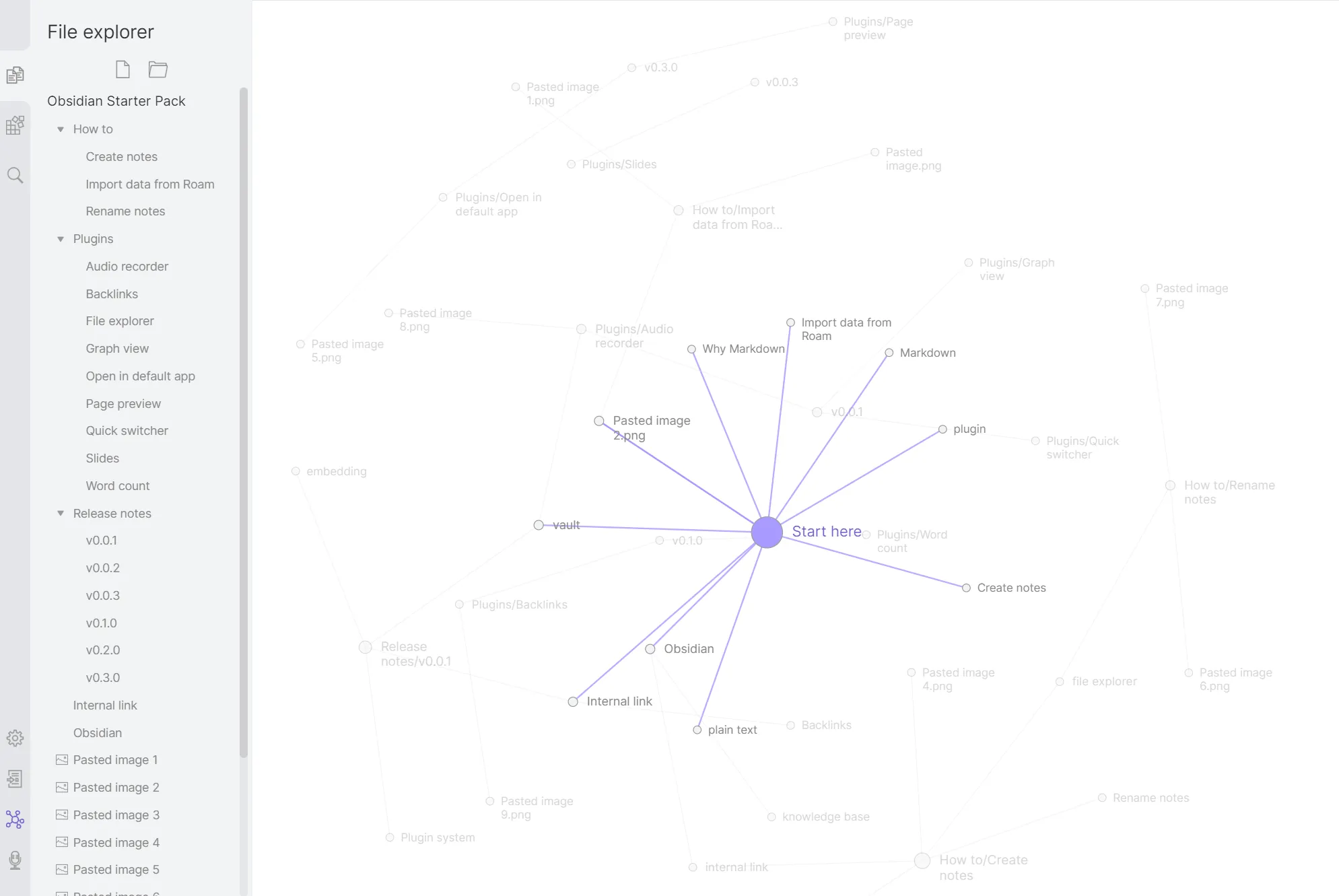
The second part should not be hidden behind enthusiastic plugin advice. If you need an immediate fallback, create readable notes, use predictable names, add links when a relationship is clear, and keep the outline visible. Plugins can extend retrieval and navigation, but adding plugins is not the same as having a dependable automatic tagging or renaming system. The existing Obsidian plugin comparison covers that boundary in more detail.
The common baseline across these tools is inspectable structure: headings, tags, folders, properties, links, and search. Zapier’s selection standard makes the same practical point from another angle: AI features may be a useful bonus, but an app still has to work well as a regular note-taking app.[4]
What this fallback does not cover
This article stays with Apple Notes, Notion, Obsidian, and the outline method because those are the workflows supported by the available material. It does not assume that GoodNotes or Notability provide equivalent native organization features, and it does not credit Logseq with database organization; the available Logseq forum material records users requesting database features, not a documented shipped capability.
The boundary is straightforward. Without AI, you can still decide where a note belongs, label it, connect it to related material, and find it again. What disappears is the convenience layer that turns unprocessed material into a summary, inferred task list, or polished record. If that generated output is essential, keep the raw notes organized now and process them when the service returns rather than replacing the entire system.
References
- The 7 Best Note-Taking Methods — Box
- Research Note-Taking Templates and Methods — UserInterviews
- Use Tags and Smart Folders in Notes on your iPhone and iPad — Apple Support
- The best note-taking apps in 2026 — Zapier, 2026
Comments
Join the discussion with an anonymous comment.