
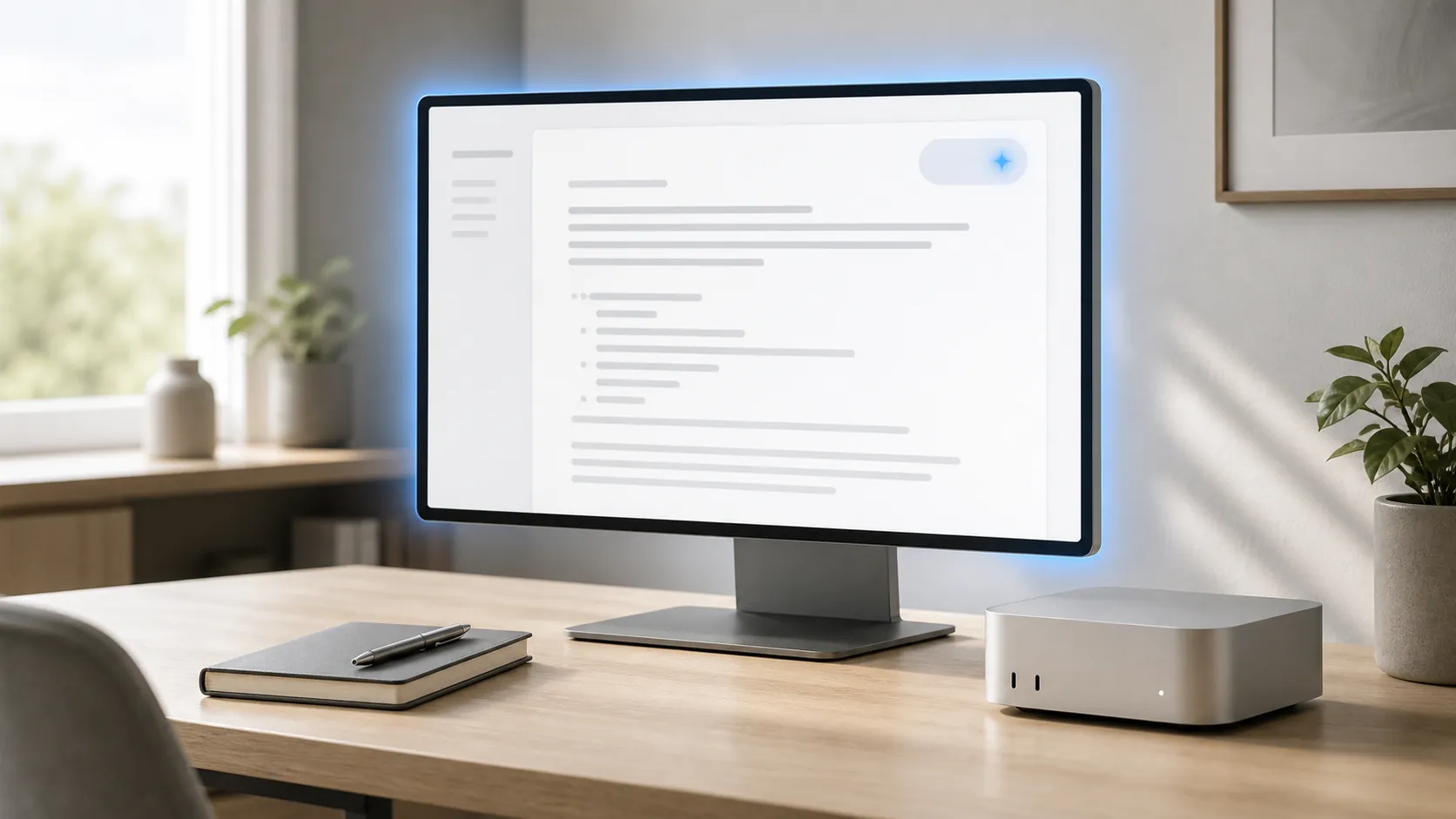
If you bought a Mac mini M6 expecting a special AI note-taking switch, the useful answer is less dramatic: the M6 does not create a separate note-taking feature. Apple announced the new Mac mini on August 25, 2026, with the M6 model scheduled to ship on September 22, while positioning the base M6 mainly around general performance and AI-compute improvements. The entry configuration starts at $899, with 16GB of memory and 256GB of storage. [1][2]
Apple’s launch material also puts its strongest on-device frontier-AI language around the M5 Ultra, not the base M6. That matters because it keeps the hardware claim in proportion: the M6 is the computer you are using, but Apple Intelligence is the system feature you need to enable. Apple’s documented compatibility floor is any Mac with an M1 chip or later, so an M6 is eligible for the same basic Apple Intelligence setup as other supported Apple-silicon Macs. [3][4]

What you actually need before opening a note app
Before looking for an AI button inside Notes or another writing app, check the conditions Apple lists for Apple Intelligence:
- The Mac must use Apple silicon. The M6 satisfies this requirement, as do M1, M2, M3, M4, and M5 Macs.
- macOS must be Sequoia 15.1 or later.
- The Mac needs approximately 7GB of available storage for Apple Intelligence models and related resources.
- The device language and Siri language must be set to the same supported language.
Apple’s support guidance also warns that Apple Intelligence is not available in every language or region. The available material confirms an earlier US-English beta origin but does not provide a verified 2026 language list, so do not assume that changing one language setting alone will make the feature appear. Check both language menus and Apple’s current availability information for your region. [5]
Turn on Apple Intelligence
Once those prerequisites are in place, enable the system feature rather than searching for an app-specific AI setting.
- Open System Settings.
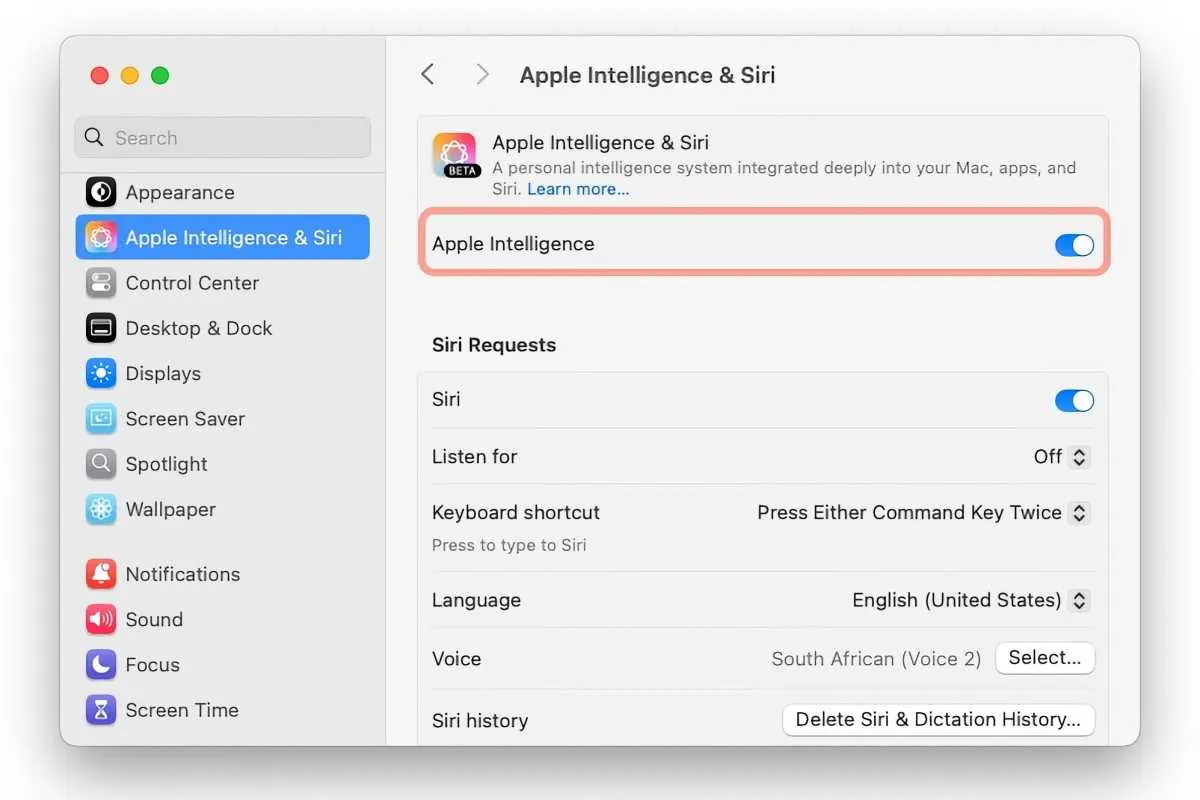
- Open Apple Intelligence & Siri.
- Turn on Apple Intelligence and follow any on-screen prompts.
- Allow the Mac to prepare or download the required resources, leaving the roughly 7GB storage requirement available.
If the Apple Intelligence control is missing, the M6 itself is not the first suspect. Recheck the macOS version, available storage, device language, Siri language, and regional availability in that order. The evidence supplied here does not establish a specific Q3 2026 Mac mini bug or a universal fix for one, so a claim that the feature is currently broken would go beyond what has been verified.
Use Writing Tools on selected note text
For note-taking, the most relevant Apple Intelligence control is Writing Tools. Select text in a writing surface, open the available Writing Tools command, and choose the operation you need:
- Proofread checks spelling and grammar.
- Rewrite produces an alternative version of the selected text.
- Summarize condenses the selected text.
Apple describes Writing Tools as working across most writing surfaces, including third-party apps, and documents proofing, rewriting, and summarization as the core actions. The cited Writing Tools documentation is iPhone-scoped, however, so the exact Mac menu, placement, and support in an individual note app should be treated as a platform detail to verify rather than assumed from the processor model. [6]
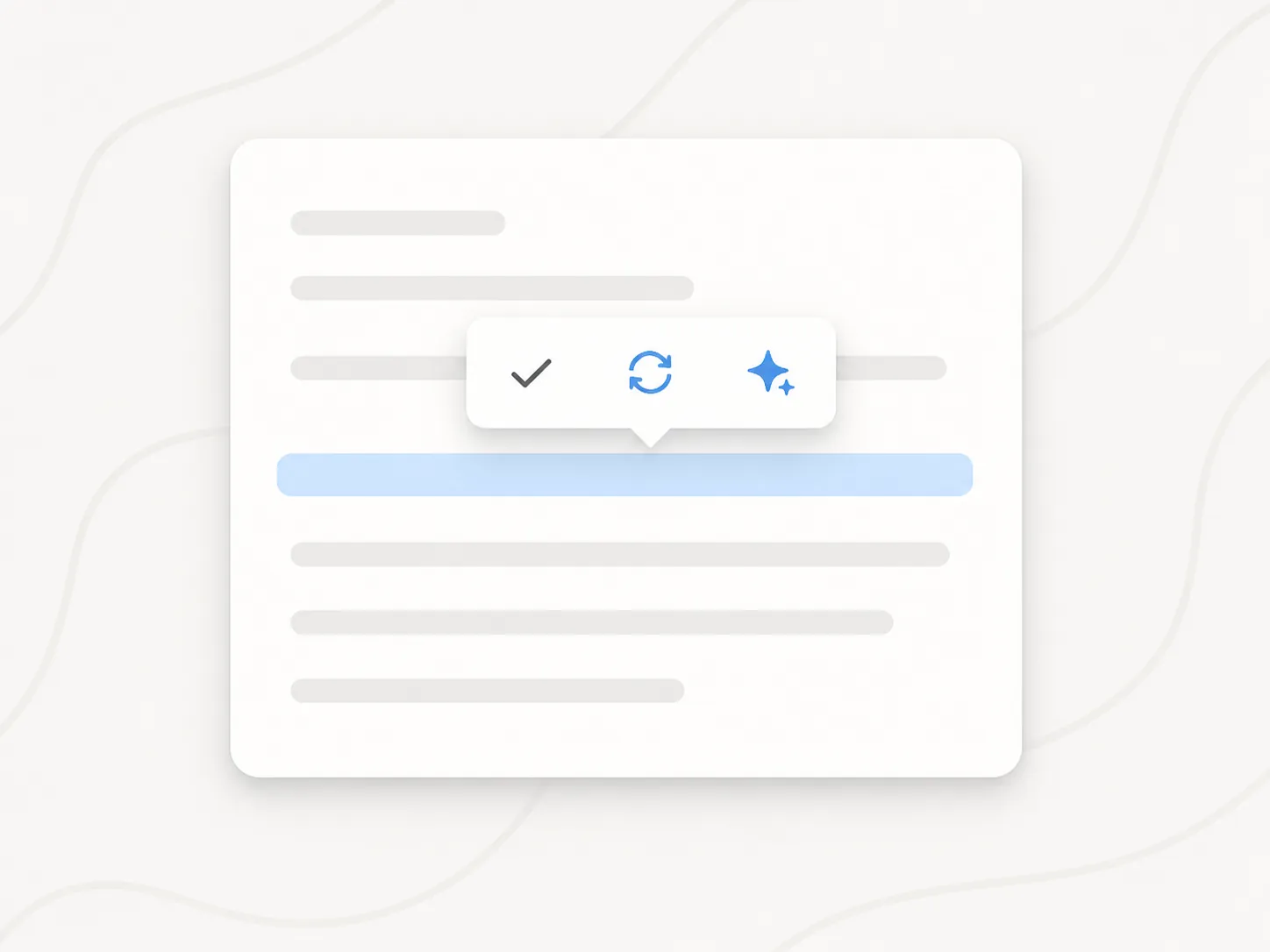
A practical first test is a short block of text that you wrote yourself. Select it and look for Writing Tools. Try Proofread first, then Rewrite or Summarize if those options are offered. This checks whether Apple Intelligence is enabled and whether the current writing surface exposes the system command, without requiring a vendor-specific workflow.
What is confirmed—and what is still a check
Apple Intelligence eligibility and the Writing Tools actions are the parts supported by the supplied documentation. Several more specific claims are not verified for this Mac mini launch window:
| Claim | Status |
|---|---|
| Apple Intelligence can be enabled on an M6 Mac | Confirmed by Apple’s M1-or-later compatibility requirement |
| Writing Tools can proofread, rewrite, and summarize text | Confirmed as Apple-documented behavior; exact Mac app presentation should still be checked |
| Apple Notes has a separate summarization or smart-reply workflow on Mac | Unverified in the supplied evidence |
| Notion, Obsidian, GoodNotes, or Notability has a specific Mac AI workflow | Unverified; check each vendor’s current documentation |
| A complete 2026 language and region list | Not supplied and therefore unresolved |
| A dated Q3 2026 Mac mini Apple Intelligence bug | No corroborated report was found in the supplied material |
The distinction is important when setting up a new machine. A system-level Writing Tools command is not proof that an app has built its own AI features, and an app’s marketing page is not proof that its feature runs locally on the Mac. For an app-by-app map covering Apple Notes, Notion, Obsidian, GoodNotes, and Notability, see the site’s AI note-taking app profile. For the broader locations of Apple’s system-level AI controls, the personal AI policy setup guide is the more relevant follow-up.
A note about audio transcription
Apple’s documentation catalog also outlines audio recording and transcription in Notes, along with call-transcript capabilities. The supplied source is an iPhone guide and does not confirm the required Mac model, macOS version, or a Mac mini workflow. It is therefore safer to treat audio transcription as a separate feature to verify in current Apple documentation, not as an automatic consequence of enabling Writing Tools. [7]
As of August 29, 2026, before the M6 Mac mini ships, the reliable setup path is straightforward: meet Apple Intelligence’s requirements, turn it on in System Settings, and use Writing Tools wherever the current writing surface exposes them. The M6 supplies the compatible hardware, but it does not create a special note-taking workflow. Apple Notes-specific AI, third-party app features, and current language coverage still need direct verification rather than a guess based on the chip name.
References
- Apple Announces New Mac Mini With M6 and M5 Pro Chips and More — MacRumors, August 25, 2026
- Apple's new Mac Mini has fresh M6 and M5 Pro chip offerings — and higher prices — The Verge, August 2026
- Apple introduces M6 and M5 Ultra for a big leap in performance and AI compute — Apple Newsroom, August 2026
- Introducing Apple Intelligence for iPhone, iPad, and Mac — Apple Newsroom, June 2024
- How to get Apple Intelligence — Apple Support
- Use Writing Tools with Apple Intelligence on iPhone — Apple Support
- Record and transcribe audio in Notes on iPhone — Apple Support
Comments
Join the discussion with an anonymous comment.