
The annoying part of setting a personal AI policy for note taking and productivity is that the policy does not live in one place. It lives in Notion’s workspace settings, Evernote’s AI feature switches, Apple’s system-level Intelligence controls, Goodnotes’ regional and feedback settings, Notability’s Learn permissions, and whatever Obsidian or Logseq plugin you installed three months ago and forgot about.
So the setup has to start with configuration, not beliefs. Pick one risk tier, apply it across every note app you use, and write down the date you verified each vendor claim. If you want the broader product landscape first, FlowDesk’s profile of what the AI boom changed in note-taking apps is the companion piece. This guide is the settings pass.
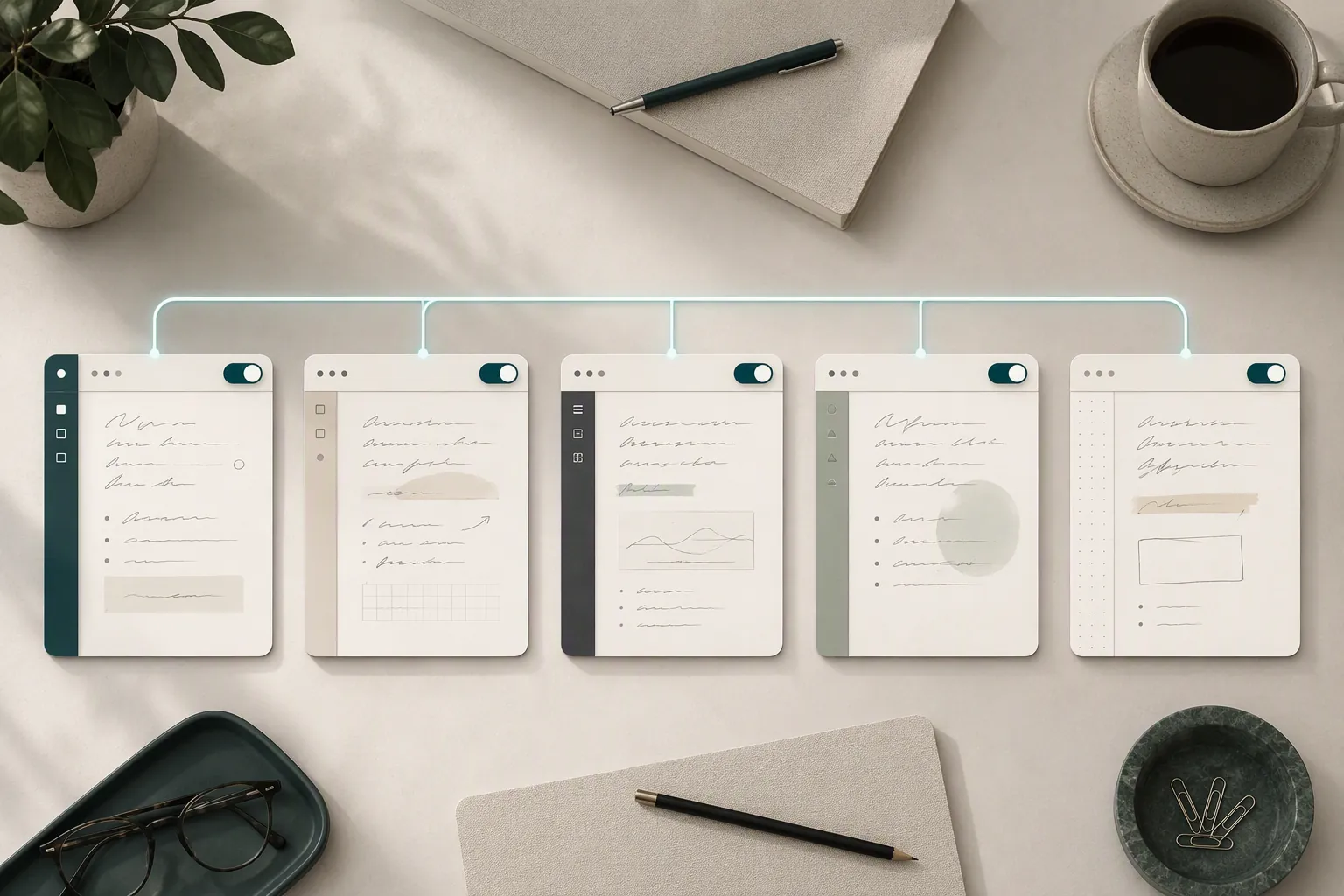
Pick one tier before opening settings
These three tiers are not vendor product names. They are a policy layer you impose on top of messy app settings. The point is to stop treating “AI” as one moral yes-or-no question when your apps expose it as a pile of unrelated defaults, permissions, retention claims, feedback switches, and plugin choices.
| Tier | What it means | The practical rule |
|---|---|---|
| AI-ok | Normal notes may use built-in AI features. | Use AI features for ordinary notes, task lists, meeting cleanup, study summaries, and search, while still avoiding obviously regulated or unusually sensitive material unless your organization has approved that use. |
| AI-with-redaction | AI may help, but sensitive material must stay out of AI-visible capture paths. | Before using an AI feature, remove client names, health information, financial details, internal strategy, student records, private journal content, or anything you would not paste into a third-party processor. |
| AI-off | Built-in or plugin AI is disabled wherever the app gives you a control. | Turn off app-level AI features, avoid installing AI plugins, disconnect cloud API keys, and use non-AI search or local-only tools unless you deliberately approve a narrow exception. |
The middle tier is the one that usually breaks in real life. It requires more than saying “I’ll be careful.” It needs boring capture rules: confidential meeting notes go in a non-AI workspace, student accommodations never go through lecture-summary tools, and quick notes that might contain private material do not get dumped into whichever app has the prettiest assistant button this week.

Per-app AI settings map, last verified Aug. 25, 2026
Every training, retention, and processing statement below is a vendor-stated claim unless marked otherwise. That is not the same as an independent audit. It is still useful, because settings work depends on knowing what the vendor currently says, where the switch lives, and what you should re-check before changing your workflow.
| App | AI feature and default status | Where the control lives | Vendor-stated training claim | Vendor-stated retention or processing claim | Set it for AI-ok | Set it for AI-with-redaction | Set it for AI-off | Last verified |
|---|---|---|---|---|---|---|---|---|
| Evernote v11 | AI Assistant, Semantic Search, and AI Meeting Notes are enabled by default; Evernote says they can be disabled individually. | Desktop/web: Settings > Preferences > AI features. Mobile: Settings > AI features. | Evernote states that it does not train AI models on user content. | Evernote states that AI Assistant data sent to OpenAI is deleted after the response. | Leave selected AI features enabled for ordinary notebooks. | Disable AI Meeting Notes or AI Assistant for notebooks that collect confidential meetings; use AI only after redacting sensitive text. | Turn off AI Assistant, Semantic Search, and AI Meeting Notes individually. | FlowDesk last verified: Aug. 25, 2026. Vendor page updated Jan. 15, 2026. [1] |
| Notion | Notion AI features are controlled at the workspace level, including AI web search and the data-sharing setting. | Settings > Notion AI. Relevant controls include AI web search and Share data to improve Notion AI. | Notion states that customer data is not used to train models by default. | Notion states that LLM providers retain non-Enterprise data for 30 days or fewer, Enterprise has zero retention, and embeddings are deleted within 60 days of page or workspace deletion. | Keep Notion AI enabled for routine workspaces; review web search and data-sharing settings. | Keep sensitive pages out of AI workflows; turn off data sharing; avoid using AI web search where source exposure is not acceptable. | Disable available Notion AI controls in Settings > Notion AI; for workspace-level edge cases, verify current admin options before relying on a forum-reported disable path. | FlowDesk last verified: Aug. 25, 2026. [2][3] |
| Apple Notes through Apple Intelligence | Apple Notes does not expose a simple Notes-only AI switch in the sources checked for this guide; Apple Intelligence features such as Writing Tools are controlled at the system level. | Apple Intelligence reporting: Settings > Privacy & Security. Blocking controls: Screen Time > Content & Privacy Restrictions > Intelligence & Siri, including Writing Tools and third-party AI extensions. | Apple frames Apple Intelligence as on-device first, with Private Cloud Compute used for more complex requests. | Apple states that Private Cloud Compute does not store data. Apple also provides an Apple Intelligence Report in Privacy & Security. | Allow Apple Intelligence if the note content is ordinary and your device/account setup supports it. | Use Writing Tools only on redacted selections; check the Apple Intelligence Report when you need to understand recent requests. | Use Screen Time restrictions to block Writing Tools and third-party AI extensions where available. | FlowDesk last verified: Aug. 25, 2026. [4][5] |
| Goodnotes | Goodnotes AI availability is region-restricted; not all users will see the same feature availability. | Goodnotes AI controls and availability depend on supported region and app context; verify inside the current Goodnotes settings before building a workflow around it. | Goodnotes states that notebook data is not used for training unless voluntarily submitted through Feature Feedback. | Goodnotes states that AI runs on an external LLM hosted on Amazon Bedrock under AWS privacy rules, that opted-in conversation data is retained up to 30 days, and that Goodnotes AI is not intended for protected health information under HIPAA. | Use Goodnotes AI for ordinary study and notebook cleanup if the feature is available in your region. | Do not send private tutoring, health, accommodation, legal, or client material through AI; avoid voluntary feedback submissions containing sensitive notebook content. | Do not use Goodnotes AI features; avoid Feature Feedback submissions involving notebook content. | FlowDesk last verified: Aug. 25, 2026. [6][7] |
| Notability Learn | Learn works with explicit note permission and has an AI Customization setting. | Settings > AI Customization. | Notability states that Learn does not train AI systems or LLMs on user data. | Notability states that Learn never accesses notes without explicit permission. | Allow Learn for ordinary class notes. | Grant Learn access only to notes that have been reviewed or redacted. | Turn off or avoid Learn through AI Customization and do not grant note access. | FlowDesk last verified: Aug. 25, 2026. Vendor page updated June 25, 2026. [8] |
| Obsidian with Smart Connections | Obsidian’s core app is not the same model as a hosted AI assistant here; AI behavior depends on installed plugins. Smart Connections describes local on-device embeddings and no API key. | Obsidian: Community plugins. Smart Connections settings depend on the installed plugin version. | Smart Connections describes itself as private and offline by default. | The plugin page describes local on-device embeddings and no API key; it also lists about 1.1 million downloads. | Use only plugins whose model route you understand. | Prefer local/offline plugin settings for sensitive vaults; do not connect cloud APIs for private vaults unless approved. | Disable AI plugins, remove API keys, or keep Community plugins off for vaults that should not expose content. | FlowDesk last verified: Aug. 25, 2026. [9] |
| Obsidian with local or cloud LLM plugins | AI behavior varies by plugin and model endpoint. One XDA walkthrough points Obsidian Copilot at a local LM Studio server; Asian Efficiency describes both paid cloud API use and free local models through Ollama. | Plugin settings, model provider settings, and any local runner such as LM Studio or Ollama. | No single Obsidian-wide training claim applies to third-party AI plugins; the relevant claim comes from the model provider or local runner you connect. | A local setup can keep note content off a cloud provider if the plugin is truly pointed at a local endpoint; cloud API costs and processing depend on the provider. | Use cloud or local plugins deliberately, with separate vault rules. | Use local models for sensitive vaults where quality is acceptable; keep cloud-connected plugins away from confidential folders. | Remove cloud API keys and disable AI plugins. If using local-only exceptions, document the endpoint and test that it is not calling a cloud service. | FlowDesk last verified: Aug. 25, 2026. XDA walkthrough dated Feb. 18, 2026. [10][11] |
| Logseq | A Logseq forum thread states that AI features were disabled by default, individually toggleable, and that OpenAI integration sent only blocks or pages explicitly selected after review. | Logseq AI settings and plugin settings; verify current app behavior before relying on the 2023 forum description. | No current vendor-help-center training claim is established in the sources checked for this guide. | The cited forum thread is from May 2023 and includes claims about the local LogMind plugin at that time; current status is unverified here. | Use only selected-block workflows you have verified in the current app version. | Select only redacted blocks/pages before invoking AI; do not assume graph-wide privacy from an old thread. | Keep AI features off and avoid AI plugins or OpenAI integration unless re-verified. | FlowDesk last verified: Aug. 25, 2026 for this source review; source itself is May 2023 and current status is unverified. [12] |
Where the map needs extra caution
Evernote: enabled by default is the setting that matters
Evernote is the row I would not skim. Its current FAQ says the v11 AI features — AI Assistant, Semantic Search, and AI Meeting Notes — are enabled by default and individually disable-able. That combination is privacy-relevant because “I never turned on AI” is not a reliable memory if the feature shipped already on. The useful part is that Evernote gives direct paths: Settings > Preferences > AI features on desktop and web, and Settings > AI features on mobile. The same FAQ states that Evernote does not train on user content and that AI Assistant data sent to OpenAI is deleted after the response; treat both as vendor claims last checked against a page updated Jan. 15, 2026. [1]
For AI-ok, that may be enough. For AI-with-redaction, the trap is meetings. A harmless task notebook and a client meeting transcript do not deserve the same setting just because they live under the same elephant logo. If Evernote is where meeting notes land automatically, disable AI Meeting Notes unless that capture path is known to be safe for your tier.
Notion: one settings page, several different questions
Notion’s privacy posture cannot be reduced to “AI on” or “AI off.” The relevant controls checked here live at Settings > Notion AI and include AI web search plus Share data to improve Notion AI. Notion states that it does not train on customer data by default, that LLM providers retain non-Enterprise data for 30 days or fewer, that Enterprise has zero retention, and that embeddings are deleted within 60 days after page or workspace deletion. Those are different claims about different parts of the system, not one blanket privacy sentence. [2][3]
That distinction matters if Notion is your shared project system. A team wiki page, a draft launch plan, and a personal habit tracker may sit in the same workspace but deserve different handling. If your tier is AI-with-redaction, the safer operational move is not to rely on memory when someone uses AI; keep sensitive pages in a workspace or section where people know AI use is restricted. For broader Notion fit, AI Agents, and pricing context, FlowDesk’s Notion Review 2026 is the better place to zoom out.
Apple Notes: control Apple Intelligence, not just Notes
Apple’s documentation frames Apple Intelligence as on-device first, with Private Cloud Compute for more complex requests, and says Private Cloud Compute does not store data. The controls checked here are system-level: the Apple Intelligence Report appears under Settings > Privacy & Security, while Screen Time > Content & Privacy Restrictions > Intelligence & Siri can block Writing Tools and third-party AI extensions. [4][5]
The practical consequence is simple: if you use Apple Notes as quick capture, your policy has to cover the whole Apple Intelligence layer. For AI-with-redaction, select and rewrite only text you have already reviewed. For AI-off, use Screen Time restrictions rather than hunting for a Notes-only switch that was not found in the checked Apple documentation.
One caution: Basil AI published a 2026 analysis estimating that shorter Writing Tools requests may stay on device while longer passages may escalate to cloud processing, and it argued that users cannot force an on-device-only mode. That is a competing local-transcription vendor’s testing and interpretation, not an Apple-documented threshold, so it should be read as a caution signal rather than a control spec. [13]
Goodnotes and Notability: students need note-level habits because class archives get messy
Handwritten study apps are easy to underestimate because the notes look casual. They are often not casual. A semester archive can contain graded feedback, disability accommodations, patient scenarios, tutoring notes, names, schedules, and photos of whiteboards that were never meant to become AI-visible material.
Goodnotes says its AI runs on an external LLM hosted on Amazon Bedrock under AWS privacy rules, that notebook data is not used for training unless voluntarily submitted through Feature Feedback, that opted-in conversation data is retained up to 30 days, and that Goodnotes AI is not intended for protected health information under HIPAA. It also says availability is region-restricted, including unavailability in China, Hong Kong, Macau, Russia, and other regions. [6][7]
Notability’s Learn documentation is narrower. It says Learn does not train AI systems or LLMs on user data, never accesses notes without explicit permission, and can be managed at Settings > AI Customization. The page was updated June 25, 2026. [8]
For AI-with-redaction, the usable rule is not “never summarize class notes.” It is: summarize the chemistry lecture, not the page with a professor’s private feedback, a classmate’s details, or clinical material. If your notebooks are already a mixed pile, clean the folder structure before trusting yourself to make the right decision from a share sheet.

Obsidian and Logseq: plugins are not defaults, but they can still leak your policy
Obsidian and Logseq sit in a different category from hosted AI-first note systems. The privacy question is less “what did the vendor enable by default?” and more “what did you install, what endpoint did you connect, and which blocks did you select?” That gives careful users more control, but it also creates a false sense of safety if a cloud API key is quietly sitting inside a plugin settings pane.
Smart Connections for Obsidian describes local on-device embeddings, no API key, and private/offline behavior by default; its plugin page also lists about 1.1 million downloads. That is a useful option for people who want AI-adjacent search without immediately routing a vault to a cloud model, but it is still a plugin choice that needs version-by-version review. [9]
For local LLM use, the key detail is the endpoint. An XDA walkthrough points Obsidian Copilot at LM Studio’s local server URL, http://localhost:1234/v1, so note content is not being sent to a cloud provider in that setup. Asian Efficiency’s setup notes give the other half of the reality check: AI plugin setup can be quick, cloud API use may cost roughly $3–10 per month for moderate use, and local Ollama models can be free but need at least 8GB of RAM, with 16GB recommended, and may produce lower-quality output. [10][11]
Logseq needs the most careful wording. The source checked here is a May 2023 forum thread saying AI features were disabled by default, individually toggleable, and sent only explicitly selected blocks or pages after review. That is useful historical evidence, not a current vendor-help-center guarantee. If Logseq is part of your AI-off or AI-with-redaction setup, verify the current build and plugin behavior before assuming the old selected-block model still describes your system. [12]
Apply the policy as a settings note
Make one small note called something boring like “AI settings — personal policy.” Put it somewhere you will actually find it when a new assistant button appears. Then record the tier, the apps, and the verification date. This does not need to become a compliance manual.
- Choose AI-ok, AI-with-redaction, or AI-off for your whole note system. If one app needs an exception, write the exception down instead of keeping it in your head.
- Open each app’s AI settings page and match the toggles to the table above.
- For plugin-based apps, list the plugin name, model provider, endpoint, and whether any API key is connected.
- For AI-with-redaction, create the capture rule before using the AI feature: which notebooks, folders, vaults, pages, or blocks are allowed?
- Add “last verified: Aug. 25, 2026” next to each app today, then update that date only after re-checking the vendor page or current app settings.
The re-check is not optional housekeeping. Evernote can change defaults, Notion can change workspace controls, Apple can change system restrictions, and plugin authors can change model routing. Before you turn on a new summarizer, connect a new API key, or let a study app process a semester’s worth of handwriting, compare the current settings page against your policy note.
A personal AI policy is not what you believe about AI. It is what Notion, Evernote, Apple Notes, Goodnotes, Notability, Obsidian, and Logseq are actually configured to do today.
References
- Evernote's AI Features FAQ — Evernote Help & Learning, Jan. 15, 2026
- Notion AI security & privacy practices — Notion
- Notion AI FAQ — Notion
- Apple Intelligence and privacy on iPhone — Apple Support
- Block access to Apple Intelligence features in Screen Time — Apple Support
- Goodnotes AI Frequently Asked Questions — Goodnotes Support
- Goodnotes Privacy Frequently-Asked Questions — Goodnotes Support
- Notability Learn — Ginger Labs Support, June 25, 2026
- Smart Connections plugin page — Obsidian Community Plugins
- Using my local LLM with Obsidian — XDA, Feb. 18, 2026
- Obsidian AI Plugins Setup — Asian Efficiency
- Why Logseq AI, and how to preserve privacy? — Logseq Forum, May 2023
- Apple Intelligence Writing Tools Privacy Analysis: What Data Leaves Your Device? — Basil AI, March 6, 2026
Comments
Join the discussion with an anonymous comment.