
Last checked: July 29, 2026. If your iPhone is already on iOS 26.6, the fastest useful pass is five layers: Call Screening, unknown/SPAM filtering, Blocked Contacts cleanup, carrier-level blocking, and third-party caller ID. iOS 26.6 shipped with a new Blocked Contacts Limit alert on July 27, 2026, but iOS 27 may change paths or behavior later, so treat this as a current setup audit, not a permanent map of the Phone app. [1][2]
The productivity case is not mystical. Truecaller estimates that Americans spent 186 million hours on spam calls from February 2025 through January 2026, with an average spam-call duration of 6 minutes. [3] A commonly cited interruption benchmark puts post-interruption focus recovery at about 23 minutes, which is enough to justify a careful setup pass even if you do not turn that into a pretend clinical estimate of monthly time saved. [4] Spam-volume reports also make the same practical point: the problem is common enough that leaving the Phone app half-configured is a maintenance issue, not a personality flaw. [5][6]
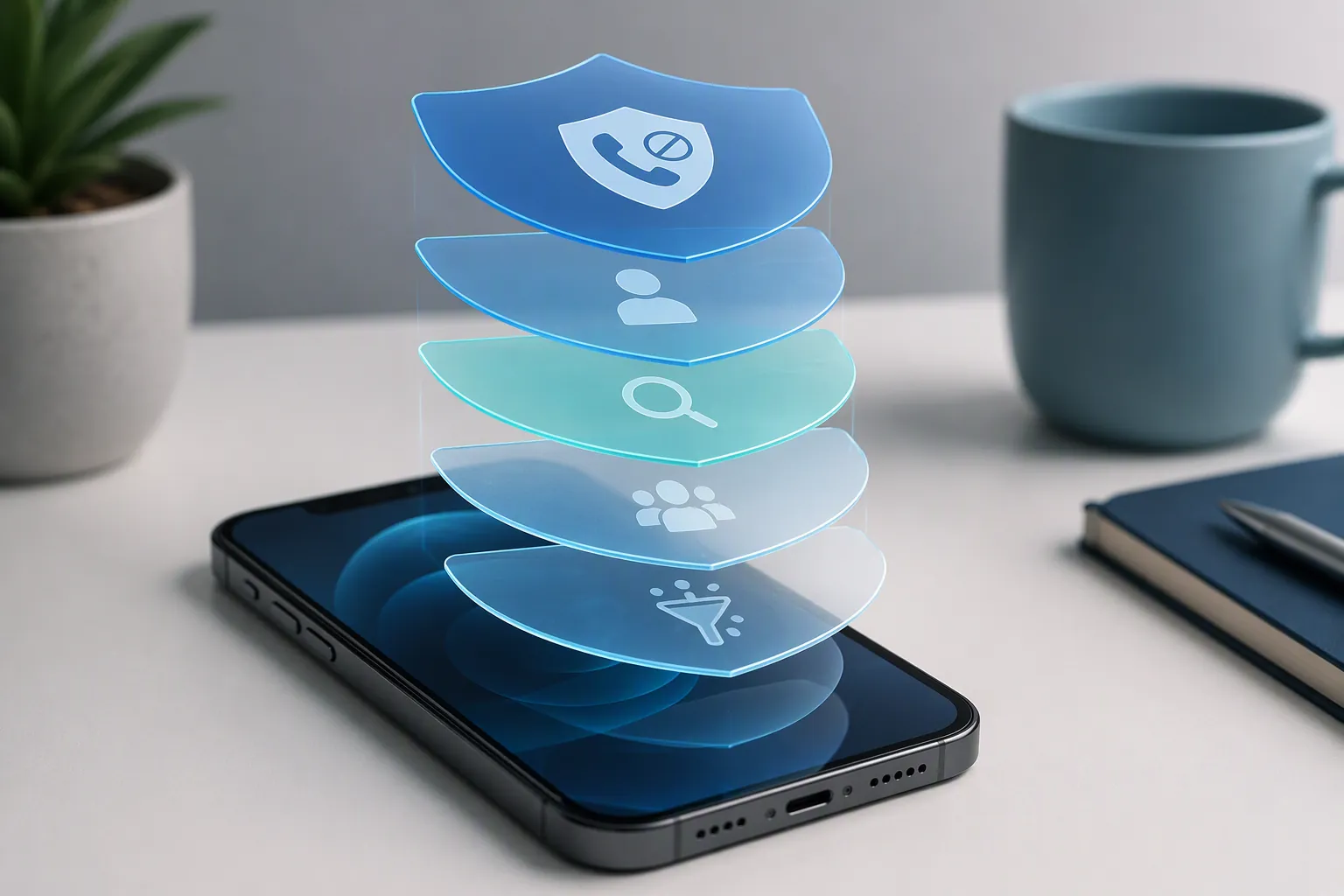
The five-layer pass before you start tapping
Do this once, in order. The point is not to make the harshest possible phone; it is to make a phone whose call handling you can explain afterward.
| Layer | Where to open | What you are checking |
|---|---|---|
| 1. Call Screening | Settings > Apps > Phone > Call Screening | Ask Reason for Calling is enabled, and a non-contact caller is forced to state why they are calling before you decide whether to answer. |
| 2. Unknown and SPAM filters | Settings > Apps > Phone, then Settings > Apps > Phone > Call Blocking & Identification | Silence Unknown Callers is used only if you really want unknown calls sent away; carrier junk/spam silencing is enabled if your carrier exposes it. |
| 3. Blocked Contacts list | Settings > Apps > Phone > Blocked Contacts | The list is not so bloated that iOS 26.6 warns you it has reached a limit, and old one-off blocks are removed when they no longer help. |
| 4. Carrier-level blocking | Your carrier app or account page, plus Settings > Apps > Phone > Call Blocking & Identification | The carrier’s network filter is enabled in the carrier account and its iPhone extension is enabled if one appears. |
| 5. Third-party caller ID | The caller-ID app, then Settings > Apps > Phone > Call Blocking & Identification | The app has finished onboarding, its iOS toggle is on, and you know whether it identifies, blocks, or only labels calls. |
Layer 1: Use Call Screening as the middle ground
Open Settings > Apps > Phone > Call Screening. Choose Ask Reason for Calling. Apple’s Phone settings and call-blocking support pages are still split across Phone preferences, Call Blocking & Identification, and the Blocked Contacts list, so starting here matters: this is the layer that can reduce interruptions without automatically throwing every unknown caller into voicemail. [7][8]
Ask Reason for Calling is the more humane default for people who still receive legitimate unknown calls: a doctor’s office, a school, a delivery driver, a contractor, a new client. Macworld’s hands-on account describes it as the setting that can make spam callers disappear without requiring a blanket silence policy, and 9to5Mac’s Phone app review makes the same case from the daily-use side: the valuable part is not another block button, but the pause inserted before the iPhone demands attention. [9][10]
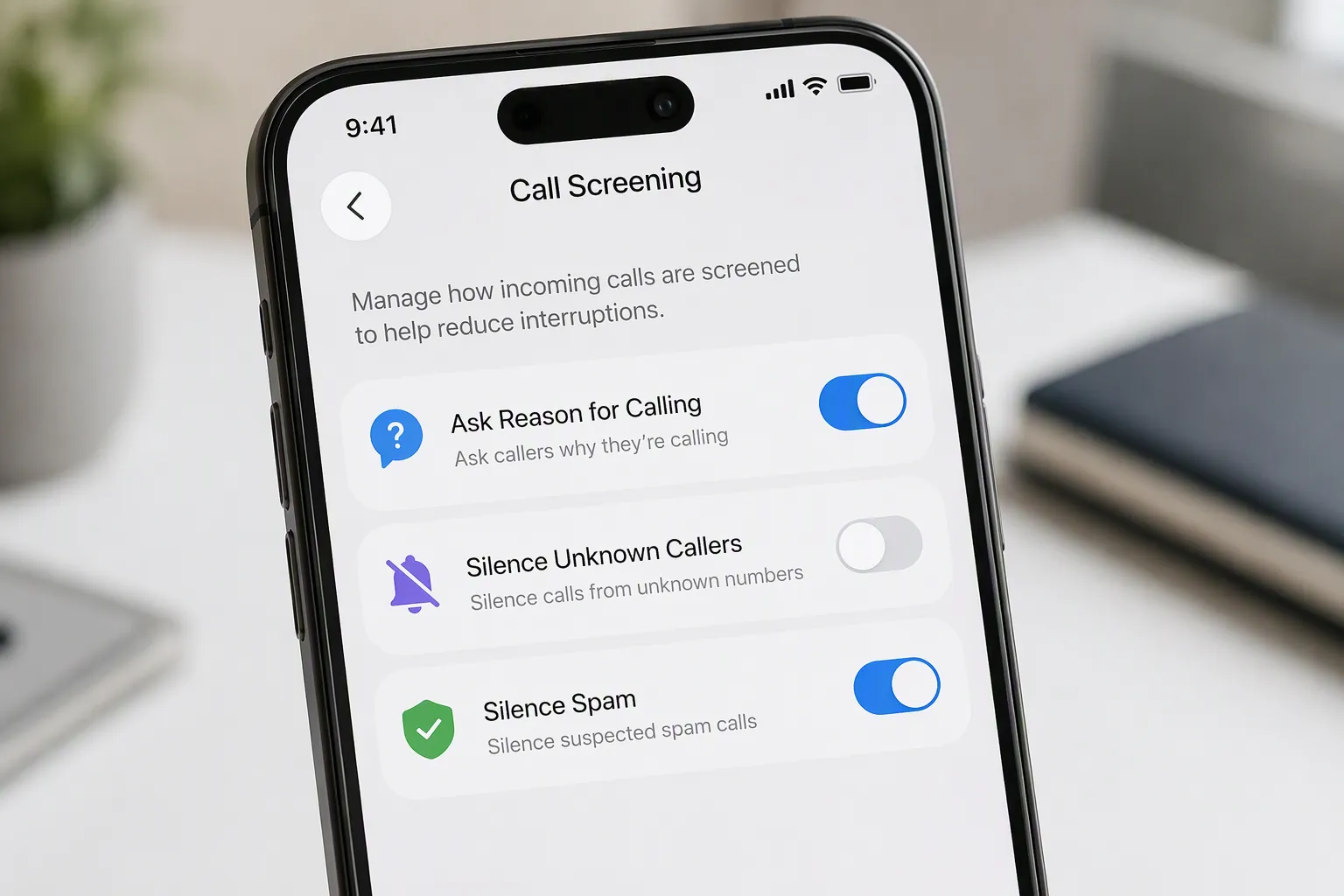
Verify it before you trust it
Use a phone number that is not saved in Contacts. Ideally, choose a number you have not recently called back and that is not already suggested from Mail or Messages, because Apple’s unknown-caller behavior can treat some previously surfaced numbers differently from a truly unfamiliar caller. [8]
- Ask the test caller to call your iPhone.
- Do not answer immediately.
- Confirm that the caller is asked for a reason and that your iPhone shows that reason before you choose what to do.
- If the call rings through normally, reopen Settings > Apps > Phone > Call Screening and confirm Ask Reason for Calling is still selected.
One field warning belongs here, not as panic and not as proof of a system-wide bug: OWC’s walkthrough includes an anecdotal report that Low Power Mode interfered with Ask Reason for Calling. If your test fails and the setting looks correct, turn off Settings > Battery > Low Power Mode, then test again. Treat that as troubleshooting, not as a confirmed Apple-documented limitation. [11]
Layer 2: Decide how aggressive unknown and SPAM filtering should be
Now open Settings > Apps > Phone and find Silence Unknown Callers. This is the blunt instrument. Apple describes the feature as sending calls from unknown numbers to voicemail while still showing them in Recents. [8] That can be perfect for a deadline week or a child’s device. It can also be the wrong setting for someone waiting on a pharmacy, a hiring manager, a repair technician, or a hospital callback.
A sensible default for most working adults is: Ask Reason for Calling on; Silence Unknown Callers off. Then use the stronger silence switch only when you can accept the consequences. If you do enable it, verification is simple: call from a number outside Contacts and confirm that your iPhone does not ring, the call appears in Recents, and voicemail is available if the caller leaves one.
For SPAM or junk-call filtering, open Settings > Apps > Phone > Call Blocking & Identification. If your carrier provides a spam filter or silence-junk-calls option there, turn it on. Apple’s support material places third-party and carrier call-identification controls in this screen; the exact labels can vary because the carrier or app supplies the extension. [7]
Verify the unknown/SPAM layer
- For Silence Unknown Callers: test with a non-contact number and confirm the call is silenced, appears in Recents, and can leave voicemail.
- For carrier SPAM or junk filtering: confirm the carrier toggle remains on after you leave and return to Settings > Apps > Phone > Call Blocking & Identification.
- After the next suspected spam call, check Recents for a spam, junk, scam, or carrier label. Do not assume the layer is working just because a carrier app says protection is available.
Layer 3: Clean up Blocked Contacts before the new limit alert becomes your only clue
Open Settings > Apps > Phone > Blocked Contacts. This is where years of “Block this Caller” taps accumulate. iOS 26.6 now warns users when the Blocked Contacts list reaches its limit, a small change that matters most to people who have been manually blocking spam for years. PCMag covered the new alert in the iOS 26.6 release, and CNET separately described the blocked-contact ceiling behavior in its iOS 26.6 coverage. [1][2]
Be careful with the number people repeat online. Reports have put the ceiling somewhere in the 8,000-to-20,000 range, but Apple has not published a fixed official limit, and the effective ceiling may vary by device, region, carrier behavior, or how the list is stored. [1][2] The practical instruction is therefore not “stay under a magic number.” It is: if iOS shows the Blocked Contacts Limit alert, stop adding numbers and clean the list before you trust manual blocking again.
What to remove first
- Old one-off spoofed numbers that look like random mobile numbers and have not repeated.
- Duplicate-looking entries from the same spam campaign if your carrier or caller-ID app now catches that campaign.
- Numbers you blocked temporarily: a contractor, marketplace seller, old appointment line, or service callback that no longer needs to stay blocked.
- Anything you cannot explain. A blocked list is a safety tool only if someone can audit it later.
To remove an entry, tap Edit in the Blocked Contacts list, delete the entries you no longer want blocked, then leave the screen and return to confirm they are gone. Apple’s call-blocking guide also documents the ordinary blocking path from recent calls and contacts, which is useful for confirming that manual blocking still works after cleanup. [8]
Verify the blocked list
- After deleting entries, reopen Settings > Apps > Phone > Blocked Contacts and confirm the removed numbers did not reappear.
- From Phone > Recents, open the info button for a recent unwanted number and confirm Block this Caller is still available.
- If iOS shows the Blocked Contacts Limit alert again, do not keep tapping block as if the list is infinite. Move more of the work to carrier and caller-ID layers.
Layer 4: Turn on carrier blocking where it actually lives
Carrier blocking is easy to think you have enabled when you have only installed an app, or easy to forget because it lives outside the iPhone Settings app. Open your carrier’s app or account page and look for its spam, scam, fraud, or call-filtering feature. Enable the protection level you actually want. Avoid paid upgrades unless you understand what the free layer does first.
Then return to the iPhone side: Settings > Apps > Phone > Call Blocking & Identification. If the carrier provides an iOS call-identification or blocking extension, it should appear here with a toggle. Turn it on. Apple’s support page places these app-provided call blocking and identification controls in this screen, which is why the carrier app alone is not enough to verify the iPhone layer. [7]
Verify the carrier layer
- In the carrier app or account page, confirm the spam or scam protection status says enabled.
- In Settings > Apps > Phone > Call Blocking & Identification, confirm the carrier toggle is present and on.
- After the next suspicious call, check whether Recents shows a carrier label or whether the carrier app logs the call. If neither place shows anything, the network layer may still be active, but you cannot audit it from the iPhone.
Layer 5: Add one caller-ID app only if you can keep it auditable
A third-party caller-ID app can help label or block calls the carrier misses, but it also adds another place to troubleshoot. Install the app you intend to use, finish its onboarding, allow the permissions it requests for call identification, then open Settings > Apps > Phone > Call Blocking & Identification and turn on its toggle. Apple describes this as the control point for installed call-blocking and identification apps. [7]
Do not install three caller-ID apps just to feel covered. If two apps label the same call differently, or one silently blocks while another only identifies, the cleanup becomes harder. One well-maintained app plus the carrier layer is easier to verify than a stack of overlapping promises.
Verify the third-party app
- Open the caller-ID app and confirm its database, protection, or call-identification status is current.
- Return to Settings > Apps > Phone > Call Blocking & Identification and confirm the app toggle stays on.
- Check the app’s own explanation of whether it blocks calls, labels them, sends them to voicemail, or only identifies them in Recents.
- After a labeled call appears, check whether the label came from the carrier or the app. If the source is not visible, make a note of which layers are enabled before changing anything.
Run the combined verification pass
This is the part most people skip and then regret. The iPhone can have Call Screening configured correctly, a carrier filter half-enabled, an old third-party app still toggled on, and a Blocked Contacts list so swollen that new manual blocks are unreliable. Verify the stack as a system.
| Check | Good result | If it fails |
|---|---|---|
| Ask Reason for Calling | A non-contact test caller is asked to state a reason before your iPhone asks for your attention. | Confirm Settings > Apps > Phone > Call Screening, then test again with Low Power Mode off. |
| Silence Unknown Callers | If enabled, a non-contact test call is silenced, appears in Recents, and can go to voicemail. | If legitimate calls matter right now, turn it off and rely on Ask Reason for Calling instead. |
| Carrier SPAM or junk filter | Carrier protection is enabled in the carrier account, and any iPhone extension toggle is on. | Reopen the carrier app, finish setup, then return to Call Blocking & Identification. |
| Blocked Contacts | The list opens normally, old entries can be removed, and new manual blocking is still available from Recents. | If the iOS 26.6 limit alert appears, delete stale entries and stop treating manual blocking as the main defense. |
| Third-party caller ID | The app reports current protection, its iOS toggle is on, and you understand whether it labels or blocks. | Disable abandoned or duplicate apps so you can tell which layer is acting on a call. |
For a parent’s phone or a partner’s overstuffed blocked list, take one extra minute and write down the final state: Ask Reason on or off, Silence Unknown on or off, carrier filter name, caller-ID app name, and whether a Blocked Contacts Limit alert appeared. That note is more useful than memory when someone says, two weeks later, that an important call did not ring.
Maintenance rhythm
Repeat the audit after major iOS updates, carrier-plan changes, SIM or eSIM changes, and any caller-ID app reinstall. Also repeat it if spam calls suddenly start ringing again after a quiet period. The most common failure is not that iOS has no defenses; it is that one layer was turned off, superseded, or never verified.
For an Android version of the same cleanup mindset, see FlowDesk’s Samsung notification-spam guide. If calls are now under control and you want to extend the same discipline to Focus Modes, Shortcuts, and the rest of the iPhone, continue with Make Your iPhone So Productive You Won’t Want to Upgrade.
References
- Apple Releases iOS 26.6 With Handy Feature If You Get a Lot of Spam Calls, PCMag, July 27, 2026
- iOS 26.6 Public Betas Available, Add Small Change to Blocked Contacts, CNET
- US Spam Stats, Truecaller
- How Spam Calls Affect Your Daily Productivity and Interrupt Focus, Call Blocker USA
- Robocall Statistics 2026, Osmo
- How Many Spam Calls a Day Is Normal in the US?, thebestvpn
- Detect and block spam phone calls, Apple Support
- Screen and block calls on iPhone, Apple Support
- My favorite iOS 26 feature has banishéd spam callers once and for all, Macworld
- iOS 26’s new Phone app has a feature I don’t ever want to go without, 9to5Mac
- Silence of the Spams: How to enable iOS 26 iPhone Call Screening filters, OWC
Comments
Join the discussion with an anonymous comment.